
Create with Riverside, right from your AI chat.
Connect Riverside to Claude, ChatGPT, or other AI tools. Ask it to prep your next episode, edit a recording, create clips, or schedule a post.
Record multiple people in the same room with Riverside’s Mac app, add remote guests, and get separate, synced tracks, ready to edit.

Trusted by:

.svg)
.svg)
.svg)

.svg)
.svg)
.svg)
Trusted by:
Connect Riverside
to your favorite AI assistant.
What your AI can do now
EDIT
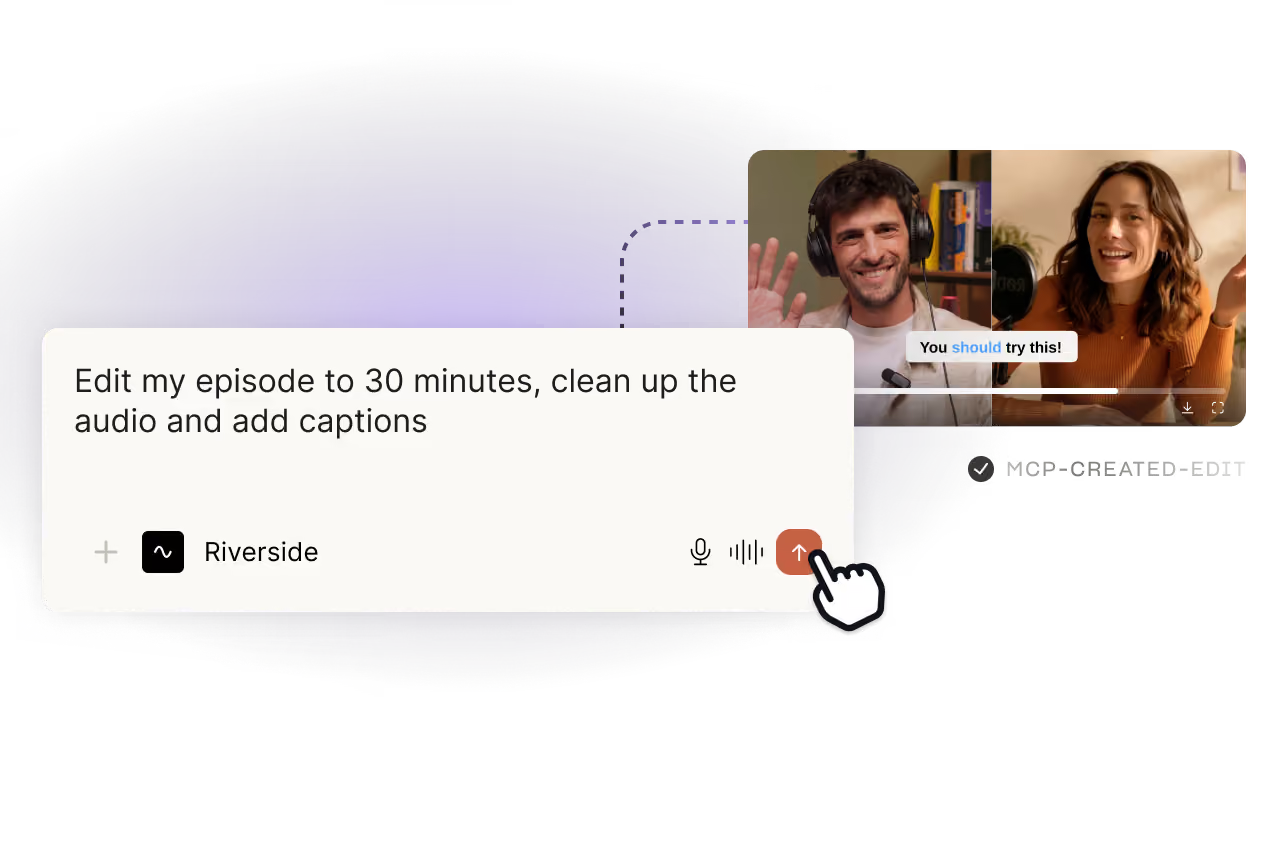
Edit in plain language.
Tell your AI which parts to keep and what to tighten, find engaging moments for the hook, and automate routine edits like cleaning up audio, applying branding and captions, and more.
.avif)
CLIP
Cut clips for social.
Ask your AI to find the most social-worthy moments in your recording and make them into clips. It reads the transcript, finds the best parts, and edits them in Riverside.
ASSETS
Automate your
asset pack.
Hand your AI a finished episode and let it produce the whole content package as soon as you finish recording: thumbnail, title, show notes, social posts, and newsletter, drafted in your voice.
.avif)
.avif)
PUBLISH
Schedule and post without switching tabs.
Publish and schedule to YouTube, TikTok, Instagram, Facebook, and X, straight from your chat. Ask for the best time to post on each and your AI will schedule it that way.
PLAN
Your AI knows
your content.
Search your Riverside transcripts to brainstorm new episodes, find past moments, and prep for your
next recording.
.avif)
How it works.
01
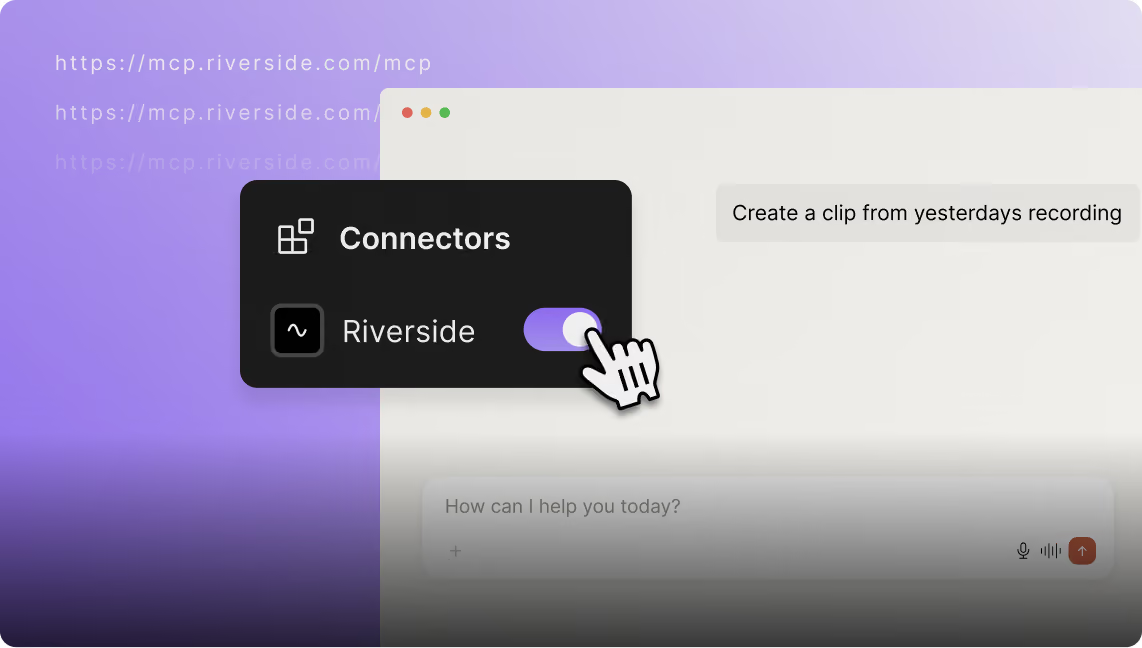
Connect Riverside to your AI.
In Claude, ChatGPT, or Cursor, add the Riverside MCP as a connector. Takes about a minute.
02
Give it access to your projects.
Authenticate once. Your AI can now see your transcripts, recordings, and studio.
03
Just ask.
Type what you want in plain language. Your AI handles the rest in Riverside.

Frequently Asked Questions
FAQ
What is the Riverside MCP?
The Riverside MCP (Model Context Protocol) is a connection between Riverside and AI assistants like Claude, ChatGPT, and Cursor. Once connected, your AI can work directly on your Riverside content: search your transcripts, make edits, cut clips, and publish to social media.
Which AI assistants work with Riverside?
Claude, ChatGPT, and Cursor have one-click setups. Any assistant that supports MCP can connect too. See the Help Center for more information.
Is the Riverside MCP free?
It's included on Grow plans and above at no extra cost. You'll need an active Riverside subscription and an account with your AI assistant.
Do I still need to use the Riverside platform?
Yes. Recording happens in Riverside — that's where you get 4K local recording and separate tracks for everyone. The MCP handles the work around the recording: prep, edits, clips, publishing. The Riverside Editor is also still where you go to fine-tune an edit.
How do I connect Riverside to Claude?
Click this link, or open the plugin directory in Claude, search for Riverside, and click connect. Sign in to Riverside to authorize.
How do I connect Riverside to ChatGPT?
Click this link, or go to ChatGPT settings → connectors, find Riverside, and click connect. Sign in to Riverside to authorize.
How do I connect Riverside to Cursor?
Click this link, or go to Cursor’s MCP settings, find Riverside, then sign in to authorize.
How do I set up Riverside with a different AI assistant?
Any AI tool that supports MCP can connect using Riverside's server URL. Full instructions here.
How do I disconnect the AI integration?
Remove Riverside from your AI’s settings. Access ends immediately and nothing in your Riverside account changes.
How do I edit a podcast or video recording with AI?
Describe the edit and your AI executes it in Riverside. Ask it to create a hook from the most engaging moments, clean up the audio, remove filler words, tighten a rambling section, and more. View the results in the Riverside platform.
How do I turn an episode into short clips with AI?
Once connected, your AI has access to all recordings and uploads in Riverside. Tell your AI which recording to work from and describe the clip you want. Your AI will find, cut, and edit your clip, and then provide a link to Riverside where you can edit it further, if you want.
How do I post clips to YouTube, TikTok, and Instagram with AI?
Once a clip is ready, tell your AI where it goes: "Post this to TikTok and Instagram on Tuesday at 9am." You must connect your social media accounts to Riverside through the web platform for this to work.
Can I undo an edit my AI made in Riverside?
Yes. Every edit lands in your Riverside project as an editable version, not a finished export. Open it in the studio and change or revert anything.
What happens to my data if I disconnect my AI assistant from Riverside?
Your recordings, transcripts, and edits stay in Riverside exactly as they are. Disconnecting removes your AI's access to them — nothing is deleted and nothing moves.
What can my AI actually see in my Riverside account?
Only your content: recordings, transcripts, and projects. It can't see your billing details or account settings. And it only acts when you ask it to.
Go from prompts to published.

Features


English


