
.svg)

.svg)


.svg)


.svg)


.webp)
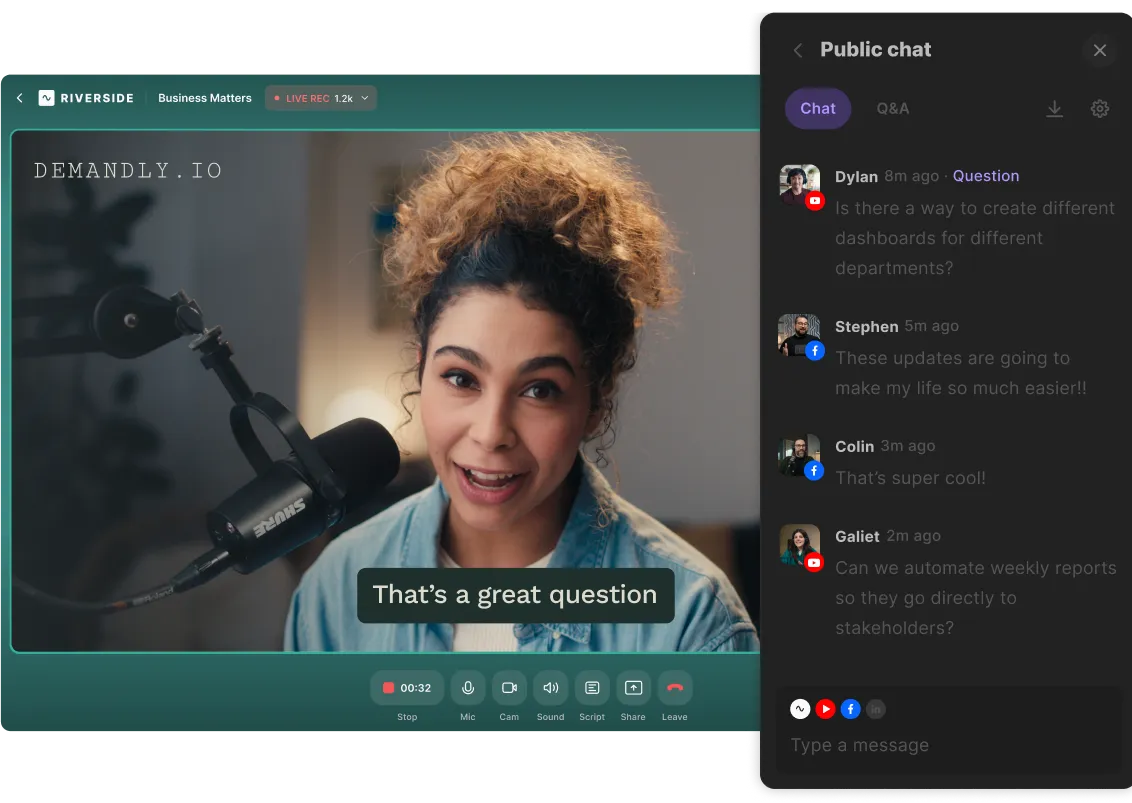
Gehe live in bis zu HD Qualität, vor bis zu 10.000 Menschen, wenn du willst.
Nimm jeden Moment deines Webinars in 4K-Qualität mit glasklarem Audio auf.
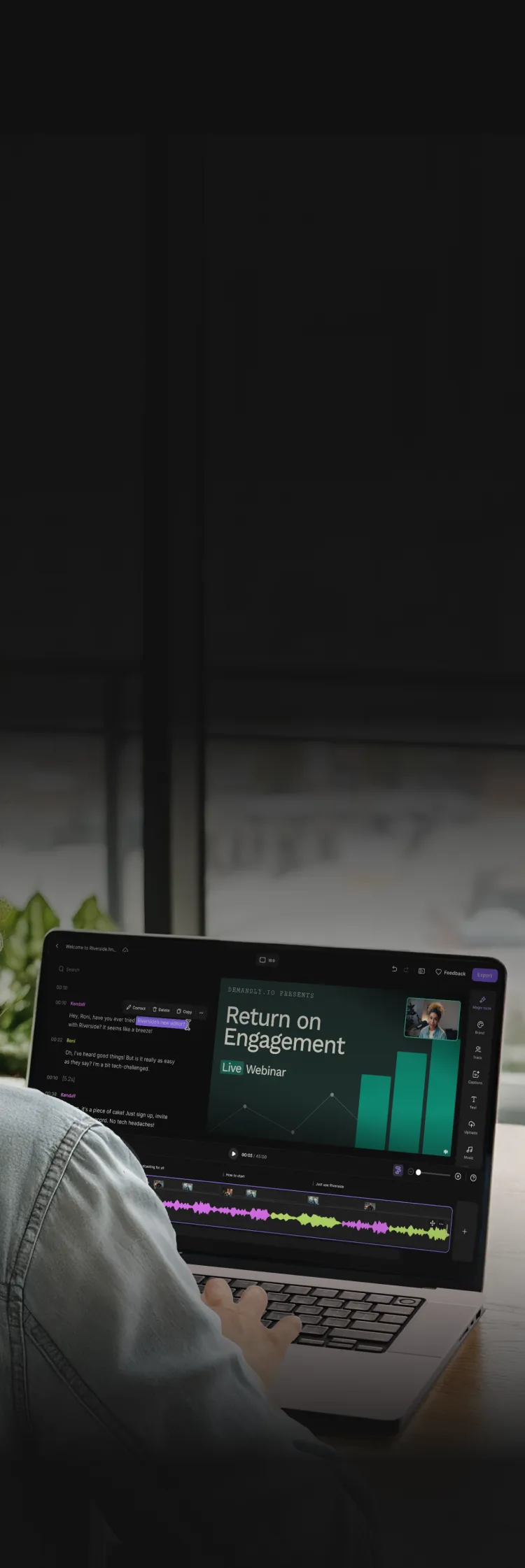
Schneide, bearbeite, füge Untertitel und Overlays hinzu, verbessere den Klang und vieles mehr - ganz einfach.
Mit KI verwandelst du dein Webinar sofort in Clips, Zusammenfassungen oder Social-Media-Inhalte.

Anders Larsen | Product Marketing Manager
Warum sich Spotify für Riverside entschieden hat
Stream in bis zu 1080p direkt im Browser. Riverside reduziert die Auswirkungen von Verbindungsproblemen durch Backend-Optimierung.
Alles wird bis zu 4K-Video und glasklarem Audio in separaten Spuren aufgezeichnet und in die Cloud hochgeladen, während du fortschreitest.
.webp)
Behalte alle Inhaltsoperationen bequem und sicher im Griff und gib deinen externen Mitwirkenden individuellen Zugriff.
Verwandle Zuschauer in Teilnehmer mit Live-Chat, Q&A, Umfragen und Live-Anrufen. Denn Gespräche halten alle am Ball.
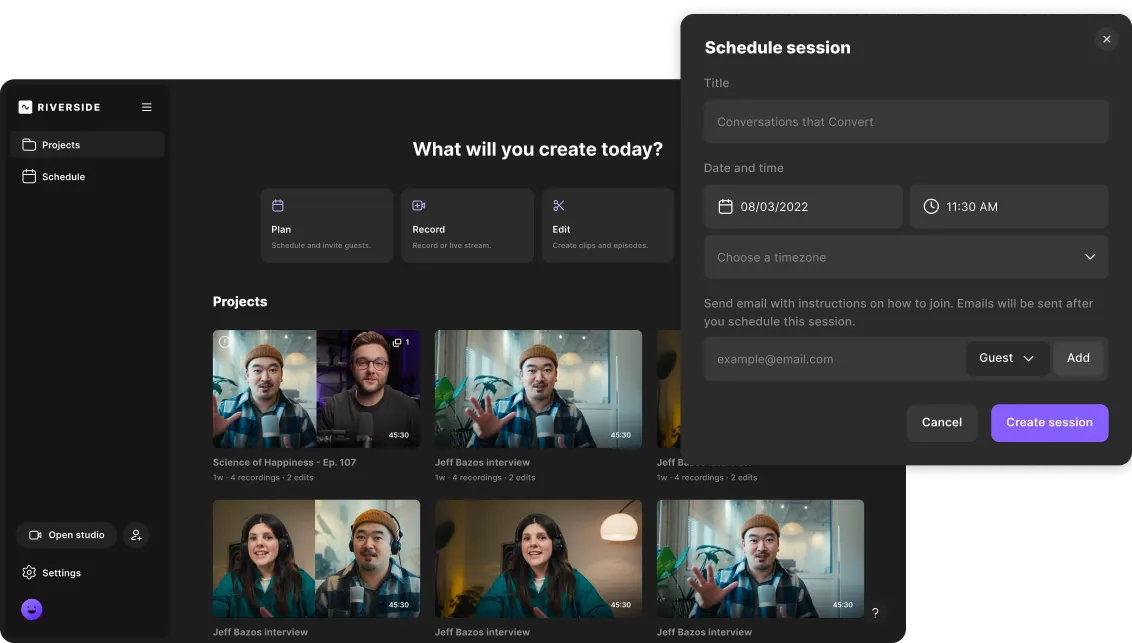
Lade vor der Sitzung beliebige Medien hoch, wie Intros, Demos, Präsentation und sogar komplette Vorträge, und drücke einfach auf Play.
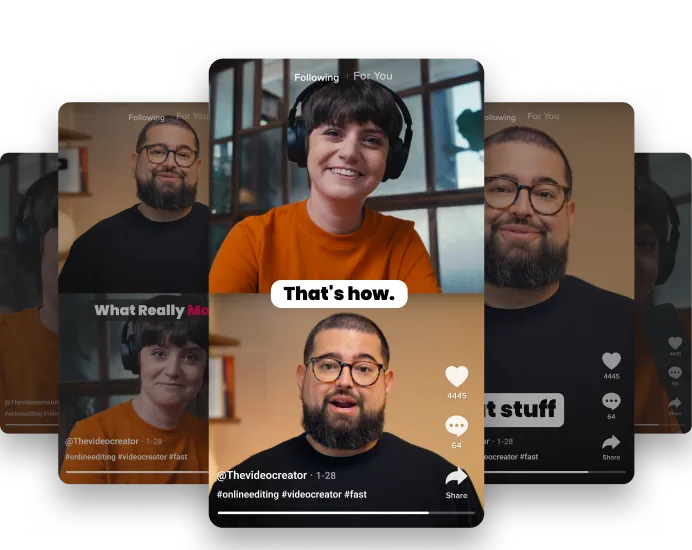
Deine Aufnahme ist bereit, wenn du willst. Öffne sie im Riverside-Editor, um Highlight-Clips, Social-Media-Inhalte, Follow-up-Videos und vieles mehr zu erstellen. Alles aus einem einzigen Webinar.
Behalte im Blick, woher deine Anmeldungen kommen und wie lange Teilnehmer dabei sind - so erfasst und qualifizierst du Leads und erzielst du Wirkung.
.webp)
Alle deine Daten befinden sich in der Tabelle der angemeldeten Personen, die als CSV heruntergeladen oder direkt zu HubSpot als Kontakteigenschaften synchronisiert werden können. Dein Team wird dir danken.
.webp)
.webp)

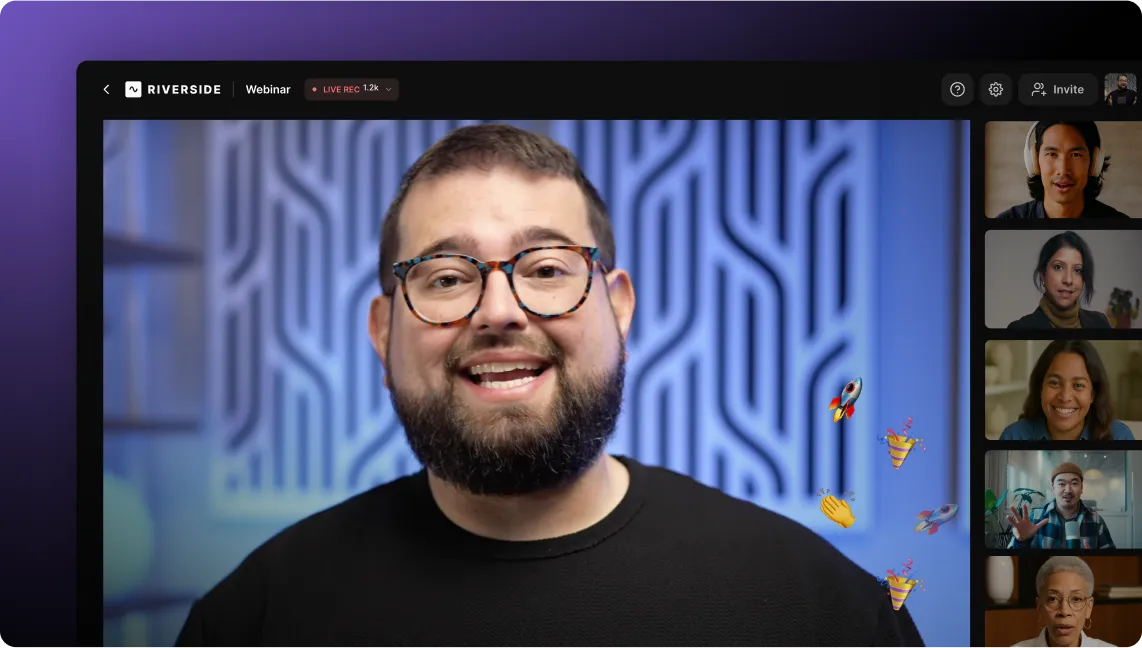
You can host and record up to 10 guest speakers in a Riverside webinar.
Up to 10,000 audience members can join to watch a live webinar session. Meanwhile you can multistream your webinar to different social media channels, making your audience size practically limitless.
There’s also a chat box which viewers can use to send chat messages and ask the host and other guests questions.
Audience members can also request a live call-in. If granted, they will be recorded for the duration of the call-in without counting towards your 8 total recorded streams.
No. However, our mobile app is great when on the go, and if you have an iPad, we really think you’ll love using the Riverside app on it. Finally, the Mac Studio app offers a great meeting place away from the hustle and bustle of the browser.
Up to 1080p depending on your internet connectivity.
Riverside records audio in 48kHz as standard. Audio quality may differ depending on your sound equipment and recording environment. As for video, you can record in up to 4K (UHD).
It’s important to note that we record everything locally, straight on the device you’re on, then upload it to the cloud. That means the only thing affecting the quality of your recording is the equipment you use and the quality of your recording is maintained even under unstable or subpar internet connections.
Most alternatives record you straight to the cloud, making the final quality dependent on the strength of both your and your guests’ internet connection. These alternatives usually compress files to reduce their size too, which further compromises their quality. We capture and upload your recording tracks at raw, highest quality footage.
You can read our guide to learn more on how to record a webinar in high-quality.
Having separate audio and video tracks for each participant basically means that you have all the raw footage, so you can edit and use it however you want.
Recording everything on one track like Zoom does means you might hear your guests talking over one another. This leads to a whole lot of complications when editing. As for video, it would either mean having a split screen all throughout or only having the shot of the person speaking each time.
Your guest recordings are uploaded to your account, just like your local recording. When you're done, you'll find all recordings in your dashboard. No need to wait for anyone to send anything.
Sure. We’ve got a variety of webinar branding features.
You can upload your company logo to your studio and choose a background to match your brand.
Later on in the editor, you can add more branded and recognizable footage, as well as add overlay text and images and style them.
All that and more – you can customize and animate your captions with a wide variety of fonts, colors, sizes, and design effects to make them on brand.
Absolutely! Because you have separate video and audio tracks of each participant recorded in high-quality, you really have your way with how you want to use and reuse your footage.
For a quick, no-brainer turnaround there’s Magic Clips. This feature will pick out the best moments in the recording for you and turn them into short clips which you can share on social, on your website, and whatnot.
Very. All your studios, recordings, files, and tracks are in the cloud where everyone has access to them.
With our business plans, team members can act as producers for one another, giving them absolute control over the recording without actually being recorded.
There’s also a special editor role for team members who just need access to the final recordings.
Finally, you can create different production environments for different projects and needs, making everything easy to find.
Alles, was du brauchst , um ein Webinar zu erstellen. Und noch viel mehr.


