


Key takeaways:
- Branding makes your webinar recognizable, even without a logo on screen.
- A webinar brand kit keeps you consistent, giving you ready-to-use colors, fonts, slides, overlays, and intro/outro assets.
- Branding goes beyond visuals. It includes tone, scripting, accessibility, and how you engage with attendees in real time.
- Branded webinars drive recall and trust, making your content easier to remember, repurpose, and convert into leads.
Branding a webinar means shaping the visuals, tone, and experience to promote your brand. And if you’re effective, attendees should be able to identify you without ever seeing a logo.
In this guide, I’ll break down the full process from building your visual identity to setting up your platform and measuring the results.
Let’s get into it.
How to brand your webinar in 11 easy steps
Follow these 11 steps to brand your webinar experience from registration through to follow-up.
1. Define your brand’s ‘North Star’
Before you design anything, nail down your core audience, value proposition, and tone. This guides your creative decisions going forward. In 3-5 lines, describe:
- Your audience: Who this webinar is for.
- Your audience’s pain point(s): What problem does it solve for them?
- Your USP: The unique promise or point of view you will deliver.
Don’t skip this step. It ensures that your branding isn’t just pretty, but purposeful.
2. Build a webinar-specific brand kit
Next, create a mini style guide document for your webinars. Start with your existing brand guidelines and adapt them for a live online format.
Include elements like:
- Fonts (for slides and on-screen text).
- Color codes.
- Your logo (and variations for light/dark backgrounds).
- Rules for any background elements (like background images or frames).
- Rules for motion and audio (such as intro animations or sound cues).
- Rules for transitions and intro/outro clips.
Pull all the assets you need into a folder, including your logo files, lower third overlays, intros, and outros. Everything is ready to pull up whenever it’s webinar time.
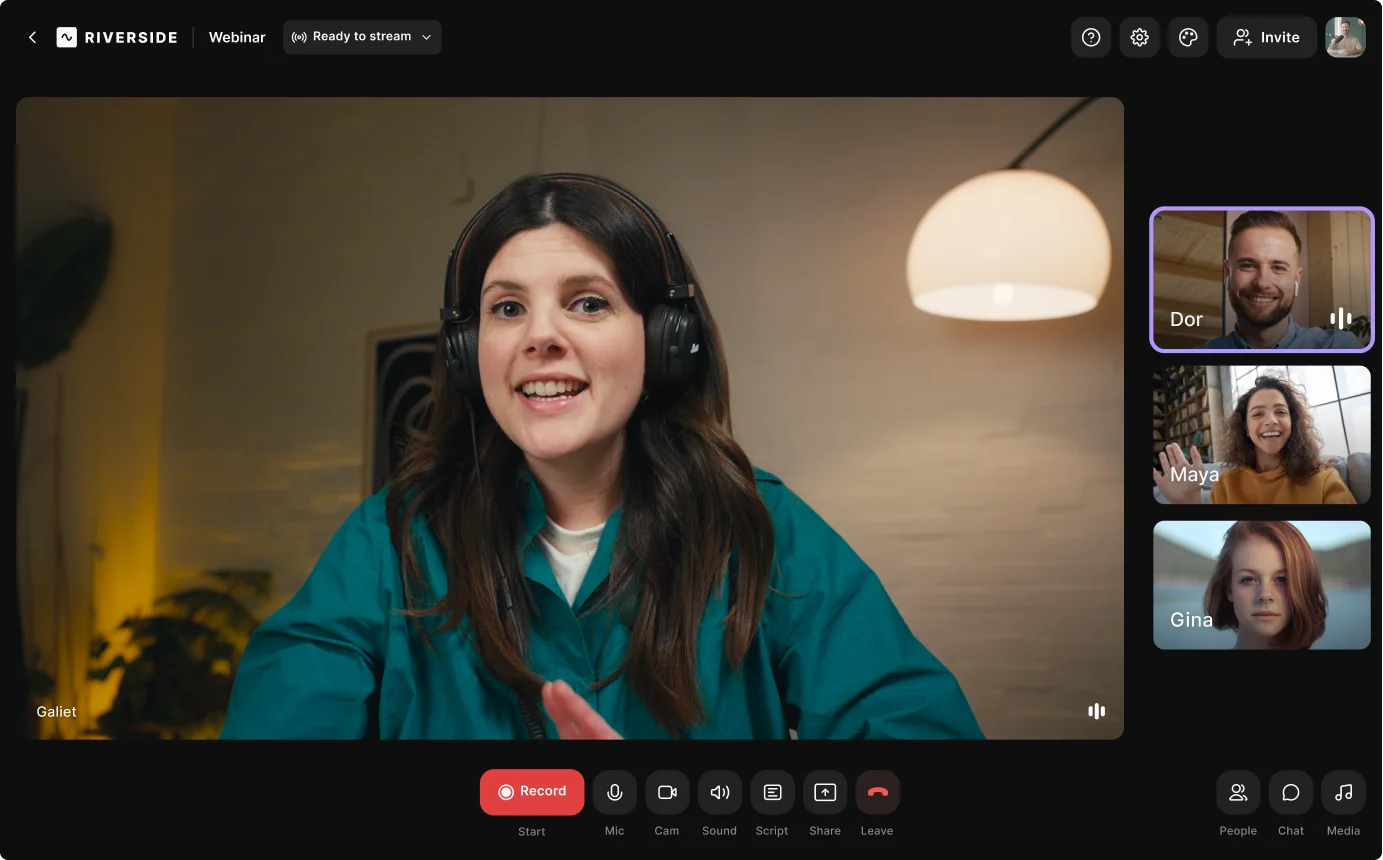
Pro tip: With Riverside’s webinar software, you save brand presets in your studio so that they’re always ready to go for your next webinar.
3. Map and brand your attendee experience
Great branding requires consistency at every touchpoint. To make this happen, I suggest you map out your attendee journey and list every asset or touchpoint you’ll need to brand.
Your list might look something like this:
Pre-webinar:
- Registration landing page.
- Confirmation and reminder emails.
- Calendar invites.
- Promotional graphics.
Live webinar:
- Presentation slides.
- Virtual background or backdrop.
- Lower third name tags.
- Polls or Q&A interface elements.
- Screen overlays.
Post-webinar:
- On-demand recording page.
- Follow-up emails (for attendees and no-shows).
- Highlights or clips for social media.
- Blog pages.
This ensures you apply your brand consistently at every step. The experience will feel seamless and professional for your audience.
4. Design your registration and reminder system
First impressions count (and you want sign-ups, right?), so make sure your sign-up page and emails strongly reflect your brand.
Use a consistent headline style, imagery, and tone of voice. When someone lands on your registration page, they should immediately recognize your company’s look.
Some webinar platforms let you do this in-house. For example, on Riverside you can easily customize your registration form to include your logo and brand colors.
Tip: Don’t forget to brand your calendar invites. Use your brand or webinar series name in the event title and include a short, value-rich summary in the description.
Read: 14 Top Webinar Landing Page Examples
5. Configure your webinar platform’s branding settings
Pre-set your branding in your webinar software before your event starts. You’ll prevent potential on-the-day or live bloopers.
Here’s how if you’re using Riverside:
Add your logo
A clean logo instantly gives your webinar a branded feel. In your Riverside studio, click the “Brand” icon on the right sidebar to open your branding options.
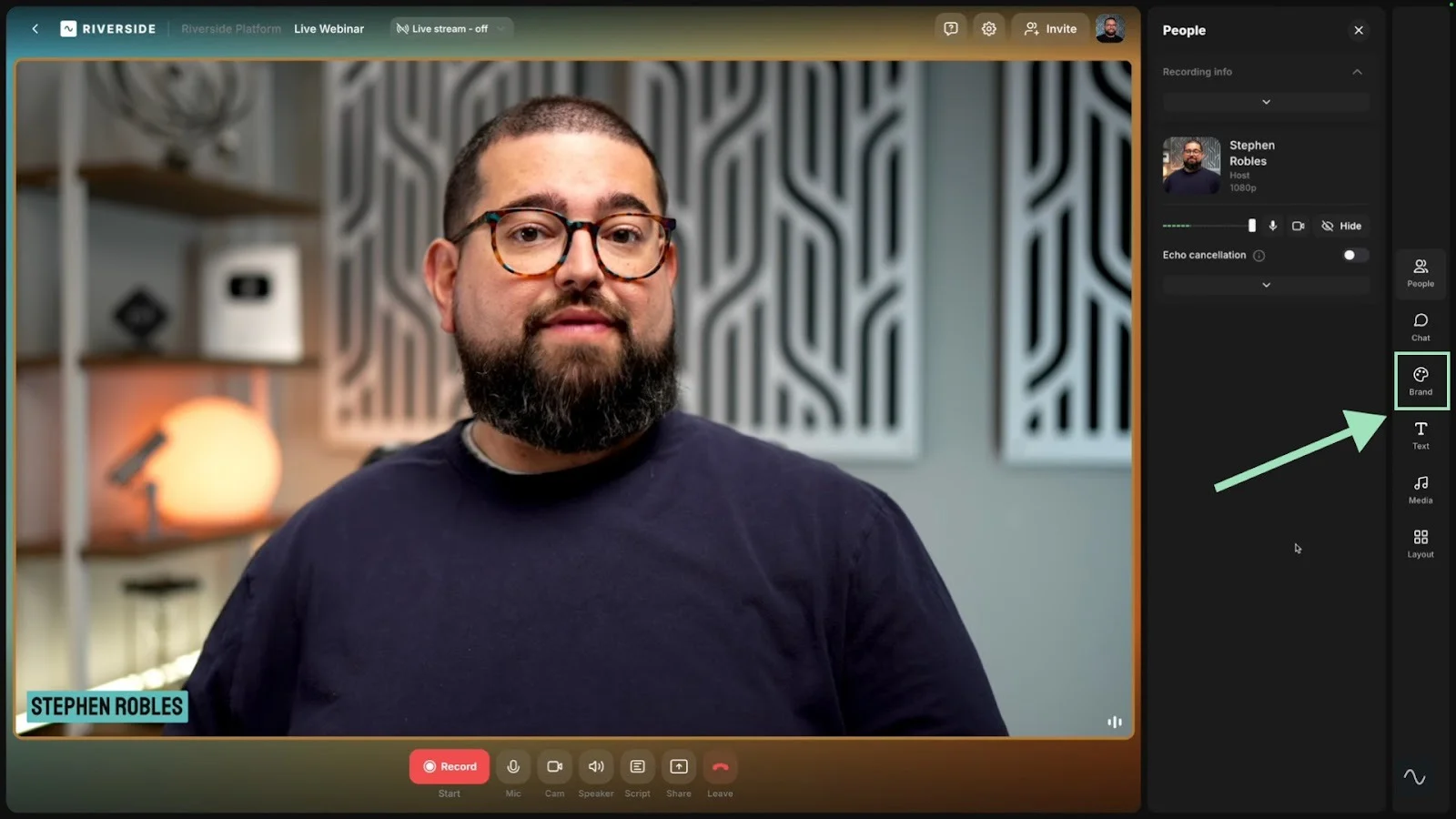
You can easily add a logo to your Riverside studio by clicking the “+” icon next to “Logo”, then adjust its placement.

Add a branded background
You can also choose a color for your background frame, or even add your own branded image. From the “Brand” options, click the “+” icon next to “Background” to upload a JPG or PNG image.
You can also choose or upload your own virtual background for a consistent, branded look.
Style your look with overlays
Add text or video overlays during your presentation to keep things engaging (and branded!). With Riverside, you can add image overlays and branded backgrounds by clicking on “Overlays” in the “Brand” options.
If you’re recording your webinar, you can also add elements like this during editing.
Add branded lower thirds and text
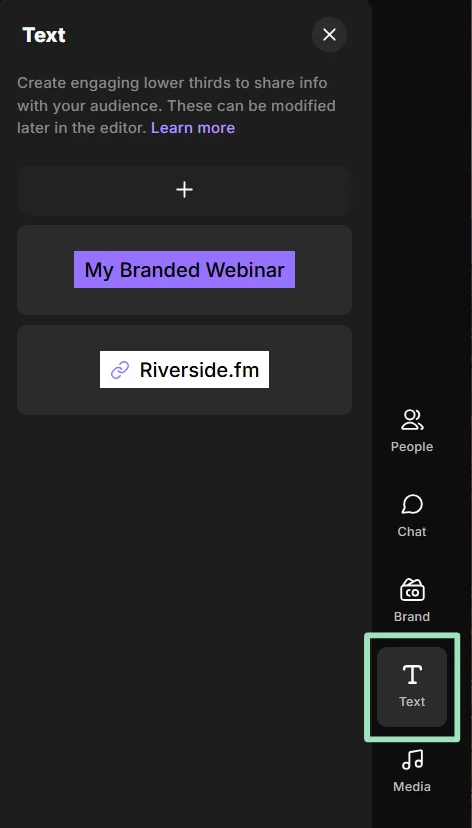
Branded lower thirds give your webinar that professional look. With Riverside, you can add and customize them from the “Text” menu in the right sidebar of your studio.
Upload your own branded music
A branded jingle during your intro and outro sets the stage and creates a recognizable anchor for your content.
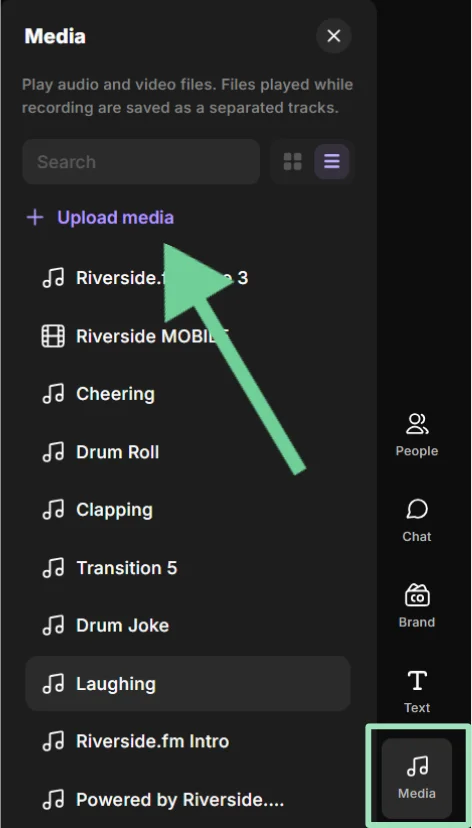
With Riverside, you can upload music to your Media Board, so it’s ready to be queued up during your presentation. Just click “Media” from the studio sidebar, then “Upload Media” to add your track.
6. Brand your presentation and on-screen graphics
During the live webinar, your slides and on-screen elements are the brand. Be sure to design a slide deck template that follows your brand guidelines.
If your branding is calm and professional, use simple fades or quick cuts. If you’re a high-energy brand, consider a snappier motion graphic.
And, make sure all these elements are ready and tested before you go live. By setting up and scripting these elements in advance, your webinar will flow smoothly.
All participant slides should also use the same template to ensure a consistent look across speakers.
Read: Webinar Presentation Full Guide
7. Script in specific brand moments
A truly branded webinar isn’t just about static visuals. It’s woven into the live delivery.
As you create your event agenda, plan specific brand moments. For example, you can start with a branded intro clip and introduce each new segment with a consistent transition or branded slide.
You should also decide when and how you’ll mention your brand or product. Will it be a quick CTA callout at the halfway mark? Or a more direct pitch at the end?
I suggest using Riverside’s teleprompter to help you stay on track.
You should also consider how you incorporate your brand with your audience in the live chat, polls, or other engagement areas.
Pro tip: You can even write canned responses to common questions in your brand voice so that team members can paste them into the chat when those questions come up.
8. Ensure accessibility and inclusivity
Design your visuals and content to meet accessibility standards. After all, inclusivity should be on-brand for every organization that cares about its audience.
To do this:
Design accessible visuals and content: Use high-contrast colors, choose clear, legible fonts, and avoid fast flashing animations or chaotic motion.
Caption your webinar: Captions increase accessibility for people who are hard of hearing and for those who learn better by reading. If your webinar has a diverse or global audience, you can also use captions to make the webinar accessible in other languages.
With Riverside, you can also use our AI translation feature to translate your webinar recordings for a larger audience.
Use inclusive language and examples: Avoid idioms or references that may not translate well across cultures, and ensure your imagery reflects the diversity of your audience.
By baking in accessibility and cultural sensitivity, you’re not only doing the right thing, you’re also strengthening your brand.
9. Add branding to post-webinar assets
The branding doesn’t stop simply because your webinar is over. Post-webinar assets allow you to extend your branding and continue engaging attendees.
You’ll want to brand your:
Webinar recording
If you plan to send out a replay or host it on your website, make sure it’s branded just like the live event.
If you’re using Riverside, just head to the editor where you can:
- Add a logo by going to “Brand” in the editor, then the “+” icon beside “Logo.”
- Add customized lower-third name tags by clicking “Text” in the editor menu. Here you can select a style and then customize color, placement, and for how long the lower third displays.
- Add customized captions by clicking “Captions” from the editor menu and choosing a style. After that, you can adjust size and placement as they appear on the video.
- Create intros and outros by clicking “Add Music” below your editing timeline, then adjusting placement, volume, and fade-in/fade-out.
- Add b-roll by clicking “Video” in the editor. You can upload your own video, choose from stock selections, or let Riverside’s AI generate a scene just for you.
- Use Riverside’s AI Co-Creator to help you with all of this (and more!) by simply chatting with it.
Follow-up communication
Use your branded email template when you reach out to thank attendees or send out the webinar recording to no-shows.
Stick with the same header or footer and style that you used in invites. The tone of the copy should also reflect your brand voice (e.g., enthusiastic, expert, friendly, etc).
Online and repurposed assets
Repurposing a webinar is a great way to get a lot more out of it. If you’re posting the webinar on social media or as on-demand content on your website, you could create a branded landing page or blog post for it.
According to our data, though, at least 23.3% of marketers considers repurposing a punishing task since they do it manually. Riverside’s AI Co-Creator can help you create blog content from your video automatically with a prompt.
You could also use Riverside’s Magic Clips to instantly create short, shareable social clips with branded captions or frames. This helps re-engage the audience and drive traffic to the full webinar. The main point is, after the live webinar, don’t treat the content as separate from your brand.
10. Do a branding test run
Before going live, test everything from a branding perspective:
- Are the right logos showing up in your webinar software when you screen share or switch scenes?
- Do the lower thirds display correctly (and with correct titles/spelling)?
- Do your intro/outro videos look and sound right in the live environment?
- Does your background or overlay cover any important content?
- Do your automated captions look the way you want them to?
This is also a good time to review all pre- and post-webinar communications.
Open the registration page on desktop and mobile. Send yourself the reminder emails and click all the links. Make sure the calendar invite downloads with all the right elements.
Put on your attendee hat and experience everything in an attempt to catch inconsistencies and errors.
11. Measure brand performance and iterate
After the webinar, don’t just fixate on leads or attendee counts. Evaluate how your branding performed overall and plan improvements. To do this:
- Gather data and feedback from attendees (through surveys, social media comments, the webinar chat log, etc).
- Track engagement metrics related to branding (e.g., watch time, chat activity, CTA clicks).
- Note the registrant-to-attendee conversion rate.
Use these insights to iterate on future webinars.
Dos and don’ts of webinar branding
To create a successful branded webinar, you need to balance consistency with restraint. Here are some key dos and don’ts to guide you.
Do:
- Integrate branding throughout: Consistency makes your webinar look polished and reinforces your brand identity at every turn.
- Ensure accessibility and inclusivity: Accessibility ensures your webinar is available to a broader audience. Making the effort also reflects positively on your brand.
- Keep the focus on value: Your webinar should address a specific pain point for your audience. This ensures that you provide value, not just a sales pitch.
- Use high-quality assets: Blurry or outdated visuals can undercut your credibility. Always use the correct colors and high-resolution, up-to-date logo files.
- Continue to evolve: Brands that evolve with design trends and platform capabilities are more able to keep webinars feeling fresh and engaging. Stay curious and keep improving your branding skills by exploring new branding features or techniques.
Don’t:
- Overdo it: Avoid crowding the screen with too many logos or graphics. Branding should frame and highlight your message, not smother it.
- Over-promote: Your audience should remember you for providing genuine value, not self-promotion. Your content should be able to stand on its own, even as it subtly highlights your expertise.
- Go off-brand: Remember that brand kit? Stick to it, and avoid colors and fonts that aren’t part of your scheme.
- Ignore new possibilities: Don’t stick to the same old approach without evaluating new tools. Try a new design template or a different feature in your webinar software, for example.
Why should you brand your webinars?
When you pair great content with great branding, you can create a truly memorable experience for your audience. Here’s what branding can do for your next webinar:
- Build trust and credibility: Consistent branding signals professionalism and makes your webinars feel reliable from the first impression on.
- Strengthen your brand identity: A branded webinar showcases your brand’s personality in a live format and reinforces your values and voice.
- Enhance audience recall: Repeated exposure to your colors, visuals, and style helps attendees remember your brand long after the event.
- Drive engagement and leads: Familiar, consistent branding builds recognition, making attendees more likely to think of you when they need a solution.
- Make repurposing easier: Branded recordings look polished on YouTube, social media, blogs, and email, so you can repurpose content with minimal extra work.
FAQs about webinar branding
Which webinar software is best for branding?
The best webinar softwares for branding give you flexibility to customize the look and feel of your event. Look for platforms that support features like brand kits or themes, as well as overlays, virtual backgrounds, and styled waiting rooms.
Riverside allows you to apply a saved brand kit across all your studios, meaning your logo, color theme, and other settings automatically carry over. It also supports layouts and on-screen elements (like lower thirds and overlays), so you can create a truly branded webinar experience.
Riverside’s end-to-end approach means you can record or live stream with branded backgrounds and then easily edit and repurpose your content with the same branded elements when the presentation is over.
If you’re looking for webinar software, check out our top picks for best webinar software.
How do I create webinar brand guidelines?
Creating webinar-specific brand guidelines is the best way to ensure that your branding is professional and consistent across all touchpoints. Start by taking your existing brand guidelines (which likely cover logo usage, color palette, fonts, and tone of voice) and extend them to webinars. In your webinar brand guide, document things like:
- What your slide decks should look like (template with logo placement, header style, background colors for slides).
- Preferred imagery or graphics style (e.g., whether you will use illustrations or stock photos).
- Rules for on-screen elements (e.g., how to place lower thirds, what font and style to use).
- Guidance for presenters (e.g., desired tone, attire, background recommendations).
- Technical specs (e.g., the resolution for images and videos).
- How to co-brand with sponsors or partners.
Essentially, the guidelines should be a one-stop reference for anyone creating webinar materials. This enables you to save time and guarantee that each webinar looks like it’s coming from the same playbook.
What on-screen elements matter most for a branded webinar?
When branding a webinar, focus on the on-screen elements that your audience will see throughout the session. Your slide deck is likely the most prominent element. Slides often occupy the largest portion of the screen, so use your branded template (colors, fonts, logo) for a consistent look. The title slide, section headers, and closing slide, in particular, are prime real estate for branding.
Next, consider lower thirds or name banners for speakers. They should use a style that’s consistent with your brand. You can do this by matching fonts/colors or including your logo. It’s also a good idea to take advantage of your speakers’ backdrops. A branded virtual background can add a lot.
You can even stylize captions or subtitles on some platforms. With Riverside, you can easily add captions to a webinar recording and adjust font, style, and placement for the perfect branded look.
How can I co-brand a webinar with sponsors without clutter?
Co-branding a webinar with a partner or sponsors requires a thoughtful approach to add value instead of visual chaos. Here are some tips to keep it clean:
- Establish a hierarchy for logos/placements: Tiered placements can help ensure that your viewers’ attention isn’t pulled in too many directions. For example, your company’s logo might remain primary, while sponsor logos appear smaller, or only at specific times/on specific slides.
- Design visual elements with a neutral or complementary style: If your typical webinar frame is heavily branded, consider a more neutral frame for a sponsored event where multiple logos will appear. A more neutral backdrop can accommodate various brand logos in a way that’s both clear and attractive.
- Communicate and coordinate with sponsors: Get approval from your sponsors on how and when their logo and name appears. Share the co-branded slides and graphics, so that everyone can agree it meets brand guidelines (theirs and yours.) By planning ahead, you can co-brand in a way that feels intentional and professional.
How do I keep remote speakers on-brand?
Start by sharing your brand kit and guidelines with all speakers ahead of time. Provide them with the branded slide template if they are making their own slides, and brief them on your brand tone. Provide an agenda or script and use it to conduct a thorough rehearsal. This helps ensure everyone understands what should happen and when.
By setting expectations clearly and providing the right assistance, you’ll help remote speakers naturally embody your webinar branding best practices.



.webp)


.webp)


