
.webp)
Invite guests, record high-quality audio and video, and see all your recordings right from our app.

.svg)

Enjoy Riverside’s high-quality, local recording from mobile, without worrying about reception or coverage. Once done, you can view your full HD video and uncompressed audio tracks in your dashboard.
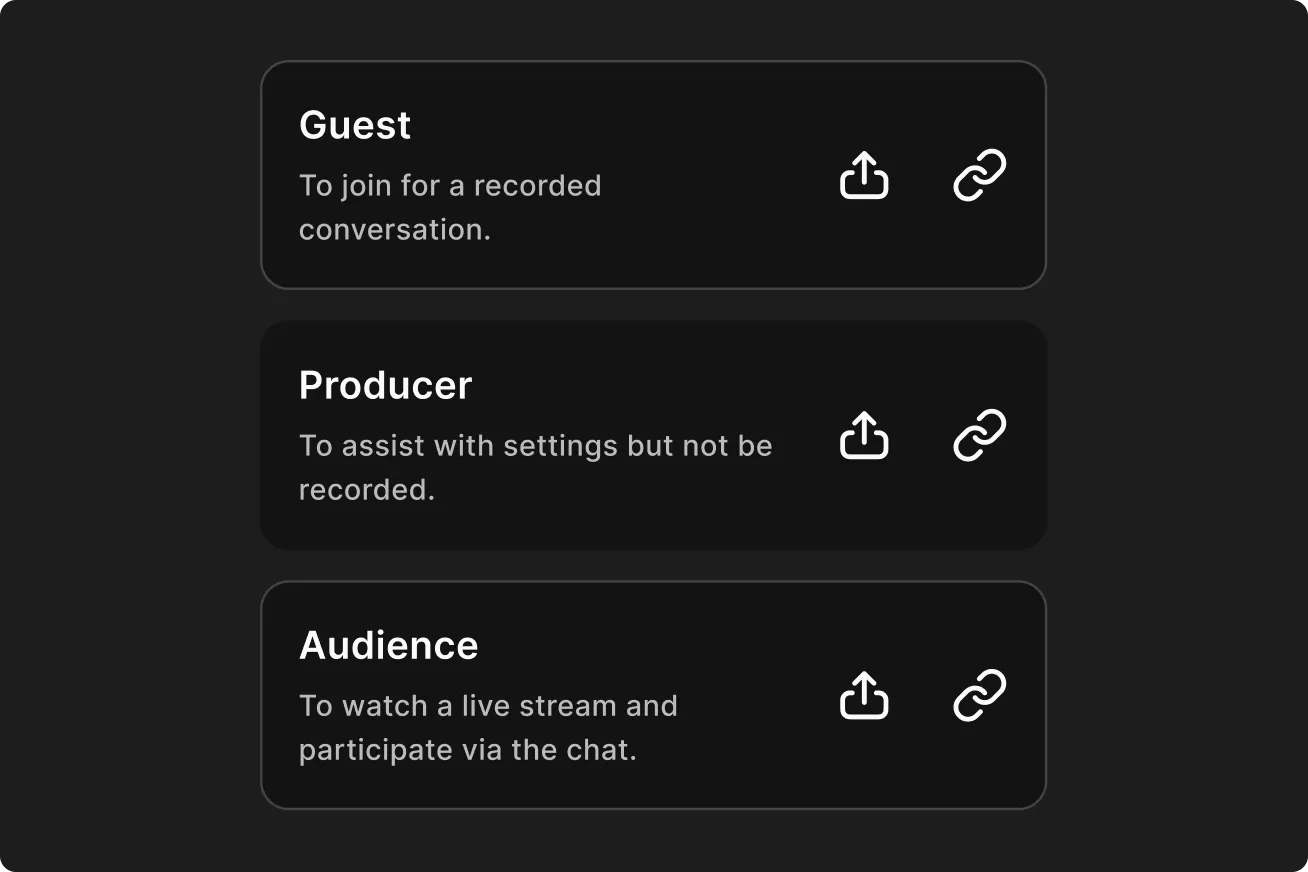
Copy/paste your studio link or email them directly from the app.
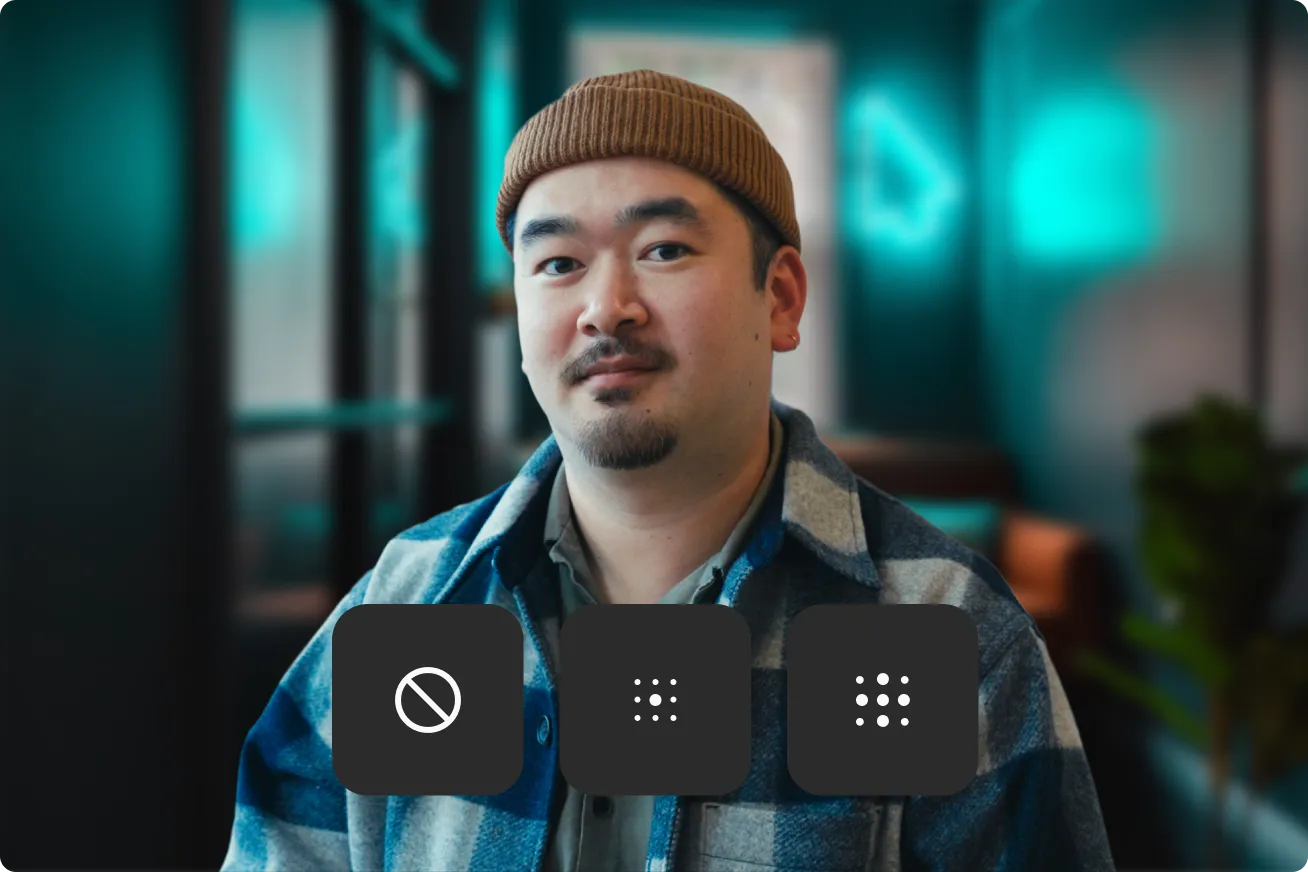
Set yourself up in the lobby with your equipment and background.

View, share, and sort all your recordings in the dashboard.

Use your iPad, iPhone, or Android - the mobile app adds more options for you to create content not on just on desktop.
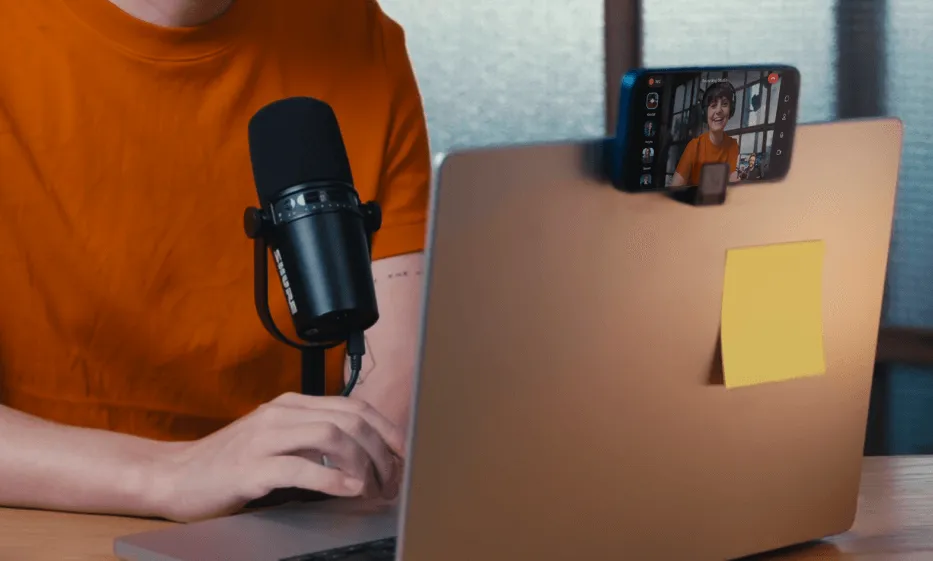
Recording on your computer? Scan the QR code in the lobby’s dropdown menu and the app will turn your phone into a pro webcam.

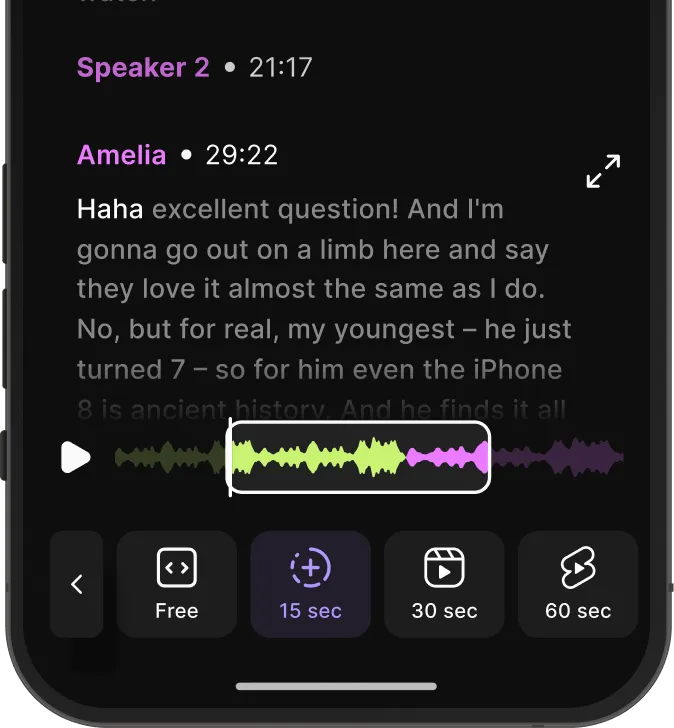
A fresh yet instantly-familiar, detailed yet conveniently-quicker, editing experience.
The built-in editor has a flexible display that you can change with a tap, plus basic editing tasks, but optimized for smaller screens and touch interface.
And when you’re all done, just click export to save it, share it, or post it.
Riverside’s mobile app records locally on your device instead of over the internet. This means you can always capture up to 4K video and 48kHz WAV audio even if your Wi-Fi drops, protecting your final file quality.
Riverside also offers:
For more advanced editing, you can continue in the desktop editor.
To invite collaborators on Riverside’s mobile app, open your studio and share the invite link.
From the homepage:
Tap the menu in the top right.
Alternatively, you can also invite any collaborator during a recording by following these steps:
You can invite collaborators as guests or audience members.
To record a podcast with Riverside’s mobile app, use proper equipment, lighting, and recording settings.
Best practices include:
These steps improve both video and audio quality.
Learn more on:
Riverside’s mobile app offers free and paid plans.
Riverside’s mobile app requires an iPhone or iPad running iOS 17.0 or later, or an Android device running Android 7.0 or later.
You can use an iPhone or iPad with iOS 16.0 to access the studio, but you won’t be able to use the editor with these devices.
Android tablets and older mobile devices are not supported.
For best performance, use an iPhone X or newer, an iPad model older than 2017, or an Android 10.0 device or newer.
Yes, Riverside integrates with multiple tools to streamline your workflow.
You can:
These integrations help automate publishing and collaboration.
Yes, Riverside’s mobile app supports external microphones that your device recognizes as an input source.
On iOS 26 and later versions, you can use a wired or USB microphone with Bluetooth headphones for output.
On Android and older iOS versions, you must use wired headphones when recording with an external microphone (no Bluetooth headphones).
Connecting an external microphone to your Riverside’s mobile app is as easy as it sounds. Just plug it in, and Riverside recognizes it automatically.
Yes, Riverside’s mobile app includes a built-in teleprompter for vlogging. You can read your script while maintaining eye contact with the camera.
To use it:
Tap the start icon to begin auto-scrolling, or the restart icon to return to the top of the script.
Yes, you can create social media clips using Magic Clips or by chatting with Co-Creator in Riverside’s mobile app.
Magic Clips is an AI clip maker that identifies engaging moments and generates vertical, captioned clips. You can edit and share them directly from the app.
Here’s how:
With Co-Creator, our AI editing agent, you can prompt the AI to generate specific clips, such as short highlights around a topic you choose.
Here’s how:
You can create a video for free on your smartphone using Riverside’s mobile app.
Here is a simple workflow to record a video for free on your mobile phone:
.svg)


