Young woman with long blonde hair speaking during a video call recorded on a smartphone mounted on a tripod, sitting in a bright room with podcast posters on the wall.

Ein auf deinem Handy Aufnahmestudio.

Lade Gäste ein, nimm glasklare Audio- und Videoaufnahmen auf und behalte all deine Aufzeichnungen ganz einfach in unserer App im Blick.

Young woman with long blonde hair speaking in front of a smartphone on a tripod in a room decorated with podcast-themed posters and plants.
REC

Riverside
Jetzt in Taschenformat verfĂĽgbar.

REC

Riverside
Jetzt in Taschenformat verfĂĽgbar.

Nimm überall und jederzeit in beeindruckender Riverside-Qualität auf – ganz ohne Sorgen um Empfang oder Netzabdeckung. Nach der Aufnahme findest du deine gestochen scharfen HD-Videos und die originalgetreuen Audiospuren direkt in deinem Dashboard.
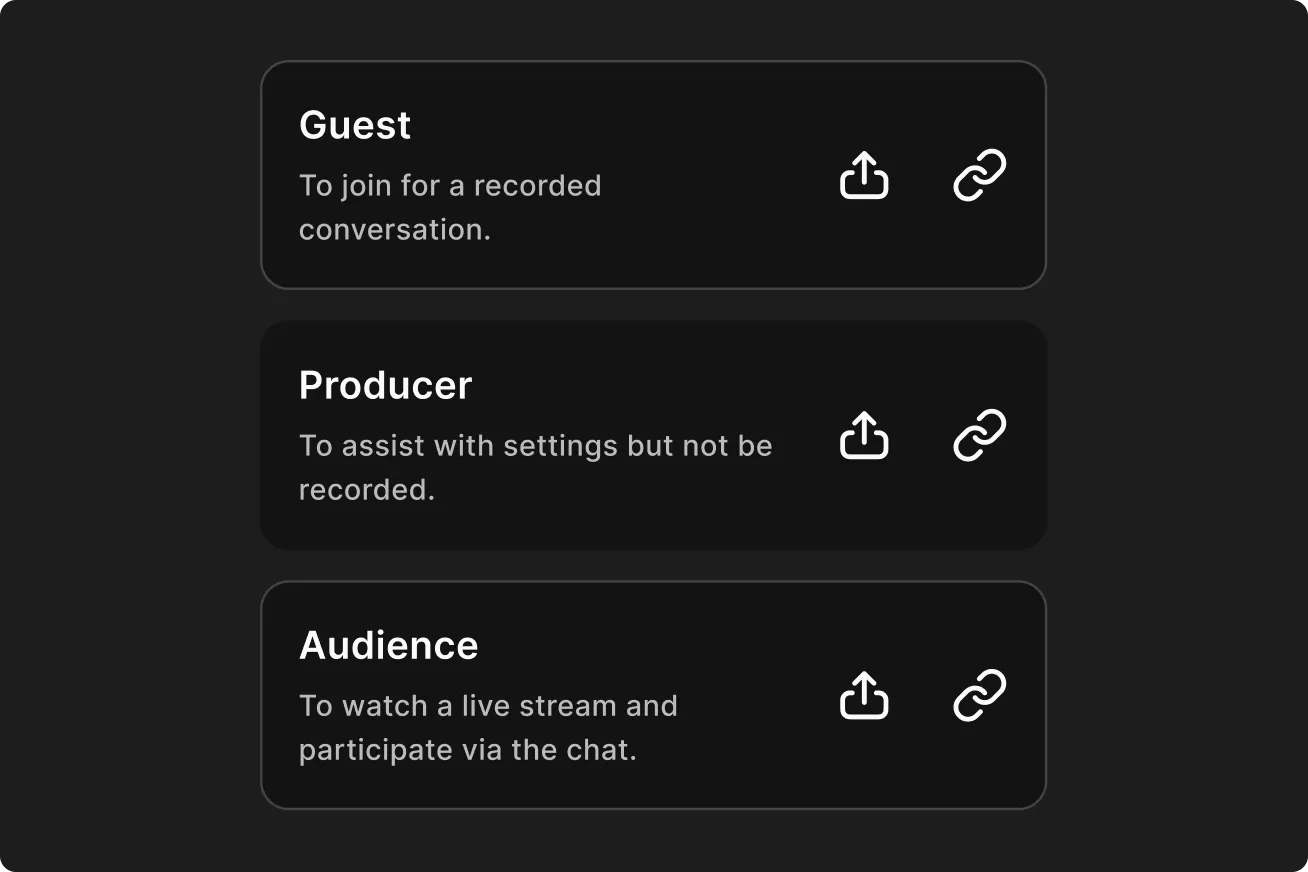
User role options showing Guest to join recorded conversation, Producer to assist with settings without being recorded, and Audience to watch live stream and chat.

Lade dein Team ein

Teile einfach deinen Studio-Link oder lade Gäste direkt aus der App per E-Mail ein.
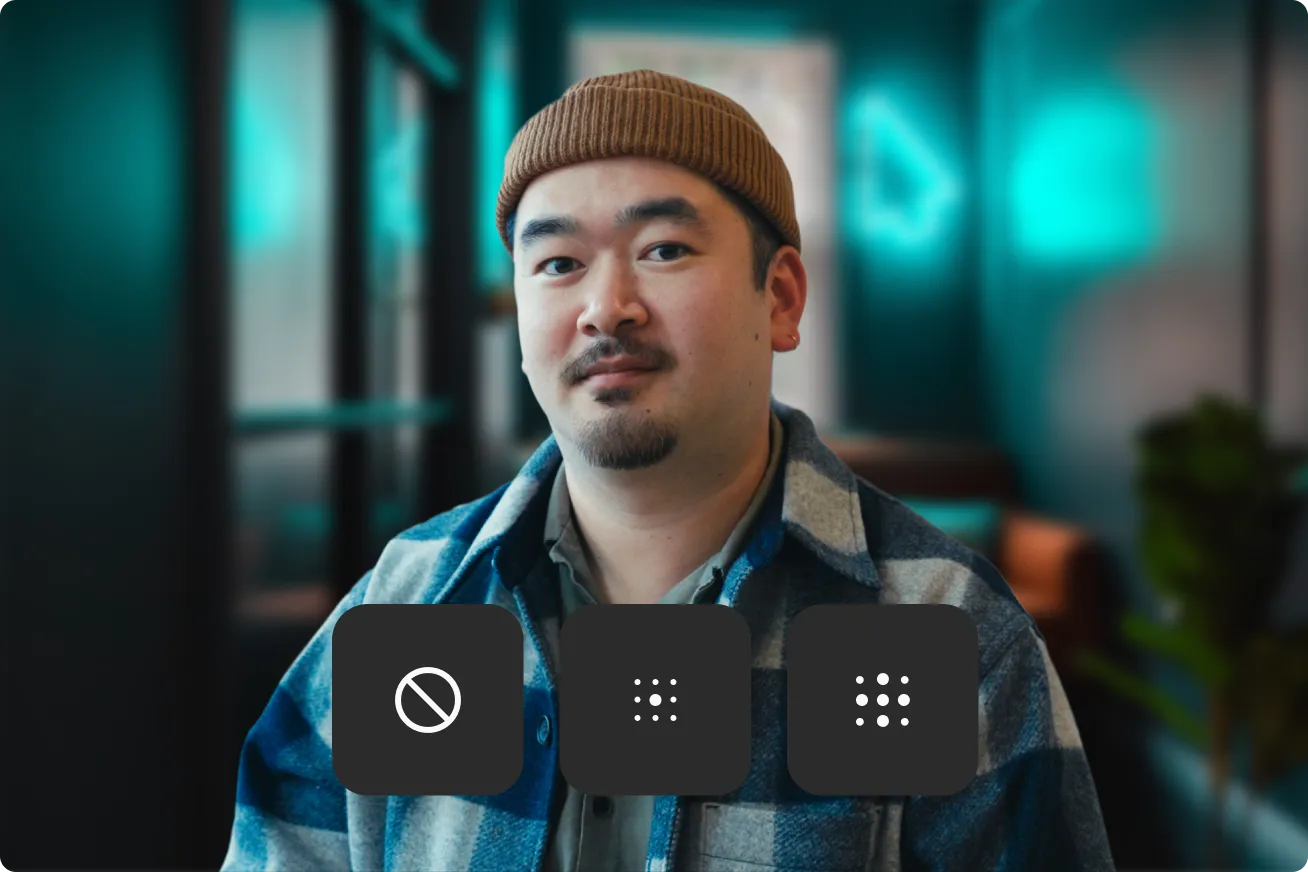
Man wearing a brown beanie and checkered jacket sitting indoors with three dark square icons below him featuring a no entry symbol and two sets of dots.

An Meetings teilnehmen

Richte im Warteraum in Ruhe dein Equipment und deinen Hintergrund ein.

Video thumbnail showing two individuals, Ben and Gal, discussing marketing with text details about the video length, clips, and posting time.

Aufnahmen verwalten

Behalte all deine Aufnahmen im Dashboard im Blick, teile sie mit anderen und ordne sie ganz einfach.

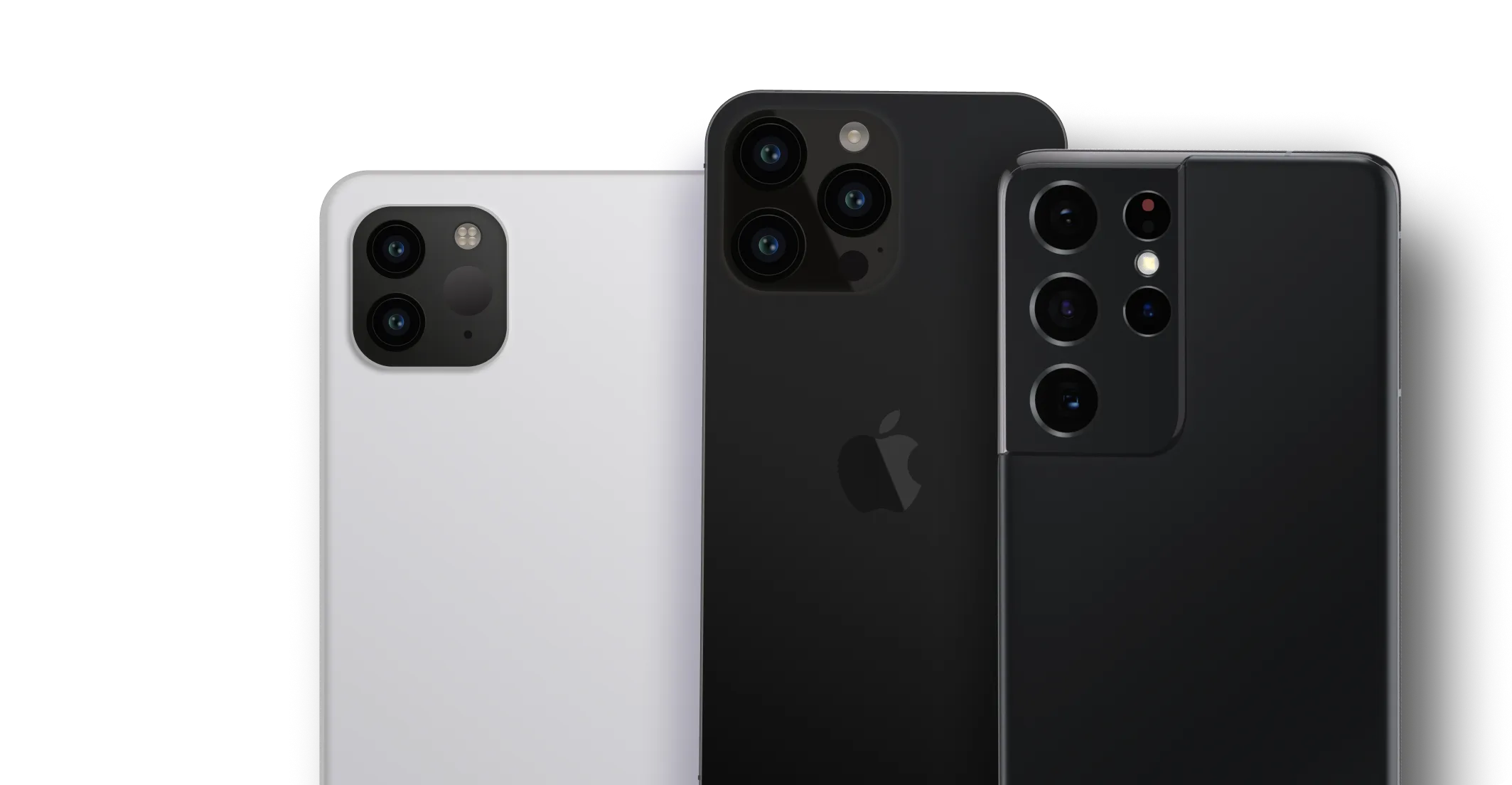
Three smartphones showing their back cameras: a white iPhone with dual cameras, a black iPhone with triple cameras, and a black Samsung phone with multiple rear cameras.Three smartphones showing rear cameras: two black Apple iPhones with triple and dual cameras, and one black Android phone with multiple cameras.

Jedes Gerät. Jedes Betriebssystem. Wo immer du möchtest.

Nutze dein iPad, iPhone oder Android – mit unserer mobilen App kannst du überall kreativ und überall werden, nicht nur am Desktop.

Dein Smartphone wird zur phänomenalen Webcam.

Nimmst du am Computer auf? Scanne einfach den QR-Code im Warteraum-MenĂĽ und verwandle dein Handy im Handumdrehen in eine professionelle Webcam.
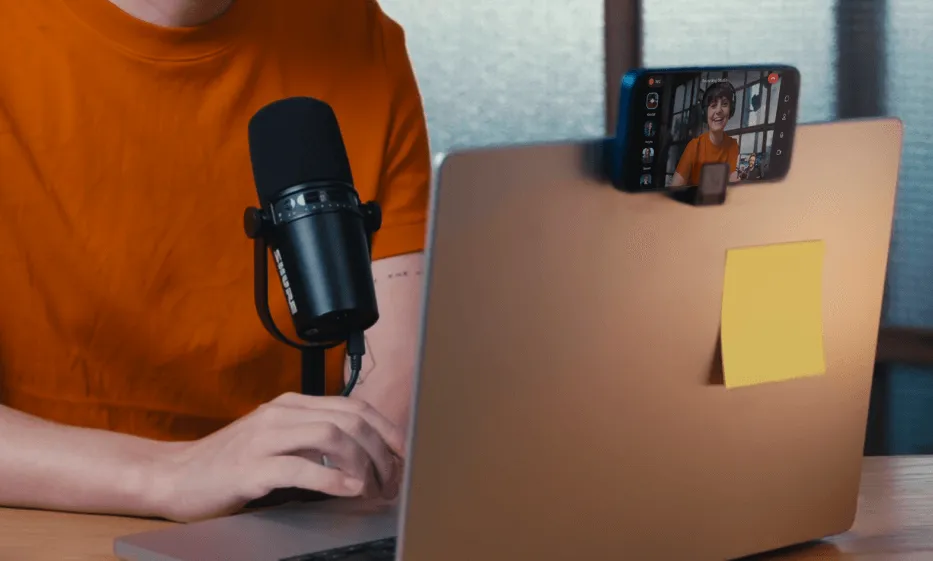
Person in orange shirt using a laptop with a microphone and a smartphone mounted on top showing a video call.
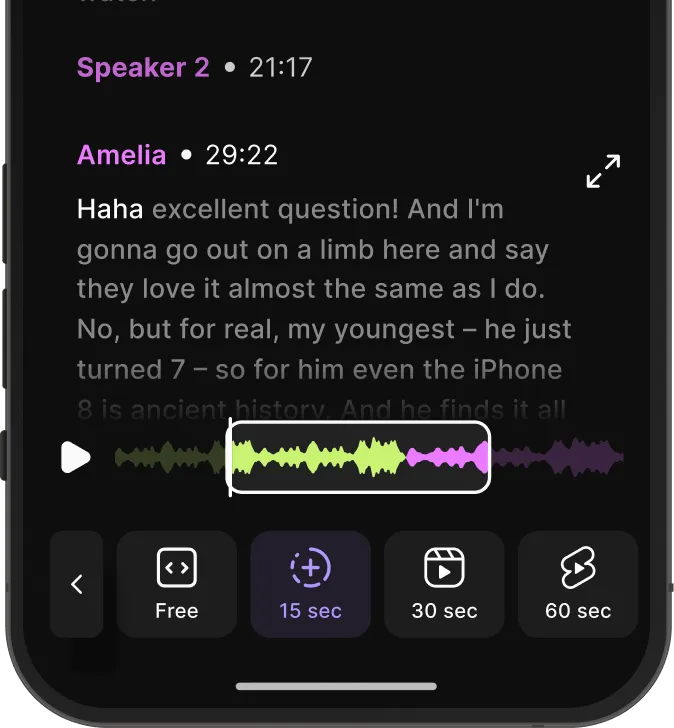
Podcast transcript excerpt showing a speaker named Amelia with a highlighted audio waveform and playback controls for skipping 15, 30, or 60 seconds.

Bearbeiten und genau zuschneiden.

Ein Bearbeitungserlebnis, das sich sofort vertraut anfühlt – frisch, detailreich und schneller als je zuvor.

Der integrierte Editor hat ein flexibles Display, das du mit einem Tipp ändern kannst, sowie grundlegende Bearbeitungsfunktionen, optimiert für kleine Bildschirme und Touch-Bedienung.

Und wenn du fertig bist, klicke einfach auf „Export“, um es zu speichern, zu teilen oder zu veröffentlichen.


Frequently Asked Questions

Riverside’s mobile app records locally on your device instead of over the internet. This means you can always capture up to 4K video and 48kHz WAV audio even if your Wi-Fi drops, protecting your final file quality.
‍

Riverside also offers:

  • Separate audio and video tracks for each guest, for maximum control in post-production.
  • Progressive uploading to the cloud while you record, so you don’t have to wait for huge files after recording.
  • A multicam option to use your phone as a second webcam for your desktop setup.
  • Built-in video editing for trimming, captions, and basic edits.

For more advanced editing, you can continue in the desktop editor.

To invite collaborators on Riverside’s mobile app, open your studio and share the invite link.
‍

From the homepage:
‍

Tap the menu in the top right.

  • Select your Studio.
  • Tap the three dots (…).
  • Choose “Invite to studio”.
  • Copy the link or share it via WhatsApp, Slack, Messenger, or another app.

Alternatively, you can also invite any collaborator during a recording by following these steps:

  • Tap “+ Create” then “Record” to start a new recording.
  • Tap the “Invite” button (people icon).
  • Copy the link or share it via WhatsApp, Slack, Messenger, or another app.

You can invite collaborators as guests or audience members.

To record a podcast with Riverside’s mobile app, use proper equipment, lighting, and recording settings.
‍

Best practices include:

  • Use a phone that supports at least 1080p video.
  • Record with the back camera instead of the front camera for better video quality.
  • Connect an external microphone and use correct mic positioning for better audio quality.
  • Stabilize your phone with a tripod.
  • Wear headphones to prevent echo.
  • Face natural light or a soft light source.
  • Turn on airplane mode to avoid interruptions.

These steps improve both video and audio quality.
‍

Learn more on:

Riverside’s mobile app offers free and paid plans.
‍

  • Free plan: Record in 720p and access the in-app and desktop editor.
  • Mobile Plus plan ($9.99/month): Remove watermarks and export up to 4K video and WAV audio.‍
  • Paid web plans (starting at $24/month): Unlock the desktop version with 4K recording, branding tools, AI features, audio enhancement, eye-gaze correction, and more.

Riverside’s mobile app requires an iPhone or iPad running iOS 17.0 or later, or an Android device running Android 7.0 or later.
‍

You can use an iPhone or iPad with iOS 16.0 to access the studio, but you won’t be able to use the editor with these devices.
‍

Android tablets and older mobile devices are not supported.
‍

For best performance, use an iPhone X or newer, an iPad model older than 2017, or an Android 10.0 device or newer.

Yes, Riverside integrates with multiple tools to streamline your workflow.


You can:

  • Record, edit, and publish directly from the Spotify for Creators dashboard.
  • One-click distribute your episodes to YouTube, Apple Podcasts, Spotify, and other popular podcast directories.
  • Sync webinar registration and attendance data with HubSpot and Salesforce.
  • Export clips to Facebook, Instagram, LinkedIn, TikTok, X, Telegram, and WhatsApp.
  • Export timeline XML files for editing in Premiere Pro or Final Cut Pro.

These integrations help automate publishing and collaboration.

Yes, Riverside’s mobile app supports external microphones that your device recognizes as an input source.
‍

On iOS 26 and later versions, you can use a wired or USB microphone with Bluetooth headphones for output.
‍

On Android and older iOS versions, you must use wired headphones when recording with an external microphone (no Bluetooth headphones).
‍

Connecting an external microphone to your Riverside’s mobile app is as easy as it sounds. Just plug it in, and Riverside recognizes it automatically.

Yes, Riverside’s mobile app includes a built-in teleprompter for vlogging. You can read your script while maintaining eye contact with the camera.
‍

To use it:

  • Tap “+ Create” and start a recording.
  • Tap the script icon to open the teleprompter.
  • Paste your script by tapping on the text on top.
  • Open the settings to adjust scroll speed, font size, toggle auto-start, or hide the camera feed to avoid distractions.

Tap the start icon to begin auto-scrolling, or the restart icon to return to the top of the script.

Yes, you can create social media clips using Magic Clips or by chatting with Co-Creator in Riverside’s mobile app.
‍

Magic Clips is an AI clip maker that identifies engaging moments and generates vertical, captioned clips. You can edit and share them directly from the app.
‍

Here’s how:

  • Record or upload your content on Riverside’s mobile app.
  • From your “Projects” page, choose your video and select the “Made for You” tab. Here you will find several pre-generated clips made for you.
  • Below a Magic clip, click “Edit” to edit it, or “Rename” to change its name.
  • Click on “Share clip” to share them on social media platforms.

With Co-Creator, our AI editing agent, you can prompt the AI to generate specific clips, such as short highlights around a topic you choose.
‍

Here’s how:

  • Record or upload your content on Riverside’s mobile app.
  • From your “Projects” page, choose your video, select the “Edits” tab, then go to “Ask Co-Creator”‍
  • You can find ready-made prompts like “create a clip” or you can type your own, more detailed ones, like “create a 6 seconds clip when we talk about [topic X]”

You can create a video for free on your smartphone using Riverside’s mobile app.
‍

Here is a simple workflow to record a video for free on your mobile phone:

  • Download and install Riverside’s mobile app.
  • Plug in an external mic or wired headphones for better audio quality.
  • Click “+ Create” to start recording a new video. The app will optimize your phone's camera to look like a studio camera.
  • From your “Projects” page, open the app’s editor to apply basic edits like trimming and cutting video, adding captions, and enhancing audio.
  • You can also download an automatically-generated transcript, or use Magic Clips to create short, shareable clips.
  • Export your finished video then share it on social media.

Erstelle Inhalte – jederzeit und überall.