






Key takeaways:
- You need 1,000 followers and to be 18 or older to go live on TikTok.
- You can go live from the TikTok app or use TikTok Live Studio for desktop streaming.
- You can multistream to TikTok and other platforms simultaneously using tools like Riverside.
- Once your stream ends, you can save , edit and repurpose it into other content.
Going live on TikTok quickly builds a real connection with your audience, and it’s easier to set up than most people think.
In this guide, you’ll learn exactly how to go live on TikTok, whether you’re on mobile or PC. We’ll also cover requirements, what to do after your stream ends, and how to multistream to TikTok and other platforms.
TikTok Live requirements: What do you need to go live on TikTok?
To get started with TikTok Live, you’ll need to:
- Be at least 18 years old.
- Have a minimum of 1,000 followers.
- Have no recent violations on your TikTok account.
If you don’t meet these requirements, the option won’t appear in your app.
And, if you violate TikTok’s community guidelines, your Live can be ended immediately, even while you’re streaming. This includes:
- Nudity or sexually explicit behavior.
- Showing, using, or discussing illegal drugs.
- Graphic violence or dangerous acts.
- Hateful speech targeting protected groups.
- Spam or deceptive activity, including buying followers or engagement.
You can also get banned from using TikTok Live if you:
- Have repeated community guideline violations.
- Promote things like alcohol or tobacco to underage audiences.
How to go live on the TikTok app: Step-by-step guide
To go live on TikTok from your mobile phone, follow these steps:
Step 1: In the home tab of the TikTok app, tap the “+” button at the bottom of your screen.
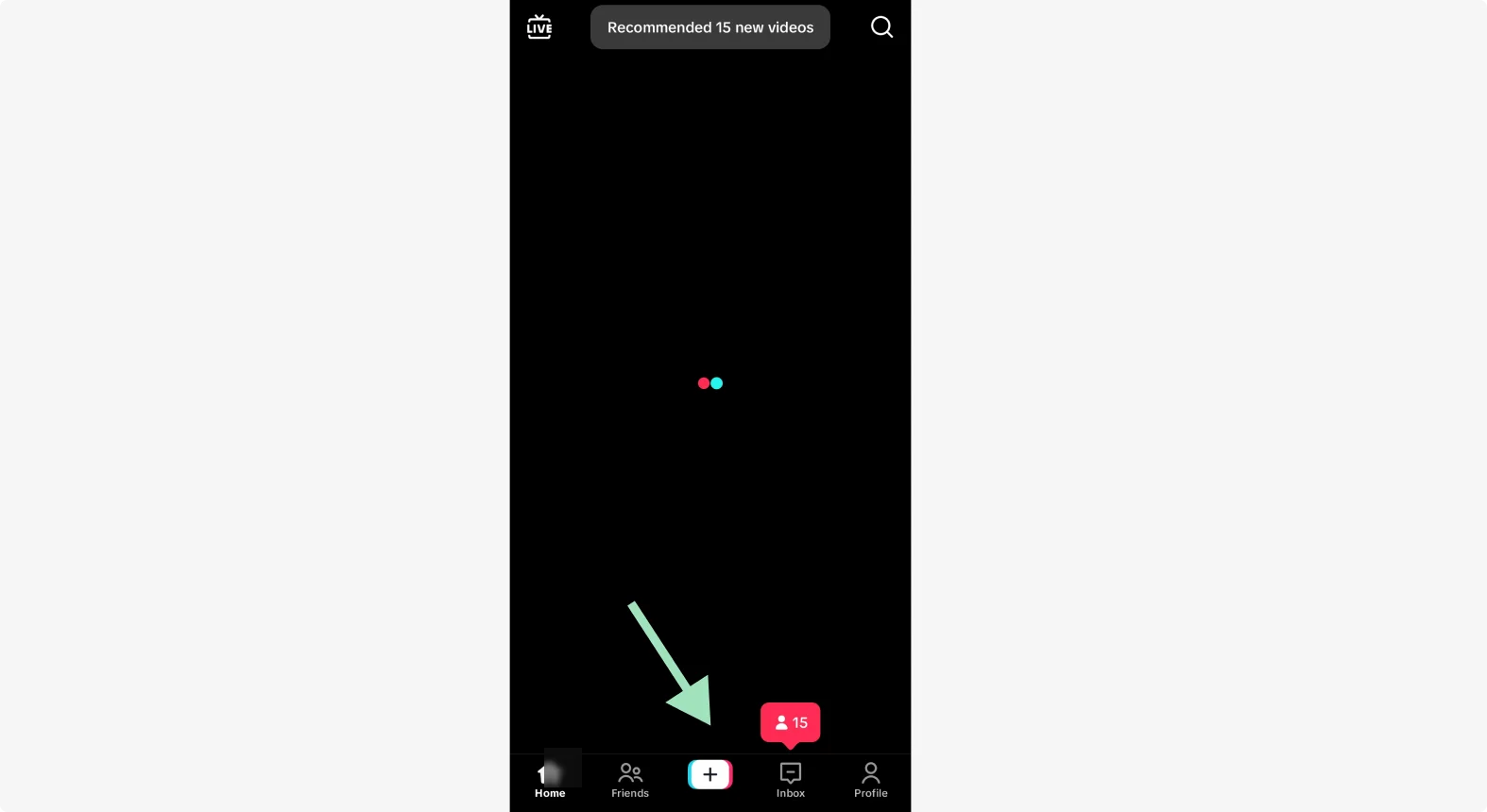
Step 2: Scroll along the bottom menu until you see “Live”, then tap it.
Step 3: You will then see the Live setup screen, and can do the following:
- Press “Flip” to flip the camera back and forth
- Tap on “Enhance” to select from a selection of filters
- Click “Effects” to select any trending and new effects
Step 4: Next, select “Settings.” Fill out the “About Me” section.
Step 5 (optional): If you are having guests join you, click on the “Multi Guest Fun Kit” and add either AI guests or other users.
Step 6: Scroll down and click on “Title & Cover” to write your chosen title in the “Title” box.
Step 7: To pick a cover, click on the “Change” button over the cover icon. Either take a photo to make the cover, or select one from your photo library.
Step 8: To choose your audience, tap “Who can watch this LIVE” and pick from Everyone, Friends, and specific people.
You can also click on “Fan Club” to invite users who are in your Fan Club to watch.
Step 9: You can set up wishes that your viewers can buy for a coin. Select “Interact” and go to “Viewer Wishes.” For example, one wish may be you saying hello to them on the livestream.
Step 10: To practice streaming, hit “Practice Mode.” You will have around 30 seconds without going live to click on features and test how they work first.
Step 11: When you’re ready, click “Go LIVE.” TikTok will count down from three and you’re on.
How to go live on TikTok on PC or Mac with TikTok LIVE Studio
TikTok LIVE Studio also lets you go live from your desktop on Mac or Windows, with more control over your setup.
It’s useful if you want to:
- Share your screen (tutorials, gameplay, and walkthroughs).
- Customize your live with overlays and scenes.
- Monitor audience engagement easily.
- Co-host with another TikTok user.
Here’s how you can get started:
Step 1: Go to TikTok Studio, and download the app. Install it and open it on your PC or Mac.
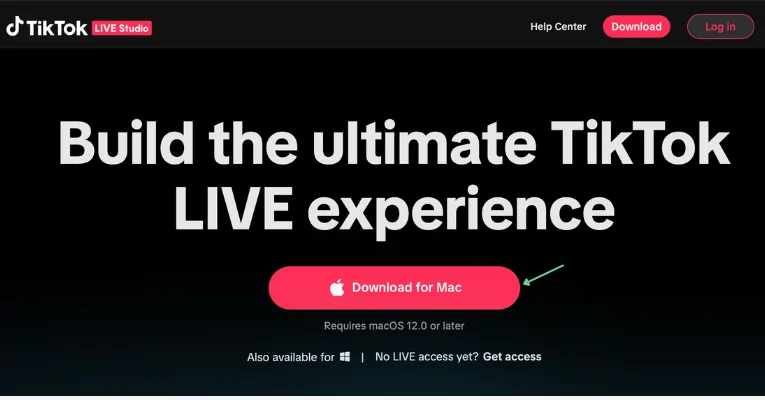
Step 2: Sign in using the same account you want to go live from.
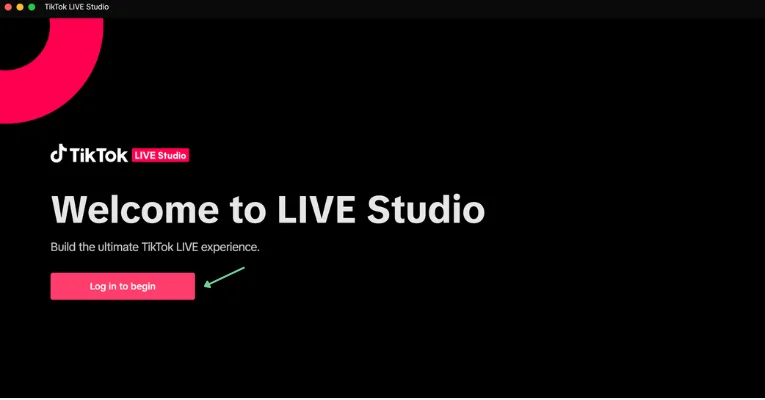
Note: You still need to meet the standard Live requirements for the broadcast option.
Step 3: Click Set up now, and you’ll be prompted to select your mic input and camera input. The setup process also tests your internet speed, before offering suggested settings.
You then will see three sections: Scenes, LIVE Preview, and Last LIVE Data.
Step 4: The elements that make up the video are listed in the Scenes column.
Click the Add scene button to add a new element to the screen. You will then need to choose a source for that element. For example, an image, a video, a shared screen, or a casted screen.
Step 5: Arrange the scenes on the screen by dragging them around. You can pin them in place using the Pin icon in the top bar.
Step 6: Click Audio settings at the bottom of the page to set up your levels and add any more mics. You can click Sound check to check your input.
Step 7: Click Start Live when you are ready.
Your stream will go out to your TikTok audience just as it would from the app.
How to multistream to TikTok and other platforms at once
With multistreaming, you can broadcast your live to TikTok and other platforms simultaneously. This way you can reach all your audiences at the same time, and even chat with all your fans at the same time.
Since TikTok LIVE doesn’t support this feature, you’ll need dedicated multistreaming software like Riverside.
Here’s how to do it:
Step 1: From your Riverside dashboard, click “Record” to open a new studio.
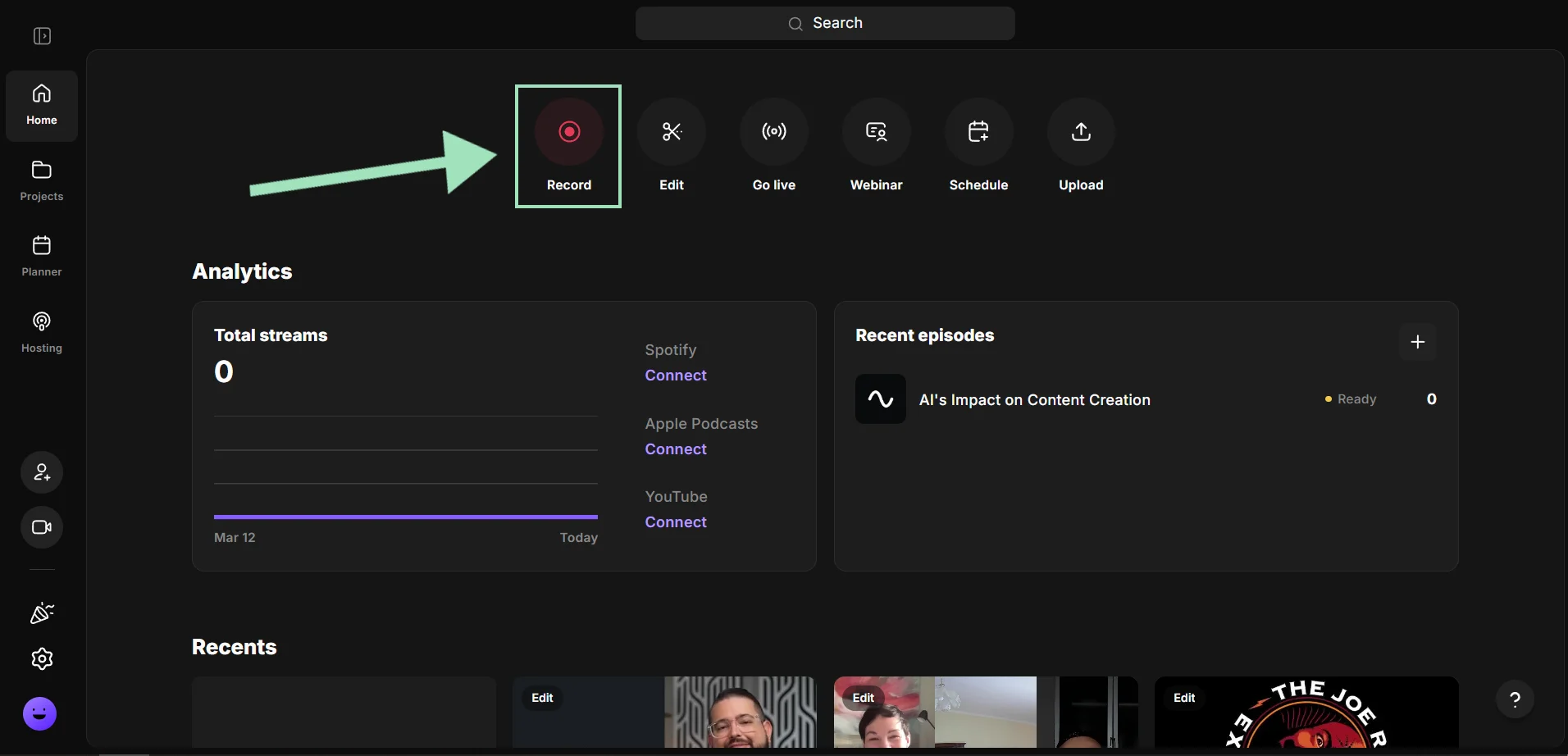
Step 2: From your lobby, use the dropdown menus to select your camera and microphone input. Once you’re ready, select “Join Studio.”

Step 3: Click the “+” button at the top of your screen and make sure the “Live stream to social” toggle is turned on.
To choose the platforms you want to multistream on, click on “Add destination” and select from TikTok, YouTube, Facebook, Twitch, LinkedIn, and X. You can also add any custom RTMP destination.
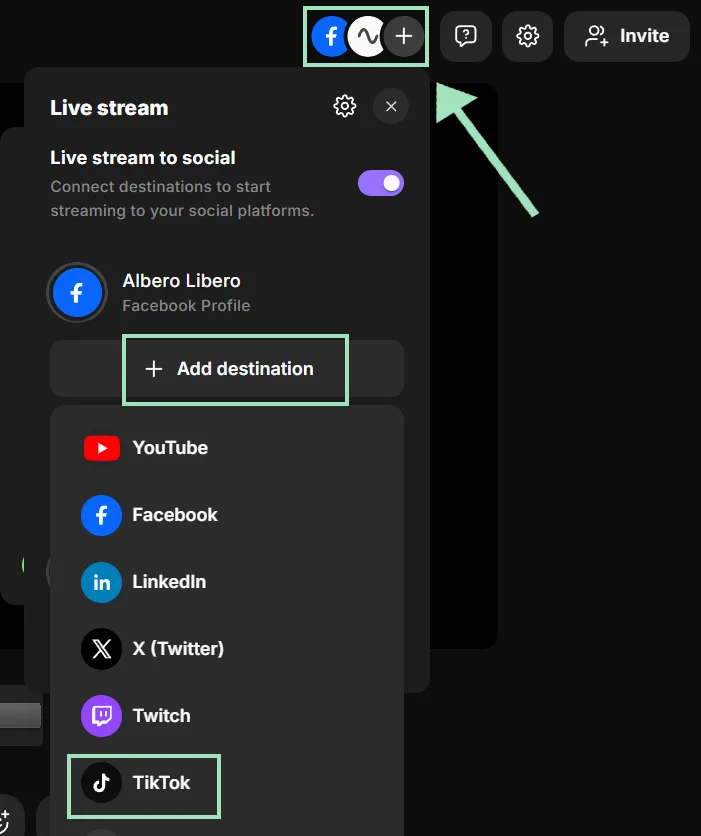
At this stage, Riverside will ask for your TikTok stream key.
Note: Stream keys aren't available to all TikTok accounts. If yours doesn't have access yet, you may need to work with a TikTok-approved agency to unlock it.
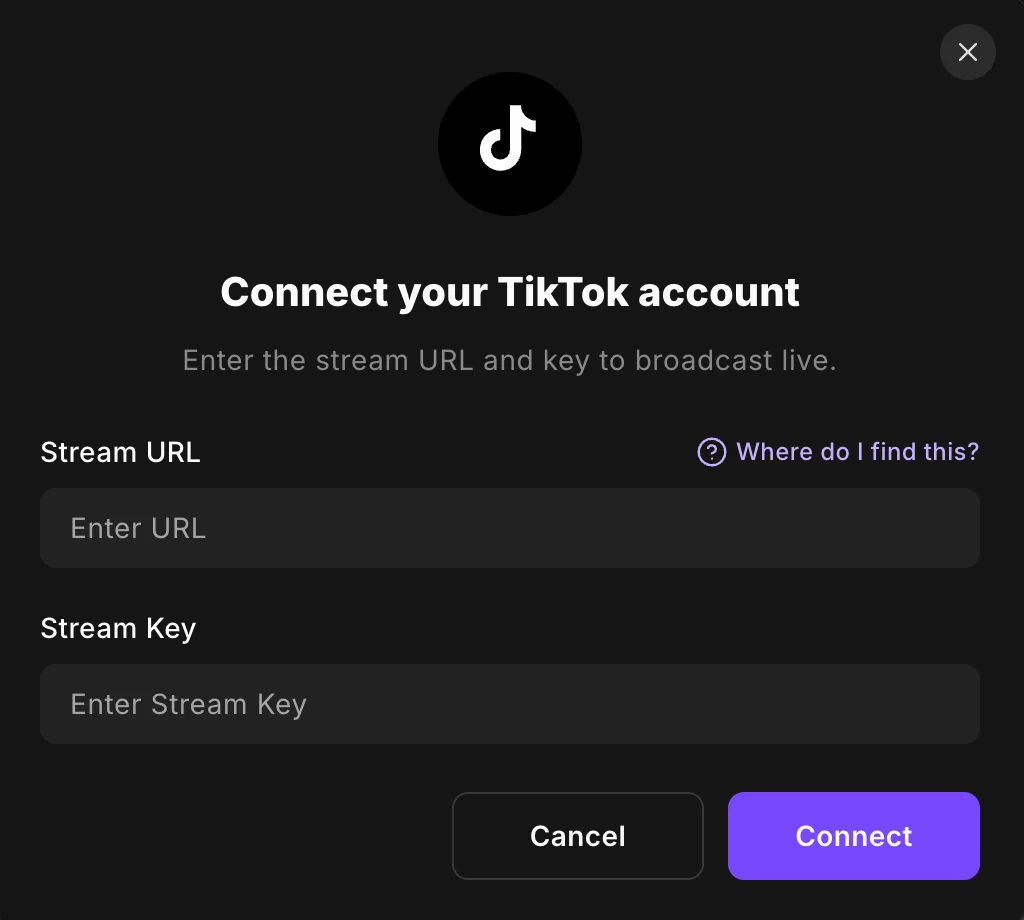
Step 4: Once you’re ready, click “Go live” to start multistreaming to all your connected platforms at once.
Pro tip: Don’t forget to use the Omnichat to monitor and respond to comments from every platform in one place. You can also bring viewers on screen with live call-ins!
Edit and repurpose your recording
When your stream ends, Riverside lets you get more from your live content. Here’s what you can do:
- Download your recording in 4K to republish it as an on-demand video.
- Edit your TikTok video in minutes with the text-based editor, enhance audio with AI in a click, and translate and redub it in 30 languages.
- Use Magic Clips to let Riverside automatically clip the strongest moments from your video and share them on social media.
- Chat with our AI Co-Creator to repurpose your content into blog articles, newsletter emails, social posts, and transcripts.
Strategy tips: How to engage an audience on TikTok Live
Going live on TikTok is one thing. Getting some real engagement is quite another. Let’s take a look at some of the best strategy tips you can use:
Start with a hook
Open your live with a bold hook that grabs attention. For example:
- A statistic that is likely to surprise people
- A statement that people don’t expect
- A promise of a “secret” you’re about to share
This should give you a boost of engagement at the start of your video. That means the TikTok algorithm is likely to push your livestream to a wider audience.
Structure your stream with a Q&A
Use a Q&A format to keep your TikTok Live engaging and focused.This keeps the conversation flowing and makes sure it’s not a one-sided chat.
At the start of your Live, ask viewers to submit questions in the Q&A tab. Pin the question you are currently answering so everyone watching can see it.
Run polls to avoid any natural lulls
Keeping things moving for 30+ minutes is far from easy, and there will be natural lulls. When this happens, shake things up with a quick poll.
Decide what your questions are going to be in advance and have them ready to go. Keep the poll question simple so you don’t overwhelm your audience with too many options.
Acknowledge new viewers when they join
Greet people as they join the livestream and even use their name. This makes your live feel more like a natural conversation.
Give viewers a reason to keep watching
To avoid people dropping off, make sure to tease what is coming next. It could be a demonstration, an answer to a popular question, or even a guest joining the stream.
How to go live without 1000 followers on TikTok
If you don’t have 1000 followers, you may still be able to livestream on TikTok. Some users say they have been given access after contacting the TikTok support team.
Here’s how:
Step 1: Go to your profile, tap the three-line menu in the top right corner, then tap "Settings and Privacy".
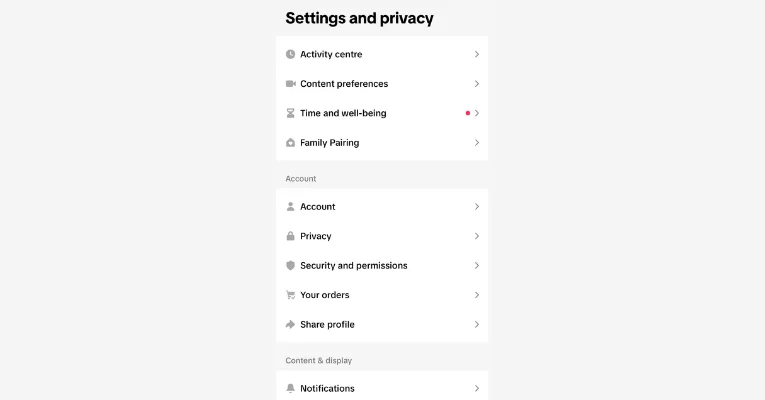
Step 2: Scroll to the bottom of the screen and click "Help Center." Next, click on "Chat with us."
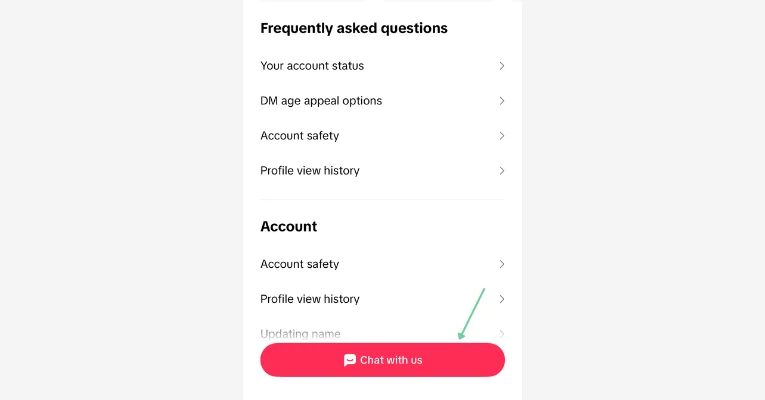
Step 3: You will then come to a screen with issues. Select the one that says "Live."
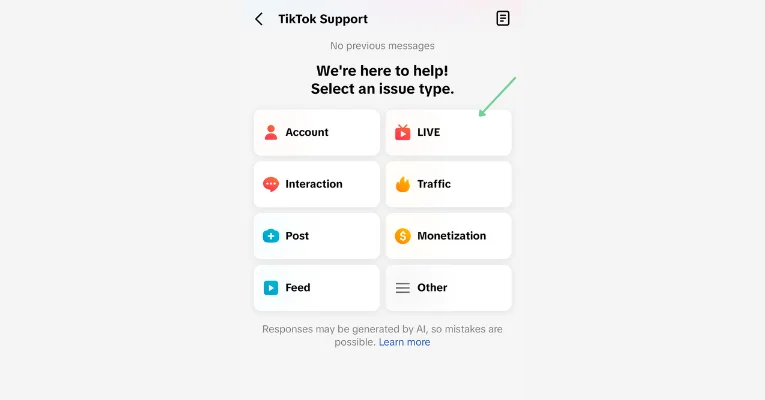
Step 4: Write a short, polite message explaining your situation and asking to go live. If you previously had access to this feature, you might have some chances of success.
For example, you could write: “Hi, I can't start a TikTok Live but I could before. My followers are asking to see me live again. Please, can you help?”
There’s no guarantee that you will get to use the Live feature. However, it maybe worth a try.
FAQs on how to go live on TikTok
Why can't I go live on TikTok?
Usually, you can’t go live on TikTok because you do not meet TikTok LIVE’s eligibility requirements. TikTok says you must be at least 18 to go LIVE and have at least 1000 followers. Your account must also be in good standing without any recent community guideline violations.
If you already qualify and the LIVE option still does not appear, you should report the issue by contacting support from the Help Center.
How long should a TikTok LIVE be?
A TikTok LIVE should be between 30 and 60 minutes long to give people time to find it and interact with you. Anything shorter than that and the algorithm might not have enough time to push your stream to new viewers. After the live is over, you should monitor your average watch duration in your analytics to find the exact length that keeps your audience engaged.
How many people can join a TikTok LIVE co-host?
Up to 9 people can join a TikTok LIVE as guests, depending on the layout you select. You can have up to 4 people in Co-host mode, and up to 9 using the Multi-guest feature. Co-host mode uses the panel layout where you remain the visual focus. Multi-guest mode uses the grid layout where everyone shares the same screen space.





