TikTok Video Editor
Edit TikTok Videos for free. Create scroll-stopping content with automatic clips, dynamic captions, music, text, image and video overlays.


How to edit TikTok videos with Riverside
1. Record your TikTok video
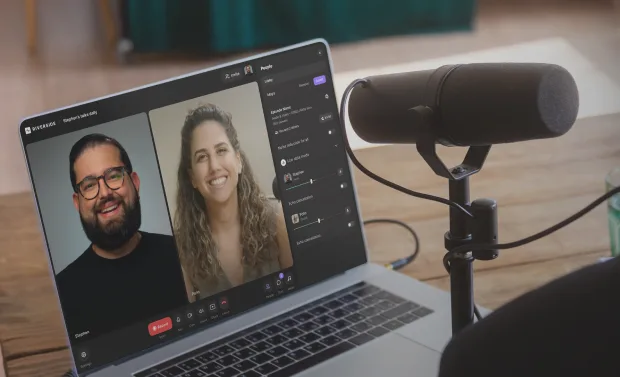
Capture your TikTok video in up to 4K resolution, or upload your own recording. Use Magic Clips to repurpose a longer recording into multiple short clips.
2. Trim your video
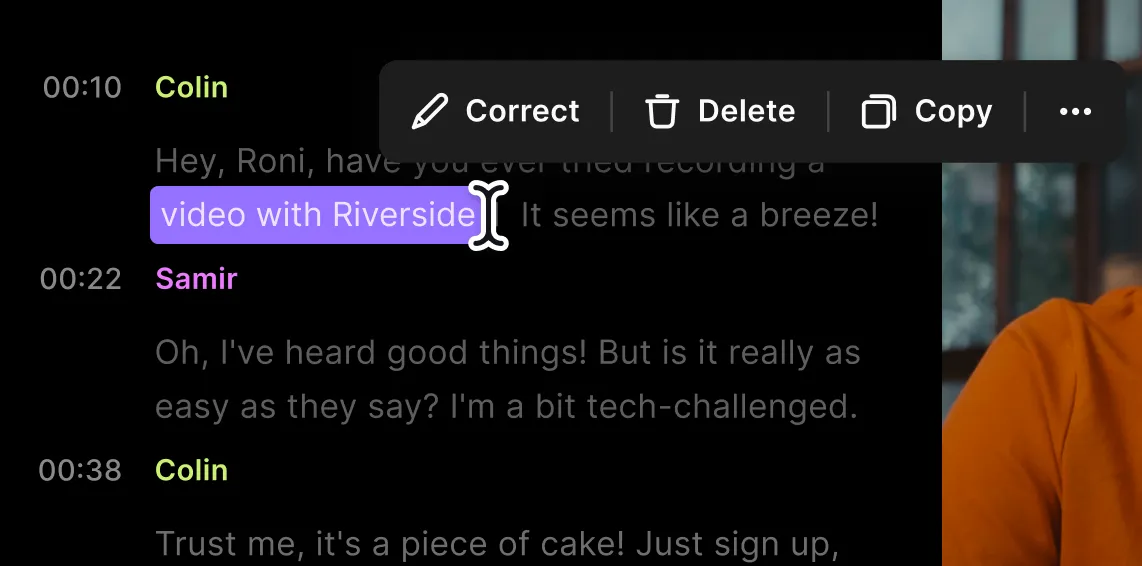
Cut your video on the editing timeline. Or use the text-based editor to trim your TikTok video by simply deleting text in the recording transcript.
3. Enhance your audio
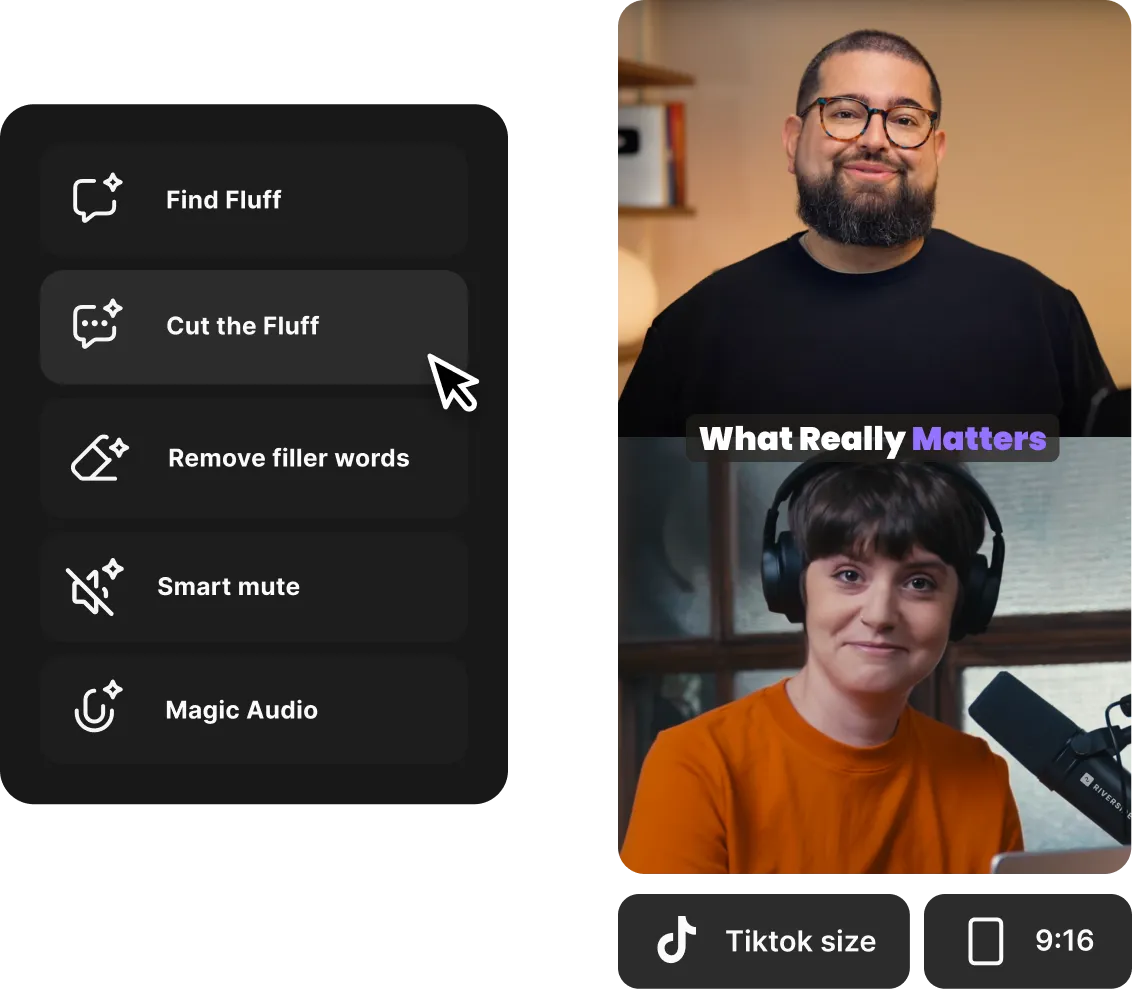
Touch up your audio with our automated tools for cutting out filler words, normalizing volume, or removing background noise.
4. Customize and export
Add captions or image, text, video and music overlays to your TikTok. Customize, export your video, and you’re done!

Why Riverside:
A TikTok video maker for head-turning content.

Clip multiple TikToks from one video.
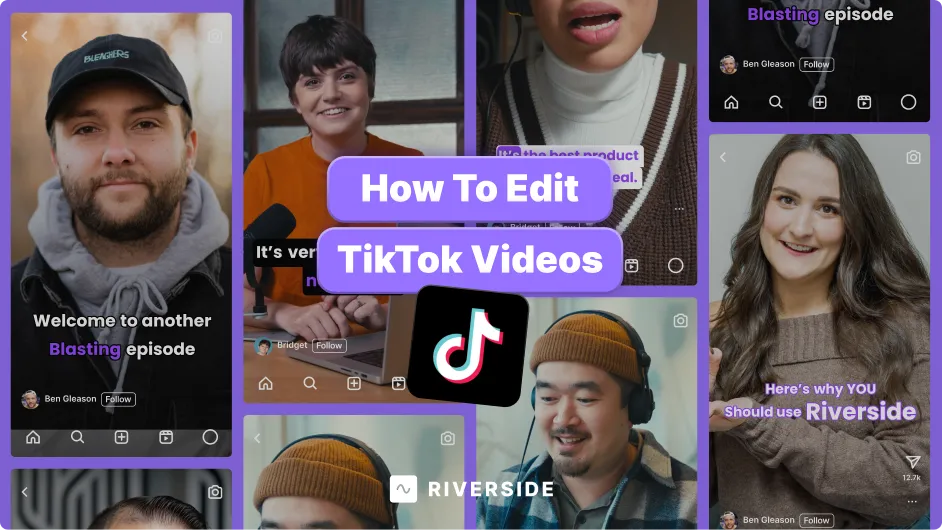
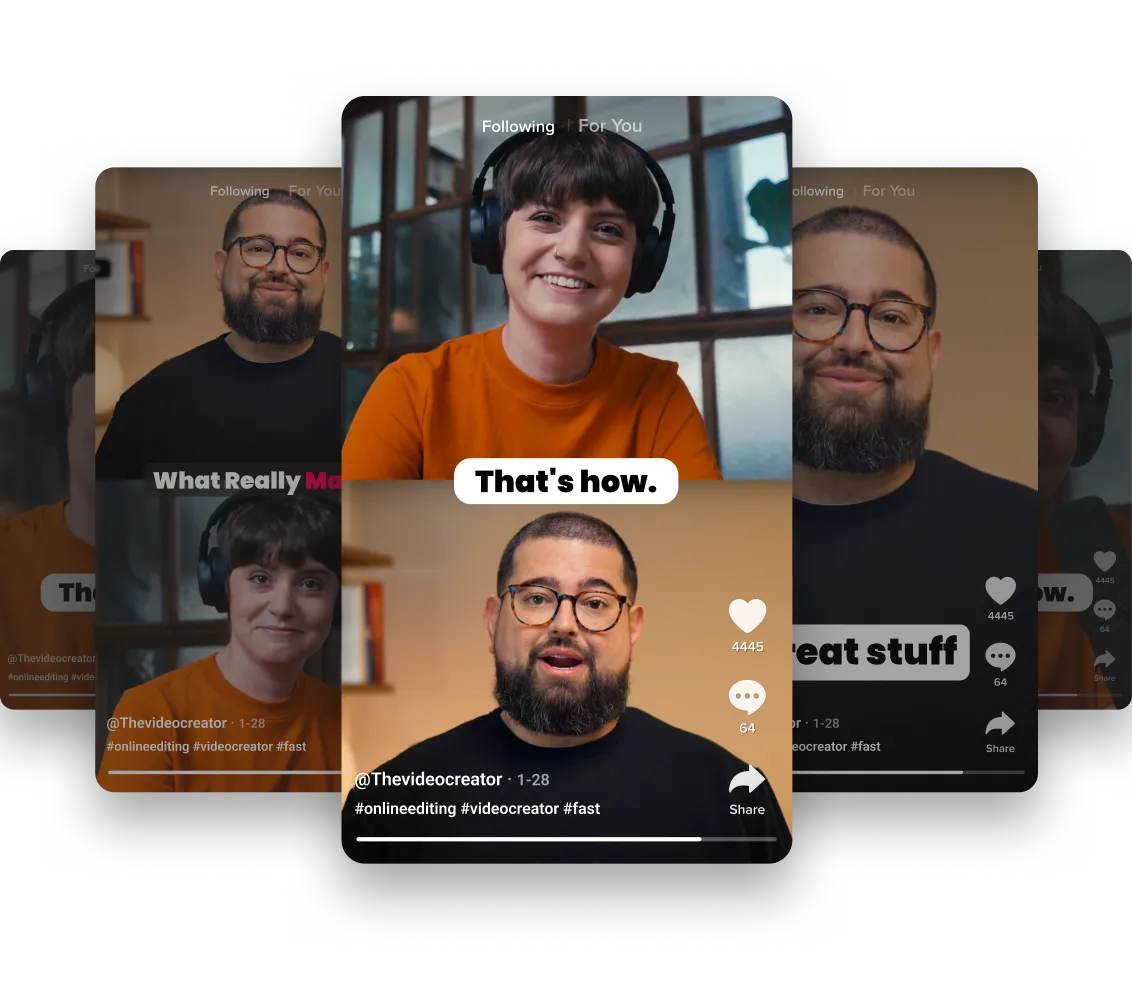
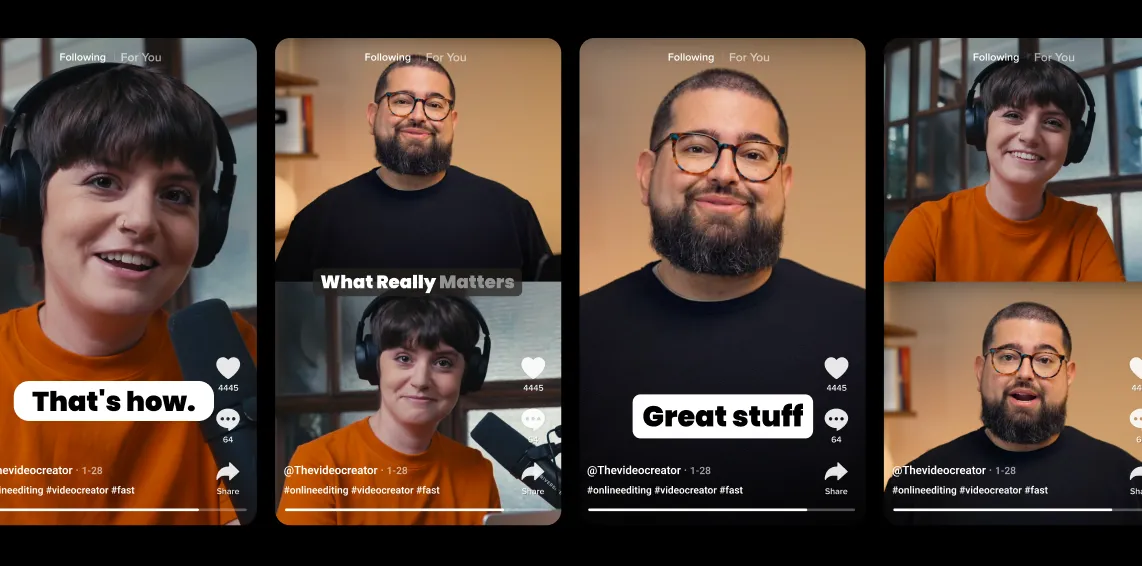
Clip that one-hour-long video into multiple ready-to-go TikToks. With our clip editor for TikTok, we use AI to find the most captivating moments and transform them into shareable clips—all in just a few clicks.

Edit TikTok videos in a snap.
Trim your recording as easily as deleting text in a doc. Our online TikTok editor uses text-based editing, so you can cut your videos in minutes. Or, try our color-coded editing timeline with automatic chapters to help you stay on track.

Use TikTok dimension presets.
Get your video dimensions right every time. With 9:16 aspect ratio templates tailored for TikTok, you can easily format your videos for a vertical, full-screen experience.

Make TikTok videos, your style.
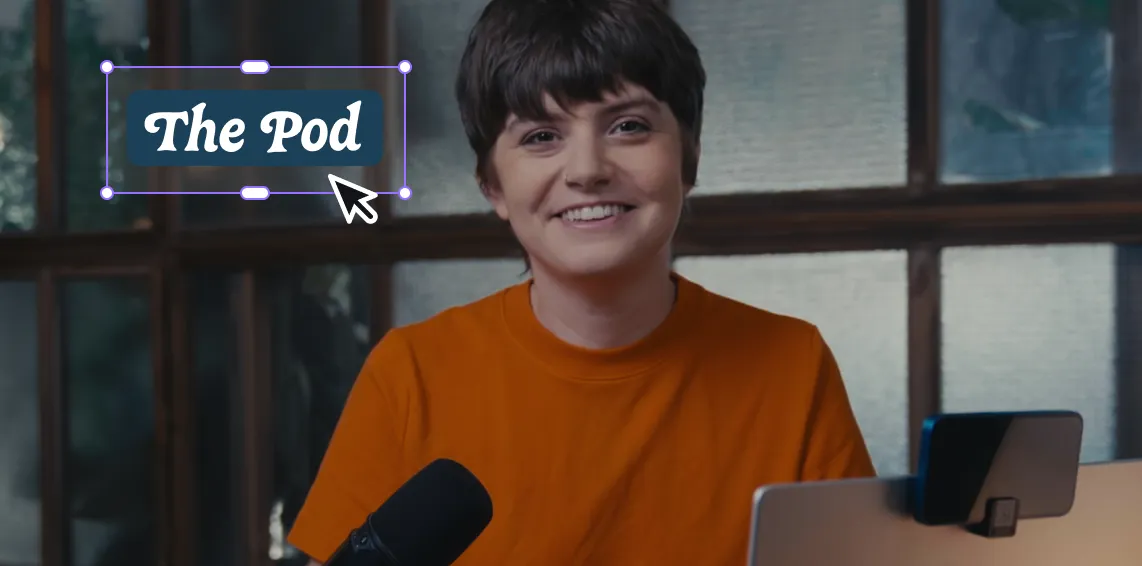
Add custom text, image, or music overlays to add that personal touch to your TikTok videos. Choose from our extensive library or upload your own to create TikTok videos that actually stand out.

Add captions that pop.
Skip the plain subtitle captions. Add captions with custom animations, fun fonts, colors, and backgrounds so your readers can’t help but notice your content.

Record and edit in one place.
Create your TikTok videos from beginning to end in one place. Record in up to 4K video resolution and even invite guests to join. Edit and you’re ready to share your viral-worthy video.
Make TikTok videos with Riverside.
From concept to TikTok-ready in a flash.
How to choose the best TikTok video editor
Ease of use:
Editing TikToks should be quick and intuitive. Look for an editor with a user-friendly interface that streamlines the process.
AI-powered editing:
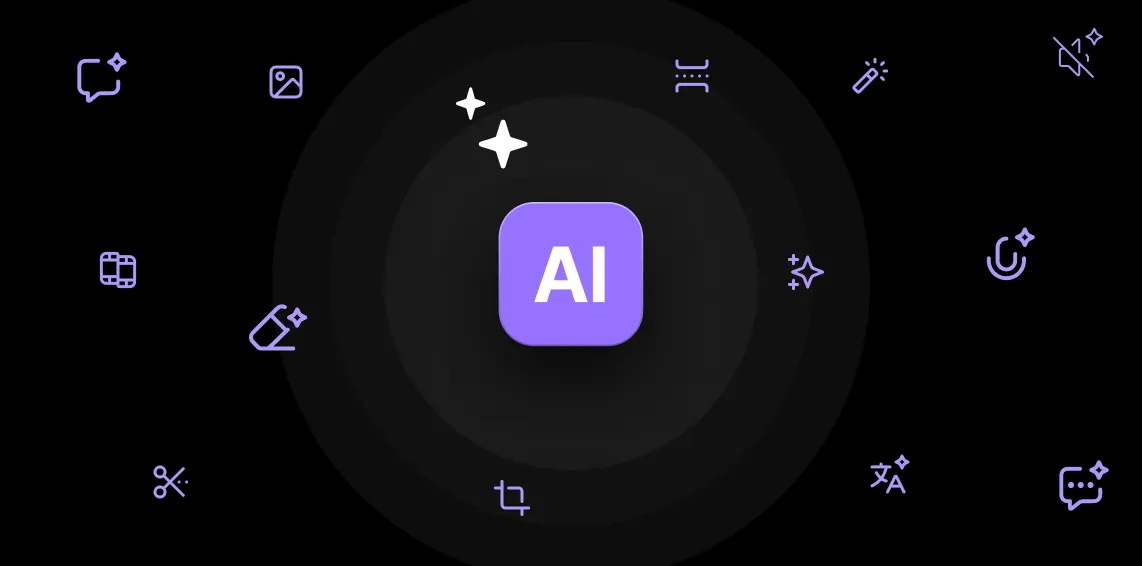
Save time with smart tools that trim, enhance, and generate social-ready clips effortlessly.
Text and captioning features:
Adding text and captions keeps viewers engaged. Choose an editor that offers customizable fonts, colors, and animations. Dynamic captions with movement are best for engagement.
Customization and effects:
From overlays to transitions, your editor should offer creative tools that make your content stand out.
Platform optimization:
Ensure your editor exports in TikTok’s ideal format (9:16 vertical) in high-quality resolution.
Efficiency and cost:
Look for a platform that allows you to record, edit and share from one place. This will save you time and cost.
An AI TikTok video editor for:
Time-savvy solo creators
Being a solo TikTok creator means wearing many hats. We’ll wear the editing hat for you. Riverside’s AI tools take care of the tedious editing tasks, so you can focus on creating TikToks you love.
Marketers who create smart
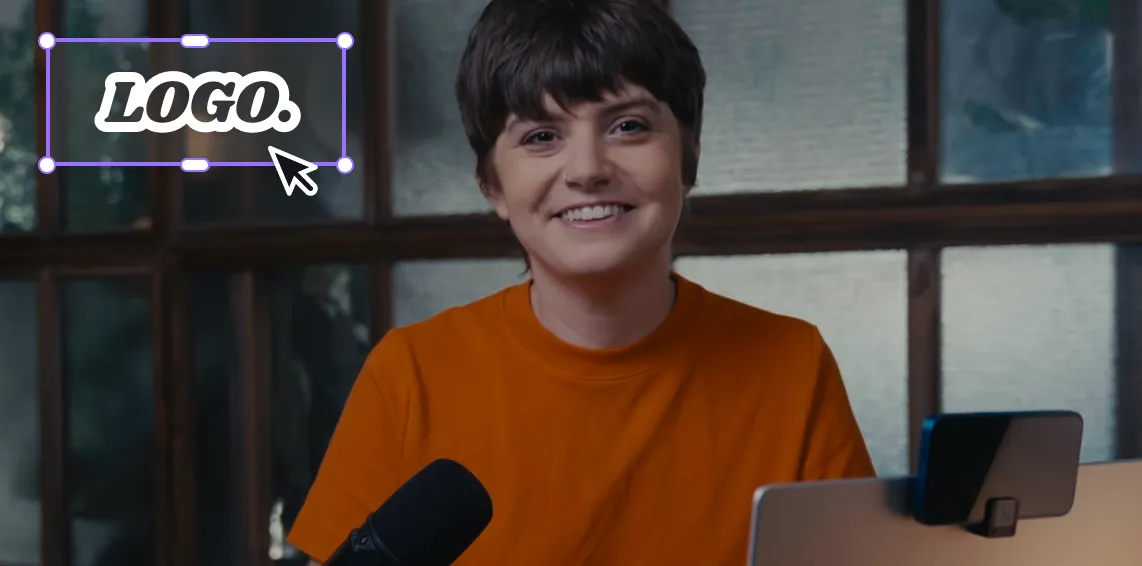
Record customer testimonials, interviews, or webinars and then easily repurpose them into TikTok videos. Upload your logo or a background and customize your TikTok with text, images, and captions to stay on brand.
Podcasters looking to boost visibility
Turn hour-long podcasts (or YouTube videos) into multiple shareable TikToks with our AI Magic Clips generator. Touch up with captions, branding, and background music. Promote your show without extra hours of editing.
Beginners who want pro results
New to TikTok? No problem. Trim your videos as easy as editing a doc, style them up in minutes and let AI do the complicated audio editing. From recording to publishing-easily create TikTok content professionally.

Pricing
From recording to publishing, all on one platform. Studio-quality results with AI that does the heavy lifting.
Pro
Create polished, high-quality content
/mo (yearly plan)
High-quality video & audio recording in separate tracks
Unlimited text-based editing
Unlimited multi-track editing
AI tools (Magic Audio, Smart Scenes for automatic multi-cam edits, eye contact, unlimited transcriptions, show notes, remove silences & filler words)
AI content repurposing tools
Publish to YouTube, Spotify, Apple, Instagram, LinkedIn & more
Business
Produce at scale with control
Full remote control over recording and post-production
Custom branding
Webinar solution
Podcast hosting for as many shows as you want
Async recording
Team collaboration
24/7 priority support
Dedicated Customer Success Manager
Enterprise-grade security

Frequently Asked Questions
To edit TikTok videos for free, you can:
Use the built-in TikTok editor. Fewer editing tools will be available, but everything will be directly on TikTok.
Edit with a dedicated free TikTok video editor: Platforms like Riverside offer free editing options with features like AI-powered clips, text-based editing, and aspect ratio templates perfect for TikTok.
If you want to edit a TikTok video on Riverside for free, follow these steps:
Step 1: Login and click on "Create New Studio" to set up a recording environment. Here, you can either click “Upload” to add an existing video or “Record” to capture a new one.
Step 2: Select your video and click on “Edit” to go to the editor.
Step 3: Use the timeline or text-based editor to trim unwanted sections.
Step 4: Customize your video with captions, text, music, and backgrounds.
Step 5: Click “Export” to save your final TikTok.
If you’d like to export a video without our watermark, you’ll need a paid plan.
Learn more in our full guide on how to edit TikTok videos.
You can use the TikTok editing app to add music to a TikTok video with the “Add Sound” button. From there you can browse or search for available tracks.
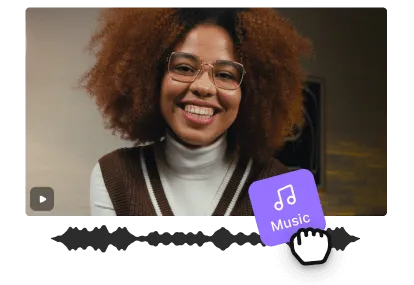
If you want to use your own music or something that isn’t available on TikTok, you can use Riverside for TikTok editing. Choose from hundreds of license-free tracks - or upload your own. You’ll also be able to fine-tune audio elements, adjust timing, and ensure seamless integration of music with your video.
For more, check out our guide on how to add music to TikTok videos.
We recommend doing it on your computer using high-quality video editing software.
TikTok’s built-in tools are easy enough to use, but they lack the customizability and quality results that editing software can provide. Riverside is both a TikTok maker and editor. You can record in high quality, edit your TikTok, and share it - all from your Riverside studio.
Many creators use a combination of TikTok’s built-in editing tools and video editing software. While TikTok’s features are user-friendly, they only provide basic editing functions. And you can bet that your favorite influencers are using video-editing software to edit their TikTok videos. Some options include:
- Riverside
- CapCut for mobile and desktop
- Premiere Pro
Yes, you can edit TikTok videos on your computer!
You can access TikTok’s native editor through the Creative Centre. But as of December 2024, this isn't available anymore.
You’ll have a lot more editing tools available if you use a dedicated editing platform. Luckily, there are plenty of TikTok video editors online. For example, with Riverside, you can easily record and edit TikTok videos. We offer AI tools to speed up editing so you can focus on what counts and you can access our editor on any Mac or Windows PC.
Get TikTok ready in minutes.
Try Riverside’s editor now.
Other Riverside tools


.webp)

Discover free and paid tools on Riverside.
More from Riverside


Features