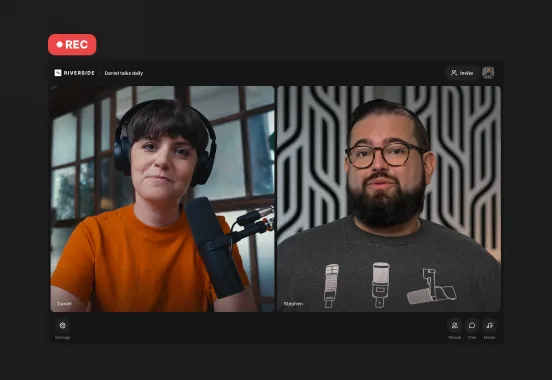
Key takeaways:
- Native iOS tools let you record FaceTime audio calls via the built-in Call Recording feature, but it doesn’t include video.
- The iPhone Screen Recording feature captures FaceTime video calls, but not audio.
- Mac users can record both audio and video by pressing Command + Shift + 5 and selecting the built-in microphone for the audio source.
- To record a quality FaceTime style call with audio and video on separate tracks, use third-party software like Riverside.
Want to know how to record FaceTime with audio? We’ll cut straight to it. You can’t record both the audio and video in FaceTime using your iPhone's native tools. But you do have options.
In this guide, we’ll show you step-by-step how to record FaceTime calls, including how to capture audio on calls. Let’s get started!
How to record a FaceTime Call with audio on iPhone or iPad
Apple now allows you to record audio FaceTime calls, but not video calls.
Follow these steps to record Facetime audio on iPhone or iPad:
Step 1: Open the FaceTime app and click “New Call”.
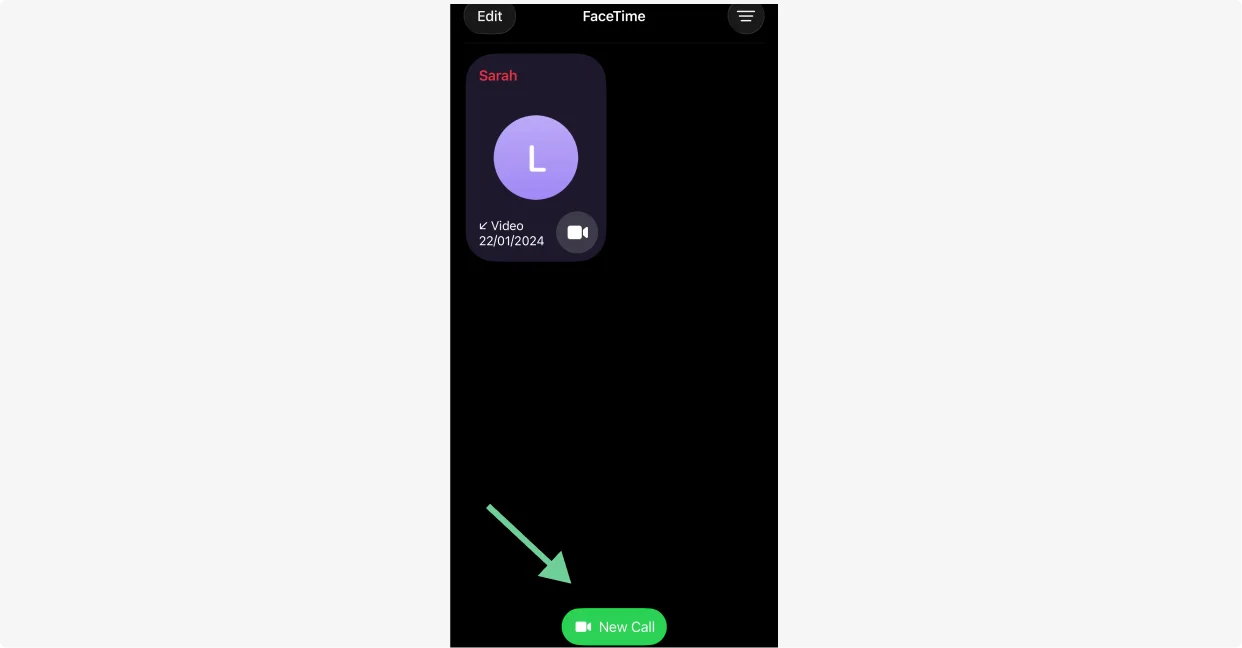
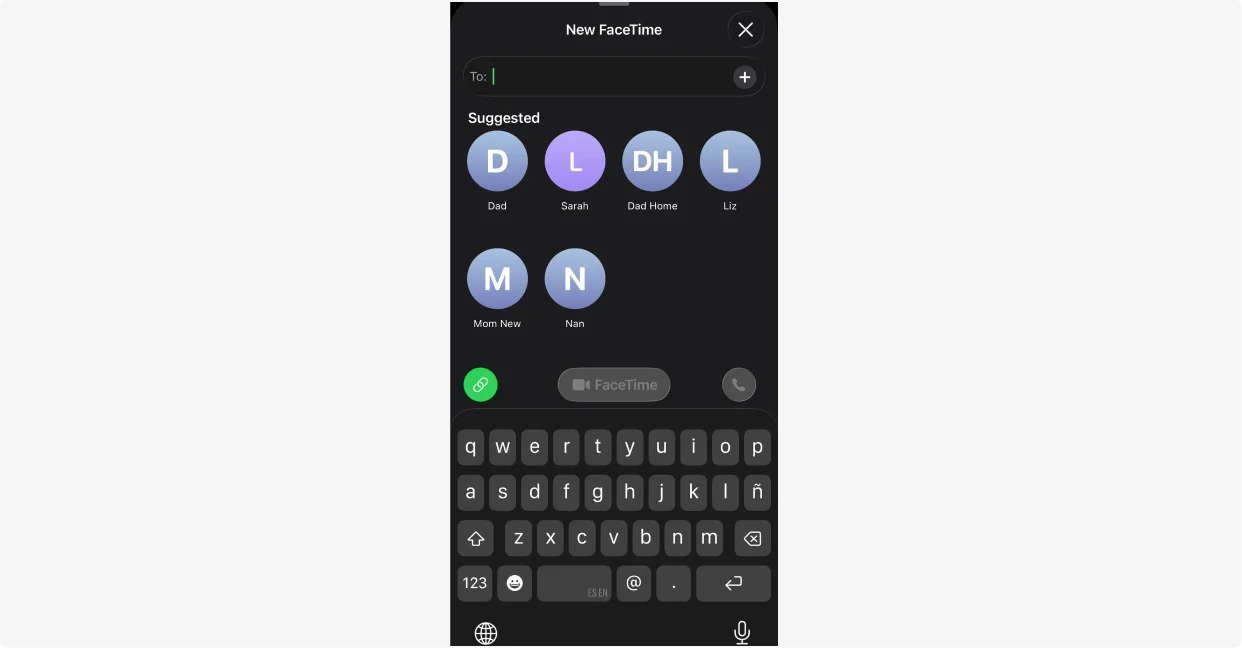
Step 2: Choose a contact and tap their name. Next, press the Audio Call symbol.
Step 3: Click the button and then tap on “Call Recording”.
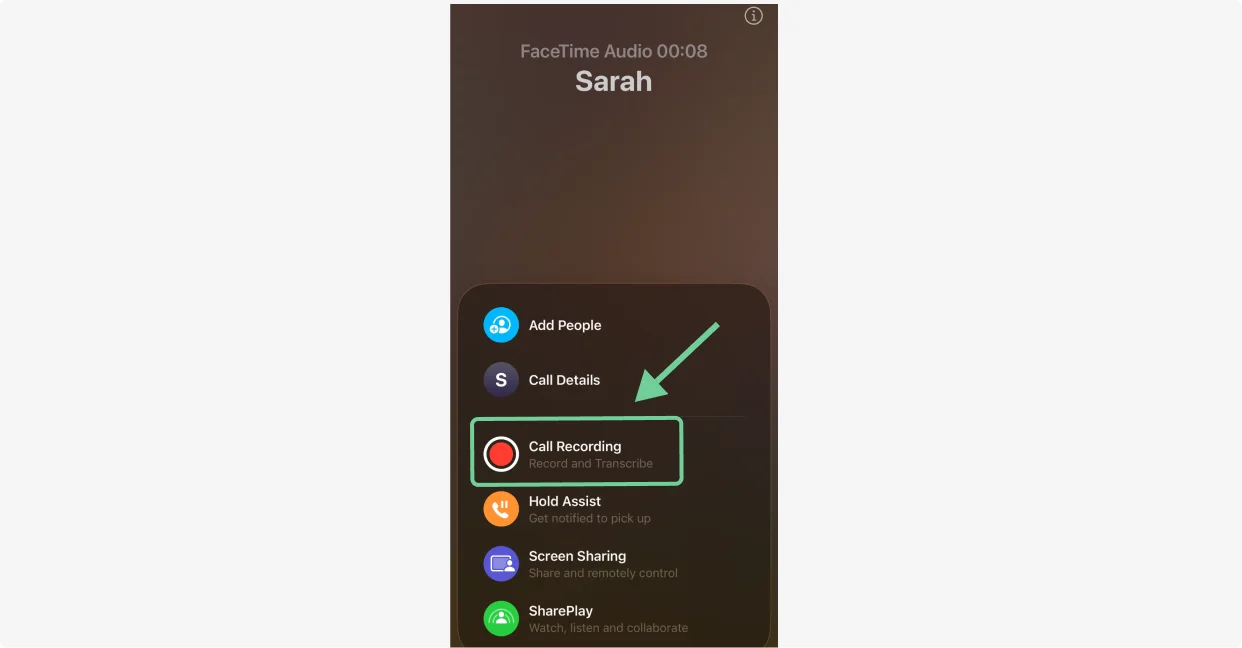
Note: Both you and the other caller will hear a notice saying the call is being recorded.
Step 4: When you want to stop recording, press the Record symbol. If you can’t see that symbol, click and then “Stop” next to Recording.
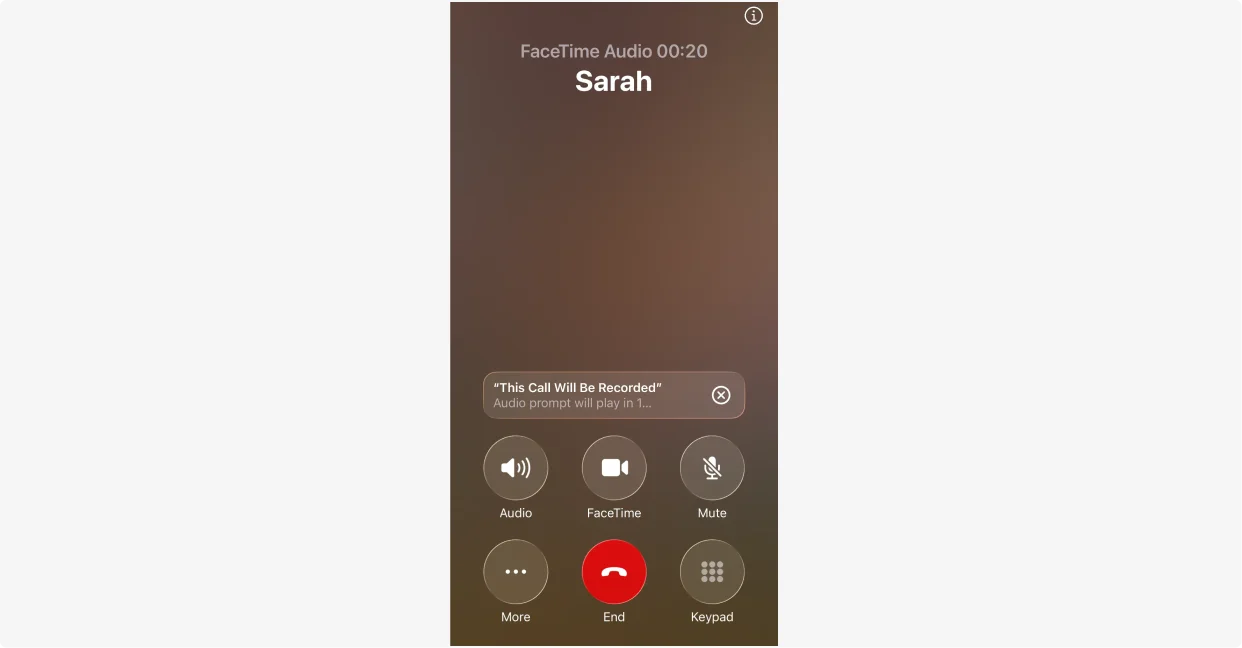
Your call recording will be saved in a “Call Recordings” folder in your Notes app.

This is the best way to record a FaceTime call without third-party apps.
How to screen record FaceTime call video
But what if you want to record a video call?
You can use your iPhone’s built-in screen recorder. But it won’t capture audio with the video. To record both audio and video, skip to the next section of this guide.
Follow these steps to record Facetime calls without audio on your iPhone or iPad:
Step 1: Open your “Settings”, then tap “Control Center”. Scroll down to open the Control Center.
Step 2: Click the “+” button on the top left, then click “Add a Control” on the bottom of the screen.
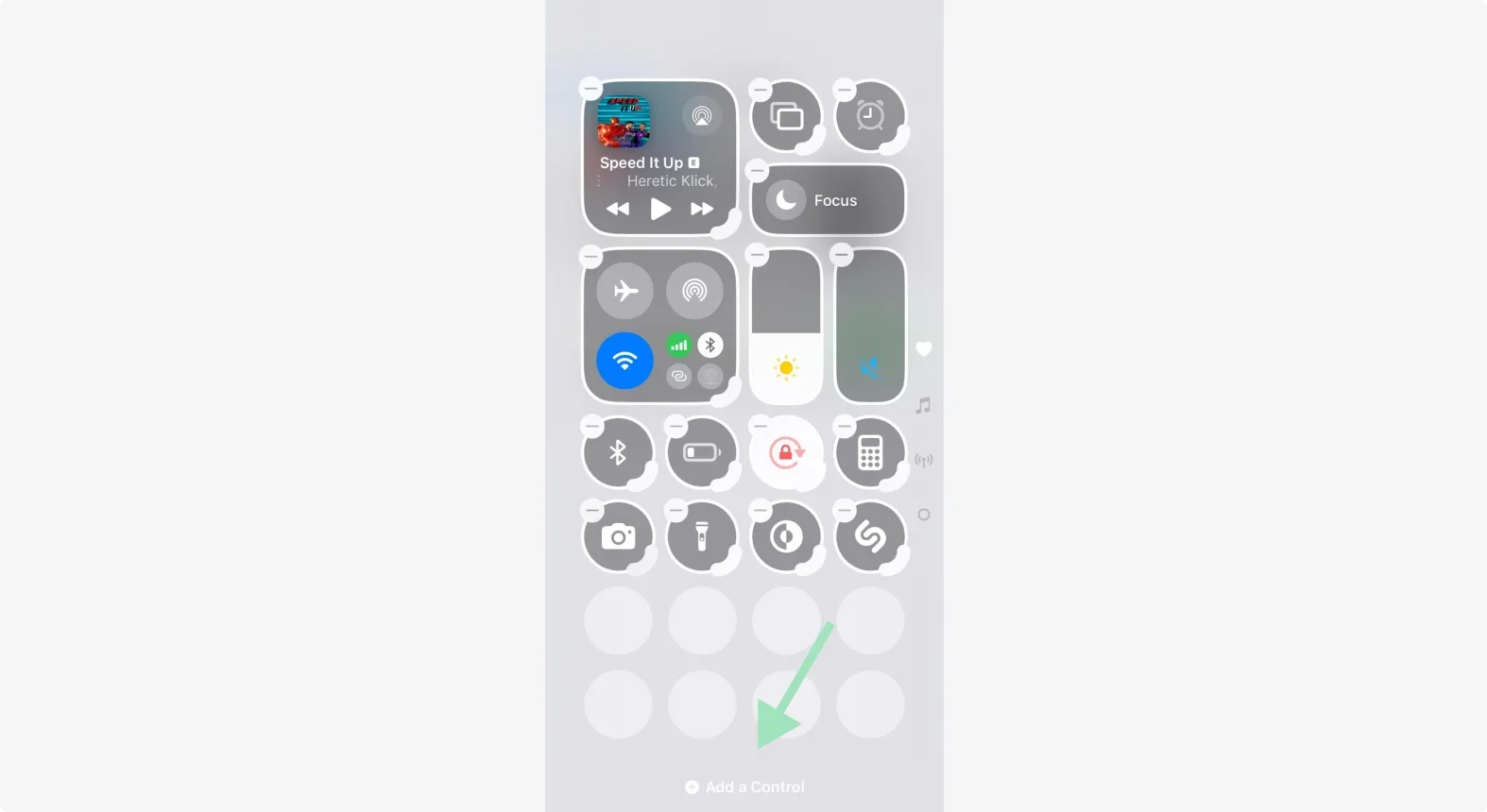
Step 3: Select the Screen Recorder to add it.
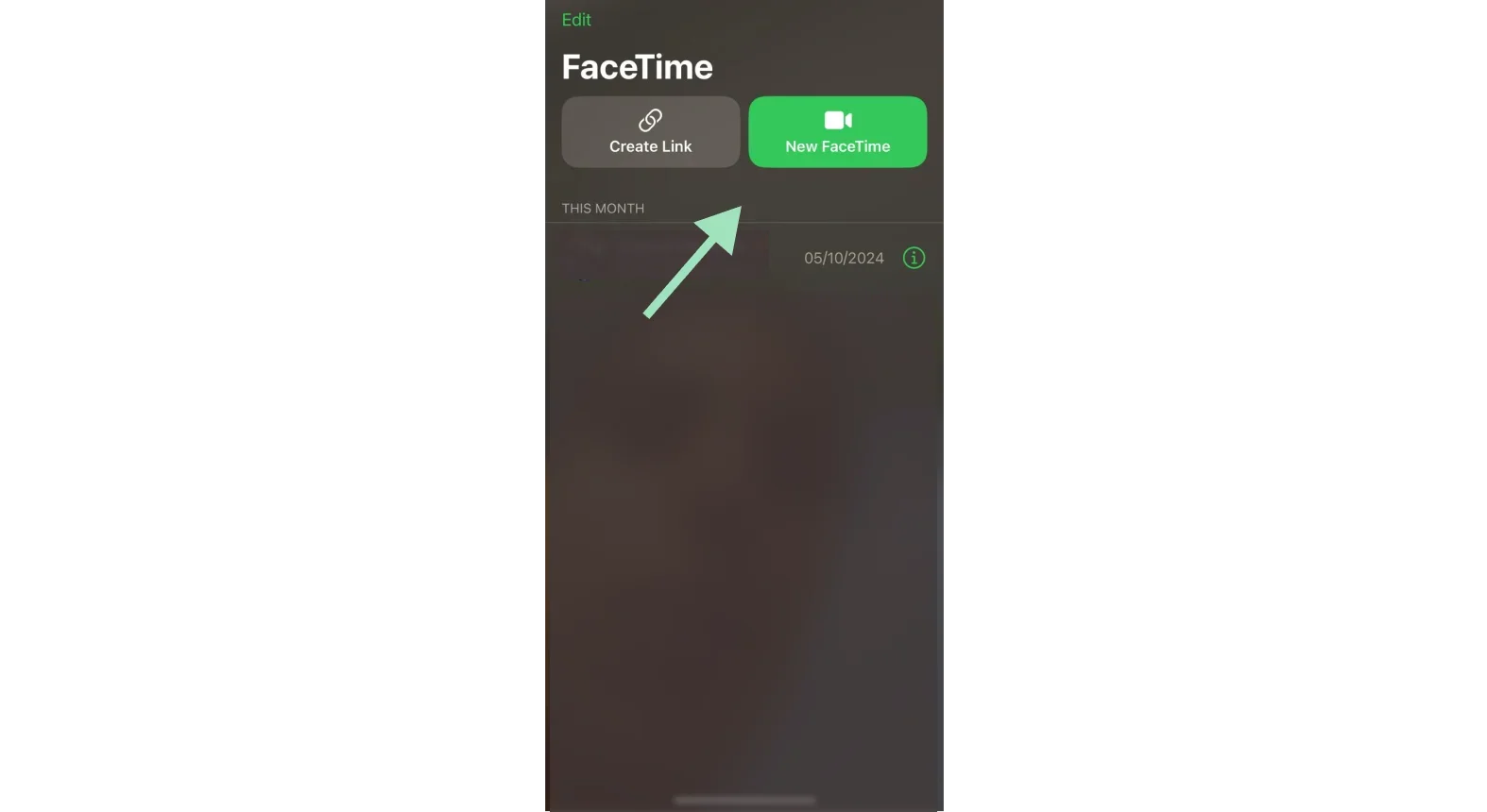
Step 4: Open the FaceTime app on your iPhone, then start a new click with “New FaceTime”.
Step 5: To start recording:
- Swipe down from the top-right corner of the screen to open the Control Center.
- Tap the Screen Recording button (circle icon) to start recording. You’ll see a 3-second countdown before it begins.
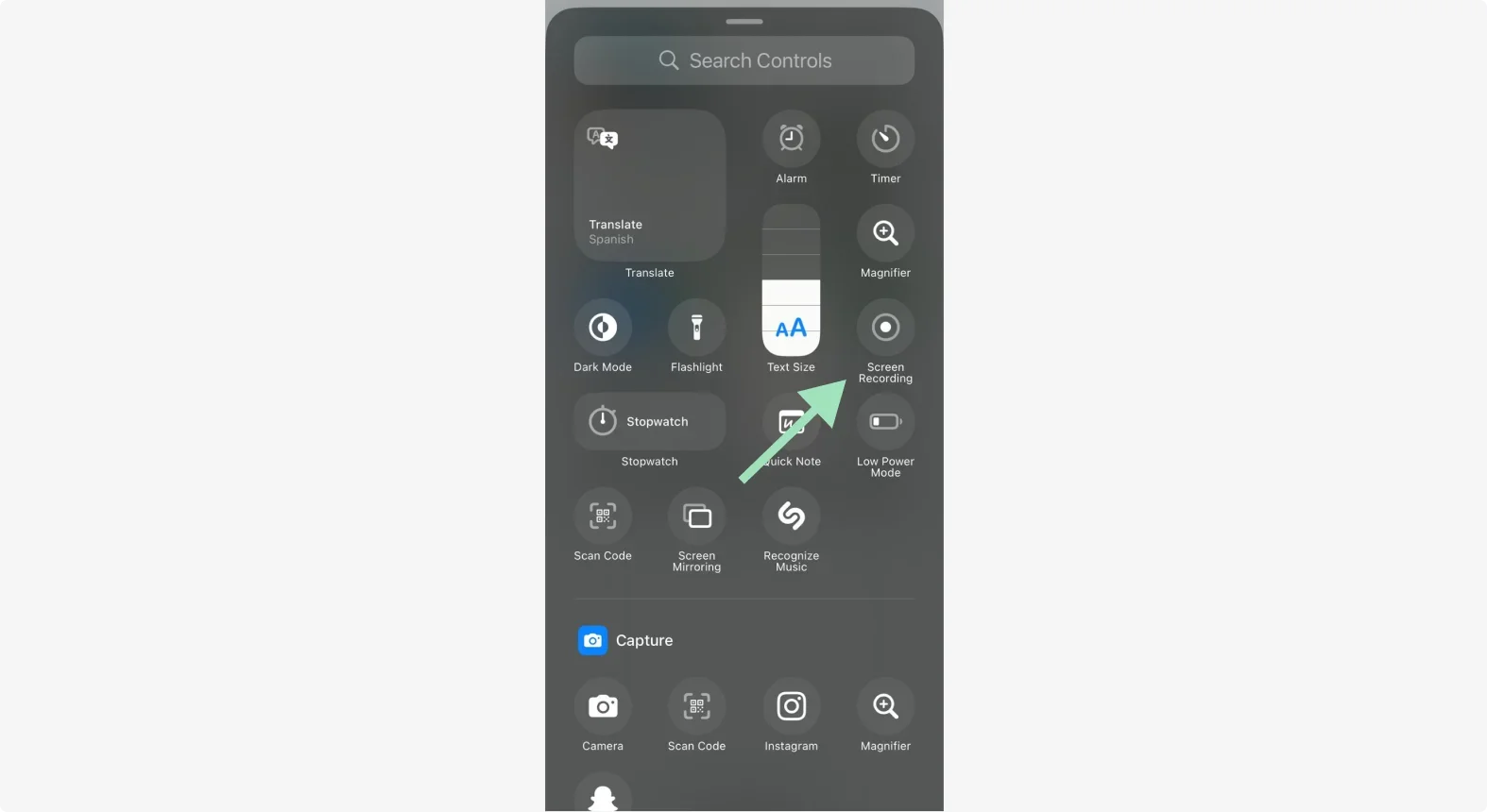
Step 6: To stop recording, open the Control Center again and tap the Screen Recording button.
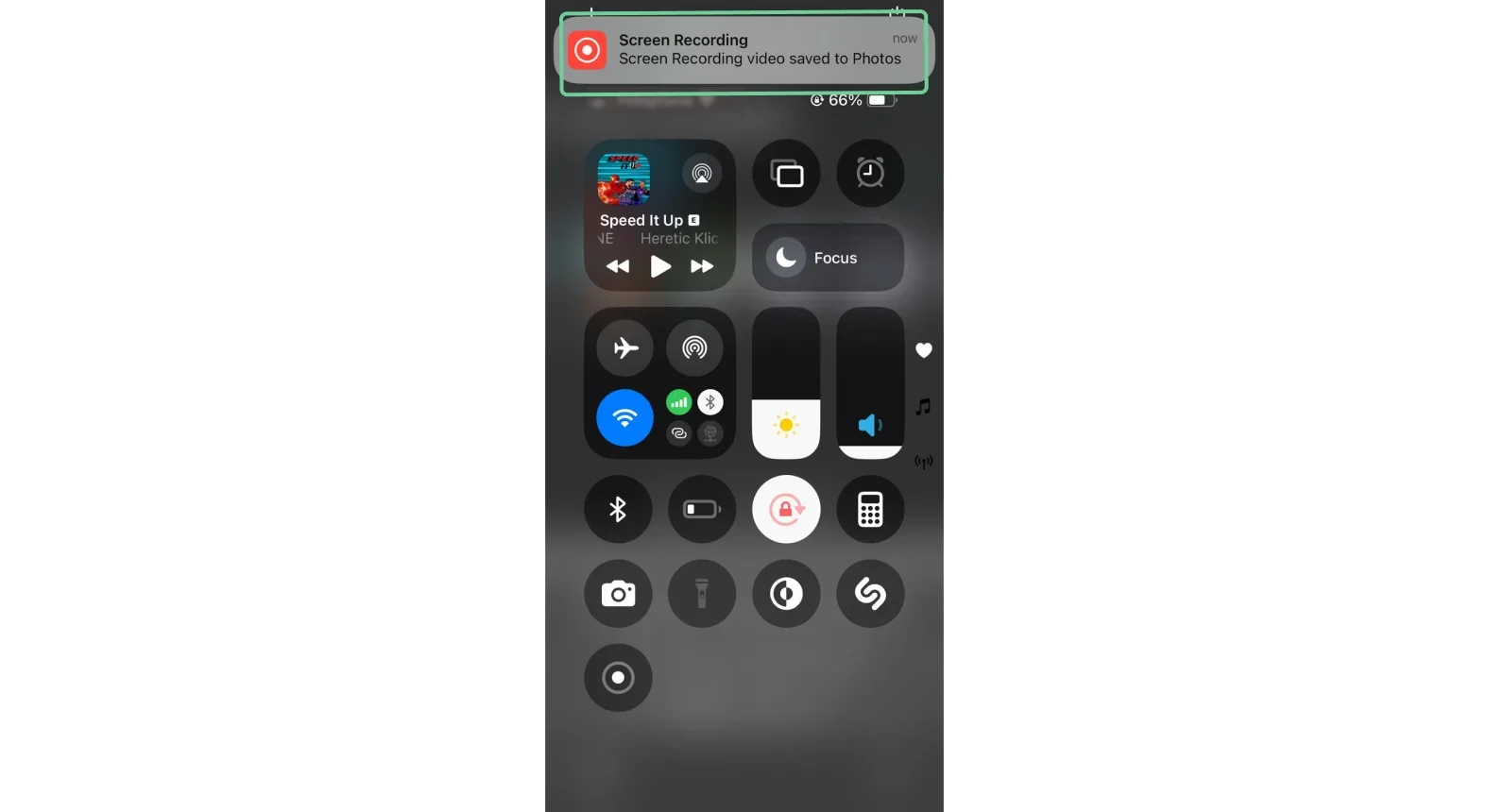
The video will be saved to your Photos app.
How to record a FaceTime call with separate video and audio tracks
You can’t record both video and audio using Apple’s native tools. Instead, you’ll need call recording software like Riverside.
With our mobile app, you can record up to 4K video and lossless audio. You’ll get separate audio and video tracks for each participant for more editing control. This way you can edit one participants audio or video without affecting others.
And, everything automatically syncs to your desktop for easy access.
Follow these steps to record a call with Riverside:
Step 1: Open the Riverside app on your iPhone. Log in or create an account if you haven’t already.
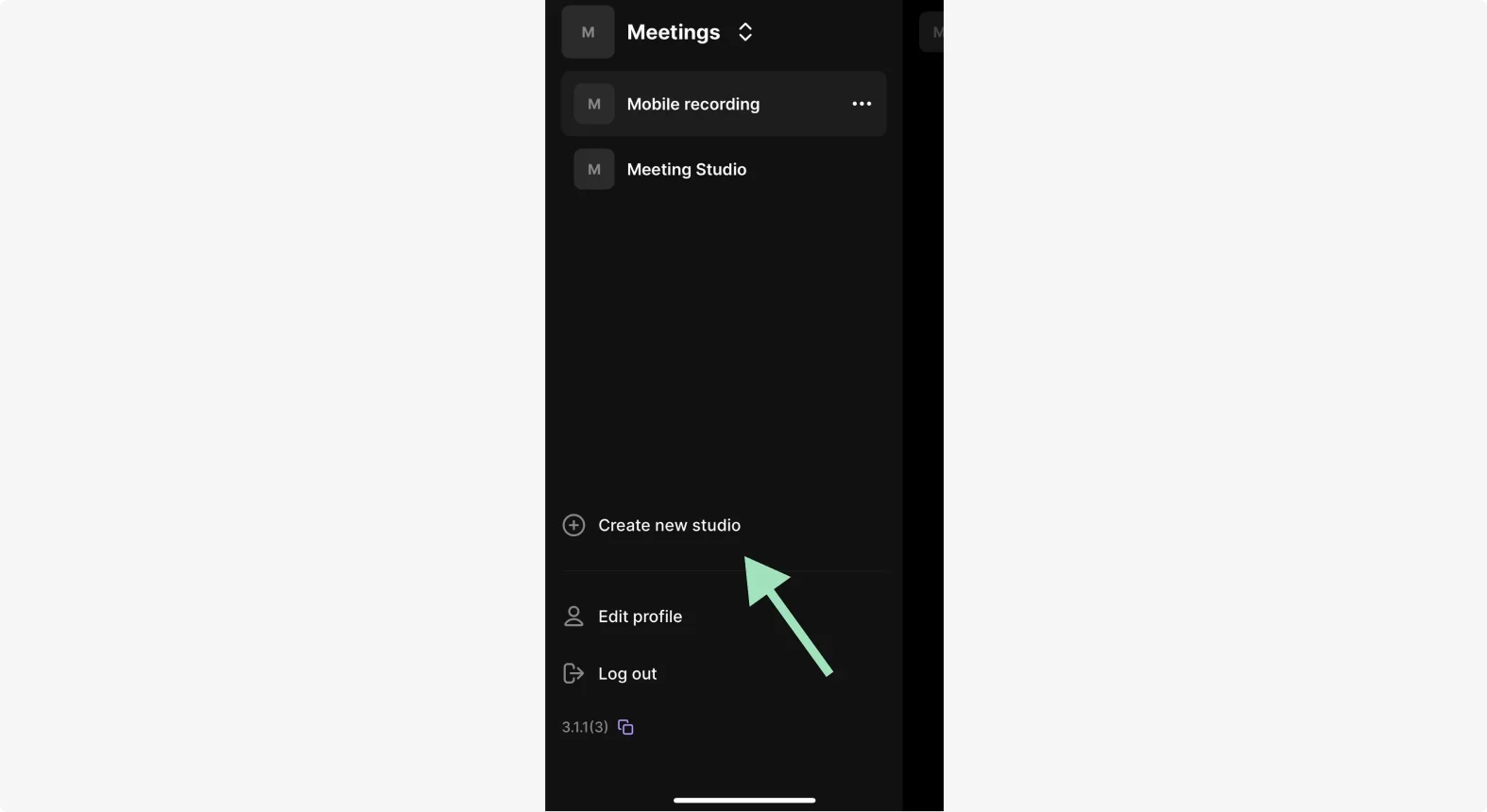
Step 2: Select a recording studio or tap “Create a New Studio” to set up a new one.
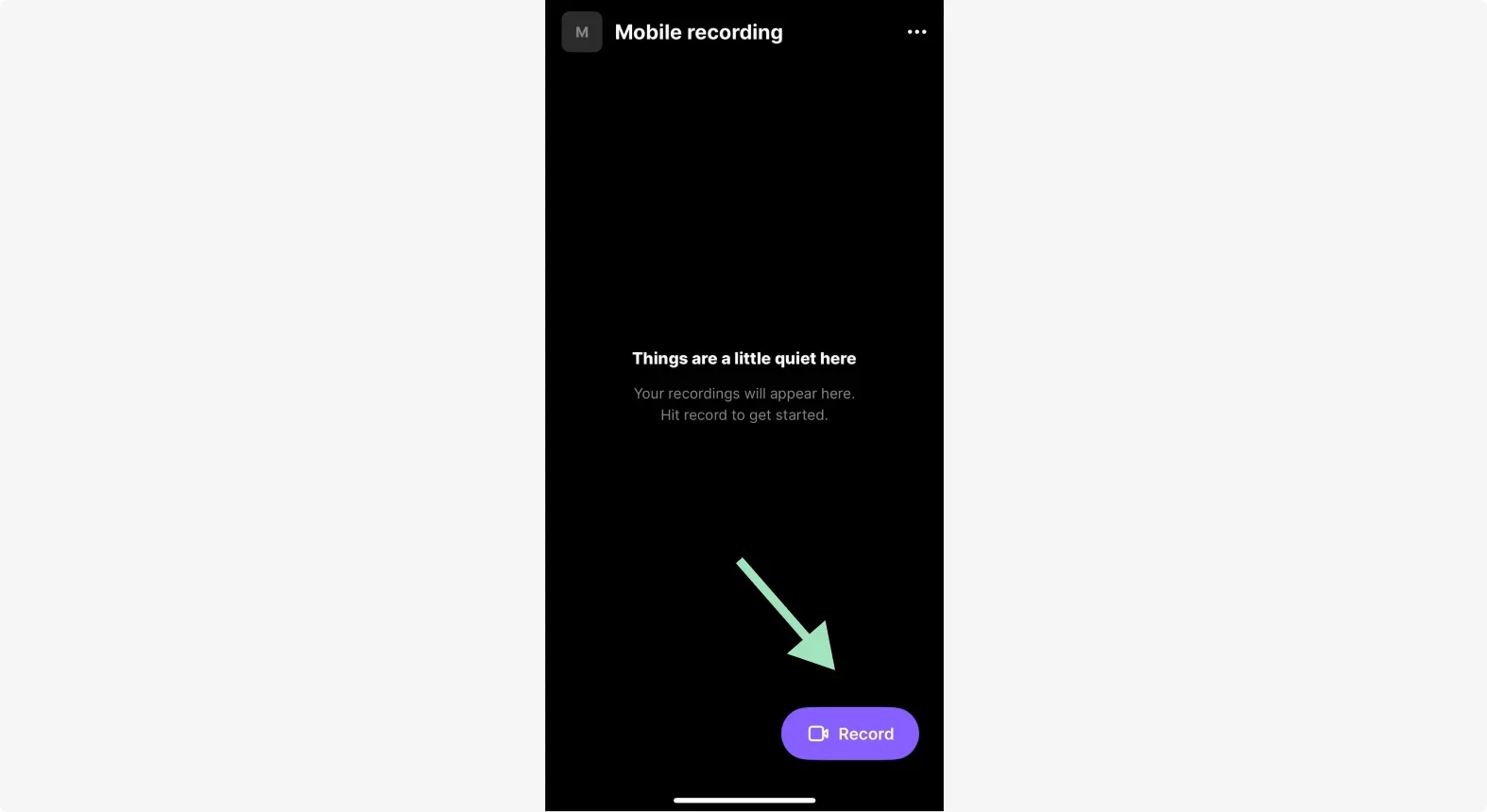
Step 3: Click “Record” to start a new recording.
You’ll get taken to the lobby. Allow access to your camera and microphone. When you’re all set, click “I’m ready”.
Step 4: In the studio, invite guests by clicking the three dots in the toolbar below. You can then send your guests an invite link.
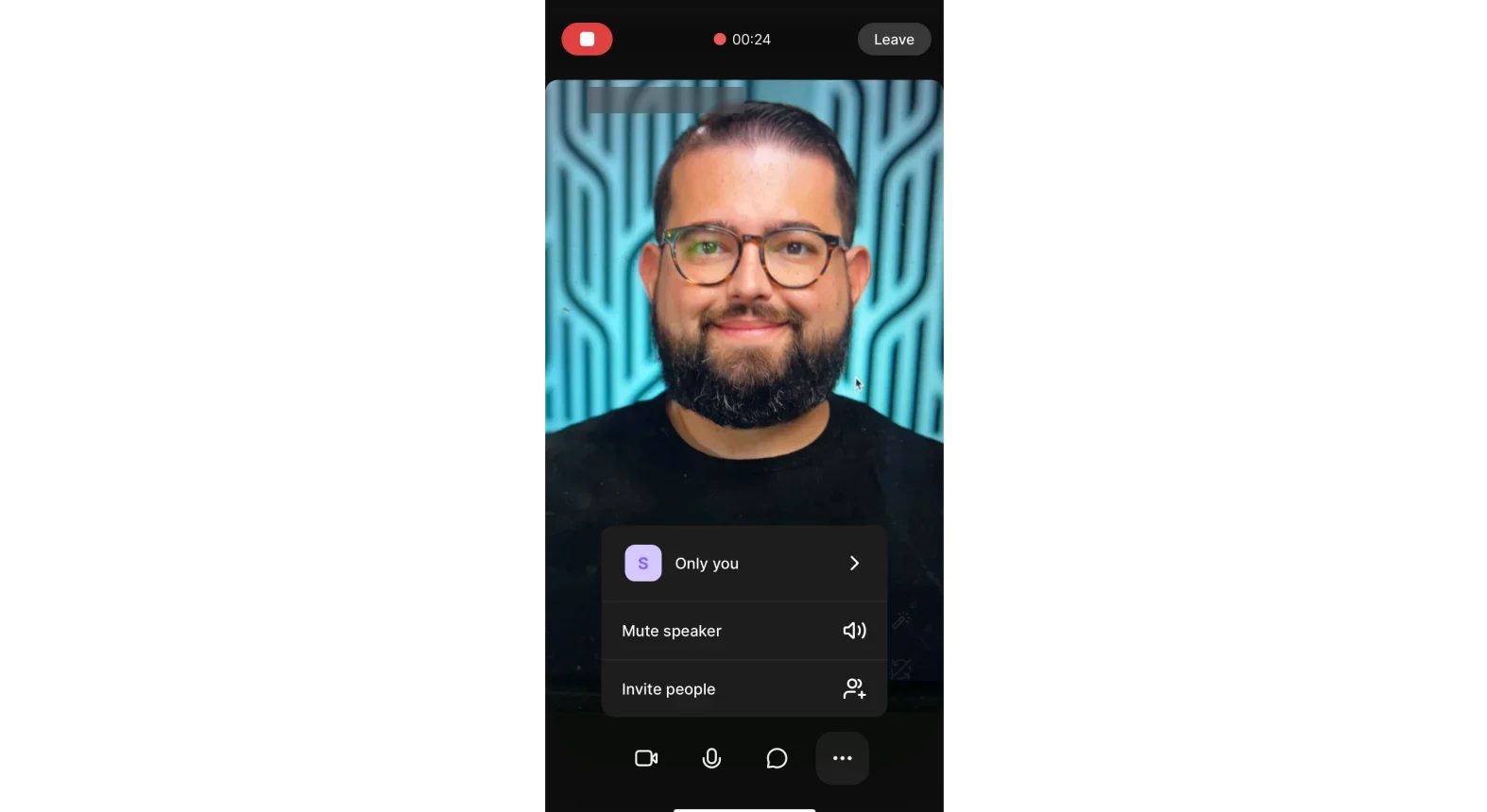
Step 5: Whenever all guests are in the call, click the REC button on the top left to start recording. This will turn into a Stop button so you can end the call recording once you’re done.
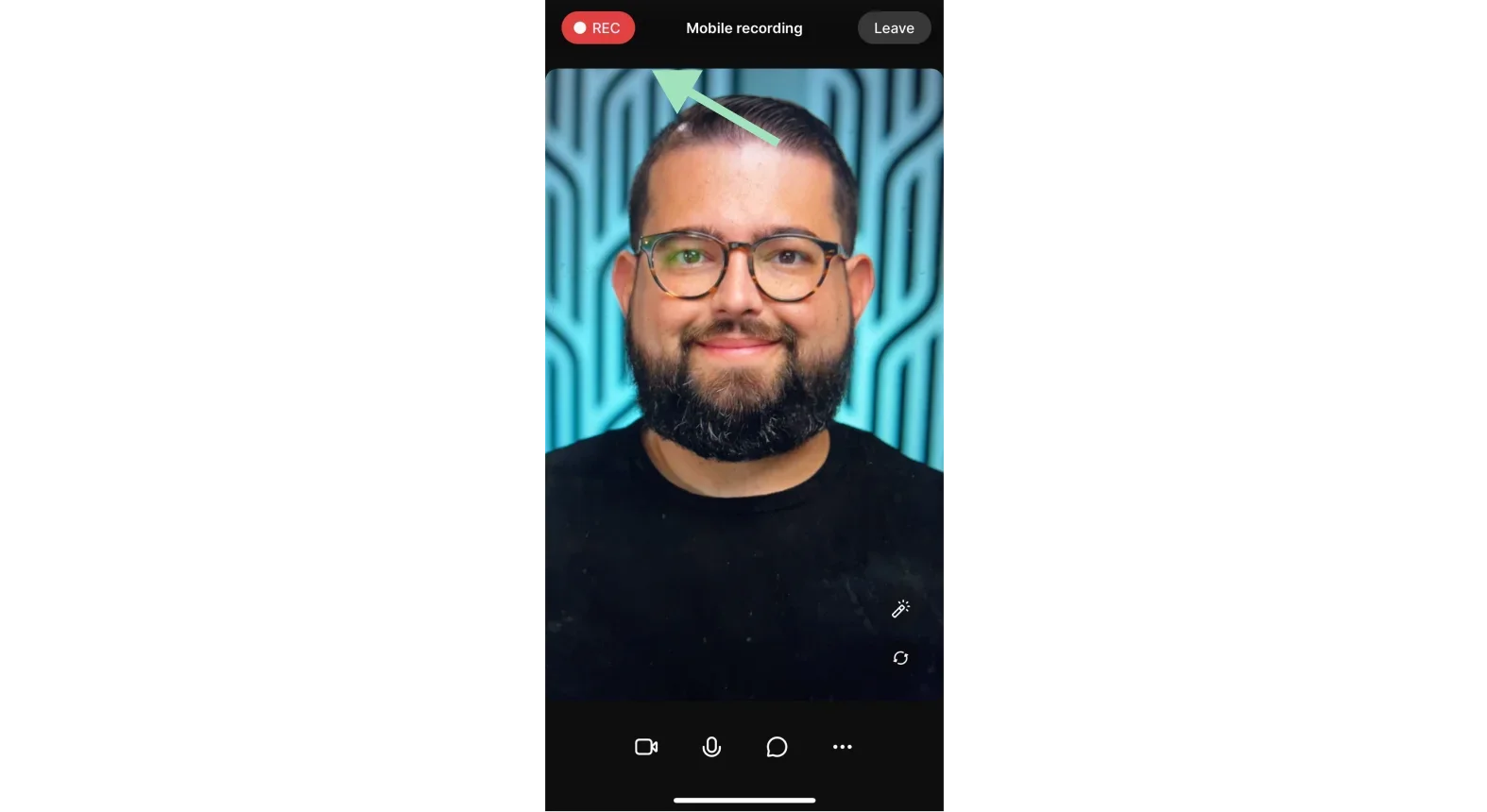
Step 6: End the call and wait for your recordings to finish uploading. You can then access them in your mobile studio.
Check your “For You” section for AI-generated video highlights.
Or, use Co-Creator for chat-based editing. Tell it what changes you want, and it edits the video content for you.
You can also do basic edits in the app including trimming, adding captions and choosing a layout.
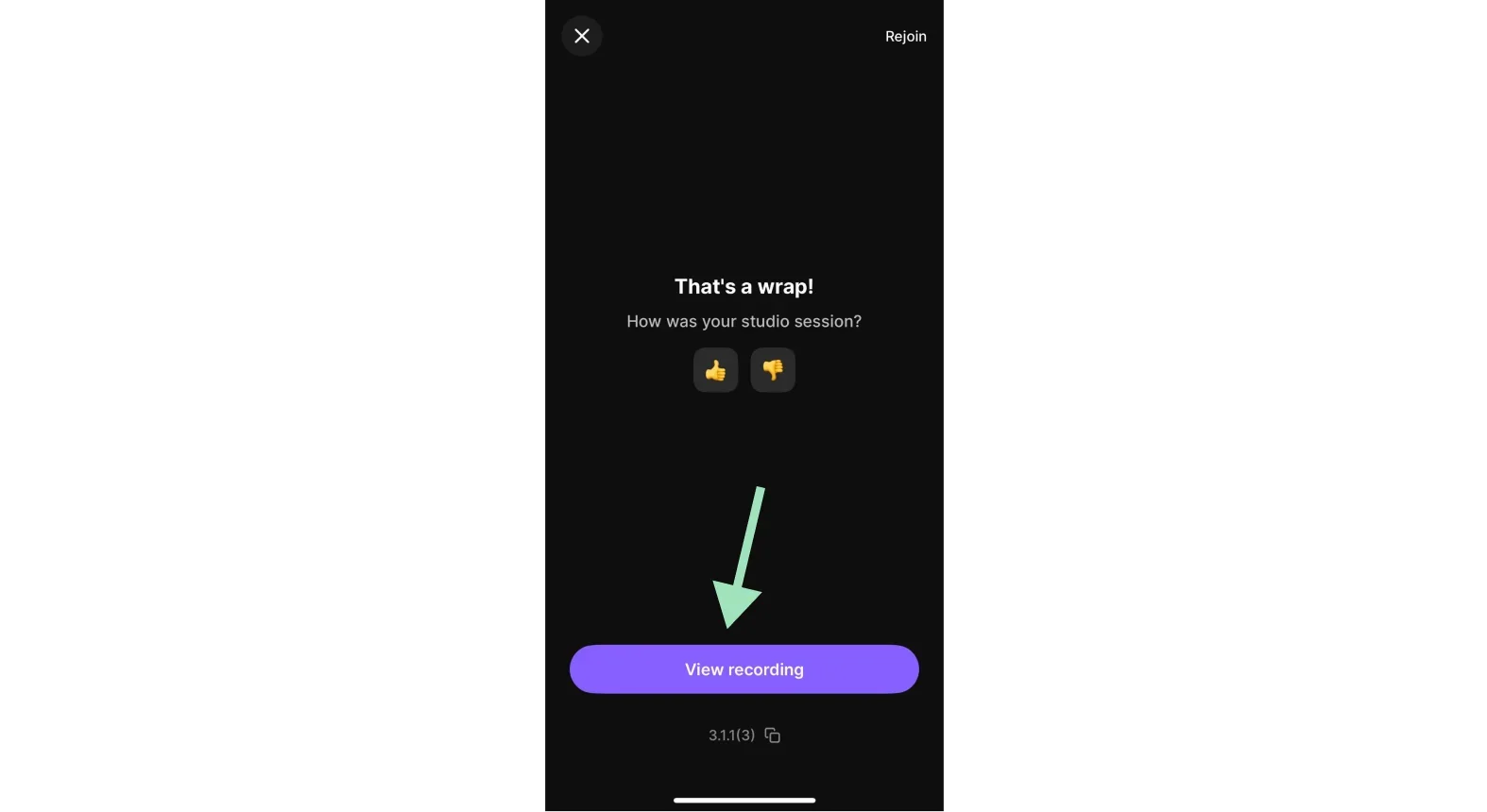
You can also access your files on your desktop to use Riverside’s full video editor.
It gives you text-based video and audio editing, audio enhancement, overlays, captions, and more. Ideal for creating polished final videos.
That's all it takes to capture high-resolution FaceTime calls with Riverside. Go ahead and sign up for free to start recording your own.
How to record FaceTime on Mac
On Mac, you can capture audio and video.
Here’s how to record a video call on FaceTime on Mac with audio:
Step 1: Open FaceTime on your macOS system. Step 2: On the keyboard, press <Command> + <Shift> + <5>.
Step 3: Select "Options" to choose your computer’s Built-in Microphone as your audio source.

Step 4: Choose "Capture Entire Screen" or "Capture Selected Portion".
If you choose to only record a portion of your screen, click and drag your mouse to select the area of your screen you want to record.
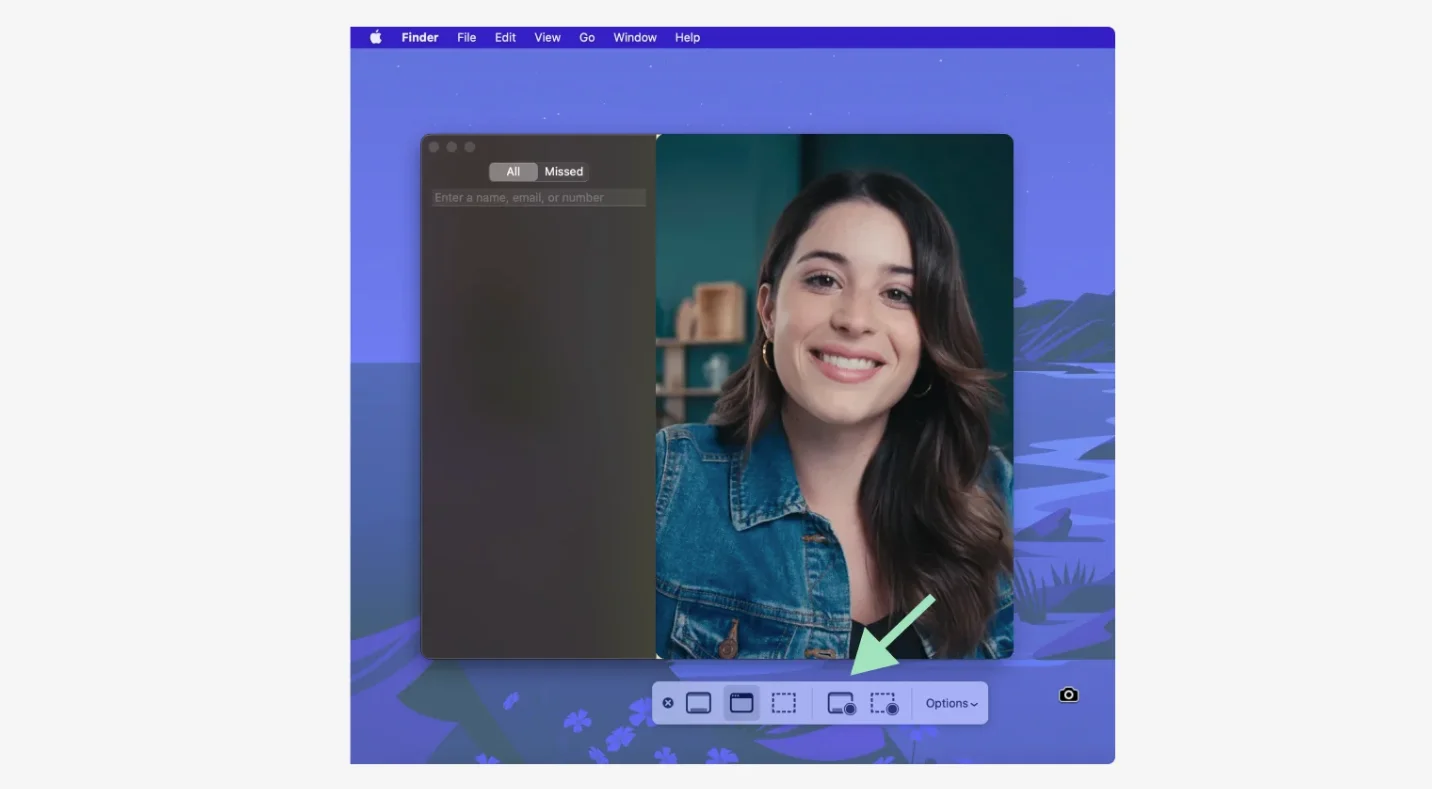
Step 5: Click Record to start a new screen recording.
Step 6: Make a call using FaceTime.
Step 7: Click Stop Recording symbol when your call is finished and the recording will be saved to your desktop.
Note: If you can’t see the symbol, click <Command> + <Shift> + <5> to bring up the Screen Record menu.
Record FaceTime call on your iPhone using Mac
Are you an Apple addict? If you have both a Mac and an iPhone, you can connect your desktop system directly to your mobile device to record a FaceTime call.
Step 1: Connect your iPhone to your Mac using a lightning cable. Or, alternatively, connect using Continuity Camera.
Step 2: On your Mac, open QuickTime via your dock or Applications folder.
Step 3: Right-click on the icon to bring up the menu bar and choose "New Movie Recording".
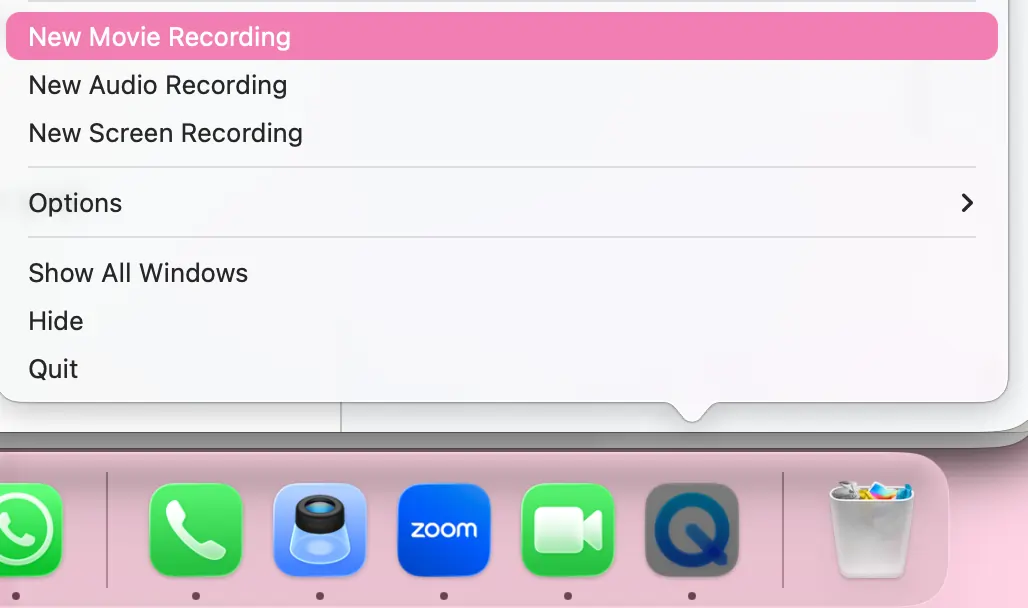
Step 4: Click the arrow to the right of the Record button to see a list of available cameras. Select your iPhone from the list.
Step 5: Unlock your phone screen and your display should appear on your Mac screen in QuickTime.
Step 6: On your phone, open FaceTime.
Step 7: In Quicktime, click the Record button.
Step 8: Make a call using FaceTime on your phone.
Step 9: Click "Stop Recording" when your call is finished.
Step 10: Click “File” and then “Save”. Name your recording and select where you want to save it to. Before finally clicking Save.
How to record a FaceTime call on an Android
You can also record a call on Android.
You can’t start a Facetime call on Android, but Any iOS user can send you a link to join a call.
You’ll need a Chrome or Edge browser to join. Follow these steps to join and record a FaceTime call on your Android device:
Step 1: Ask the iOS user to send a FaceTime invite from their iPhone or iPad by:
- Opening the FaceTime app on their iPhone or iPad.
- Tapping “Create Link” in the FaceTime app window.
- Selecting if they would like to share the FaceTime link via email, message, or on social apps like Facebook Messenger or WhatsApp.
Step 2: Once you’ve received the link, open the call in either Chrome or Edge.
Step 3: To record the call, pull down the Quick Settings shade and look for “Screen Record” or “Screen Recorder.”
Step 4: Long-press it to check the Screen Record settings. Enable both audio options:
- Device audio (for the other caller’s voice)
- Microphone audio (for your voice)
Some Android devices will only support one audio source at a time. Check your settings to see what your device allows.
The feature will then record everything on your Android screen, including the call if you keep the browser open. On some Android devices, it will also record audio.
How to record a FaceTime call on a PC
If you’re using a PC, the process is similar. You will need to have an iOS user send you an invite to FaceTime. You can then record the call using your PC’s native settings.
Step 1: Ask the iOS user to send a FaceTime invite from their Mac by:
- Opening FaceTime on your Mac.
- Locating the Create Link button at the top of the FaceTime window and click it.
- Selecting how they would like to share their FaceTime link. The app lets them send the link via an email or SMS message.
Step 2: Once you’ve received the link, open the call in either Chrome or Edge.
Step 3: Open the Snipping Tool by pressing Win + Shift + S.
Step 4: Select the video camera icon, and then tap “New”.
Step 5: Choose the screen area you want to record by dragging the cursor.
Step 6: Tap the microphone or speaker icon to toggle on the audio.
Step 7: Click “Start,” record your call, and then click the red stop button.
Your video and audio file will save to the location you’ve previously chosen on your PC.
What apps can I use to record FaceTime video calls?
Technically you can use iPhone’s native call and screen recorder. But, like we’ve mentioned this won’t capture both audio and video together. You’ll need a third party Facetime call recorder to do this.
Here are some options:
Riverside
Riverside’s video recording app stands out for its ease of use and high resolution. It offers a complete suite for recording, editing, and sharing video content directly from your mobile device.
Record in up to 4K resolution with separate audio and video tracks for full editing control. You can record with up to 9 callers who can join by their own mobile device or desktop. With local recording, everything records directly from each person’s device, so your quality isn’t affected by shaky wifi.
Everything also uploads to the cloud as you record, so you can immediately access recordings on desktop.
In the mobile app editor you can:
- Trim your video with text-based editing.
- Add captions.
- Choose your layout.
- Create clips from your recording.
- Prompt the chat-based editor to make edits or assets for you.
And more. But for the full editing experience, head to Riverside’s desktop editor. On desktop, you can also stream and host (if you’re a podcaster). You’ll also get automatic transcriptions and show notes of all calls.
The app is compatible with Android and iPhone. Plus we have a separate Mac recording app.
Some Key Features:
- Local recording that looks and sounds professional, with no sync issues, robot voices, or frozen faces.
- Up to 4K video resolution and uncompressed audio.
- Separate audio and video tracks for each participant giving you total editing control in post-production.
- Remote recording with up to 10 participants in one call, suitable for panel discussions, interviews, or team meetings.
- Device compatibility for iOS, Android, Mac & Windows PCs.
- Easy-to-use interface designed for all skill levels. Guests can join with one click. No account or complex setup needed.
- Built-in editing tools for trimming, captions, overlays, layouts, and branding.
- Automatic AI transcriptions and summaries. Turn calls into text materials, social posts, or blog content.
- Smart clips feature automatically generates highlights from your recording. Shareable content delivered immediately after your session.
- Paid and free plans so you can find the most suitable solution, no matter your budget.
AZ Screen Recorder (Android)
AZ Screen Recorder allows Android users to record FaceTime calls. It can capture both caller’s audio if your device supports using two audio sources (both device and microphone audio).
Check your device settings before recording. Some Android devices only allow one audio source at a time.
The free version works well but includes ads. Upgrade to premium to remove ads and get advanced features.
Some Key Features:
- Internal audio recording to capture sound directly from apps (on Android 10 and above). You can enable this in settings on most modern phones.
- On-screen controls let you start or stop recordings while in any app. Tap the overlay button mid-call, so you don't have to leave FaceTime to stop the recording.
- Customizable quality settings for resolution (720p, 1080p, or higher if your device supports it), bitrate, and frame rate.
- Built-in extras including a video editor and face-cam bubble option to record yourself with the front camera while recording the screen.
How do you edit FaceTime recordings after capturing them?
If you’re planning on sharing your FaceTime call, here’s how you can edit the recording:
Trim it down
Start by trimming any unwanted footage. That includes removing any awkward silences or filler content.
On the Riverside app, you can do this using the text-based editor. Any text you delete in your transcript, automatically removes the matching video.
Or, you can use the timeline and preset cuts.
And if you’re on desktop you can also remove filler words and long silences in a click with our AI tools.
Clean up your audio
To clean up your audio, you can:
- Balance all speaker audio levels
- Remove background noise
- Equalize audio to make it sound smoother.
On the Riverside desktop editor you can use our audio enhancer, Magic Audio, to clean up for you. With separate tracks you can also easily adjust the volume of one speaker without affecting others.
Style your video
If you’re posting your video online, you’ll want to include captions. On Riverside, you can add them in the mobile app, or desktop editor.
You might also want to customize your video with text, image or music. You can do all this on the desktop editor.
Once you’ve edited your FaceTime video, save it to your desktop or mobile.
Troubleshooting FaceTime call recordings:
Recording FaceTime calls can be tricky. Let’s look into how to fix common problems:
- You can’t find the recording file: On iPhone, check the Photos app and go to the Recents folder. On a Mac, check either your desktop or download folder.
- The video has no sound: If you screen recorded your call on your iPhone or iPad, it won’t record the internal audio. Use a third-party app to record both.
- There’s no FaceTime Audio recording option: This feature is relatively new. You may need to update your iOS version before using it.
- The recording stopped suddenly: If the recording stops mid-call, you might have run out of storage on your device. Check this before trying again.
- The recording is lagging: Make sure your WiFi or mobile connection is stable. Riverside enables local recordings to avoid this issue.
- You’ve had privacy warnings: When using the built-in FaceTime Audio recorder, both callers will be notified. You should get consent before recording another caller to avoid legal problems.
FaceTime Call Recording FAQ
What tools can I use to record FaceTime calls?
Riverside is one of the best recording apps for FaceTime style calls. You get high-quality video and audio resolution, plus separate tracks making editing easy.
Mac users can also use QuickTime Player for basic recordings. Android users can download the AZ Screen Recorder app to record calls.
Can you legally record a FaceTime Call?
Yes, you can legally record a FaceTime call in most places if at least one person on the call consents.
Note: Some states and countries require all-party consent. This means everyone on the call must agree to the recording. Always ask permission before recording to avoid legal issues.
Can I record a FaceTime call on my iPhone?
Yes, you can record a FaceTime call on your iPhone using the Screen Recorder feature.
The Screen Recorder captures video but not audio. Use the FaceTime Audio Recorder feature to record just audio. Or, use Riverside to record both high-quality video and audio together.
Can you record FaceTime on an Android?
Yes, you can record FaceTime on Android if an iOS user sends you an invite link.
Open the link in Edge or Chrome. Record it using the native features on your Android device.
You can also use the AZ Screen Recorder to capture the call.
Can you video record a FaceTime session?
Yes, you can video record a FaceTime call using your iPhone's Screen Recorder or your Mac's screen recording feature.
The Screen Recorder does not capture audio. Use Riverside to record both high-quality video and audio for FaceTime-style calls.
Can you record a FaceTime call on an iPad?
Yes, you can record a FaceTime call on iPad using the built-in Screen Recorder.
The screen recorder does not record audio by default. Check the settings to enable microphone recording before you start.
Can you get a transcript of a FaceTime call?
Yes, you can get a transcript of a FaceTime call using the FaceTime Audio Recorder feature.
The feature automatically transcribes your call. After recording, open the call in your Notes app and tap the Transcription icon to view the full transcript.



.webp)