.webp)


Key takeaways:
- When choosing a video recording software consider: recording resolution, local recording, multitrack recording, and ease of use.
- The best video recording software overall is Riverside because it seamlessly handles recording, editing, and publishing, all in one place.
- OBS Studio is the best free pick for gaming and streaming, provided you’re willing to learn its controls.
- If screen tutorials are your main job, Camtasia on Windows or ScreenFlow on Mac are the strongest choices offering custom zoom, cursor effects, and independent track editing.
- For quick recordings of simple explanations, Loom and QuickTime are the most efficient picks.
- The best video recording app for mobile includes the Blackmagic Camera App and ProShot.
The best video recording software depends on what you're recording. A screen tutorial, a remote interview, and a phone shoot each need something different.
I’ve stress-tested and picked out 9 of the best video and screen recording software for Windows, macOS, Android, or iOS to measure real performance.
I recorded the same session in each, then checked the exported file's real resolution.
I’ll explain where each earns its place, what limitations you’ll run into, and when to choose something else.
Video and screen recording software compared
Here’s a quick comparison of the best video and screen recording tools I’ve tested:
How I’ve tested every recording software
I’ve installed each software on an M3 MacBook Pro and a Windows PC. I’ve used the same connection to stress the tool, and recorded a 3-minute screen capture with a webcam overlay.
I checked each finished file’s actual resolution and size, rather than relying on advertised maximums. I also checked whether the software exported the screen and camera as separate tracks or a single flattened file.
Finally, I timed how long it took to get a usable file after stopping and noted any frustrating quirks in the workflow.
9 Best video and screen recording tools
Below are the best video and screen recording software for all devices and most use cases:
Best video recording software for podcasts and remote video: Riverside
Price: Free 14-day trial available, paid plans start at $24/month.
Compatibility: Windows, macOS, Android, iOS
Ease of use: Easy
.webp)
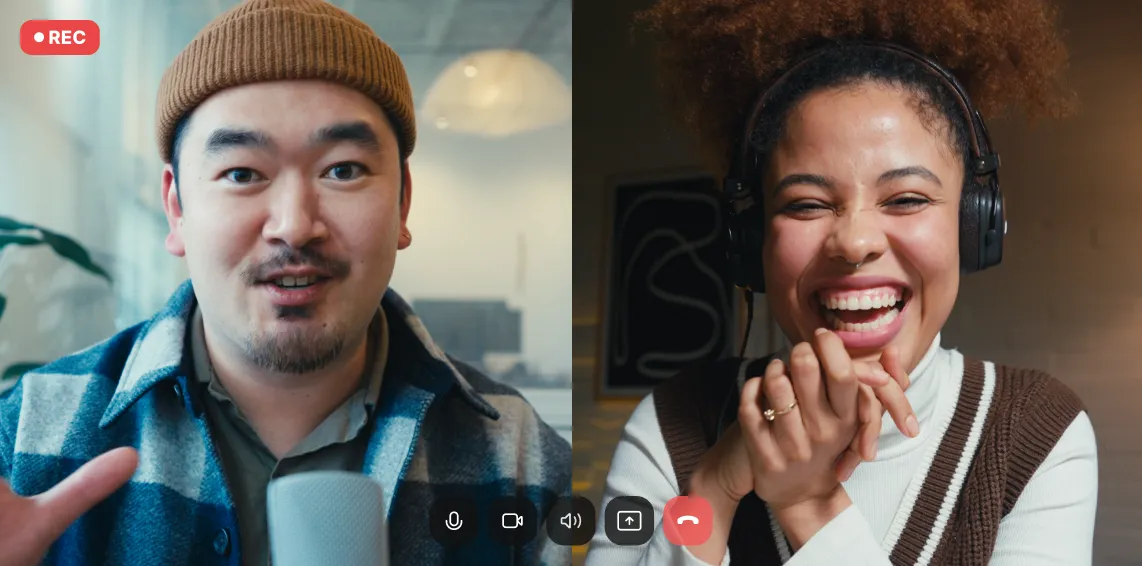
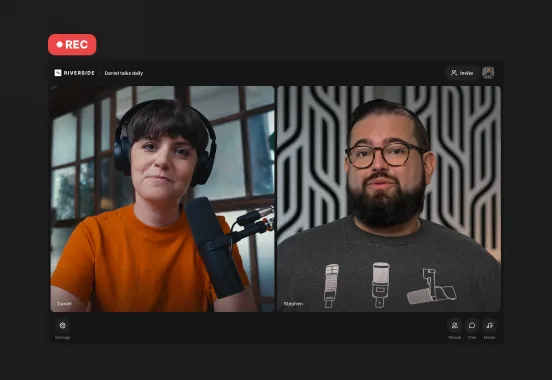
Riverside is best for podcasts or remote video because you can record in 4K resolution, no matter where your guests are. You don't have to worry about your internet connection getting in the way, as everything records locally on each person's device. It then safely uploads to the cloud as you record.
After I ran the screen test, Riverside handled the uploading flawlessly, and my file was ready to edit just a few seconds after hitting stop.
You’ll get separate audio, video, and screen-share tracks for each guest, which is a big selling point for me as a podcaster and video creator. This gives you full editing flexibility to adjust each guest's audio separately and switch camera views without affecting every track.
I personally use Riverside, and I love that it handles the whole podcast and video-creation workflow. You can record, edit, repurpose, and share video in one place. It’s intuitive and easy to use, including its editor, a feature people generally find daunting on other platforms.
Key features:
- Local video and audio recording: Capture up to 4K video with compatible equipment and uncompressed 48 kHz WAV audio.
- Remote recording: Easily record up to 10 participants from across the world.
- Multitrack recording: Download individual participant audio and video files, plus screen-share recordings.
- Screen recording: Record your screen, browser, or anything else that’s on your desktop.
- Presentation recorder: Upload your slides, present and record them on a separate track.
- Teleprompter feature: Helps you stay on track with the script while you record.
- AI editing tools: Enhance audio, remove silences and filler words, text-based editing, and generate short clips from longer recordings.
User review: “Riverside has a lot of great features that are easy to learn. It hits all the requirements for producing and publishing a quality podcast. While it may not contain all the editing abilities of a high-end product like Final Cut Pro, it has more than enough to make a quality recording.” - Tom D., Small-Business Owner
Reasons to buy it:
I’d pay for Riverside if remote conversations were a regular part of my content. If you want an all-in-one workflow to record remote guests or professional tutorials, edit the footage, and repurpose it, it’s probably the best alternative.
Limitations:
Riverside isn't a lightweight screencasting tool. Don’t buy it if you only need occasional solo screen recordings and won’t use its remote recording or editing features.
Best free recording software for gaming and streaming: OBS Studio
Price: Free
Compatibility: Windows, macOS, and Linux
Ease of use: Hard
.webp)
OBS is best for gaming and streaming because of the control it gives you. You can fully customize your layout and capture video from multiple sources including: webcam, desktop window, browser window, capture cards, and more.
I’d recommend OBS to more tech-savvy users, even if it’s free. The interface can be quite intimidating to a beginner, since you start with an empty scene and must add your screen, camera, layouts, and other inputs yourself. But, it offers many customization options. You can adjust resolution, frame rate, and bitrate, as well as apply color correction, chroma key, and other visual effects to your recordings. Yet to do so, you have to dig through dense, unforgiving menus.
Because OBS Studio records locally, there is zero processing delay. When I tested it, it saved all files directly to my hard drive the second I hit stop, with no watermark.
Key features:
- High-definition video recording: Supports video recording in up to 8K.
- Multiple source support: Combine your desktop, application windows, webcam, and other sources in custom layouts.
- Filters and effects: Play with various filters and effects like chroma key, image masking, and color correction to enhance your recordings.
- Extensive plugin support: OBS supports a vast library of plugins, which include filters, visual effects, face tracking, and more.
- Recording and streaming together: Save a local recording while broadcasting live.
User review: “What I love about OBS is the absolute freedom and total control over the production layout. Because it’s open-source, you aren't locked into a rigid UI. The learning curve is steep, and the interface is anything but plug-and-play, however. Because it gives you so much raw control, configuring advanced settings can feel incredibly overwhelming at first.” - Seth A., Desktop Support Technician/Pastor
Reasons to buy it:
I’d choose OBS if I recorded gameplay or streamed regularly and wanted control over layouts, sound, and recording settings without paying a subscription. Learning the setup only makes sense when you’ll reuse it.
Limitations:
For screen recordings with a webcam overlay, OBS combines your screen and camera into one video. In order to record separate tracks, you need to install third-party plugins like Source Record.
This adds another layer of complexity to a tool that already has a big learning curve.
Best video recording software with text-based editing: Descript
Price: Free plan available; paid plans start at $16/month.
Compatibility: macOS, Windows, Web
Ease of use: Medium
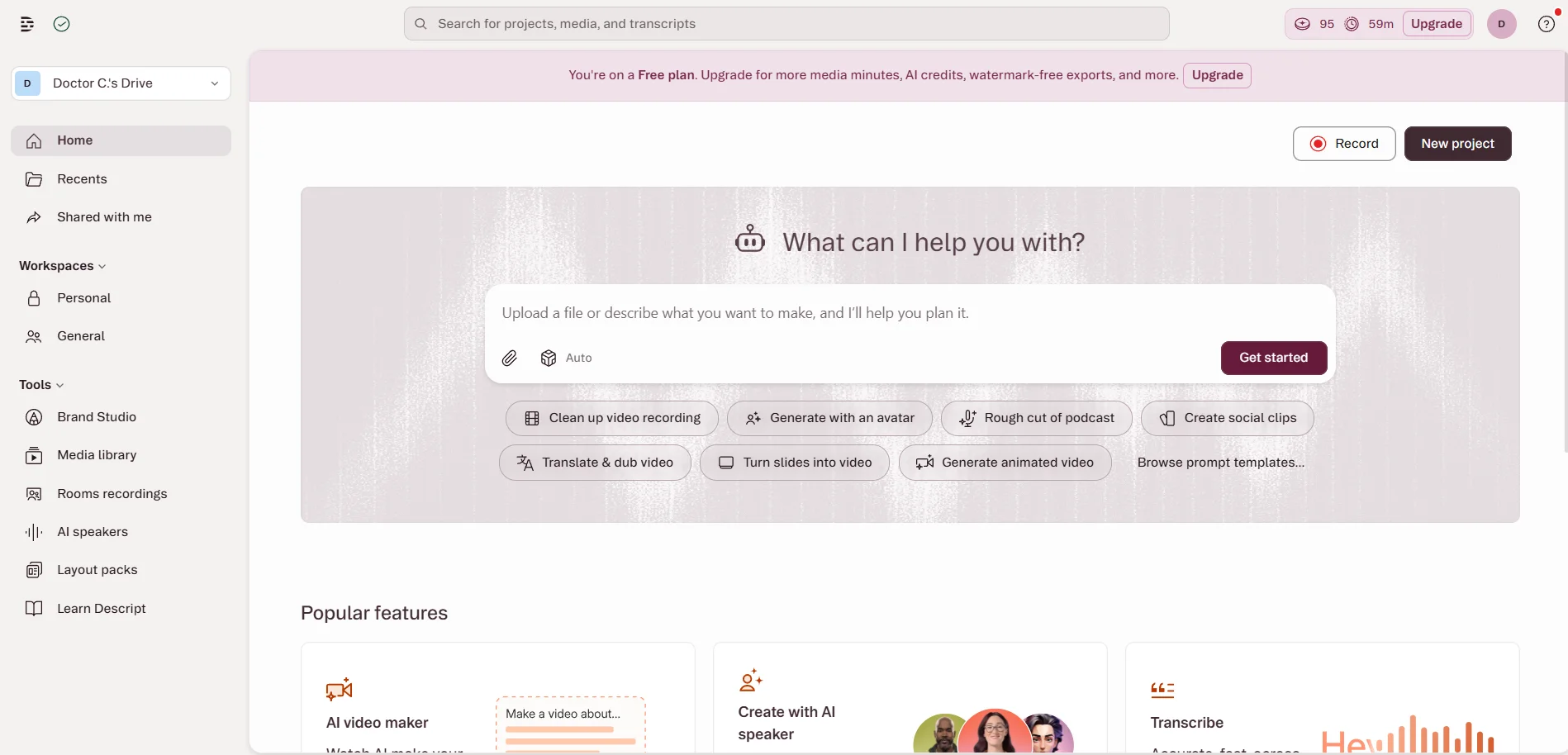
Descript changes how you interact with video by treating your footage like a text document.
Your screen and camera are recorded on separate tracks, but they’re both linked to an auto-generated transcript. You can then trim and cut the video by deleting words in the text, so tightening what you said takes a fraction of the time.
Descript still includes a timeline for finer adjustments. My advice is to use the transcript to make the first cuts, then check that the instructions in your video still make sense.
For simple screen recordings, there’s one setting I particularly loved: the Quick Share. With it enabled, the recorder flattens your screen and camera into a single track and publishes the recording instantly as a sharing page. The flattened file is a significant trade-off, but it makes sharing a quick how-to with a colleague effortless.
Key features:
- Text-based editing: Cut, copy, and rearrange recorded speech by editing its transcript.
- Screen and webcam recording: Capture your display, an application window, or a selected screen area alongside your camera and microphone.
- Separate recording tracks: Keep screen, camera, and microphone inputs separately editable.
- AI cleanup: Remove filler words and shorten pauses, then review the resulting cuts.
- Studio Sound: Reduce background noise, remove filler words, and enhance sound with AI audio processing.
- Captions: Add customizable captions to your video.
User review: “Being able to edit audio or video just by deleting words in a transcript is a total game-changer for speed and sanity. The performance and resource usage can be a real headache, though. It’s a notorious CPU hog, so if you don't have a beefy computer, you might hear your fans spinning like a jet engine.” - Ayesha N., Customer Success Manager
Reasons to buy it:
If you create talking-head YouTube videos and tutorials and want to edit them as easily as a Word document, this is one of the most efficient workflows available.
Limitations:
Descript can be pricey, and the subscription limits deserve attention. Hobbyist includes just 10 media hours per month and watermark-free 1080p exports. If you want a 4K export, you need to pay $24/month for Creator or above.
Also, the editor relies heavily on cloud processing, so a slow internet connection will bottleneck your editing speed.
Best video recording software for educational content: Camtasia
Price: Free trial available. Paid plans with no watermark start at $179.88/year.
Compatibility: Windows, macOS
Ease of use: Medium
.jpeg)
Camtasia is my pick for turning a screen recording into a lesson someone can follow. You have a lot of freedom in customizing your screen and all the advanced tools required for building long-form training modules. You can select the exact area of your screen you’ll be recording, zoom into a small menu, highlight a click, and add an arrow explaining what happens next.
Camtasia can record flawlessly at 4K, but because it is built for deep timeline editing, it saves your capture as a proprietary TREC project file rather than an immediately playable MP4. This means it will take more time than other software in this list to render the output after you’re done recording. Additionally, you still need to export a finished video into MP4 format for ordinary playback and sharing on platforms like YouTube.
Unlike OBS, you won’t be overwhelmed by options and menus. All editing tools are within reach without requiring you to build every effect from scratch. But, there’s still a lot more to learn here than with a basic screen recorder. The effort required to learn the ropes makes sense for producing formal courses, but I feel it’s overkill for everyday communication.
Key features:
- High-quality recording: Record locally in up to 4K resolution.
- Independent track recording: Webcam footage is recorded on a separate track, allowing for flexible editing.
- Choose between layouts: Pick between 16:9, 9:16, and 1:1 layouts, depending on the social media platform you want to upload to.
- AI effects: Add background, effects, and filler template selections to make your recording more interesting.
- Royalty-free assets: Plenty of video, audio, image assets, and templates that you can drag and drop into your recording while editing.
User review: “Features like zooms, cursor effects, callouts, animations, and captions are very useful when creating YouTube tutorials, software reviews, and how-to videos. If I need complex effects, detailed color grading, or more advanced audio and video editing, I would prefer a more specialized editor.” - Vicky S., Content Creator
Reasons to buy it:
I’d pay for Camtasia if my core job was instructional design or B2B software training. If you regularly build formal courses, software walk-throughs, or intricate presentations, this is the most reliable tool for the job.
Limitations:
The heavy desktop application uses significant system resources and slows rendering on older hardware. Also, TechSmith recently removed their perpetual one-time purchase option, locking you into a mandatory annual subscription.
Best free option for Mac and basic webcam recording: QuickTime
Price: Free
Compatibility: macOS
Ease of use: Easy

I’d start with QuickTime if I needed to record a straightforward webcam video on a Mac since it comes pre-installed on all macOS devices. With its minimalistic interface, you can start recording in just a few clicks.
To record a video, you can use your MacBook’s camera, plug in an iPhone, or use an external camera. For screen capture, press Shift + Command + 5 and choose whether to record your entire screen or a selected area.
This is great for beginners or a quick screen recording, but you won’t find any fancy features here. If you want to create higher-quality content, I’d suggest something else.
Key features:
- Screen recording: Capture your screen through the macOS Screenshot toolbar, with optional microphone narration and mouse-click highlighting.
- Connected-device recording: Record the screen of an iPhone or iPad connected to your Mac.
- Basic editing: Trim, split, rearrange, and rotate clips without installing another editor.
- Native compression: Exports directly to highly optimized MOV formats that play flawlessly across the Apple ecosystem.
Reasons to buy it:
I would use QuickTime if I were on a Mac and needed to send a fast, 30-second screen grab. If you don't want to install third-party software and just need the absolute basics, it is already sitting in your Applications folder.
Limitations:
QuickTime permanently flattens your webcam overlay onto the screen recording and you can’t capture internal audio without routing software. Also, videos are exported as MOV, with no direct MP4 export option.
Best video recording app for collaboration: Loom
Price: Free version, paid plan is $18/month
Compatibility: Windows, macOS, Android, iOS, and Chrome extension.
Ease of use: Easy

Loom is my pick for explaining something on screen and sending it to someone without arranging a meeting. Record a bug, walk through a document, or explain how a tool works with your webcam in a corner, then share the video through a link. Hosting and sharing are instant and built into the workflow, so you don’t have to export a file and upload it somewhere else.
Because it optimizes for speed, Loom sacrifices quality and control. Webcam and screen recording are flattened into a single compressed track, and when I downloaded the MP4 file to my hard drive, it was a highly compressed 720p file.
Clearly it isn’t meant for producing high-end marketing videos, but it is the fastest way to replace an unnecessary meeting.
Key features:
- Instant link sharing: Automatically generates a shareable link the moment you finish recording so you can paste it into an email or Slack message.
- Higher-resolution recording: Paid plans support up to 4K through the desktop app with compatible equipment. The Chrome extension only supports up to 1080p, though.
- Engagement analytics: Shows you exactly who watched your video, how much of it they watched, and where they dropped off.
- Time-stamped comments: Lets viewers leave emoji reactions and text notes at specific frames directly on the video timeline.
User review: “I started using Loom mainly because explaining certain issues over a call or in a long email isn’t always practical. Recording a quick screen video with my voice is much faster. For longer recordings, I do wish there were a few more built-in editing options so I wouldn’t have to switch to another tool.” - Sree K., Software Development Engineer in Test III
Reasons to buy it:
I’d pay for Loom if I regularly sent colleagues or clients screen walkthroughs they could watch on their own time. If you manage a remote team and just want to cut down on daily standups with a quick sharing, the free version is probably enough.
Limitations:
Loom’s free tier heavily restricts your output, capping recordings at 5 minutes and limiting you to 25 total videos. Even the paid plans won’t cut it if your main goal is producing finished videos for publication elsewhere.
Best paid screen recorder for Mac: ScreenFlow
Price: $199 one-time purchase.
Compatibility: macOS
Ease of use: Medium
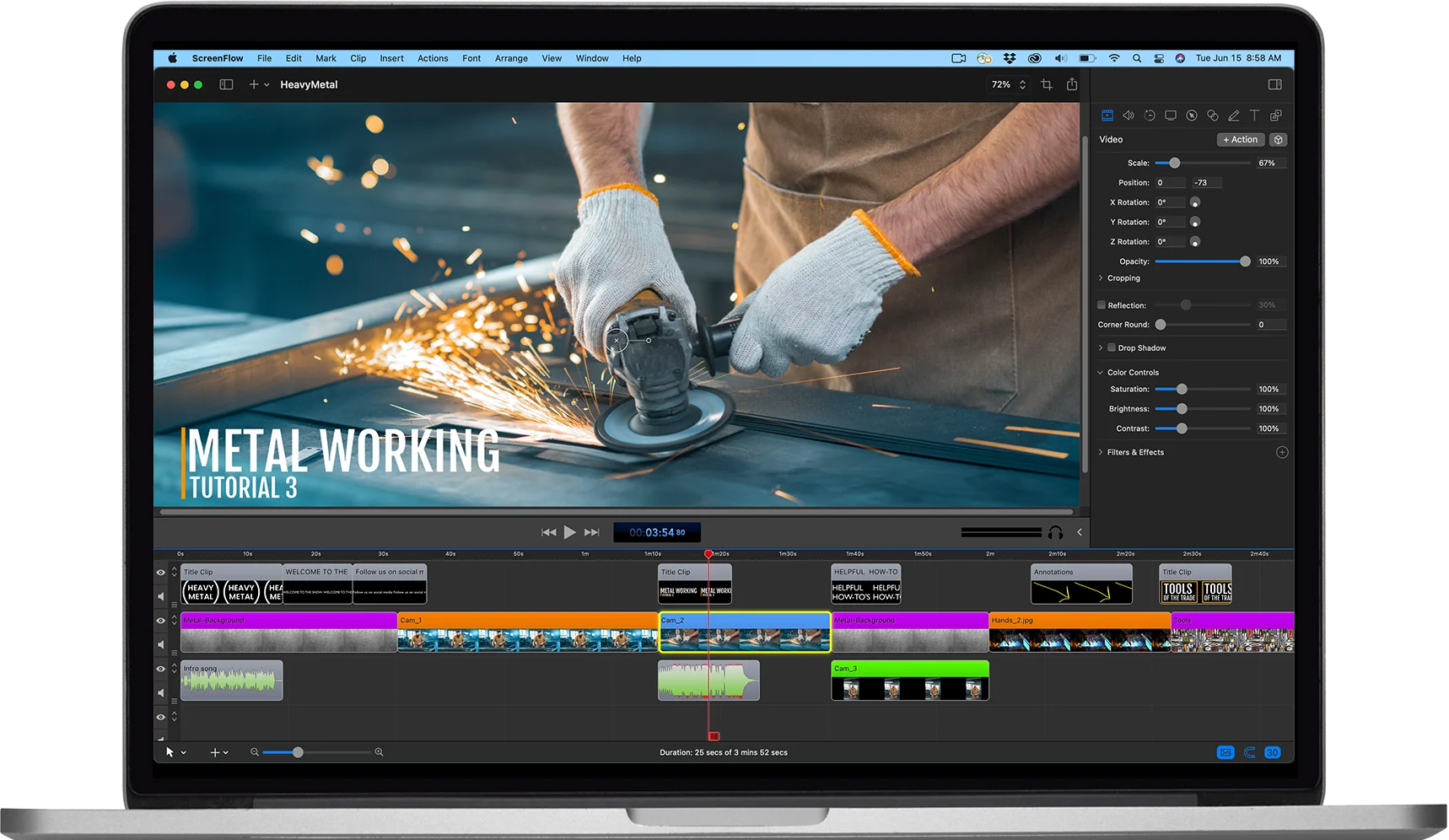
ScreenFlow is a great pick for Mac users who regularly turn screen recordings into finished tutorials. You can capture your screen, camera, and microphone together, then edit the screen and camera on separate tracks. Each application’s audio is recorded separately, so you can easily remove unwanted sounds coming from another recorded app.
Don’t let its outdated interface fool you: getting used to ScreenFlow’s controls might take some time, but once you do, they’re smooth and efficient. You can enlarge the pointer, show clicks and keystrokes, and add annotations that guide viewers through a clear walkthrough.
My biggest annoyance is that, just like Camtasia, ScreenFlow packages the footage into a proprietary .screenflow project file instead of an MP4. This means you’ll need to arrange and merge every track, set overlays, and finally export your project into a shareable video. Obviously, this makes Camtasia unsuitable for quick, link-based tutorial sharing.
Key features:
- Simultaneous recording: Capture multiple screens, cameras, and microphones together, each on a separate track.
- Tutorial editing: Add zooms, annotations, cursor emphasis, and on-screen keystrokes.
- Separate application audio: Adjust or remove audio from individual recorded apps.
- Reusable styles and templates: Keep titles, layouts, and other elements consistent across a tutorial series.
- iOS recording: Lets you plug in an iPhone or iPad to directly capture your mobile screen at high resolutions.
- Video effects: Apply transitions, animations, chroma key, and LUT-based color adjustments.
User review: “ The platform's ability to record my screen efficiently is a significant advantage. The audio quality improvements are particularly impressive, providing a higher quality output that I value. The user interface is outdated and can feel overwhelming compared to more modern applications, suggesting that a redesign would be beneficial.” - Chris G., Designer
Reasons to buy it:
ScreenFlow is a Mac product that leverages Apple silicon for fast and lagless rendering. It is designed for advanced video editing and formal course creation. The one-time license is also appealing if you prefer buying your core recording and editing software outright.
Limitations:
ScreenFlow is strictly available for macOS, completely excluding Windows users from the workflow. Also, the purchase doesn’t include every future major upgrade. Even the optional Stock Media Library and Premium Support have recurring fees, so check the bundle before buying.
Best budget screen recorder for Windows: EaseUS RecExperts
Price: Limited free version. Paid plans starting from $19.95/month. Lifetime license at $119.95.
Compatibility: Windows and macOS
Ease of use: Easy
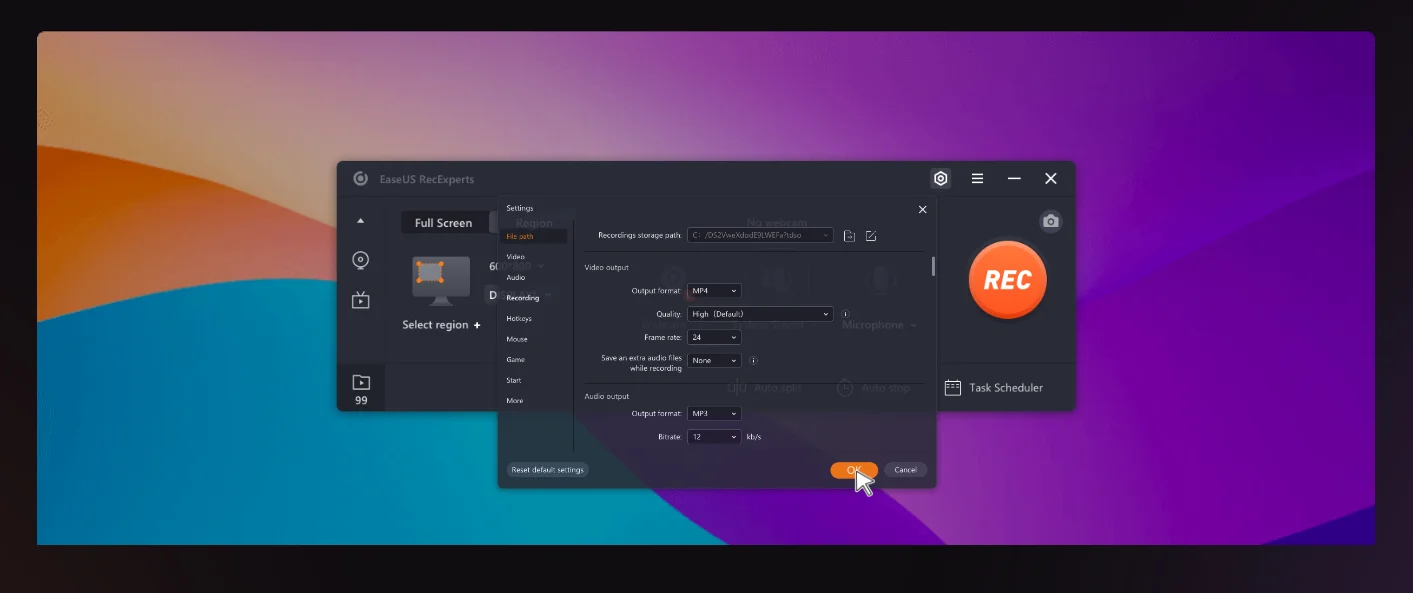
EaseUS RecExperts is a surprisingly lightweight tool that runs smoothly, even on older computers. After testing it, it felt like a more straightforward version of OBS that is perfectly suited for recording gameplay and software demonstrations.
You can record your entire screen, an application window, or a selected area, then enable your webcam, microphone, and system audio as needed. It covers the essentials for a narrated walkthrough or gaming session without requiring you to build scenes or configure a complex recording setup.
The controls and interface are easy to use, and RecExperts also includes useful automation features. You can schedule a recording at a set time, and stop it automatically at a chosen duration or file size, or split long sessions into smaller files.
The paywall is very aggressive, though. The free version is essentially just a very limited trial, making it impossible to record a real tutorial without upgrading.
Key features:
- Local recording: Saves raw files directly to your hard drive in common formats like MP4, MOV, and AVI without relying on cloud processing.
- Scheduled recording: Lets you set a specific time to automatically start and stop recording.
- Recording annotations: Highlight details with the recording toolbar and mouse-click effects.
- Audio extraction: Lets you pull the audio track from a recorded video file into a separate MP3 or WAV file.
- AI noise reduction: Makes your audio sound cleaner without extra editing.
User review: “ I love how incredibly easy and fast it is to start high-quality recordings with no complicated setup, no lag, and everything working perfectly right away. I would like to have more advanced video editing options inside the app. Right now it's basic, so I sometimes export to another editor for final touches.” - Abdelrahman Y., Verified G2 reviewer
Reasons to buy it:
I suggest paying for RecExperts if you’re looking for a straightforward, budget-friendly desktop recorder that doesn’t slow down your computer. The lifetime license makes more sense for ongoing use than repeatedly paying the monthly subscription.
Limitations:
Don't buy RecExperts if you need professional multi-track isolation, live-stream production, or advanced editing features. For that, OBS Studio is much more powerful, and it’s free on top of that.
Best video recording apps for iPhone and Android: Blackmagic Camera and ProShot
If you want to upgrade your mobile video, you need a dedicated camera app like Blackmagic Camera or ProShot that fully takes advantage of your phone's hardware. Just remember that neither of these apps can record your screen. They only capture video from your device's front and rear cameras.
Blackmagic Camera
.webp)
Blackmagic Camera is completely free and is my pick for mobile video creators looking for cinema-grade manual controls. It lets you adjust your shutter angle, white balance, frame rate, and ISO like you would on a physical cinema camera.
You also get integration with DaVinci Resolve and the option to record in professional formats like Apple ProRes or H.265. Choose this app for planned cinematic shoots but skip it if you just want to point and record.
ProShot

ProShot makes more sense if you want to turn your phone into a traditional DSLR. For a one-time purchase of around $8, you’ll get custom modes, raw image support, complete manual control and video recording up to 4K at 60 fps.
Buy this if you regularly switch between taking photos and filming and prefer a photo-first interface that still handles high-end video capture.
How to choose video recording software
Multi-track recording
Multitrack recording lets you capture and download separate video and audio tracks for each participant.
Basic screen recorders export a single flattened file that permanently combines your camera, screen, and microphone. If someone speaks over you or your webcam covers an essential menu, you cannot fix it later.
Separate tracks let you balance volumes, switch camera angles, isolate each participant’s voice, and cut mistakes without destroying the rest of your recording.
Local recording
Local recording captures and stores audio or video directly on each participant’s device before uploading. This means your recordings won't be affected by internet connection glitches and will stay sharp and perfectly in sync.
Platforms that combine local capture with background cloud uploading give you uncompressed source files without the manual export wait.
High-quality resolution
Choose 1080p for quick team updates, and record in 4K if you show fine interface details or plan to crop footage later.
Standard 1080p is sufficient for talking-head videos and basic slides, but it often blurs small fonts and busy menus. Recording in 4K keeps micro-text crisp and legible and gives you the headroom to zoom into specific windows without dropping below standard HD quality.
Just keep in mind that 4K files require significantly more local storage and processing power.
Screen capture
For screen recording, pick software that lets you record specific application windows or custom screen regions if you’re creating presentations and tutorials. Cursor highlighting and annotations are useful extras.
If you’re recording gameplay, even software that limits you to a full-desktop capture might work. What matters is that it is lightweight enough not to cause lag and delays.
Ease of use
Look for software with an intuitive interface and easy-to-understand controls. Your regular workflow should be easy to repeat.
Try recording, correcting a mistake, and exporting or sharing before paying. A simple “Record” button means little if getting a usable file takes too many steps. I’d accept a learning curve for features I’ll use constantly, but for occasional captures, I’d keep it simple.
FAQs about video recording software
What do most YouTubers use to record their videos?
Most YouTubers use specialized software like OBS Studio or Riverside to record their videos.
Creators filming standalone gameplay typically use OBS Studio because it lets you create custom screen layouts for free. Interviewers and video podcasters prefer Riverside because it records multiple remote guests on separate tracks, and it’s easier and faster to use.
What are the downsides of using OBS Studio?
The main downsides of using OBS Studio are its steep learning curve and lack of a built-in video editor. You must manually configure complex hardware encoding settings just to start recording, and higher-resolution recordings can overload your computer. Then, you’ll need to export your footage to an external editor like Final Cut Pro to polish it.
Why is my screen recording black?
Your screen recording may be black because the recorder lacks permission to capture your display, or the wrong capture source is selected.
On Mac, go to System Settings > Privacy & Security > Screen & System Audio Recording and enable your recorder or browser. If prompted, reopen the app, then try again.
On Windows, a black screen may be caused by your browser's graphics settings. To fix this, turn off hardware acceleration in your browser settings and restart the application.
Why is there no audio in my screen recording?
Your screen recording may have no audio because the required audio source has not been correctly selected, it’s muted, or it's missing permission.
Most recording tools default to capturing audio from the built-in microphone and require you to manually check a box to capture system audio. This records the internal sounds coming from your computer.
Why is my audio out of sync with the video?
Your audio is out of sync with the video because your recording software used a variable frame rate or experienced high CPU load during capture. High CPU load forces your computer to drop video frames while the audio continues recording at its normal speed. When you import this variable frame rate file into a standard editor, the tracks permanently desync.
For future recordings, close demanding apps and lower the resolution or frame rate to reduce CPU and GPU load, and record using constant frame rate.
Can I record my screen and webcam at the same time?
Yes, you can record your screen and webcam at the same time on separate tracks with tools such as OBS Studio, Camtasia, and Riverside. Built-in operating system tools like QuickTime or free plans like Loom’s still record both your camera and screen but flatten both feeds into a single video file.




(copy)%20(2).webp)
.webp)