

Key takeaways:
- Using Continuity Camera is the easiest way to turn your iPhone into a webcam on Mac.
- If you're on Windows, try using software like Riverside to connect your iPhone as a webcam.
- Make sure you meet software requirements. (For requirements you'll need macOS Ventura 13.0 or newer and iOS 16 or later).
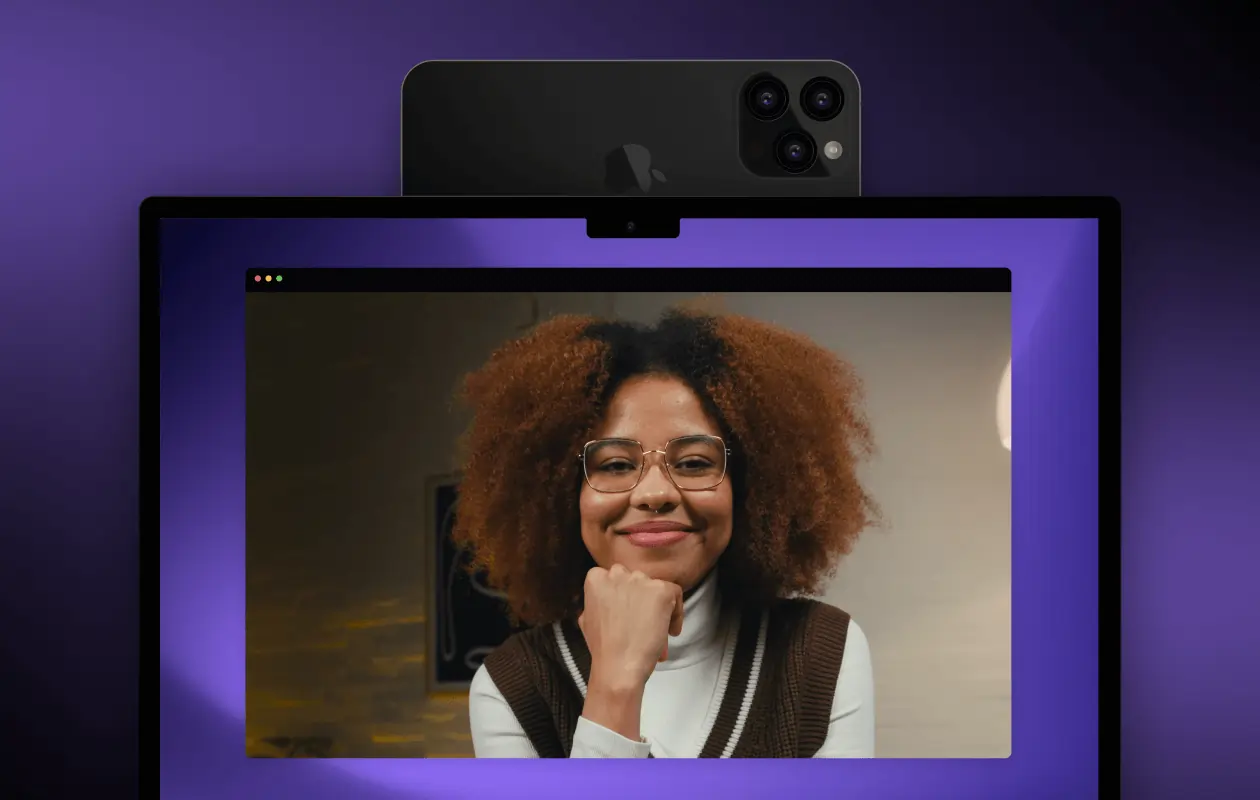
Using your iPhone as a webcam means using one of the best high-quality cameras on the market.
If you’ve already spent a big amount on a great phone like the iPhone 17, why drain your wallet even more for a professional camera?
Without further ado, let’s dive into the steps to set up your iPhone as a camera on your Mac or PC.
Using your iPhone as a webcam means using one of the best cameras on the market for your project. And you might even be able to do this for free.
Here’s how to connect your iPhone to your computer as a webcam whether you’re on a Mac or PC, and whether you’re recording, streaming, or conducting online meetings.
How do you use an iPhone as a webcam?
The easiest way to use an iPhone as a webcam is to enable the phone’s built-in Continuity Camera feature if you’re connecting it to a Mac.
On Windows, use a third-party webcam app like Iriun, Camo, or Riverside instead.
Make sure you fulfill the relevant requirements, like turning on Wi-Fi and Bluetooth on your iPhone and Mac if you’re using Continuity Camera.
Here’s the full step-by-step on how:
How to use an iPhone as a webcam with Continuity Camera on Mac
Continuity Camera is a free built-in Apple feature that lets you use your iPhone as a webcam for a nearby Mac when recording, streaming, or meeting with others online. This means you won’t need to use any third-party software.
Continuity Camera supports three 16:9 video resolutions: 480p, 720p, and 1080p, and 1920 x 1440 resolution for 4:3 video. If you want 4K video, you’ll need to use a third-party webcam app that supports 4K, like Camo or Riverside, instead.
Requirements
To use Continuity Camera, you’ll need:
- An unlocked iPhone with iOS 16 or newer (all iPhone models introduced from 2018 onward).
- A Mac running macOS Ventura 13 or newer.
Both devices need to:
- Be near each other.
- Be signed in to the same Apple account using 2-factor authentication.
- Have Wi-Fi and Bluetooth turned on.
Make sure your iPhone’s Personal Hotspot is switched off, and that your Mac isn't sharing its internet connection with other devices.
You can connect both devices wirelessly or via USB:
- If you’re connecting them wirelessly, your Mac must have AirPlay and Sidecar disabled.
- If you’re connecting them via USB, your iPhone must be set to trust your Mac.
In addition, consider mounting your iPhone on a stable, fixed surface to minimize camera shake. You can use a dedicated Continuity Camera mount, a phone tripod, or even a stack of books.
Setup instructions
Follow these steps to set up your iPhone as a webcam with Continuity Camera:
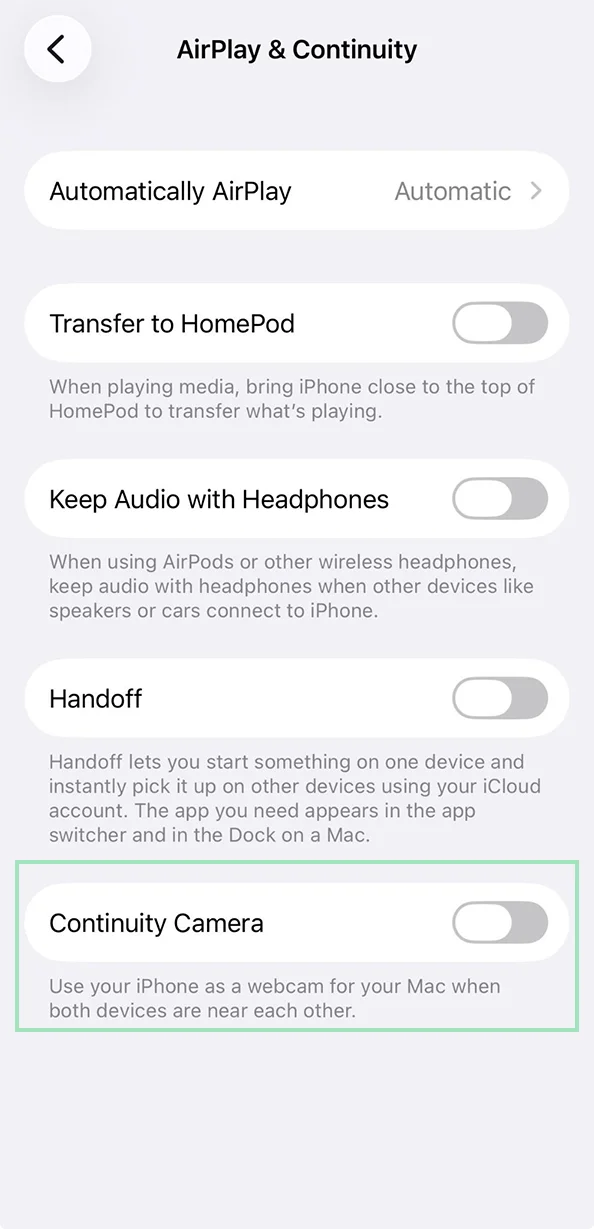
Step 1: Enable Continuity Camera on your iPhone. Here’s how:
- Go to your iPhone’s Settings app > “General” > “AirPlay & Continuity” (or “AirPlay & Handoff”). Alternatively, type “continuity” into the Settings app’s search bar and tap “Continuity Camera.”
- Then, enable the “Continuity Camera” toggle.
Step 2: Go to your Mac and launch the video app you want to use your iPhone as a webcam on.
Step 3: Select your iPhone as the camera input for that app. You’ll likely find this in your app’s camera or input settings. (Remember you need to be logged into the same Apple account for this to work.
That’s it!
If you want to apply Apple's video effects, click the green video icon that appears in your Mac menu bar once your recording app or video call starts using the camera.
From here, you can apply video effects like:
- Center Stage to keep yourself centered in the frame.
- Desk View to add a separate overhead view of your desk alongside your face.
- Studio Light to dim the background and light up your face.
- Portrait Mode to blur the background to focus on you.
Refer to Apple’s support documentation to learn more about these effects’ technical requirements.
While you use your iPhone as a webcam, its screen will say it’s currently connected to your Mac. Tap the “Pause” button to pause the video output.
To stop the output completely, tap the “Disconnect” button or close the video app on your Mac that’s using it.
Having issues with Continuity Camera? View our troubleshooting tips below.
How to use an iPhone as a webcam on Windows
You’ll need a third-party webcam app to use an iPhone as a webcam on Windows, because Continuity Camera is an Apple-only feature.
Here are some third-party options and when to use them:
You can also use these apps to connect your iPhone to your Mac if you want 4K video output, since Continuity Camera doesn’t support it.
Requirements
Check your third-party webcam app for its specific requirements. For example:
- To use Iriun, your PC needs to be on Windows 7 or later.
- To use Camo, your PC needs to be on Windows 10 or later.
- To use Riverside, your PC needs to be on Windows 7 or later and have a compatible browser like Google Chrome installed.
Your iPhone should also be unlocked.
Apart from meeting your app’s requirements, consider mounting your iPhone on a stable, fixed surface to minimize camera shake. You can use a dedicated Continuity Camera mount, a phone tripod, or even a stack of books.
Setup instructions
For demonstration purposes, here’s how to use Iriun to use an iPhone as a webcam for a PC:
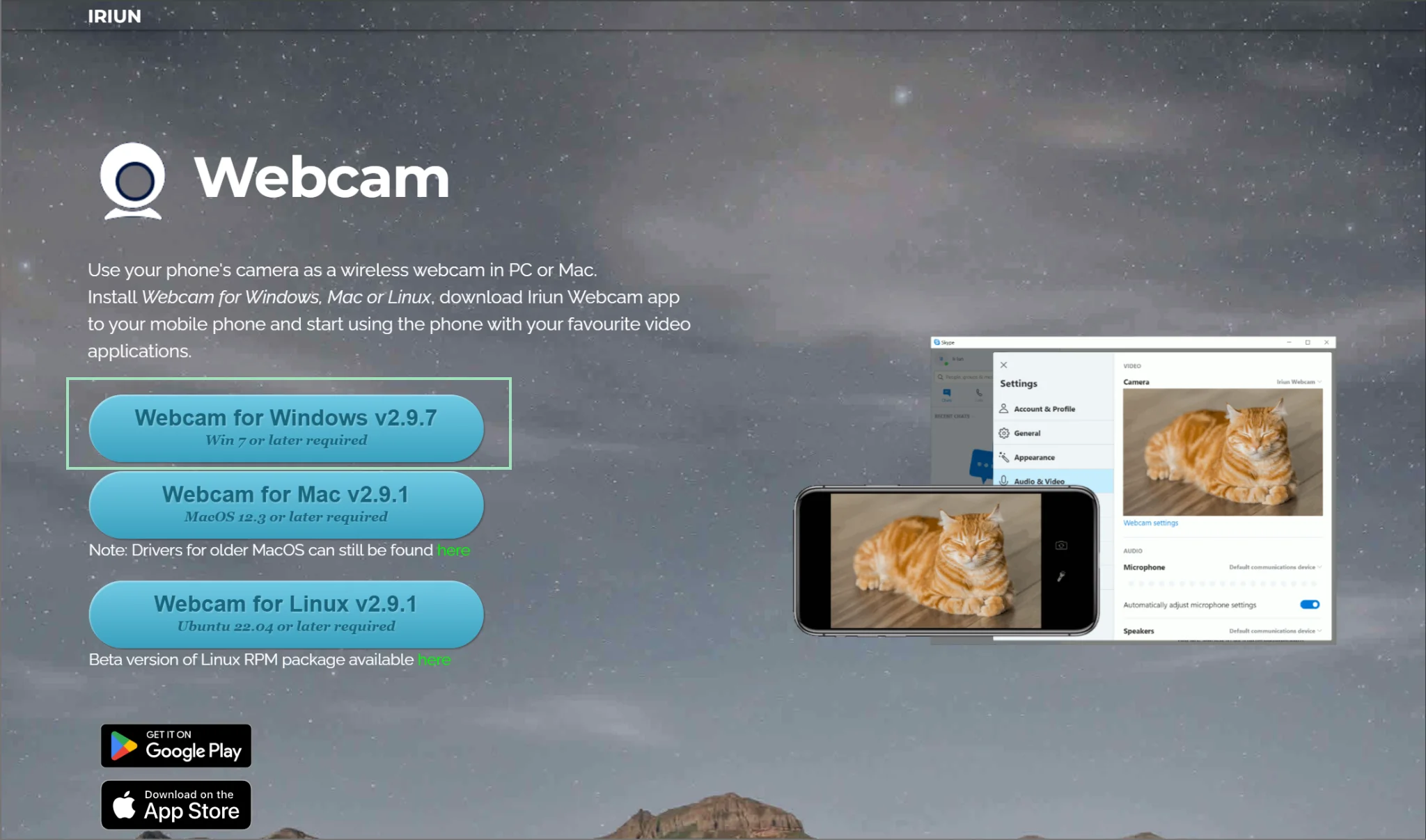
Step 1: Install Iriun on your PC.
From your PC, go to the Iriun website and click “Webcam for Windows” to download the app installer. Then, run it.
Step 2: Install Iriun on your iPhone.
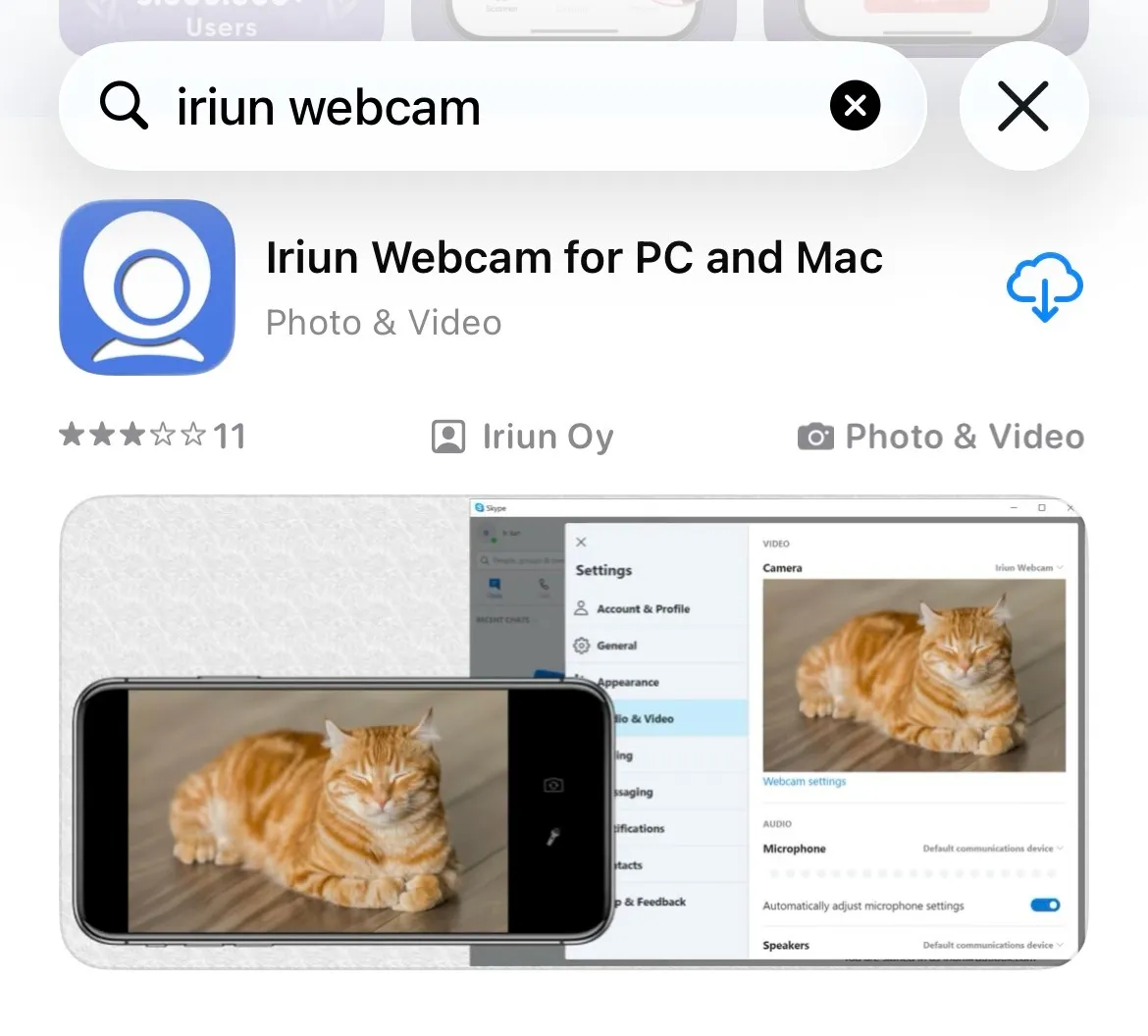
Go to Apple’s App Store from your iPhone and download the “Iriun Webcam for PC and Mac” app.
Step 3: Connect your iPhone and PC to the same Wi-Fi network.
Step 4: Launch Iriun on your iPhone.
Open your iPhone’s Iriun app. Allow the app to find devices on local networks and access your phone’s camera and microphone.
Once you’re done, tap the “Let’s Go!” button. Your phone will display a “Waiting for the connection” message.
Step 5: Launch Iriun on your PC.
Open your PC’s Iriun app, and wait for your PC to connect to your iPhone. If the connection is successful, you’ll see your iPhone’s live camera output in your PC’s Iriun app.
Step 6: Launch your video app on your PC.
From your PC, open the video app, like Riverside, Zoom, or Google Meet, that you need a webcam for. Then, choose “Iriun Webcam” as the app’s video input.
That’s it!
To stop using your iPhone as a webcam, disconnect it from your PC by closing the Iriun app on either device.
How to use an iPhone as a secondary webcam for high-quality recording
If you want to specifically use your iPhone as a secondary webcam for an additional camera angle, then here’s how with Riverside:
.webp)
Riverside is beginner-friendly and lets you record 4K video with up to 10 hybrid and remote participants.
Requirements
To use your iPhone as a secondary webcam in Riverside, you’ll need to:
- Download and install the Riverside app on your iPhone.
- Log in to the same Riverside account from your iPhone’s Riverside app and Riverside in your computer browser.
Setup instructions
Step 1: Start a new Riverside studio session.
From your computer, go to your Riverside dashboard and click “Record” to join a new studio session as a host.

Step 2: Pick your primary video input.
Use your Riverside studio’s video input setting to select your primary camera.
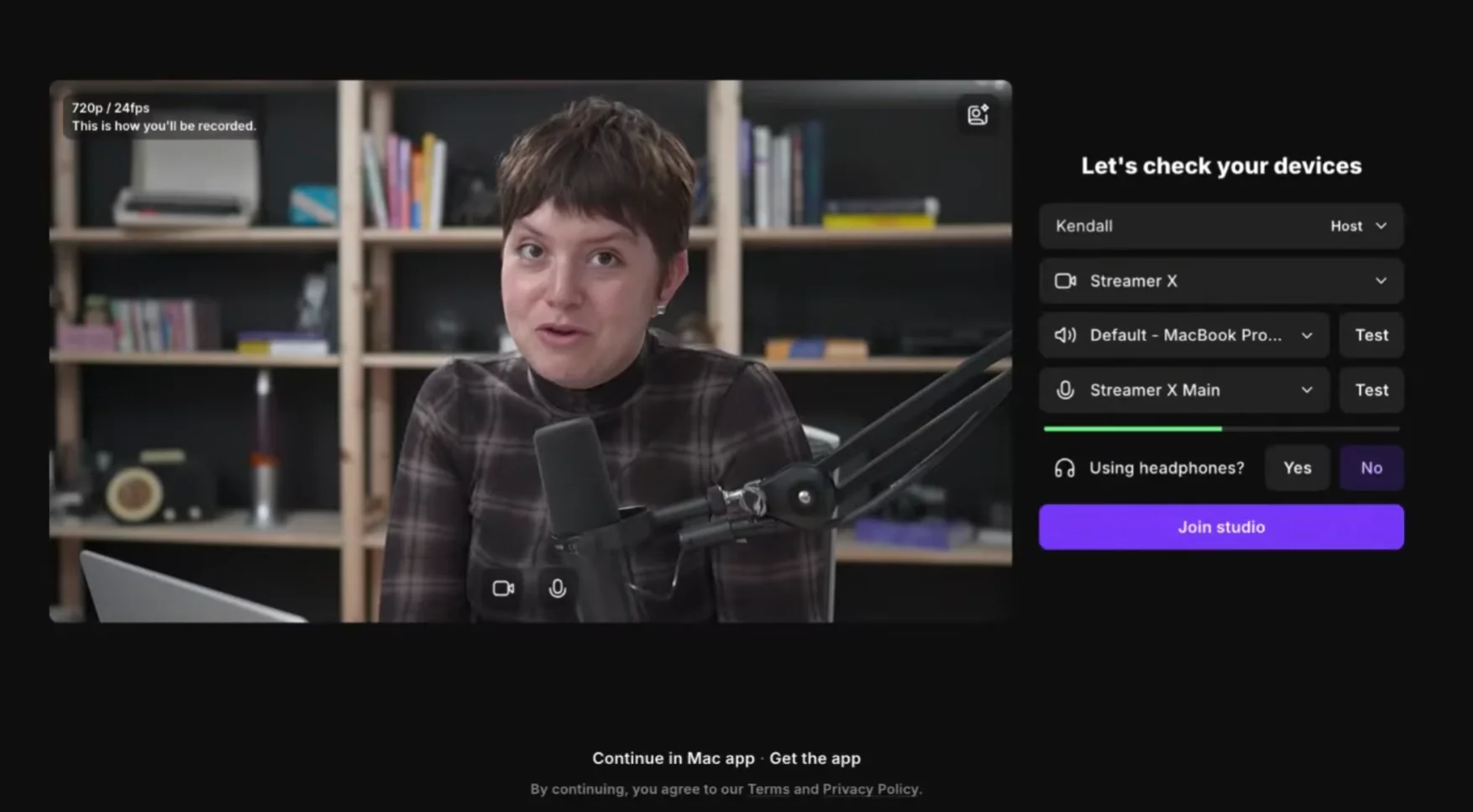
Configure your other studio settings, and then click “Join studio.”
Step 3: Connect your iPhone as your secondary webcam.
Once you’ve entered the studio, go to your iPhone’s Riverside app.
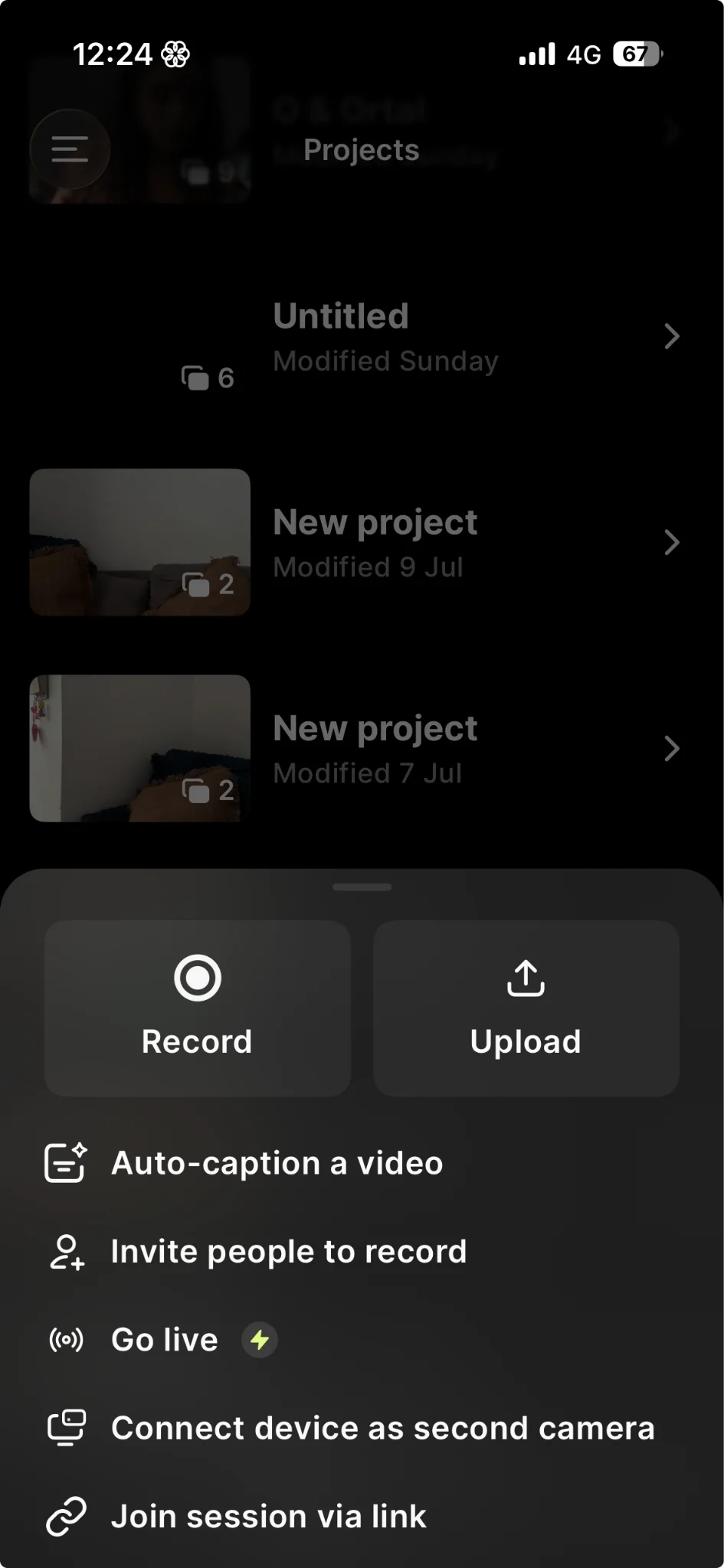
Tap the plus icon at the bottom right of the app > “Connect device as second camera.”
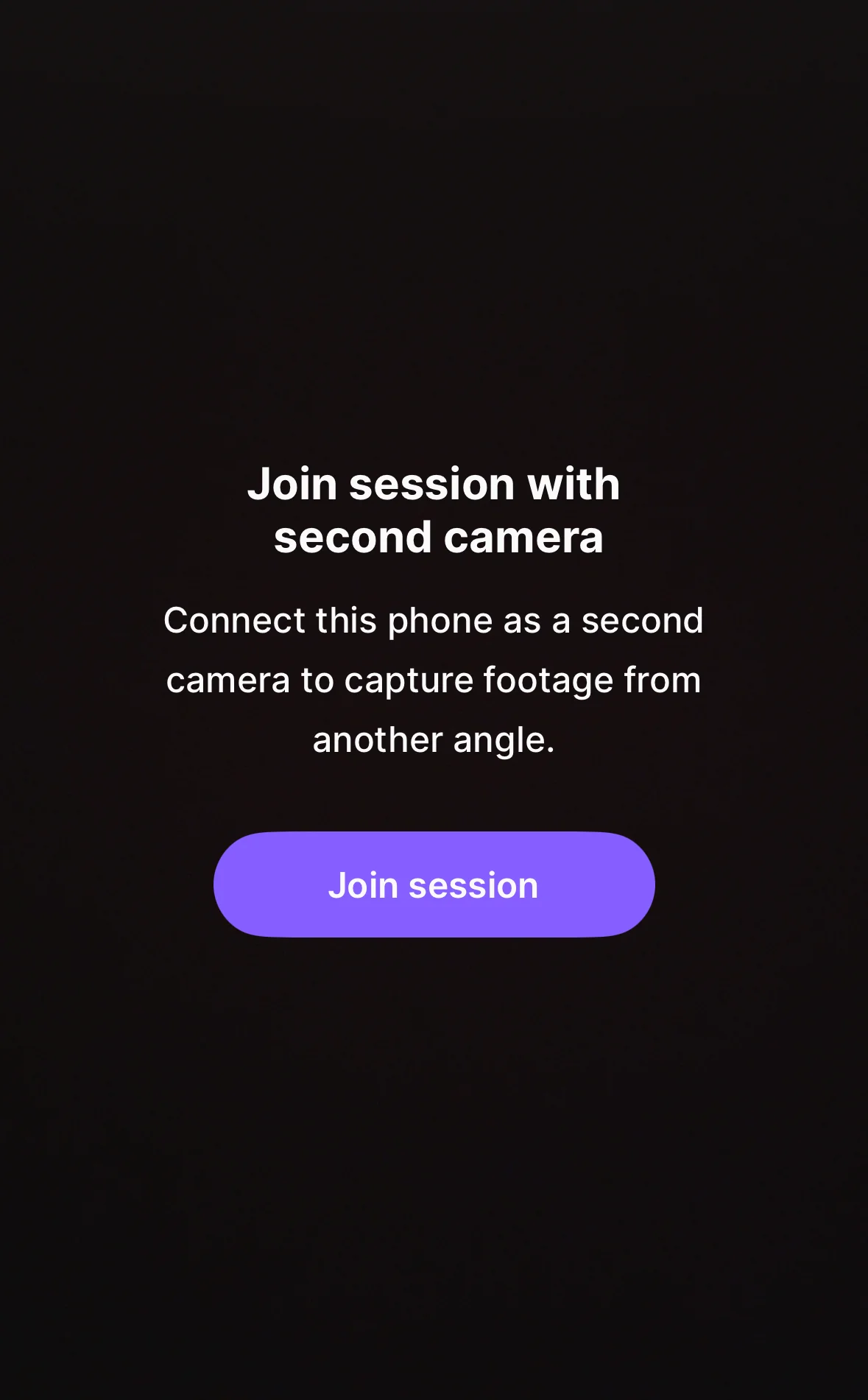
On the next screen, allow Riverside to access your iPhone’s camera and microphone if you haven’t already.
Then, tap “Join session.”
Go back to the Riverside studio on your computer. Click the “People” icon to the right, and you should see your iPhone camera as a “2nd Camera” there.
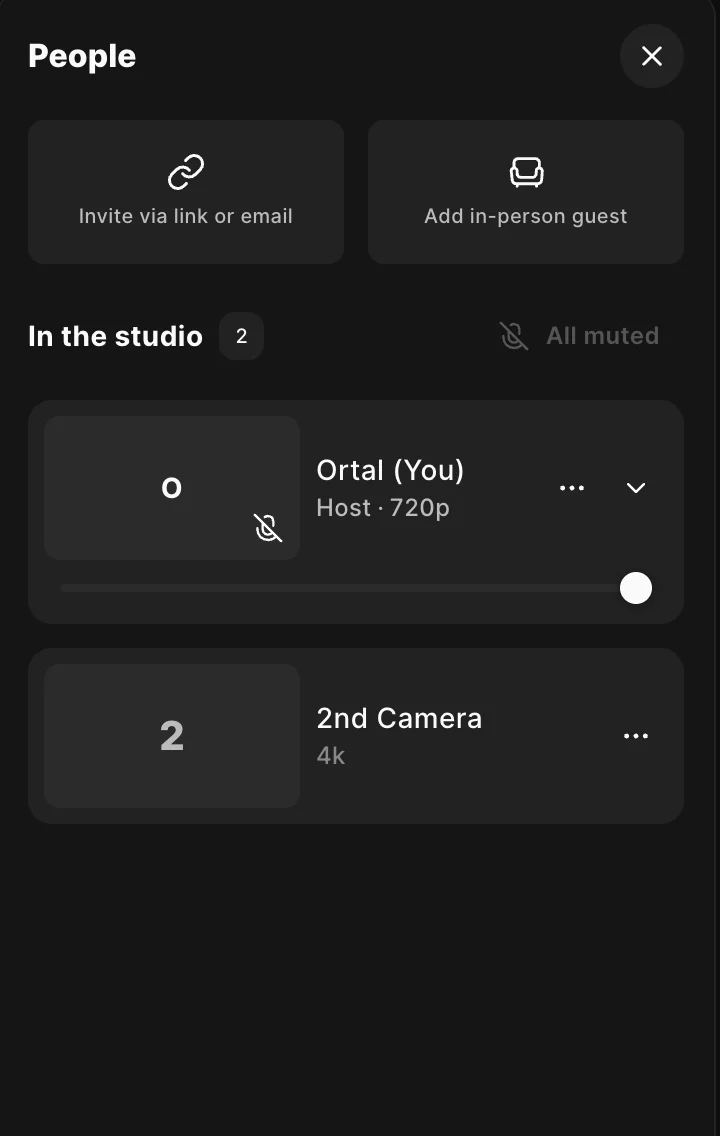
Note: The studio won’t show your iPhone’s camera output.
Step 4: Start recording!
Finally, invite any other guests to your studio. Once everyone is ready, hit “Record” to start recording!
How to use iPhone as a webcam for streaming
Instead of upgrading your webcam for streaming sessions, use your iPhone as your webcam and pair it with dedicated streaming software like Riverside.
Requirements
To access Riverside’s streaming features, you’ll need Riverside’s Grow plan or higher.
If your iPhone will be your primary webcam in Riverside, you’ll also need to connect it to your computer using Continuity Camera (Mac only) or a third-party webcam app like Iriun or Camo.
If your iPhone will be your secondary webcam in Riverside, you’ll need to meet the requirements listed above for connecting your iPhone to Riverside as a secondary webcam.

Pro tip: Instead of using your computer as your streaming device, you can also stream directly from your iPhone with Riverside’s mobile app!
Setup instructions
Step 1: Start a new Riverside streaming session.
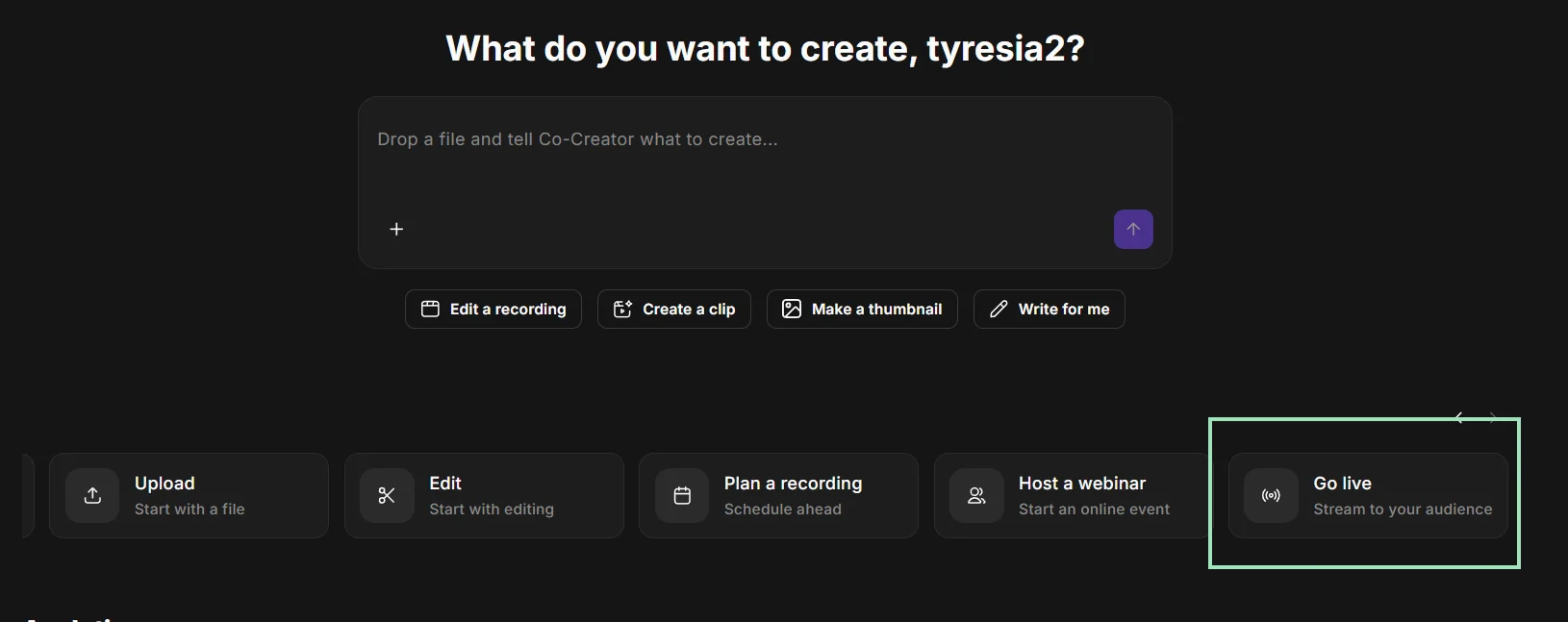
From your computer, go to your Riverside dashboard. Click “Go live” to start a new streaming session.
Step 2: Pick your primary video input.
Use your Riverside studio’s video input setting to select your primary camera.
If you’re using your iPhone as your primary camera, then connect your phone through Continuity Camera or a third-party software before selecting it.
Configure your other studio settings, and then click “Join studio.”
Step 3: Set up your live stream.
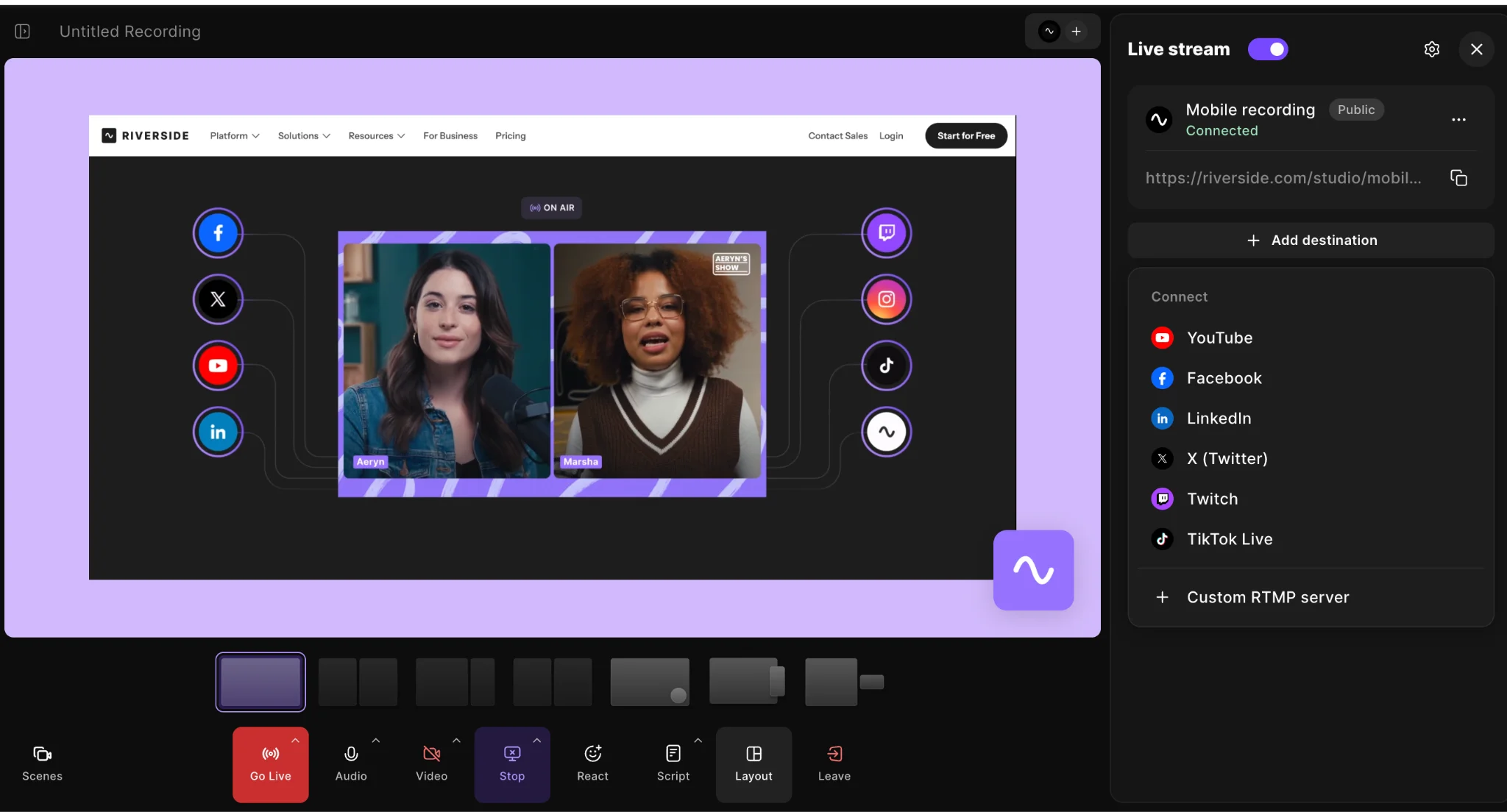
Click “Stream” to the right of the studio. Next, connect the social platforms you’ll stream to, like YouTube, Facebook, and Twitch, to the studio if you haven’t already.
To do this, select the platform you want to connect to. Some platforms, like YouTube, will just require that you accept permission for Riverside to access the platform.
But for platforms like Instagram, you can select “Custom RTMP Server” and follow the instructions in the pop-up that appears.
Finally, ensure these social platform connections are enabled.
Step 4 (if relevant): If you prefer to use your iPhone as a secondary camera, then connect it using the Riverside app:
Once you’ve entered the studio on desktop, go to your iPhone’s Riverside app.
Tap the plus icon at the bottom right of the app > “Connect device as second camera.”
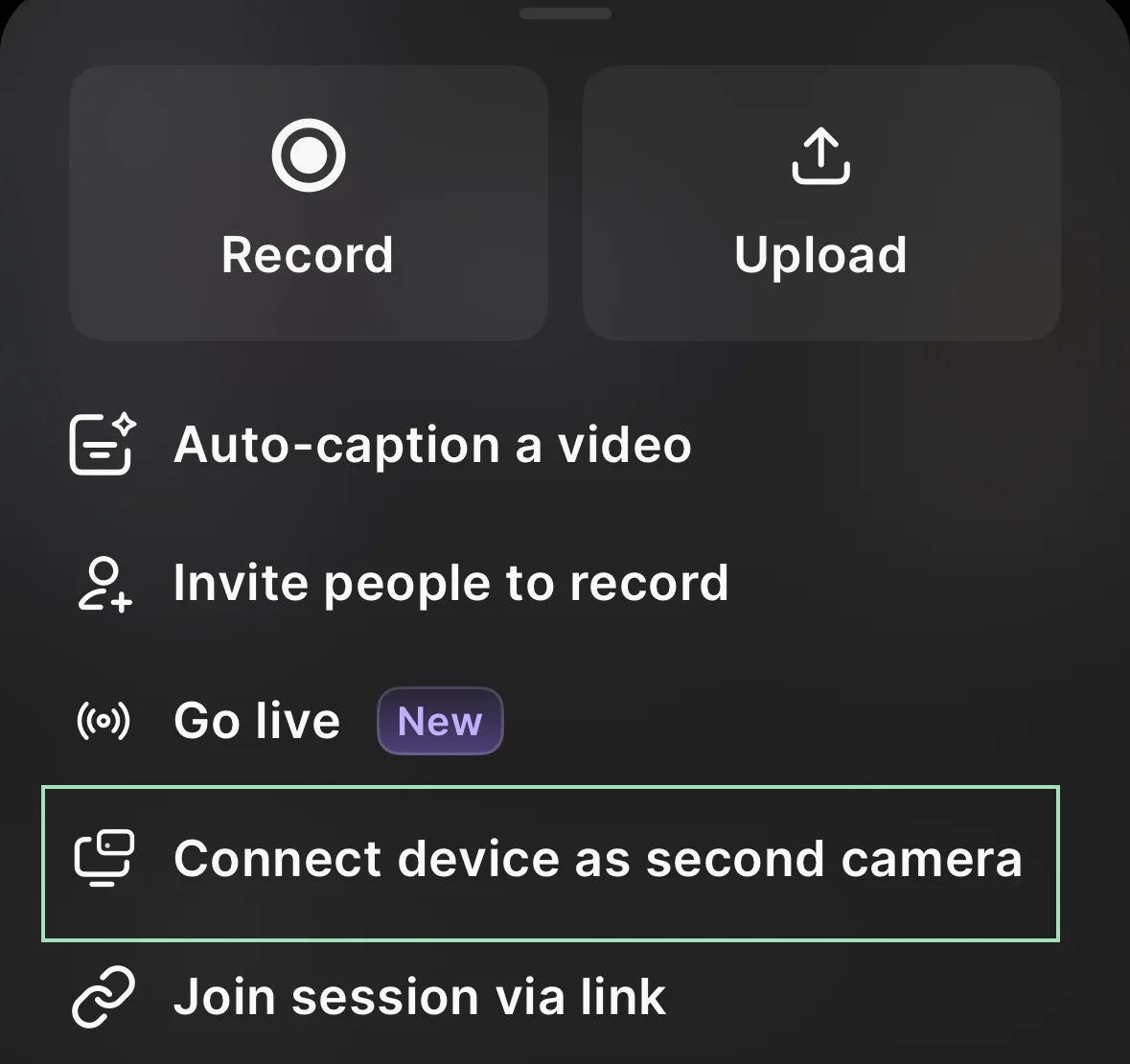
On the next screen, allow Riverside to access your iPhone’s camera and microphone if you haven’t already.
Then, tap “Join session.”
Go back to the studio on your computer. Click the “People” icon at the right, and you should see your iPhone camera appear as a “2nd Camera.”
Note: The studio won’t show your iPhone’s camera output.
Step 5: Start streaming!
Finally, invite any other guests to your studio. Once everyone is ready, hit “Record” to start streaming!
How to use iPhone as a webcam for Zoom and Google Meet
Zoom and Google Meet are popular platforms for webinars, interviews, and video conferences. You can use your iPhone as a webcam for both of them. Here’s how, assuming you’re using these platforms on your computer and not your phone.
Requirements
To use your iPhone as a webcam for Zoom or Google Meet, you’ll need to connect your iPhone to your Mac or PC using Continuity Camera or a third-party webcam app, respectively. We cover the steps for doing this above.
Setup instructions
Step 1: Connect your iPhone to your computer.
For example, if your computer is a Mac, connect your iPhone via Continuity Camera. If your computer is a PC, connect your iPhone via a third-party webcam app like Iriun or Camo.
Refer to the instructions above for more details.
Step 2: Choose your video input in Zoom or Google Meet.
Start a new Zoom or Google Meet meeting from your computer.
When you start a new Zoom meeting, you’ll be asked to set up your video and audio inputs. Use the video input dropdown to select your iPhone’s camera output.
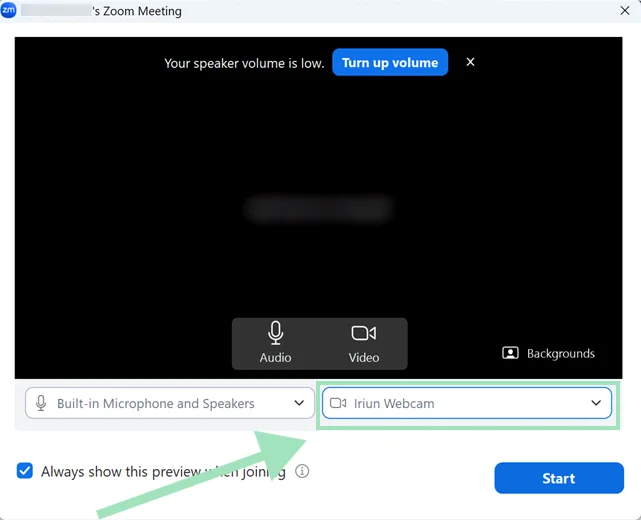
As for Google Meet, click the dropdown icon next to the video camera icon at the bottom. Your video settings will appear. Click the video input dropdown menu to select your iPhone’s camera output.

With that, you’re all set!
Quality limitations
Zoom and Google Meet compress video and audio to improve connection speed, making them less than ideal for high-quality recording or streaming. If this is something you need, use dedicated recording or streaming software like Riverside instead.
Troubleshooting iPhone webcam problems
If you’re facing problems using your iPhone as a webcam, here are quick fixes to get you back on track. Refer to our Continuity Camera troubleshooting guide for more in-depth solutions.
Your iPhone doesn’t appear as a camera option on your computer
If your iPhone doesn’t appear as a camera option, try disconnecting and reconnecting it to your computer. Make sure that:
- Wi-Fi and Bluetooth are enabled on your PC and iPhone.
- Both devices are on the same Wi-Fi network.
You’re signed into the same Apple ID on both devices.
Continuity Camera isn’t working
If Continuity Camera isn’t working, check that your iPhone and Mac meet the system requirements and that you’ve installed the latest updates for both devices and your video app.
If you connected your iPhone to your Mac wirelessly, try connecting both devices via USB instead. If Continuity Camera still doesn’t work, try restarting both devices.
Your iPhone isn’t connecting to your third-party Windows app
If your iPhone isn’t connecting to your third-party Windows app, close the third-party Windows app on your PC and iPhone, and then try to connect both devices again, ensuring that you follow the requirements and setup instructions.
For example, if you’re using Iriun, check that you’ve connected your iPhone and PC to the same Wi-Fi network. You should also have allowed your iPhone’s Iriun app to find devices on local networks and access your phone’s camera and microphone.
Your iPhone’s video quality is poor
If your iPhone’s video quality is poor, take these steps to improve your iPhone’s video quality:
- Use the rear camera: The lenses at the back of your iPhone are vastly superior to the front-facing one.
- Steady your shot: Mount your iPhone on a stable, fixed surface to minimize camera shake.
- Improve your lighting setup: Even the best camera sensors struggle in the dark. Shine a bright, diffused light in front of (not behind) you to avoid grainy footage.
- Close inactive iPhone apps: Background processes on your phone can cause its video output to lag or drop.
- Choose the right software: Continuity Camera’s video resolution is limited to 1080p (and 1920 x 1440 for a 4:3 resolution). To output 4K video with your iPhone, use a third-party webcam app and video app that both support 4K, like Riverside.
Your iPhone’s video is lagging or out of sync
If you connected your iPhone to your computer wirelessly and its video is lagging or out of sync, interference could have affected the connection. Try linking both devices via a high-quality USB cable instead if your connection method supports this. For example, Continuity Camera and the Camo app both work over USB.
If your iPhone’s video continues to be out of sync from your audio, this may be because iPhones record using variable frame rates, which can cause issues in editing software. Recording directly in an app like Riverside’s mobile app solves this, since all separate video and audio tracks are synchronized automatically.
Your iPhone disconnects from your computer by itself
If your iPhone disconnects from your computer by itself, check for issues with the connection. For example, your iPhone should not be locked. If you’re connecting via Wi-Fi, make sure the signal is strong and that both devices aren’t too far apart. If you’re connecting via USB, check that the cable is secure at both ends. You can also use a different USB cable to see if this helps.
FAQs
Is an iPhone a good webcam?
Yes, an iPhone can be a good webcam for outputting up to 4K video. Built-in computer webcams often use tiny image sensors that struggle in dim lighting, resulting in grainy visuals. iPhone camera sensors are considerably larger, letting them capture more light and detail. iPhones also automatically adjust white balance, reduce noise, and optimize skin tones in real time, further improving video quality.
Can I use my iPhone as a webcam on Windows?
Yes, you can use your iPhone as a webcam on Windows with the help of third-party webcam apps like Iriun, Camo, and (if you use your iPhone as a secondary recording webcam) Riverside. They typically connect your iPhone to your PC wirelessly. Some may also support USB connection. These apps often have free plans, though 4K video may be a paid feature.
Does using an iPhone as a webcam cost anything?
Whether using an iPhone as a webcam costs anything depends on your connection method and video app. For example, connecting your iPhone to a Mac via Continuity Camera is free. You can also connect your iPhone to a PC with a free third-party webcam app, though paid plans often unlock more features. Your video app might have similar free and paid tiers.
Can I use my iPhone as a webcam in 4K?
Yes, you can use your iPhone as a webcam in 4K using a third-party webcam app that supports 4K video output. This is because Continuity Camera’s maximum resolution in 16:9 is 1080p. You’ll also need a video app that supports 4K video.
For example, you can use the paid version of the third-party Camo app to record in 4K. Alternatively, you can use the free Riverside mobile app to record in Riverside with your iPhone as your secondary webcam, also in 4K.
Why is Continuity Camera not in the App Store?
Continuity Camera isn’t in the App Store because it’s built into compatible Apple devices. To use it, update the operating systems of your iPhone and Mac to at least iOS 16 and macOS Ventura 13, respectively. You also need to meet other requirements like ensuring both devices have their Wi-Fi and Bluetooth turned on.
Why is my iPhone not showing as a webcam?
Your iPhone might not be showing as a webcam on your video app because it isn’t connected to your computer. Check that you’ve followed the connection instructions, including turning on your iPhone and Mac’s Wi-Fi and Bluetooth if you’re connecting both devices via Continuity Camera.
Can I use my iPhone as a webcam over USB?
Yes, you can use your iPhone as a webcam over USB if your connection method supports it. Supported methods include Continuity Camera and the third-party Camo app. Connecting via USB may reduce video lag compared to a wireless connection.





.webp)