


Table of contents
Key takeaways:
- Riverside is the easiest streaming platform if you want high-quality results without complex setup, especially for interviews, webinars, and repurposed content.
- OBS Studio offers the most control and highest ceiling for quality, but requires lots of configuration and a capable computer.
- Lightstream and PRISM are strong middle-ground options that are easier than OBS, with enough customization for most live streams.
- Restream and StreamElements add multistreaming, overlays, and monetization to your setup, but you still need a separate streaming tool (like OBS) to go live.
Streamlabs is a popular platform that bundles streaming software with other features like alerts, chat tools, monetization, and recording. And while it’s based on OBS, it’s much easier to use.
But, Streamlabs records in lower quality, has more features than many people use or need, and can still be resource intensive.
Looking to replace your Streamlabs setup? We’ve got you covered. Here are 6 Streamlabs alternatives to consider for your next live stream.
Best Streamlabs alternatives: Quick summary
At a glance, here are the best Streamlabs alternatives for these common use cases:
- If you want a simple setup, studio-quality recording, and built-in editing for repurposing content, choose Riverside.
- If you want maximum control, plugins, and a fully custom streaming setup, choose OBS Studio.
- If you want to stream from your browser without installing software, but still control scenes and layouts, choose Lightstream Studio.
- If you already use OBS Studio and want overlays, alerts, and monetization without adding complexity to your setup, choose StreamElements.
- If your main goal is streaming to multiple platforms at once with minimal setup, choose Restream.
- If you want a beginner-friendly streaming app with strong mobile support and built-in effects, choose PRISM Live Studio.
6 Streamlabs alternatives for your next live stream
Riverside
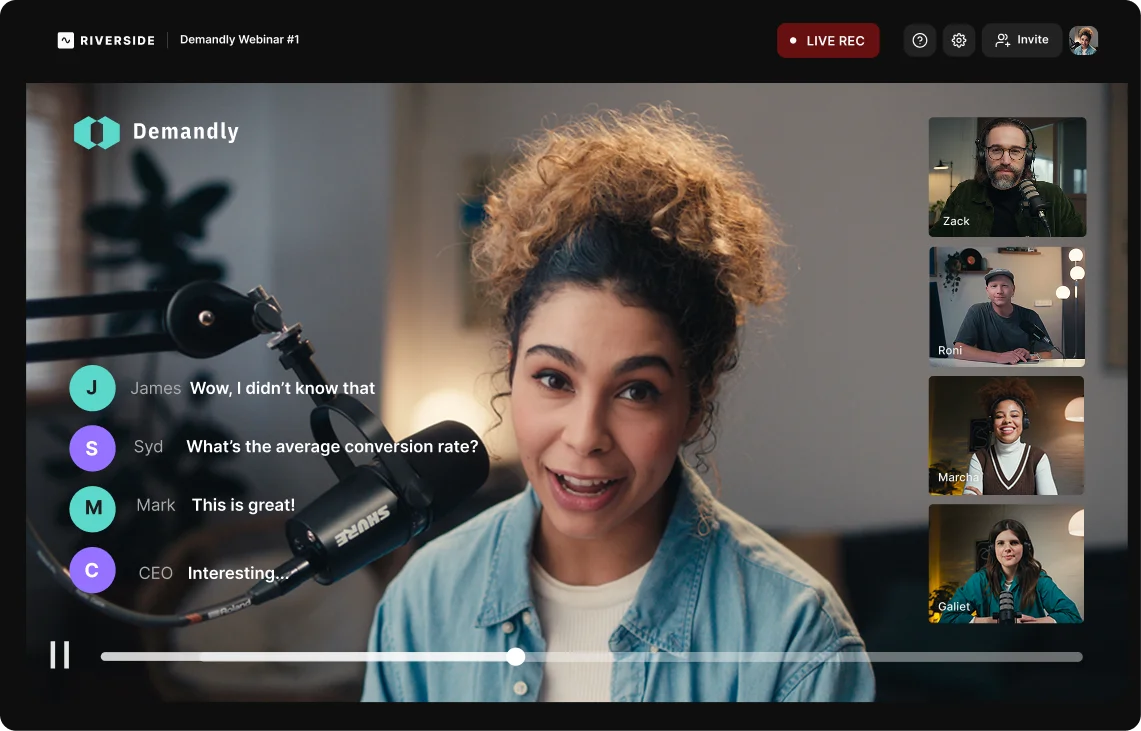
Price: Starts at $34 per month.
If you’re looking for streaming software that’s easy to use but delivers on quality, Riverside should be at the top of your list. It’s great for crystal-clear live shows, webinars, and interviews.
You can broadcast in up to 1080p from your browser, then capture your recording locally in up to 4K so you can polish and repurpose it later.
Multistreaming is easy on Riverside as well. You can connect to most social media platforms in a few clicks, and connect to any other platform you want via custom RTMP. And rather than building a scene layout from scratch, Riverside gets you live in minutes with predesigned layouts, built-in lower thirds, and simple branding options.
But where Riverside really stands out is post-production. It automatically generates a full speaker-labeled transcript that you can use to edit your recording like a document. You can also edit your content for on-demand replay, create clips for social media, and repurpose it into blog posts by chatting with the AI assistant Co-Creator.
Choose Riverside if: You want to multistream live shows and webinars without technical setup, then edit and repurpose them in minutes instead of hours.
Key features
- Fast mobile and desktop streaming: Go live directly from your browser or use the Riverside mobile app.
- Record in high definition: Automatically record streams in up to 4K video quality. Each participant is recorded locally with a separate track for audio and video.
- Easy guest invites: Invite up to 9 guests with a simple link. They can jump right into the stream without any downloads or installs.
- Audience mode and call-ins: Invite audience members to join the live video for enhanced engagement.
- Ominchat : Manage and respond to messages from all the platforms you’re streaming to in one place.
- Chat-based editing tools: Polish your video for on-demand replay or social media in minutes by just prompting the AI.

OBS Studio

Price: Free (open source).
If you want complete control over your live stream, OBS Studio is one of the most powerful tools available. It’s widely used by professional streamers and gives you deep control over everything from bitrate and resolution to encoding and scene design. Like Streamlabs, you can stream in up to 1080p (or higher), and it’s especially strong for gaming and highly-technical streams.
But, OBS Studio’s power comes with trade-offs. Unlike browser-based tools such as Riverside, OBS runs locally on your computer. This means it can be resource-heavy and require more setup. You’ll also need to build your stream from the ground up, configuring scenes, adding sources, managing audio, and fine-tuning settings.
For experienced users, that flexibility is a huge advantage. For others, it can feel overwhelming. OBS also doesn’t include built-in features for guests, multistreaming, or post-production. You can add these through plugins or external tools, but this takes more time to set up and maintain.
If you’re willing to invest the time to learn OBS, you can create a highly customized, professional-grade stream. But if your priority is speed, simplicity, or content creation, it may feel like more than you need.
Choose OBS if: You want full control over your stream and are comfortable managing a more technical setup.
Key features
- Advanced scene and source control: Build fully custom layouts with multiple video, audio, and overlay sources.
- Highly customizable streams: Fine-tune bitrate, resolution, and encoding settings.
- Gameplay capture: Captures games in high resolution while giving you real-time control over scenes, audio, and stream quality.
- Plugin ecosystem: Add capabilities that aren’t available by default (e.g., engagement features, audio control, layout upgrades, multistreaming).
- Local recording: Record your stream output locally as a single video file, with the option to include multiple audio tracks while broadcasting.
Read more: OBS vs. Streamlabs: Which Is Better for Recording?
Lightstream Studio
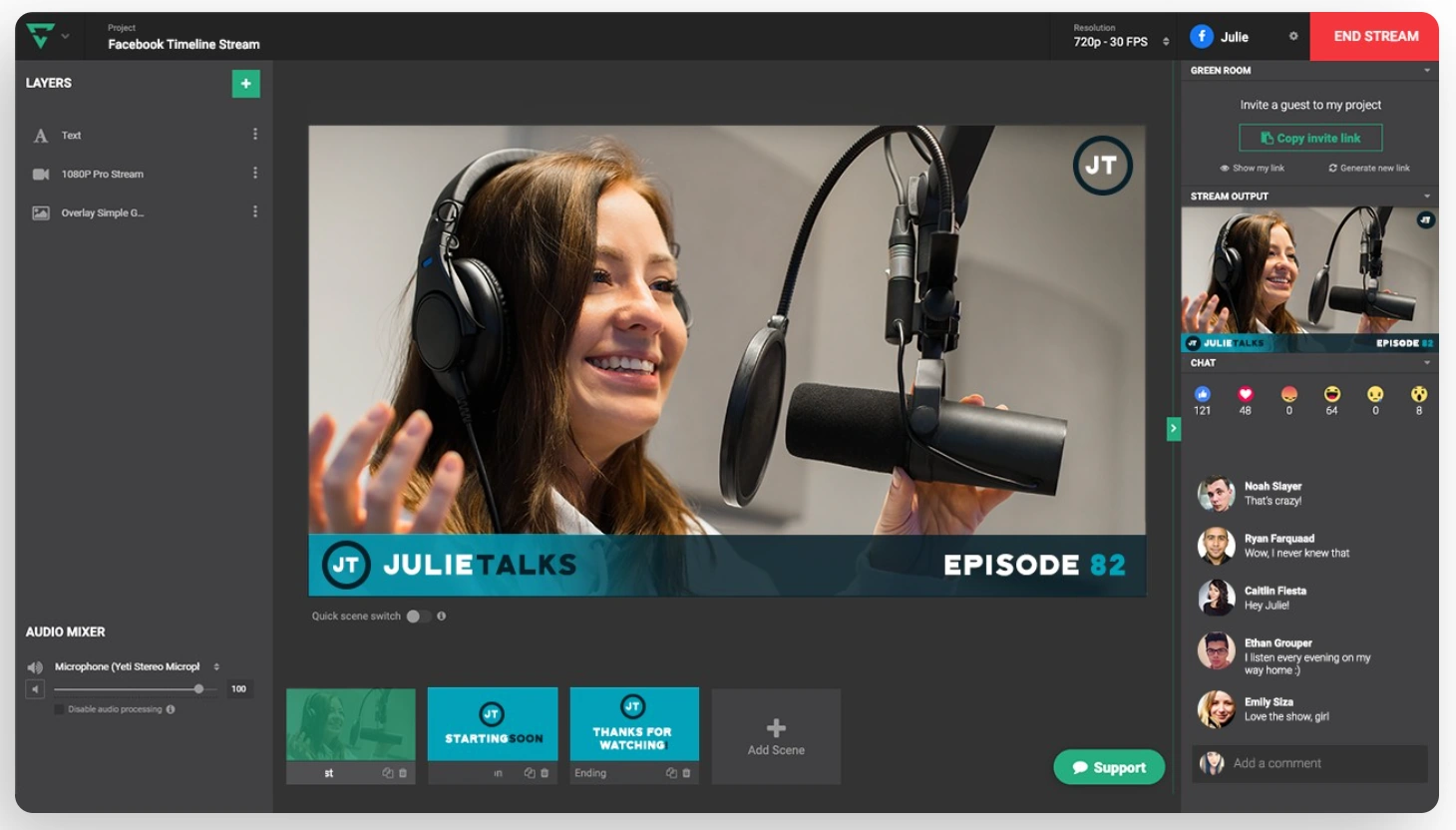
Price: Free trial available. Paid plan is $9 per month.
Lightstream Studio is a cloud-based streaming platform designed to give you OBS-style layouts without requiring a powerful computer or local setup. You can build scenes, add overlays, and customize your stream, all from your browser.
Because Lightstream runs in the cloud, it’s much lighter on your system than OBS or Streamlabs. This matters if you’re streaming from a lower-powered device or don’t want to deal with performance issues. It also integrates well with platforms like Twitch and supports multistreaming to up to 5 destinations, even on the free plan.
That said, while Lightstream is easier to use than Streamlabs, it still requires more setup than some other tools. You’ll need to build your scenes, manage layouts, and configure your stream design manually. And there’s no built-in recording at all.
Choose Lightstream if: You want a simpler, browser-based streaming tool that still includes some customization features.
Key features
- Console streaming integration: Stream directly from Xbox and PlayStation without a capture card or streaming PC.
- Scene and layout builder: Create custom stream layouts with overlays and sources.
- Guest support: Share a link to your private digital waiting room, then stream live with up to 7 guests.
- Pre-set templates: Set up a template from a large database of pre-made ones, or build your own from scratch.
StreamElements
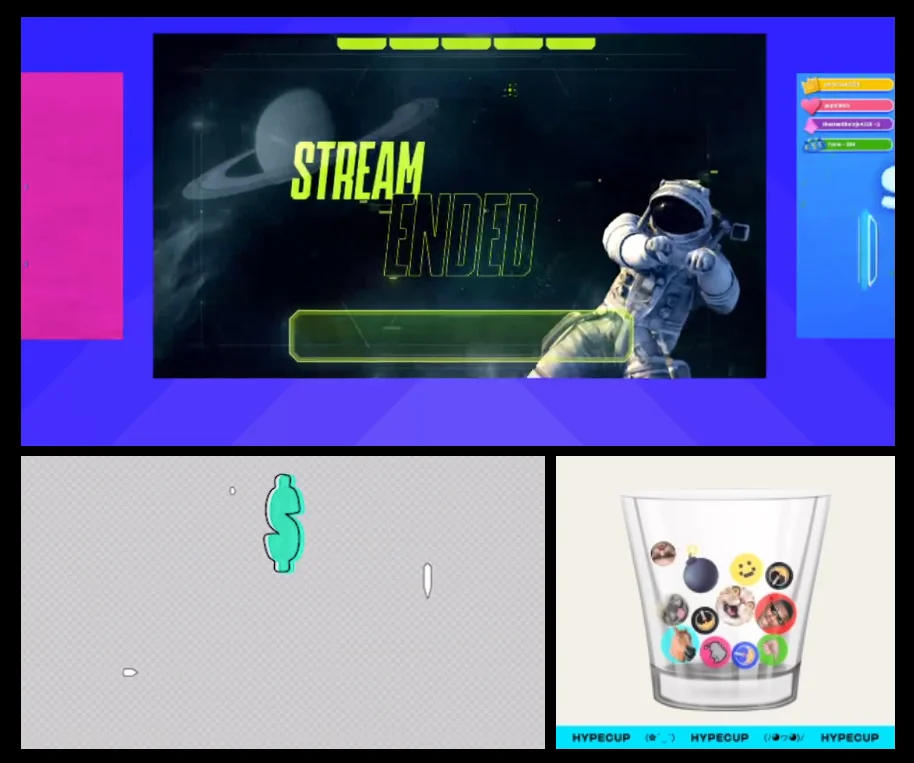
Price: Free.
If you want features like alerts, chat overlays, and monetization, StreamElements is a popular choice. Unlike Streamlabs, it isn’t a full standalone streaming app. It’s a cloud-based toolkit that adds additional features to your existing setup (usually OBS).
This cloud-based approach has some real advantages. Because overlays and alerts are hosted online, they don’t put as much strain on your computer. You also get a wide range of customization options that you don’t get with OBS alone.
The downside is that StreamElements isn’t an all-in-one solution. You’ll still need OBS (or similar software) to actually run your stream. This means more setup and moving parts. It also doesn’t offer built-in recording, guest management, or post-production tools.
Choose StreamElements if: You’re already using OBS and want more customization, overlays, and monetization tools without adding extra strain to your system.
Key features
- Customizable alerts and overlays: Choose from a library of free alerts, overlays, themes, and layouts, then customize them to make them your own.
- Monetization options: Receive tips, sell merch, or access sponsorship opportunities directly in the platform.
- Engagement tools: Customize stream alerts and widgets to make your stream more professional and engaging.
- Stream management: Use the Ground Control app to manage all your streams (including chats and other activities) in one place.
Restream
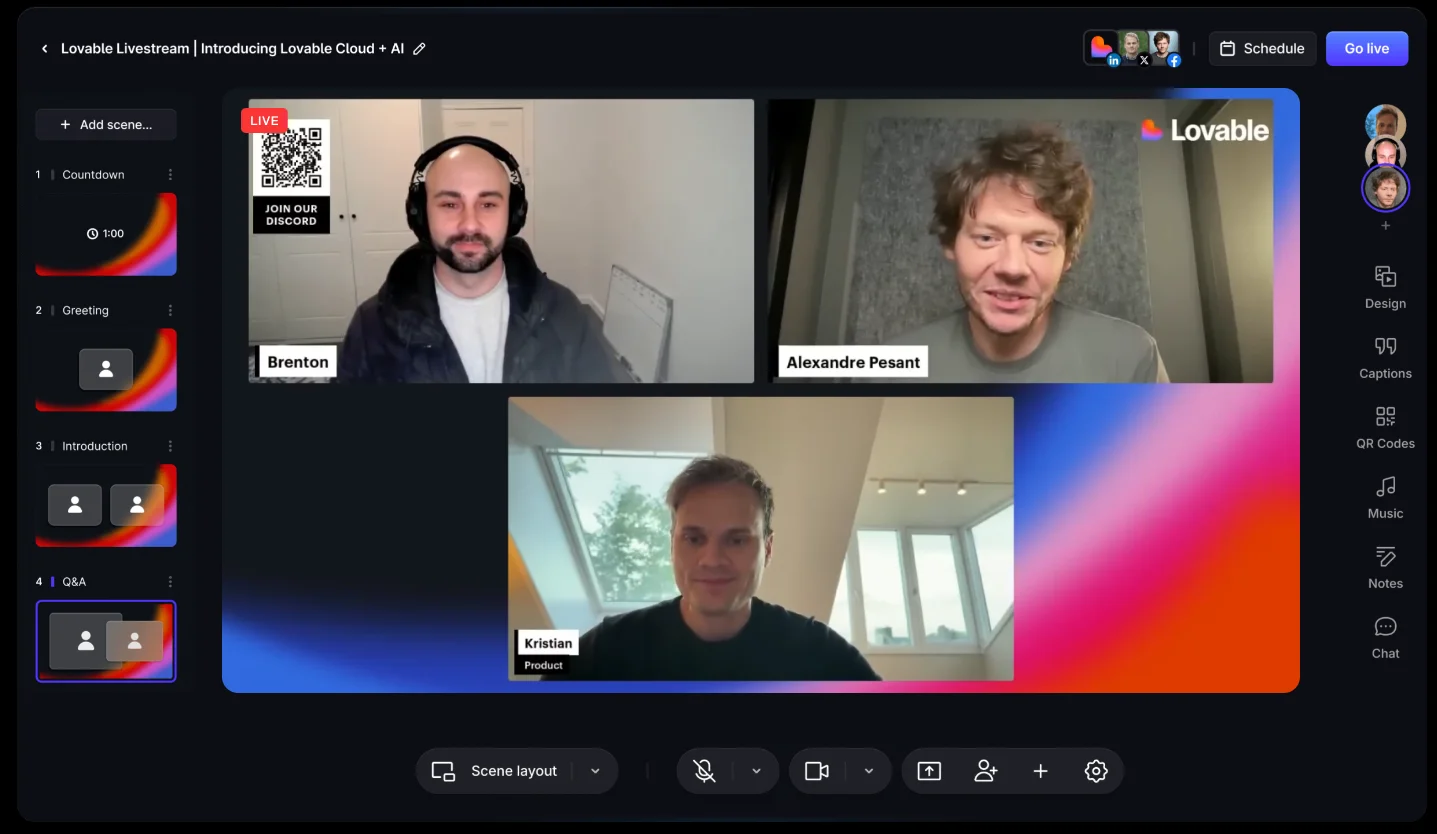
Price: Free plan available. Paid plans start at $16 per month.
If your main goal is to stream to multiple platforms (e.g., YouTube, Twitch, LinkedIn) simultaneously, Restream is one of the best tools available.
There are 2 ways to use Restream. You can stream directly from Restream Studio, its browser-based tool with built-in layouts, chat, and basic branding. Or, you can connect it to tools like OBS Studio or Streamlabs Desktop. In this setup, those tools handle your stream production (scenes, overlays, audio) and Restream handles the multistreaming.
This setup reflects what Restream is really built for: distribution, not production. Restream Studio works well for simple streams, but it offers limited control over layouts and design. If you want a more advanced setup, you’ll need to pair Restream with a tool like OBS.
And while Restream can record your stream (up to 4K on higher plans), recordings are cloud-based and not multitrack, which limits editing flexibility.
Choose Restream if: Your goal is to stream to multiple platforms at once with as little friction as possible.
Key features:
- Dual format streaming: Stream horizontally and vertically at the same time.
- High-quality streaming: Can stream in up to 4K by using an external encoder.
- Pre-recorded streams: Schedule your pre-recorded session and run it as a simulive event with real-time interactions.
Advanced analytics: Keep track of a broad range of post-stream metrics like number of viewers, watch time, and engagement data.
Read more: Best Restream Alternatives
PRISM Live Studio
Price: Free plan available. Paid plan is $9.99 per month.
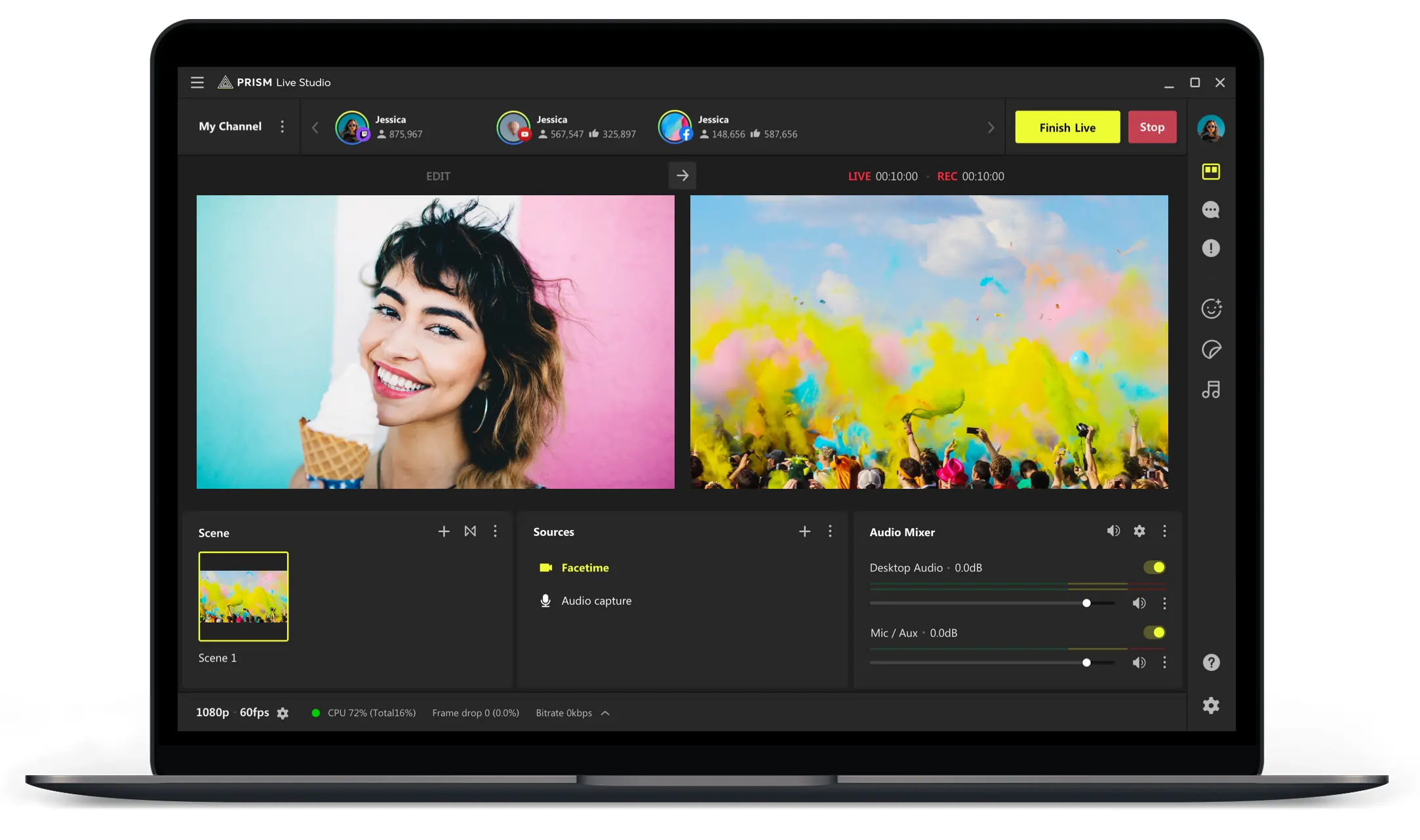
PRISM Live Studio is a mobile-friendly streaming app with built-in effects and multistreaming. It’s designed for creators who want to go live quickly from their phone or desktop, especially on platforms like TikTok, YouTube, and Twitch.
PRISM sits somewhere between Streamlabs and simpler tools like Riverside. It offers more customization than browser-based platforms, with support for overlays, filters, stickers, and scene-style layouts. But it’s much easier to get started with than OBS, making it a good option for creators who want more visual control with less production setup.
That said, PRISM is still very much a live streaming tool only. It includes basic recording features, but it captures a single stream output rather than separate tracks. This makes it fine for saving your stream, but less ideal for editing or repurposing content.
Choose PRISM Live Studio if: You want an easy-to-use streaming app with built-in effects and multistreaming, especially for mobile or social platforms.
Key features
- Mobile and desktop streaming: Go live from your phone or computer.
- Built-in effects and filters: Add stickers, backgrounds, and visual effects, or stream as an avatar.
- Multistreaming support: Go live on up to 3 platforms at the same time.
- Scene-style layouts: Switch between different stream views.
- Screen and camera capture: Share your screen or use multiple camera inputs.
How to choose a Streamlabs alternative
If you’re considering a few potential platforms, here’s a step-by-step guide to help you make your decision.
Determine how technical you want your setup to be
If you’re comfortable building scenes, managing sources, and tweaking settings, more advanced tools like OBS can give you polished results. If not, a simpler, browser-based option like Riverside will get you live faster and with fewer workflows that can break.
Consider your computer’s performance
Tools like OBS Studio or Streamlabs rely on your computer to process and encode video in real time. For stable streaming, you’ll need at least a modern i5/Ryzen 5 processor, 16GB of RAM, and ideally a dedicated GPU (or Apple M1/M2 equivalent). If you’re on a lower-end laptop (8GB RAM, older CPU, no GPU), you’re better off using browser-based tools like Riverside or Lightstream Studio to avoid lag, dropped frames, or crashes.
Match the tool to your streaming format
If you’re streaming games or running a high-production live show, you’ll need a tool that gives you full control over scenes, overlays, and performance like OBS Studio.
If you’re hosting interviews, webinars, or live discussions, you’ll want tools that make it easy to invite guests, manage audio, and go live quickly like Riverside.
Decide whether you need multistreaming
If reaching audiences across multiple platforms is important, make sure your setup supports multistreaming, and consider how easy it is to manage.
There are 2 main ways this works:
- Built-in (easiest): Tools like Riverside or Restream let you connect multiple platforms and go live in a few clicks.
- External service: Tools like OBS Studio require a service like Restream to distribute your stream to multiple platforms.
Also, check for multistreaming limits and ensure they accommodate the number of platforms you want to stream to.
Evaluate streaming and recording quality
If you plan to repurpose your content into clips, videos, or podcasts, recording quality is just as important as how your stream looks live.
When comparing tools, look for:
- Local vs. Cloud recording: Local recordings are more reliable and higher quality than cloud recordings.
- Resolution and bitrate control: Can you stream or record in 1080p or higher? Some tools prioritize stream quality but provide lower quality recordings.
- Separate tracks: Tools that record audio or video tracks separately make editing much easier.
- Consistency vs. Adaptability: Some tools prioritize stable streams, others prioritize maximum quality.
For more options and tips, check out our guide to the best live streaming software.
FAQs about alternatives to Streamlabs
Is Streamlabs being sued?
No, Streamlabs isn’t currently being sued, but Streamlabs has been involved in a class action lawsuit. The lawsuit claims that users were unknowingly enrolled in a recurring subscription when they thought they were making a one-time donation to a streamer. Streamlabs agreed to a $4.4 million settlement, although it did not admit wrongdoing.
In 2021, OBS Studio publicly accused Streamlabs of using the “OBS” name. (At the time, Streamlabs was called “Streamlabs OBS,” which it said was a nod to the platform it was built on.) No lawsuit was filed, but Streamlabs dropped “OBS” from its name following heavy criticism from creators and the streaming community.
Can Streamlabs be trusted?
Streamlabs can be trusted because it’s a safe and legitimate software platform. But, it has faced public complaints about unclear subscriptions and billing. Streamlabs also drew criticism for charging for features like pre-made scenes and overlays. These were available for free on OBS itself, causing streamers to accuse Streamlabs of monetizing a free and open source platform.
What are the best free alternatives to Streamlabs?
The best free alternatives to Streamlabs include OBS Studio and Meld Studio. OBS Studio is the most obvious free option because it gives you a lot of the same features as OBS, but with a more beginner-friendly interface. You also get built-in features that require a plugin on OBS. Meld Studio is a newer option that is also built on OBS and has a similar workflow.


.webp)


