

Key takeaways:
- StreamYard is much easier to use and faster to set up, while OBS Studio offers far more customization and production control.
- StreamYard is better for interviews, podcasts, webinars, and collaborative streams because tools for them are built into the platform.
- OBS is the stronger option for gaming streams and advanced live productions thanks to dedicated game capture and more control over encoding and scenes.
- StreamYard prioritizes simplicity and convenience at a higher monthly cost, while OBS is completely free but requires more setup and technical knowledge.
If you’re live streaming, running remote interviews or podcasts, producing a live show, or looking for a recording tool, you may be comparing StreamYard and OBS.
So, which one is right for you? In this guide, we’ll compare StreamYard vs. OBS to help you understand where each tool shines, and which is the better fit for your workflow.
Comparison summary: StreamYard vs. OBS
The strengths and weaknesses of StreamYard and OBS come down to this:
- StreamYard makes it easy to go live quickly, but it lacks some of the advanced customization and production controls more experienced creators may want.
- OBS Studio gives you deep control over your streams and recordings. But, it comes with a steeper learning curve and may be too complex for some creators.
I scored each platform on a one to five stars scale so you can quickly compare them across different criteria:
Feature and use case comparison
Pricing and value
- StreamYard score: ⭐⭐
- OBS score: ⭐⭐⭐⭐⭐
OBS offers better value if you’re comfortable producing things yourself. StreamYard offers better value if you want the easiest possible setup.
StreamYard’s paid plans start at $44.99/month. There is a free plan, but with limits on streaming, storage, and recording, it feels more like a trial than a long-term option. While StreamYard isn’t cheap, it does deliver almost everything you need to live stream, multistream, and record your content. It also makes remote guest recording simple. On paid plans, you get useful extras like custom layouts, AI clipping, and AI backgrounds.
StreamYard’s biggest strength is ease of use. Because it’s browser-based, much of the technical setup is handled for you. You can sign up, invite guests, and be ready to stream in high quality within minutes. For some, that simplicity is worth the cost.
.webp)
OBS Studio, on the other hand, is completely free. For that price, you get just about every feature a streamer could want. It’s built for flexibility and production control, giving you deep customization over scenes, overlays, audio routing, recording quality, and almost every other part of your setup.
The tradeoff is that OBS takes more time to learn. Setting everything up can take hours instead of minutes, especially if you’re new to streaming software and there’s also a higher margin for error. You’ll also need to spend time learning how to use its more advanced features, and a learning curve is a real cost to consider.
Ease of use and setup
- StreamYard score: ⭐⭐⭐⭐⭐
- OBS score: ⭐
StreamYard is built for simplicity and fast setup, while OBS Studio offers greater customization and control but takes more time to learn and get started.
StreamYard makes live streaming and recording easy. Open a browser, connect your streaming destinations, invite guests with a link, and go live. The interface is easy to navigate and designed to be simple.
Layouts, recording, multistreaming, chat overlays, and guest management are all built directly into the platform. This puts everything you need to do high-quality interviews, podcasts, webinars, and collaborative streams right at your fingertips.
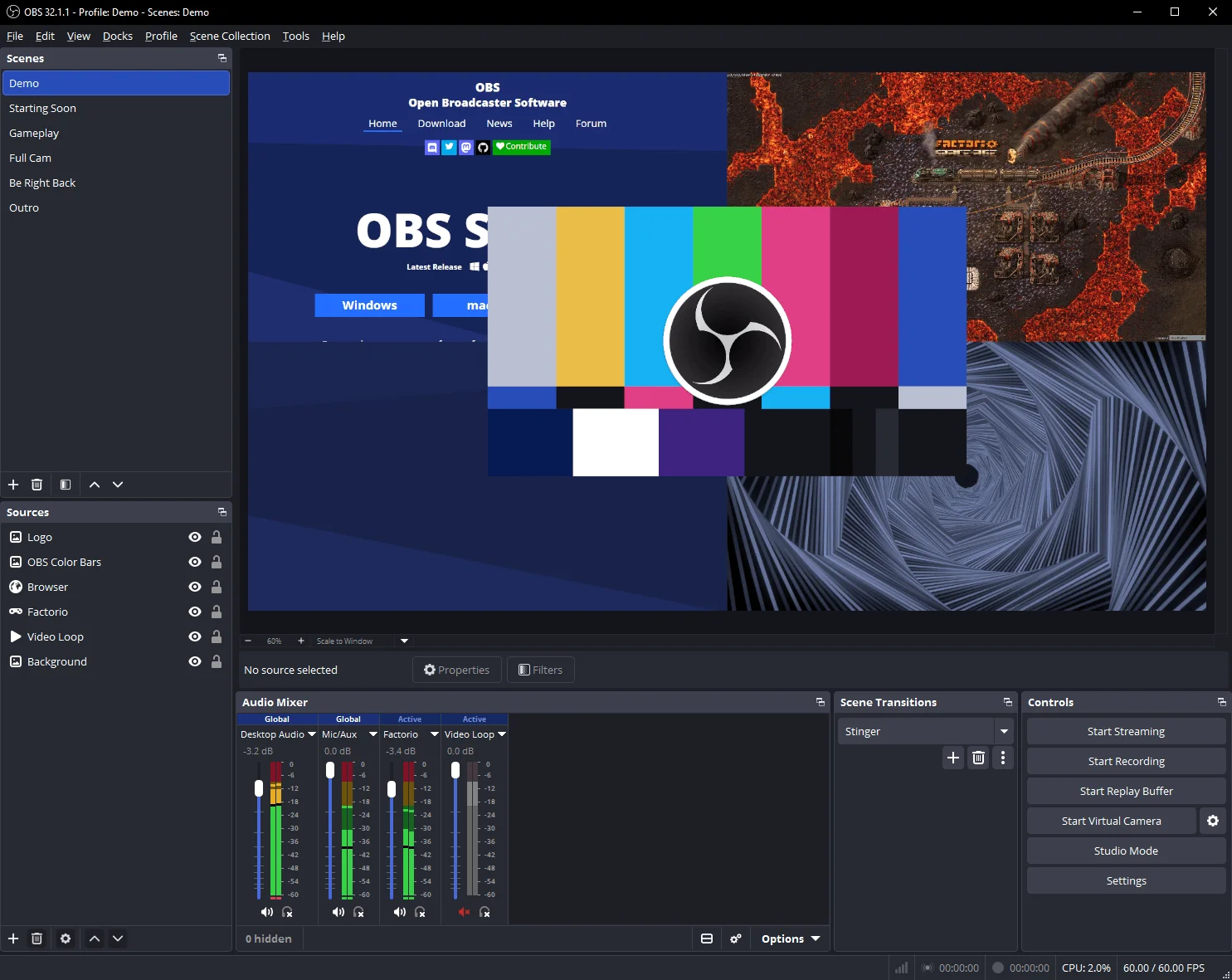
OBS takes a much more hands-on approach. It provides deep control over scenes, overlays, audio routing, plugins, transitions, encoding settings, and custom workflows. That flexibility is a huge advantage for advanced productions.
The downside is that you’ll spend more time configuring scenes, testing audio, and troubleshooting sync issues. Basically, if you’re going to use OBS, you have to learn how streaming software actually works behind the scenes.
Live streaming and multistreaming
- StreamYard score: ⭐⭐⭐⭐
- OBS score: ⭐⭐⭐⭐
StreamYard makes live streaming and multistreaming feel much simpler, while OBS Studio provides more control over how streams are produced and distributed.
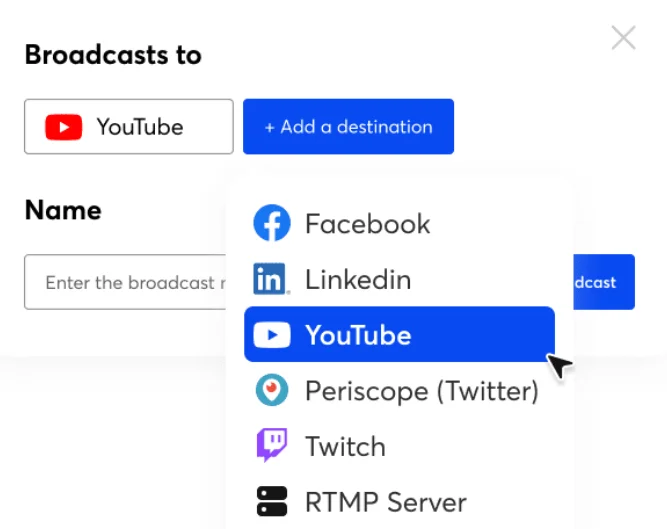
With StreamYard, most of the streaming workflow is built into the platform. You can connect social accounts in a few clicks, add custom RTMP destinations, and invite guests with a link. It’s also easy to manage comments, switch layouts, and multistream without installing plugins or configuring complex settings.
That convenience is a big reason why StreamYard is popular for podcasts, interviews, webinars, and creator-led live shows. However, one thing we don’t love about StreamYard is that you can only stream to 3 destinations on the Core plan ($44.99 per month). That may not be enough for some creators, which means multistreaming can get very expensive here.
Since OBS Studio is primarily a production tool, you get deep control over scenes, overlays, transitions, audio routing, encoding settings, and stream quality. But unlike StreamYard, very little is handled for you automatically.
Even basic streaming setup is more involved: Before you go live, you’ll typically need to build scenes manually. You’ll also have to add and position sources like webcams and gameplay capture, configure audio routing, choose encoding settings, and test performance.
Multistreaming adds another layer of complexity. OBS doesn’t include built-in multistreaming, so creators usually need to install a plugin or connect OBS to a service like Restream. From there, you may need to manually configure RTMP destinations, stream keys, bitrate, resolution, and encoder settings yourself.
That can feel overwhelming if you just want to hit “Go Live.” But the tradeoff is flexibility. OBS gives you far more control and customization over your production, and you can multistream to as many platforms as you want without paying for the software itself.
Pro tip: You can connect OBS with StreamYard, Restream or other beginner-friendly streaming services like Riverside to get easier connectivity and more customizability.
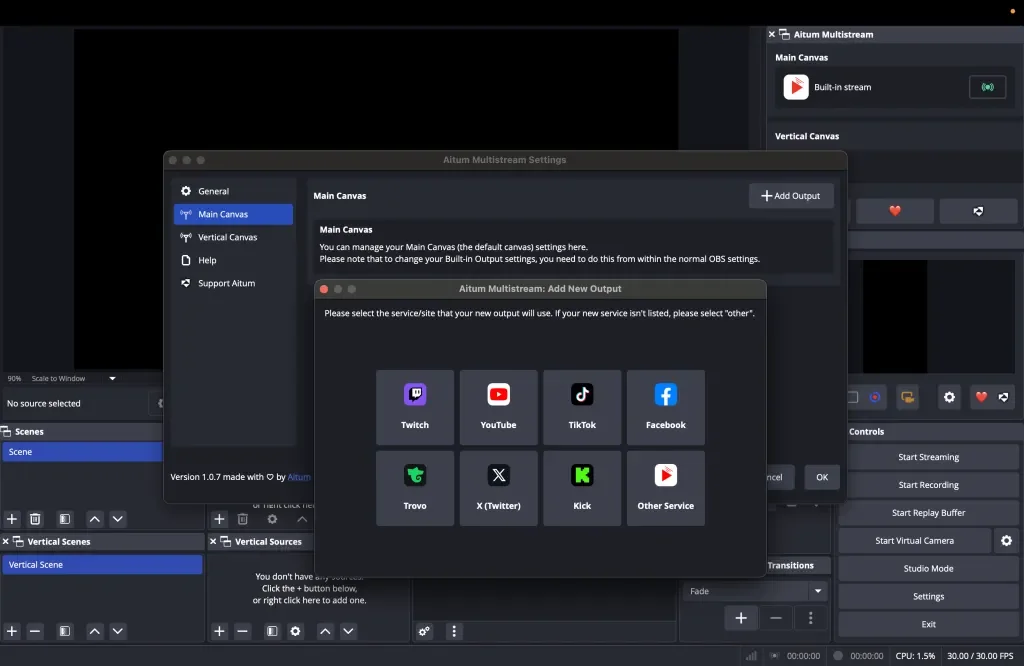
Your hardware is a factor here, too. Because StreamYard runs in your browser, it’s generally easier for less powerful computers to run. OBS Studio can put much more strain on your CPU and GPU, especially if you’re gaming, recording locally, or running advanced streaming setups at the same time. That can make StreamYard the better choice for creators with lower-powered systems.
Recording and screen recording
- StreamYard score: ⭐⭐⭐⭐⭐
- OBS score: ⭐⭐⭐⭐
StreamYard is designed to make recording feel as simple as joining a video call. OBS Studio works more like a production studio: creators build scenes, configure audio and video sources, and control settings.
With StreamYard, you can open a browser tab, invite guests with a link, share your screen, and start recording in just a few clicks. You can record to the cloud or record locally on paid plans. Quality is generally very good (up to 4K video/48 kHz audio, depending on your plan), especially when using local recording.
You also get extra tools for transcription and making AI clips (on higher-level plans). This can make your whole workflow faster and easier.
That simplicity extends to screen recording, too. StreamYard’s screen sharing tools are great for collaborative content like webinars and demos. You can quickly switch between cameras, guests, and screen shares without building scenes or configuring complicated capture settings.
OBS’s approach is much more like a professional production tool. It gives creators fine-grained control on everything, from sources to overlays, audio mixing, recording settings, and much more. That flexibility is a big reason why many creators use OBS primarily for recording rather than streaming (especially for capturing gameplay or mulit-camera productions).
Screen recording in OBS is much more customizable, too. Instead of simply sharing your screen, you can build scenes using individual sources (e.g., monitors, app windows, webcams, gameplay captures, browser windows). That makes OBS especially powerful for gaming videos, but also more complicated.
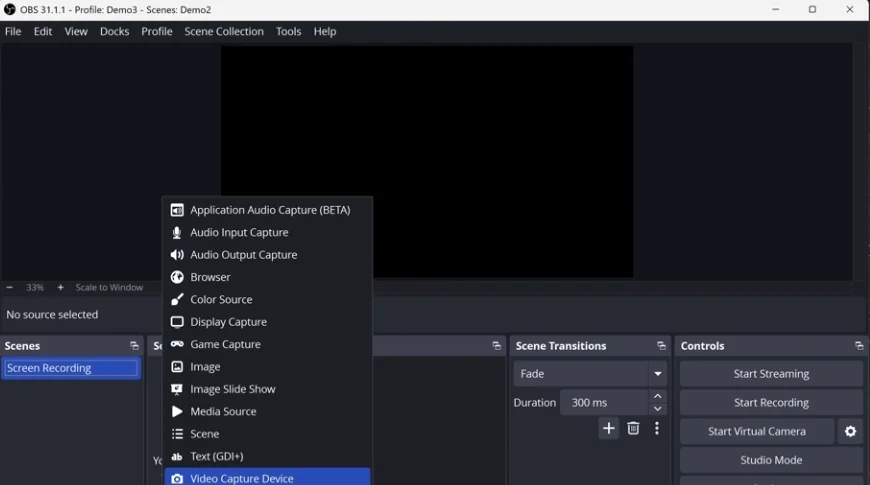
That extra control can also produce higher-quality recordings, but only if OBS is set up properly. You can adjust settings like video quality, resolution, frame rate, audio, and how your computer processes the recording.
When those settings are right, your video can look sharper and avoid the blocky or blurry look that comes from heavy compression. When they’re wrong, you may end up with grainy footage, huge files, dropped frames, or audio that doesn’t stay in sync.
Read more: Get more software recommendations for screen recording in our list of the best screen recording software.
Guest management and interviews
- StreamYard score: ⭐⭐⭐⭐⭐
- OBS score: ⭐⭐
StreamYard is built around remote guests and interviews, while OBS Studio requires a more custom setup to handle them smoothly.
Inviting guests to stream or record in StreamYard is extremely straightforward. Send someone a link, they join from their browser, and they appear backstage in your studio. Hosts can manage layouts, mute and adjust guest audio, and bring people on and off screen without extra software or plugins.
Higher-tier plans also include a Greenroom feature where hosts can privately check guests’ audio, video, and screen shares before bringing them into the show. These guest management features are a huge reason why StreamYard is popular for podcasts, webinars, interviews, and panel-style shows.
.webp)
OBS itself doesn’t include built-in guest rooms or interview tools at all. Instead, creators usually combine OBS with tools like VDO.Ninja, Zoom, or Riverside using the OBS virtual camera. Those workflows can produce excellent results, but they’re more technical to build and manage, and may involve additional subscription costs.
Graphics, overlays, and branding
- StreamYard score: ⭐⭐⭐⭐
- OBS score: ⭐⭐⭐⭐⭐
StreamYard makes professional-looking graphics, overlays, and branding feel plug-and-play. OBS Studio gives creators with a specific creative vision the tools to build highly customized productions from the ground up.
With StreamYard, branding tools are built into the platform. You can upload logos, overlays, backgrounds, intro videos, and branded clips into the Media Assets panel. Using them is as simple as toggling them on and off during a stream.
On higher-tier plans, StreamYard also includes built-in banners, scrolling tickers, lower thirds, chat highlighting, brand colors, themes, and custom fonts. Its polished built-in layouts are easy to switch between during interviews and webinars. Better still, you can save up to 8 customized layouts of your own.
It’s also helpful that in StreamYard you can store logos, colors, overlays, and backgrounds in reusable folders for future recordings and streams.

OBS, on the other hand, uses a scene-and-source system for graphics and overlays. Logos, lower thirds, browser widgets, alerts, backgrounds, and animations are all added as separate layers inside a scene. This gives you the flexibility to add and manipulate these assets one by one to build entirely custom layouts.
That flexibility is a huge advantage for creators building more polished or broadcast-style productions. For example, if you’re a gaming creator, you can build a fully custom stream layout with gameplay in the background. You can position a webcam frame exactly where you want it, add in animated alerts, live chat on screen, and layer in branded graphics.
The tradeoff is that OBS requires more upfront configuration. You’ll have to spend time building scenes, arranging overlays, setting up alerts, and designing layouts before going live. But once those scenes are built, you can reuse and refine them across future streams and recordings.
Live shows and gaming
- StreamYard score: ⭐⭐⭐
- OBS score: ⭐⭐⭐⭐⭐
StreamYard is stronger for conversational live shows and collaborative streams. OBS Studio offers far more flexibility for gaming streams and broadcast-style productions.
With StreamYard, the focus is on making live shows easy to run. You can invite guests with a link, switch layouts during the show, and bring comments on screen. It’s also easy to share your screen, play videos, and multistream directly from your browser, all with minimal setup.
StreamYard also supports gameplay streaming through browser-based screen sharing. That makes it a simpler option if you don’t want to manage scenes, encoders, plugins, or more advanced streaming software. It can also run more comfortably on lower-powered computers, without requiring a dedicated streaming PC (common in more advanced OBS Studio setups).
The tradeoff is control: Gameplay in StreamYard is captured through browser screen sharing, which can mean lower quality and more latency. Layouts are also more limited, and you get less control over encoding, bitrate, and performance tuning.
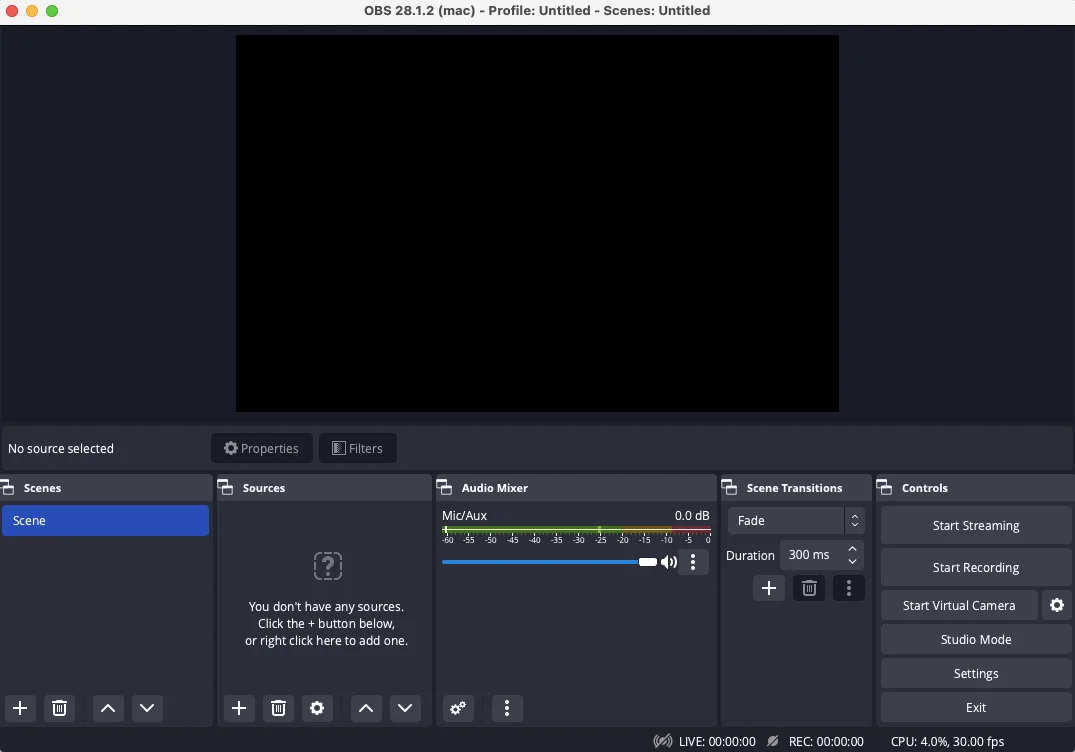
OBS’s dedicated game capture hooks directly into the game itself, which usually delivers smoother performance, lower latency, and more reliable full-screen capture. OBS also lets creators build fully customized productions. This includes things like layered overlays, animated alerts, custom transitions, multiple scenes, advanced audio routing, and detailed bitrate and encoder controls.
Webinars and virtual events
- StreamYard score: ⭐⭐⭐⭐⭐
- OBS score: ⭐⭐⭐
StreamYard offers a much more complete webinar and virtual event workflow out of the box. OBS Studio requires stitching together multiple tools and services to create a webinar setup.
If you want to host and stream live presentations, workshops, interviews, or customer demos, you can do it on any StreamYard plan without extra webinar tools.
StreamYard, however, offers an optional webinar/event layer called StreamYard On-Air (Business plan and higher). This allows you to host over 1000 attendees, create registration pages, collect attendee emails, send automated reminders, and generate on-demand replays. You can engage your audience with live call-ins and polls. The system works well, but at $299 per month for the Business plan, there are cheaper options with similar features.
.webp)
OBS does not include built-in webinar features like registration, guest invites, reminder emails, or attendee management. Instead, creators typically pair OBS Studio with platforms like Zoom, WebinarJam, or Riverside. These services handle webinar delivery while OBS manages the live production layer, including custom scenes, multicamera switching, gameplay capture, and advanced audio routing. The number of attendees you can host depends on the webinar platform you connect to OBS.
While this setup is more complex, it allows you to build highly customized webinar experiences. You can switch between slides, live demos, guest interviews, and branded intro or Q&A screens throughout the session. This can give your webinar a much more polished, broadcast-style feel, but it also means handling technical configuration, integrations, and audio routing.
Read more: Looking for more webinar platform recommendations? Check out our guide to the best webinar software.
StreamYard vs. OBS Studio: Pros and cons
Here’s a table overview of each platform’s strengths and weaknesses.
StreamYard pros and cons
OBS Studio pros and cons
Which should you choose?
Here are some criteria to help you decide between StreamYard and OBS Studio.
Choose StreamYard if:
- You want to go live quickly with minimal setup.
- You host interviews, podcasts, webinars, or collaborative streams.
- You regularly bring remote guests on screen.
- You want built-in multistreaming and branding tools.
- You want webinar tools like registration pages and replay hosting.
- You don’t want to manage scenes, plugins, or encoder settings.
- You value simplicity and reliability over deep customization.
- You have a less powerful computer or laptop.
Choose OBS Studio if:
- You want maximum control over your stream or recording setup.
- You create gaming streams or highly customized live productions.
- You want advanced overlays, animations, and scene transitions.
- You care deeply about recording quality and production flexibility.
- You want detailed control over bitrate, encoding, and audio routing.
- You’re comfortable learning more technical software.
- You want to build a unique on-stream visual style.
- You want a free tool and don’t mind more setup.
FAQs about OBS vs. StreamYard
Is StreamYard worth the money?
Whether StreamYard is worth the money really depends on how highly you value time savings and simplicity. StreamYard isn’t cheap, but it provides value by making live streaming, recording, and webinar creation fast and easy, with minimal setup required.
StreamYard’s paid plans also include AI clipping, which you can use to quickly create clips for social media. This is another time-saver, and means you don’t need to buy additional software.
For more options, check out our list of the best StreamYard alternatives.
What’s cheaper than StreamYard?
If you like the simplicity of StreamYard but want something cheaper, some alternatives to consider include Restream, Riverside, and Streamlabs. Here’s a full recap:
- Restream (free plan available; paid plans start at $19 per month): This is a great option for quick multistreaming, but other features are limited. Recordings are also cloud-based and therefore lower quality (than local recordings).
- Streamlabs (starts at $9 per month): This desktop software is powered by OBS, but provides an easier interface and tools. As a result, it’s easier to use than OBS, but offers better customization and game streaming options than StreamYard.
- Riverside (plans with streaming start at $39 per month): This browser-based option offers the most value for your money. You get professional-quality streaming and recording, multistreaming, and built-in editing tools.
What’s the cheapest way of streaming?
The cheapest way to stream is to use the native streaming feature on social media apps like Facebook, Instagram, TikTok, and YouTube. These platforms allow you to stream for free, but they lack the tools and customization that many ambitious creators are looking for. Also, multistreaming is not possible via native social media apps.
If you want to create more professional, customized live streams and/or stream to multiple platforms at once, you can use a free streaming tool like OBS or a tool with a free plan like Restream.