

.webp)


Key takeaways:
- Submitting your podcast to Amazon Music is simple: paste your RSS feed, verify ownership via email, confirm details, and publish.
- Approval takes hours to a few days, then your show appears on Amazon Music & Audible.
- Claim your show in Amazon Music for Podcasters to unlock analytics, manage regions, and resolve catalog issues.
Amazon Music reaches more than 80 million listeners worldwide. It’s available on Audible and Alexa-enabled devices. So, listing your show here makes it widely available on nearly any device, from phones to smart speakers. So, where to start?
This guide shows you exactly how to submit a podcast to Amazon Music. You’ll learn how to upload your podcast, manage your listing, and expand discoverability.
Before you submit: What are the requirements for Amazon Music?
Before submitting your podcast, make sure your show meets Amazon Music’s basic requirements:
- Valid RSS feed URL: All hosting providers, including Amazon, use an RSS feed link to pull your show’s data from your host. You can find it in your hosting platform.
- At least one episode: You need at least one episode that you can push to go live.
- Podcast cover art: Use a square cover image between 1,400 x 1,400 and 3,000 x 3,000 pixels in size. The podcast artwork should be clear and legible as a thumbnail. Comply with all content rules and avoid nudity, explicit imagery, or trademarked logos..
- Proper metadata: Your show’s RSS feed must include a podcast title, description, author, category, and language tag.
- Explicit content warning: If your show contains adult language or explicit material, mark it as “Explicit” in your RSS feed settings using the appropriate tag.
- Owner email for verification: Make sure that a valid email is attached to your RSS feed. Amazon will send you a verification message to confirm you own the podcast.

How to submit a podcast to Amazon Music and Audible
Submit your podcast to Amazon Music through the Amazon Music for Podcasters portal. This also lists your show on Audible. Follow these steps to submit your podcast:
Step 1: Get your RSS feed from your podcast host
Log in to your podcast host and copy your show’s public RSS feed URL. You’ll usually find it in your dashboard under settings, distribution, or “RSS feed.”
If you’re hosting with Riverside:
- Go to the studio where your podcast recordings are.
- Click on “Hosting” from the left sidebar.
- In the top right, click the three dots “•••”.
- Here you can copy your RSS URL.
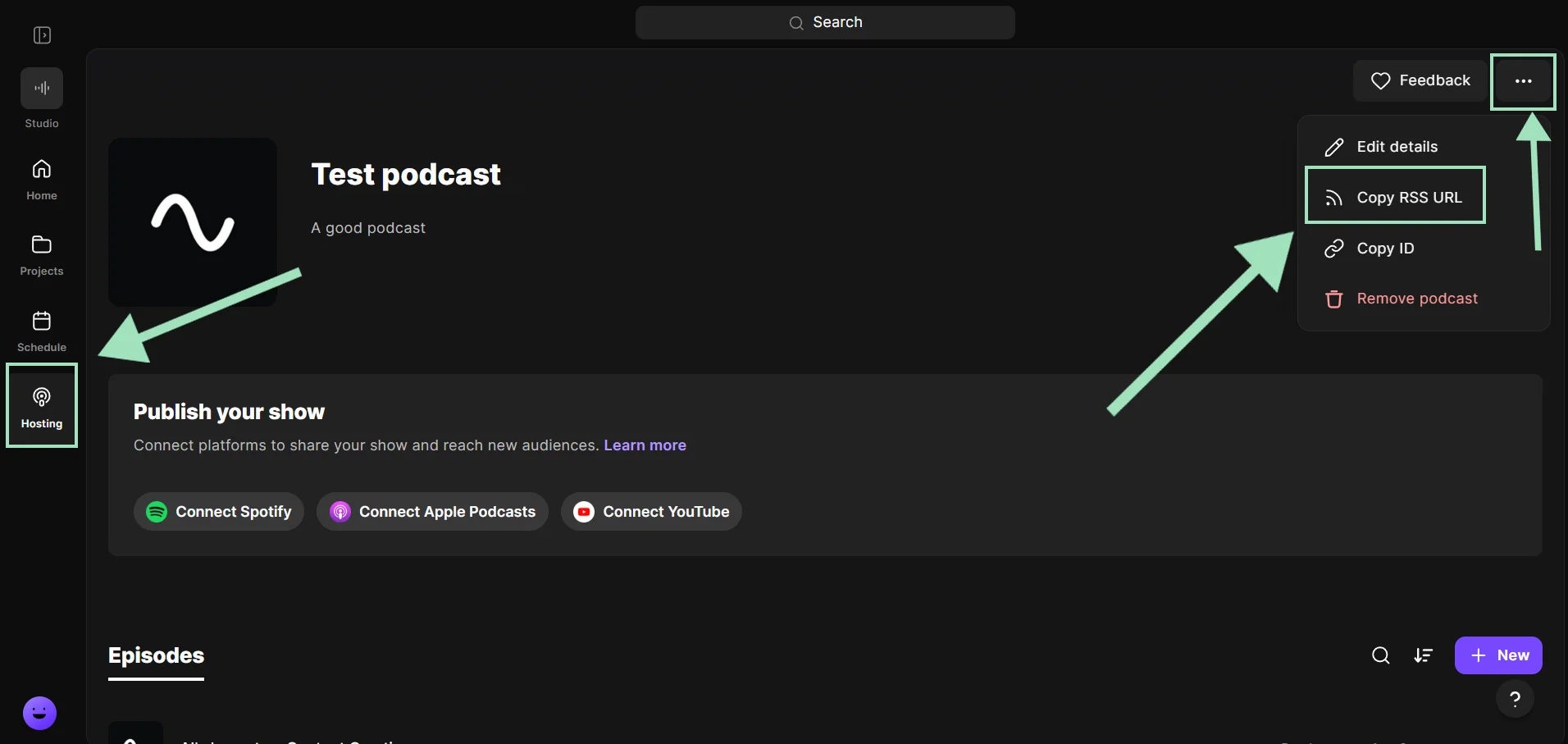
Ensure that your feed includes all the necessary info like title, description, art, and episodes. If it’s a new feed, you can use an RSS feed validator, like Cast Feed Validator, to ensure it’s working.
You need at least one live episode to publish to Amazon music. If you haven’t published anything yet, release your first episode (or a short trailer) on your host platform before you submit your RSS feed.
Step 2: Sign in to Amazon Music for Podcasters and add your show
Next, use your browser to head to the Amazon Music for Podcasters portal. Sign in using your Amazon account credentials (or create an Amazon account if you don’t have one).
Once logged in, you’ll need to:
- Add the URL for your RSS feed (from your host in Step 1 above).
- Select the primary region for your audience from the dropdown menu.
- Click Submit.

If everything is in order, the platform will send an ownership verification email to the email in your RSS feed.
Note: Amazon sometimes automatically indexes public podcasts to populate its directory. If your podcast already appears, you may see the option to “claim” the podcast instead of adding it as new. Proceed with the claim process to link the show to your Amazon account. This grants you access to analytics and management for that podcast.
Step 3: Verify ownership via email
After you submit your RSS feed, Amazon Music will send a verification message. When the email arrives, click the “Confirm Ownership” link. This proves that you actually own or have rights to manage the podcast.
After you click the verification link, you should see that ownership is verified in your Amazon Music for Podcasters dashboard. Amazon now officially knows you’re the owner of the podcast.
Note: Amazon’s confirmation email usually arrives in minutes. If you don’t see it, check your spam or junk folder.
Step 4: Confirm show details and select distribution regions
After you verify your podcast, double-check that all the information Amazon pulled from your RSS feed is correct.
Here you can also designate the regions where you want your podcast to be available. After confirming these details, your podcast’s status will show as “Pending” or “Processing” in your dashboard. This indicates Amazon is now working to add it to the catalog.
Step 5: Track podcast approval for Amazon Music and Audible
When Amazon approves your podcast, the status in your dashboard will change from “Pending” to “Active.” This typically happens within a few hours to a few days.
Once approved, your podcast will appear live on Amazon Music’s app and website. You can search for it by name on Amazon Music to verify. And, your podcast will also be available in Audible.
Step 6: Promote your show
Once your podcast is live on Amazon Music, you’ll receive a direct link to your podcast’s page on the platform. Grab this link from your dashboard and share it with your audience.
Next, add a “Listen on Amazon” button to your website, or link to it from your social media profiles. This makes it easy for your listeners to find your show on Amazon.
You can also let your listeners know to follow your podcast on Amazon Music/Audible so they’ll always get new episodes in their feed.
If they have an Alexa-enabled device, they can simply say, “Alexa, play [Your Podcast] on Amazon Music,” and Alexa will stream your latest episode. A quick mention of this in your episodes or marketing can go a long way in boosting engagement.
Read more: For more tips, check out our guide on podcast promotion.
How to manage and analyze your podcast in Amazon Music
Once your show is public, here’s what to focus on:
Track listener analytics
Amazon Music lets you keep track of metrics including:
- Unique listeners
- How many listeners started an episode
- Episode streams (over 60 seconds)
- Followers
These insights let you assess engagement from Amazon/Audible listeners to better understand what works for your specific audience.
If you’re looking for more comprehensive podcast analytics, check your podcast host. Here, you can get detailed analytics across all directories you’re publishing on.
If you’re using Riverside, you can find analytics in your podcast’s studio. Just go to the Hosting tab from the left menu, and click on “Analytics”. You’ll see analytics for:
- Streams
- Top-performing episodes
- Best performing apps
- Demographics
And more.
Monitor your feed’s health
See your podcast’s status and ensure it’s listed as “Active” in the Amazon Music for Podcasters dashboard.
The dashboard will also show if new episodes are ingested. They might show as “Pending” until fully processed.
If there’s ever an issue, such as an episode failing to update, the dashboard might flag it.
Manage technical settings
Although many updates happen through your host, Amazon Music’s dashboard does offer some controls. You can:
- Hide or unhide your show temporarily without deleting it.
- Update your RSS feed if you switch podcast hosts.
- Transfer ownership of the podcast to another Amazon account.
For show details like title, description, artwork, etc., you can make updates through your podcast host.
Troubleshooting: Common Amazon Music submission issues
Amazon Music for Podcasters is straightforward and easy to use, but you could still encounter a few hiccups. Here are some common issues and how to fix them.
Feed not recognized
How to fix it:
If Amazon says it can’t find or read your RSS feed, first validate that the feed URL is correct and publicly accessible. Do this by using a feed validator tool to check for any XML errors.
Issues can include missing tags or an unreachable feed.
If you can’t fix the errors yourself, reach out to your podcast hosting provider for help.
Didn’t receive a verification email
How to fix it:
If you didn’t get the ownership verification email from Amazon, make surethe email address in your RSS feed is correct and belongs to you.
If the email in your hosting platform is missing or invalid, update it, refresh your feed, and retry the submission. Also, check your spam folder in case the verification email landed there.
If all else fails, you can resend the verification email from your Amazon Music for Podcasters dashboard.
Episodes missing or slow to update
How to fix it:
If you’ve published a new episode on your host but don’t see it on Amazon Music, give it some time. Typically, Amazon updates podcasts within 12-24 hours of episode release. You should also:
- Ensure the episodes are publicly available. Amazon can only fetch public episodes with a permanent, direct link to a standard audio file.
- Avoid feed changes. Don’t change episode IDs after publishing. This can confuse Amazon and cause duplicate or missing entries.
If more than 48 hours pass and you still don’t see your new episode on Amazon, try republishing the episode’s metadata on your host. Sometimes, just updating your description slightly can prompt Amazon to update and refresh your data.
Duplicate show pages or host changes
How to fix it:
Duplicate or outdated podcast listings on Amazon Music usually happen when Amazon automatically indexes your show, or you’ve changed hosts. The solution is to consolidate all content into a single RSS feed.
To do this, go to your host and set a 301 redirect from your old feed to your current feed. Then update the feed URL in the Amazon Music for Podcasters dashboard.
If you find an unclaimed, auto-created listing, use the Claim Podcast option instead of submitting a new one to avoid duplicates. If duplicate pages still appear, contact Amazon’s podcast support with both URLs so they can merge or remove the extra listing.
Amazon removed my podcast
How to fix it:
When Amazon removes a podcast or an episode, they usually send an email explaining why. It’s often because:
- Explicit content isn’t properly labeled. If your show or any episode contains strong language or adult themes, you must label it as explicit. Add an explicit tag in your hosting platform.
- Your artwork doesn’t comply. Podcast artwork should be the right square dimensions, high resolution, and free of prohibited material like pornography, hate speech, or copyrighted imagery.
- Your podcast doesn’t meet Amazon’s content standards. Amazon takes down podcasts that are spammy/abusive or promote hate and violent extremism. It may also remove episodes if descriptions or show notes violate guidelines, even if the audio is fine.
Start your troubleshooting by correcting the specific issue: update your explicit tags, fix your artwork, or edit content that violates Amazon’s policies.
Once you address everything, email [email protected] and request a re-review, mentioning exactly what you fixed.
Amazon doesn’t reinstate shows automatically, but they typically restore a show after you resolve every violation and provide a compliant feed.
How listeners find and follow your show on Amazon Music and Audible
To grow your audience on Amazon’s platforms, it helps to understand how Amazon listeners discover and consume podcasts. Here are some of the key ways Amazon Music users might find your episodes:
- In-app search and browse: Listeners can search for podcasts by name, topic, or keywords in the Amazon Music app or on the Amazon Music website. Amazon Music also has a Podcasts section with categories and genres to browse.
- Following a podcast: When someone follows your show, it will appear in their personal library, and they’ll see when new episodes are available. Followers might also get notifications depending on their settings. A higher follower count can also improve your podcast’s visibility in Amazon’s algorithm, making it more likely to appear in in-app searches or while browsing.
- Alexa voice search: Many listeners will find your show simply by asking Alexa. If Amazon Music is the default podcast service on their Alexa device, they can request your podcast by name.
- Direct sharing of episode links: Amazon Music lets users share links to specific podcast episodes. As a creator, you can take advantage of this by sharing episode links on your social accounts, etc.
- Audible app: Audible users might stumble on your podcast through the app . They might find you while browsing for audiobooks or via Audible’s search.
Tips to optimize your podcast for Amazon Music and Audible
Getting listed is the first step. Here are some optimization tips to ensure your podcast thrives on Amazon Music and Audible.
Create metadata that helps with discovery
To improve discoverability on Amazon Music, craft concise titles for your show and episodes that clearly communicate the topic using relevant keywords. (You can learn more about how to do this in our guide on podcast SEO.)
In your descriptions, front-load the most important information or hook within the first 120-160 characters. Amazon often shows only a short preview, so this ensures that information is seen.
And if your podcast uses seasons or follows a serialized format, make sure your RSS feed includes proper season and episode number tags. This helps Amazon organize your episodes and makes it easier for listeners to navigate your archive.
Publish a trailer episode
A 60-90 second trailer (episode 0 or teaser) is a great way to introduce new listeners to your content. It encourages listeners to want for more. Alexa also has a quick option to play if someone asks for a preview.
With Riverside, creating a trailer doesn’t even require much extra effort. Just ask Co-creator, your AI editing agent, to create a trailer of your show’s best moments.
Maintain a consistent release schedule
Try to stick to a regular publishing schedule, whether it’s weekly, bi-weekly, or monthly. Like all podcast audiences, Amazon Music listeners appreciate consistency.
Consistent cadence also tells followers when to check Amazon Music/Audible for your new episodes.
Optimize cover art for visibility
A great cover can draw in a potential listener browsing the Amazon Music or Audible app.
Make sure your cover art design is simple and high-contrast enough to be recognizable at small sizes. And, use easy-to-read fonts.
Promote with Amazon Music links and Alexa
Promote your podcast’s Amazon Music listing the way you would for Apple or Spotify. Share your Amazon Music link on your social media, website, and in your show notes. There’s even an official “Listen on Amazon Music” badge you can use on your website for a professional touch.
This lets your audience know where they can find you and might attract listeners who prefer Amazon’s platform. You could also consider using a universal podcast link service, like Podfollow or Pod.link, that aggregates all platform links. Just be sure that Amazon Music is one of the options on the page.
And don’t forget to remind your audience that they can listen on Alexa hands-free just by requesting your podcast by name!
Pitch your show or episode to Amazon’s editorial team
According to Amazon, if you have a great new show or episode, it’s interested in considering you for promotional placement in Amazon Music’s featured carousel, category pages, New & Noteworthy section, or other special placements. To be considered, send the following to [email protected]:
- Publisher (or podcast network) name.
- Contact name.
- Series name.
- Series description.
- Promotion territory (Worldwide, US, UK, DE, JP).
- Trailer release date.
- First episode release date.
- Release schedule (daily, weekly, etc).
- Desired promotion date.
- Social media accounts used to promote shows.
- Podcasts’ original working files (i.e., layered PSD file) and host headshot(s) (if applicable).
FAQs about submitting your podcast to Amazon Music
Is it free to submit a podcast to Amazon Music?
Yes, it’s completely free to submit and list your podcast on Amazon Music.
You will need a podcast hosting service to post on Amazon, which often costs a fee.
But if you use Riverside for recording and editing, hosting is included in all paid plans. That means you can record in high quality, use AI to edit your podcast to perfection, and publish and host your show all in one place.
Can I host my podcast on Amazon Music?
No. Amazon Music is not a podcast hosting service. It’s a podcast directory like Apple Podcasts, which means it indexes shows via RSS feeds but doesn’t store the audio files for you.
You’ll need to host your podcast with a separate podcast hosting provider and then provide the RSS feed from your host to Amazon Music.
Can I upload episodes directly to Amazon Music without an RSS feed?
No. Amazon Music does not support direct uploads of podcast audio files. Podcasts on Amazon are indexed via RSS feed only. This means you must have an RSS feed from a podcast host and submit that feed to Amazon. Amazon will then fetch your episodes through the feed URL. Whenever you publish a new episode to your podcast host, it will automatically appear anywhere you’ve submitted your RSS feed (like Amazon Music).
Does submitting to Amazon Music also add my show to Audible?
Yes. Your show will automatically appear on Audible once it’s approved on Amazon Music.
Manage everything through the Amazon Music for Podcasters dashboard, and your updates will reflect on Audible, too.
Your podcast will typically show up on Audible’s apps under the Podcasts section, and listeners can follow it and play episodes just like on Amazon Music. The integration is seamless on your end.
Can I submit a video podcast to Amazon Music?
Amazon Music does not support video podcasts. When you submit an RSS feed to Amazon, it should contain audio files (usually MP3s).
If you have a video podcast, you can still list the audio version of it on Amazon Music. Many podcasters who record video will publish an audio-only RSS feed for directories. We recommend doing the same: use your host to generate an audio feed for Amazon.
You can always mention in your show notes or description that a video version is available elsewhere.
How do I remove or update my podcast on Amazon Music?
To update your podcast’s title, description, artwork, or other details on Amazon Music, make any changes inside your podcast host. Amazon automatically refreshes your RSS feed every 24-48 hours and will pull in the updated information, including new artwork or episode metadata.
If you want to remove your podcast, you can either deactivate or delete your RSS feed (Amazon will eventually drop the listing), or email [email protected] with your podcast title and Amazon Music URL to request removal.
If you’re switching to a new host, you do not need to remove your listing. Set up a 301 redirect in your old host so your old feed points to the new one, then update the RSS feed URL in the Amazon Music for Podcasters dashboard. This ensures Amazon immediately follows the new feed so your listeners won’t experience disruptions.
Why can’t I find my podcast on Amazon Music after submitting?
If you’ve submitted your podcast but can’t find it in Amazon Music search, check your show’s status in your Amazon Music for Podcasters dashboard. If it’s still marked “Pending” or “Unconfirmed,” you may need to finish verification or simply wait a bit longer. If the status shows “Active,” make sure you enabled the correct regions during submission. Your podcast will only appear in the countries you selected. Also confirm that your RSS feed is healthy and contains at least one published, public episode.
Amazon Music search can be slow to update, so try looking for your show in different ways (podcast title, episode title, or author name). New listings may not appear under every query right away.
Most podcasts become fully searchable within 24-72 hours. If yours still doesn’t appear after that, contact Amazon’s podcaster support with your show details. They can provide the direct link or resolve indexing issues. Once your show is visible, save and share the direct URL so listeners can find it.




.webp)
%20(1)%20(1).webp)


.webp)


