%20(1)%20(1).webp)


Key takeaways:
- You can start a podcast for free on Spotify.
- If you don’t have a podcast yet, you can host it for free on Spotify for Creators.
- If you already have a podcast, you can submit it to Spotify using its RSS feed URL.
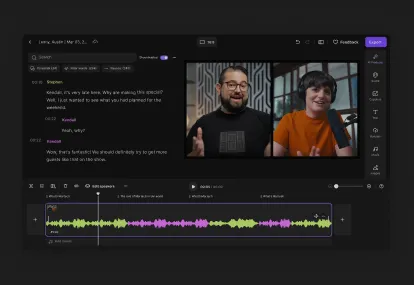
- Riverside users can record, edit, host, and directly submit their podcast to Spotify from Riverside.
With Spotify’s massive audience, getting your show on the platform is a must.
But how do you start a podcast on Spotify? Keep reading as I walk you through your options, including the technical requirements your podcast needs to meet.
I’ll also cover how to promote and monetize your podcast and how to fix common issues that might come up as you start your podcast on Spotify.
How to start a podcast on Spotify: 3 Methods
There are a few methods for starting a podcast on Spotify. Choose the one that matches your goal, and then jump to that section of this guide to learn more.
| Goal | Best path |
|---|---|
| Start a new podcast directly on Spotify | Use Spotify for Creators. |
| Add an existing podcast to Spotify | Submit your RSS feed to Spotify. |
| Create and distribute your podcast to Spotify from one place | Use Riverside to record, edit, host, and distribute your podcast to Spotify. |
How to start a new podcast on Spotify
To start a new podcast directly on Spotify, you’ll use Spotify for Creators, which is Spotify’s free podcast hosting and distribution platform. You may know it by its former names, Spotify for Podcasters and Anchor.
Here’s how to use Spotify for Creators:
Step 1: Create a Spotify for Creators account
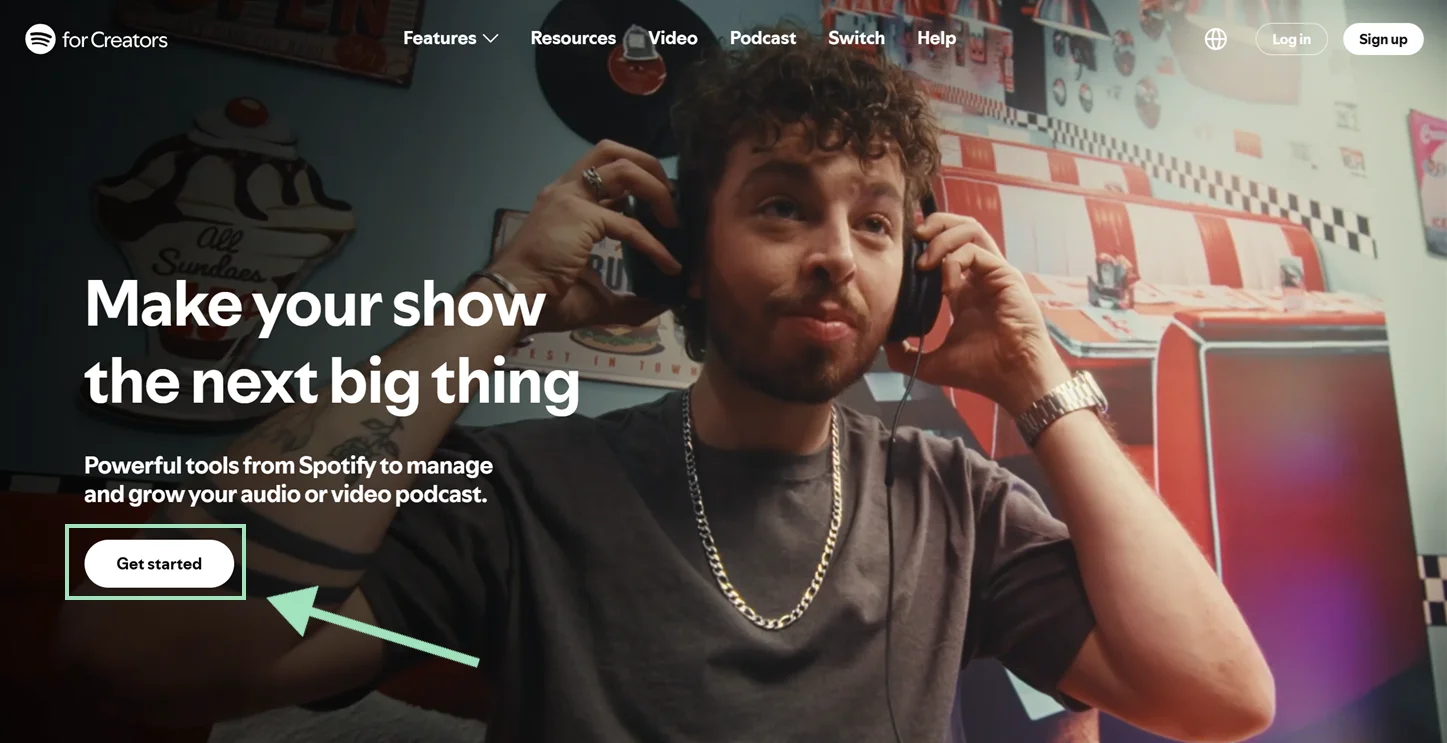
Go to Spotify for Creators and click “Get started.”
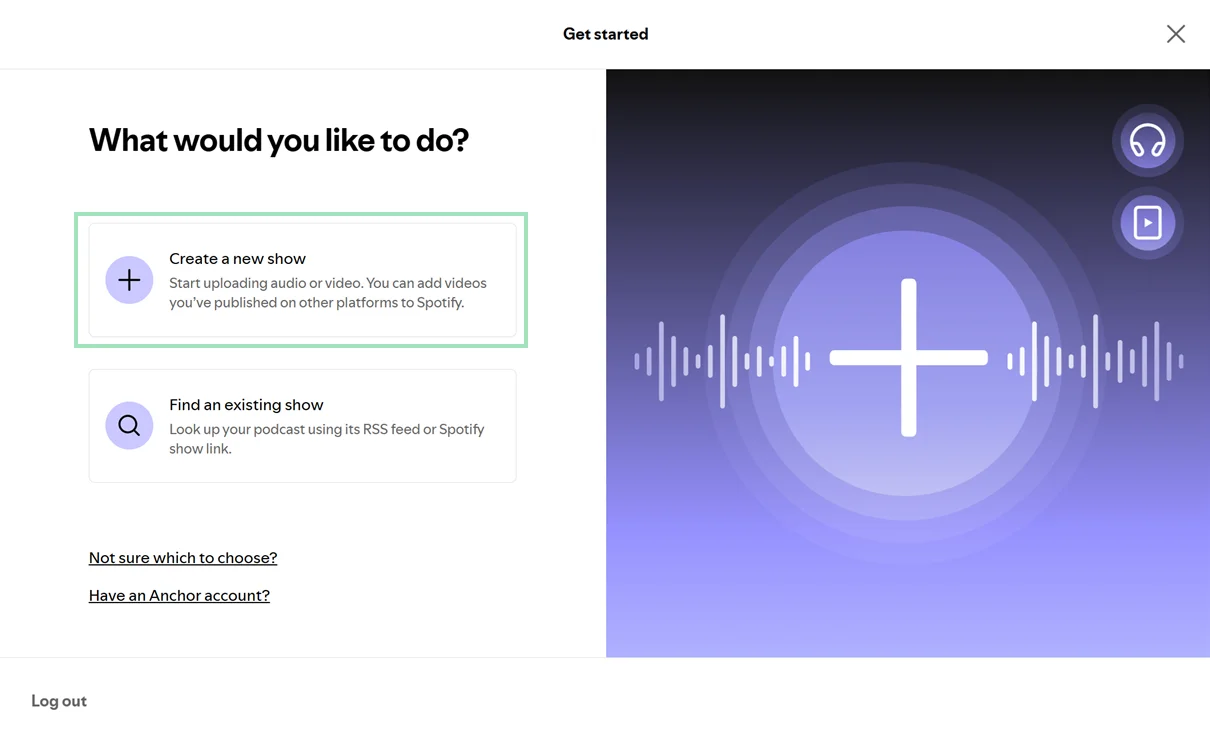
Follow the steps for logging in to your existing Spotify account or creating a new one. Once you’ve logged in, select “Create a new show” to set up a new podcast.
Step 2: Set up your podcast details and show art
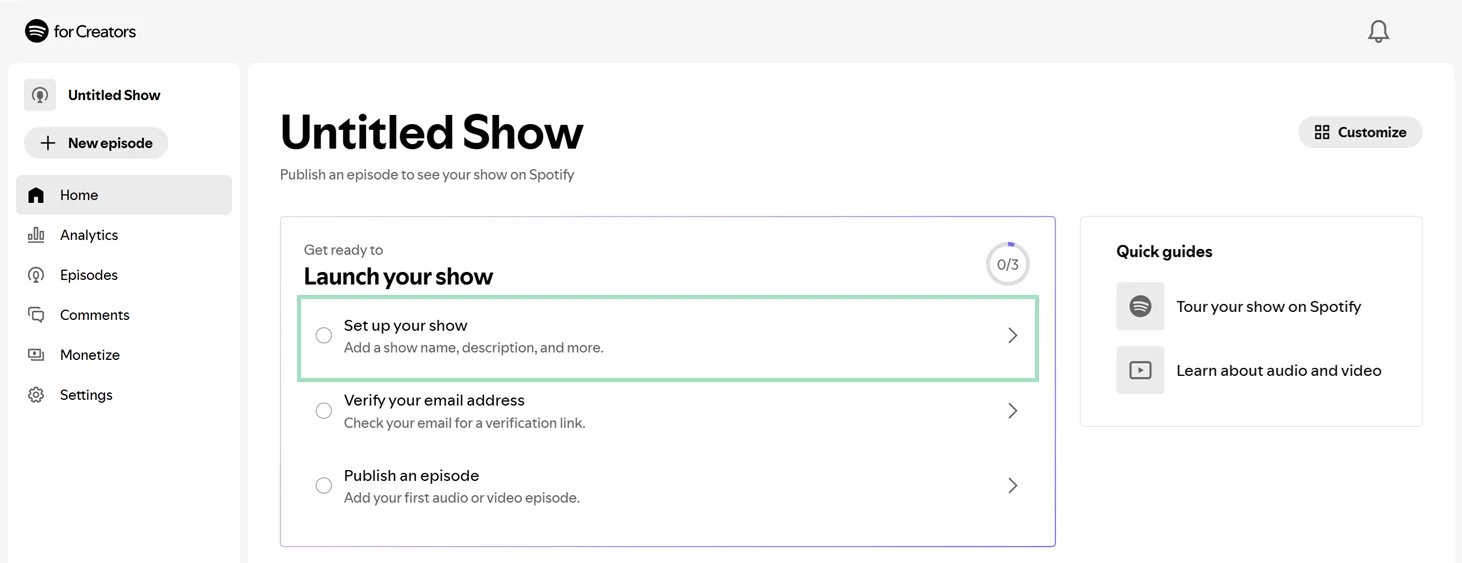
You’ll be directed to the home screen. Click “Set up your show” under the “Launch your show” onboarding checklist.
Then, fill out your podcast’s name, description, creator name, category, and language. You can also upload your show art (your podcast’s cover image) by choosing an image file from your device.
Step 3: Confirm your email address
Once you’ve set up your podcast, you’ll need to verify your Spotify account’s email address.
Check your inbox for an email from Spotify for Creators. Then click the email’s “Confirm your email” button. If the verification is successful, you’ll see a success screen.
Step 4: Add your first episode
You’re now ready to add your first episode. On the home screen, click “Publish an episode” under the “Launch your show” onboarding checklist.
Then, click “Select a file” to upload a video or audio episode you’ve recorded elsewhere. You can also upload the episode by dragging and dropping its file into the upload space provided.
The supported file formats are MP3, M4A, WAV, MPG, MP4, and MOV.
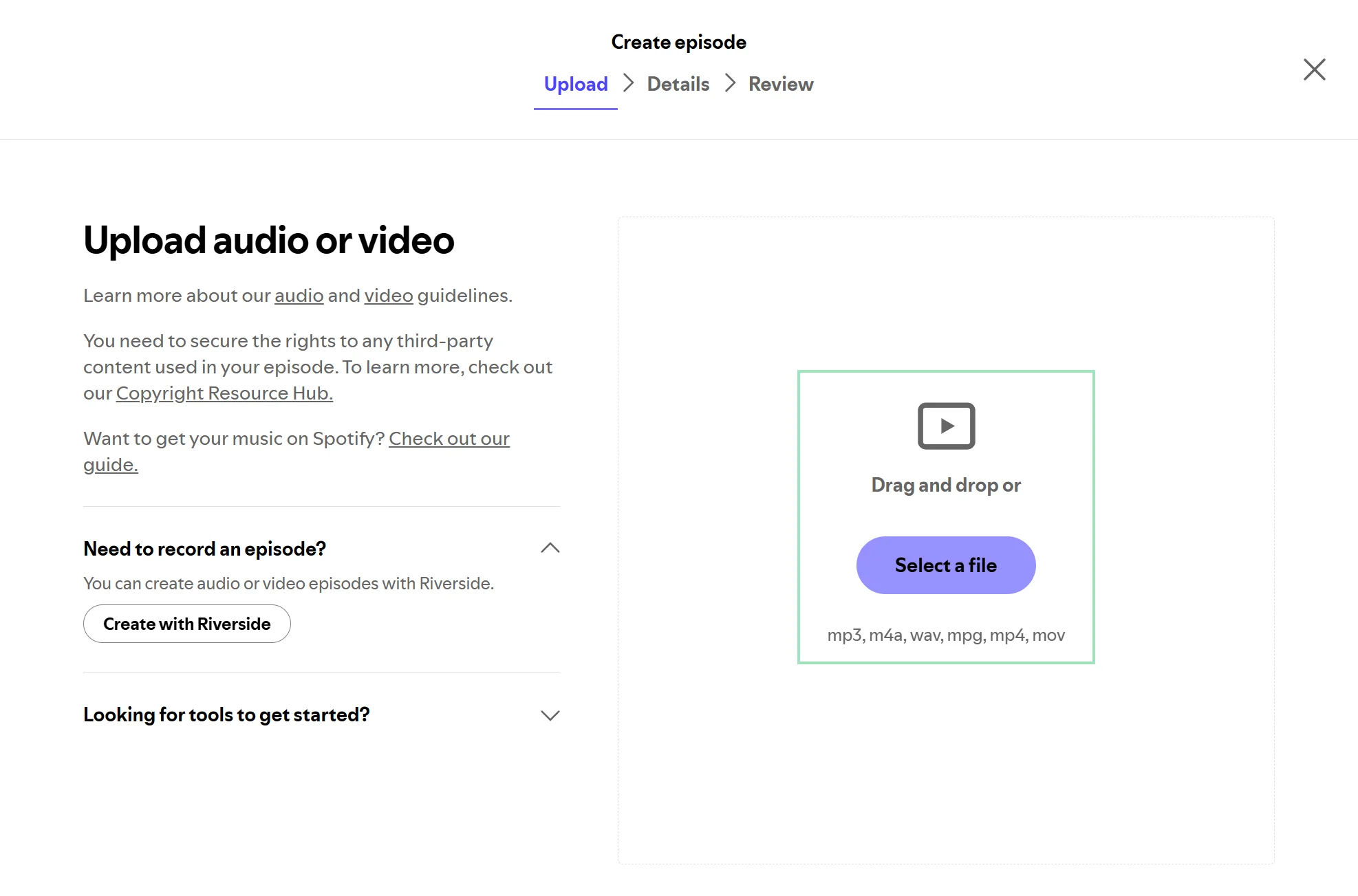
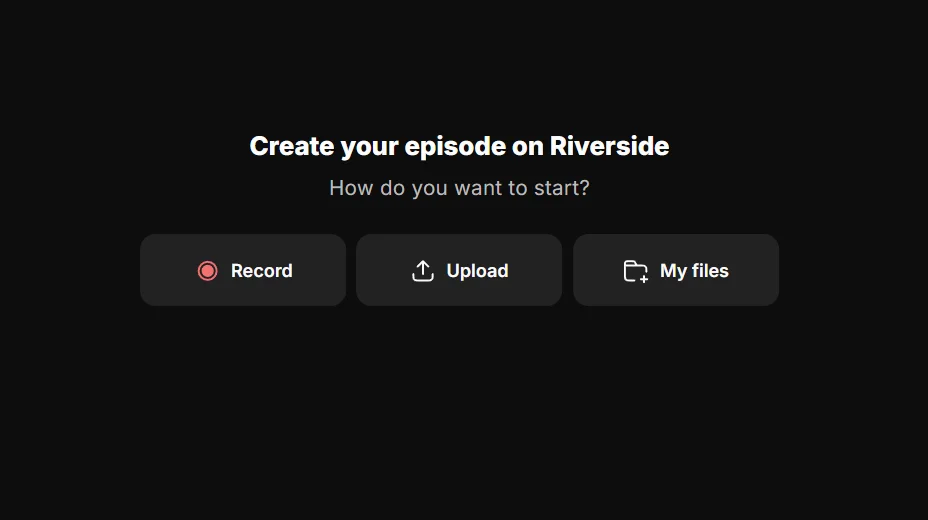
If you haven’t recorded your episode yet, click “Create with Riverside” to record it with Spotify’s Riverside integration.
You’ll get directed to the Riverside creation tools. Here you can record a new episode from scratch with up to 9 remote or in-person guests.
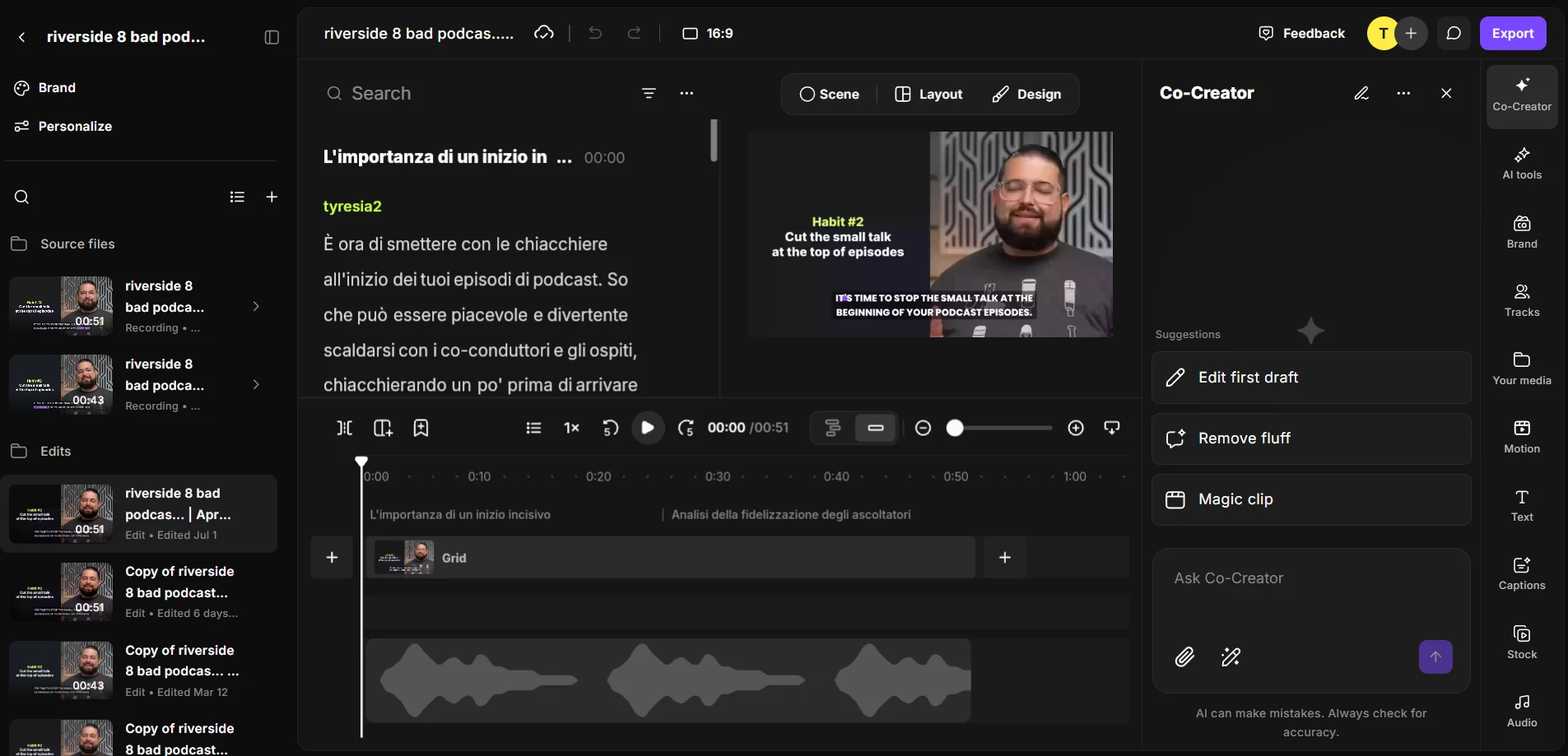
Once the recording is ready, you can complete your episode in the editor with chat-based editing.
Just ask the AI Co-Creator to “clean up the audio” or “add an engaging intro hook with music,” and it will apply the changes for you.
The integration will automatically upload your completed episode to Spotify for Creators afterward.
Step 5: Optimize your show for discovery
After uploading your episode, fill out its details to optimize it for discovery on Spotify. You’ll need to add a:
- Title: Write a unique and descriptive title that contains your primary keyword within the first 60 characters. This keyword is typically your episode’s main topic, which you want your episode to show up for when someone searches for it on Spotify.
- Description: Provide a scannable podcast description that starts with a hook, followed by chapters with timestamps, and (even better) a full episode transcript. Include relevant keywords as well, especially in your description’s first few lines, to help your target audience find your podcast.
- Episode art (for an audio episode) or thumbnail (for a video episode): Upload an eye-catching image. If you’re publishing a video episode, you can use an existing video frame as the thumbnail.
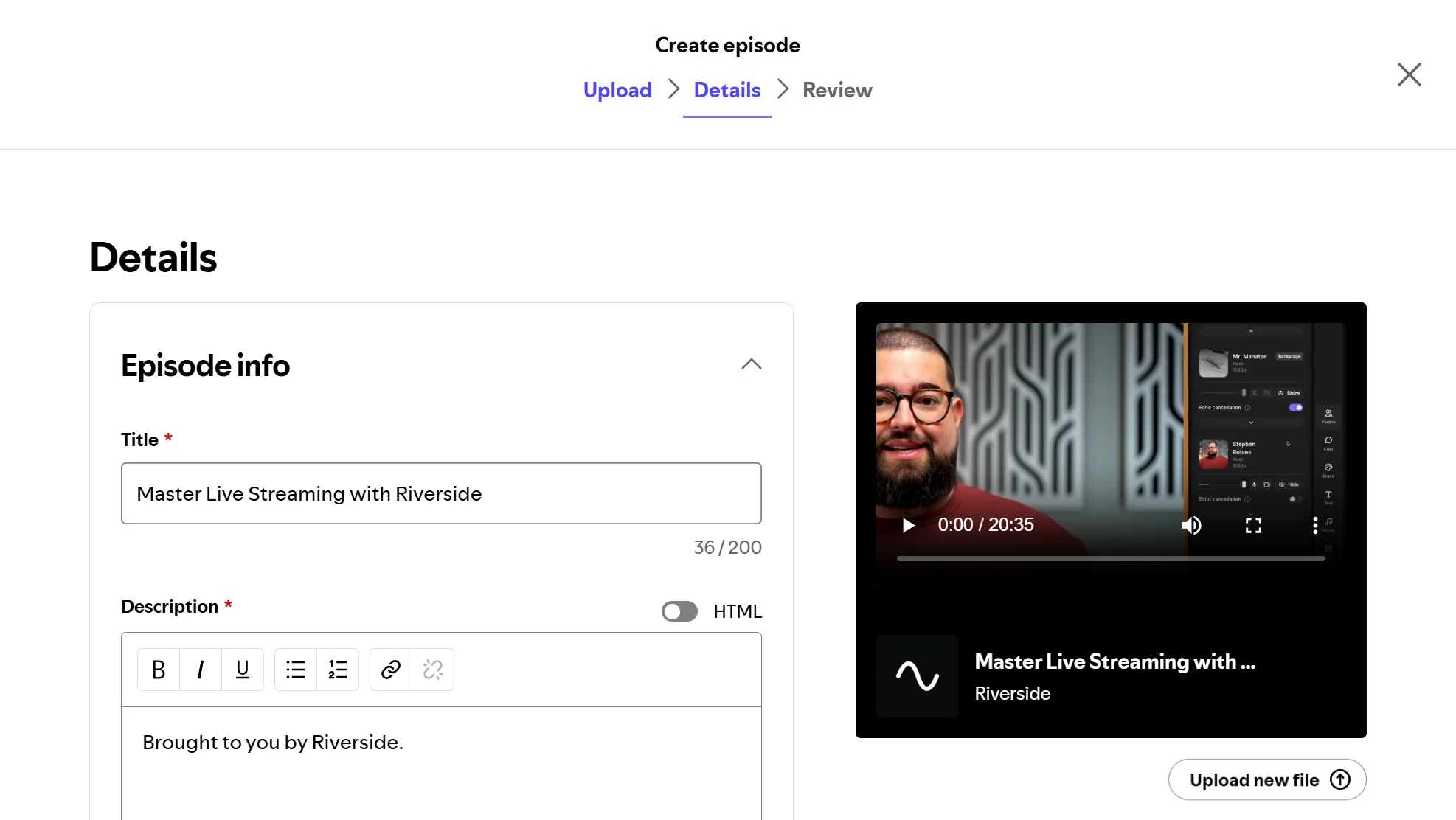
Other settings you may want to configure include:
- episode type (full, trailer, or bonus)
- season/episode number
- content guidance
- polls
- auto-generated transcripts and chapters
- commenting permissions.
Click “Next” when you’re done.
Step 6: Publish or schedule your episode
Finally, choose whether to publish your episode immediately or schedule it for later.
You can also review your episode’s details and upload a different episode file.
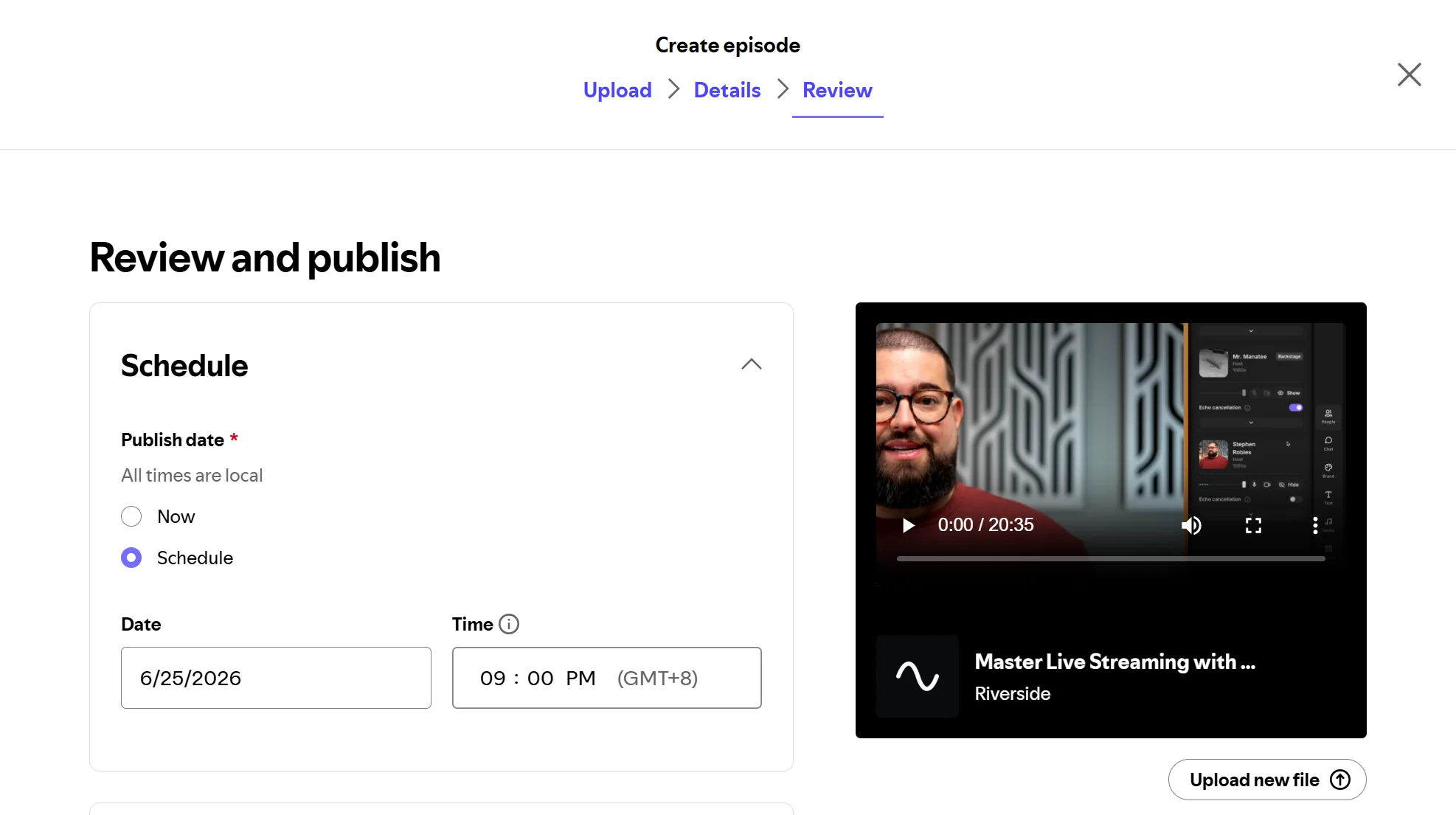
If all is good, hit “Publish,” and your episode will be live on Spotify on its publish date and time.
How to add an existing podcast to Spotify
If you already have a podcast, you’ll submit it to Spotify using its RSS feed URL. Here’s how:
Step 1: Copy your podcast’s RSS feed URL
First, log in to your hosting provider and copy your podcast’s RSS feed URL.
An RSS feed is a web feed that contains information about your podcast. Spotify (and other podcast distribution platforms) can read this feed to list your episodes in their directories.
The instructions for getting your podcast feed’s URL differ by hosting provider. Check your host’s support articles for help with finding your RSS feed URL.
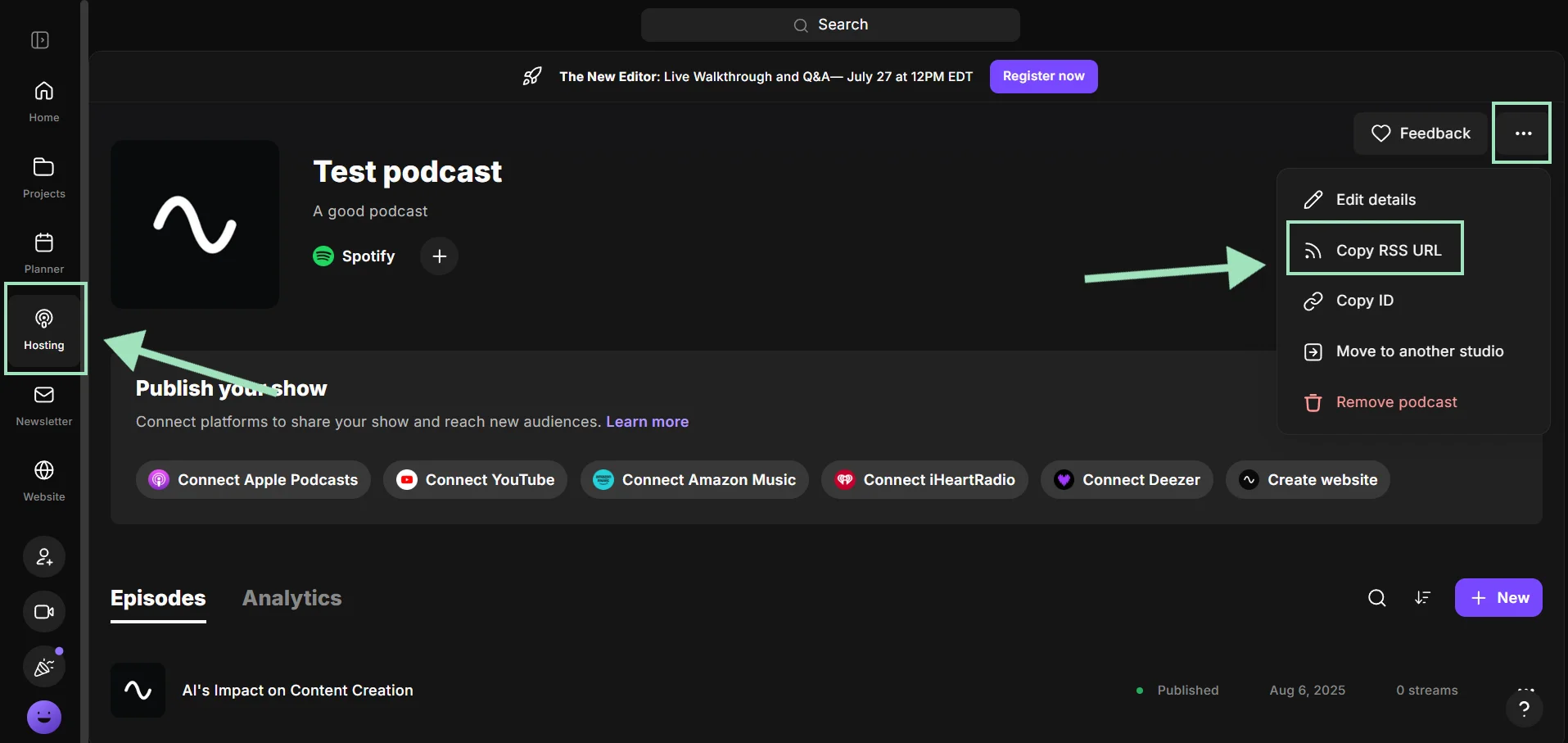
If you’ve hosted your podcast on Riverside, for example, you’ll find your podcast’s RSS feed URL by:
- Navigating to the “Hosting” tab.
- Clicking the “...” icon at the top right of your podcast’s home screen > “Copy RSS URL.”
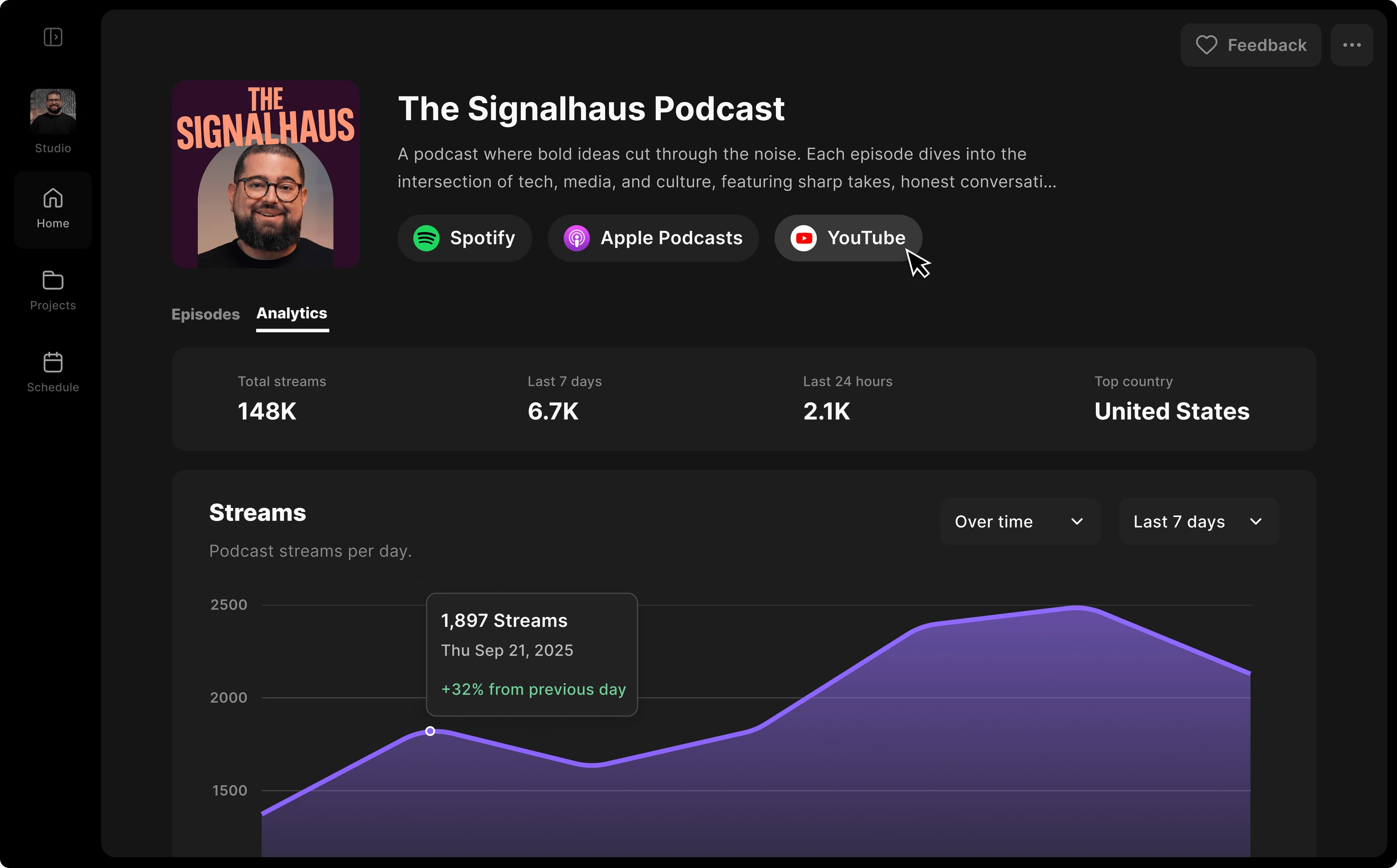
If you’re hosting your show on Riverside, you can publish every episode to Spotify with one click.
Plus, you can record, edit, host, and distribute your show from a single platform.
You can also generate each episode’s show notes, thumbnails, and summaries in minutes by just chatting with Co-Creator AI.
Step 2: Submit your podcast’s RSS feed URL to Spotify
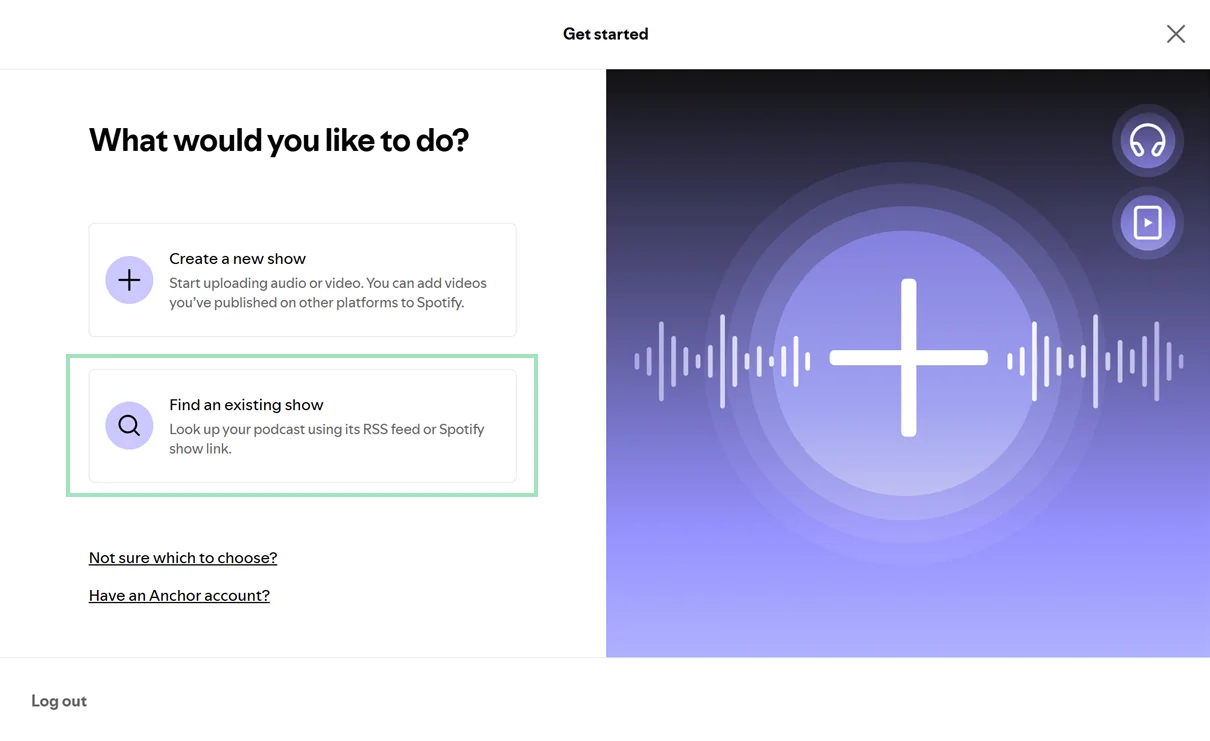
Once you’ve copied your podcast’s RSS feed URL, go to Spotify for Creators and click “Get started.”
Follow the steps for logging in to your existing Spotify account or creating a new one. Once you’ve logged in, select “Find an existing show.”
Then on the “Where’s your show hosted” screen, click “Somewhere else.”
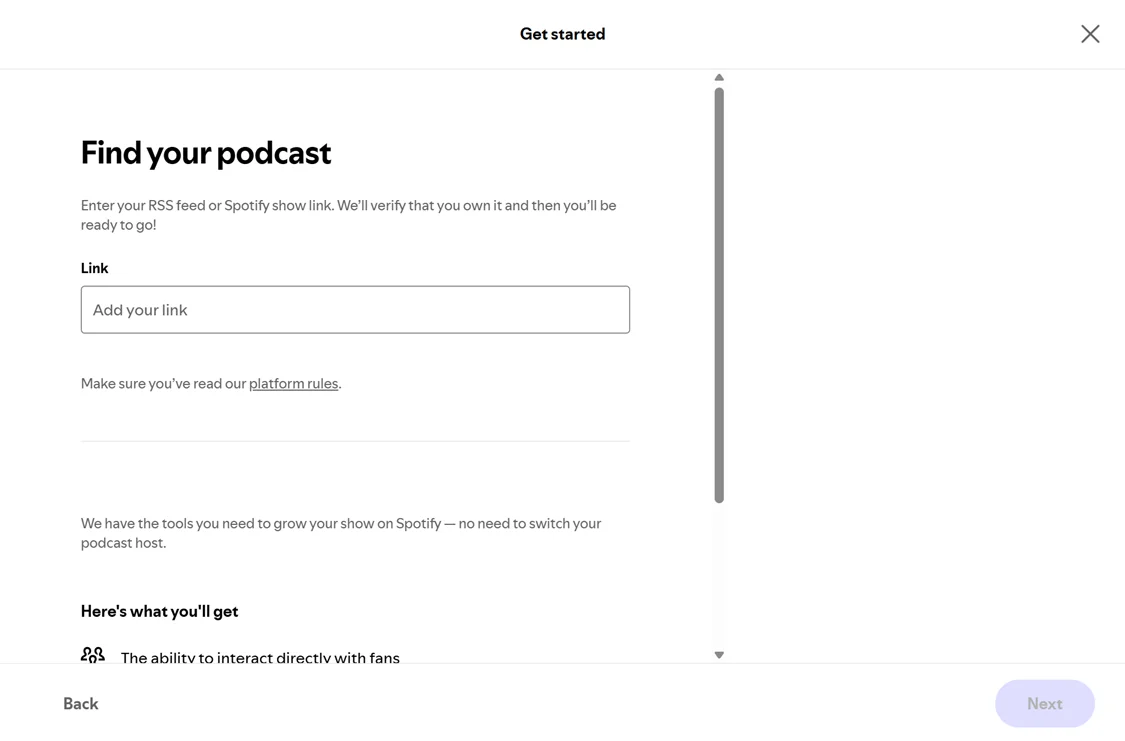
You’ll be directed to the “Find your podcast” screen. Paste your podcast’s RSS feed URL into the “Link” field, and then click “Next.”
Step 3: Verify your podcast
Spotify will verify your podcast by sending a verification code to the email address stated in your podcast’s RSS feed.
This email can take anything between a few minutes and a full day to arrive.
Step 4: Provide details about your podcast
After that, provide details about your podcast’s country, language, hosting provider, primary category, and sub-categories. Then click “Next.”
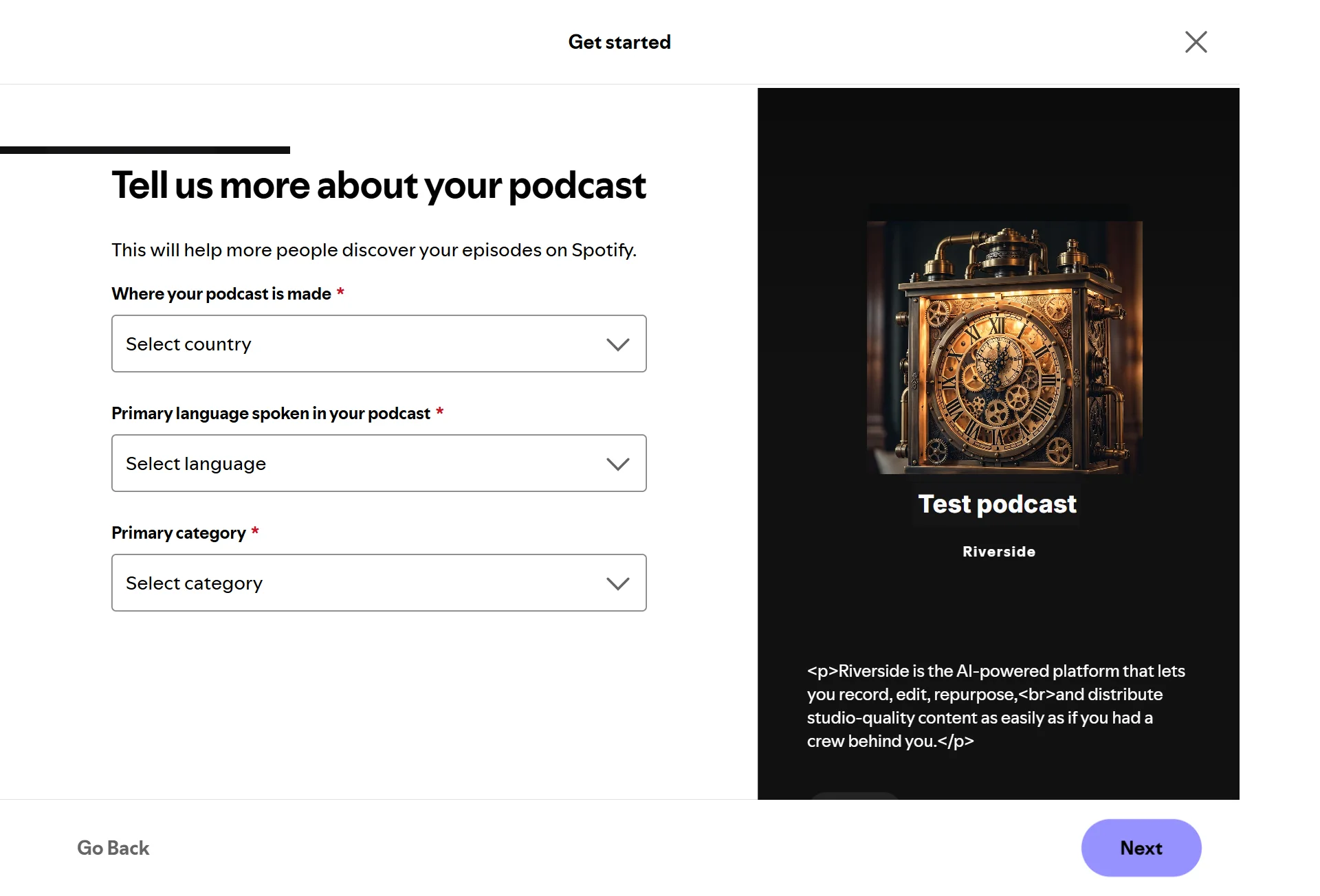
You’ll have another chance to review your podcast’s details (because you can’t edit them afterward).
If everything looks good, click “Submit,” and you’re done.
Troubleshooting common Spotify upload issues
Here are fixes for common issues you may face when uploading your episodes to Spotify:
Your episode gets stuck while uploading to Spotify for Creators
If your episode gets stuck, check that your episode file is in a supported format (like MP3, M4A, or WAV for audio episodes) and that it plays on your device properly. Then, try uploading your episode to Spotify again.
Error when uploading your podcast to Spotify with an RSS feed URL
Check that your RSS feed contains all the required metadata, including your podcast’s title and cover art, and the description and URL of at least one episode. Then, try submitting the RSS feed’s URL to Spotify again.
You see duplicate listings for your podcast
Duplicate podcast listings can happen when migrating podcast hosts. If you haven’t already, set up a 301 redirect from your podcast’s old feed to its new one. Then, contact Spotify for help with removing or merging your old listing with the new one. Don’t delete the old listing yourself because you may lose the subscribers attached to it.
"Locked feed" error or unable to import podcast to Spotify
Some podcast hosts let you lock your podcast to prevent unauthorized transfers to other hosts. This lock option appears as a <podcast:locked> tag in your podcast’s RSS feed.
Check with your podcast host if your podcast is locked. Then, disable the lock using the host’s lock settings. Contact the host’s support if you need help.
Wrong artwork size
Spotify accepts cover art between 640 pixels and 10,000 pixels wide and tall. Check that your cover art meets this size requirement, and then try uploading it again.
We recommend an artwork size of 3,000 x 3,000 pixels for high quality and compatibility with other podcast directories.
Explicit content mismatch
If your podcast or individual episodes are incorrectly being tagged as explicit or clean, review the podcast- and episode-level content guidance settings in your podcast host and adjust them to reflect your content’s type accurately.
Ownership/verification issues
If you’re having trouble verifying ownership of your podcast, Spotify may be sending the verification email to the wrong email address.
Go to your podcast host and check that the email address associated with your podcast is correct. Then, get Spotify to resend the verification email.
Remember that it can take up to 24 hours for the email to come through. If you still don’t receive the verification email, contact Spotify for help.
Spotify podcast requirements in 2026
The podcast episodes you submit to Spotify (regardless of where they’re hosted) need to meet various audio, video, cover art, metadata, and legal requirements.
You can also check out Spotify’s full audio specifications, video specifications, and podcast specifications guides for more information.
Audio requirements
Spotify’s mandatory audio requirements include:
- Supported audio file formats: MP3, M4A, and WAV audio file formats in either mono or stereo.
- Maximum file duration: 12 hours (roughly 2 GB @ 320 Kbps).
- File size limit: None, but smaller file sizes mean faster uploads.
Spotify also recommends:
- Exporting your audio as an MP3 file with a high bitrate of 128kbps+ or as an MP4 file with AAC-LC.
- Reducing the sizes of embedded artwork, ID3v2 tags, and other metadata if your episodes are in MP3 format.
- Mastering your audio to -14 dB integrated LUFS (Loudness Units Full Scale). Doing this helps Spotify play your episode at its intended volume instead of making adjustments that could affect how it sounds.
- Keeping your audio below -1 dB True Peak (TP) to avoid introducing distortion when your file is transcoded. If your audio is louder than -14 dB integrated LUFS, keep its True Peak below -2 dB instead.
Video requirements
Spotify’s mandatory video requirements include:
- Supported video file formats: MP4 and MOV with a single video and audio track each. Spotify especially recommends the MP4 file format. It also discourages FLV and AVI formats.
- Maximum file duration: 12 hours (less than 4 hours is recommended).
- File size limit: 60 GB (less than 10 GB is recommended).
Spotify also recommends these settings:
- Codec: H.264 or H.265 (HEVC).
- Resolution: 1080p or as high as possible.
- Aspect ratio: 16:9 widescreen.
- Bitrate: 25 Mbps for 1080p video or 35 Mbps for 4K video.
- Frame rate: 24, 25, 30, 50, or 60 frames per second (FPS).
- Color space: Rec. 709.
- Color sampling: 8-bit or 10-bit, and 4:2:0, 4:2:2, or 4:4:4 subsampling.
- Dynamic range: Standard Dynamic Range (SDR Rec. 709). High Dynamic Range (HDR Rec. 2100) is also supported, but Spotify will convert or tone-map your video’s dynamic range to SDR.
Cover art requirements
Spotify’s cover art requirements include:
- Supported image formats: TIFF, PNG, and JPEG, in that order of preference.
- Aspect ratio: 1:1 (square).
- Resolution: As high as possible and between 640 pixels and 10,000 pixels wide and tall. As a best practice, use a resolution of 3,000 x 3,000 pixels so your cover art is also compatible with other podcast directories and looks sharp on all devices.
- Encoding: sRGB color space, 24 bits per pixel, with color profiles applied directly.
Metadata requirements
Spotify’s metadata requirements include:
- Supported metadata file format: Text file in case-sensitive XML 1.0 format, encoded in UTF-8.
- RSS feed information: Your RSS feed must contain metadata on your podcast’s title and cover art, and the description and URL of at least one episode uploaded to your host.
- Character limits: In general, keep text that users will see, like your podcast’s title, to 20 characters to avoid truncation. Podcast and episode descriptions are exceptions.
- HTML character entity requirements: Display ampersand characters as the “&” HTML character entity in the metadata file instead of “&.”
- Explicit content guidance: The metadata file should mark your podcast, or its episodes, as “Explicit” if they contain explicit language or adult content.
Legal requirements
Spotify’s legal requirements for podcasts include:
- Music: You can’t use music you don’t own or have a license for, even if the music is on Spotify. If you can’t create your own music, consider using royalty-free music from a service you pay for or music tracks that have Creative Commons licenses. If you’re editing your episodes with Riverside, you can use our 1,000+ royalty-free tracks at no cost.
- Cover art and AI: You must own or have a license for images you use, including stock photos. If you generate images with AI, avoid incorporating trademarked logos or branding that aren’t yours.
- Accessibility: Accessibility is legally required in some jurisdictions (like the U.S., which has the Americans with Disabilities Act). Providing captions or transcripts is one of the best ways of ensuring compliance.
Pro tip: Watch our podcasting legal Q&A webinar to learn more about copyright and other laws relevant to podcasting.
What to do after publishing on Spotify
Once you’ve published your podcast, check its Spotify listing to ensure that your podcast’s title, description, cover art, and other information appear as intended. Then, work on growing and promoting your podcast. Here are some ideas:
Grow your podcast
- Apply podcast SEO techniques, like using relevant keywords in your podcast title and episode descriptions, to improve search engine discoverability.
- Interact with listeners to build a relationship with them, which can encourage them to subscribe. Ask listeners questions related to your episodes, reply to their comments, and set up polls for them to express their opinions.
- Ask listeners to rate your podcast, because good ratings can attract more listeners and subscribers.
- End your episodes by asking listeners to subscribe if they haven’t already.
Promote your podcast
- Share your podcast’s Spotify link with your audience and encourage them to listen and subscribe.
- Embed your podcast on your website for visitors to listen to on the spot.
- Promote your podcast on social media by posting episode highlight clips.
Read more: Check out our other guide for more podcast marketing tips.
Monetize your podcast
- Sign up for Spotify’s Subscriptions program to charge users a monthly subscription fee to access your episodes. To be eligible, you’ll need at least 2 published episodes and an audience of at least 100 Spotify users in the last 30 days.
- Apply to the Spotify Partner Program to earn ad revenue or Premium video revenue when Spotify Premium users stream your podcast episodes. Eligibility requirements include hosting your show on Spotify for Creators and hitting at least 2,000 consumption hours on Spotify in the last 30 days.
- Set up a paid podcast subscription on a membership platform like Patreon or Memberful, and then use the free Spotify Open Access service to distribute your podcast to paid subscribers.
Spotify’s monetization requirements can change frequently, so check the latest eligibility criteria before you start monetizing your podcast.
Publishing your podcast on Spotify doesn’t automatically mean you’ll make money, though. This is especially true if you have a small listener base.
Focus on producing more episodes to grow your audience. Riverside simplifies the process by helping you create high-quality episodes, polish them with built-in editing tools, and publish them to Spotify in one place.
Read more: Get more monetization ideas in our guide to making money from podcasting.
FAQs
Can you start a podcast on Spotify for free?
Yes, you can start a podcast on Spotify for free by hosting it on Spotify for Creators. Another option is to create your podcast on hosting platforms with free plans, like Riverside, and then submit your podcast to Spotify for free using your podcast’s RSS feed URL.
If you host your podcast on Riverside, you can also submit your podcast to Spotify with the platform’s Riverside integration.
How do I upload a podcast to Spotify?
To upload a podcast to Spotify, copy its RSS feed URL from your podcast host and submit the URL to Spotify for Creators. In the process, Spotify will verify your email address and ask you to provide details about your podcast, including its primary and sub-categories and language.
How long does it take for a podcast to appear on Spotify?
If you’re hosting your new podcast on Spotify for Creators, your podcast will appear on Spotify immediately after you’ve published its first episode. If your podcast is hosted elsewhere and you’re submitting it to Spotify via its RSS feed URL, it might take up to 24 hours to appear on Spotify.
Can I upload a video podcast to Spotify?
Yes, you can upload a video podcast to Spotify. The process is the same as uploading audio podcasts. Just be aware of video-specific requirements, like uploading your episodes in MP4 or MOV format and ensuring they don’t exceed 60 GB per file.
Can I edit a podcast after publishing it on Spotify?
Yes, you can edit a podcast’s details (like its title, description, and cover art) and its episodes (like their audio files) after publishing on Spotify. To do this, make the changes on your podcast host (which would be Spotify for Creators if you created your podcast there). Spotify may take up to 24 hours to update your podcast’s listing with the changes.
Does Spotify pay podcasters?
Yes, Spotify pays podcasters who use the platform’s monetization programs, like Subscriptions and the Spotify Partner Program. Check these programs’ eligibility requirements to explore if they’re feasible monetization opportunities for you.
What is Spotify for Creators?
Spotify for Creators is Spotify’s free podcast hosting and distribution platform. You can use it to host your podcast or distribute a podcast you host elsewhere. In particular, you need to host your podcast on Spotify for Creators to be eligible for Spotify podcast monetization programs like Subscriptions and the Spotify Partner Program.
Spotify for Creators was previously known as Spotify for Podcasters, and Anchor.
Do I need a podcast host to publish on Spotify?
No, you don’t need an existing podcast host to publish on Spotify. That’s because Spotify can host your podcast for free.
Can I move my existing podcast to Spotify?
Yes, you can move your existing podcast to Spotify. If you’ve already uploaded your podcast to Spotify using your podcast’s RSS feed URL, you can use the Switch tool in Spotify for Creators to start the migration. If you haven’t, use Spotify’s Switch page instead.
During the migration, Spotify will import your episodes to Spotify for Creators. When the import is done, set up a 301 redirect to redirect your podcast’s old RSS feed URL to its new Spotify for Creators one.



-%25255B2021%25255D.webp)
-Need-to-Know-About-Podcast-Hosting-Sites.png)

.webp)