AI Podcast Clip Maker
Turn your episode’s key moments into scroll-stopping podcast clips in a single click. Let AI generate them automatically, or edit on your own terms.


.webp)


How to make AI podcast clips with Riverside
Step 1
Record or upload your content
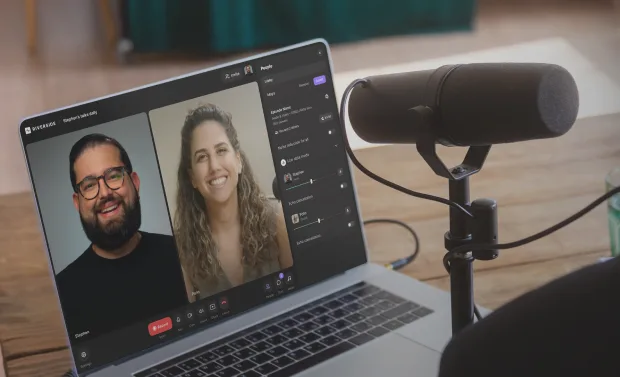
Use Riverside to capture high-quality 48kHz audio & 4K video, or upload an existing podcast recording.
Step 2
Generate podcast clips
Set your preferences for layout, duration, branding and topics. Then let our AI clip generator turn your recording into podcast clips in a click.
Step 3
Edit your podcast clips
Lengthen or shorten your clip using the text-based editor or editing timeline. You can also adjust your captions, add b-roll, music, and other overlays.
Step 4
Export your podcast clips
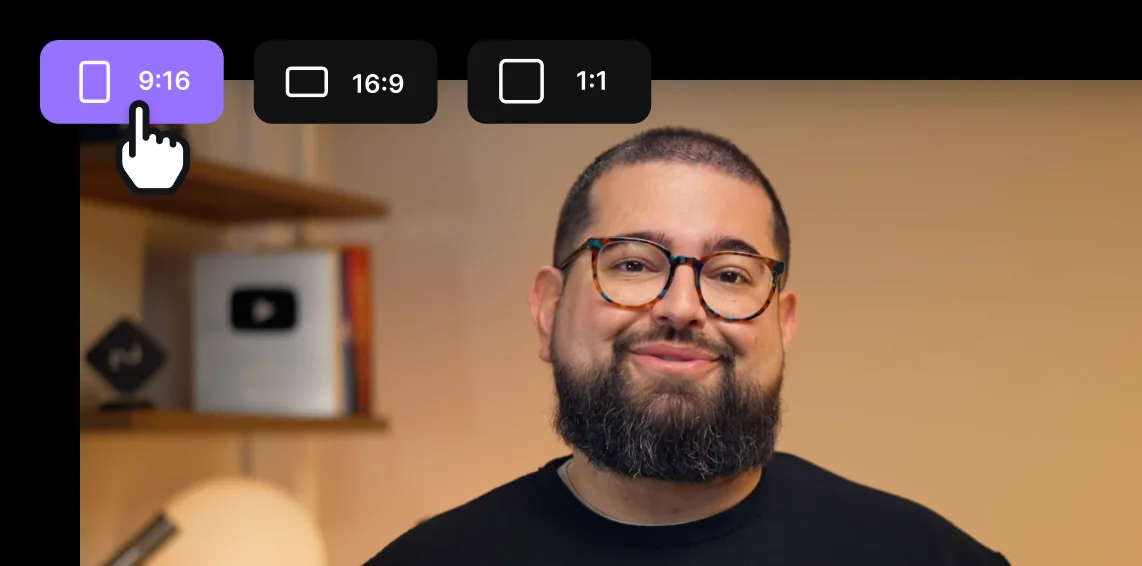
Choose the export format (vertical, square, widescreen) that suits the platform where you’ll publish. Then download or share the clips and watch your reach grow.

Why Riverside:
Hook-worthy podcast clips, built into your all-in-one platform

Instant podcast clips after recording
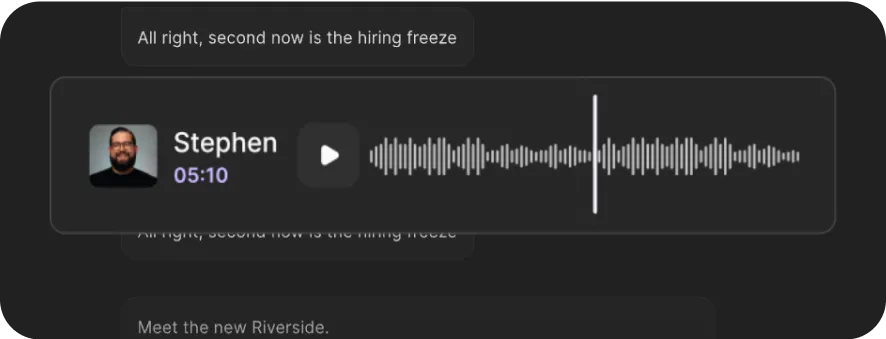
Record in up to 4K, then generate podcast clips without switching platforms. Our AI podcast clip generator turns your most engaging moments into content the second you finish recording.

Clips under your control
AI does the heavy lifting, and you stay in control. Set clip presets for length, branding, speaker-focus, and keywords. Fine-tune any final touches in minutes in the editor.

Clip your way: AI or manual
Build podcast clips from scratch! Add markers as you record, then cut your episode into clips directly from the transcript in the editor. Any text you adjust syncs to the video.

Brand your podcast clips consistently
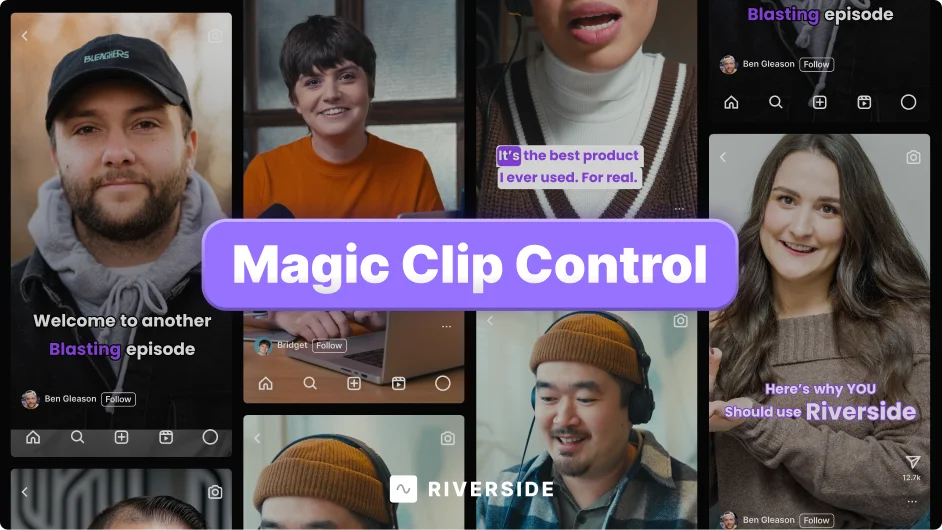
Keep every AI podcast clip on-brand with customizable captions, logos, backgrounds. Save style presets to keep consistent across your podcast show.

Podcast clips built for social media growth
Compatible layouts? Check. Easy sharing? Check. But we also have tools like AI translation and show notes, to make it easier to grow your audience online.

Animated filters to stop the scroll
Want to be a baby? Panda? Anime character? Now you and your podcasts guests can. Try an animated filter to make podcast clips that stand out.
Turn every podcast interview into endless content.
Record, edit, and clip your podcast in one platform.
How to choose an AI podcast clip maker
Accurate AI
Choose a tool with AI that detects real highlights,those quotable, engaging moments that hook listeners.
Customization options
You should be able to set clip length, topics, and formats. That way, you can cut a 30-second TikTok teaser, a 90-second Instagram reel, or a longer LinkedIn post, all from one recording.
Branding flexibility
Look for features that let you add captions, logos, and backgrounds, and save presets so your clips always stay on-brand without extra effort.
Editing control
AI should speed you up, not lock you in. Make sure you can trim, adjust start and end points, or even build clips from scratch when you need to.
Export formats and aspect ratios
Your clips should fit any platform without hassle:vertical for TikTok, square for Instagram, wide for YouTube.
All-in-one
Skip juggling multiple tools. Choose an all-in-one podcast tool that lets you record and then clip your podcast straight after.
Use a podcast clip generator to:
Promote full podcast episodes
Let AI find enticing moments, and turn them into engaging clips with captions, b-roll, and music. Perfect for teasing episodes and driving listeners to the full conversation.

Grow on social media
Convert your podcast episodes into content for TikTok, Instagram Reels, YouTube Shorts, or X. Keep your channels fresh without re-editing everything.
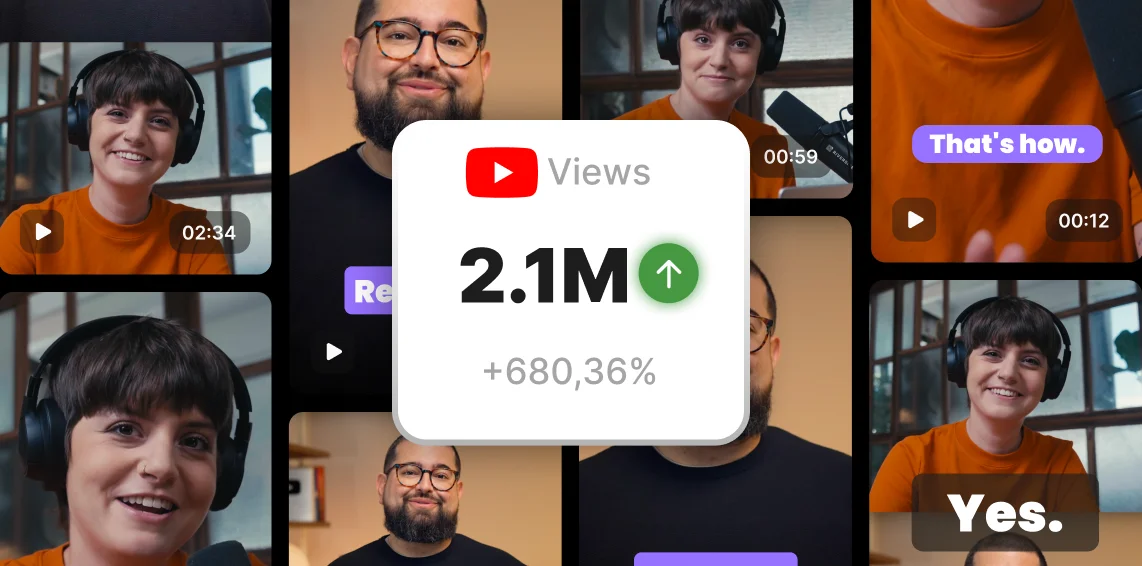
Turn one episode into endless content
Set branding presets and generate dozens of consistent clips from a single recording. Perfect for marketing teams and agencies.
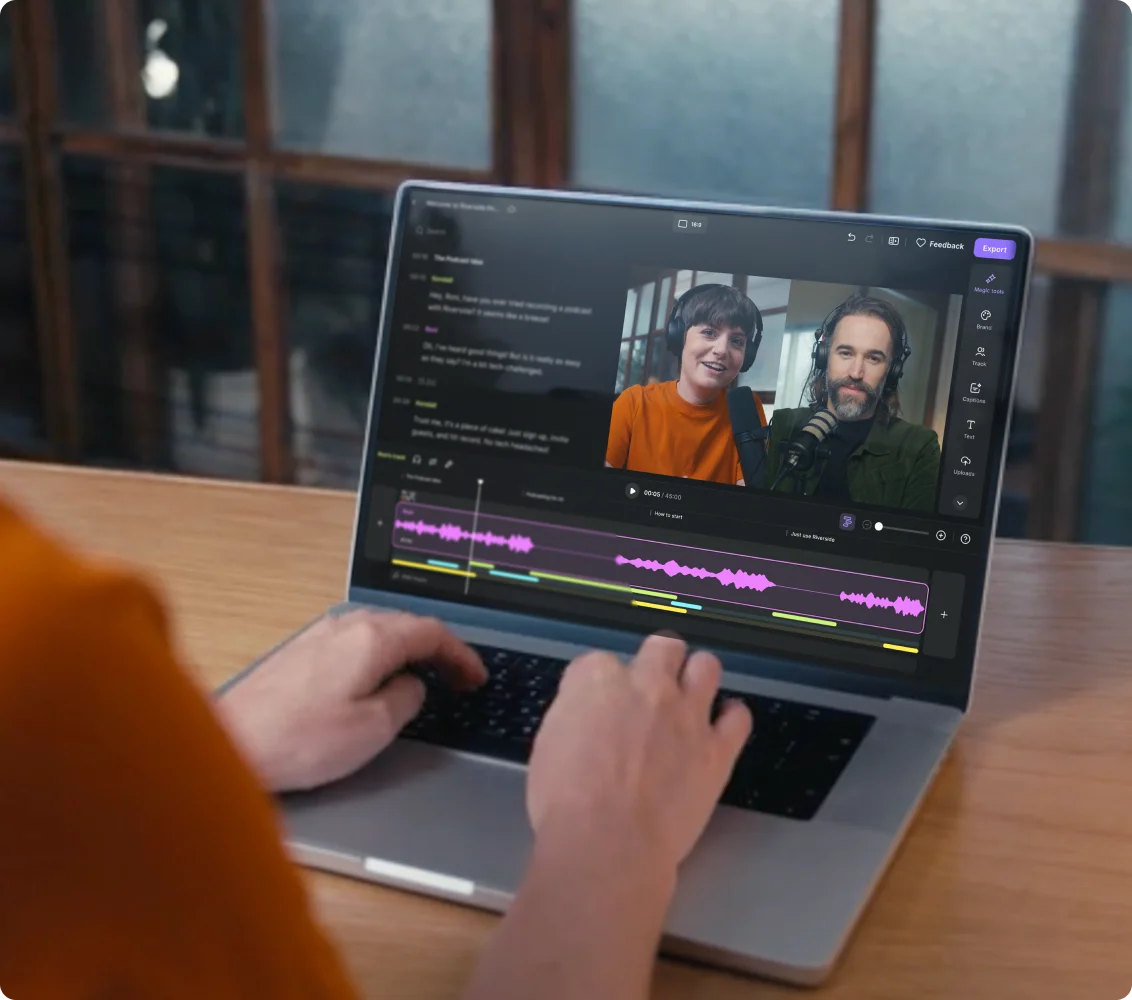
Highlight a guest speaker
Feature standout moments or soundbites from your guests to spotlight their expertise. Encourage them to share the clips with their followers for added reach.

Pricing
From recording to publishing, all on one platform. Studio-quality results with AI that does the heavy lifting.
Pro
Create polished, high-quality content
/mo (yearly plan)
High-quality video & audio recording in separate tracks
Unlimited text-based editing
Unlimited multi-track editing
AI tools (Magic Audio, Smart Scenes for automatic multi-cam edits, eye contact, unlimited transcriptions, show notes, remove silences & filler words)
AI content repurposing tools
Publish to YouTube, Spotify, Apple, Instagram, LinkedIn & more
Business
Produce at scale with control
Full remote control over recording and post-production
Custom branding
Webinar solution
Podcast hosting for as many shows as you want
Async recording
Team collaboration
24/7 priority support
Dedicated Customer Success Manager
Enterprise-grade security

Frequently Asked Questions
An AI podcast clip maker is a tool that uses artificial intelligence to detect the best moments in a podcast recording and turn them into short, shareable videos. Instead of manually scrubbing through hours of content, you get ready-to-post highlights in seconds.
For example, you can take a look at our podcast clip maker, Magic Clips.
Generally, podcast clips should be between 15 and 60 seconds long. Some platforms allow for longer videos, but if you create longer clips, make sure they remain engaging.
The easiest way to cut a podcast into clips is to use a clipping tool like Riverside. You’ll likely need to:
- Upload your podcast recording. (With Riverside, you can record and clip on the same platform, so no need for uploads.)
- Set up preferences for style, length, and other customizations.
- Let the AI find your show’s key moments and generate clips for you.
Alternatively, you can make podcast clips manually. Just:
- Open your podcast recording in an editor. (You can do this on Riverside, too.)
- Listen through and find those key moments. (If you’re using Riverside, you can mark moments while you record).
- Cut your key moments into clips. You can do this using a traditional video timeline. Or, with Riverside, you can use text-based editing, where you can edit your transcript to change your video.
- Polish your clips with captions, overlays, b-roll, and other customizations.
Check our full guide on how to make podcast clips for more.
Riverside’s Magic clips creates clips up to 3 minutes long. But if you want to create something longer, you can try our Magic Segments tool. This generates longer cuts of your podcast, ideal for YouTube, LinkedIn, or full highlights reels. It’s perfect when you want both bite-sized and extended formats.
If you want to clip your own podcast, it’s legal because you can edit it as you like.
But, if you want to clip someone else’s content, you’ll need to follow copyright legalities and may require permission before using it. This depends on how you plan to use the clip and the specific laws in your country.
From recording to podcast clips, your whole workflow in one platform.
Capture in 4K, let AI find your highlights, and share instantly.
Other Riverside tools

.webp)


Discover free and paid tools on Riverside.
More from Riverside
.webp)
.webp)
.webp)

Features