-(1).webp)


Key takeaways:
- Choose video capture software with local recording to avoid quality loss from unstable internet connections.
- For studio-quality video and remote recordings, Riverside is the best choice.
- For quick screen recordings and team updates, Loom works best
- For gaming and low-latency livestreams, OBS is the top option.
Whether you're aiming to record a great gaming session or just need a crisp corporate tutorial, it all starts with a good video capture software.
But with a market flooded with options for beginners, gamers, and business professionals, finding the right one can be overwhelming.
We’ve cut through the noise to help you find the best video capture software for your needs.
Let’s go!
The 10 Best Video Capture Software for 2026
There are video capture programs on the market for every type of creator. Figuring out the best video capture software for the type of content you’re creating can get confusing. We’ve compiled a list of the best capture software for different kinds of creators to make narrowing down your options a little easier.
| Name | Price | OS Compatibility | Local Recording | Editing Capabilities | Online Sharing Features |
|---|---|---|---|---|---|
| Streamlabs | Free | Windows, Mac | ❌ | ✅ | ✅ |
| OBS Studio | Free | Windows, Mac | ✅ | ❌ | ❌ |
| Riverside | Free / $15/mo | Windows, Mac (Web) | ✅ | ✅ | ✅ |
| Vimeo | Starts at $12/mo | Windows, Mac | ❌ | ✅ | ✅ |
| Loom | Free / $8/mo | Windows, Mac | ❌ | ✅ | ✅ |
| Camtasia | ~$179/yr | Windows, Mac | ✅ | ✅ | ✅ |
| DemoCreator | Starts at $9/mo | Windows, Mac | ✅ | ✅ | ✅ |
| CloudApp | Free / $9.95/mo | Windows, Mac | ✅ | ✅ | ✅ |
| Snagit | $62.99 license | Windows, Mac | ✅ | ✅ | ✅ |
| Vidyard | Free / $29/mo | Windows, Mac | ✅ | ✅ | ✅ |
1. Riverside

- Price: Free plan, paid plans starting at $24/month
- OS Compatibility: Windows, Mac
- Local Recording?: Yes
- Editing Capabilities?: Yes
- Online Sharing Features?: Yes
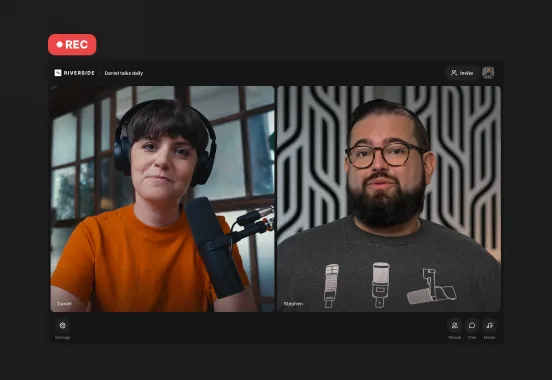
Riverside is an all-in-one full video production studio built for creators who want crystal-clear recordings. Record in up to 4K, locally on each participant’s device and even livestream to multiple destinations at once. Unlike standard screen recorders that burn everything into one messy file, Riverside records your webcam and your screen share on separate, high-quality tracks.
You can use the built-in teleprompter to read your script while maintaining eye contact with the camera, or upload slides to record presentations. And if you prefer to record while on the go, you can do it using Riverside’s mobile app.
Once you stop recording, Riverside gives you a full AI-powered post-production toolkit. Use chat-based editing to clean up your video in minutes, generate automatic transcripts, remove background noise, and export clips for social. You can even turn your recordings into summaries, social media posts, and branded assets by just prompting Co-Creator, your own AI assistant.
Pro Tip: Riverside also offers a free online screen recorder for quick captures, if you don’t need the full production workflow.
2. Streamlabs OBS

- Price: Free
- OS Compatibility: Windows, Mac
- Local Recording?: No
- Editing Capabilities?: Yes
- Online Sharing Features?: Yes
Streamlabs OBS is a stripped-down version of OBS Studio. It focuses on livestreaming and is more beginner-friendly with a more intuitive interface. It’s free to use, easy to set up, and has all the basic features you could ask for in a free screen recorder. Though it lacks more advanced features, this video capture software is great for any creator just starting.
3. OBS (Open Broadcast Source) Studios

- Price: Free
- OS Compatibility: Windows, Mac
- Local Recording?: Yes
- Editing Capabilities?: No
- Online Sharing Features?: No
OBS Studios is a favorite among all different types of content creators because it’s free to use and has a lot of functionality. Gamers love this capture software because it’s simple to record and upload video content directly to sharing platforms like Twitch and YouTube, or you can save recordings online to Google Drive and upload them later. OBS comes with many advanced features and plug-ins, so what you can do with it is only limited by your imagination.


4. Vimeo

- Price: Plans starting at $12/month
- OS Compatibility: Windows, Mac
- Local Recording?: No
- Editing Capabilities?: Yes
- Online Sharing Features?: Yes
Vimeo is an enterprise-level recording solution made specifically to help businesses and other organizations create and host video content. A Vimeo subscription may seem expensive when compared to other capture software. However, keep in mind that this pricing is for enterprises and not individuals. Vimeo allows you to create, edit, and store all of your content in one place for easy organization. Companies that support remote work can get a lot of Vimeo’s features for hosting online business content.
5. Loom
.png)
- Price: Free plan and paid plans starting at $8/month
- OS Compatibility: Windows, Mac
- Localized Recording?: No
- Editing Capabilities?: Yes
- Online Sharing Features?: Yes
Loom is video and screen capture software for team sharing. You can record in up to 4K resolution on the higher end plans and viewers can interact with your videos through engaging emojis or even via recorded comments. This is great for presentations as it also comes with annotation tools and custom recording dimensions.
6. Camtasia
.png)
- Price: $299.99 for a Camtasia license
- OS Compatibility: Windows, Mac
- Local Recording?: Yes
- Editing Capabilities?: Yes
- Online Sharing Features?: Yes
If you’re looking for an impressive way to record video presentations or tutorials, Camtasia has alot to offer. It has a PowerPoint integration, various templates and presets as well as an interactive video table of contents. You can also add quizzes to your videos and choose your own themes and backgrounds, making your video capture setup highly customizable.
7. Wondershare Demo Creator
.webp)
- Price: Plans starting at $9/month
- OS Compatibility: Windows, Mac
- Local Recording?:Yes
- Editing Capabilities?: Yes
- Online Sharing Features?: Yes
Wondershare’s DemoCreator isn’t only a video capture software, but it also gives you the ability to stream video live. As suggested by its name, it’s particularly made for creating video demos. It enables you to record separate tracks which gives you more flexibility when editing.
8. CloudApp
.png)
- Price: Free plan, with paid plans starting at $9.95/month
- OS Compatibility: Windows, Mac
- Local Recording?:Yes
- Editing Capabilities?: Yes
- Online Sharing Features?: Yes
Another video capture software that’s worth trying is CloudApp. Other than screen and webcam recording, the software has CTA buttons, customization tools and even a GIF maker you can use. You can also add passwords to your sharing links, making sure you can keep your videos private and choose who can access them.
9. Snagit
.png)
- Price: $62.99 for a Snagit license
- OS Compatibility: Windows, Mac
- Local Recording?:Yes
- Editing Capabilities?: Yes
- Online Sharing Features?: Yes
Snagit comes from the same company as Camtasia, called TechSmith. This is more of a simple video capture software platform that lets you quickly capture your webcam or screen.
10. Vidyard
.webp)
- Price: Free plan, paid plans starting at $29/month
- OS Compatibility: Windows, Mac
- Local Recording?:Yes
- Editing Capabilities?: Yes
- Online Sharing Features?: Yes
Videoyard is particularly made with sales in mind. You can use their platform to elevate sales pitches and create customized or personalized videos that you can send over email, LinkedIn, and more. The great thing about Vidyard, is that you receive tracking analytics on the performance of your video. This is great for marketing teams trying to figure out what’s working in their content.
The best video recording software for business professionals
If you’re looking for video capture software especially for business or commercial use, a few of our recommended options could be good. Loom is a pretty popular and reliable option, but you can also try Videoyard for sales pitches.
The best free video capture software
OBS is our best free capture software because of the amount of functionality you get for the price (free!). OBS can’t be beaten because it’s an open-source video capture software, so developers are creating new ways to enhance it all of the time. OBS Studio can be a bit overwhelming initially, but it becomes easy to use with a bit of practice. Though anyone can record on OBS Studio successfully, intermediate and advanced users will get the most out of its ever-evolving features. If you’re looking for a simpler option more suited to beginners, you can always try Riverside’s free plan.
The best video recording software for beginners
When it comes to software for beginners, it’s best to go for something simple and easy to use. You also probably don’t want to invest too much, just yet. We suggest you try Riverside or Streamlabs that both offer an easy and intuitive experience.
The best video recording software for gamers
OBS is one of the most popular options for gamers. This is because you can easily stream to big gaming platforms like Twitch and YouTube and it offers a large range of features and plugins at no cost.
The best video recording software for podcasters
Unlike other video capture software platforms on this list, Riverside is especially designed with podcasting in mind. You can invite guests to join your podcast recording no matter where they are, and you can also invite audiences to participate through live calls. Riverside gives you the option to record audio-only podcasts as well as video podcasts and you can easily turn your recordings into short shareable clips to promote your show. With its specialized tools and features, Riverside is one of the best video capture programs for podcasters.
The best video capture for Windows 10
While Windows has its own built-in video capturing software, Windows Game Bar, this is might not offer what you’re looking for. It’s hard to choose one choice for the best video capture software for windows 10 because it depends on what features you most need. For example, if you’re looking to record with guests remotely then Riverside is your best bet. Other great options you can try are OBS, Loom, and more. We suggest you examine our list above and decide on the best video capture software for your needs.
The best online video capture recorder
Not all video capture software works online. Many of them need to be downloaded which can take up space on your computer. If you’re looking for a high-quality video capture recorder online, we suggest Riverside. This is because it still records your video locally. Even though you’re using an online video capture tool, your recording quality won’t be affected by your internet connection.
Bonus: How do you record a video?
You can also use the built-in features on your desktop or mobile device to record audio and video on your system using your device’s microphone while capturing your screen. We’ll provide step-by-step instructions to show you how to capture video with audio on different types of devices.
How do I capture a video on my computer?
If you don’t have the budget or need for a video capture program, you can record your screen to create content. Macs and PCs both have programs you can use to take screenshots or record your screen. The programs allow you to record your full screen or just a portion of what’s on your screen. We’ll explain how to record your computer screen using each operating system.
How do I record my computer screen on a Mac?
QuickTime Studios comes standard on Mac devices and can be used to quickly capture stills and video from your video screen. Follow these instructions to start recording your computer screen using QuickTime:
- Open QuickTime.
- Select File.
- Click New Screen Recording.
- Click Record to begin capturing video.
- To stop recording, click the Record button again.
- Choose where your recording is saved by selecting File and then Save.
How do I record my computer screen on a PC?
You may not know it, but PowerPoint can be used for more than just giving presentations. The program comes with a built-in video capture feature to record your screen.
Follow these steps to capture video from your computer screen with PowerPoint:
- Open PowerPoint from the Start Menu.
- Choose Blank Presentation.
- Click on the tab labeled Insert and then select Screen Recording.
- Once your screen grays out, you can select the area you want for a partial screen recording or record your whole screen by doling down the Windows Key + Shift + F.
- Click the Record button.
- Hover your mouse over the top of your screen at any time to access video controls. Click Stop when you’re finished recording.
How do I record a video of myself on Windows 10?
Windows 10 has a built-in recording feature that older versions of the operating system don’t. Xbox Game Bar was designed for gamers to capture gameplay to share online, but it can be used to capture any type of video on your screen. One thing to note is the Xbox Game Bar can only capture video from a specific window on your screen.
Capture video on your screen with the Xbox Game Bar using the following steps:
- Select the window on your screen you want to record.
- Choose Xbox Game Bar from the Start Menu.
- Click on Record in the upper left corner of the screen
- When you’re finished recording, click the Stop button.
Access the footage you recorded in the Videos folder on your PC.
Read more: How to Screen Record on Any Device (Desktop, Mobile, Tablet)
How do I capture a video on my mobile device?
Most modern smartphones come with built-in screen recording tools. On iOS, you can access Screen Recording via the Control Centre. On Android, there’s a native screen recorder in the Quick Settings panel. Both these solutions work well enough for quick, casual captures.
However, if you need professional-quality video capture on your smartphone, you might want to use dedicated software like the Riverside mobile app.
It transforms your phone into a pocket studio, so you can capture mobile video and edit with AI tools while on the go. You can also upload your recording directly into your workflow, and edit it later with the full post-production suite on your desktop, all without moving files between apps.
Read more: How to Screen Record on Any Device (Desktop, Mobile, Tablet)
Why use video capture software?
You can use video capture software in education, professional, and entertainment settings to create content for several purposes. This type of software helps creators connect with others online with recorded video content or livestreams. The right video capturing software will help your content look professional and stand out.
Video capture software can be used in the following ways to create content:
- Recording a tutorial video, walkthrough, or webinar
- Capturing video interviews for podcasts
- Creating episodes for a vlog
- Recording a gaming session to share online
- Host a livestream for your audience
Video capture software Aadvantages
Video capture software provides other benefits and makes your content look professional. Below are some advantages to video capture software you may not have considered.
Simplify your workflow
Several video capture software also includes video editing software and sharing capabilities to simplify your creation process. Instead of using multiple programs and importing and exporting files, you can do everything in one place. This also significantly cuts down on the time you have to spend in post-production.
Record multiple sources simultaneously
Without software, you can only capture what’s on your screen or what your device’s camera is recording. If you need to record more than one person at a time for your content, video capture software is key. Especially, if you need to record high-quality remote video for a podcast or vlog guests.
What to consider when choosing video capture software
Choosing the best video capture software will differ from person to person. Below, we’ve highlighted a couple of key factors to consider when reviewing a webcam recorder and screen capture software.
System compatibility
The first thing to consider is whether or not a piece of software is compatible with your system. Many video capture programs work on both Mac and Windows systems, but some are only compatible with one. Check the software's system requirements to determine whether it will work with your setup.
Price
Make sure you have a realistic budget in mind when choosing video capture software to create content. Great programs are available at all price points, but you typically pay more for advanced features. Use any special features you pay for to avoid wasting money on software capabilities you won’t need.
Recording features
Have a clear understanding of the features you need before selecting software. Capture software can come with a range of features, but these are some things to keep a close eye on:
- Recording quality: Be sure your video file will be recorded in HD.
- Localized recording: Check if the software records directly to your device.
- Separate audio and video recording: Separate track recording makes editing easier.
Ease of use
Some software programs for capturing video have much simpler user interfaces than others. Make sure the capture software you choose matches your skill level. If you’re a beginner, don’t select a program with advanced features you don’t know how to use efficiently. Alternatively, you shouldn’t choose software with an interface designed with beginners in mind if you’re a more advanced user.
Reliability
You may experience recording quality issues if your software relies on the quality of your internet connection. Software that uses localized recording records directly to your PC or Mac so your video quality won’t suffer due to a poor connection. With localized recording, you can rest easy knowing you won’t lose any content due to a dropped connection or technical difficulties because everything is saved directly to your system.
Editing Capabilities
Look for capture software with a built-in video editor with editing features to create high-quality videos. Software options at all price points have features that allow you to add captions, place a transition effect between scenes, add music, and much more. Having an all-in-one, content creation platform will streamline your processes and save you money.
Online Sharing Options
Do you need to get your content out to your followers on social media? Many recording programs make it simple to get your video clips on YouTube, Facebook, and Twitter with just a few clicks. Check to see which programs the screen capture software you’re considering integrates with to make sure you can upload videos easily.
Content File Formats
Be sure the video capture software you’re considering saves files in formats supported by the sharing platform or other programs you may use. You can’t use any of the content you record if the video file formats aren’t compatible with the program you want to use unless you take the extra step to use a codec to convert them. Some of the most popular video file formats supported by most programs and platforms are mp4, wmv, avi, and flv.
FAQs on Video Capture Software
Is OBS streaming free?
Yes, OBS is a video capture software that is completely free. You don’t have to pay anything to use OBS for streaming video content.
Does Windows 10 have video capture software?
Yes, there is a built-in video capture software for the Windows 10 operating system. This is called Game Bar and you can capture video with it by recording your screen.
How do I edit videos after recording with capture software?
If you’re using an all-in-one recording and editing tool like Riverside, you can edit your videos in the same dashboard. You can use AI to trim clips, remove mistakes, adjust audio, style captions, and add b-roll and overlays.
Other traditional capture tools, instead, require you to export your footage and move it to a separate, complex editor like Adobe Premiere. Here you can polish and edit your video to make sure it looks smooth and professional.




-(1).webp)