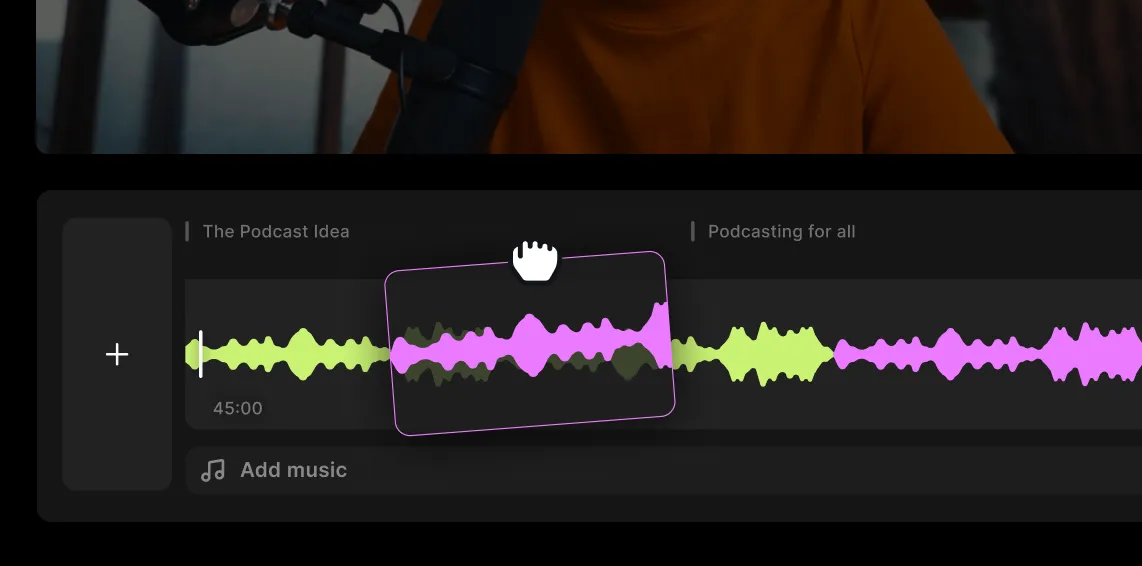
.webp)


Key takeaways:
- Audio recording software captures sound from a microphone or other input and saves it as a digital audio file.
- A digital audio workstation (DAW) is a more advanced tool that is better suited for complex professional projects and music production.
- Choose a straightforward remote recording platform for guest interviews, a DAW for music production, and a mobile recorder for capturing audio on the go.
- Free tools cover basic voice capture and simple waveform editing, while paid software offers more advanced production and automation features.
High-quality audio starts with your audio recording software, but picking the right one can feel overwhelming.
In my 10+ years as a podcaster and YouTuber, I’ve tried many different audio recording software. In this guide, I’ll break down the best recording software for audio and video, highlight the features that actually matter, and help you decide which one is the right fit for you.
Here are 9 of the best options, with picks for every skill level and budget.
Top audio recording software quick comparison
Audio recording software simply captures sound, while a digital audio workstation (DAW) adds extensive tools for editing, mixing, and music production.
Plenty of tools now sit somewhere between the two. What matters when choosing is what you're recording and how much hands-on control you want.
| Software | Best for | Price | Free tier | Ease of use | Compatibility |
|---|---|---|---|---|---|
| Riverside | Remote recording and fast AI editing for separate tracks | Free; paid from $29/month | ✅ | Beginner | Web on macOS and Windows; iOS; Android |
| Audacity | Free audio recording and editing | Free | ✅ | Intermediate | macOS; Windows; Linux |
| Adobe Audition | Audio restoration and post-production | $22.99/month with an annual plan; 7-day trial | ❌ | Advanced | macOS; Windows |
| GarageBand | Beginner-friendly DAW for music creation | Free | ✅ | Beginner | macOS; iOS; iPadOS |
| Reaper | Customizable multitrack recording on a budget | $60 discounted license; $225 commercial license; 60-day trial | ❌ | Advanced | macOS; Windows; Linux |
| Voice Record Pro | Recording voice and interviews on mobile devices | Free with ads | ✅ | Beginner | iOS; iPadOS; Android |
| Sound Forge 2026 | Detailed voice-over editing and restoration | From $24.95/month or $299.95 perpetual; 15-day trial | ❌ | Intermediate | Windows |
| Ableton Live | Professional music production and live performance | From $99; 30-day trial | ❌ | Advanced | macOS; Windows |
| Ardour | Open-source audio production for advanced users | Free source code; ready-to-run builds from $1 | ✅ | Advanced | macOS; Windows; Linux |
9 Best free and paid audio recording software and DAWs
Riverside
Price: Free plan available, paid plans from $29/month
Compatibility: MacOS, Windows, iOS, Android
Rating: 4.8/5 (G2)
Best for: Remote recording and fast AI editing for separate tracks.

Riverside is your best bet if you’re looking for professional-quality audio recording software for remote interviews and podcasts. You get high resolution with uncompressed audio in up to 48kHz. You can also record video in 4K.
Invite up to 9 remote or in-person guests, and local recording ensures your internet connection won’t affect recording quality. You’ll also get separate tracks for each participant, giving you more editing control and making it easier to cut crosstalk.
The built-in editor works with separate tracks too. With text-based editing, you edit using your transcript. Any changes you make automatically show up in your recording. Also, cut filler content, remove background noise, set the pace, and more all in a few clicks with AI.
And if you really want to perfect your audio, you can try the automatic audio enhancement or try an EQ filter.
Key features:
- Separate audio (and video) tracks: Save each participant’s recording as a separate track for easier audio and video editing.
- Local recording: All files are captured directly on your device for great sound quality regardless of your internet connection.
- High-quality sound: Record in up to 48kHz audio resolution and export uncompressed WAV audio files.
- Media board: Insert podcast intros, outros, music, and more while recording to cut down on editing time.
- Magic Audio: One click and every recording will sound like it was made in a professional studio, regardless of your microphone or environment.
- AI Voice: Use text-to-speech functionality to generate audio that sounds just like you thanks to an algorithm trained to replicate your voice.
User review: “I love how Riverside makes me feel like I’m in the room with my guests, even when we’re across time zones, sipping tea from different corners of the world. Riverside gives me clean, reliable audio + video that lets me stay in the moment instead of babysitting tech.” - Debbie-jean Lemonte, Host of “A Cup of Honest Tea” podcast
Audacity
Price: Free
Compatibility: MacOS, Windows, and Linux
Rating: 4.5/5 (G2)
Best for: Free audio recording and editing.
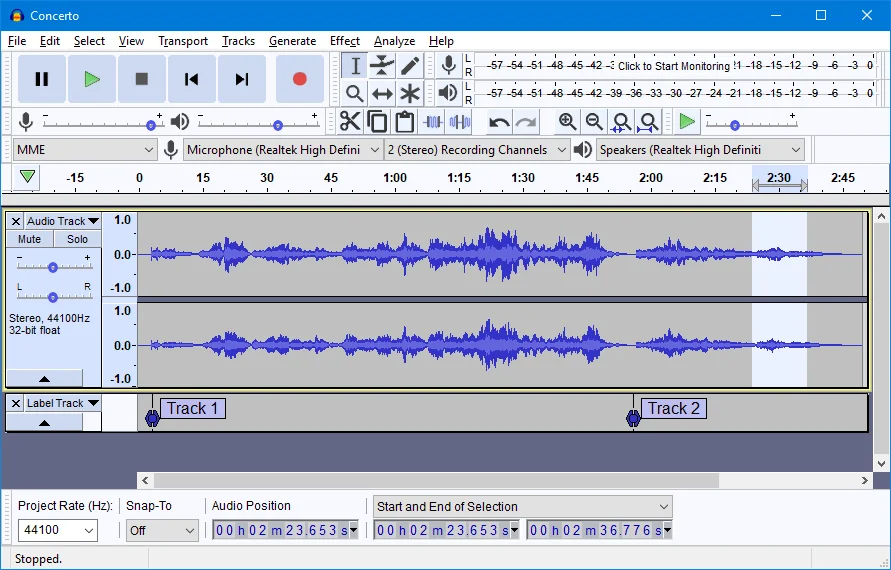
Audacity is my favored pick if you want free audio recording software. It handles multitrack recording and has a large plugin library because it's open source.
It’s versatile enough for content creators of all skill levels to capture and edit professional audio manually. But it lacks the advanced automation found in full music-production software, which can change volume, effects, and other settings at specific points in a track. Its Macros feature simply lets you save a series of editing steps and repeat them automatically.
After using more modern software for years, Audacity’s interface looks dated, and its learning curve can be steep. But I still think it’s a powerful tool, with robust editing tools and features you won’t find in some newer apps.
Key features:
- Batch and multitrack processing: Record multiple voices or instruments.
- Open-source software: Free to use and regularly updated, with a large library of third-party plugins.
- Easy audio arranging: Import, mix, and combine audio tracks easily.
- Multiple file formats: WAV, AIFF, FLAC, MP2, MP3, and Ogg Vorbis files will meet most needs.
- High-quality sound options: Record in 16-bit, 24-bit, and 32-bit audio.
- Spectrogram view: Can visualize frequencies for detailed audio analysis.
User review: “Having worked with industry-standard software, I appreciate Audacity's straightforward approach to audio editing. However, it lacks some advanced features found in high-end professional suites.” - Hans A., Research and Development Editor
Adobe Audition
Price: $22.99/mo, free trial available
Compatibility: MacOS and Windows
Rating: 4.4/5 (G2)
Best for: Professional audio restoration and post-production.

With advanced sound removal, noise reduction, and audio leveling tools, Adobe Audition offers you full control of your audio.
It requires a bit of a learning curve, but offers you a versatile interface with different modes. You can edit on a typical multitrack timeline, or you can use the waveform editor with two different views. The waveform view shows your audio peaks and is best for working on amplitude. The spectral frequency display looks at frequency and is ideal for identifying and removing noise.
It’s also worth noting that since Audition is part of the Adobe suite, you can use it for editing audio from Premiere Pro and other Adobe software. This makes it a good choice for editing video audio.
The drawback with Audition is its cost and ease of use. While it’s got a relatively intuitive interface, its huge selection of features may overwhelm beginners. It’s a better choice for professionals or someone who already has some editing experience.
Key features:
- Variety of effects: From sound removal to pop elimination and pitch shifting, there’s a huge choice of audio effects.
- Advanced audio restoration: Audition’s restoration tools are second to none and allow you to surgically remove unwanted sounds.
- Adaptive noise reduction: You can remove both constant background noise and changing broadband noise throughout an audio clip.
- Customizable workspace: Choose what panels you want on display to create a workspace that suits your needs.
- Integration with Premiere Pro: Send audio from your Premiere Pro timeline directly to Audition for more advanced editing and mixing than Premiere Pro can provide.
User review: “I like the broad, unified suite across photo, video, design, and web with tight ecosystem handoffs between other Adobe apps. I don’t like how pricing keeps trending up, and the renaming to Creative Cloud Pro adds complexity while pushing the higher tier for full AI access.” - Luca P., CTO and Growth Marketer full stack
GarageBand
Price: Free
Compatibility: MacOS, iOS, and iPadOS
Rating: 4.3/5 (G2)
Best for: Beginner-friendly DAW for music creation.
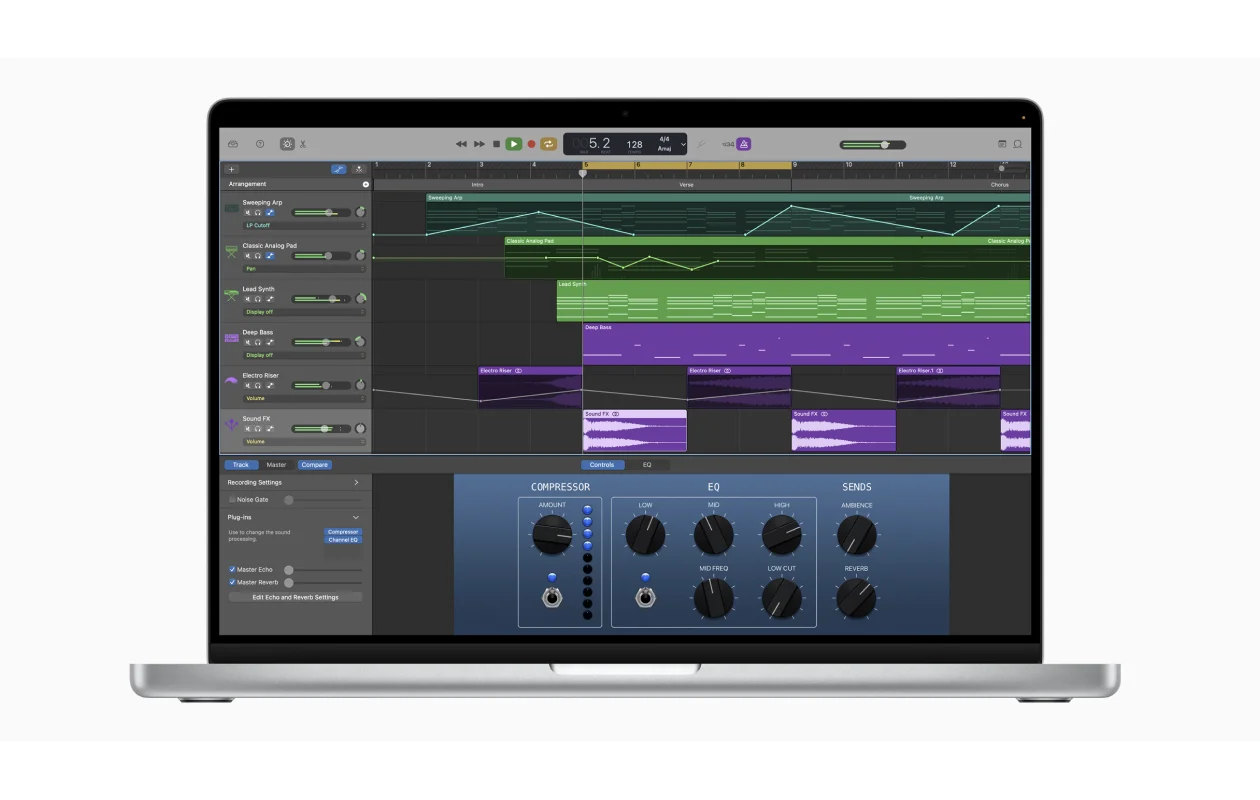
If you're a Mac user and specifically want to record music, then GarageBand is the easiest platform.
You can easily create music with or without instruments. It comes with many virtual instruments like guitars, pianos, and keyboards. But the software also offers a lot of customizability. Users can create separate tracks for intros and outros, advertisements, music, and even voiceovers.
GarageBand is my pick for free recording software if you're on a Mac. I see it as a direct stepping stone to Apple's professional-grade DAW, Logic Pro, since the interface and concepts carry over.
It was built for musicians, so you get virtual instruments, Apple Loops, and a Drummer feature. You can build a track without owning any gear, or plug in a guitar or MIDI keyboard and record directly.
For podcast work, the same timeline gives you separate tracks for intros, outros, ads, music, and voiceover, all editable independently.
Key features:
- Third-party plug-in support: Option to download free or paid apps for additional instruments, effects, or editing features.
- Easy to use: Streamlined interface makes the tool a breeze to learn and use.
- Easy file sharing: Export songs as audio files or share them through Music, AirDrop, Mail, and iCloud.
- Visual EQ: 8 color-coded bands arranged from bass to treble make equalization easy and precise.
- Complete sound library: Comes with a massive collection of royalty-free loops and built-in virtual instruments, including synths, keyboards, and orchestral sounds.
“The thing I like the most about GarageBand are the integrated synths, the sounds are really top notch and it doesn't feel like a free software.” - NerdyPunk L., Verified User, G2
Reaper
Price: Fully functional 60-day free trial; $60 discounted license for eligible users or $225 commercial license.
Compatibility: MacOS, Window, Linux
Rating: 4.5/5 (G2)
Best for: Budget-friendly, highly customizable audio editing.

Reaper is a professional-level software that provides a lot of bang for your buck. But it can be intimidating for beginners. You’ll need some experience if you plan to use it as your primary audio recording software.
The interface isn't intuitive, and those new to using digital audio workstations (DAWs) might feel overwhelmed by all the advanced features. But if you know what you’re doing, Reaper offers plenty of granular editing capabilities and incredible customizability like full keystroke mapping. You can record audio up to any sample rate/bit depth and an unlimited number of inputs: the only limit is your hardware.
Overall, it's a powerful tool for multi-channel audio recording, mixing, and mastering with a surprisingly lightweight performance.
Key features:
- Full automation capabilities: Automate your mixer and device controls.
- Totally customizable user interface: Easy to set and save your user settings.
- Multiple recording inputs: Record and overdub audio and MIDI.
- Dozens of audio formats: Supports WAV, AIFF, MP3, FLAC, and more.
- Non-destructive editing: Apply effects and make edits without permanently changing your original audio files.
- Generous licensing model: You can try it with a fully functional 60-day trial then purchase a lifetime discounted license for just $60 ($225 for commercial purposes).
User review: “Every action within the software can be mapped to a keystroke. You can customize your screen to include these actions as buttons so that you don't have to reach for your keyboard or go layers deep in your menus. The main weakness that Reaper has is that it doesn't come with any virtual instruments and the sampler is pretty basic.” - Bryan M., Marketing Strategist
Voice Record Pro
Price: Free (optional one-time $8.99 fee to remove ads)
Compatibility: iOS, iPadOS, Android
Rating: 4.7 (Google Play) and 3.9 (Apple App Store) out of 5
Best for: Mobile recording for capturing high-quality audio on the go.

If you’re looking for a mobile app to record audio on your iPhone or Android, Voice Record Pro is a great choice among voice recorder apps. The full-featured software is available for free, but you can also pay a small, one-time fee to remove ads.
Voice Record Pro is best suited to recording high-quality voice memos and interviews. I found the customizable settings offer you a level of control typically found in desktop software. You can easily adjust reverb and echoes, split and merge your audio, and insert sound clips. It also includes all the basic editing features.
Key features:
- High-quality recording: Record WAV files in up to 48 kHz.
- Add effects and filters: Adjust reverb, equalizers, and echoes.
- Silence detection: The tool doesn’t save silent audio, so you don’t have to worry about long pauses in interviews.
- Basic in-app editing: Trim, split, append, and join recordings, or convert them between supported formats.
- Multiple export options: Send files by email or SMS, and upload them directly to Google Drive, Dropbox, SoundCloud, and YouTube.
- Comments: Easily add notes and bookmarks to recordings for later.
- Unlimited recording length: Record for as long as you need. The only limit is the available storage space on your device.
User review: “This little app is hands down the best voice recorder I've ever known so I just had to say that. Fully customizable... It’s like Audacity with the many options of Reaper and the FX of GarageBand.” - Sy9689, App Store Reviewer
Sound Forge 2026
Price: From $24.95/month; $299.95 perpetual license; 15-day free trial
Compatibility: Windows 11
Rating: 4.3/5 (G2)
Best for: Precise voice over editing and restoration.
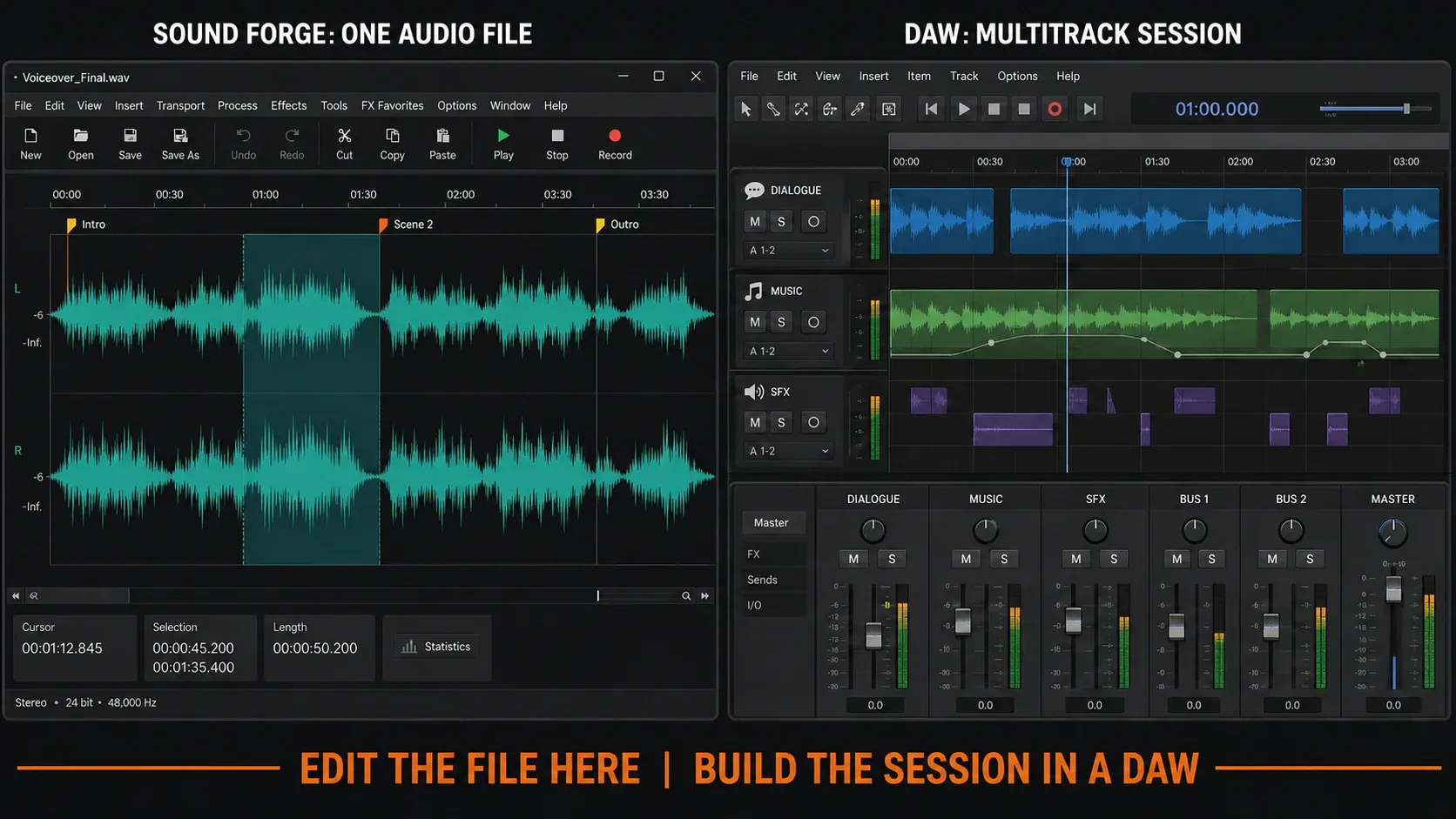
Sound Forge is known for its speed, precision, and very high-quality recording capabilities. It’s also ideal for detailed audio editing, restoration, and mastering.
The best part is that Sound Forge Audio Studio is intuitive and easy to use. When you’re done, you can cut, move, and edit audio with only a few clicks. Even those who are new to capturing and editing audio can use the software’s dynamic EQ and restoration tools to create a clean recording that sounds professional.
- Professional recording quality: Record and edit in ultra-high resolution audio containing up to 32 channels, with customizable bit depth and sample rate.
- Dedicated audio restoration tools: Includes a suite of tools for digitizing and restoring audio from old vinyl records or tapes by removing clicks, pops, and other unwanted noise.
- Destructive or nondestructive editing: Work directly on waveform data in the default mode or use event-based mode for nondestructive editing.
- Third-party plug-ins: Expand the software with VST2, VST3, and ARA-compatible tools.
- Workflow automation: Use Instant Actions and batch processing to apply repeatable edits and effects.
User review: “It is really difficult to find a missing feature with SoundForge. Yet, it is worth landing on for professionals. It needs a sturdy system, the more RAM chips or rates the better.” - Verified User in Higher Education
Ableton Live
Price: Intro: $99; Standard: $349; Suite: $749
Compatibility: macOS and Windows
Rating: 4.7/5 (G2)
Best for: Professional music production and live performance.

If you’re a professional musician, Ableton Live's advanced DAW is best for advanced creative control of audio files.
While recording, Ableton Live shows a Session view that makes it easier to improvise and experiment live. You work on a grid of audio and MIDI clips that you can launch at any time and in any order. This non-linear approach means you can add clips as you see fit and edit without moving the cursor back to the beginning each time. You can then record the resulting performance into the Arrangement View for linear editing.
Combined with a powerful suite of built-in instruments and effects, Ableton Live is a reliable platform for both creating electronic music in the studio and performing it on stage. But it’s not easy to fully master its features, and the full suite is very, very expensive.
Key features:
- High-quality audio: Record in up to 192 kHz and 32-bit float. Audio is recorded locally in multiple tracks.
- Session view: Can launch and experiment with audio and MIDI clips in a non-linear grid.
- Huge sound libraries: Use virtual instruments and audio effects in your recording from a library of up to 71+ GB of presets, or build your own custom ones.
- Advanced warping: Easily change the tempo and timing of any audio clip without affecting its pitch thanks to Live’s powerful time-stretching algorithms.
- Automation options: Almost all mixer and device controls can be automated, including stretching song tempo without affecting its pitch.
User review: “It's not simple to make music. It takes effort, time, and knowledge. And Ableton live helps you in achieving the kind of music you want with its incredible interface and workflow. Beware, though: I have experienced glitches when global latency is kept too high.” - Shaktiraj G., Search Engine Optimization Executive
Ardour
Price: Free (open-source), or from $1 for pre-built binaries
Compatibility: macOS, Windows, and Linux
Rating: 4.1/5 (G2)
Best for: Open-source audio production for advanced users.

Ardour is a highly advanced, open-source DAW for recording, editing, mixing, and mastering audio. In some ways, it is the audio equivalent of OBS Studio for professional video production.
I think Ardour is best suited for users who want granular control, offering multitrack recording, flexible routing, as well as extensive support for plug-ins. It is deep, but it’s not built for beginners. The interface is highly technical, and you’ll have to set up all audio devices, inputs, buses, and monitoring on your own.
If you’re an experienced producer and audio engineer, Ardour offers a complete production environment for almost no money. Its source code is free to download and compile, and many Linux distributions provide free ready-made packages. If you’re not on Linux and want a prebuilt download, you have to pay something because it’s donationware. This means you can pay as little as $1 for a single version, or up to $40 for lifetime updates.
Key features:
- Unlimited multitrack recording: Record and mix as many audio and MIDI tracks as your computer's processor can handle.
- Non-destructive editing: Cut, trim, stretch, move, and crossfade recordings without changing the original files, with unlimited undo and redo.
- Plug-ins and automation: Supports VST2, VST3, LV2, LADSPA, and Audio Unit plug-ins, with sample-accurate parameter automation.
- Video synchronization: Extract audio from imported video files to mix soundtracks for film and video projects.
- Advanced signal routing: Create complex workflows using buses, sends, inserts, returns, and multiple connections.
User review: “There's a lot of power and upgrade potential here with all these add-ons. But there are TOOOOO many options for plug-ins, and I feel like I can barely wrap my head around most of them. Luckily, I can get by with just some basics, but it's difficult to not feel intimidated.” - Verified User in Entertainment
What to consider when choosing audio recording software
Choose audio recording software by comparing audio quality and formats, cleanup tools, multitrack recording, and editing features.
Audio formats and quality
For professional uses like podcasting, you should record in high-resolution, uncompressed formats like WAV. If you're just capturing a quick interview for market research or brainstorming, a compressed format like MP3 (at 44.1kHz) might be good enough.
To understand quality, you need to know what sample rate and bit depth are. Sample rate is the number of audio samples captured per second, measured in kilohertz (kHz). Bit depth determines the dynamic range, or how much detail each sample holds.
I generally record uncompressed audio at 48kHz to capture every vocal nuance. I also prefer 24-bit since it provides more recording headroom than 16-bit to adjust sound in post without distortion.
Audio cleaning
The most essential audio clean up features I'd consider are background noise and echo removal, and automatic pauses and silences cleaning.
AI-powered audio enhancement is a massive time-saver, and a single click cleans the track and equalizes the voice. I always start with a first-pass AI cleanup before applying more detailed audio editing, like mixing and equalizing.
Record multiple channels
If you’re recording multiple audio sources at once, like a podcast with guests, or a song with instruments, multitrack recording is a must. Each audio source is captured on a separate track, giving you complete control during editing. This lets you adjust one source’s volume, remove its background noise, or cut crosstalk without affecting the rest of the recording.
Editing features
Your recording software should streamline your post-production workflow.
If you produce podcasts or interviews, look for text-based editing to edit your audio by deleting words in an automatically generated transcript. It works exactly like editing a text document.
Music production, instead, often requires more advanced DAW features like non-destructive editing, plug-ins, automation, and a complete mixing environment.
FAQs
What is the best free audio recording software?
Audacity and GarageBand are widely considered the best free audio recording software for local projects. Audacity is a powerful, open-source editor for Windows and Linux, while GarageBand provides an intuitive workstation for Mac users. If you record remote guests, Riverside offers a high-quality free tier specifically built for remote multitrack recording.
Is Audacity free anymore?
Yes, Audacity remains free and open source, with no subscription required to use the desktop editor. Following its 2021 acquisition by Muse Group, some users worried about privacy and telemetry. But Audacity remains 100% free, and any data collection is strictly opt-in and requires your explicit permission.
Does audio recording software affect sound quality?
Yes, audio recording software affects sound quality because it controls the sample rate and bit depth during capture. Professional software allows you to record uncompressed, high-resolution WAV files at 48kHz. Basic tools often force automatic MP3 compression, permanently degrading the audio.
How do I make my sound clearer when recording audio?
Your microphone, audio interface, recording environment, audio recording software and mic technique all contribute to the quality of your recording.
For professional work, follow these tips to improve the quality of your recording:
- Use a good microphone and position it correctly.
- Wear headphones.
- Use a pop filter.
- Soundproof your space.
- Record filler audio.
- Speak clearly.
- Limit echoes.
- Record in a lossless audio format.
What software is best for music recording?
For music recording, Ableton Live, GarageBand, Reaper, and Ardour are all great choices.
- Ableton Live is an industry leader for electronic music production because its clip-based workflow and real-time effects allow for unlimited creativity.
- GarageBand is the best free choice for beginner Mac users because it’s easy to use but it still features lots of virtual instruments.
- Reaper is a powerful and affordable option for all genres, being both lightweight and incredibly customizable.
- Ardour is one of the most powerful free tools available, but it requires advanced understanding of audio signal flow.
How can I record audio on my PC?
You can record audio on your PC using the built-in Windows Sound Recorder app or by using browser-based software like Riverside. Both let you start recording with minimal setup. Connect a microphone to your computer, select it as the input source in your chosen software's settings, and press the record button.



.webp)
.webp)