Audio Cutter
Cut, trim or clip MP3 and WAV files online as easily as deleting text. Use AI to enhance your audio and polish your sound.




How to cut audio online with Riverside
1. Upload or record audio
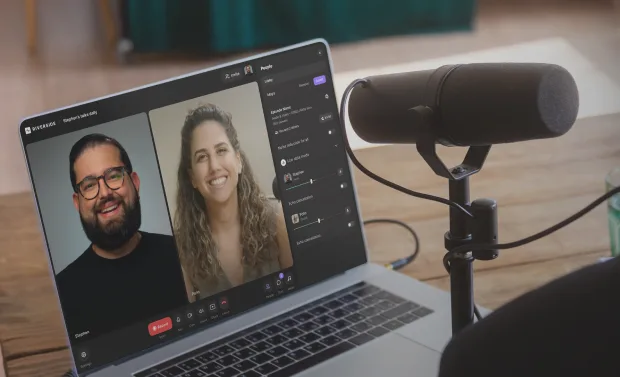
Upload your MP3 or WAV audio file or record studio-quality audio directly on Riverside.
2. Trim audio
Cut unwanted audio by deleting the matching text in your audio transcript.
3. Level up your audio
Background noise? Uneven volume levels? Let our AI tools fix up and enhance your sound.
4. Download your files
Download your transcript and audio files–in MP3 format for sharing or WAV for the best quality.

Why Riverside:
Cut MP3 and WAV files online like a pro

Cut audio by deleting text.
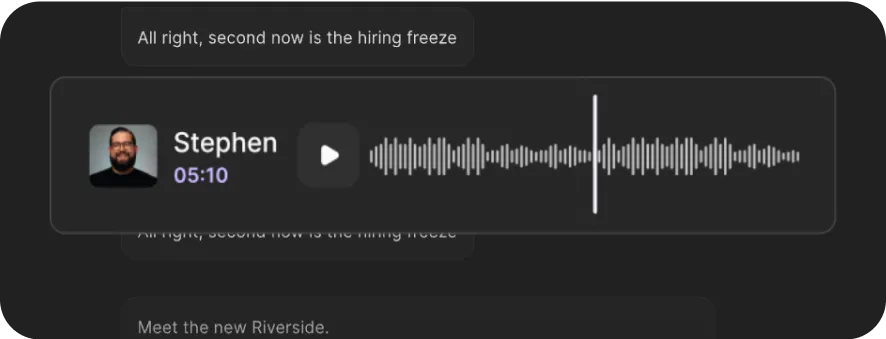
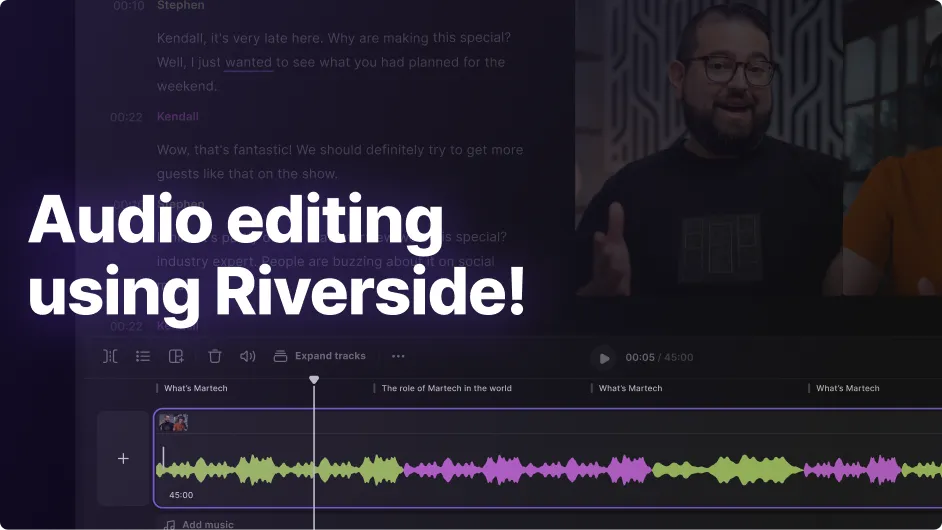
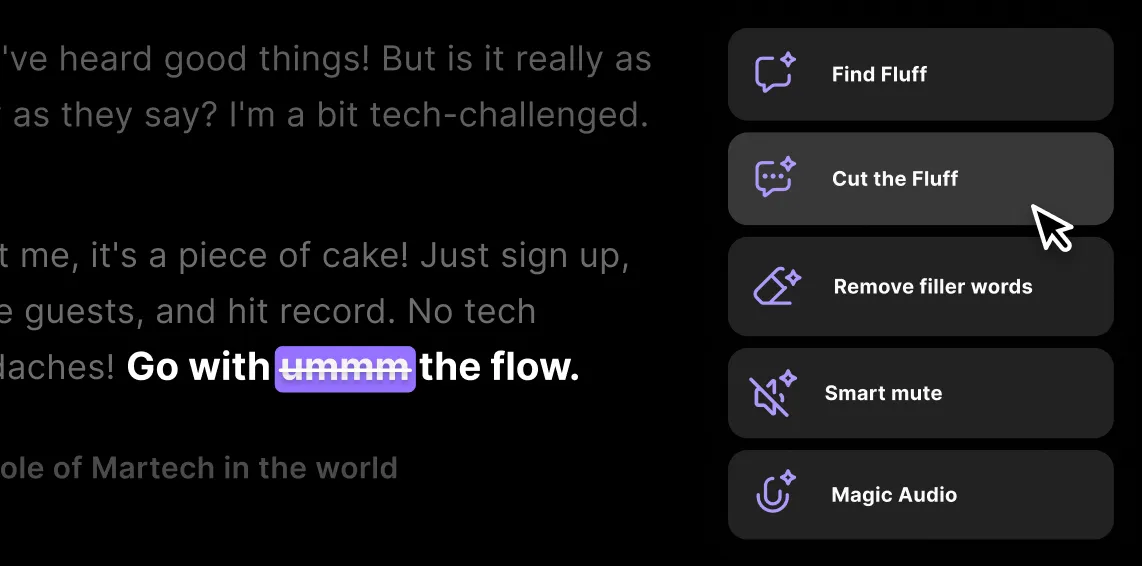
Trim or clip audio with text-based editing. Just delete the text from the AI-generated transcript and watch the matching section vanish from your audio. As easy as hitting backspace.

Prefer timelines? You’ll love this one.
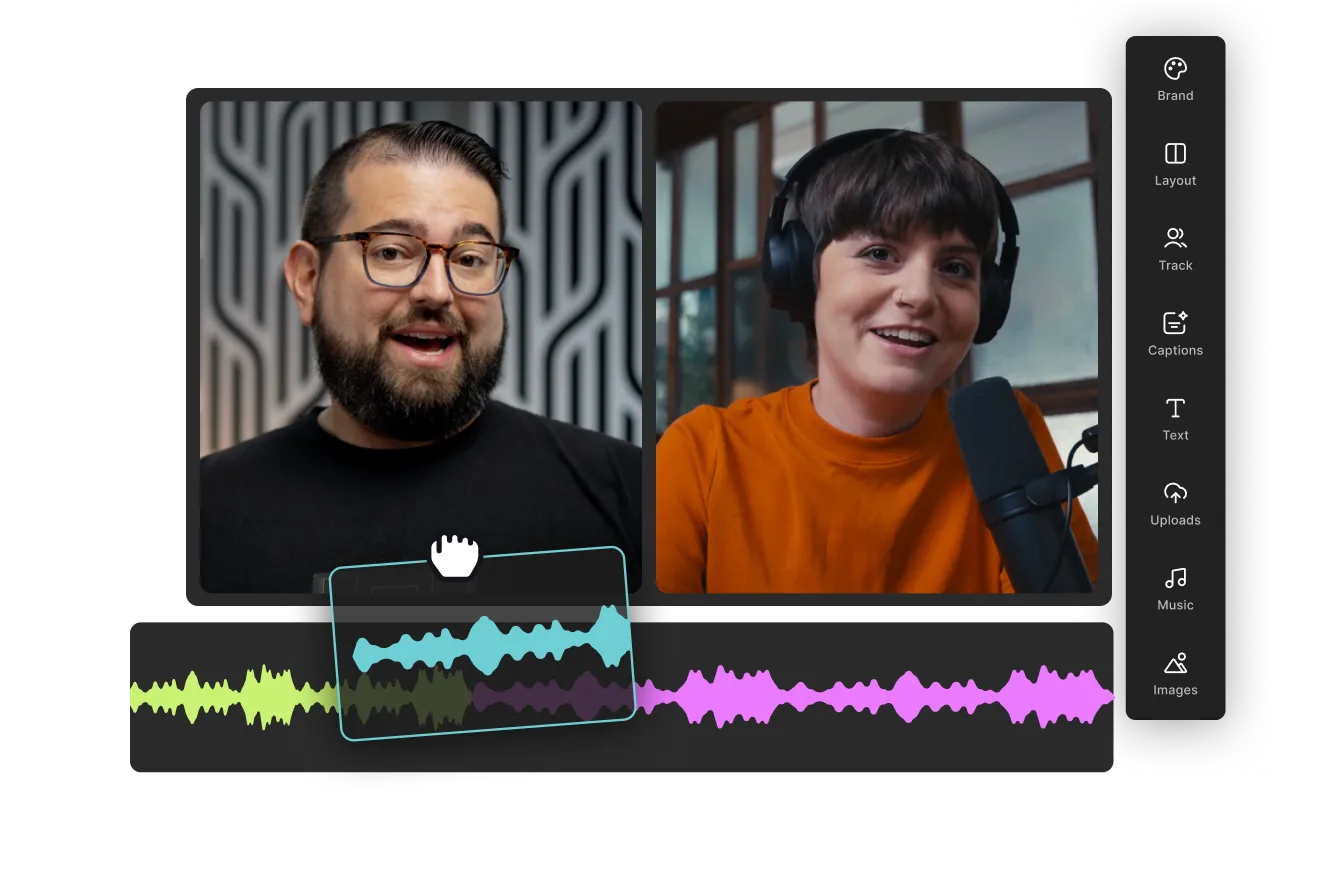
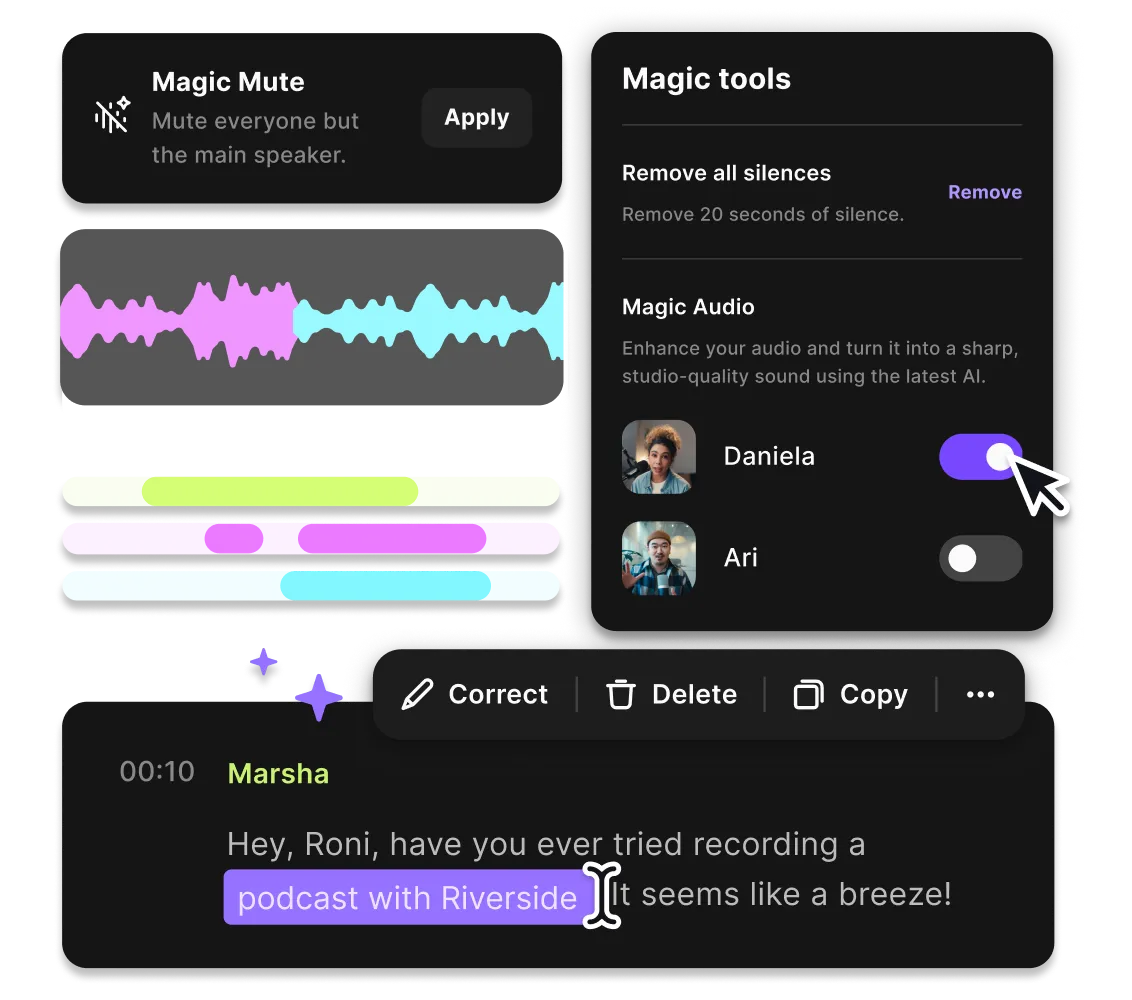
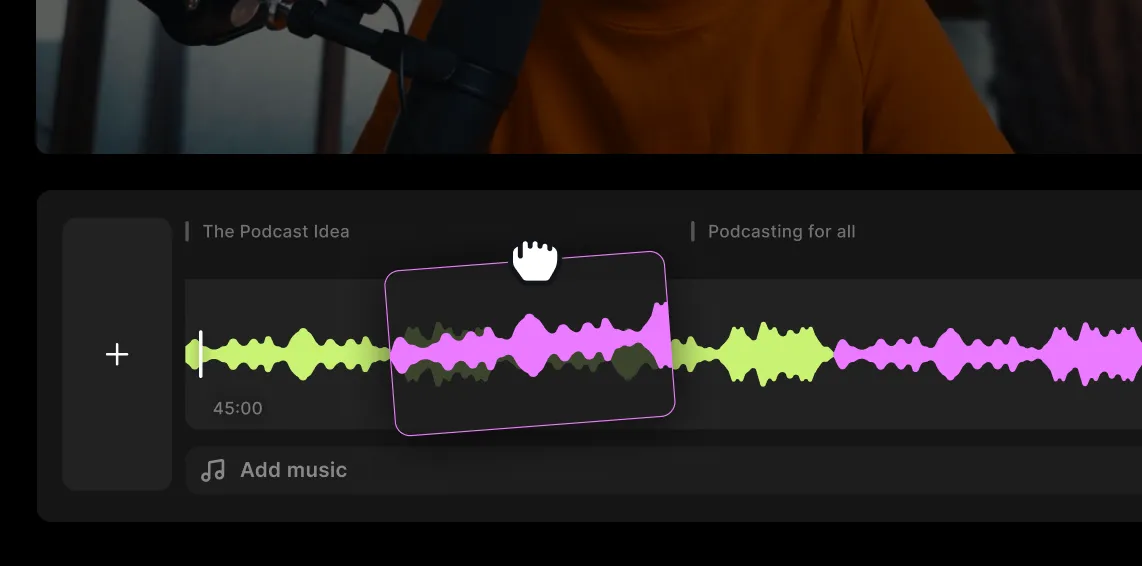
Use Riverside’s intuitive editing timeline to split, splice, and polish your audio fast—no guesswork, no clutter. Everything is color-coded by speaker for easy navigation.

Cuts WAV and MP3 files.
Need uncompressed WAV for professional use? Done. Want compact MP3s for sharing? Also done. Cut MP3 or WAV files in the same audio trimmer.

Work with separate audio tracks.
Got a recording with two or more people talking? Cut any cross talk or edit only one voice track without affecting others. Each speaker gets their own separate audio track. Meaning you can cut your audio to perfection.

Studio-quality sound, anywhere.
Bad room acoustics? Weird background noise? Magic Audio, our AI audio enhancer, equalizes sound, reduces background noise, and makes your recording sound studio-quality every time.

Cut the fluff in a click.
No more “um,” “uh,” or painfully long pauses. Use our AI filler word removal to cut the fluff, and get rid of dead-air silences with our pacing feature.

Audio cutter for Windows and iOS.
Cut your audio with Riverside on any device. From Windows to Mac and from iPhone to Android, Riverside allows you to cut audio no matter your gear.

All-in-one audio software.
Record, edit, and repurpose from one place. Riverside records 48kHz audio locally. So you get studio-quality audio even if your internet connection is poor.

Free AI transcription.
Get fast, 99% accurate transcripts of your audio—perfect for repurposing into blogs, creating captions, or making your content more accessible.
Snip, clip, trim or cut audio.
Edit audio your way with a WAV and MP3 cutter that does more with less effort.
How to choose the best audio trimmer
All-in-one:
Stop switching between multiple apps. Riverside lets you record, edit, and export audio from one place, saving you time and money.
Device compatibility:
Mac, Windows, Android, or iPhone—pick a compatible audio cutter with your equipment.
Easy to use:
Editing audio shouldn’t feel intimidating. Riverside makes trimming audio straightforward, whether it's your first edit or your hundredth.

High-quality audio:
Get an audio cutter that supports high-res files. Aim for 48kHz.
File formats:
Ensure you have options when it comes to the file types you can get from your software. Aim for high-quality WAV files for professional use or convenient MP3 files ready to share anywhere online.
Editing tools:
Don’t just trim audio; improve it. Look for tools to remove background noise, smooth out awkward pauses, and give your audio a professional finish.
Use Riverside’s audio trimmer to:
Make audio podcast teasers
Let our AI audio cutter create the perfect 30-second teaser from your 2-hour interview. Hook listeners with a laugh-out-loud moment or that jaw-dropping revelation that'll make them hit subscribe.

Create social-ready audiograms
Grab attention fast by trimming your best audio bites for Instagram, TikTok, or X (Twitter). Set the pace, enhance your audio, and use our design tools to make your audio more visual for social media.

Polish audiobook narration
Cut “uhms”, “ehs”, stumbles, and awkward pauses with ease. Stitch together your cleanest takes and turn raw narration into a seamless listening experience.
Get audio from your video content
Extract and clean up audio from any video—great for repurposing webinars, interviews, or livestreams into standalone audio clips or highlights.

Pricing
From recording to publishing, all on one platform. Studio-quality results with AI that does the heavy lifting.
Pro
Create polished, high-quality content
/mo (yearly plan)
High-quality video & audio recording in separate tracks
Unlimited text-based editing
Unlimited multi-track editing
AI tools (Magic Audio, Smart Scenes for automatic multi-cam edits, eye contact, unlimited transcriptions, show notes, remove silences & filler words)
AI content repurposing tools
Publish to YouTube, Spotify, Apple, Instagram, LinkedIn & more
Business
Produce at scale with control
Full remote control over recording and post-production
Custom branding
Webinar solution
Podcast hosting for as many shows as you want
Async recording
Team collaboration
24/7 priority support
Dedicated Customer Success Manager
Enterprise-grade security

Frequently Asked Questions
The best way to cut audio is with a text-based editor like Riverside. It’s as easy as deleting the matching text in your recording transcript. You’ll get precise cuts to the word- no need to drag track edges on your editing timeline.
Riverside makes cutting audio simple:
- Upload your recording or record something new right in your studio.
- Play through your audio and mark sections to keep or delete. Or just remove words from the transcript to cut that section. You can also use the AI clipper to cut audio highlights in a click.
- Smooth out volume levels, kill background noise, and download your polished audio.
Learn audio editing basics in our comprehensive guide: How to Edit Audio.
Luckily, there are plenty of free online cutters for MP3 audio. But not all are equal. Many of them are basic and only let you trim your audio the old-fashioned way.
Meaning you can only edit on a timeline. Or you only get one audio track for all your speakers, which doesn't give you any editing flexibility.
We’ve got a full guide on the best MP3 trimmers. But if you’re looking for high-quality audio or for easy editing (as easy as deleting text), you should try Riverside.
You can even set up a free account and get access to tons of free tools and features instantly.
Yes—but it depends on the format and the tool. Many online cutters compress your audio, especially when exporting to MP3, which can reduce sound quality.
Riverside lets you cut without compromising quality. Export in WAV for uncompressed, studio-quality audio, or choose MP3 for smaller files—without unnecessary compression during editing.
Cut MP3 and WAV audio in minutes with Riverside.
Other Riverside tools
.webp)


%20(1).webp)
Discover free and paid tools on Riverside.
More from Riverside

%20(1).webp)

Features