Key takeaways:
- Audacity is the best free all-rounder, with multitrack editing, and unrestricted exports on Windows, Mac, and Linux.
- Adobe Audition and Pro Tools win for professional editing and repair, with tools for complex mixing. .
- Riverside is best for podcasts and video interviews, combining separate local recordings with, text-based AI editing and audio cleanup.
- The best mobile audio editors are Ferrite for multitrack podcast editing on iPhone and iPad and AudioLab for Android.
After 15 years of producing multiple podcasts every week, I know you don't want to spend hours just to fix your audio. You need a reliable tool that does the heavy lifting for you.
To find the best audio editing software and apps, I tested many desktop and mobile tools on interview recordings and noisy voice memos.
Read on to discover the standout features of the top apps I’ve picked, and which limitations might send you looking elsewhere.
How I tested my list of top audio editing software
To evaluate each editor, I tested desktop and mobile tools across macOS, Windows, iOS, and Android. Most tools were tested hands-on. If an entry relies on verified vendor documentation instead, I noted it directly in that tool's breakdown.
I used the same two recordings on both desktop and mobile: a 10-minute interview with two speakers on separate tracks, and a 45-second voice memo recorded in a noisy room.
I completed 4 tasks in each tool, I:
- cut 3 segments.
- removed background noise.
- levelled loudness to standard podcast specs (-16 LUFS stereo and -19 LUFS mono).
- Exported each file to MP3 and WAV.
For every hands-on test, I logged free-tier restrictions, completion time, output quality, and anything that broke or confused me.
9 Best audio editing apps for all devices
Whether you’re working on your PC, Mac, smartphone, or tablet, here are the 9 best audio editing apps I’ve tested and tried for you.
Audacity: Best free audio editing software
Price: Free, open source.
Compatibility: Windows, macOS, Linux.
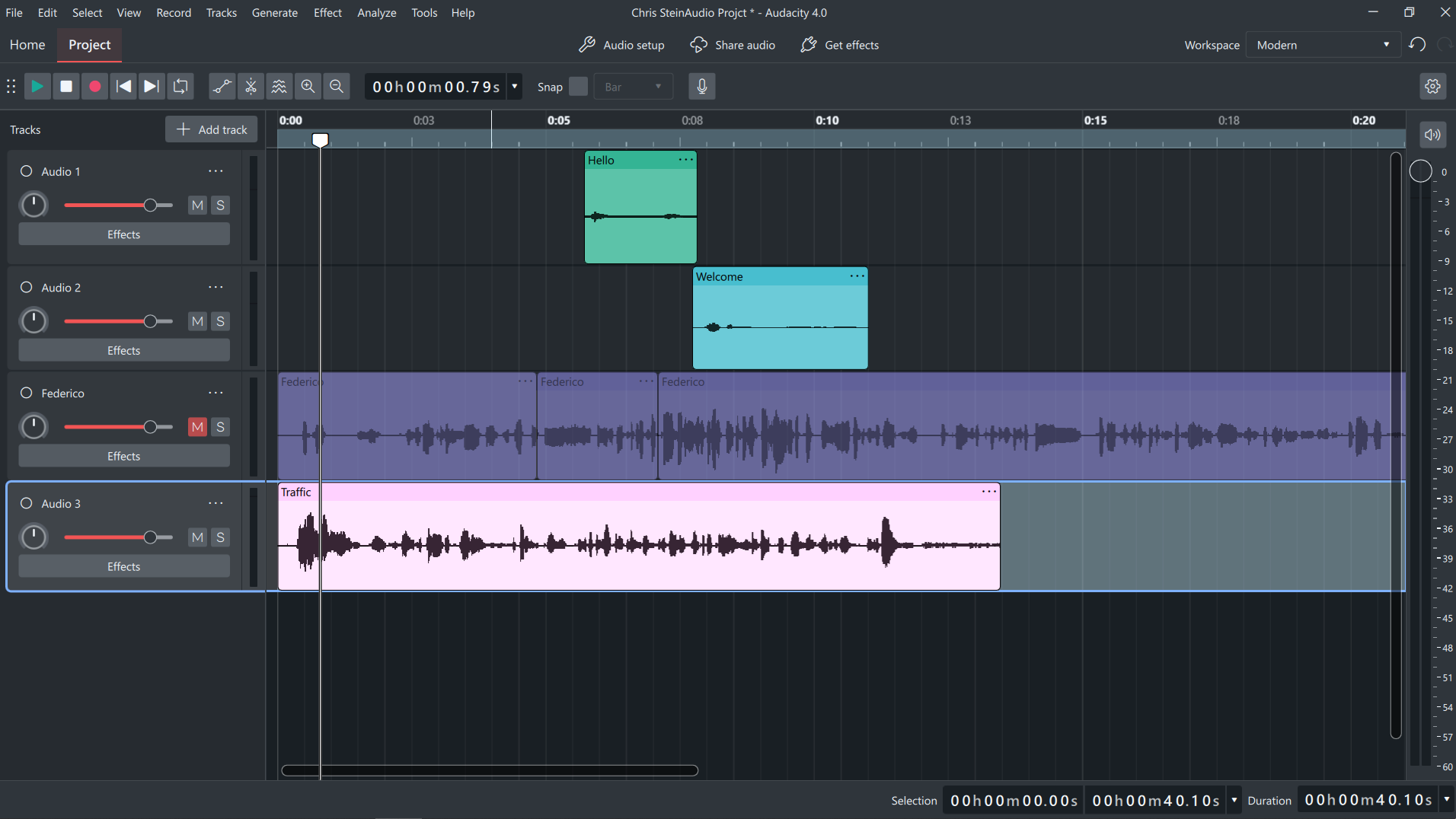
Audacity is the best completely free, multitrack digital audio workstation (DAW) across all desktop platforms. The software supports VST3 plugins, high-resolution audio up to 32-bit/384kHz, and unrestricted WAV and MP3 exports.
I found it surprisingly easy to use once I got past the overwhelming menus. Setting loudness was particularly straightforward: I opened the Loudness Normalization effect and typed in my LUFS target. Noise reduction disappointed me, though. I still heard traffic honks in my noisy audio, and there is no visual interface to help you fix it manually.
Is Audacity still good? My experience says yes. Version 4.0 modernizes its dated interface with rearrangeable panels and grouped clip editing. But the learning curve remains steep if you do not know how to tweak audio manually. I’d choose it for control on a budget, but forget about automatic fixes: cleaning difficult recordings takes time and expertise.
Who is it for: Budget-conscious podcasters and creators who want a free desktop editor and are willing to learn its controls.
Limitations: Built-in Noise Reduction targets steady sounds such as hiss or hum, rather than isolated interruptions like honks. The menu-heavy design can overwhelm first-time users.
Key features
- Fully free with no track limits or export paywalls.
- Intuitive multitrack recording and editing on a shared timeline.
- Built-in effects for precise LUFS targeting.
- Support for third-party VST3, LV2, and AU plugins.
Adobe Audition: Best professional audio editing software
Price: From $22.99/month with an annual commitment. 7-day free trial available.
Compatibility: Windows and macOS.
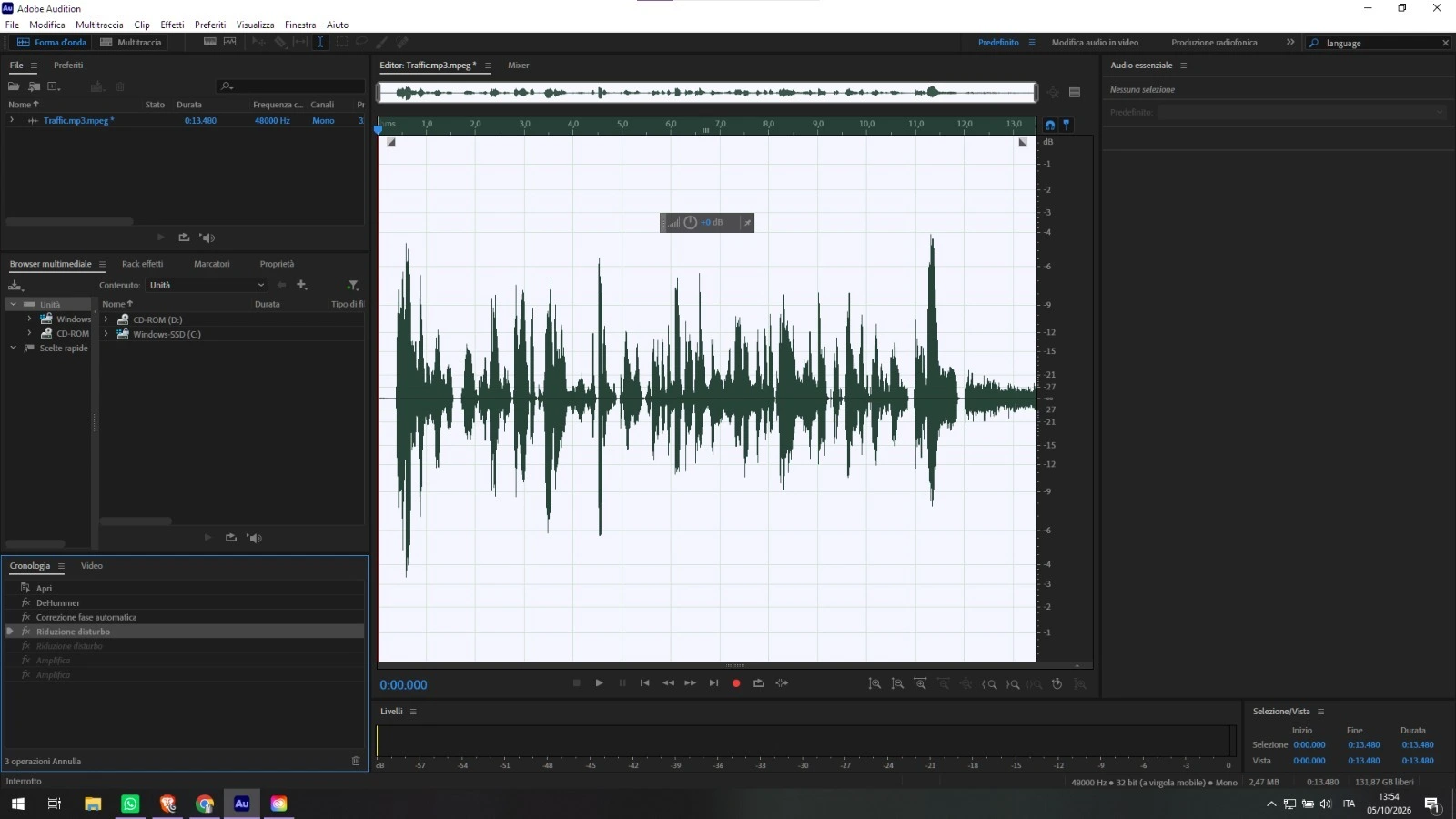
Adobe Audition is the strongest editor on this list for detailed repair work, boasting impressive depth. If a recording is ruined by hums or clicks that regular EQ cannot fix, the spectral display lets you target unwanted sounds visually by frequency and time. A diagnostics panel also scans your audio and lists every pop, clip, and section of silence.
Getting started was frustrating, though. I couldn’t get automatic denoising to clean my recording effectively, whether because of the filter or my settings. The manual alternative is a complicated process that other apps do in seconds. You need to highlight a two-second noise section, capture that sample, and apply noise reduction using it as a reference. Even small changes take effort. To switch Audition’s interface language, I had to change the default install language in the Creative Cloud desktop app, then uninstall and reinstall Audition.
While Audition feels overwhelmingly complex initially, I’d invest the learning time when a recording needs precise repairs that simpler editors can’t handle. Once the controls become familiar, reusable effects chains and customizable presets help speed up repeat work.
Who is it for: Audio engineers and professional producers who need precise repair tools and do not mind paying an ongoing premium subscription.
Limitations: The multitrack editor is powerful if you import separate tracks, but if you upload a single mixed stereo file, it lacks automatic speaker detection.
Key features
- Spectral selections and a Spot Healing Brush for targeted frequency-level repairs.
- Diagnostics panel for automatic click, pop, and clip detection.
- Automatic DeNoise and manual noise reduction using noise print sampling.
- Multitrack mixing with per-track effects, EQ, and volume automation.
Ocenaudio: Best audio editing software for beginners
Price: Free.
Compatibility: Windows, macOS, and Linux.
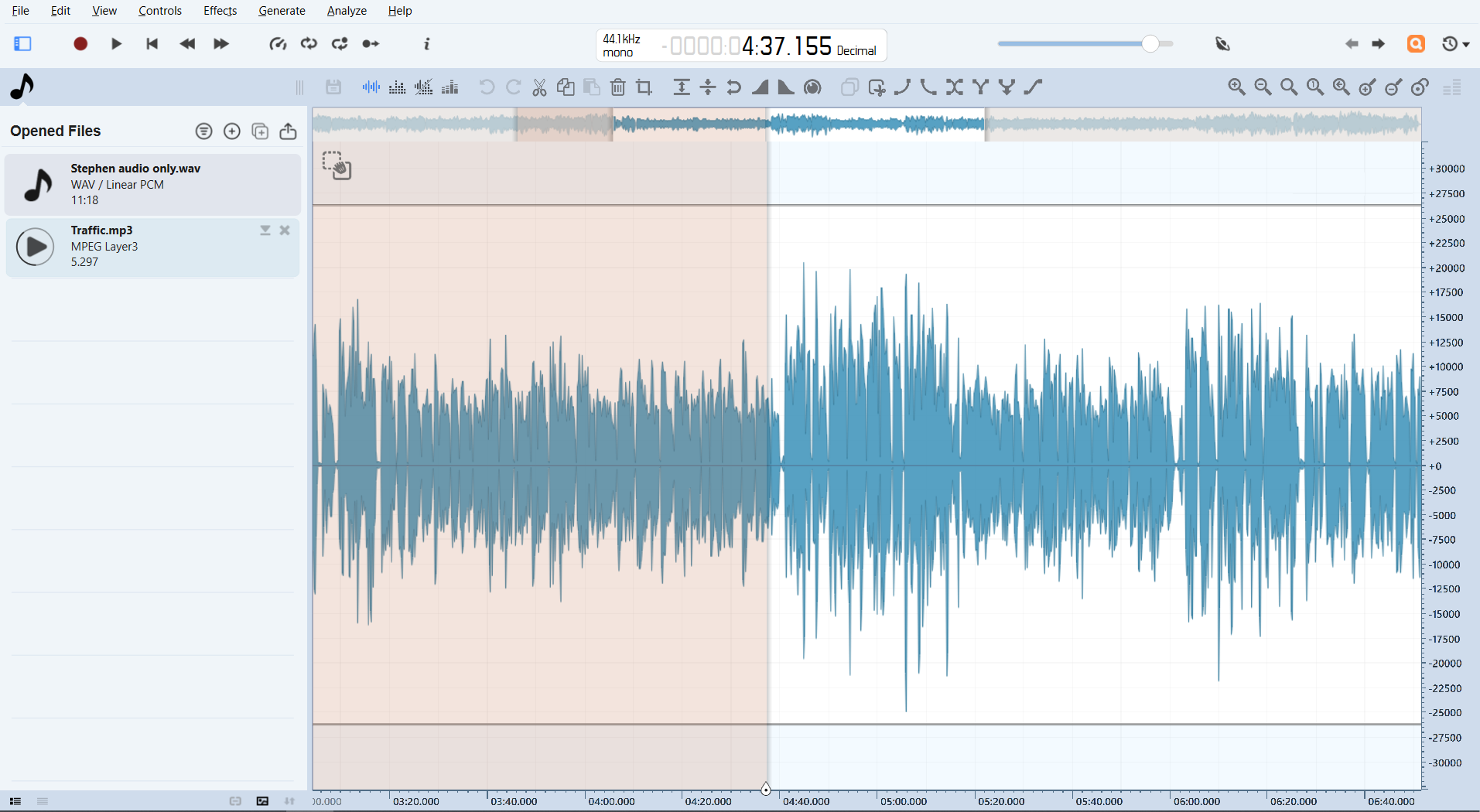
Ocenaudio is my beginner pick because it pairs a remarkably simple interface with real-time effect previews, completely free of charge.
It took me seconds to install the app and start applying basic effects. The real-time preview lets you hear exactly what a change does before you commit to it, taking the guesswork out of editing. And multi-selection lets you apply an effect to several passages at once.
But in my test, removing noise from a heavily polluted track was impossible. Automatic noise reduction left the car honks audible, and I couldn’t remove them with the manual controls because they lack that depth. I’d reserve its cleanup tools for white noise, such as hum or hiss.
For trimming voice recordings and making basic sound adjustments, I found Ocenaudio’s simplicity refreshing. I’d choose it for quick edits, but switch tools for difficult repairs or assembling separate speakers.
Who is it for: Beginners who need a lightweight, fast tool to clean up a single voice track without learning a complex DAW timeline.
Limitations: It falls short by being strictly a single-track editor, meaning you can open multiple files, but that isn’t the same as mixing separate tracks on one timeline.
Key features:
- Real-time effect previews to hear adjustments instantly.
- Multi-selection editing across different passages.
- Spectrogram view for inspecting audio frequencies.
- VST plugin support for additional effects.
- Background processing while you work on other files.
Riverside: Best audio editing software for podcasts
Price: Pro from $35/month. 14-day free trial available.
Compatibility: Browser on Windows and macOS; Mac, iOS, and Android apps.
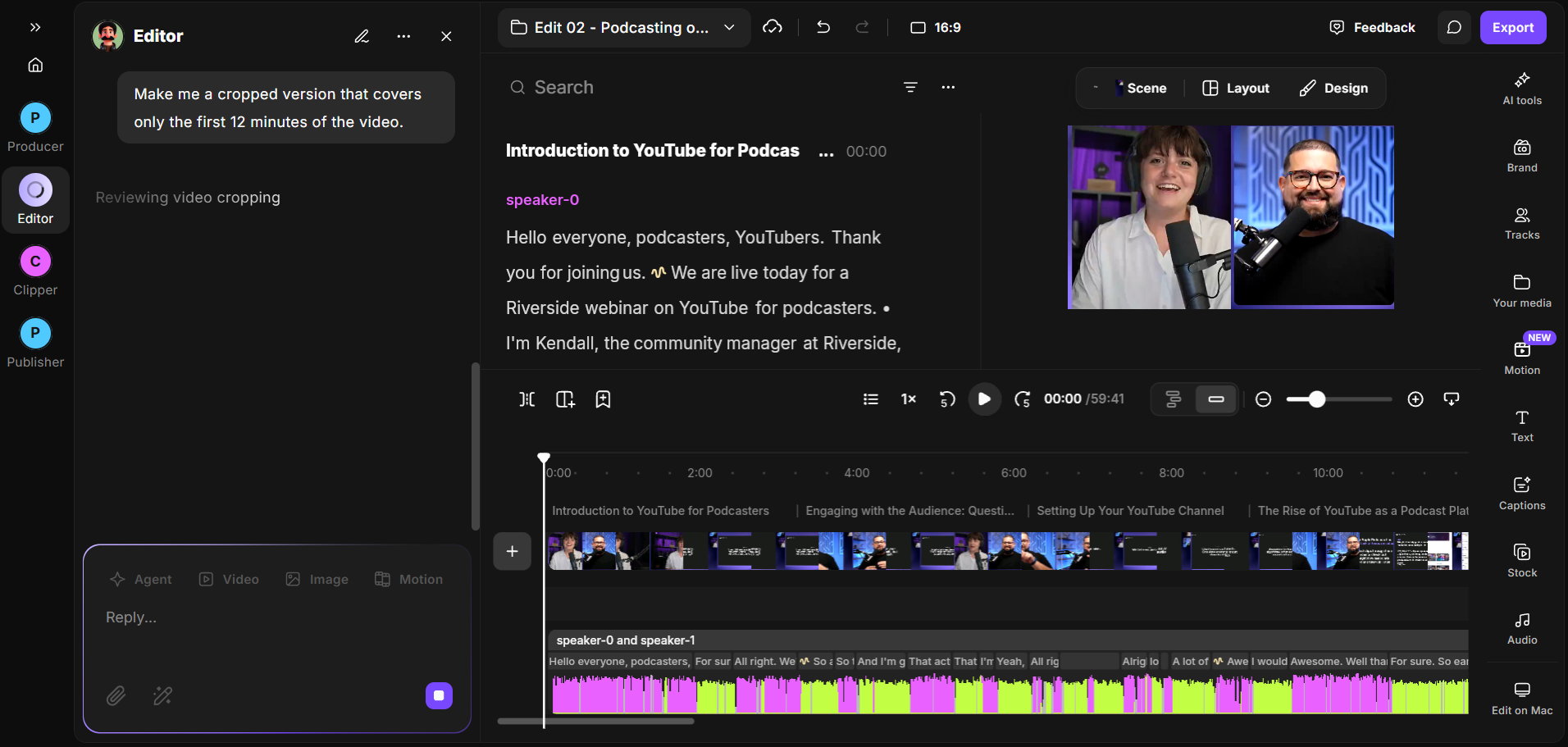
Riverside is my pick for an all-in-one audio editor for podcasters. It combines 48kHz local audio recording with AI-powered editing.
Each participant is recorded locally on a separate track, preserving audio quality even when their internet connection is unstable. You capture uncompressed audio that stays perfectly synced in the editor, no matter how much you tweak it.
Editing with Riverside felt frictionless and took just 15 minutes. You edit simply by deleting words in the transcript, and can remove pauses and filler words with a click.
The AI audio enhancement cleaned the audio in one pass, but I liked how you can still control EQ manually to smooth out voices recorded on lower-quality mics. Background noise removal was impressive too, and the noisy track truly sounded like it was recorded in a soundtreated studio.
If you mostly record human voices, Riverside is a great choice since you can record in 48kHz and edit the conversation in the same place. But, it lacks the detailed waveform and spectral repair tools of dedicated audio editors.
Who is it for: Podcasters and video creators who want a streamlined workflow for recording high-quality remote interviews and editing them quickly.
Limitations: Browser access means there’s nothing to install, but performance still depends on your computer. Older machines may feel sluggish, particularly when editing video alongside audio; cloud processing can also add waiting time.
Key features:
- Crystal-clear resolution, up to 48kHz audio and 4K video.
- Separate tracks that stay synced no matter how much you tweak them.
- Text-based editing using highly accurate AI transcripts.
- Manual parametric EQ with frequency, gain, and bandwidth controls.
- AI audio enhancement for instant background noise removal and leveling.
- Automatic translation and redubbing in 30 languages.
Auphonic: Best AI audio editing software
Price: Free for 2 hours/month, with an Auphonic jingle. Paid plans start at $13/month.
Compatibility: Browser-based.
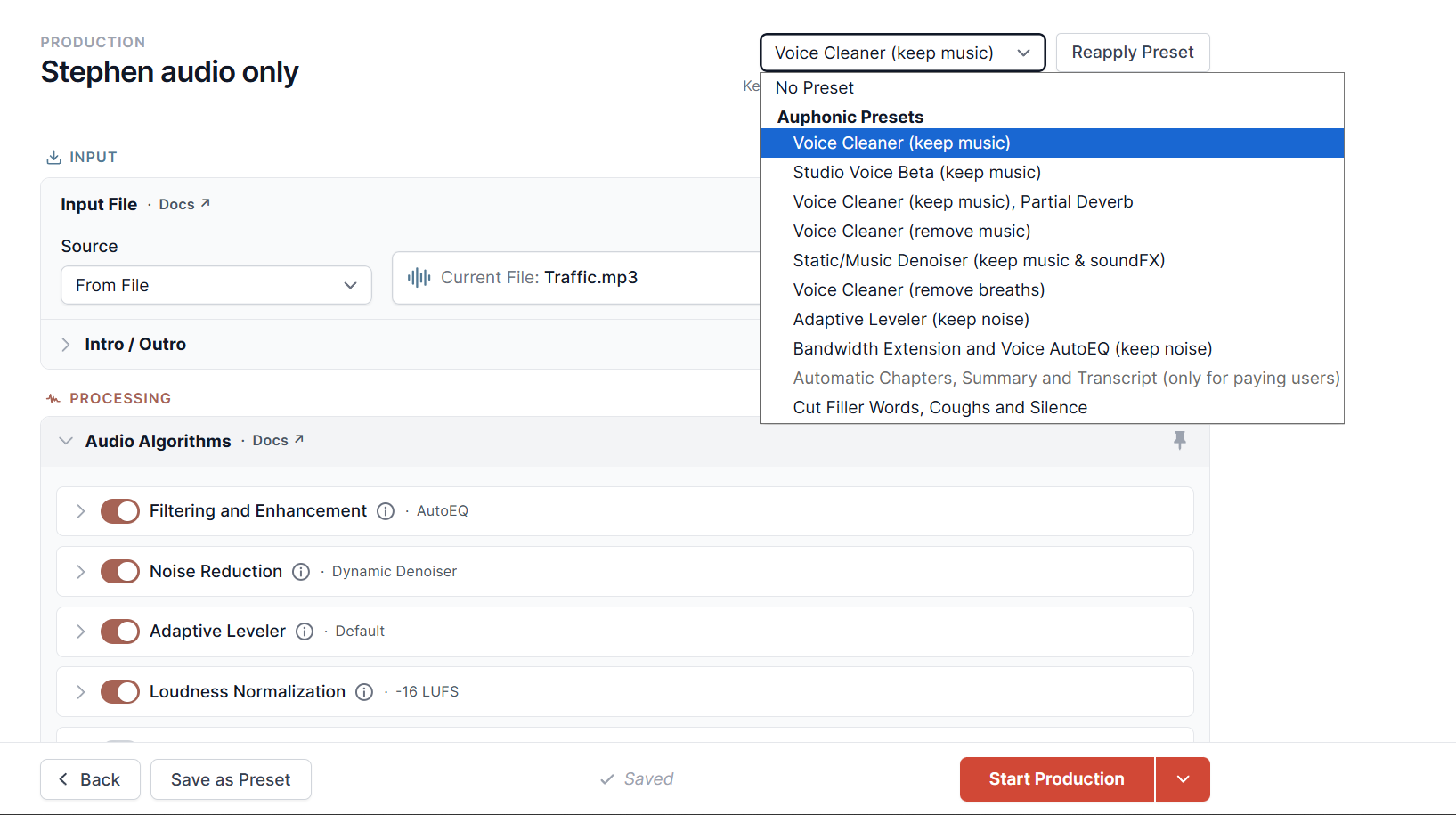
Auphonic earns my AI pick by handling voice leveling and noise reduction with absolutely no manual work.
My test genuinely surprised me.
You do no work and install nothing. I simply opened the website, uploaded my noisy file, and selected options:
- like clear voice
- remove coughs,
- and export as WAV from a drop-down menu.
After a few seconds, the tool did everything for me. The denoiser was perfect, and the cleanup left zero digital artifacts. Its Adaptive Leveler balances voices, while loudness normalization brings the output to your chosen target.
Although I relied on automatic processing, you can still revise cuts and adjust noise reduction and volume settings, but don’t expect much. This is mostly an all-or-nothing workflow offering zero effort but very little control. I’d choose it for clean, consistent speech without learning audio engineering.
Who is it for: Creators who want studio-quality sound instantly but have no interest in learning how to use audio plugins or EQs.
Limitations: Auphonic does not cut, trim, or paste audio. It falls short as a traditional editor because it completely lacks a timeline to rearrange segments or delete mistakes.
Key features:
- Adaptive leveling to balance speakers and music.
- Browser-based processing is fast and lightweight and requires no software installation.
- Noise, reverb, and breath reduction.
- Automated filters for removing coughs, silences, and background hums.
- Detailed processing reports show exactly what the algorithms adjusted.
GarageBand: Best free native Mac app
Price: Free
Compatibility: macOS, iOS, iPadOS.

GarageBand is one of the best audio editing apps for Mac, combining simplicity with powerful tools. It delivers reliable multitrack recording and visual volume automation right out of the box at zero cost.
I particularly like the Delete and Move command, which removes a selected clip and closes the gap by shifting later clips on that track. It saves manually dragging everything into place. Also, pressing "A" on your keyboard opens precise volume automation, making it incredibly simple to fade intro music smoothly under your voice.
One of GarageBand’s standout features is its library of pre-recorded loops and instruments. You can compose music without needing any physical instruments. Paired with its intuitive multi-track editing capabilities and built-in audio effects, it’s a versatile tool for recording, mixing, and mastering audio projects.
Just keep in mind that the interface assumes you’re making music. Before you can comfortably edit spoken-word audio, you might need some initial setup to toggle off the default metronomes, count-ins, and musical tempo grids.
Who is it for: Mac beginners editing interviews, voiceovers, or simple music projects on a free, dependable multitrack editor.
Limitations: Its noise gate reduces noise during quiet passages, but since it’s built for music, it doesn’t isolate speech from background noise throughout a recording.
Key features:
- Pre-recorded loops and virtual instruments.
- Multitrack recording with support for multiple audio interface inputs.
- Built-in audio effects like EQ and reverb.
- Pitch correction and sound optimization capabilities.
- Visual volume automation for precise music fading and level changes.
- Clip trimming, splitting, and Delete and Move.
Pro Tools: Best for music production and mixing
Price: Free (Intro tier); Artist starts from $9.99/month.
Compatibility: Windows and macOS.
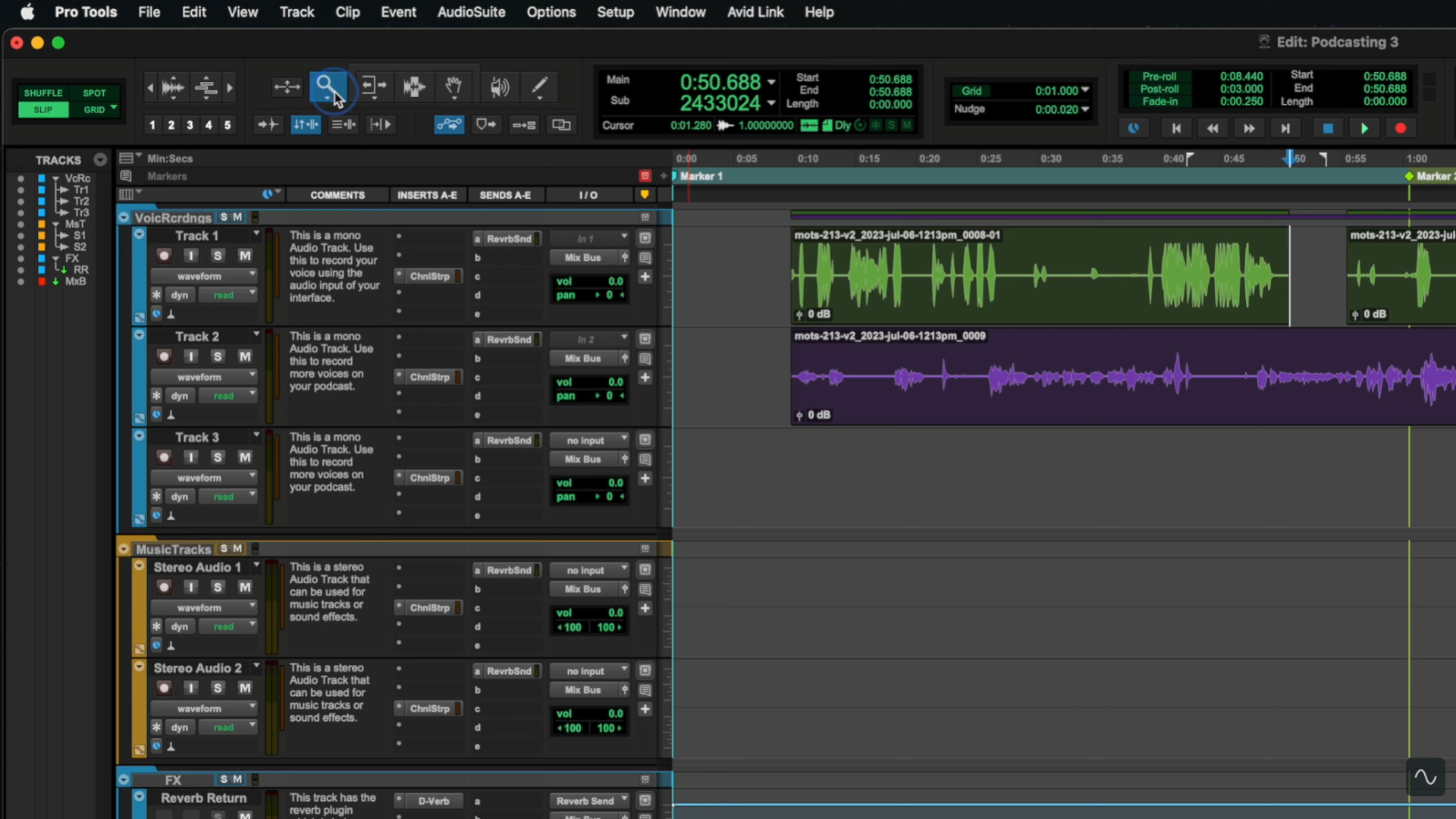
Pro Tools is undeniably the strongest DAW for professionals in this list, offering deeply detailed recording, editing, and mixing controls. You can even try it out with a free Intro tier to get you started.
For my podcast edit, I was pleasantly surprised by the built-in podcasting template, which instantly generated dedicated voice and music tracks. Importing uncompressed WAV files from Riverside was seamless. But navigating the interface with the mouse is incredibly cumbersome until I memorized the keyboard shortcuts to switch between zoom, selector, and grabber tools.
I liked being able to adjust each speaker’s EQ and compression independently, then draw volume changes precisely where I wanted the intro music to fade. Most EQ presets leaned toward instruments or singing, so I preferred manual adjustments for speech. You get advanced channel strip effects, frequency control, and keyframe volume fading that make Pro Tools worth learning if you also produce music.
Who is it for: Advanced audio producers who want a studio-grade mixing environment and are willing to master an extremely complex interface.
Limitations: Intro allows only eight audio tracks and four simultaneous recording inputs with no video tracks. Overall, the learning curve is massive.
Key features:
- Built-in podcasting templates for quick session setup.
- MIDI editing and virtual instruments for music production.
- Granular channel strip effects for precise EQ and compression.
- Advanced keyframe volume fading for background music.
- Elastic Audio for adjusting recorded timing.
AudioLab: Best audio editing apps for Android
Price: Free with ads and in-app purchases.
Compatibility: Android.
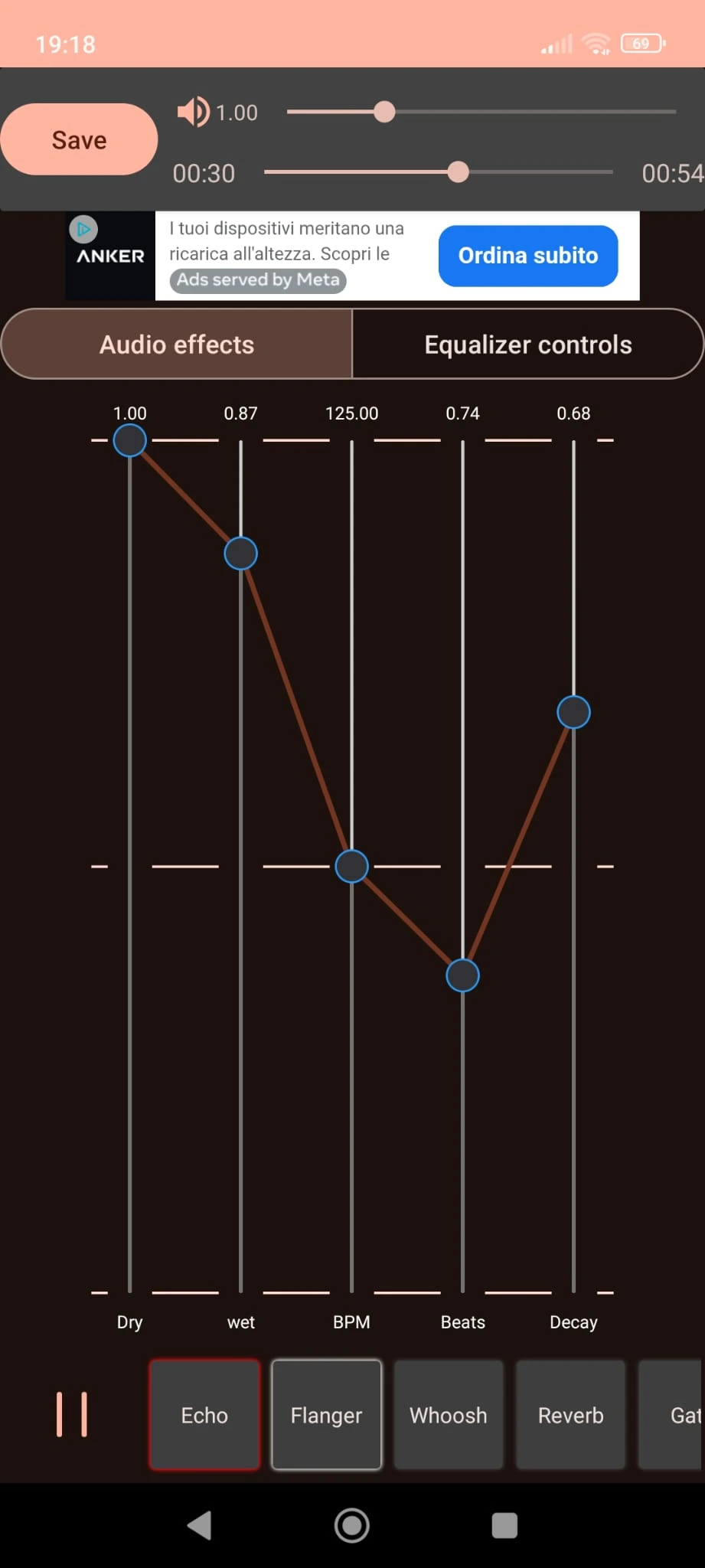
AudioLab wins the free Android category by delivering surprisingly extensive controls for a mobile editor.
The interface is accessible and easy to navigate. Beyond basic cut and trimming tools, it features normalization, EQ, automatic silence removal, filters, and effects, with both AI processing and manual controls. I didn’t expect this much flexibility on a phone. Still, the AI noise reduction failed to filter out heavy traffic sounds from my test file, and doing it manually was a bit beyond the capabilities of a mobile editor.
The bigger problem was the advertising. Full-screen ads repeatedly interrupted my workflow with blaring audio and 60-second waits before I could skip them. Getting back to the editor was confusing, and on one occasion the app crashed when I returned, losing my work.
Overall, AudioLab is a highly capable mobile toolkit, but be ready to pay for it with your patience.
Who is it for: Android users needing a feature-rich, free mobile editor for quick cuts, provided they are willing to endure relentless advertising.
Limitations: The tools suit quick edits, but the interruptions made even a simple session frustrating. I wouldn’t trust the free version with a lengthy editing job.
Key features:
- Audio cutting, trimming, splitting, and merging.
- Built-in automatic silence remover and volume normalization.
- EQ, filters, and audio effects.
- AI noise removal and manual adjustments.
- Audio conversion between formats including MP3, WAV, AAC, and FLAC.
Ferrite Recording Studio: Best for iPhone and iPad editing
Price: Free; Pro version is a $30 one-time purchase.
Compatibility: iOS, iPadOS
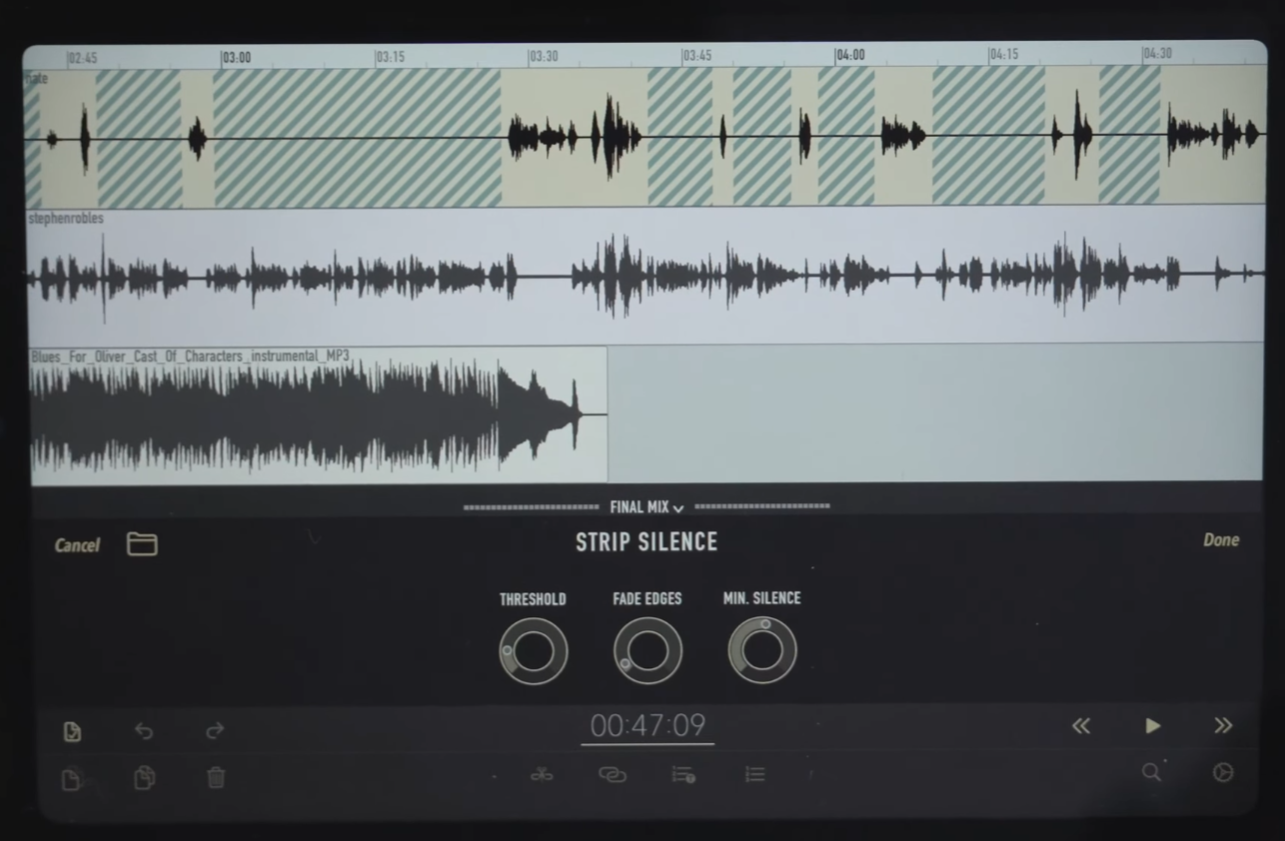
Ferrite Recording Studio is my favorite iOS and iPad app for multitrack podcast editing thanks to its flawless touch and Apple Pencil support.
I’ve edited multiple podcasts a week on my iPad, and Ferrite’s gestures are why I keep coming back. I pan and zoom with my fingers, then cut and move clips with the Pencil. It is so intuitive that I can now edit a multi-track episode faster than on desktop. If you want to leave the laptop behind and edit on the sofa, this is the only way to do it.
Selecting later clips across tracks lets me shift a whole conversation without throwing the speakers out of sync. For cleanup, I prefer Strip Silence to a noise gate, which can cut off speech I want to keep. Regular Auto Leveling balances the audio nicely since I find the Strong setting too aggressive. Saving each host’s EQ and compression in a template also saves setup time between episodes.
Just keep in mind that free recordings stop at one hour, and essential podcast features like MP3 export and chapter markers require the $30 Pro upgrade.
Who is it for: iPad users and on-the-go podcasters who want to edit multitrack shows quickly using touch gestures or an Apple Pencil.
Limitations: Learning the gestures takes practice, and you’ll need Pro for effects, templates, and more export options.
Key features:
- Apple Pencil and custom gesture support for fast edits.
- Automated strip silence tool to remove gaps without manual cutting.
- Built-in auto-leveling to hit loudness standards.
- Reusable project templates and MP3 chapters.
- Up to 32 editing tracks with Pro.
FAQs on best audio editing apps
What is Multitrack editing?
Multitrack editing is editing multiple audio tracks independently on one shared timeline, such as several speakers in an interview and a music track. This lets you adjust one speaker’s volume, remove a cough from one track, or apply effects to background music without changing other audio tracks.
Is WAV or MP3 better for editing?
WAV is better than MP3 for editing because it is an uncompressed, lossless audio format. MP3 compresses audio data, which permanently removes detail and reduces quality every time you export the file. WAV preserves the original recording quality through multiple rounds of editing and saving. As a rule of thumb, keep a WAV master and export an MP3 when you need a smaller file for sharing.
Does Audacity record high-quality audio?
Yes, Audacity records high-quality audio using lossless audio data and supports resolutions up to 32-bit/384kHz. This exceeds standard professional recording requirements for podcasting and video production. Your final recording quality relies entirely on your microphone and audio interface rather than the software itself.
What is the best audio type for editing?
The best audio type for editing is a lossless audio format, such as an uncompressed WAV or AIFF WAV file. FLAC also preserves audio quality while using less storage, but not every editor supports it. Editing uncompressed formats ensures your audio remains clean and detailed when applying EQ, noise reduction, or multiple exports.
Can I edit audio on my iPhone?
Yes, you can edit audio on your iPhone using dedicated mobile apps like Ferrite Recording Studio or GarageBand. These apps provide full multitrack editing capabilities, touch-based track cutting, and volume automation directly on your iOS device.