Audio Extractor
Extract audio from video in seconds. Convert MP4 to MP3 and separate audio from any video file. No downloads, just clean export-ready audio.


How to extract audio from video for free with Riverside
Step 1
Upload your video file
Click “Upload video” to upload your video. We support MP4, MOV, AVI, MKV, and WEBM files (max. 100 MB).
Step 2
Choose your audio format
Select your preferred audio file type from the dropdown menu. Choose from WAV, MP3, MP4A, FLAC, AIFF, and WMA formats.
Step 3
Extract audio from video
Click “Extract Audio” to separate your video and audio.
Step 4
Download your audio-only file
Export your audio-only file in clean, crisp resolution.

Why Riverside:
The online audio extractor tuned to your content workflow

Extract audio from video in minutes
Upload any MP4, MOV, AVI, MKV, or WEBM video file to extract audio with one click. No heavy software, no complicated setups.

Uncompressed audio for high quality
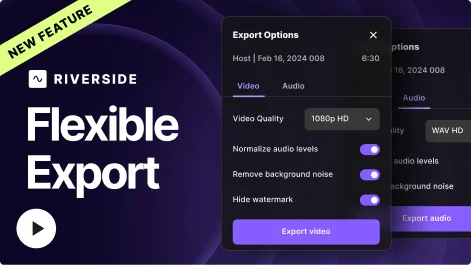
Extract audio without losing quality. Download uncompressed WAV, FLAC, WMA, or AIFF audio files for maximum editing flexibility.

Or, lossy files for smoother streams
Prefer lightweight files? Export MP3 or M4A for faster uploads and easy streaming.

Separate audio from video from the start
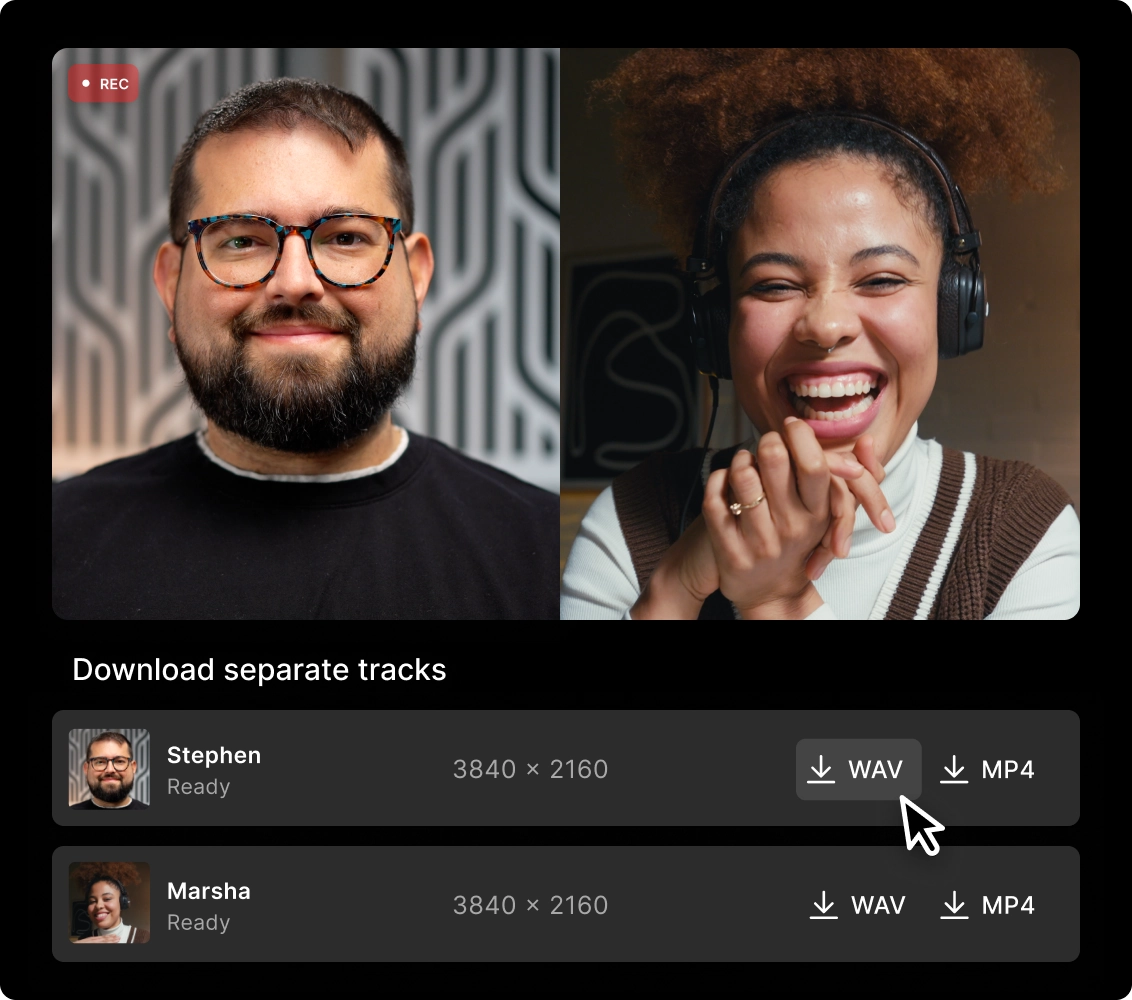
Record on Riverside and get separate audio and video files for every participant. No extracting needed. Say goodbye to crosstalk and gain more control over your audio editing.

Built-in audio editing
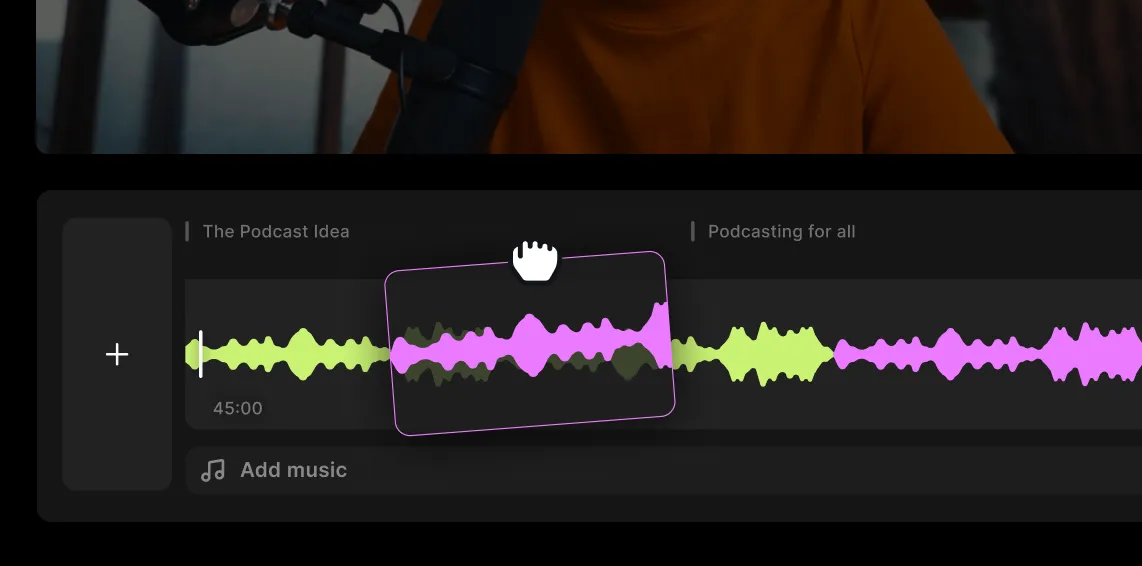
Edit your audio in Riverside to remove noise, silences, and filler words in one click. Improve clarity instantly with the audio enhancer or make quick tweaks with text-based editing.

Repurpose your audio extracts instantly
Turn your extracted audio into audiograms, clips, or social posts without switching tools. Just prompt Co-Creator, your AI editing partner, to create what you need.
An online audio extractor built for creators like you.
Skip the extra tools or converters. With Riverside, get separate tracks, high-quality, and uncompressed audio all in one place.
How to choose the best video audio extractor
Ease of use
Look for an easy tool that works in your browser with no downloads or setup. Upload, extract, done.
High-quality audio
Choose an audio extractor that keeps your audio crisp and clear. Avoid weird compression or quality loss.
Compatibility
Make sure your audio extraction tool supports the video formats you use most, like MP4, MOV, MKV, or WEBM.
.webp)
Audio output options
The best tools let you export in multiple formats, like MP3, WAV, or FLAC, so you can download audio in the format you need.
Speed
Time matters. Go for a tool that processes your files in minutes, not hours.
Separate tracks
If you want more control, choose an extractor that can split audio into individual tracks.
Use a video to audio extractor to:
Turn video podcasts into audio ones
Why choose between audio and video? Record in high quality, edit in minutes with text-based editing, and extract audio from your video podcast to post on all channels seamlessly.
.webp)
Separate audio from video interviews
Capture or upload interviews and instantly get separate audio tracks for each speaker. Skip the crosstalk and edit with more control, or repurpose as quotes, clips, or a podcast.
.webp)
Repurpose your webinars in a few clicks
Don’t let your webinar end when the live session does. Extract the audio to create replays, podcast episodes, or bite-sized soundbites for social media.
.webp)
Turn presentations or into audio lessons
Record engaging sessions with screen sharing, overlays, and sound effects. Extract sound from videos and repurpose your content into audio courses in minutes.
.webp)
Pricing
From recording to publishing, all on one platform. Studio-quality results with AI that does the heavy lifting.
Pro
Create polished, high-quality content
/mo (yearly plan)
High-quality video & audio recording in separate tracks
Unlimited text-based editing
Unlimited multi-track editing
AI tools (Magic Audio, Smart Scenes for automatic multi-cam edits, eye contact, unlimited transcriptions, show notes, remove silences & filler words)
AI content repurposing tools
Publish to YouTube, Spotify, Apple, Instagram, LinkedIn & more
Business
Produce at scale with control
Full remote control over recording and post-production
Custom branding
Webinar solution
Podcast hosting for as many shows as you want
Async recording
Team collaboration
24/7 priority support
Dedicated Customer Success Manager
Enterprise-grade security

Frequently Asked Questions
Here’s how to extract audio from a video with Riverside’s audio extractor:
- Upload your video file in MP4, MOV, AVI, MKV, or WEBM format.
- Select what format you want to extract the audio in. You can choose from MP3, WAV, M4A, FLAC, AIFF, and WMA formats.
- Click “Extract audio,” and we’ll start separating audio from your video.
- Export your separate audio file.
Another option is to record separate audio and video from the start. If you’re recording on Riverside, we’ll do this automatically for you. Record separate audio and video tracks for each participant, all in high-quality. Skip the crosstalk, edit with ease, and export your recording with video or as audio only.
Learn more in our guide on recording audio and video separately.
The fastest way to get audio from video on your iPhone is to use an online audio extractor app.
If you’re using Riverside to extract audio:
- Upload the video you want to extract audio from.
- Select what format you want to extract your audio to.
- Let our video-audio extractor handle the rest and separate your recording tracks.
- Download your audio file in high quality.
You can also just record separate tracks from the start. For example, if you’re using Riverside’s mobile app, this is how to extract audio from your recordings:
- Import an existing video or record a new one directly in the app.
- Open the file in the editor and edit it as you like.
- Click the “Export” button, then at the top select “Export audio.”
- Choose your quality, MP3 or WAV HD
- Select options to “Remove background noise” or “Normalize audio levels.”
- Then “Export the audio.”
You can separate audio using an audio editor. But it depends on how you want to separate your audio.
To separate audio files by speaker on Riverside:
- Upload your audio (or video) to Riverside.
- Select how many speakers are in your recording.
- Let our AI do the rest and separate your audio files.
- Download the separate tracks.
If you’re recording on Riverside, you’ll automatically capture each speaker’s audio and video on separate files.
To separate background noise:
- Open your file in the Riverside editor.
- Edit your audio as you like.
- Click the export button, and before exporting, toggle on “Remove background noise”.
Our audio extractor tool can extract audio from your screen recording. But the quality will be only as good as the original file.
Follow these steps to extract audio from a screen recording:
- Upload your screen recording file to the audio extractor.
- Select what format you want your separated audio file in.
- Click “Extract audio,” and our tool will start separating audio from the video.
- Download your audio-only file.
More than an audio extractor. Your all-in-one content engine.
Record in high quality, edit with ease, and repurpose across platforms, all from one powerful tool.
.webp)




More from Riverside
.webp)
.webp)
.webp)

Features