

%20(1).webp)


Key takeaways:
- A virtual teleprompter is software that scrolls text on a screen to help speakers read scripts while maintaining eye contact with the camera.
- Riverside is a top pick if you want an easy teleprompter built right into a full recording and editing studio.
- Virtual Teleprompter is an inexpensive pick that works well with most setups and has a strong free plan.
- Teleprompter Pro is a great all-around pick for Macs with a generous free plan.
I’ve been podcasting and creating YouTube videos for more than 15 years. In my experience, there’s simply no replacement for teleprompters for certain types of videos.
A teleprompter displays scrolling text, helping you read a script while maintaining eye contact with viewers. It’s an excellent way to stay on track without looking like you’re reading.
In this guide, I tested 10 teleprompter apps for Mac, Windows, and mobile to help you find the best teleprompter software for your use case. Here’s a quick overview.
Types of teleprompters
Before we get to the tools, it’s worth noting that there are 2 kinds of teleprompters:
- Virtual teleprompters are software-based, displaying scrolling text on a computer or phone screen. This is ideal for home studios, offices, and content creators. That’s our focus here!
- Physical teleprompters are standalone devices with reflective glass that project scrolling text for speakers in professional settings like broadcast studios. Some of the software I review below can be used to control the script on these devices as well as on a computer and/or phone.
How I tested these tools
I tested each teleprompter with a real script to see how it performed during a live recording session. Here’s what I looked for:
- Setup and ease of use: I considered how quickly I could load a script, adjust the settings, and start recording.
- On-camera delivery and eye contact: I read from a real script to see whether I could do so easily and speak naturally while maintaining eye contact.
- Scrolling and pacing: I tested how smoothly the text scrolled, how easily I could match the speed to my delivery, and whether I could pause or restart without losing my place.
- Display customization: I compared options for adjusting the font, text size, formatting, and teleprompter window for comfortable reading.
- Ease of control: I considered how intuitive essential controls such as play, pause, speed adjustment, and restart were during an actual recording.
- Recording workflow: I assessed how easily each teleprompter fit into the overall process of scripting, recording, and working with guests or other participants.
The 10 best teleprompter software for Mac, Windows, and mobile
Below, I’ve detailed my top 10 teleprompter software candidates in alphabetical order. Each section includes pricing, compatibility, a workflow overview, what you need to know before installation, and a shortlist of key features.
BIGVU
Price: Free plan available. Paid plans start at $39 per month.
Compatibility and installation: Runs in a browser on Mac and Windows. Mobile apps are available for iOS and Android.
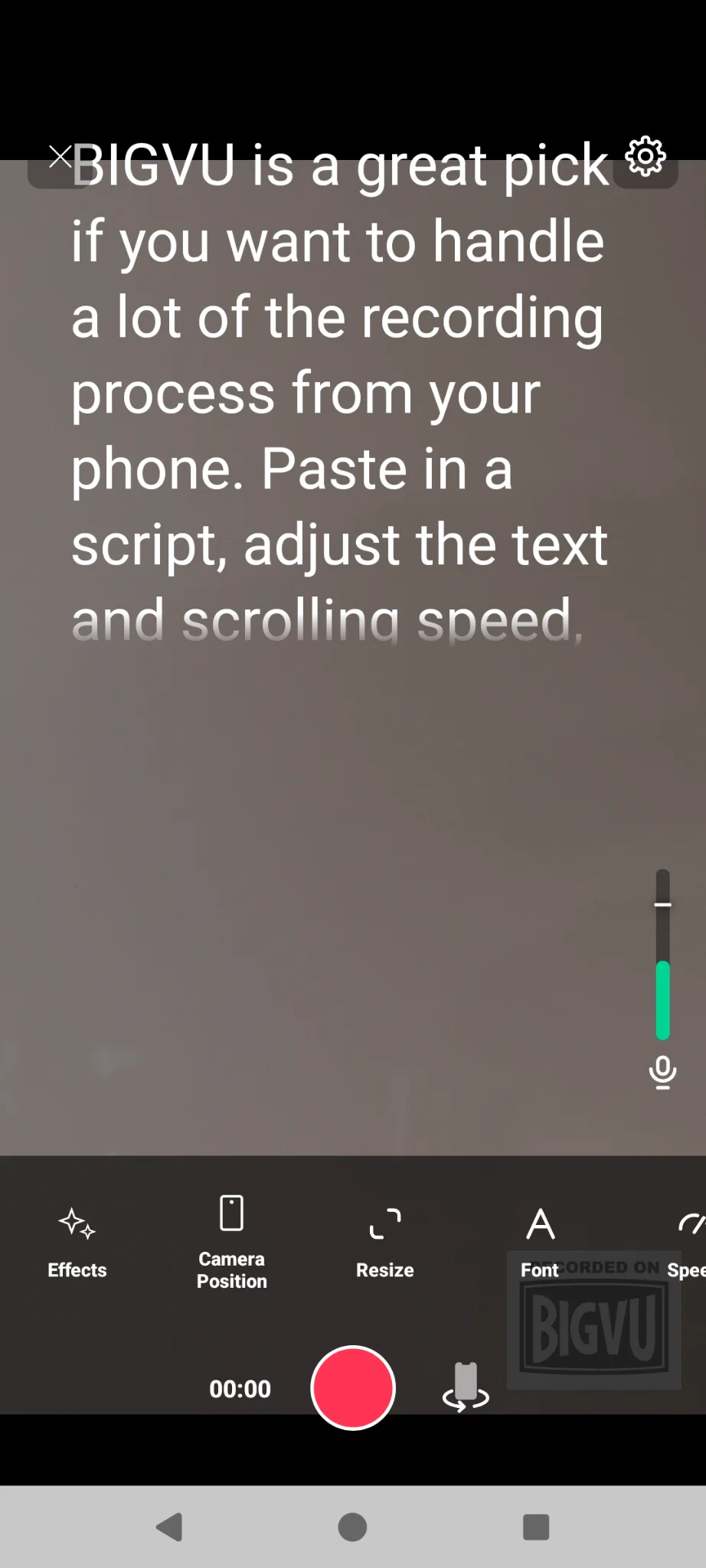
BIGVU is great if you want to handle a lot of the recording process from your phone. Paste in a script, adjust the text and scrolling speed, and record using your phone’s camera while the words move beside the lens. You can also load and edit your script on desktop and find it on mobile.
You can even quickly switch between vertical and horizontal video too, which is particularly convenient if you regularly create content for YouTube, Instagram, TikTok, or LinkedIn.
Once you finish recording, you can use BIGVU’s desktop version to add captions, insert your logo, clean up audio, replace the background, add B-roll, and prepare the video for social platforms. Higher-priced plans also include AI Eye Contact, 4K exports, dubbing, and tools for turning longer recordings into shorter clips.
BIGVU is a good all-in-one way to record video with the help of a teleprompter. But if you’re already using recording software you love, you can only use it in a separate window, not as an overlay. Plus, it only provides single-track recordings, so you won’t get the best quality for podcasts and interviews.
What to know before you install it: BIGVU is really an AI video-marketing platform. That can make it feel bloated if you’re only looking for a teleprompter since there may be more features than you need. And although the mobile version is free, you can only record nine minutes of video with it. The app also pushes very hard to get you to the paid plan, which can make it hard to use.
Key features:
- Mobile and browser teleprompter: Read your script while recording with your phone’s camera or computer’s webcam.
- Customizable scrolling: Adjust the scrolling speed, font size, reading position, and starting point to match your delivery. Set the teleprompter to pause whenever you stop talking.
- Flexible mobile recording: Switch between front and rear cameras, record vertically or horizontally, lock the exposure, blur the background, and capture multiple takes.
- Prompt-only mode: Run the teleprompter without recording through BIGVU on desktop to present your script in a separate window.
- Script tools: Write, import, organize, and generate scripts, with estimates showing how long each script will take to read.
- High-quality recording and export: Record and export in up to 4K quality, depending on your plan.
- Built-in editing and publishing: Add captions, branding, layouts, audio enhancement, eye-contact correction, background replacement, B-roll, and social scheduling from the same platform.
EasyPrompter
Price: Free plan available. Paid plans start at $14.99 per month.
Compatibility and installation: Runs in a compatible desktop or mobile browser on Windows, macOS, Linux, and ChromeOS (no separate desktop software to install).
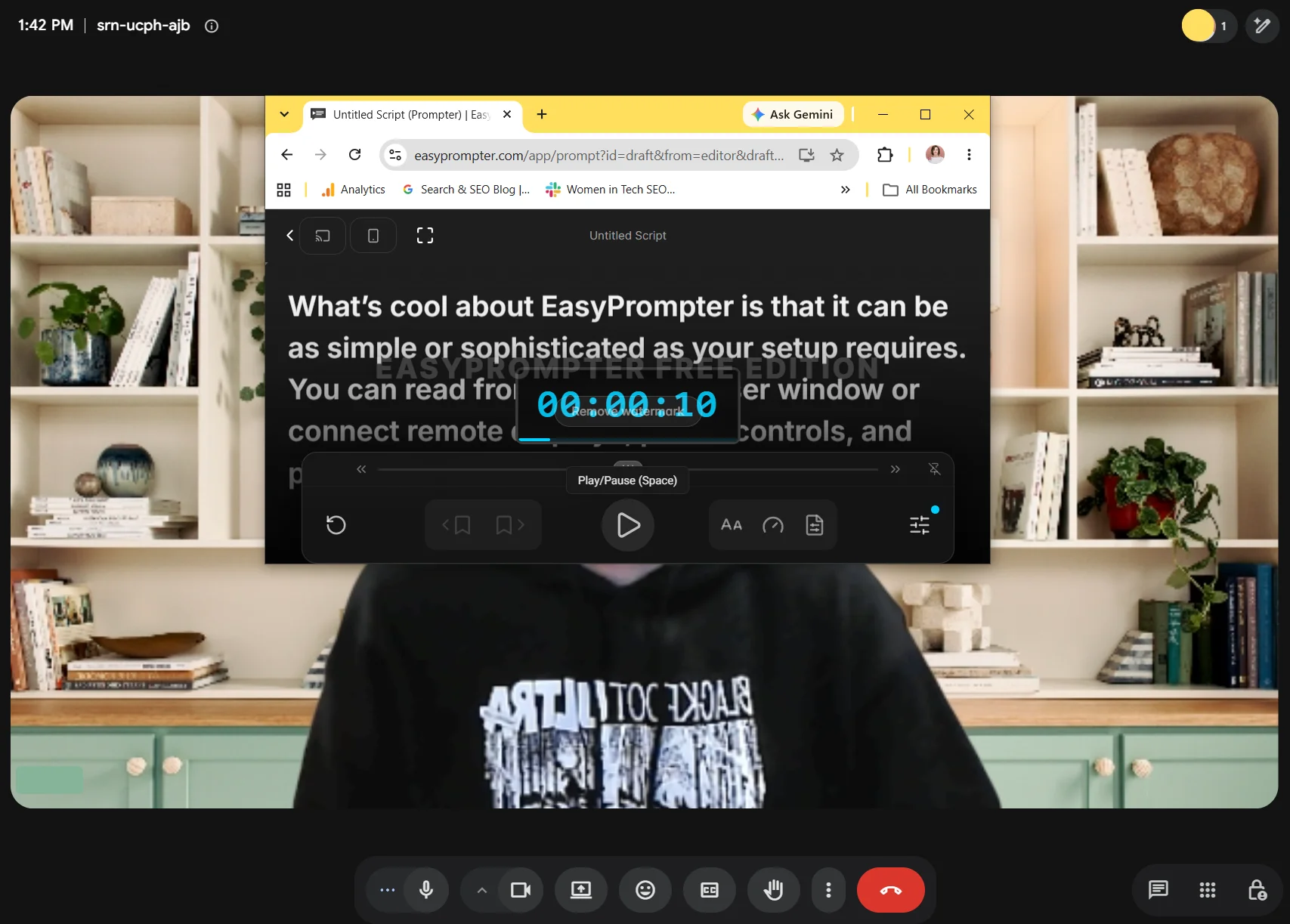
What’s cool about EasyPrompter is that it can be as simple or sophisticated as your setup requires. You can read from a single browser window or connect remote displays, phone controls, and production hardware.
EasyPrompter is especially useful when you need to see the script on more than one screen. With this tool, you can open it on another device or send someone a link or QR code. Every screen moves through the script together, but each viewer can choose their own text size and layout.
On paid plans, you can also use your phone to remote play or pause the script, change the speed, and jump between markers. It supports right-to-left languages such as Arabic and Hebrew, too.
What to know before you use it: EasyPrompter runs in a regular browser window rather than an always-on-top overlay (unless you integrate it to record through vMix or OBS Studio). If you click back into your recording or meeting app, the prompter can disappear behind it, which is particularly annoying in the middle of a take. Its scrolling also follows a speed you set rather than your voice, while the free plan is limited to two 500-word scripts and doesn’t include phone controls or offline editing.
Key features:
- Browser-based prompting: Use the teleprompter on desktop or mobile without installing separate software.
- Customizable display: Adjust the scrolling speed, typography, margins, cue markers, timers, and full-screen layout.
- Multi-screen prompting: Keep local and remote viewer displays synchronized while using separate layouts for each screen.
- Phone and hardware controls: Control playback from a phone or connect supported keyboards, pedals, Stream Decks, and other devices (on eligible plans).
- Script management: Save, search, format, and organize scripts into collections, with Word and PDF import and export on paid plans.
- Production integrations: Send transparent prompting text to OBS or vMix and manage multiple displays (on higher level plans).
NotchPrompter
Price: Free when downloaded from the developer’s GitHub. Alternatively, it costs $4.99 as a one-time purchase from the Mac App Store.
Compatibility and installation: Available only for Intel and Apple silicon Macs running macOS 14.6+. The App Store version installs and updates normally. Installing the free GitHub version takes a few additional steps, and you’ll need to download new releases manually when you want to update it.
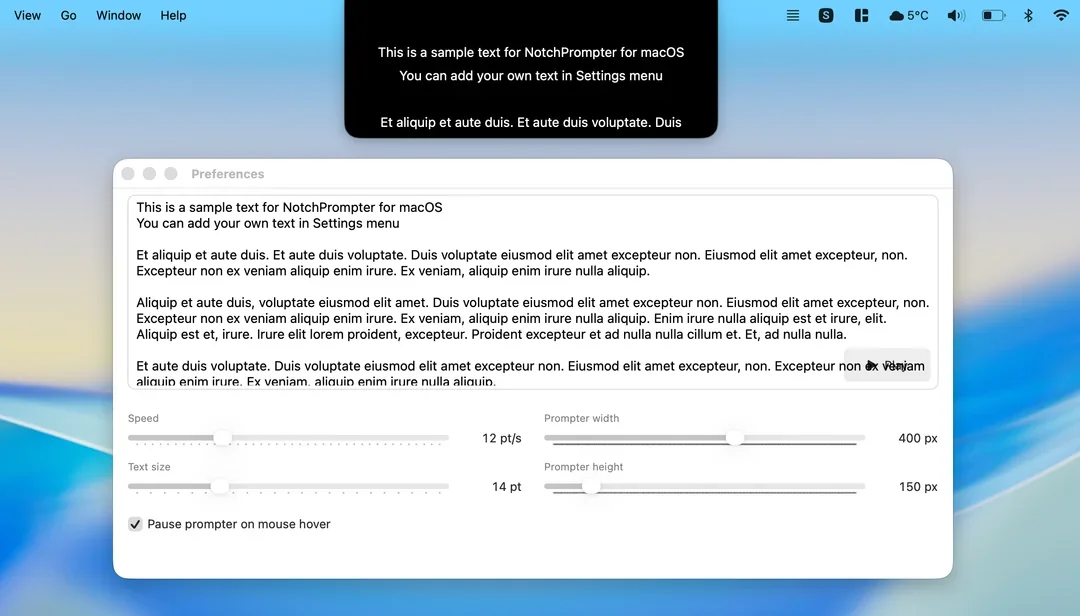
NotchPrompter is a nice little Mac app that sits directly beneath the camera in the notch area of a MacBook, which makes for very easy reading. You can even tell macOS to hide it from screen recordings and screen shares to keep it invisible to viewers. If you aren’t using a MacBook, you can also place the prompter anywhere near an external webcam.
I also like NotchPrompter’s voice activation. It starts scrolling when it detects that you’re speaking and pauses when you stop, letting you take a breath or collect your thoughts without the script disappearing up the screen. It works pretty well, but it doesn’t recognize your words like some other apps do. If you go off-script or lose your place, it’ll keep right on scrolling as long as you’re still talking.
The rest of the app is intentionally simple. Paste in a script, adjust the scrolling speed, resize the window and text, choose a font, and start reading. Everything operates locally, with no account, subscription, analytics, or internet connection required. That also means you don’t get higher-level features like remote control, synchronization across external monitors, or mirrored text for physical teleprompters.
What to know before you install it: NotchPrompter is a new, independently developed app, so it’s still a bit of a work in progress. Be sure to test it with your microphone before relying on it for an important live presentation.
Key features:
- Movable floating window: Place the prompter at the top, in a corner, or anywhere near an external webcam.
- Invisible screen-sharing mode: Hide the script from recordings, meetings, and screen-capture software.
- Voice activation: Scroll while speech is detected and pause automatically when you stop talking.
- Global keyboard shortcuts: Start, stop, and control the prompter without bringing its window to the foreground.
- Multi-monitor support: Move the prompter onto an external display when using a separate monitor or camera.
Power Prompter
Price: Free 30-day trial. Full version costs $49.99 as a one-time purchase.
Compatibility and installation: Available for macOS 12.4+, with native support for Intel and Apple silicon Macs. There is no Windows version.
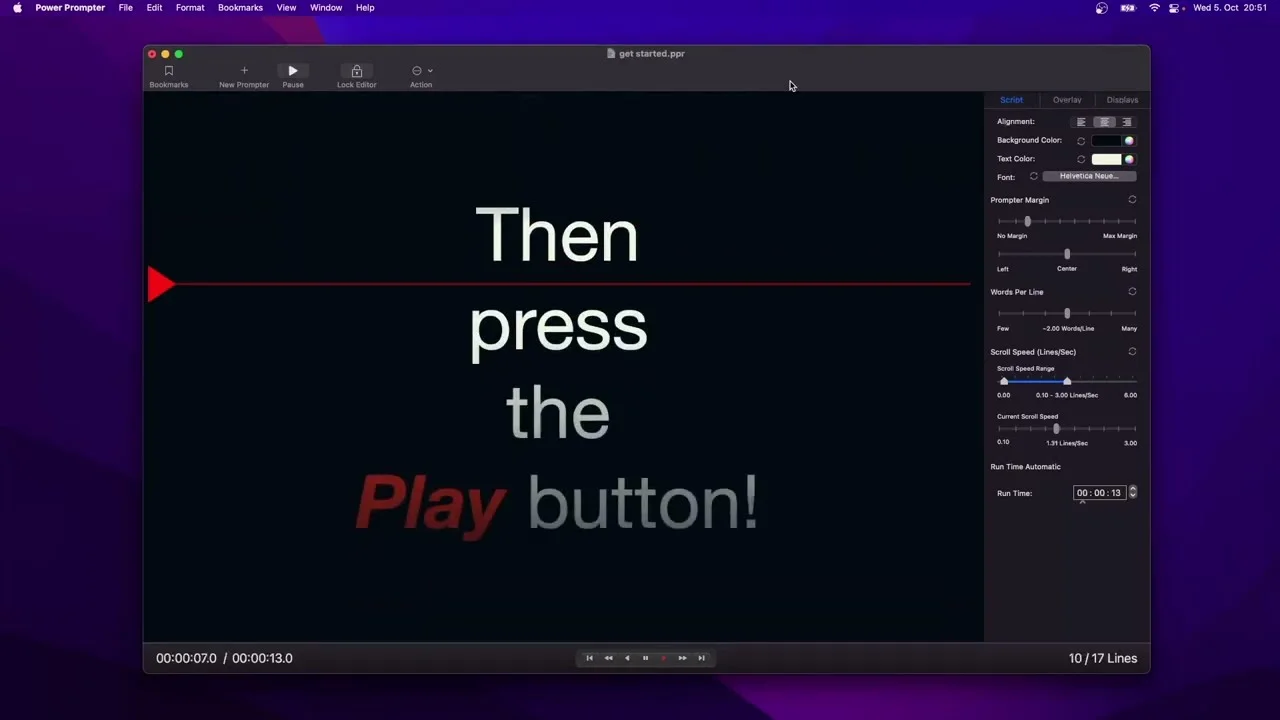
The best thing about Power Prompter is that it feels like a proper Mac teleprompter rather than a web app squeezed into a desktop window. I could open a compact, always-on-top prompter, make its background transparent, and position the text close to my webcam while recording or participating in a Zoom call. You can adjust the window, text color, margins, alignment, opacity, and reading position without covering everything behind it.
Power Prompter uses conventional speed-based scrolling, but it gives you plenty of control over it. You can adjust the pace with your keyboard, mouse, trackpad, presentation clicker, game controller, or supported USB hardware. Solo creators can control the prompter from the free iPhone and iPad remote app using Wi-Fi or Bluetooth.
It also handles more elaborate setups exceptionally well. Open several synchronized teleprompter windows, assign them to different displays, and customize the alignment and mirroring for each one. Power Prompter keeps the text, line breaks, and reading position synchronized across every screen. It can also flip the script horizontally or vertically for physical teleprompters.
What to know before you install it: Power Prompter now includes a built-in recorder that captures video and audio from your Mac’s webcam, Continuity Camera, external microphone, or another device recognized by macOS. It’s convenient for a quick talking-head video, but the recorder is basic.
I’d still use a full recording platform if I needed editing, captions, separate tracks, remote guests, or publishing tools. I also found the teleprompter control screen a little cluttered, although you can hide the features you don’t need.
Key features:
- Transparent desktop overlay: Place an always-on-top teleprompter window over recording software, Zoom, Teams, presentation slides, or other Mac software.
- Smooth adjustable scrolling: Control the speed and script position in multiple ways, including lots of remote options. Set a target duration and let the teleprompter help you finish in time.
- Rich script formatting: Add bold, italics, underlining, colors, alignment, bookmarks, and visual cues to a script.
- Multi-display prompting: Open unlimited synchronized prompter windows with individual layouts and display assignments.
- Physical teleprompter support: Flip the script horizontally or vertically for beamsplitter glass and professional teleprompter rigs.
- Basic video recording: Record from a webcam, Continuity Camera, external camera, and microphone recognized by macOS.
- Local operation: Work offline, keep scripts on your computer, and avoid sending script data to the developer.
PromptDog
Price: Free 10-day trial. Paid plan is $69 as a one-time purchase.
Compatibility and installation: Available as downloadable software for Windows 7, 8, 10, and 11 and macOS. One license covers 2 computers, and PromptDog works offline after the initial registration.
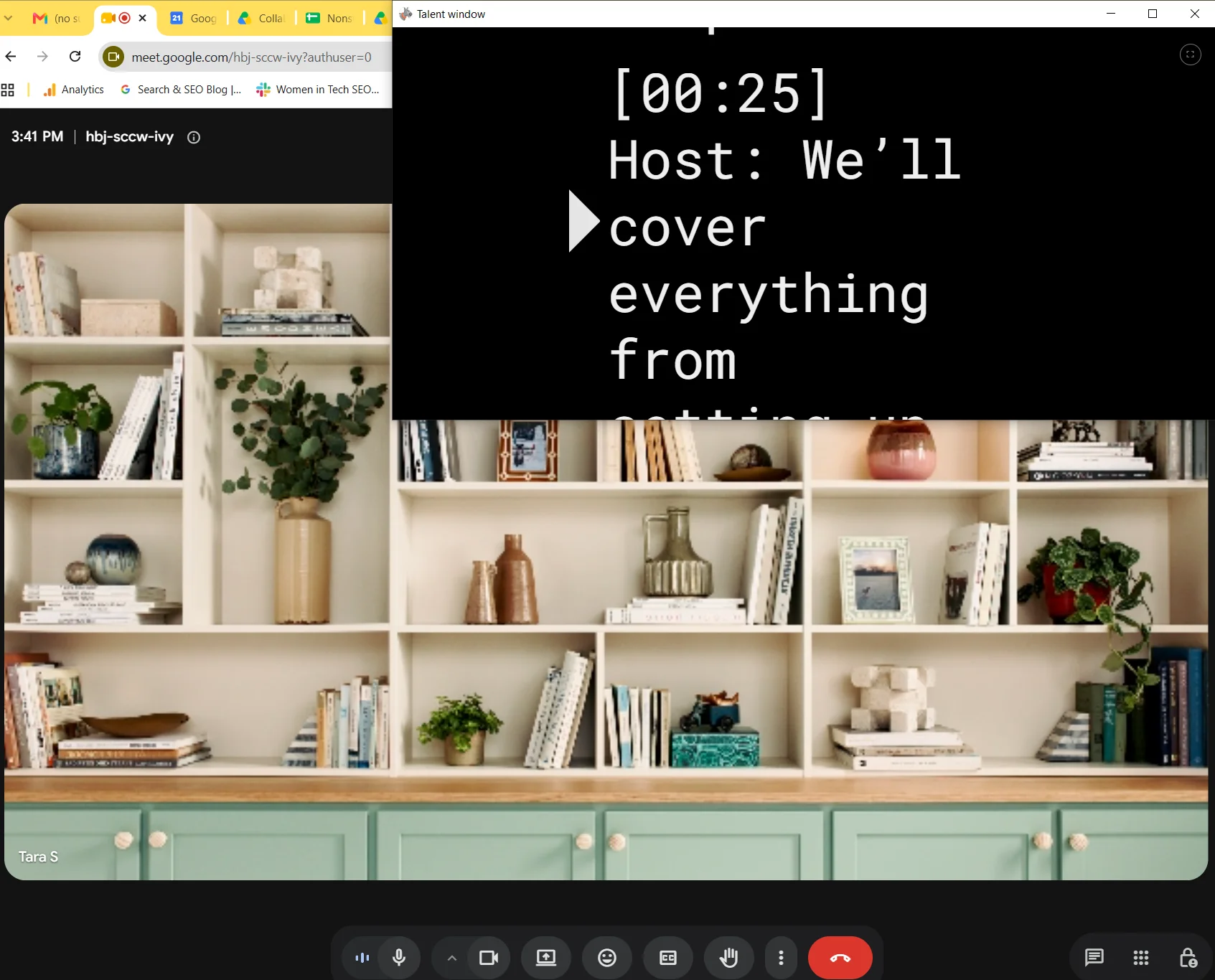
You can use PromptDog by yourself, but that isn’t where it shines. Its interface and controls make much more sense when you have a second monitor, physical teleprompter, or another person operating the script.
Open the separate Talent Window, move it to another display, and make it full-screen. The presenter gets a clean teleprompter feed while the operator controls the pace, searches the script, makes edits, or rewinds for another take. Both windows remain synchronized, and you can mirror the Talent Window for teleprompter glass.
What to know before you install it: PromptDog sometimes provides more control than you need and less convenience than you’d expect. For example, you can set exact RGB text colors, but can’t choose from a simple color swatch.
Speed is controlled with a mouse wheel, keyboard, trackpad, or remote rather than a visible slider, which I found fiddly and unintuitive. It also lacks video recording and a transparent, always-on-top overlay, making it less convenient for solo creators working on one screen.
Key features:
- Solo and team workflows: Read from one screen by yourself or add a separate operator and presenter display.
- Dual-screen prompting: Send a synchronized, full-screen Talent Window to an external monitor.
- Manual speed controls: Adjust scrolling with a mouse wheel, keyboard, trackpad, or compatible remote.
- Pause and quick rewind: Resume at the same speed or jump back 5 lines for another take.
- Cue points and search: Mark important sections and quickly find a particular word or passage.
- Physical teleprompter support: Mirror the Talent Window for professional or DIY teleprompter glass.
- Built-in script tools: Import, edit, color-code, and save scripts without leaving the software.
- Offline use: Works offline so a poor internet connection doesn’t derail recording.
PromptSmart
Price: Free 7-day trial. Paid plans start at $9.99 per month.
Compatibility and installation: Downloadable apps for Mac, Windows, iOS, and Android. Use the web-based portal to write, edit, and sync your scripts.
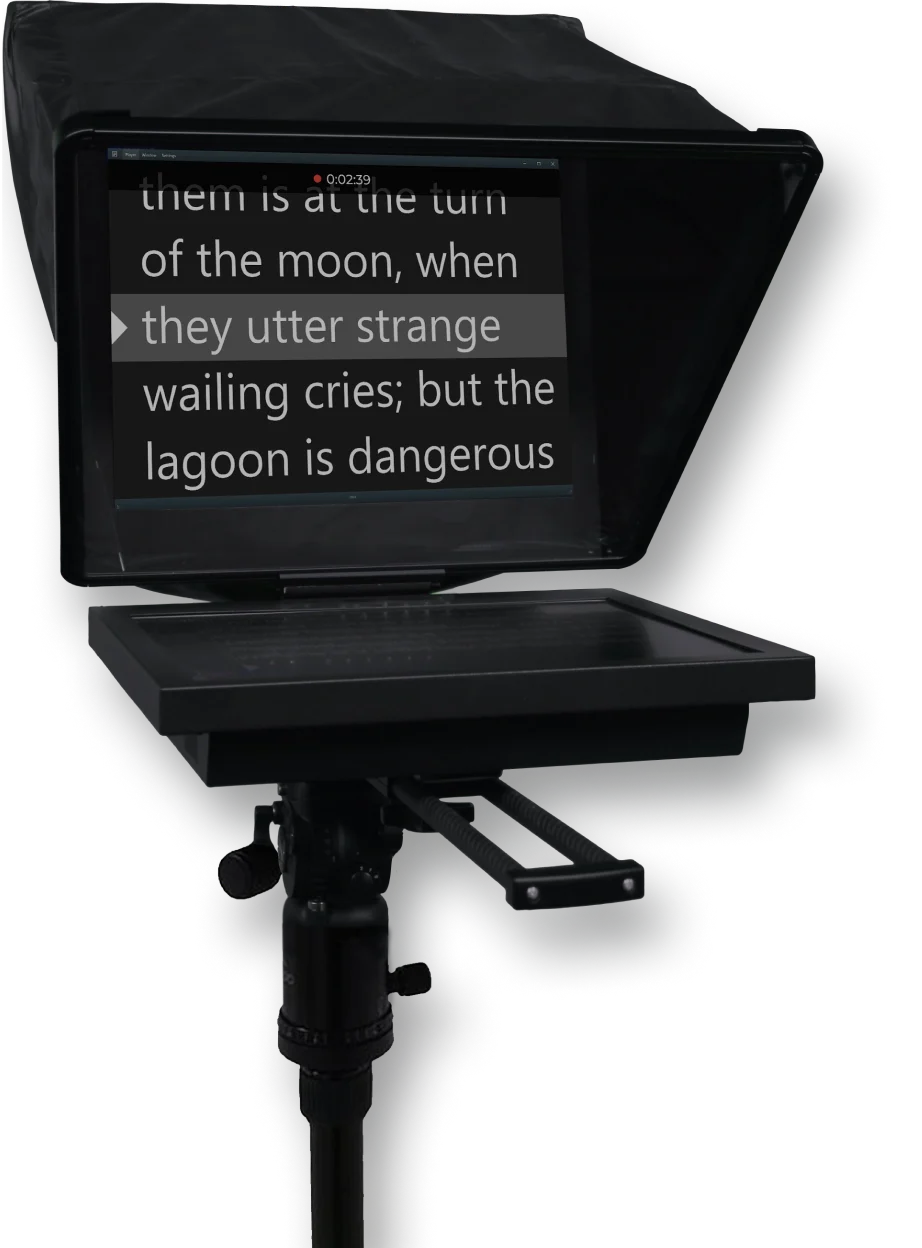
PromptSmart’s voice-controlled scrolling offers a lot of flexibility for presenters. Instead of scrolling at a fixed speed, it listens for the words in your script and moves along as you read. I could slow down, speed up, pause, or briefly go off-script without immediately losing my place. When I returned to the script, it picked up from there.
The desktop app can place the script in a movable, semi-transparent window over your recording software. You can also synchronize the script across multiple displays and control it from another device, which is useful for larger productions or multi-camera setups.
I also like PromptSmart’s mobile app features. The mobile app works seamlessly and, unlike on desktop, you can record directly from it in up to 4K. That’s a handy feature for making social media videos or clips.
What to know before you install it: Because PromptSmart doesn’t record on desktop, you’ll need to pair it with Zoom, OBS, or another recording platform. Importing scripts can also be clunky. You can cut-and-paste from a doc, but formatting often doesn’t remain intact, which can make setup a bit more fiddly than I’d like.
Key features:
- VoiceTrack scrolling: Follows the words in your script and automatically adjusts to pauses and changes in pace.
- Easy script controls: You can change the font size, adjust the reading guide, add cue points, mirror the text for teleprompter glass, or send it to an external display.
- Semi-transparent desktop window: Position the script over Zoom, presentation slides, or separate recording software.
- Multiple scrolling options: Use voice scrolling, a preset speed, a keyboard, a mouse, or a remote device. The desktop control page is the most reliable option and can be used by a producer.
- Physical teleprompter support: Mirror text horizontally or vertically and send the presentation to an external display.
- Multi-screen prompting: Synchronize the script across multiple phones, tablets, computers, or teleprompter displays.
- Script navigation: Add cue points and reading guides to make long scripts easier to follow.
- Cross-platform syncing: Create and edit scripts in the browser and sync them with PromptSmart’s desktop and mobile apps.
Riverside
Price: Starts at $35 per month.
Compatibility and installation: Runs in any supported browser, with no separate teleprompter software to download or install.
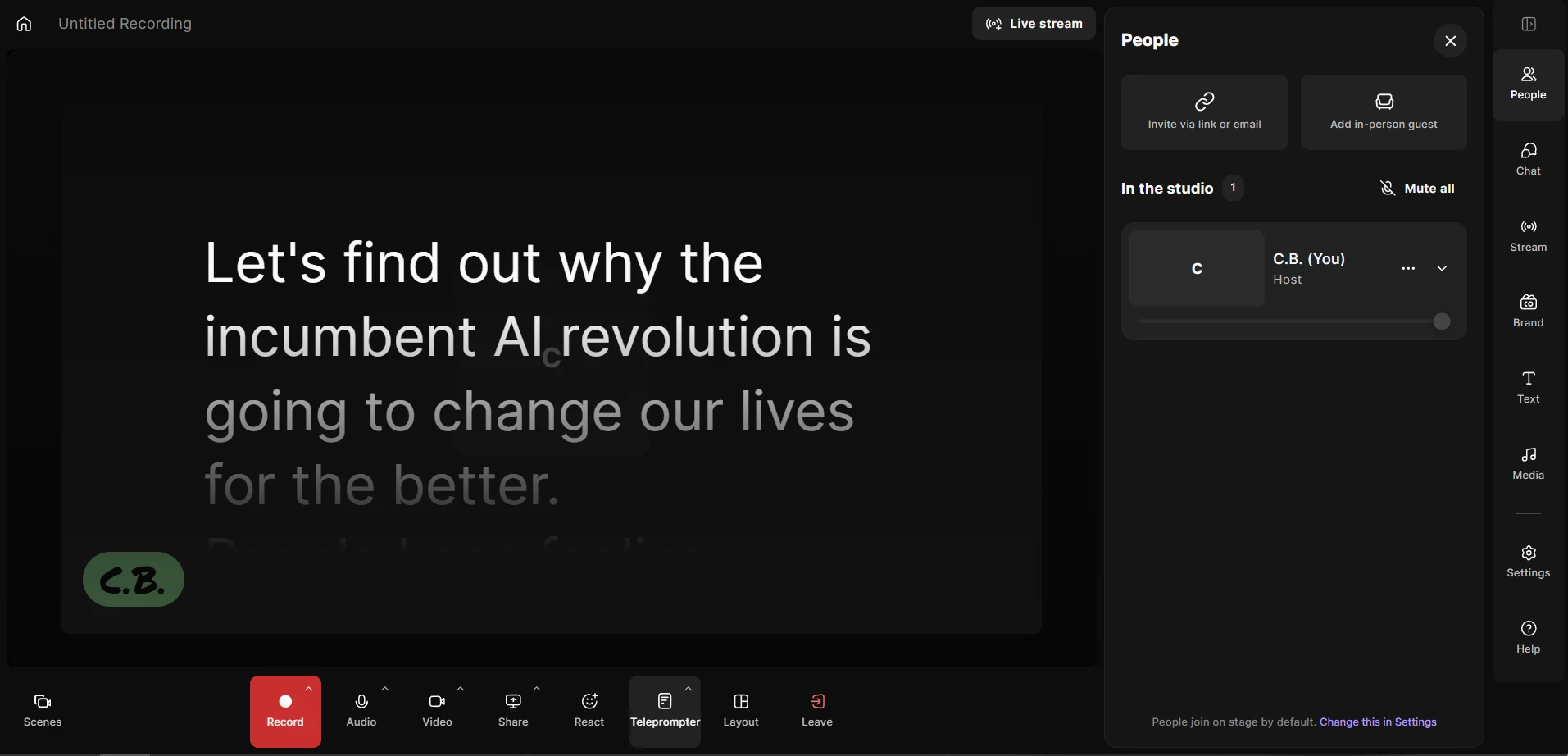
I’ve used Riverside’s online teleprompter extensively and what I like best is that it’s part of the recording setup, so I don’t have to manage another app or window while recording. Simply open your studio on a supported browser or device, and the teleprompter appears as an easy-to-read overlay.
You can adjust the formatting, text size, and scrolling speed, pause when needed, or return to the beginning of your script with a click. And you can do it all right from your recording studio.
Add a few notes or paste in an entire script. On Business plans, you can share the teleprompter with selected guests or everyone, then decide whether a host or producer controls it for them or each guest scrolls independently.
Best of all, Riverside isn’t just a teleprompter app. It’s a complete recording and editing studio with everything you need to take your content from script to publication. That makes it easy to use and a good value for the money.
What to know before you install it: Because the teleprompter is part of Riverside’s studio, you’ll need to record through Riverside to use it. It isn’t available as a separate app or system-wide overlay.
Key features:
- Teleprompter built into the recording studio: Read your script while recording without juggling another app or covering Riverside with a separate window.
- Works on desktop and mobile: Load your script to record with the teleprompter straight from the Riverside app.
- Flexible prompting controls: Format the script, resize the text and window, adjust the scrolling speed, pause or restart, scroll manually, or pop the teleprompter into a separate window.
- Desktop and mobile prompting: Use the teleprompter in a supported browser or Riverside’s mobile apps, with mobile options such as auto-start and distraction-free Focus Mode.
- Guest and producer controls: Share the script with selected guests or everyone and decide whether they scroll independently or follow the host or producer.
- AI Eye Contact: Make speakers appear to look directly at the camera, even if their gaze wandered while reading from the teleprompter.
- Studio-quality remote recording: Capture separate local tracks for every participant in up to 4K video and 48 kHz audio.
- Easy, complete editing workflow: Edit your video through the transcript, add captions, improve the audio, adjust layouts, create social clips, and prepare the finished content for publication.
Speakflow
Price: Free plan available. Paid plans start at $19 per month.
Compatibility and installation: Runs in a browser on Mac and Windows. Paid users can download the Speakflow desktop app for either operating system.
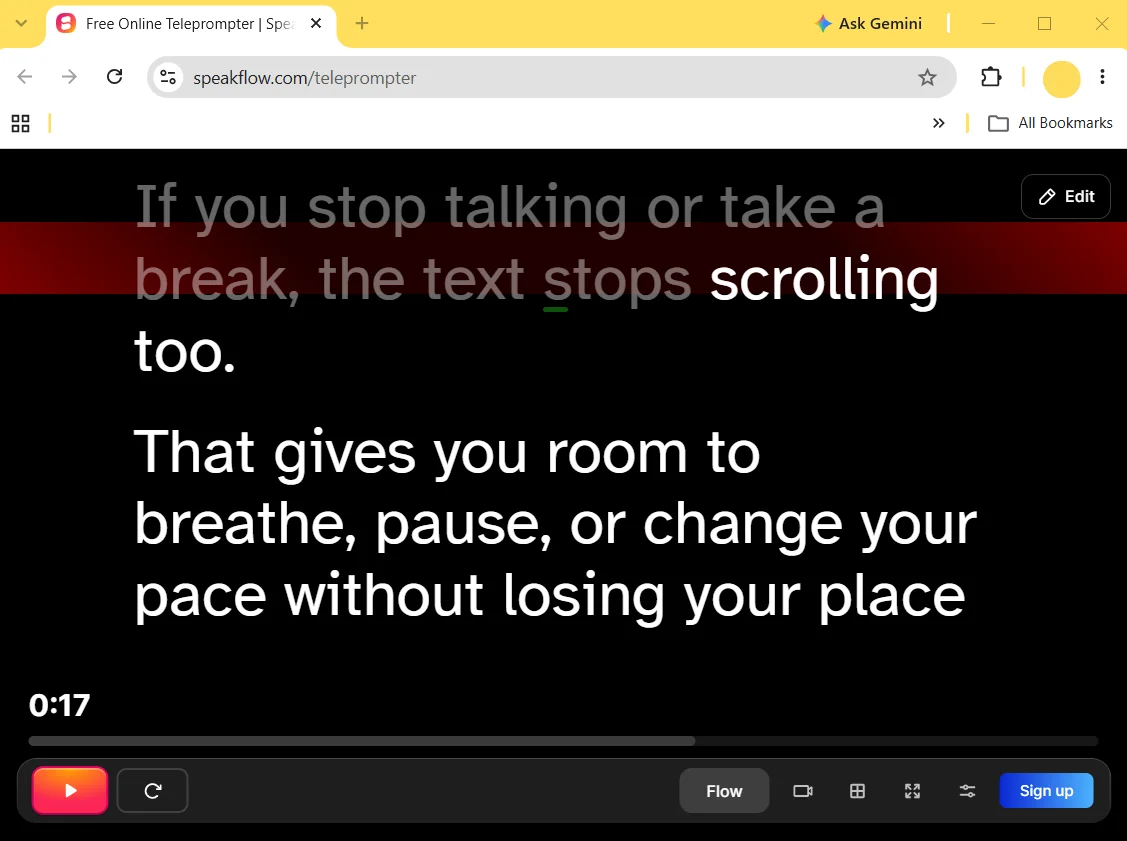
Speakflow’s standout feature is its voice-activated scrolling. Instead of making you pace to a fixed scrolling speed, Flow mode listens as you read and moves the script along with your voice. If you stop talking or take a break, the text stops scrolling, too, giving you room to pause or change your pace without losing your place.
Additionally, you can use conventional automatic scrolling or dictate the pace manually. Text size, line spacing, margins, colors, and reading position are all adjustable. I also like the bookmarks feature, which lets you jump quickly between sections.
Speakflow is also really flexible, and works particularly well across multiple devices. You can display the script on one screen and control it from another, making it useful for everything from a simple laptop recording to a physical teleprompter rig.
The paid desktop app turns your script into a transparent, always-on-top overlay that you can position over presentation slides or your recording software. Or, you can use Speakflow to record directly in your browser, although the tool recommends that you keep recordings to 10 minutes or less for best performance.
What to know before you install it: Speakflow’s voice scrolling isn’t flawless. Flow mode can occasionally jump ahead, particularly when the same word appears several times close together. And the red line feature designed to help you keep your place doesn’t keep up in Flow mode. Also note that most of Speakflow’s standout features, like voice-activated scrolling, remote control, and desktop overlay, require a paid plan.
Key features:
- 3 scrolling modes: Choose voice-controlled Flow, fixed-speed Auto, or fully manual scrolling.
- Always-on-top overlay: Use the desktop app to position a transparent script over Zoom, slides, recording platforms, and other desktop apps. It won’t appear in screen shares, screenshots, or recordings. Note that this is still in beta, so it has a few quirks.
- Customizable display: Adjust the text size, line spacing, colors, margins, opacity, and reading position. Add a red line to the line you’re reading to help you keep your place.
- Remote device control: Display the script on one device and control or synchronize it from another.
- Script tools: Write, organize, bookmark, share, and collaboratively edit scripts.
- Built-in browser recording: Record and download HD webcam video directly through Speakflow.
- Physical teleprompter support: the text for use with beam-splitter and lens-mounted teleprompter hardware.
Teleprompter Pro
Price: Free version available. Pro costs $59.99 per year or $159.99 for lifetime access.
Compatibility and installation: Available as a downloadable app for Mac, iPhone, and iPad only.
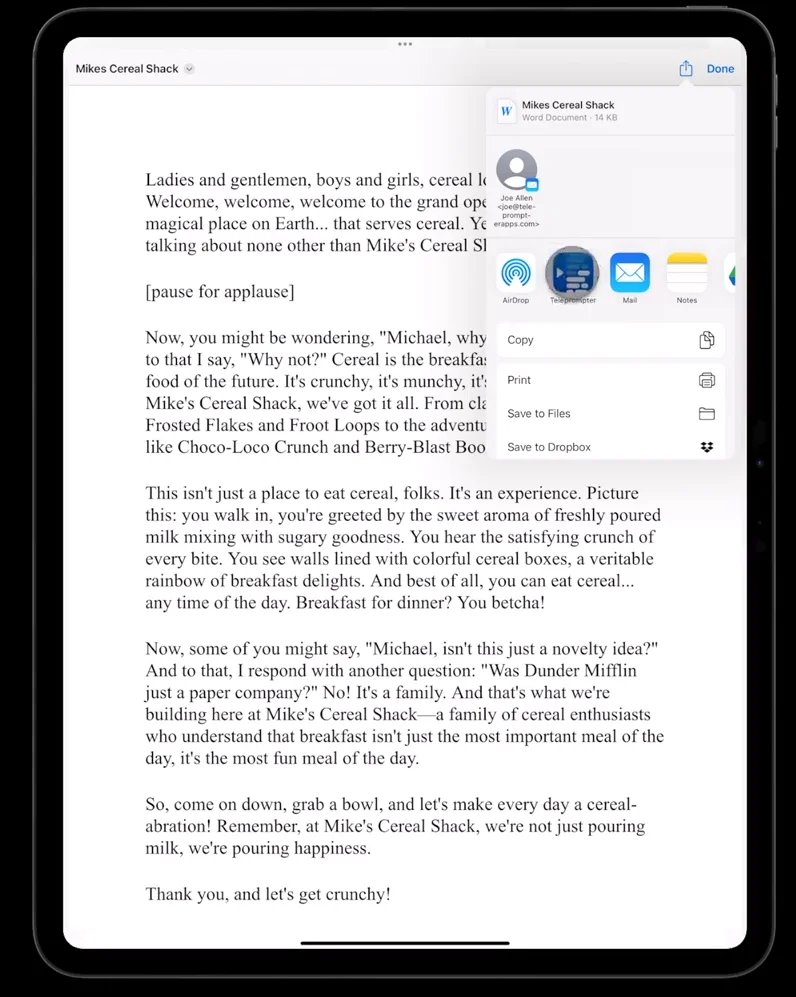
What’s great about Teleprompter Pro is that it works equally well for a simple desktop recording or a full physical teleprompter setup. On a Mac, I could shrink the script window, place it close to my webcam, make the background transparent, and keep it floating over any other recording app. That makes it much easier to look at the camera without losing sight of what’s happening on the script.
I’ve also used TelePrompter Pro’s iPhone app extensively for script-based videos, paired with a Parrot teleprompter attached directly to my camera lens. I could then use the Apple Watch app to start or stop the script and move through it without touching the phone.
The same app is available for Mac and works across Apple devices. This makes it a strong choice if you want to prepare scripts on your computer, control them remotely, or send them to a physical teleprompter display. It also supports external displays, AirPlay, Elgato Prompter, and a wide selection of remotes.
What to know before you install it: Formatting scripts inside the app can be cumbersome, and while Teleprompter Pro has extensive manual and remote controls, there’s no voice-activated scrolling.Advanced remote controls, document imports, and clean HDMI or AirPlay output require the comparatively expensive Pro upgrade.
Key features:
- Transparent Mac overlay: Place a resizable, semi-transparent script over your recording software, presentation, or video call.
- Always-on-top window: Keep the teleprompter visible when you click into another application.
- Flexible remote controls: Control scrolling with another Apple device, keyboard, presentation clicker, foot pedal, game controller, or local web browser. This is overkill for most people, but shows how well the app can scale to larger production.
- Physical teleprompter support: Mirror text for beam-splitter glass and use independently configured external displays.
- Clean external output: Send only the scrolling script to a display through HDMI or AirPlay without showing the app’s controls.
- Mobile video recording: Record unlimited videos without watermarks using the iPhone or iPad app.
- Cloud synchronization: Keep scripts synchronized across your Mac, iPhone, and iPad.
Virtual Teleprompter
Price: Free version available. Paid version is $6.99 for Mac and $8.99 for Windows (one-time).
Compatibility and installation: Available for Windows 10 and 11 and macOS 12+. You’ll need to download it from the Microsoft Store or Mac App Store, but it works offline once installed.
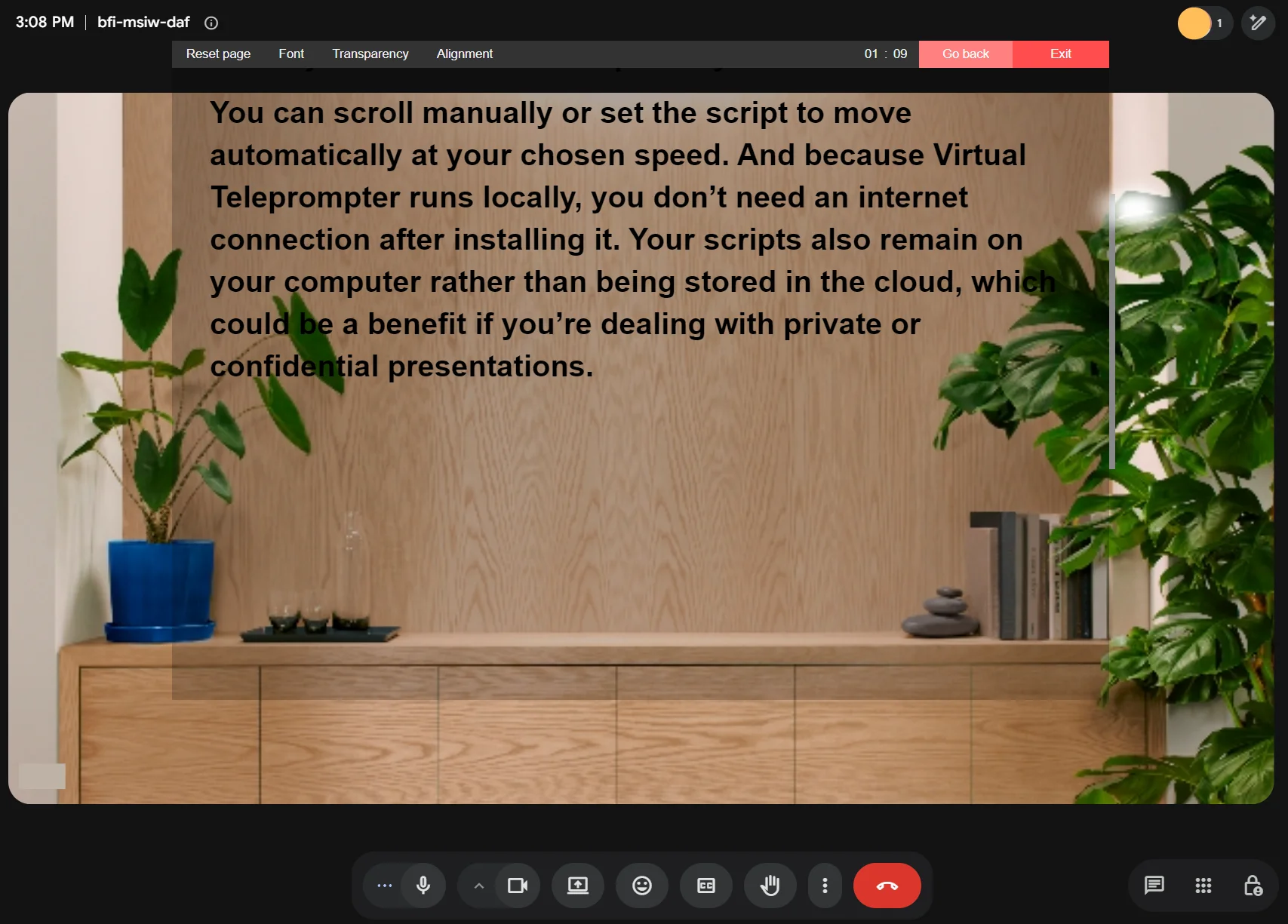
What I like most about Virtual Teleprompter is that I can place the script over almost any meeting or recording app without changing the rest of my setup. It displays your script in a transparent window over Zoom, Microsoft Teams, Google Meet, presentation software, or your preferred recording platform. You can position it close to your webcam and adjust its size and transparency.
You can scroll manually or set the script to move automatically at your chosen speed. And because Virtual Teleprompter runs locally, you don’t need an internet connection after installing it. Your scripts also remain on your computer rather than being stored in the cloud, which could be a benefit if you’re dealing with private or confidential presentations.
What to know before you install it: Virtual Teleprompter keeps things simple, but it can be a bit clunky to use. The editing and scrolling interfaces are separate, so you have to go back and forth if you find problems in your script during a dry run. The free version also limits scripts to 1,000 characters.
Key features:
- Manual and automatic scrolling: Scroll the script yourself or set it to move at an adjustable speed.
- Customizable display: Change the font, text size, colors, alignment, window layout, and transparency.
- Script tools: Format text, find and replace words, and track script length with the word counter.
- Multilingual support: Supports multiple languages, including right-to-left scripts such as Arabic and Hebrew.
- Mirrored text: Flip the script for use with a physical beam-splitter teleprompter.
- Offline operation: Use the app without an internet connection and store scripts locally.
Which teleprompter works best for your setup?
Your teleprompter needs to work with your computer and operating system. Here’s how to choose, plus some top picks depending on your operating system and other considerations.
If you’re recording on your phone, choose a mobile teleprompter that shows your script beside the camera view while you record. Check where the text sits in both portrait and landscape mode: the closer it is to the lens, the more natural your eye contact will look. BIGVU and PromptSmart are good options for this setup.
If you’re recording with a webcam, choose recording software with a built-in teleprompter, like Riverside, or a desktop teleprompter you can position near your webcam, like Speakflow or Teleprompter Pro.
If you’re using a separate camera and physical teleprompter, choose a software that can mirror the script and send it to the display. PromptDog, Teleprompter Pro, PromptSmart and Power Prompter can all work with this setup.
Best teleprompter software for Mac
I’ve relied on Teleprompter Pro a lot. It’s available for Mac and works across Apple devices, making it a strong choice if you want to prepare scripts on your computer, control them remotely, or send them to a physical teleprompter display. It also supports external displays, AirPlay, Elgato Prompter, and a wide selection of remotes.
For a Mac-native overlay, Power Prompter provides more detailed control over floating windows and multiple displays.
Best teleprompter software for Windows
Riverside is the best Windows option if you want your teleprompter, recording tools, and editor in one platform. Because it runs in a browser, there’s no separate teleprompter app to configure or position before recording.
If you already have recording software, I like Virtual Teleprompter as a simple and inexpensive option that works as an overlay.
Best free teleprompters
Teleprompter Pro is the best free option for most Mac users. Its free tier includes unlimited scripts, video recording, cloud syncing, customizable text, cue points, timed scrolling, and basic remote controls.
For Windows, try Virtual Teleprompter. Its transparent window can sit over Zoom, Microsoft Teams, Google Meet, or your recording software, and you can scroll manually or automatically. The main limitation is that the free version only accepts scripts of up to 1,000 characters. That should be enough for a short video or introduction, but you’ll need the inexpensive one-time upgrade for longer scripts.
FAQs on teleprompter software
Can I use my Mac as a teleprompter?
Yes, you can use your Mac as a teleprompter in 3 ways: You can use browser-based teleprompter recording software such as Riverside, install a dedicated Mac teleprompter app, or connect your Mac to a physical teleprompter display.
How do I turn my computer into a teleprompter?
There are a few ways you can turn your computer into a teleprompter.
- Integrated solutions: Riverside combines recording and teleprompter tools, letting you read scripts while capturing high-quality video and audio.
- Web-based tools: Browser-based tools like Speakflow and EasyPrompter work without installation and integrate with recording or meeting software.
- Downloadable apps: Software like Teleprompter Pro and PromptDog offer advanced features but require installation. A second screen may improve usability.
What is the difference between teleprompter and autocue?
A teleprompter and autocue are essentially the same thing: they both refer to a display system that allows speakers to read text while looking directly at a camera lens. The term “teleprompter” is commonly used in North America, whereas “autocue” is commonly used in the U.K. and Commonwealth countries.
This name difference is because “TelePrompTer” was the original trademark for the first American company to develop this technology in 1949. On the other hand, “Autocue” emerged as the brand name of the first U.K.-based manufacturer who made such devices.
Does Zoom have a built-in teleprompter?
No, Zoom doesn’t have a built-in teleprompter feature. However, there are several apps that add teleprompter functionality to Zoom, including PitchHub, which is available through the Zoom Marketplace. You can see other options in our list of best teleprompters for Zoom.
Do all YouTubers use teleprompters?
No, and I don’t use one for every video either. I’ve used them a lot for producing more script-based videos, but these days, I don’t use teleprompters as often.
Whether you need one really depends on the type of video you’re making. It’s helpful when you have a complete script or need to deliver precise wording. For more conversational videos, an outline or a few talking points may be all you need.
How do you read a teleprompter naturally?
To read a teleprompter naturally, start by writing the script the way you actually speak, then read it aloud and rewrite anything that sounds too formal. Keep the text close to the camera, use a large font and set the scrolling speed slightly slower than you think you need. The teleprompter should follow your delivery, not force you to rush to keep up with it.
I also wouldn’t use a word-for-word script for every video. If reading makes you sound stiff, try using short notes or bullet points and explain the ideas naturally. When you do need a complete script, practice it once or twice, pause where you normally would and don’t worry about delivering it perfectly. If you stumble, stop, repeat the sentence and edit the mistake out afterward. Check out our podcast script templates for inspiration.




.webp)


