.webp)


Key takeaways
- Share at Timestamp is YouTube’s new native way to share a specific moment from any video.
- Creators can turn sections of their own uploads into new videos with Video Clips in YouTube Studio.
- Clipping from your original recording gives you better quality than cutting from the published YouTube upload.
YouTube removed the Clip button in April of 2026, so you can't create new Clips.
To share a moment from someone else's video, you have to use a timestamp to send viewers to a specific start time. To clip your own content, you need to cut new videos using Video Clips in YouTube Studio or edit directly from your original source recording for better quality.
In this article, I’ll explain to you how to clip a YouTube video now, from your own channel or someone else's.
What happened to YouTube Clips?
YouTube retired the Clips feature on April 17, 2026. Viewers can no longer create new Clips, but all existing Clips remain viewable. If you’re looking for the old Clip button, that’s why you can no longer find it.
YouTube's named replacement is the “Share at Timestamp” feature, which lets you link to a specific moment in a video a start point.
YouTube Clips was a viewer feature that let you share a 5- to 60-second section of any eligible video as its own link. Unlike simply sharing a timestamp, you could choose both the beginning and end of the section and add a custom description.
YouTube stated Clips have been consolidated with Share at Timestamps because the two tools served overlapping functions. They also noted that users can rely on third-party platforms for advanced clipping.
In the same update, YouTube announced they will add new clipping tools for creators. Video Clips is an existing YouTube Studio tool that lets creators cut part of their own video and publish it as a new video. And YouTube announced plans to expand Video Clips into Shorts and add automatic suggestions for identifying the best moments in a video.
How to clip a YouTube video in 2026
There are four ways to clip a YouTube video, depending on whether it’s your video and what you want to do with the clip:
How to clip a YouTube video that isn't yours
If a YouTube video isn’t yours, you can’t download it or cut and save it as a new file.
YouTube only lets you create a timestamp link that starts playback at that point or embed the video with start and end times on a website.
Here’s how:
Share a moment with a timestamp
“Share at Timestamp” creates a link that opens the original YouTube video at the time you choose. Unlike the old Clips feature, it only sets the start point of the playback, not the end point.
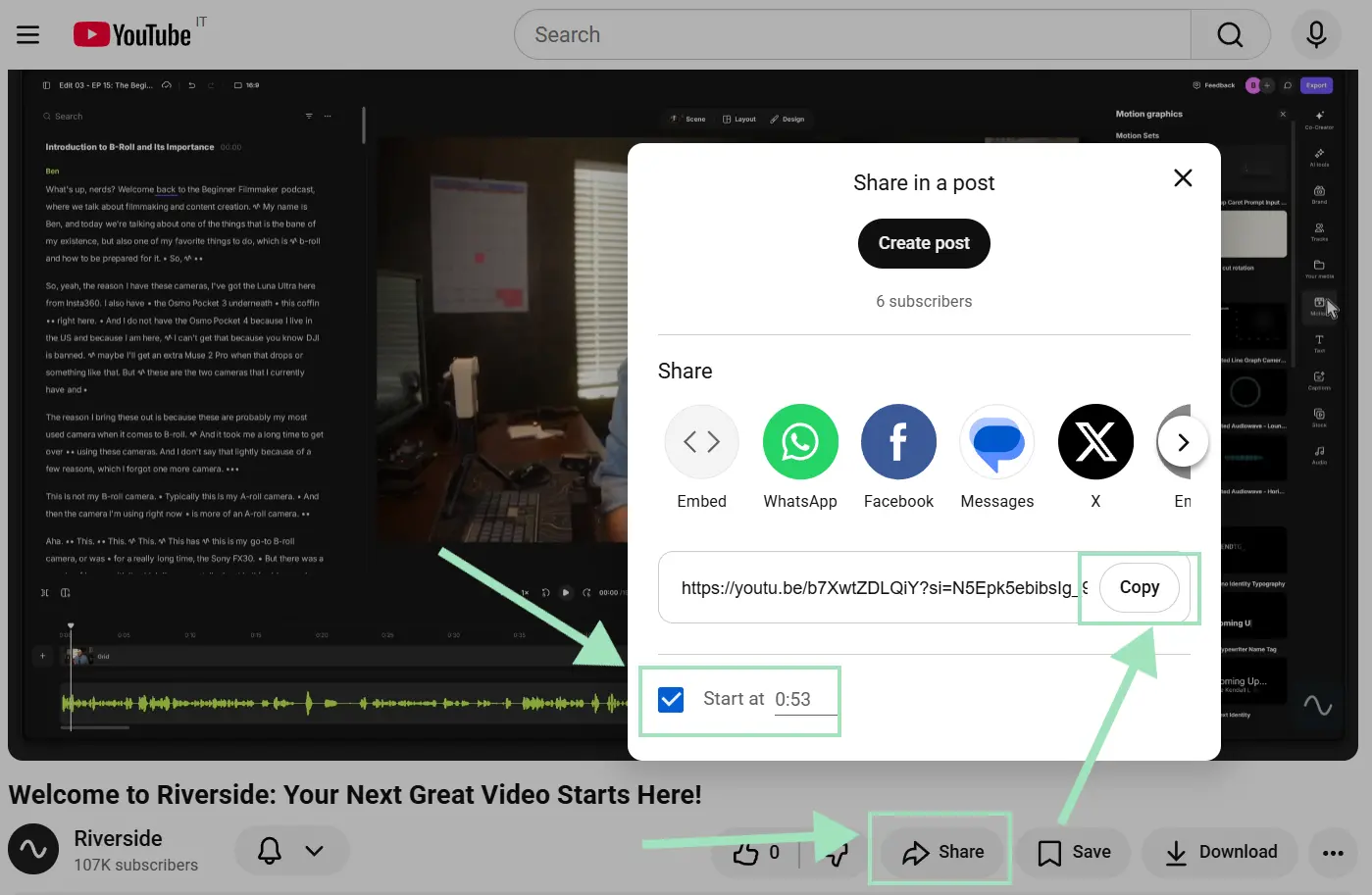
Follow these steps on desktop (PC or Mac):
- Open the YouTube video and pause at the exact moment you want to share.
- Click “Share” below the video.
- Check the “Start at” box in the popup window and confirm or enter the timestamp you want.
- Click “Copy” to copy your timestamped link or choose one of the available sharing options.
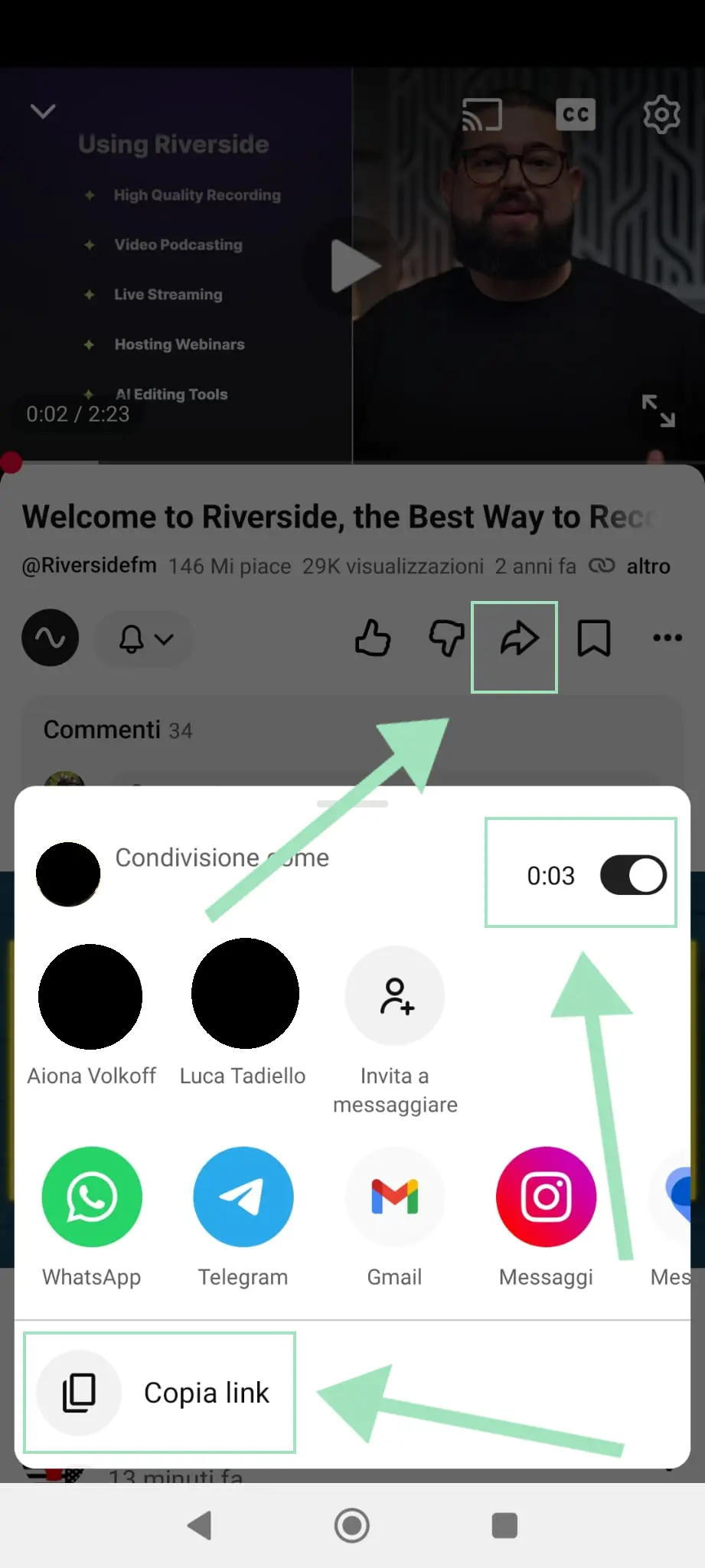
Follow these steps on the YouTube mobile app:
- Open the YouTube app and pause the video at your desired start time.
- Tap “Share.”
- Turn on the timestamp toggle.
- Copy the link or share it directly through another app.
Embed a section with start and end times
If you want to isolate a specific section of a video, embedding it on a website lets you specify where playback begins and where it stops.
Follow these steps:
- Click “Share” under the video and select “Embed.”
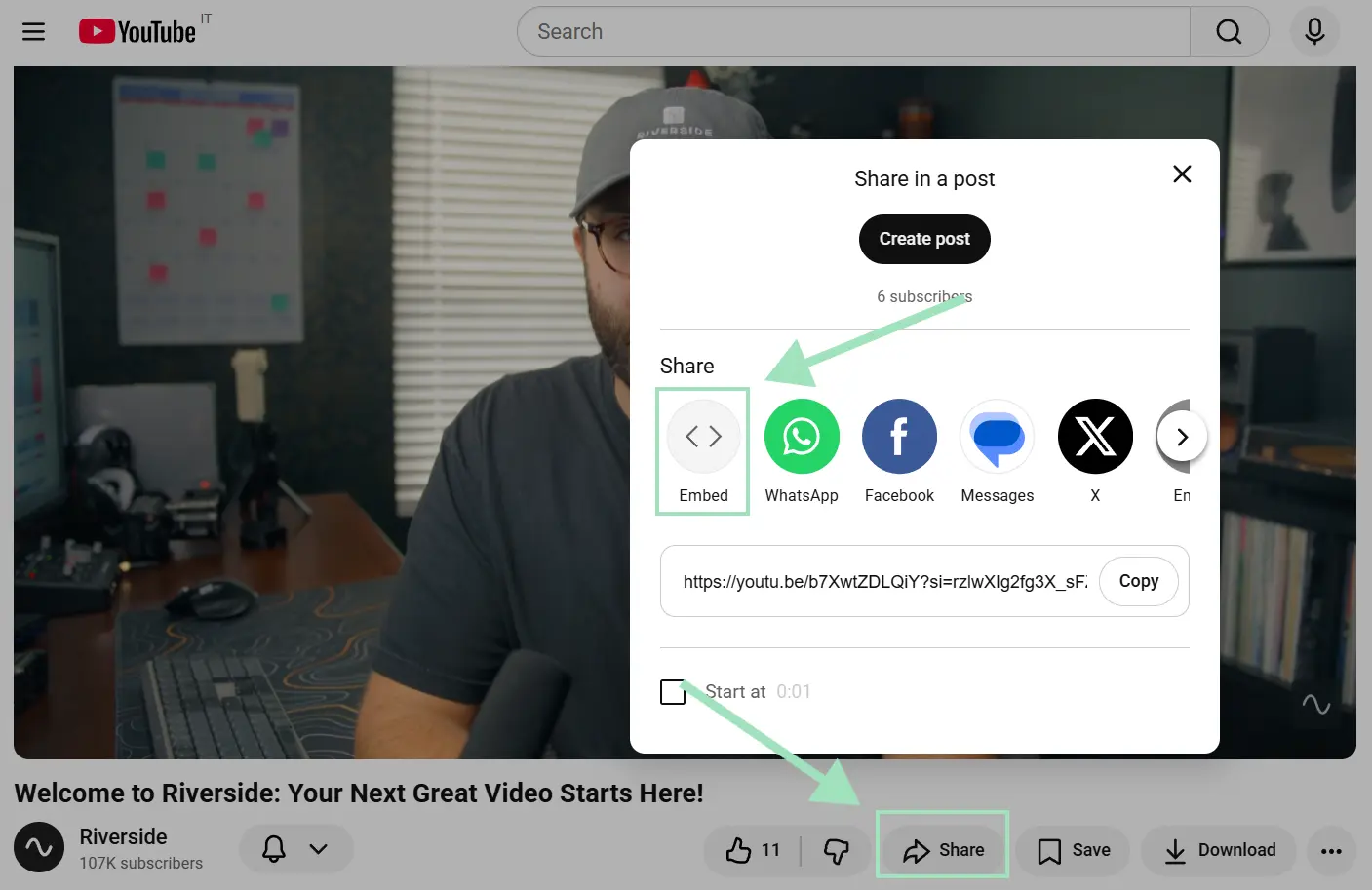
- Select a start time by typing it in the “Start at” box. Notice where the start time actually appeared in the iframe HTML code.
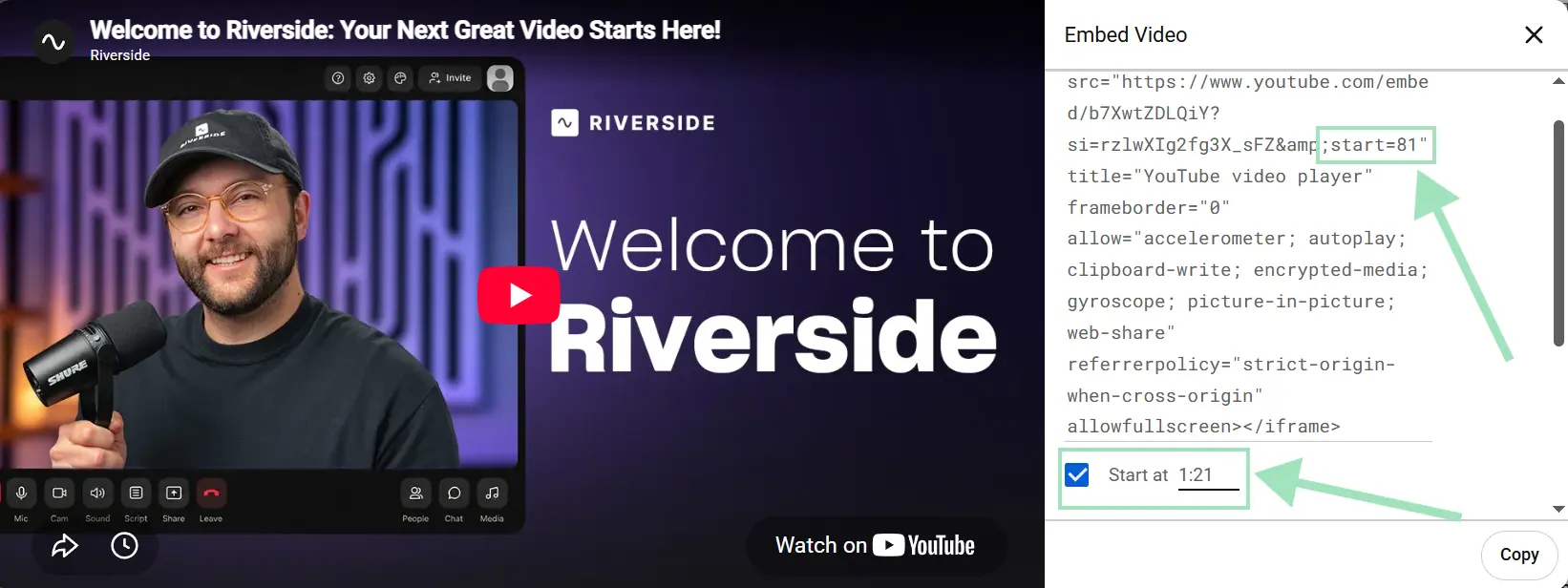
- Paste the code into your website's HTML editor. Locate the start time in the source code, and add &end=Y, where Y is the end time in seconds.
- For example, to play from 1:21 to 2:00, the code should be: start=81&end=120. Note that the end value only determines where playback should stop, not the length of the clip.
Using someone else's footage in your own video
YouTube’s Terms of Service generally prohibit downloading content without permission. Whether you can reuse part of someone else’s video in your own content is a separate copyright issue.
In the U.S., fair use can allow limited use of copyrighted material without permission in circumstances such as criticism, commentary, teaching, research, or news reporting.
Whether a particular use qualifies depends on the individual case, though. Copyright exceptions also vary by country, so don’t assume that using only a few seconds automatically makes a clip fair use.
How to clip your own YouTube video in YouTube Studio
If the video is on your own channel, you can use “Video Clips” in YouTube Studio to cut out a section and publish it as a separate video.
Unlike the old YouTube Clips feature, the result is a separate standalone video on your channel rather than a simple viewer link.
Here’s how to clip your video using Video Clips:
- Open YouTube Studio, click “Content,” and select the video you want to clip.
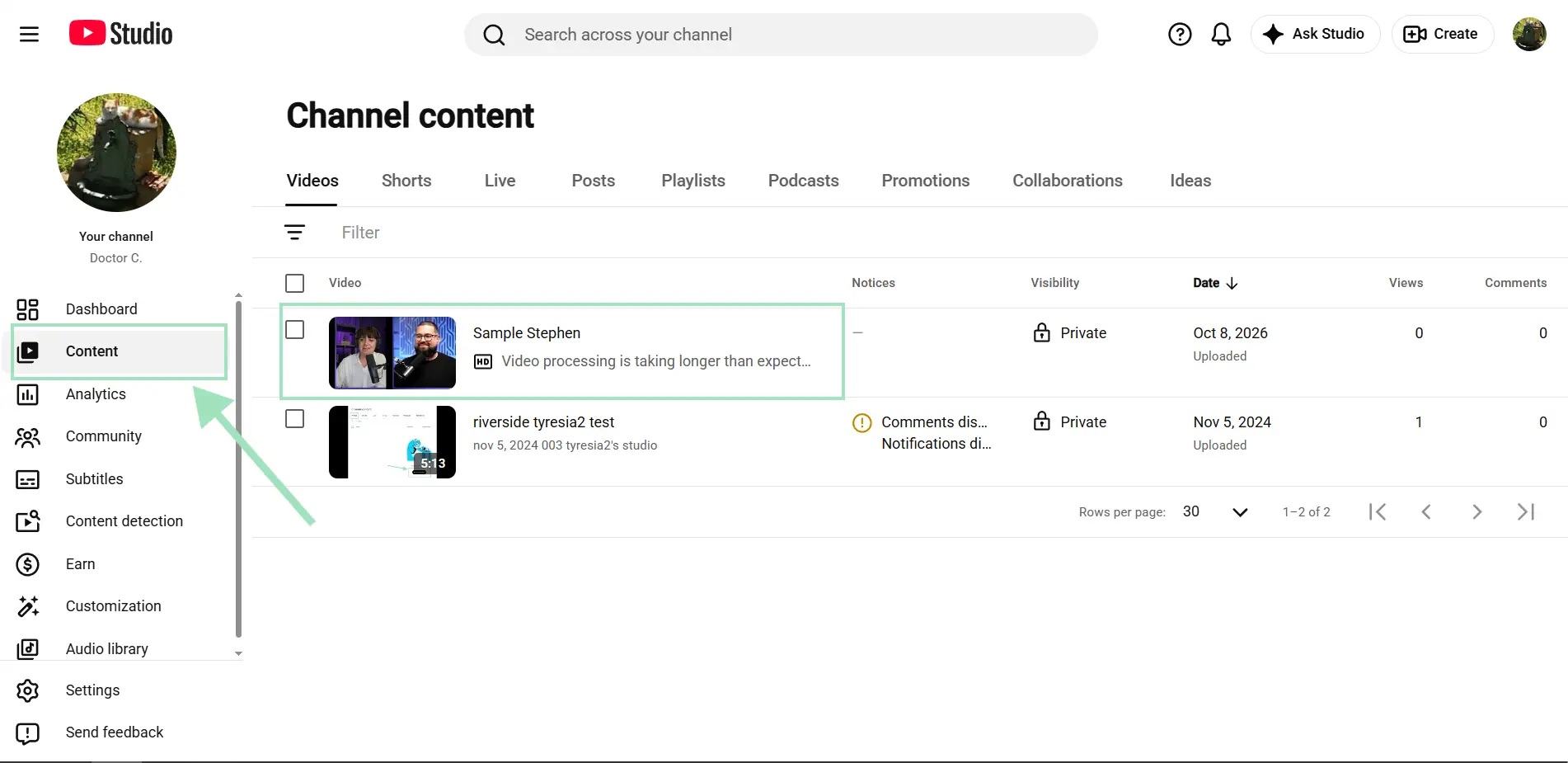
- Select “Clips and Shorts” from the left-hand menu; then click “Create clip or Short.” Choose whether you want to create a video clip or a Short.
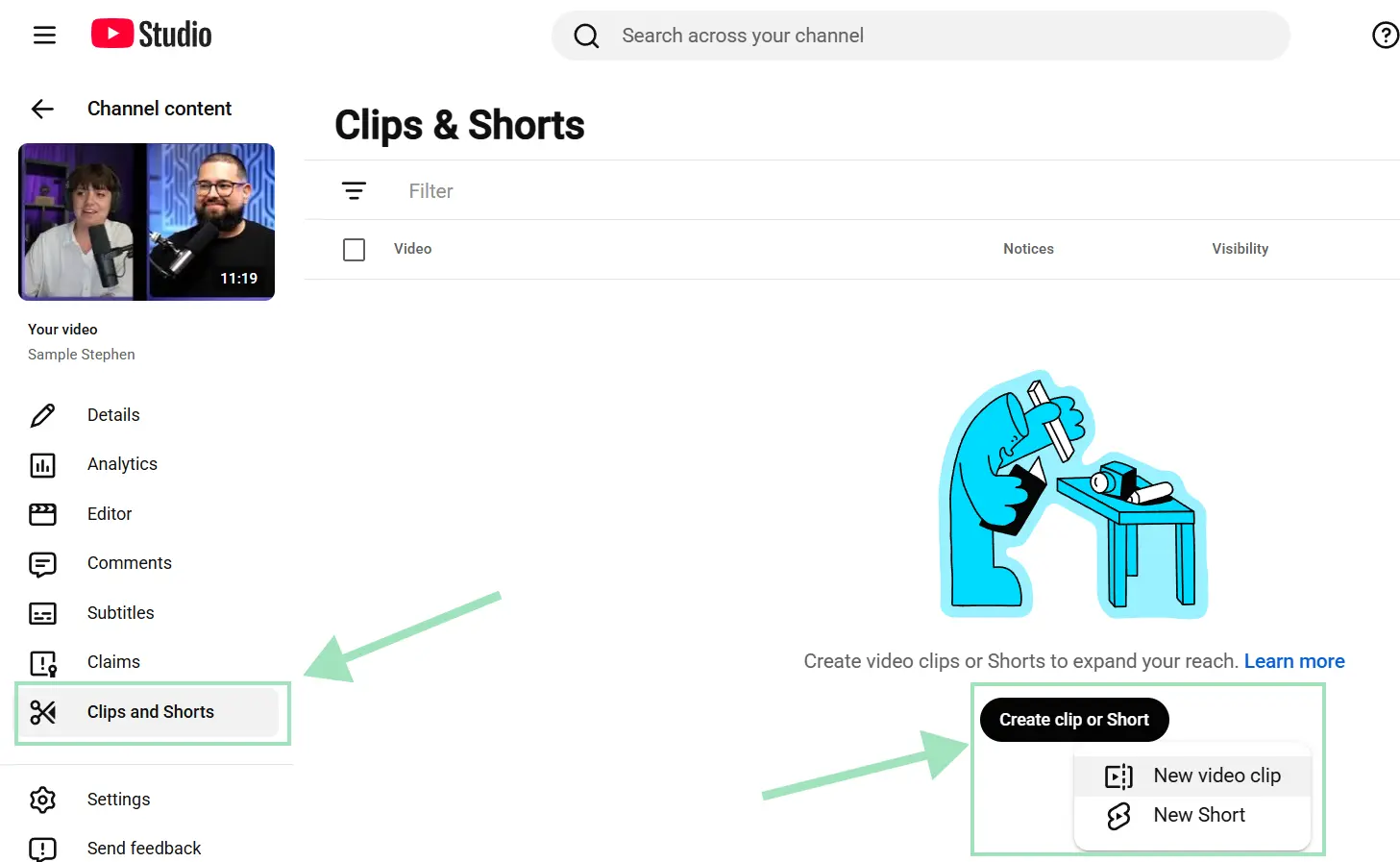
- Select the section you want to use. You can highlight part of the transcript and click “Confirm selection” or enter the start and end times manually in the timeline editor. Optionally, click “Add intro/outro” to attach an intro or outro video.
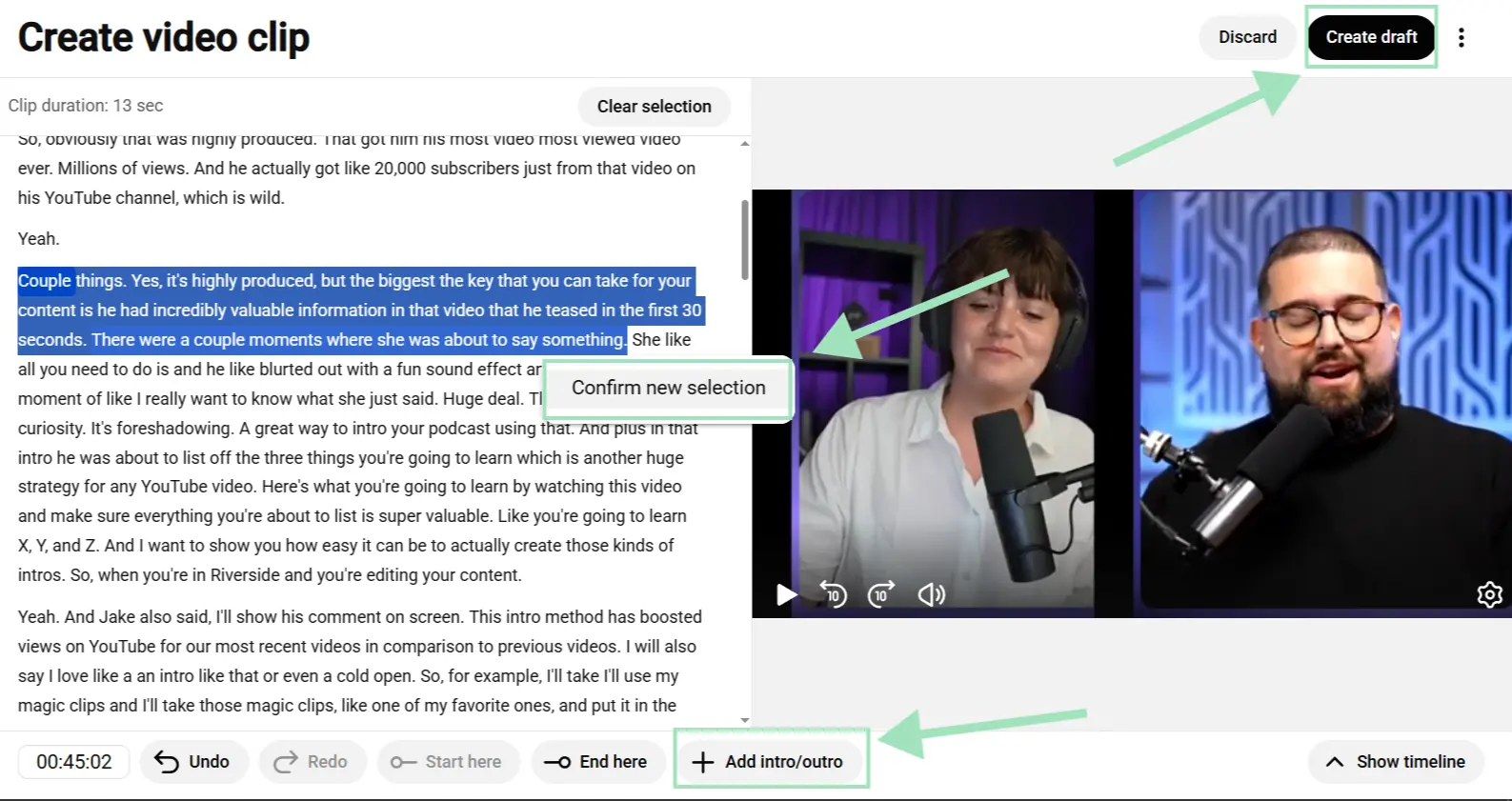
- Once done, click “Create draft” in the top right corner. Then complete the normal YouTube upload process to publish your clip.
Note: YouTube Shorts can be up to 3 minutes long and use a square or vertical aspect ratio. If you create the Short with this Studio tool, YouTube automatically adds the source video as a related video unless the Short is private, unlisted, or marked Made for Kids.
How to make a vertical YouTube clip without cropping
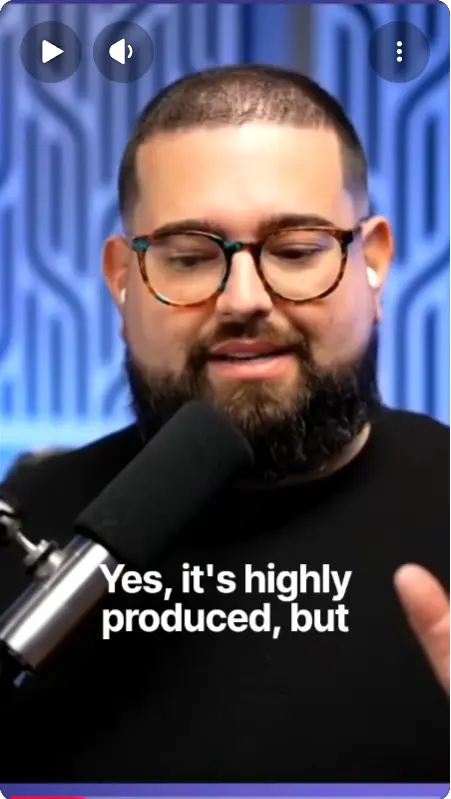
YouTube Studio can turn a landscape video into a vertical Short, but you don’t get much control over how the frame is adapted. YouTube either crops your speakers by slicing off the sides to fill the screen or fills the extra vertical space with a blurred version of the video. That preserves more of the original shot, but your speakers can end up looking small.
You need an external editor to reframe your shot properly. This is especially important if you recorded two people separately and want to fit them both into one vertical screen. YouTube only works with your flattened final upload, so it can't separate and stack your guests.
With Riverside, you can pick several templates or use Smart Layouts to arrange separate speaker tracks for a vertical clip and then choose how each track fits its space:
- Fit keeps each participant’s full 16:9 video visible inside their frame.
- Fill zooms in and crops that individual speaker’s track so it completely fills its assigned space.
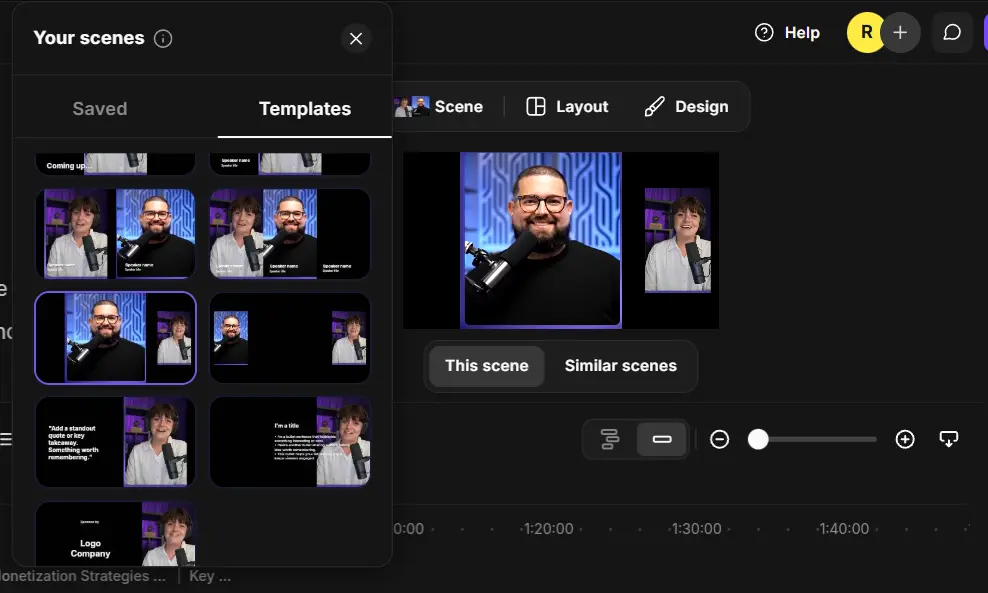
That means you can stack two speakers, add captions, b-roll, and other edits. Thenchoose a vertical aspect ratio and publish the finished clip directly to YouTube without relying on YouTube to decide the framing for you. You can also let the AI generate them for you using Magic Clips.
Read more: Check our full guide on how to make a YouTube video.
FAQs on YouTube Clips
Where are my old YouTube Clips?
Your old YouTube Clips are still available in the “Your clips” section of your account as long as the source video is still available. On desktop, look under the “You” section in YouTube’s left-hand menu. In the mobile app, go to the “You” tab and select “Your Clips.”
What's the difference between YouTube Clips and Shorts?
The difference between YouTube Clips and Shorts was their format and who created them.
YouTube Clips were 5- to 60-second horizontal segments viewers created to share a moment from a longer video. You could share them with their own link.
Shorts are standalone vertical videos channel owners create and publish directly to the dedicated Shorts feed. They can be up to 3 minutes long. To know more, check our guide on how to upload YouTube Shorts.
Do I need permission to clip someone else's YouTube video?
You do need permission to clip someone else's YouTube video only if you plan to download and republish their footage. Downloading videos without permission conflicts with YouTube's Terms of Service, while reuse might qualify for an exception like fair use depending on the circumstances. Instead, you can share a specific moment without permission by using a native timestamp link.
Are YouTube Clips monetized?
YouTube Video Clips generated from your own content can be monetized like a regular video or a Short. Video Clips are published as separate videos on your channel, and YouTube says you won’t be penalized under its reused-content policy simply for clipping your own original video.
How do you clip a YouTube video longer than 1 minute?
You clip a YouTube video longer than 1 minute by using the Video Clips tool in YouTube Studio or an external editor.
The 60-second cap belonged to the retired viewer Clips feature. Creators can now cut new standalone videos of any length from their existing uploads directly inside YouTube Studio. You can also edit your original recording in an external platform like Riverside to easily bypass platform length limits.