


Key takeaways:
- Most YouTube videos already have a transcript, but it’s a bit hidden. Just look under "... more" in the description; then click "Show transcript."
- Copy and paste is free and instant but returns unpunctuated text with no speaker labels.
- Downloading a proper file needs either a transcript generator or YouTube Studio, and only creators can use Studio.
Want a transcript of a YouTube video? Whether it’s your own video or someone else’s, getting a full, accurate transcript is easier than you think.
In this guide we’ll show you how to get a YouTube transcript step by step so you can edit, repurpose, or caption it.
How to find a transcript on YouTube
A YouTube transcript is a time-stamped text version of a video’s captions. Most YouTube videos include an auto-generated transcript, but you need to know where to look to find it. Here’s how:
Step 1: Go to the YouTube video and click “... more” in the video description.
Step 2: Scroll down until you see the section labeled “Transcript.” Click the “Show transcript” button.
Step 3: You should now see the transcript to the right of the video player (or below it, if you’re on mobile). Click the three dots to see it with or without timestamps.
Not all YouTube videos have transcripts. A transcript is available only when the video has a caption track.
If the transcript button is missing, it’s because there are no captions generated for that specific video. This happens when:
- The audio is in an unsupported language.
- The video contains little or no recognizable speech or just music.
- The creator manually disabled captions.
- The video is a livestream that has not ended yet.
- The video is a YouTube Short.
- Automatic captions are still being processed due to poor audio, long silences, overlapping speakers, multiple languages, or a very long video.
How to download a YouTube transcript as text
YouTube lets you view a transcript, but it doesn’t provide a download button for the transcript panel. There are a few easy workarounds, though.
Here are your options:
Copy and paste the transcript text
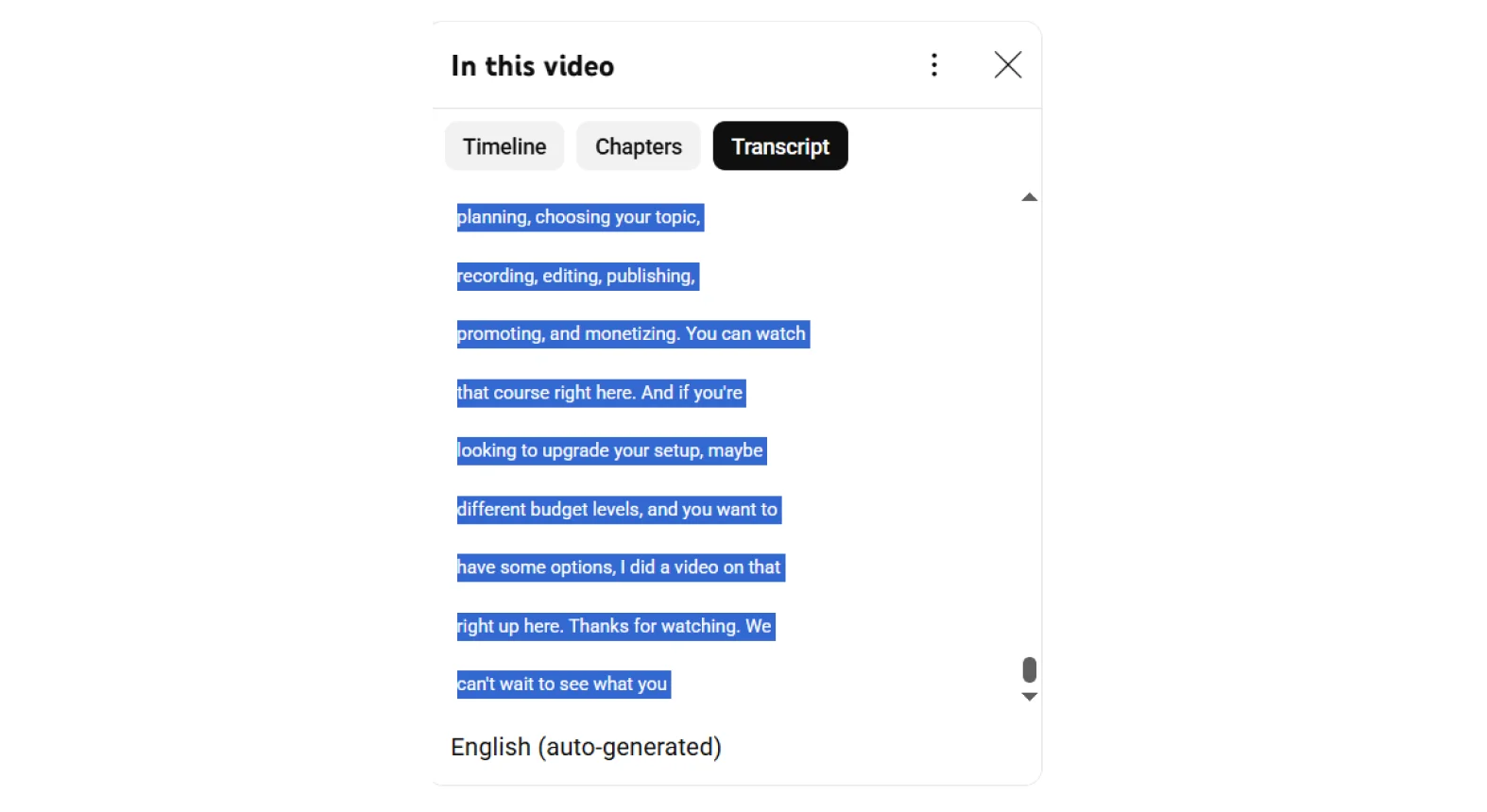
The easiest way to get the transcript text for a YouTube video is just to copy and paste it. Simply highlight the text from top to bottom, then copy by pressing Ctrl+C (or Cmd+C on Mac) and paste it into a document.
Pros
- Fast and easy.
- No tools or software required.
- 100% free.
Cons
- No formatting or punctuation.
- No subtitle-file download.
- No speaker differentiation.
- Requires substantial cleanup.
YouTube transcript generators
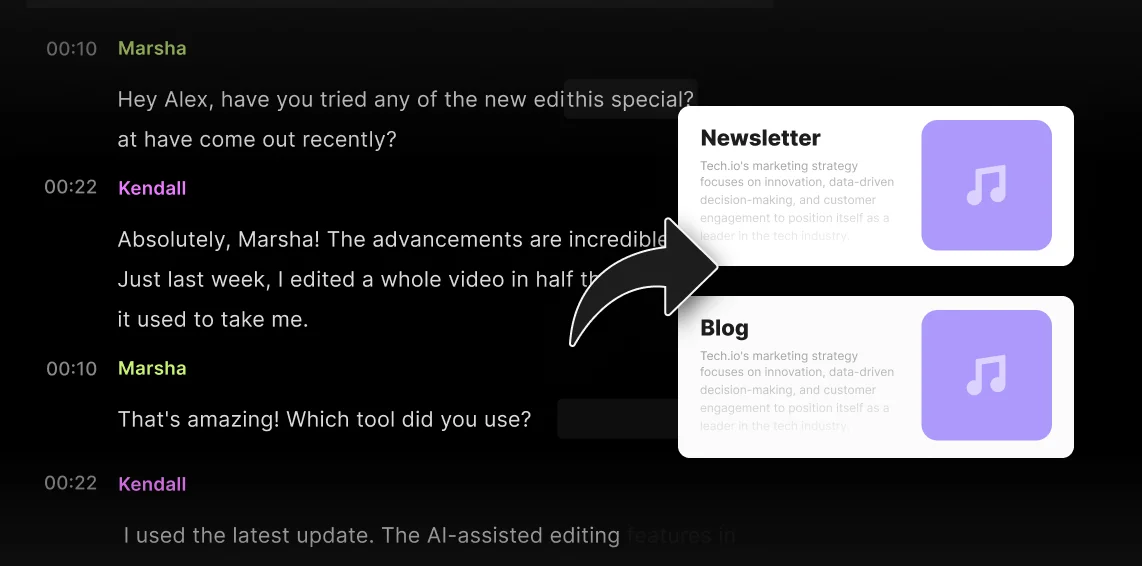
Copying and pasting works, but it’s quite rudimentary. If you want speed and smarter features, try one of the new transcript generators. With these tools, you can simply paste in the YouTube video link and get a transcript in seconds.
These tools don’t typically add formatting, but they usually let you search the transcript, get AI-powered summaries, and remove sponsored segments.
Riverside’s YouTube transcript generator gives you an up to 99% accurate transcript from a YouTube link in seconds, complete with formatting, punctuation, and speaker labels.
Pros
- Almost instant transcript generation from any YouTube link.
- Easy to use, no installs required.
- Automatically applies grammar, punctuation, and readable paragraph structures.
- Bonus features like summaries and editing tools.
Cons
- Most third-party tools lack grammar, formatting, or speaker labels (unless you use Riverside).
- Quality and accuracy depend on language and video audio.
YouTube transcript browser extensions
If you prefer to work straight from your browser, another option is to use a Chrome extension to fetch YouTube transcripts automatically.
When you open a YouTube video, extensions like YouTube Transcript and Tactiq can display or copy transcripts while you watch. Some like Glasp even include timestamps and can translate the content into multiple languages.
Pros
- Keep the transcript beside the video.
- Some offer additional AI tools, timestamps, and translations.
- Faster than switching between YouTube and another website.
Cons
- Some extensions only work if the video has captions.
- Output quality depends on the original caption track .
- Security concerns as some may track browsing history and other data.
- Limited formatting.
How to transcribe your own YouTube videos
If you uploaded the video, you can download its transcript directly from YouTube Studio with no additional tools.
Here’s how to do it:
Step 1: Log in to YouTube Studio.
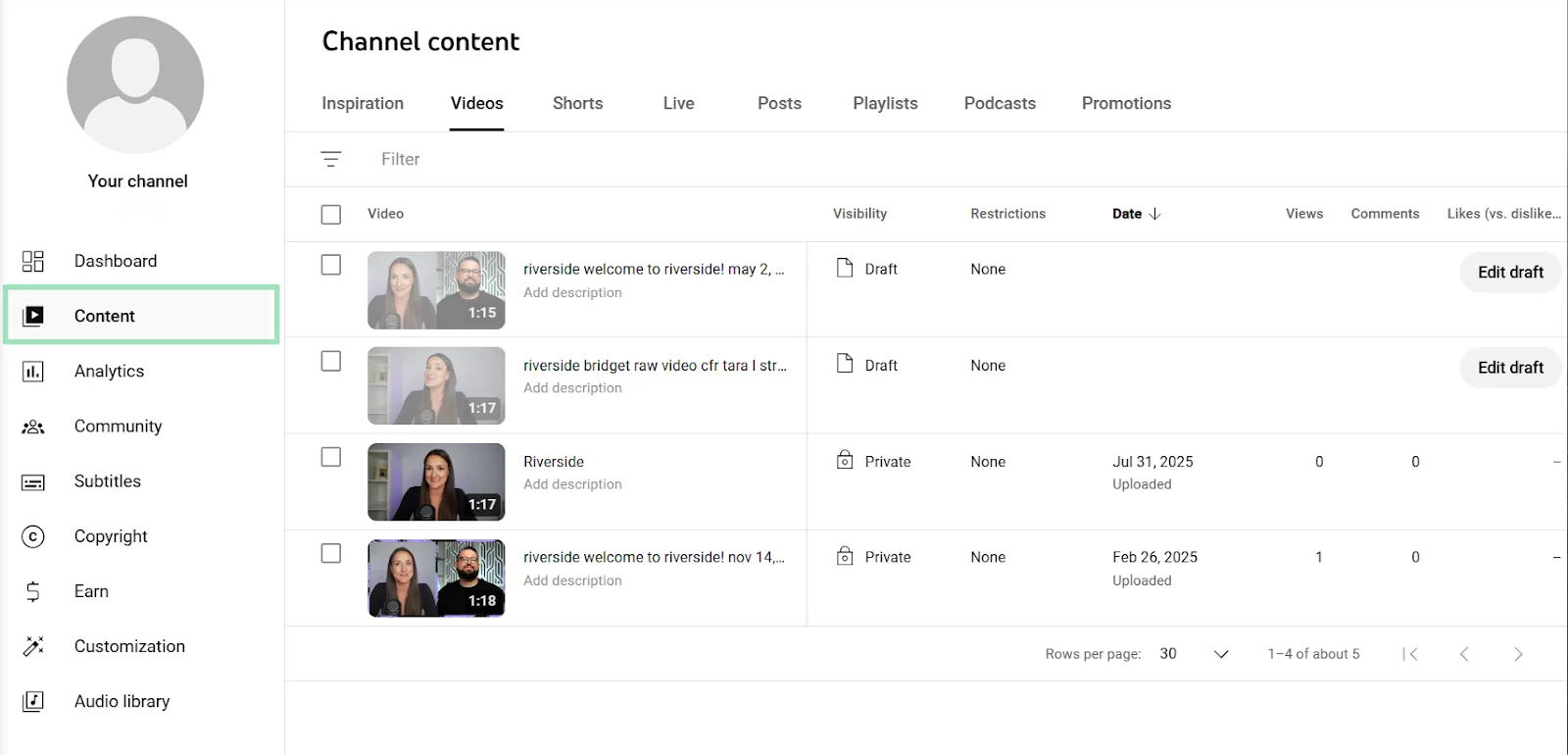
Step 2: Click “Content” and select the video you want the transcript for.
Step 3: Click “Subtitles” from the left sidebar. Then click the three dots to download your subtitles. You can download it as a VTT, SRT, or SBV file.
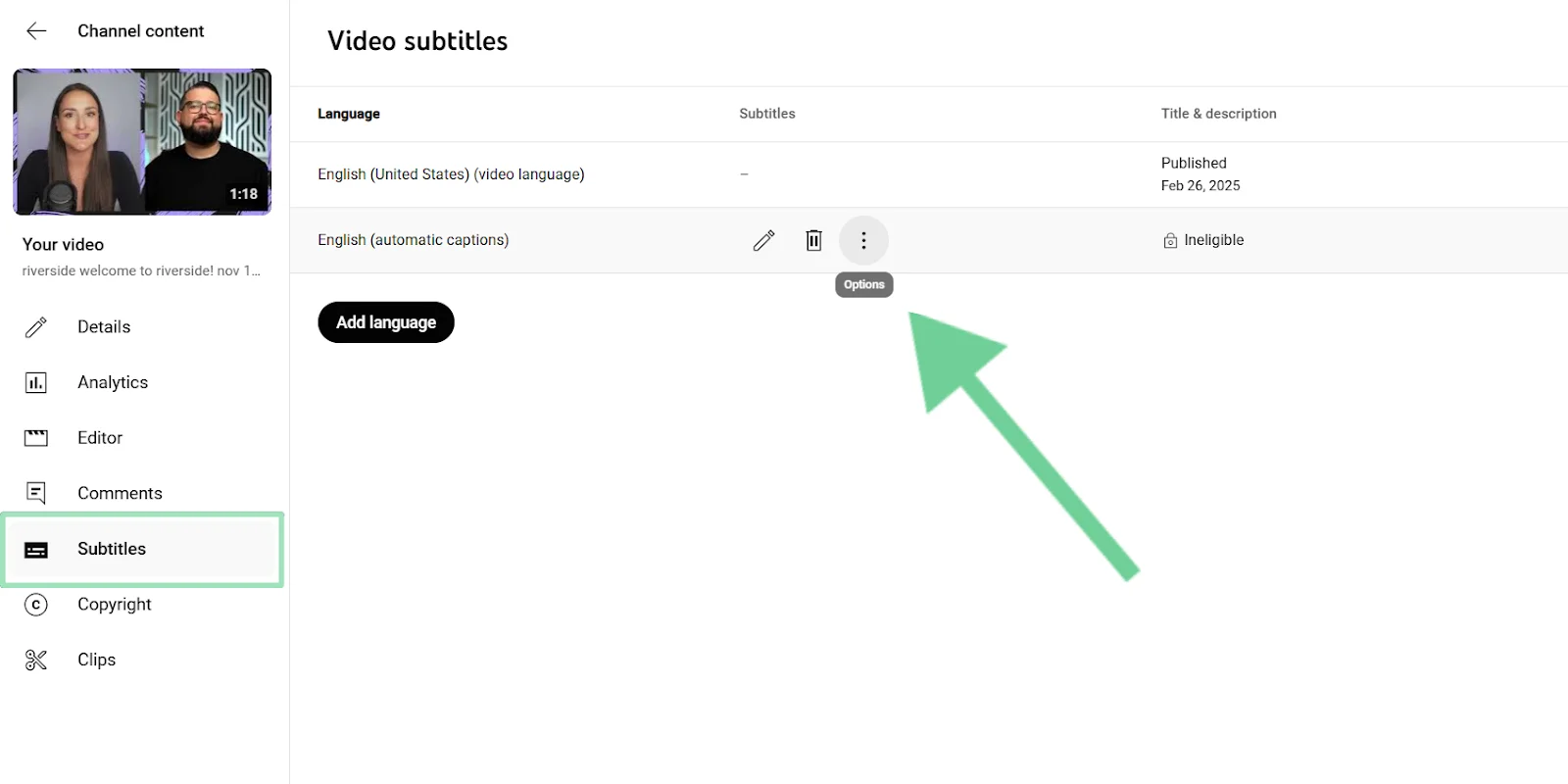
These files contain both the transcript and its timestamps. SRT is generally the most widely compatible format for captions.
Creating a transcript before uploading your video
Transcript accuracy is set by audio quality at the point of recording. If the original audio is compressed or distorted, no transcription tool can fix the text afterward.
You can use Riverside to record locally, then generate an accurate, downloadable transcript with clear speaker labels and bypass YouTube's processing time.
Here’s how to transcribe YouTube videos with Riverside:
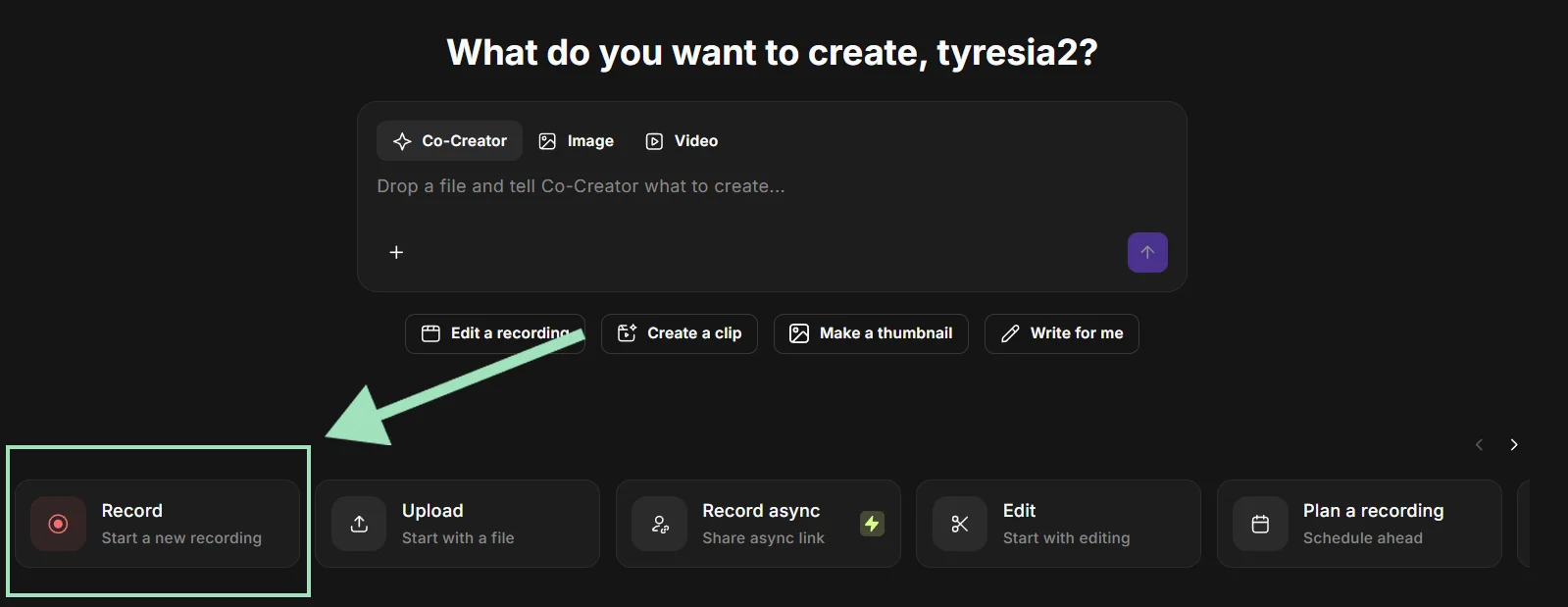
Step 1: Log in to Riverside and click “Record” to record your own video in up to 4K video and 48kHZ audio quality.
Step 2: Once the recording is over, Riverside will generate a transcript automatically. You can still make quick changes to your transcript from the text-based editor.
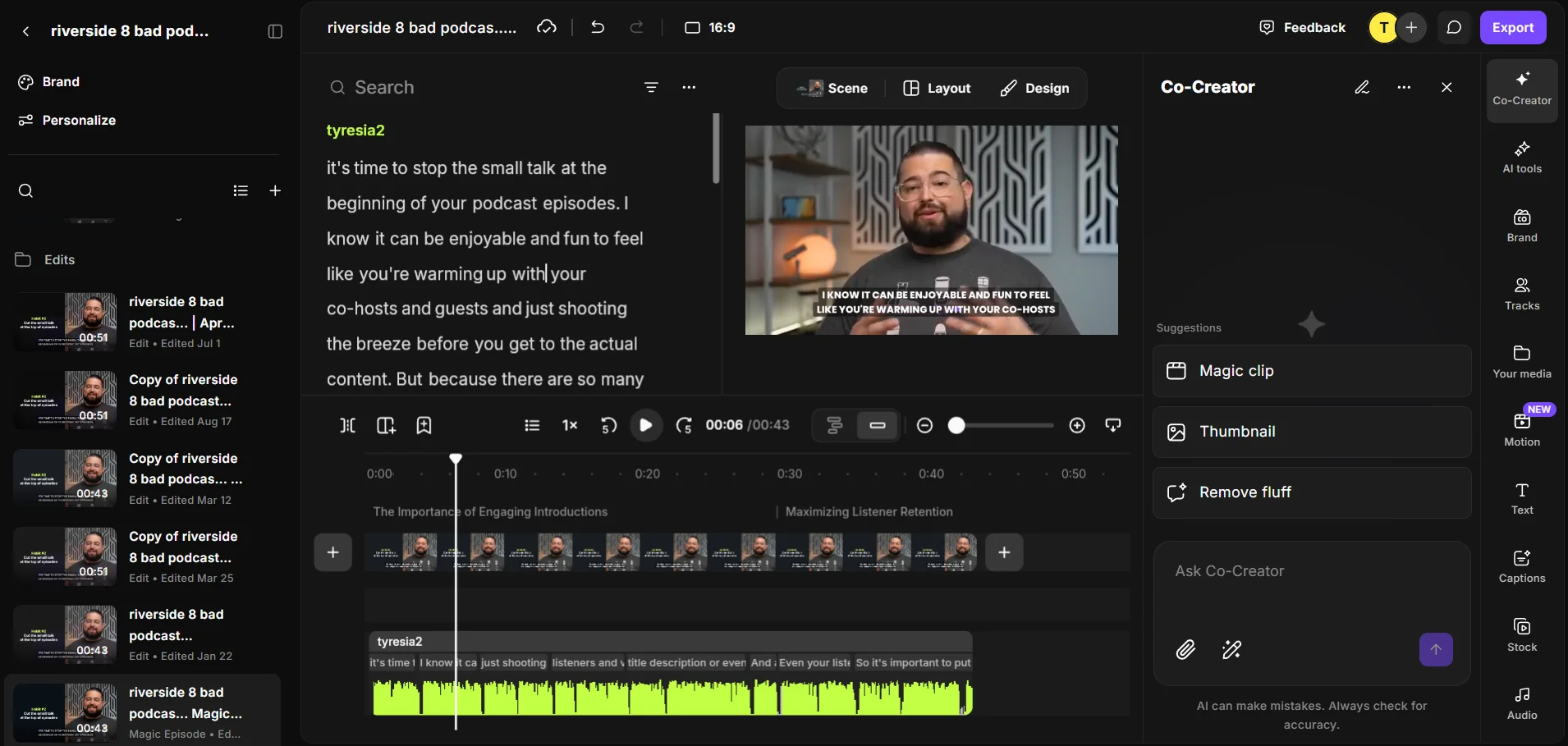
Step 3: You can download the transcript as a TXT file for editing or an SRT file with timestamps and then upload it to YouTube Studio.
Pro tip: With Riverside, you can use the transcript to instantly add customizable captions, translate and redub your recording in multiple languages, or repurpose it into blogs and social posts by chatting with Co-Creator.
Tips for better YouTube transcripts
Now that you know how to create a transcript for YouTube, you’ll want to make sure its quality is as high as possible.
Here are a few tips:
- Record close to the microphone. Keep the mic a few inches from your mouth and maintain a consistent distance while speaking. This gives the transcription software the best possible audio signal to work with.
- Reduce room echo. Avoid recording in empty rooms with bare walls and uncarpeted floors. Record in a space with curtains, rugs, and soft furnishings to absorb sound and prevent background reverb.
- Speak one at a time. Overlapping voices break speaker tracking and create garbled text. Avoid crosstalk and let one person finish their sentence completely before you reply.
- Check proper nouns first. When you proofread your final text, start by verifying names, brands, places, and specialist terminology. Also check numbers, dates, acronyms, and words that sound alike.
- Use real names in speaker labels. Transcripts are much easier to read when viewers know exactly who is talking. Replace generic tags like "Speaker 1" and "Speaker 2" with actual names so your audience can fully understand the conversation.
- Check timestamps on YouTube. Preview the uploaded captions and correct any lines that appear too early or too late or remain on screen for too long.
FAQs about YouTube transcripts
Can you transcribe someone else’s YouTube video?
Yes, you can read or copy the transcript from someone else's YouTube video for personal use. The transcript panel is a public feature, so you can use it to follow the video, search for information, and take personal notes.
However, YouTube discontinued its community captions feature in 2020. This means you can no longer contribute or edit captions on another creator's video. A creator can still invite someone they trust to work on captions by assigning them the Subtitle Editor role.
How can I get YouTube transcripts in other languages?
You can get a YouTube transcript in another language by copying the original text and pasting it into a separate translation tool like Google Translate or DeepL. YouTube allows you to automatically translate captions you see on-screen by clicking on the video’s Settings > Subtitles/CC > Auto-translate option, but it does not produce a downloadable transcript file for these auto-translations.
If you’re a creator, note that you can upload transcripts in multiple languages to YouTube.
- Go to YouTube Studio and select “Subtitles.”
- Click on the video you want to add subtitles to.
- Select “Add language.” You can now upload a file in another language.
Can I get a YouTube transcript for free?
Yes, you can get a YouTube transcript for free directly from the video page. Expand the video description and click the "Show transcript" button to open the built-in panel, where you can read or copy the text at no cost.
How long does it take to transcribe a YouTube video?
Transcribing a YouTube video can take anywhere from a few seconds to a few minutes. An existing YouTube transcript opens immediately, while an AI transcription tool will typically process a video in a few minutes.
Can ChatGPT transcribe a YouTube video?
No, ChatGPT cannot generate a new transcript by listening to a YouTube video from a standard link alone. However, when captions are available, ChatGPT can use the video’s existing timestamped transcript in a supported browser side chat. Otherwise, you can copy YouTube’s transcript and give it to ChatGPT to clean, format or summarize the content.


-(1).webp)


