Add Text to Video
Put text on video on your Mac or Windows PC, iPhone or Android device easily. Overlay pull quotes, lower thirds, or captions. Customize and place them exactly where you need them—because basic isn’t your style.




How to add text to a video on Riverside
1. Record or upload
Just record straight in Riverside or upload your existing video – either way works perfectly. You can upload videos in MP4, WEBM or MPEG format.
2. Put text on your video
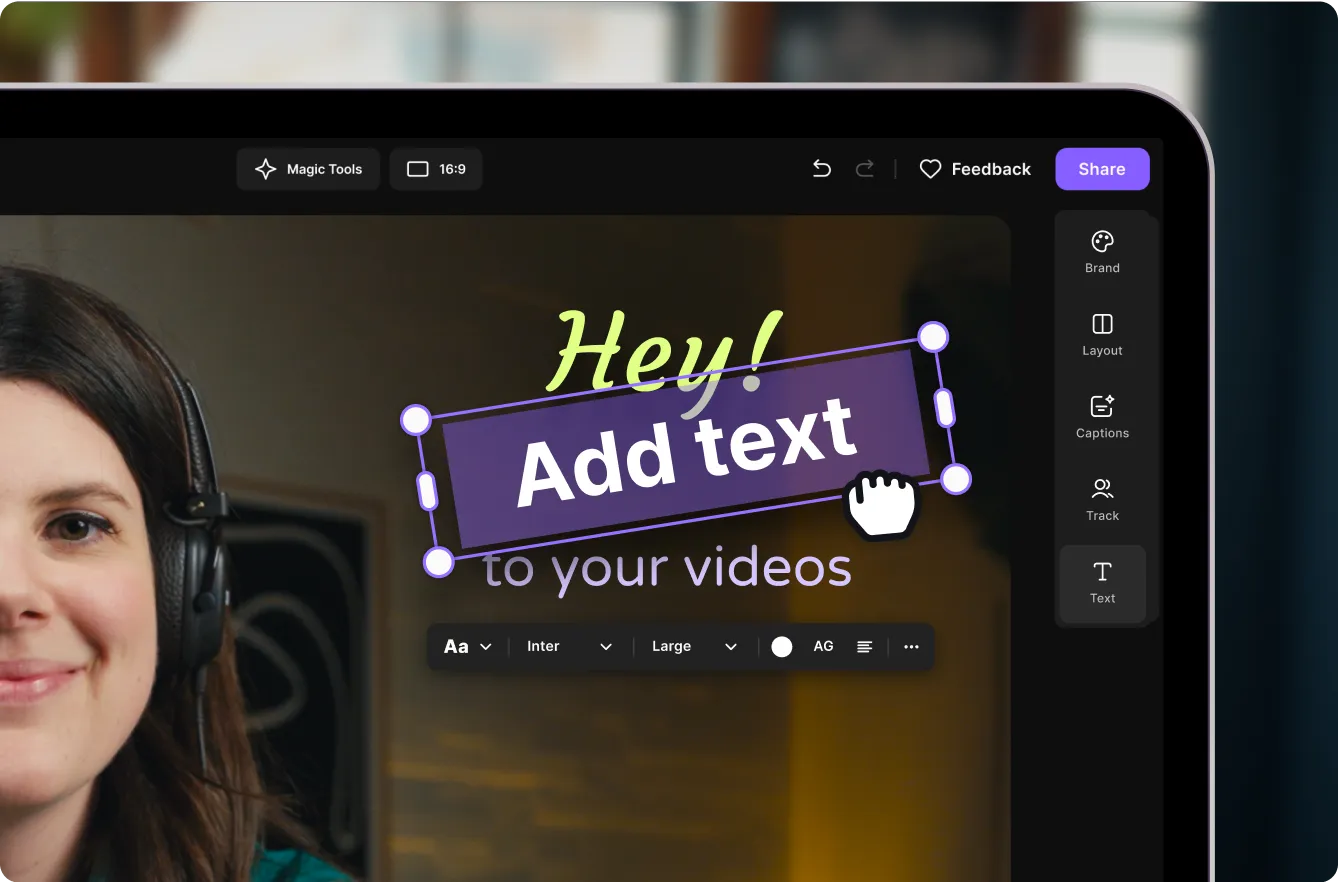
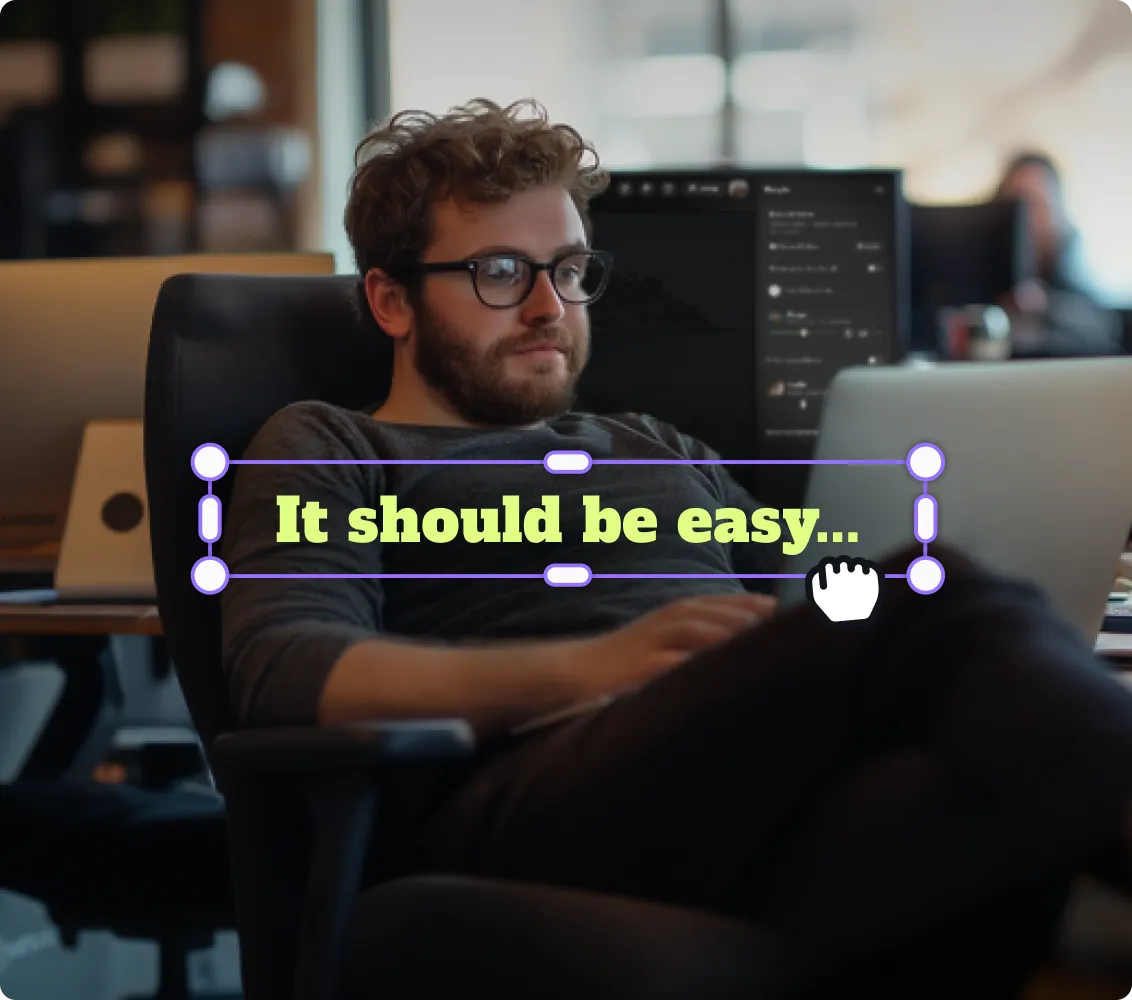
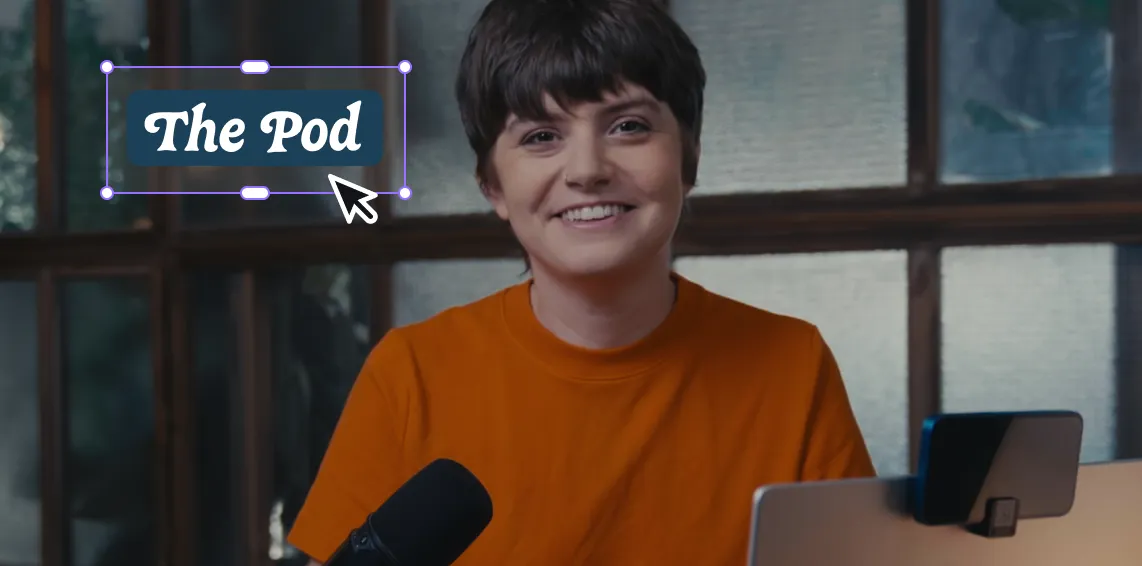
Add names, titles, or highlight a key quote. Select a style, or create one from scratch. Type your text and use the timeline to control exactly when it appears and disappears.
3. Add captions
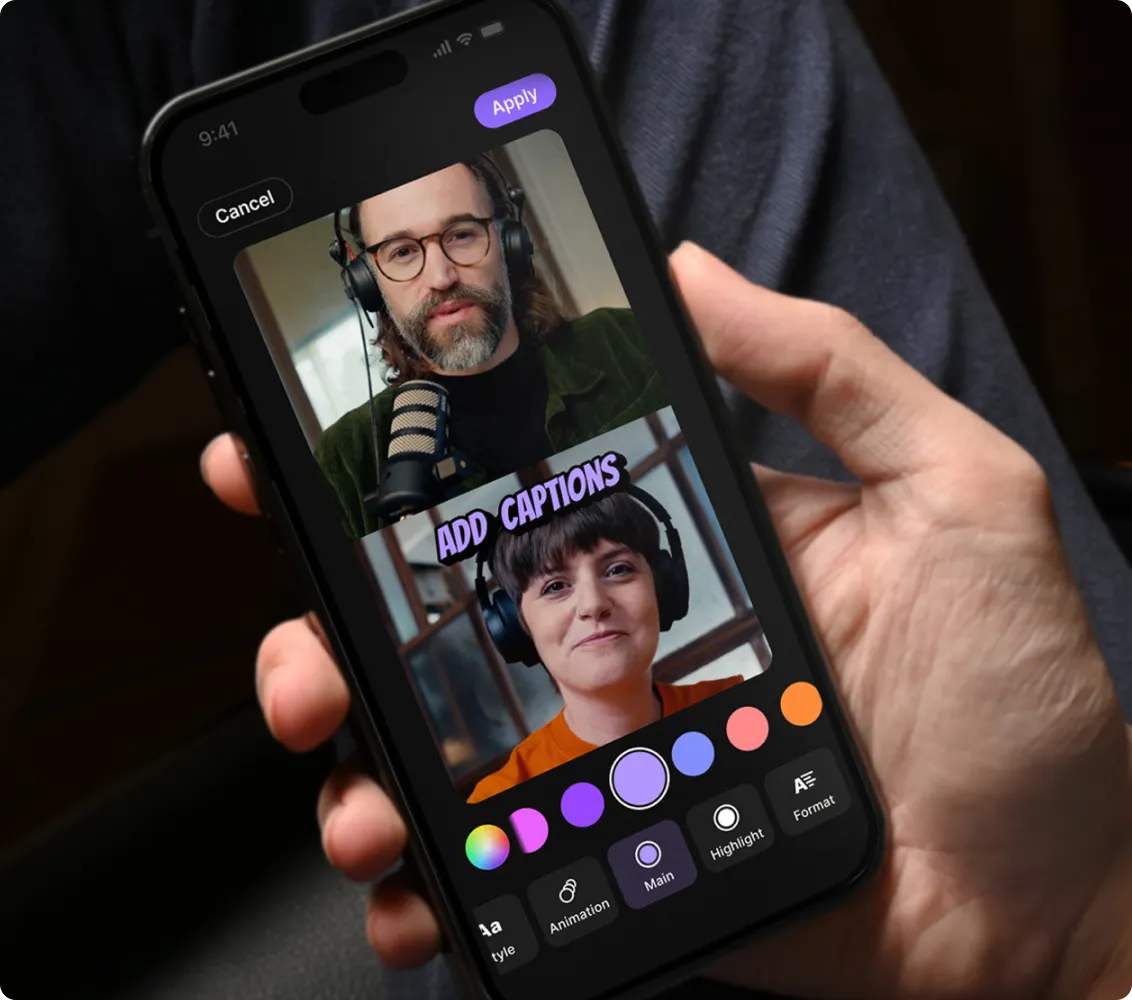
Click on Captions and let AI do the heavy lifting. Customize, animate and position them anywhere on screen. To edit, simply edit the transcript text.
4. Customize and share
Try different fonts and finish editing with image, music or video overlays, audio enhancement, and more. Export and you’re ready to share your video.

Why Riverside:
Add text that pops to videos that impress

Text overlays that stand out.
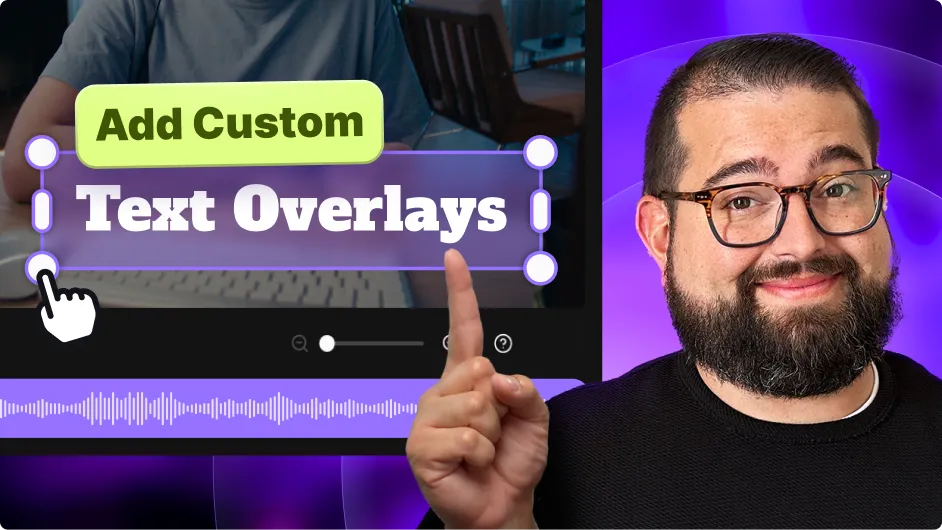
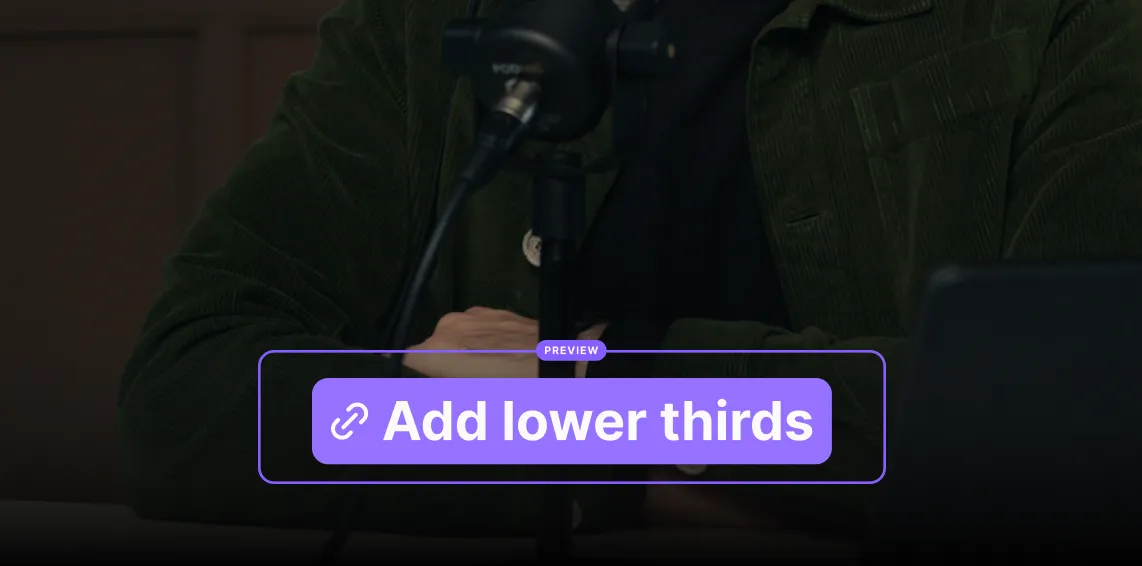
From titles to lower thirds and quotes, style your video text. Choose a pop of color, select a font, format, and background. Place them where you want. No design skills required.

Numerous styles ready to pick from.
Save time by adding text to videos choosing from ready-made styles. Choose one of our smart style presets. We’ve got presets for titles, quotes, and lower thirds.

Text animations that wow.
Static text is so 2015. Slide, pop, or fade: Add some smooth moves to your titles, names, and quotes. Whether that's a subtle fade or a show-stopping entrance.

Customize video text, live.
Your live streams can have text on them too! Share a text link, add lower thirds or any other text for context. Everything automatically will match your live studio branding. You get to choose how long text shows for.

Accurate captions on autopilot.
AI that generates 99% accurate captions. No more cringey auto-captions that turn "market analysis" into "marble axes". Choose from a variety of styles, animate, and position them where you want.

Keep on brand.
No more searching for that exact color code each time you want to select a font color. Save all your brand formatting in a text-style preset, ready to put into any video at the click of a button.
Text or video - your words matter.
Combine video with text easily with Riverside.
How to choose the right software for text overlays
Easy to use
If you need to watch 12 YouTube tutorials just to insert a speaker name, run. The right tool feels natural - like you've been using it for years, even if you just started 5 minutes ago.
Accurate AI captions
AI captions means auto-generated captions and subtitles in minutes. Great AI means captions that actually match your video –Riverside generates captions in a 100+ languages with 99% accuracy.
In style
Nobody wants their video looking like a PowerPoint from 2002. You should be able to customize text overlays without fighting the software for basic design control.
Multiple use cases
Whether you're jazzing up a quick social clip or becoming serious about livestreaming, your tool should handle it all without throwing a fit.
On brand every time, easily
You don't want to check if your branding is correct a hundred times. Choose a video editor that allows you to insert your own brand kit and save it as a preset.
Affordable or free
You shouldn’t be breaking the bank. Choose affordable software that includes everything in one package.
Add text to videos to:
Publish pro-level interviews
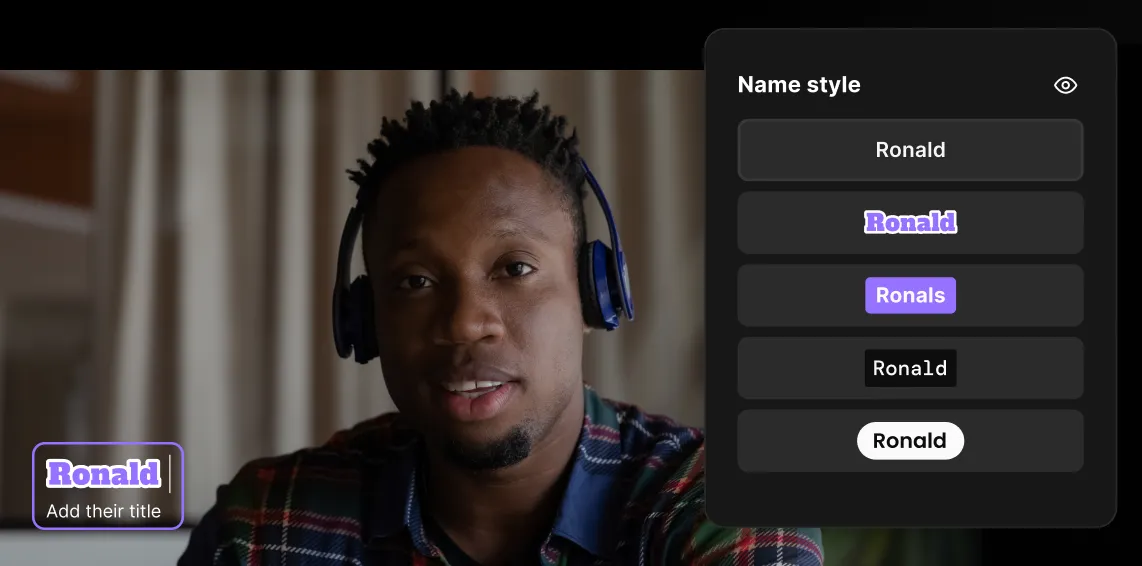
Pop up speaker names right when your guests start talking, whether you’re hosting a live or recorded interview. Add credentials for every guest and highlight those controversial hot takes with text snippets.
Create killer testimonials
Put testimonial quotes in your videos and make people stop scrolling. Or emphasize results that make competitors nervous and create success stories that practically share themselves.
Make digestible tutorials
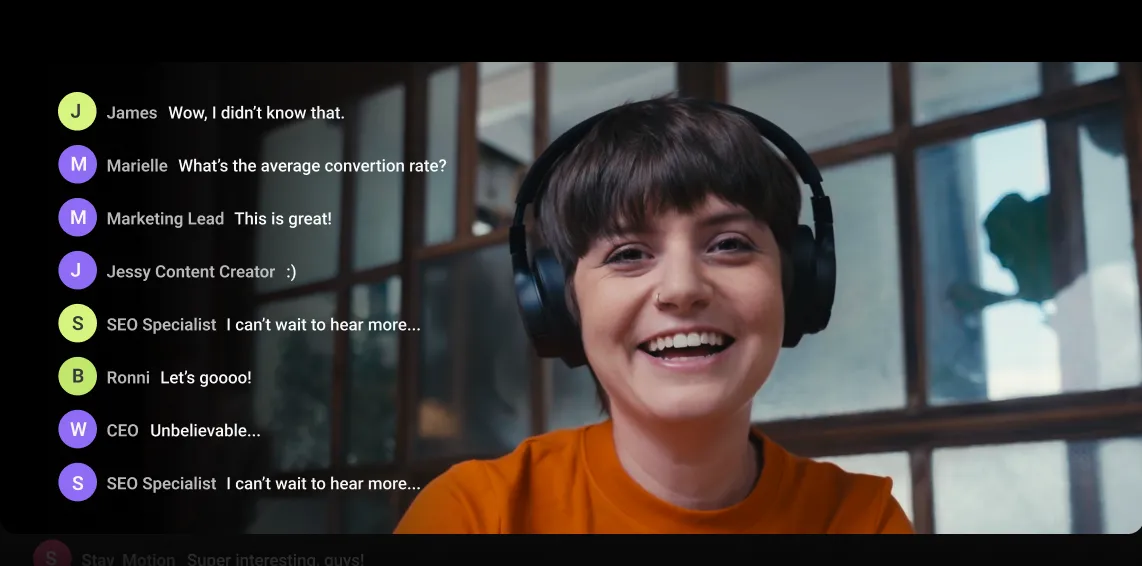
Make product demos and step-by-step tutorials that viewers can follow easily. Drop pro tips in text boxes, and emphasize those "seriously, don't skip this part" moments with eye-catching text overlays.
Grow your impact on social media
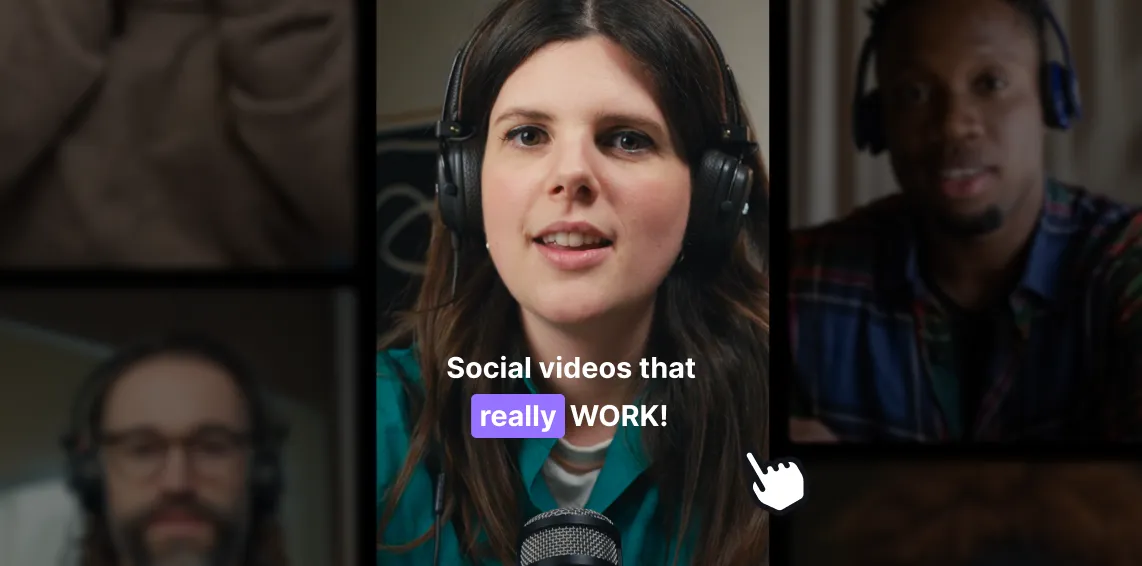
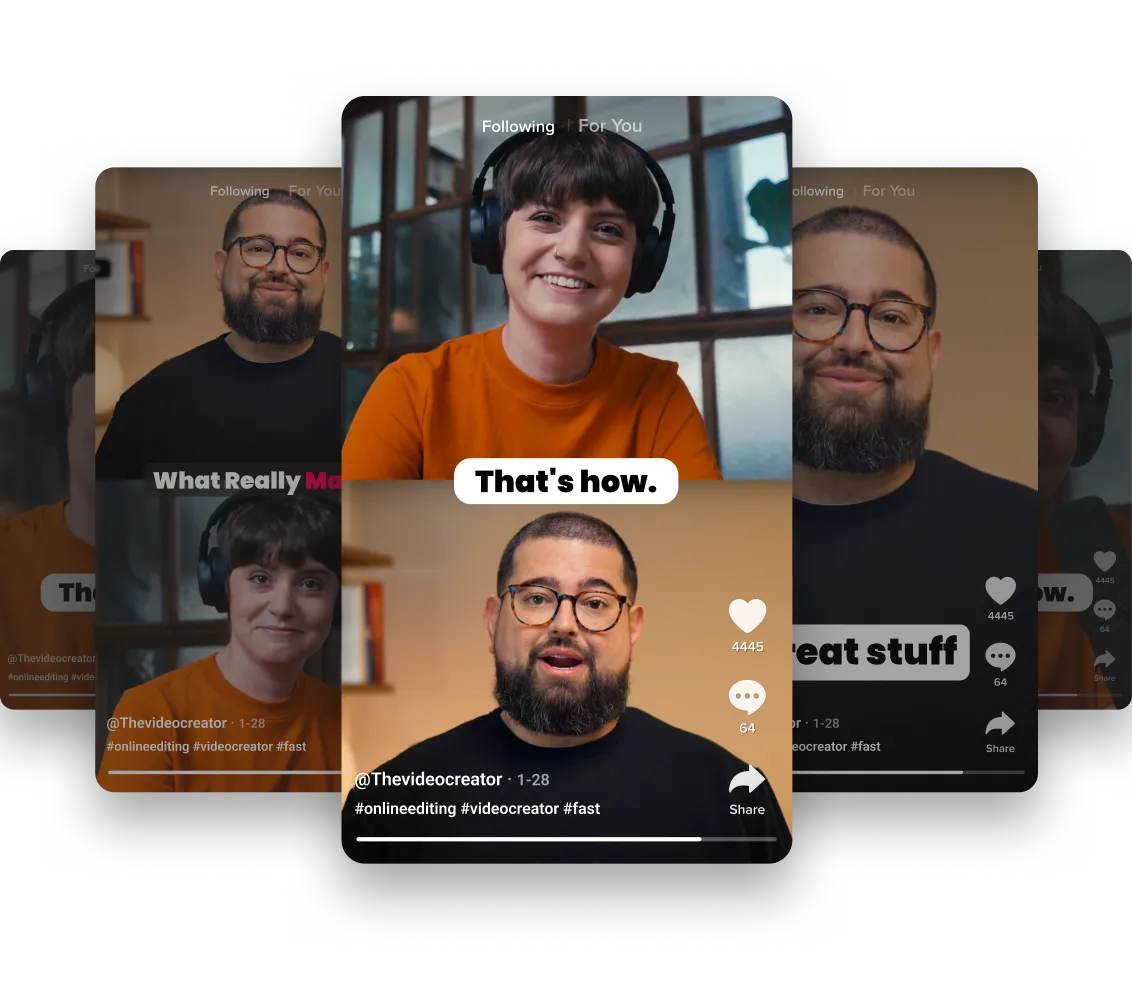
Social media users watch videos on mute or while multitasking. Insert text in your videos to add context and grow engagement. Add captions or your "POV" text overlay for some scroll-stopping videos.

Pricing
From recording to publishing, all on one platform. Studio-quality results with AI that does the heavy lifting.
Pro
Create polished, high-quality content
/mo (yearly plan)
High-quality video & audio recording in separate tracks
Unlimited text-based editing
Unlimited multi-track editing
AI tools (Magic Audio, Smart Scenes for automatic multi-cam edits, eye contact, unlimited transcriptions, show notes, remove silences & filler words)
AI content repurposing tools
Publish to YouTube, Spotify, Apple, Instagram, LinkedIn & more
Business
Produce at scale with control
Full remote control over recording and post-production
Custom branding
Webinar solution
Podcast hosting for as many shows as you want
Async recording
Team collaboration
24/7 priority support
Dedicated Customer Success Manager
Enterprise-grade security

Frequently Asked Questions
Think of it as digital sticky notes for your videos—text that sits right on top of your content. We're talking about everything from subtitles to speaker names to eye-catching callouts that make people actually remember what you said. Riverside makes all of this super easy, so your videos look professional even when your viewers have their phones on mute.
You can add text to videos pretty easily with a platform like Riverside. Here’s how:
- Open your video recording in the editor.
- Scroll down the toolbar on your right and click “Text”.
- Choose a style and position the text where you want it.
- Type your text and use the toolbar to format it how you like.
- Use the timeline tool to perfect your timing. Drag the edges of the text track to make it show for a longer or shorter time.
Yes, you can customize the appearance of the text you add. With Riverside, you can:
- Use fonts that actually match your brand (because not everything needs to be Arial). Pick from our collection of styles that work for everything from professional interviews to social clips.
- Choose colors that make sense. Whether it’s your brand colors or a color that pops against your background, you want text overlays that are accessible and stand out without driving the attention away from the true star of the video.
- Add smooth animations that make your text feel intentional, not jarring. Subtle fades, clean slides, and professional transitions that keep viewers watching.
- Drop text exactly where you want it. Bottom corner for names or center for big statements? Show text anywhere on the screen.
Set perfect timing with the timeline. Make text appear exactly when it should and disappear when its job is done. No more awkward lingering or early exits.
Made a typo or changed your mind? If you added the text directly on Riverside, then no sweat.
Just follow these 3 easy steps:
- Click on the video to edit.
- Click on the text you want to edit or remove.
- Edit your text. Or on the text toolbar that appears, click on the three dots, and then “Remove”.
If you’ve already got a text overlay baked into your video, your best bet is to cover it up with new text. For example, when that $99 price point becomes $79, just drop a shiny new price tag right over it.
The best way to add subtitles to a video is to use a video captioning tool.
With Riverside, this is how you can do it automatically with 99% accuracy and in over 100 languages:
- Record directly in your studio or upload the video you want to add captions to.
- Open your recording in the editor.
- Click “Captions” on the toolbar that appears on the right-hand side.
- Captions are automatically generated and added to your video.
- Click on the captions box to customize the style, font, and size or drag it to change their position.
With 99% accuracy, it’s highly unlikely you’ll need to edit your subtitles. But if you do, then simply edit the transcript text, and your captions will automatically get updated, too.
More than a mint video editor.
Video creation from A to Z –all in one place.
-p-800.webp)
.webp)

More from Riverside

-(1)-(1).webp)
.webp)

Features