Key takeaways:
- For most beginners, the smartphone you already carry is the best, most practical podcast camera, often providing better quality than a standalone webcam.
- If you want a budget mirrorless setup, the Sony ZV-E10 delivers class-leading autofocus, but you must be comfortable with its direct USB webcam mode capping out at 720p.
- The Sony a7C II is the best camera overall, with excellent autofocus and 4K/30fps video directly over USB, but the price is very steep.
- Investing in a fast, wide-aperture lens and good lighting will improve your podcast's visual quality far more than a camera that records in 4K.
I’m Stephen Robles, and I've tested everything from budget webcams to $2,000+ mirrorless cameras to record Primary Technology, my video podcast.
One thing I've learned is that a camera that shoots beautiful 4K video won't necessarily deliver that quality when you plug it into your laptop.
To help you find the best podcast cameras, I listed 6 devices I've personally used, which ones I'd recommend for your budget, and one I'd skip.
How I tested each camera
To keep the comparison fair and practical, I tested each camera in the same recording environment. I connected each camera to my Mac, selected it in my recording software, and recorded sample footage to see how it actually performed.
My main focus was testing single-cable simplicity for podcasters who just want to plug in and start talking. Instead of just comparing sensor sizes, I tested exactly what happens when you plug every camera directly into your computer. I tried each camera's USB webcam mode to see the actual resolution you get using a single cable.
During my tests, I discovered that one $2,000 camera completely fails to work in this mode. When a direct USB connection didn't work, I tried HDMI through my video switcher instead.
I evaluated five key factors:
- Webcam mode reliability: Did the camera work over a single USB cable, or did the recording software fail to detect it?
- Delivered resolution: Did the camera output 720p, 1080p, or 4K video directly to the computer?
- Autofocus responsiveness: Did the eye tracking stay locked, and how quickly did focus shift when I held an object up to the lens?
- Frame rate stability: Did the live video stream smoothly, or did the feed drop frames and stutter under sustained recording?
- Setup friction: Could the camera run on plug-and-play USB power, or did it require a dedicated capture card or video switcher to work?
The best podcast cameras, tested
Here are the best podcast cameras I’ve tested for you, plus one I wouldn’t pick.
Best free podcast camera: Your phone
- Price: $0 (It’s your phone.)
- Camera type: Smartphone
- Webcam-mode max resolution: 1080p
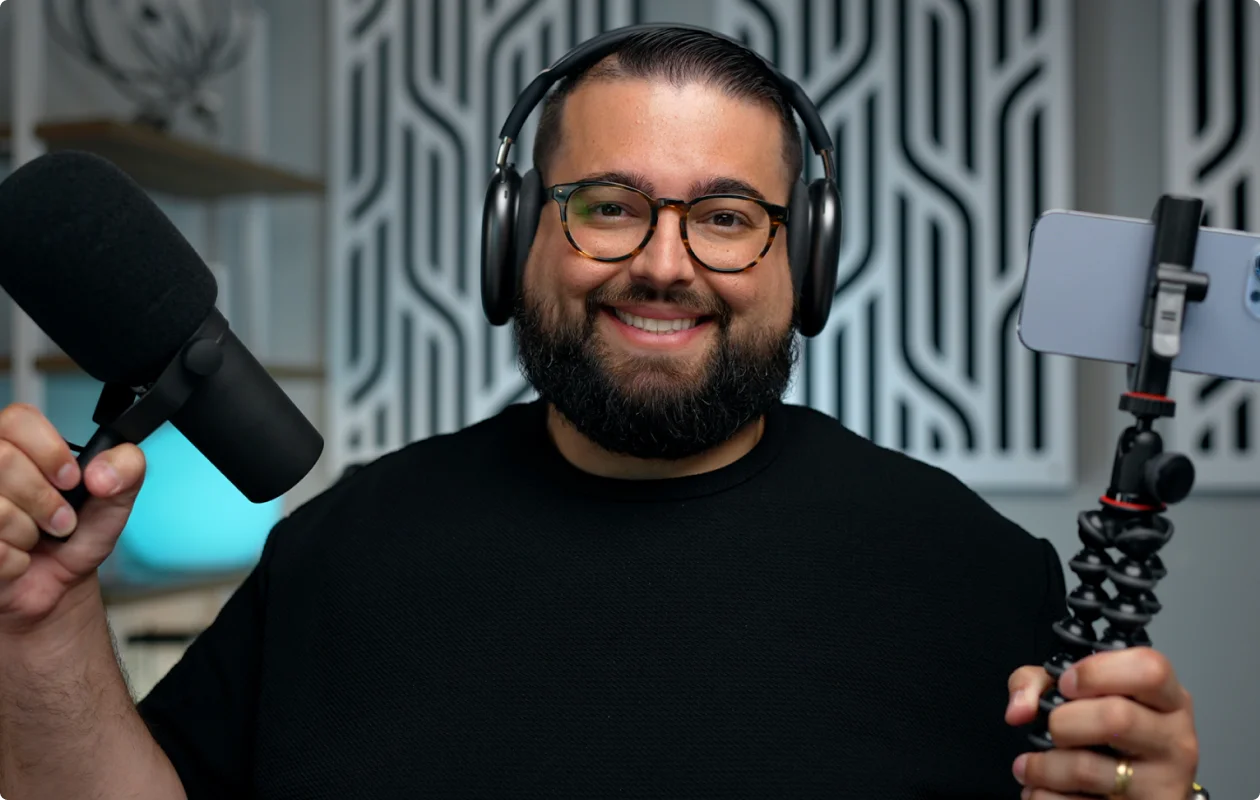
If you have a modern smartphone, you already own a camera that easily beats almost any built-in laptop webcam. In fact, I'd recommend using your iPhone’s camera before spending hundreds of dollars on a dedicated webcam.
In my studio tests, I used an iPhone 14 Pro with Continuity Camera, which is Apple's feature for using an iPhone as a Mac webcam. The video looked great, and I could select my iPhone's rear camera directly in my recording software without installing any additional apps or buying a capture card.
You can connect wirelessly or through USB. All you need is an iPhone XR or newer running iOS 16 or later and a Mac running macOS Ventura or later. Any iPhone 12 or newer gives you sharp video, accurate skin tones, and reliable exposure right out of the box.
Android 14 and newer, including compatible Google Pixel models, can also work as USB webcams. Windows 11 supports using compatible Android phones as wireless webcams, too.
For this type of setup, I recommend using a stable mount or tripod. I used the Belkin MagSafe mount to attach the iPhone to my laptop lid, keeping the camera at eye level without cluttering my desk. And make sure to enable Do Not Disturb to stop calls from interrupting your recording.
The downsides:
Continuity Camera limits your resolution at 1080p in widescreen mode, even if your iPhone can record 4K video. Also, video processing drains battery fast, so you need to keep your phone plugged into power all the time.
Best podcast webcam: Logitech StreamCam
- Price: $169.99
- Camera type: USB-C webcam
- Max resolution in webcam mode: 1080p at 60fps over USB 3.1
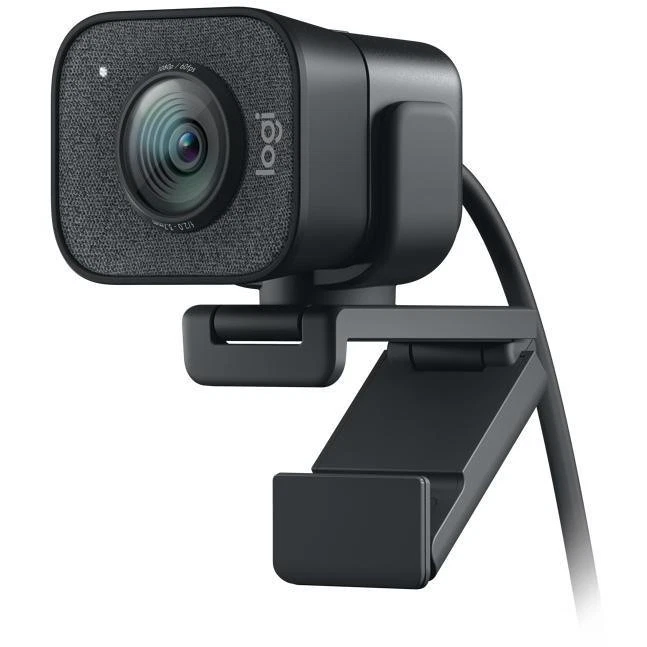
A webcam can be good enough for a podcast if you want an option that requires zero setup and lets you start recording in seconds. But you need to keep your expectations low.
I've tested the StreamCam several times, including a side-by-side comparison with the 1080p Opal Tadpole, the 4K Opal C1, and my MacBook Pro's built-in webcam. In my tests, the Logitech StreamCam delivered reliable 1080p high-definition video. It connects easily with a single USB-C cable, but you need USB 3.1, or you’ll be limited to 720p. Riverside recognized it instantly in the online studio, and I even used it to record locally in QuickTime on my Mac. The companion Logitech app gives you plenty of customization settings to adjust your picture and a functional autofocus.
Just keep in mind that my MacBook Pro's built-in webcam actually looked better than all three dedicated webcams in automatic mode. The StreamCam struggled to balance bright areas of the image, while the MacBook handled exposure and white balance more naturally. The more expensive Opal C1 and Tadpole had similar issues.
If your laptop's camera isn't great, though, the StreamCam is still one of the most inexpensive ways to step up your video quality just a bit. Just don't expect a dramatic improvement.
The downsides:
Webcams use small sensors that struggle in low-light environments. You need excellent lighting for a professional look, and you will not get the natural background blur (bokeh) that you achieve with a mirrorless camera.
Best budget mirrorless camera: Sony ZV-E10
- Price: Around $750
- Camera type: Mirrorless (APS-C crop sensor)
- Webcam-mode max resolution: 720p
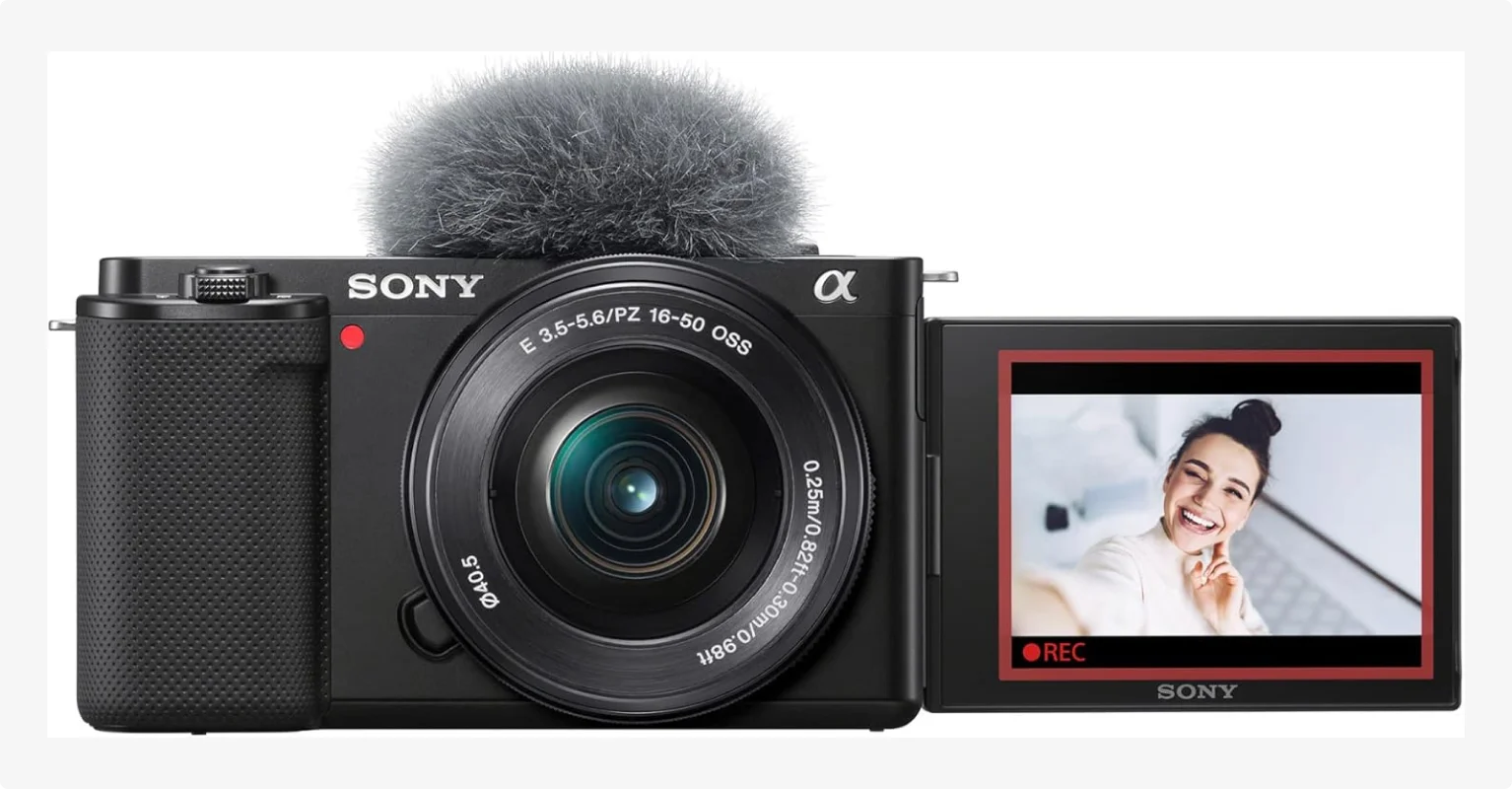
The Sony ZV-E10 is a great 4K budget camera, but when you plug the Sony it into your computer over USB, the video quality maxes out at 720p. You will not get full 1080p HD video from this camera in webcam mode.
This may be enough for most video podcasts, though. Most recording software places multiple remote guests into a grid layout where the difference between 720p and 1080p is practically invisible.
Despite this limitation, the ZV-E10 is still one of my favorite budget options, largely because of its excellent eye-tracking autofocus. When I held a physical product up to the lens, the camera focused on the item instantly. As soon as I pulled the item away, the focus snapped right back onto my eyes.
The ZV-E10 is a crop sensor camera. A crop sensor (APS-C) is smaller than a full-frame sensor, so the same lens gives a tighter, more zoomed-in shot. To avoid a cramped frame, I highly recommend skipping the basic kit lens. In my studio tests, I paired this camera with a Sigma 16mm f/1.4 lens. When I tested it side-by-side with the default kit lens, the Sigma provided a much wider angle and a far more professional blurred background.
The downsides:
The 720p USB output limit is the biggest drawback if you want full HD streaming without extra gear. You can get higher-resolution video through the camera's micro-HDMI port, but you'll need a capture card or video switcher.
Best for 1080p USB recording: Canon EOS R50
- Price: Around $800 with the 18-45mm kit lens
- Camera type: Mirrorless (APS-C crop sensor)
- Webcam-mode max resolution: 1080p
.webp)
The major advantage of the Canon EOS R50 is that it delivers full 1080p video over USB-C right out of the box. You don’t need a capture card or video switcher to get a sharp high-definition feed.
In my studio tests, setup was effortless. I plugged the camera into my computer, opened the studio, and the Canon appeared immediately as a video source. The default color profile delivered natural skin tones without having to adjust complex color profiles or LUTs. The articulating touchscreen flips out fully, which made framing my shot simple while I was sitting at my desk.
Like the ZV-E10, the R50 uses an APS-C crop sensor. The included 18-45mm kit lens is wide enough for a desk setup, but its maximum aperture of f/4.5–6.3 doesn't produce much natural background blur. I'd consider upgrading to a Canon RF 16mm f/2.8 for a wider shot in a small room, or an RF 35mm f/1.8 if you have enough space for a tighter shot with more background blur.
The downsides:
The autofocus is a little slower to switch from my face to the object and back again compared to the Sony ZV-E10 and a7 IV. I also noticed occasional frame rate drops in webcam mode, which made the video look slightly less smooth.
Best full-frame mirrorless: Sony a7 IV
- Price: Around $2,000 (body only)
- Camera type: Full-frame mirrorless
- Webcam-mode resolution: 1080p at up to 60fps, or 4K at 15fps over USB-C
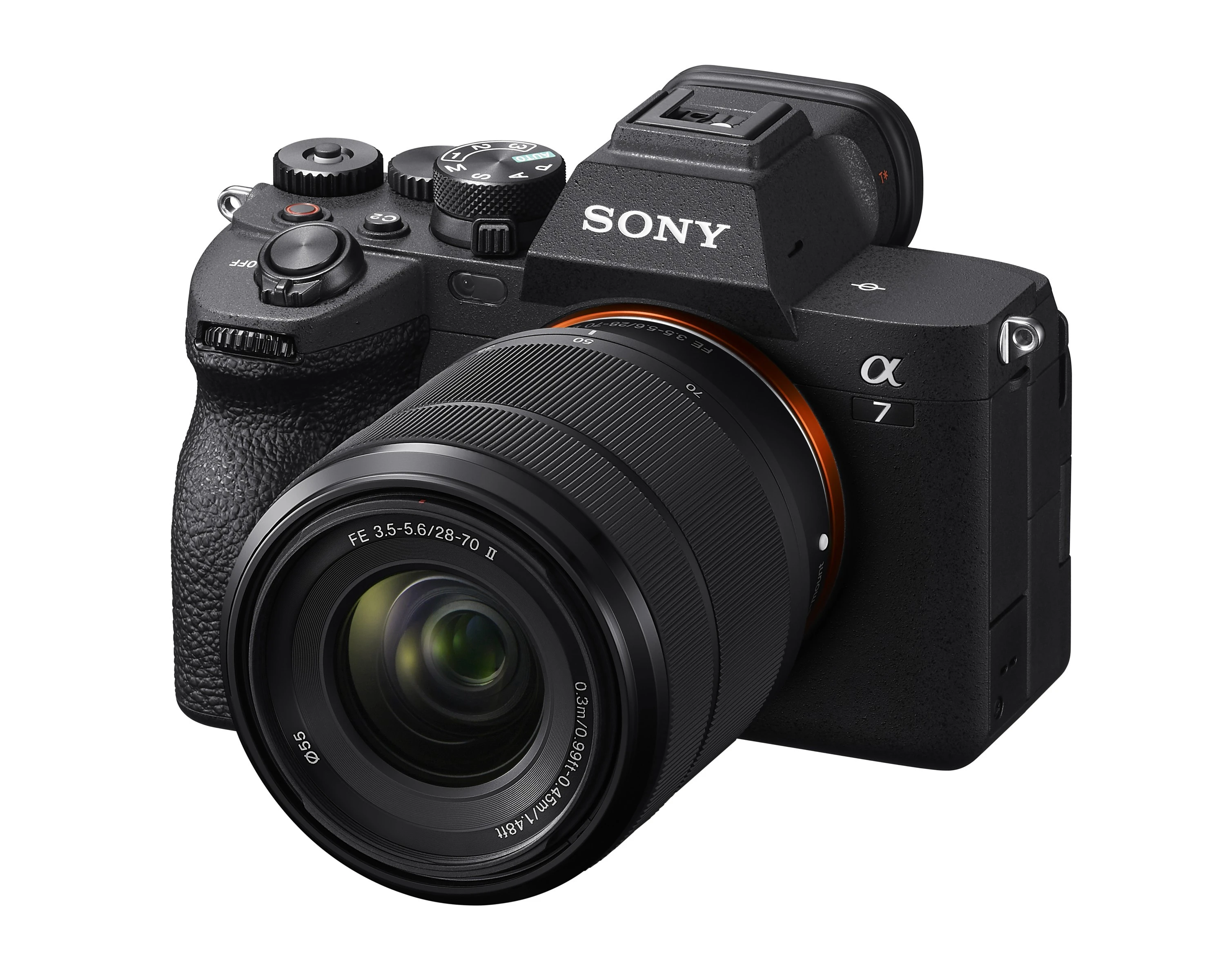
The Sony a7 IV is an excellent hybrid camera that excels at both video and 33-megapixel photography. It's a podcast camera I personally use to record Primary Technology and my YouTube videos. I connect it to Riverside through a Blackmagic ATEM Mini Pro video switcher.
Because it’s a full-frame camera, you can use longer lenses without the shot feeling claustrophobically zoomed in. I use a Sigma 35mm f/1.4 lens for a wide shot with a naturally blurred background.
The eye-tracking autofocus is fantastic. It instantly tracks my hand when I hold it up to the lens and smoothly transitions back to my eyes the moment I pull it away. That's invaluable when you're recording a podcast by yourself and don't want to constantly check your camera.
The a7 IV also has a full-size HDMI port, which I prefer over a micro-HDMI when connecting cameras to a video switcher. But you don't need a switcher to use it as a webcam. It supports direct USB streaming at 1080p up to 60fps, although its 4K USB output is limited to just 15fps.
The downsides:
My biggest reservation is the price and setup cost. You'll need to buy a lens separately, and a switcher to get the highest video quality possible adds another piece of equipment. If you want a simpler plug-and-play camera, the Sony a7C II is a more convenient high-end alternative, particularly because it supports 4K at 30fps over USB.
Best overall podcast camera: Sony a7C II
- Price: Around $2,100 (body only)
- Camera type: Full-frame mirrorless
- Webcam-mode max resolution: 4K
.webp)
The Sony a7C II combines excellent image quality and autofocus with something surprisingly rare among mirrorless cameras: 4K video directly over USB. If I were starting a video podcast from scratch today, this is the camera I would get.
Unlike the Sony ZV-E10 or the a7 IV, I did not need a video switcher or capture device to get professional 4K footage video at 30fps. I simply selected "USB Streaming" in the camera menu, and that was it. To safely handle that heavy 4K data load, though, I recommend connecting it to your computer with a Thunderbolt cable. The camera will actually give you a warning if your standard USB-C cable isn’t fast enough to transmit the high-resolution feed.
The autofocus was fantastic, too. It tracked objects super fast, and I found it to be even quicker and smoother than my own a7 IV. When you pair it with a premium lens, like a 24mm f/2.8 or the Sigma 35mm f/1.4 I use, you get a stunning, naturally blurred background.
The downsides:
The a7C II is an expensive investment, especially since after spending over $2,000, you still need to buy a lens and a USB 3.2 cable to use it. And unlike the a7 IV, it has a micro-HDMI port rather than a sturdier full-size connection.
The camera I'd skip: Panasonic Lumix S5II
- Price: Around $2,000 (with an f/1.8 lens)
- Camera type: Full-frame mirrorless
- Webcam-mode resolution: Failed to work
.webp)
The Panasonic Lumix S5 II has a lot going for it on paper, including excellent picture quality and a full-size HDMI port. But this was the camera that disappointed me the most.
My first mirrorless camera was the original Lumix S5, and I really wanted to like the S5II. But after installing it and trying for a couple of hours, I could not get my Mac to recognize it in any of the recording applications I tried. Nothing worked, and apparently it’s not just my computer. Several users on Reddit have reported the exact same issue, while others have more luck, which means USB webcam use isn’t technically impossible.
I eventually connected it through its full-size HDMI port to my Blackmagic ATEM Mini Pro switcher. That worked, and I actually liked the image quality.
But then I ran into another problem: Autofocus eye-tracking is a major liability. The camera would lose focus even when nothing changed in the frame and I was just looking directly at the lens. If you hold up an object for a product showcase, it takes a long time for the camera to refocus on it, and just as long to find your eyes again when you put it down.
Overall, if you don't want to use manual focus and need a simple connection to their computer, I can't recommend the Panasonic Lumix S5II over the alternatives I've tested.
iPhone vs. webcam vs. mirrorless camera: Which should you use?
I'd start with your phone if you already have a good one, choose a dedicated webcam for convenience, or invest in a mirrorless camera if you want the best image quality.
Here's how the three options compare:
I've tested all three options, and spending more doesn't always mean getting better results. In my side-by-side comparison, my iPhone 15 Pro Max delivered better-looking video than dedicated webcams. If you have a modern smartphone and don’t mind attaching it to a tripod or magnetic mount before recording, I’d skip the webcams entirely.
Personally, I think a mirrorless camera is worth the investment if you're serious about video podcasting. Interchangeable lenses give you much more control over framing and natural background blur, and reliable autofocus makes a huge difference when you're recording alone.
How to choose a podcast camera
Besides looking at the specs, the right podcast camera is the one that smoothly fits into your workflow.
Here are the four key factors to consider before buying.
Webcam mode and connections
Webcam mode lets a camera send live video to your computer over a USB cable, so your recording software sees it as a webcam. It’s the simplest plug-and-play setup and doesn’t require extra hardware like an SD card or a capture device. Just remember to check the USB webcam resolution before buying!
If a camera does not support webcam mode, you have to use its HDMI port with an external capture card or video switcher like my Blackmagic ATEM Mini Pro. Check the HDMI port size, too. Micro-HDMI and mini-HDMI connectors are more fragile than full-size ones. A, and they’re prone to wearing out with frequent movement.
Sensor and lens
Sensor size dictates how much of your studio fits in the frame. A crop sensor (APS-C) is smaller than a full-frame sensor, so the same lens gives you a tighter, more zoomed-in shot.
If you record in a small room or mount the camera right on your desk, an APS-C camera needs a wide-angle lens (16mm) so your face doesn’ not fill the entire screen. Full-frame sensors capture a wider field of view so a standard 35mm lens will work fine.
The lens's f-stop matters, too. A lower f-stop number means a wider aperture, which lets in more light and can create more natural background blur. Standard kit lenses usually start around f/3.5 or f/4.5, which leaves your background relatively sharp. I suggest upgrading to a fast f/1.4 lens if you want to make your podcast look more cinematic.
Autofocus
When you record a video podcast, you need an autofocus system you can trust completely while you talk to your guest. You don't want to finish an hour-long conversation only to discover your face was out of focus.
Look for continuous eye-tracking autofocus. The camera should lock onto your eyes and track you naturally as you shift in your chair. I usually test its speed by holding objects in front of the lens, then removing them to see how quickly the camera locks back onto my eyes. If a camera hunts for focus or drifts into blur while you are speaking, it may ruin otherwise great footage.
Resolution
For most video podcasts, 1080p is more than enough. Do not let 4K marketing convince you that 1080p is obsolete. Especially in remote interviews where multiple speakers appear in a grid layout, even 720p can look good.
While 4K gives you room to crop in during editing, it demands heavy processing power from your computer and creates massive files. In my experience, a wide-aperture lens, reliable autofocus, and good lighting can make a bigger difference than upgrading from 720p to 1080p.
How to set up your podcast camera
.webp)
Setting up your mirrorless camera for a video podcast only takes a few minutes. Here's the process I use when testing cameras using a single USB cable:
- Check whether you need webcam software. Some cameras require a manufacturer's webcam utility, while others, like the Sony ZV-E10 and Canon EOS R50, support USB streaming without additional software.
- Connect your camera. Go into your camera's settings menu and turn on the USB streaming option. Do this before you plug the USB cable into your computer.
- Mount your camera at eye level. I recommend a sturdy tripod or desk mount so you're looking directly into the lens rather than up or down.
- Frame your shot and adjust your lighting. Make sure your face is well-lit and leave some room around your head and shoulders. Check out this video lighting guide for more detailed setup tips.
- Select your camera in your recording software. Open your recording studio, choose your connected camera as the video input, and select your microphone separately.
- Do a test recording. Check your framing, autofocus, video quality, and audio before recording a full episode. You can also use Riverside's free webcam test to check whether your computer recognizes the camera.
FAQs
What is resolution?
Resolution is the number of pixels that make up a video frame, usually expressed as width x height or a [height]p format. For example, 720p is 1280x720 pixels, 1080p is 1920x1080, and 4K UHD is 3840x2160. Higher resolution means more image detail, but it also requires more processing power and storage. For most podcasts, 1080p offers a good balance.
What is frame rate?
Frame rate is the number of individual images your camera captures per second, measured in frames per second (fps). The recommended frame rate for a video podcast is either 24 or 30 fps to ensure smooth, cinematic results.
How many cameras do I need for a podcast?
You only need one camera for most video podcasts, especially when recording remotely. However, you can use two or three cameras if you want to capture multiple angles, such as a wide group shot alongside tight close-ups of each host. If you decide to run a multi-camera setup, you will need to connect them to a video switcher.
What cameras does Joe Rogan use?
Joe Rogan uses Canon VIXIA HF G40 Full HD Camcorders for his podcast. His studio setup relies on four of these tripod-mounted camcorders connected to a live production video switcher to capture multi-angle video.
What camera do most podcasters use?
Most podcasters use their laptop's built-in camera. In our analysis of 85,072 hosts, 60.09% filmed on their built-in camera, while 39.91% used an external video recording device.
For podcasters who upgraded to an external webcam, the Logitech Brio 4K was the most common choice. Only 8.93% of the total users bypassed webcams entirely for a dedicated camera connected through a capture card.