.webp)


Key takeaways:
- The best video editing software depends on what you create, whether it’s fast social content, polished YouTube videos, or brand-focused marketing clips.
- Beginner-friendly tools like Riverside and CapCut help you publish quickly, while Premiere Pro, Final Cut Pro, and DaVinci Resolve give you more control as your skills grow.
- Hardware matters for traditional editors like Premiere Pro and Resolve, but web-based tools like Riverside run smoothly on everyday laptops.
- Choose the software that helps you finish videos consistently. Confidence and speed matter more than complex features when you’re getting started.
As a beginner or growing creator, only a few video editors are truly worth your time. And each one fits a different purpose, whether you're building a YouTube channel, making videos for your business, or posting fast content for social media.
Below, I’ll break down the standout video editor picks, who they make sense for, and what the real editing experience feels like so you can choose without second-guessing.
Let’s do this!
What is the best video editing software: 6 top picks
Riverside
1. Riverside - Best for AI-editing and fast creator workflows
Price: Free plan. Paid plans start at $24/month.

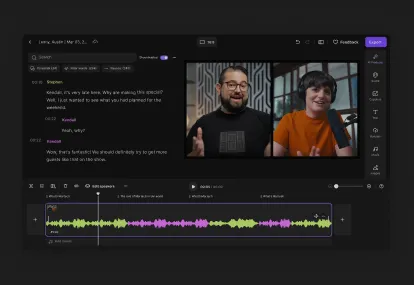
If you’ve ever tried a “pro” editor and felt like you needed a bootcamp just to cut a single sentence, Riverside will feel like a relief. Its AI video editor skips the learning curve and lets you edit with simple prompts
Just tell it what you want it to do, like: “Cut the part where I restart my answer” or “Grab a 20-second clip about pricing.” Riverside's Co-Creator finds the moment, adjusts it, and shows you the result.
When I used it for a short explainer video, I loved how I had the mental space to focus on the story's pacing and clarity instead of clicking around. To me, it felt like editing as a creator, not as a technician.
And the cleanup tools… honestly, they’re a gift if you dread busywork. Instead of manually cutting filler words or scrubbing audio, Riverside does it for you with a single click. It’s a smoother way to clean up recordings without living inside the timeline.
With Riverside, recording and editing also happen in one place, so you don’t have to juggle tools or export files back and forth. It’s just so easy!
Pros
- AI agent Co-Creator helps you edit and repurpose content with simple prompts.
- Text-based editing for quick and easy trimming.
- AI cleanup tools like Magic Audio for instant audio clarity and an AI Eye Contact Tool for eye contact correction.
- AI-powered clip creation lets you quickly repurpose longer videos for Reels, TikTok, and Shorts.
- Multitrack recording and editing for easier, more precise edits.
Cons
- Lacks tools for cinematic color work and motion graphics.
User review: “Riverside made post-production simple. We had the high-quality recorded livestream, and we could cut clips, repurpose into a podcast episode, create show notes, and use the transcription to make the content more accessible and extend its reach.” — Anders Larsen, Product Marketing Manager at Spotify
2. Adobe Premiere Pro - Best for growing creators who want professional control
Price: Free trial available. Paid plan is $22.99/month.

If you’re the kind of creator who enjoys stretching a clip by a frame, stacking layers, or nudging color tones until they sit just right, Adobe Premiere Pro will feel like your playground. I felt that pretty quickly. Once I got past the surface complexity, the control became addictive.
Opening it for the first time is a moment, though. You see panels everywhere: effects, color, audio, metadata, graphics. Nothing hides from you, and that’s both the beauty and the friction. If you thrive when every tool is visible, it's energizing. If you're used to simpler layouts or AI-assisted video editing, it can feel like learning to fly the plane before you taxi. (Note: If you're comparing tools, have a look at our Premiere Pro alternatives guide).
But Premiere shines when your videos get longer or your setups get more layered. I’ve used it for multi-camera interviews where I needed to sync angles, finesse pacing, add motion graphics, and clean audio. I was quite impressed!
Premiere Pro also integrates nicely with other Adobe Software, like After Effects (for motion graphics and visual effects) and Audition (for professional audio editing and mixing). If you plan to create YouTube content with motion flourishes or richer sound design, you can expand without switching platforms.
Pros
- Precise timeline control when you want to edit manually.
- Easy expansion into motion graphics and audio via Adobe suite.
- Great for tutorials, interviews, and polished YouTube workflows.
- Large library of tutorials, templates, and presets available.
Cons
- Significant learning curve.
- Hardware demands are higher; older machines may struggle.
User review: “It is very easy to install and be up and running. I also really like the way MultiClips are handled in the software. But the software is prone to crashes, and playback errors. Half of editing in Premiere is troubleshooting and finding workarounds.” — Jared I. Film Director
Read: How to Add Captions and Subtitle in Premiere Pro
3. DaVinci Resolve - Best free editor with room to grow
Price: Free. DaVinci Resolve Studio is $295.
.webp)
DaVinci Resolve gives beginners a serious advantage: real professional tools without a price tag. When I first opened it, I expected limitations. Then I realized the free version had everything I needed to actually build skill, like a complete editing timeline, audio tools, titles, transitions, and a dedicated “Cut” workspace. Its color and audio capabilities, in particular, were a win for me.
If you've ever watched a creator and thought, “How does their footage look so clean and intentional?,” Resolve hands you the same type of grading studio film teams use. You don’t need to touch those tools on day 1, but they're waiting the moment you’re ready for them.
As a video editing software for beginners, the structured interface feels simpler than Premiere because each editing stage/step has its own workspace. You move from cutting to trimming to titles to color, instead of having everything layered in one place.
You still need a capable computer, especially for 4K footage, but the experience feels logical as you learn.
Pros
- Full-featured free version with pro editing and color.
- Structured workspace that guides how you learn.
- Strong color engine for cinematic polish.
- Great for long-form edits, interviews, and cinematic YouTube videos.
Cons
- Requires a fast computer with plenty of RAM, a fast processor, and a dedicated graphics card to run smoothly.
- Some advanced panels feel intimidating at first glance.
- Getting your final video exported correctly isn’t straightforward.
4. Final Cut Pro - Best for Mac creators
Price: Free trial available. Purchase price is $299.99.

When working in Final Cut Pro, one of the first things that clicked for me was the magnetic timeline.
I’d drag a clip, and everything just stayed aligned. No silent gaps or audio slipping out of sync. If your workflow leans toward talking-head videos or structured tutorials, that small design choice keeps momentum high.
However, where Final Cut really holds up is long footage.
I've cut multi-hour guest interviews and 4K walkthroughs without feeling lag creep in.
The trade-off? The ecosystem isn't as deep as Adobe’s.
There are plenty of templates and plugins, but if you’re a creator who loves niche effects, heavy compositing, or deep motion graphics, you'll probably pair Final Cut with Motion or another tool eventually. For most Mac-based YouTube workflows, though, it remains fast and reliable.
Pros
- Optimized for Mac and Apple Silicon; expect smooth scrubbing and fast export times.
- Magnetic timeline reduces timeline errors and keeps projects tidy.
- Good library of templates and titles for YouTube-style content.
Cons
- macOS-only tool.
- Advanced VFX still requires extra tools.
- Some editors eventually miss traditional track-based workflows.
User review: “I have been using Final Cut Pro now for the past 5 years and love it. It's a big step up from the free version (iMovie). The only downside of Final Cut Pro would be the learning curve. There is a lot to learn to become a sufficient video editor.” — Daniel S., Private Trainer
5. CapCut - Best for mobile-first creators
Price: Free plan available. Paid plans start at $9.99/month.
.webp)
I’ve pulled clips straight from my mobile camera roll into CapCut, added captions, synced to audio, and posted. That's how easy it is.
The tool does the small-screen editing chores for you: auto-captions, beat-matched cuts, smart background cleanup, and easy text placement. If you’ve ever tried to force a traditional editor to behave like a vertical storytelling tool, you’ll like how everything in CapCut is built around quickly assembling social media videos.
Where you’ll feel its limits is longer storytelling. If you're editing a 15-minute YouTube video or managing multiple interview tracks, the interface starts to feel tight. The timeline simply isn’t designed for deep control work, but it shines when you're working fast and publishing often.
CapCut is a great starting point if you're experimenting with trends or posting multiple times a week. Once your content grows, you can always keep it in your stack for clips while doing long-form cuts elsewhere.
Pros
- Fast, intuitive workflow for TikTok, Reels, and Shorts.
- Mobile and desktop versions.
- Strong auto-captions and social formatting tools.
- Built-in templates for trendy formats and transitions.
Cons
- Not ideal for long or complex edits.
- Commercial licensing requires attention if you're posting as a business.
- You’ll likely pair it with a more advanced editor over time.
6. Canva - Best for simple edits and branded videos
Price: Free plan available. Paid plans start at $12.99/month.
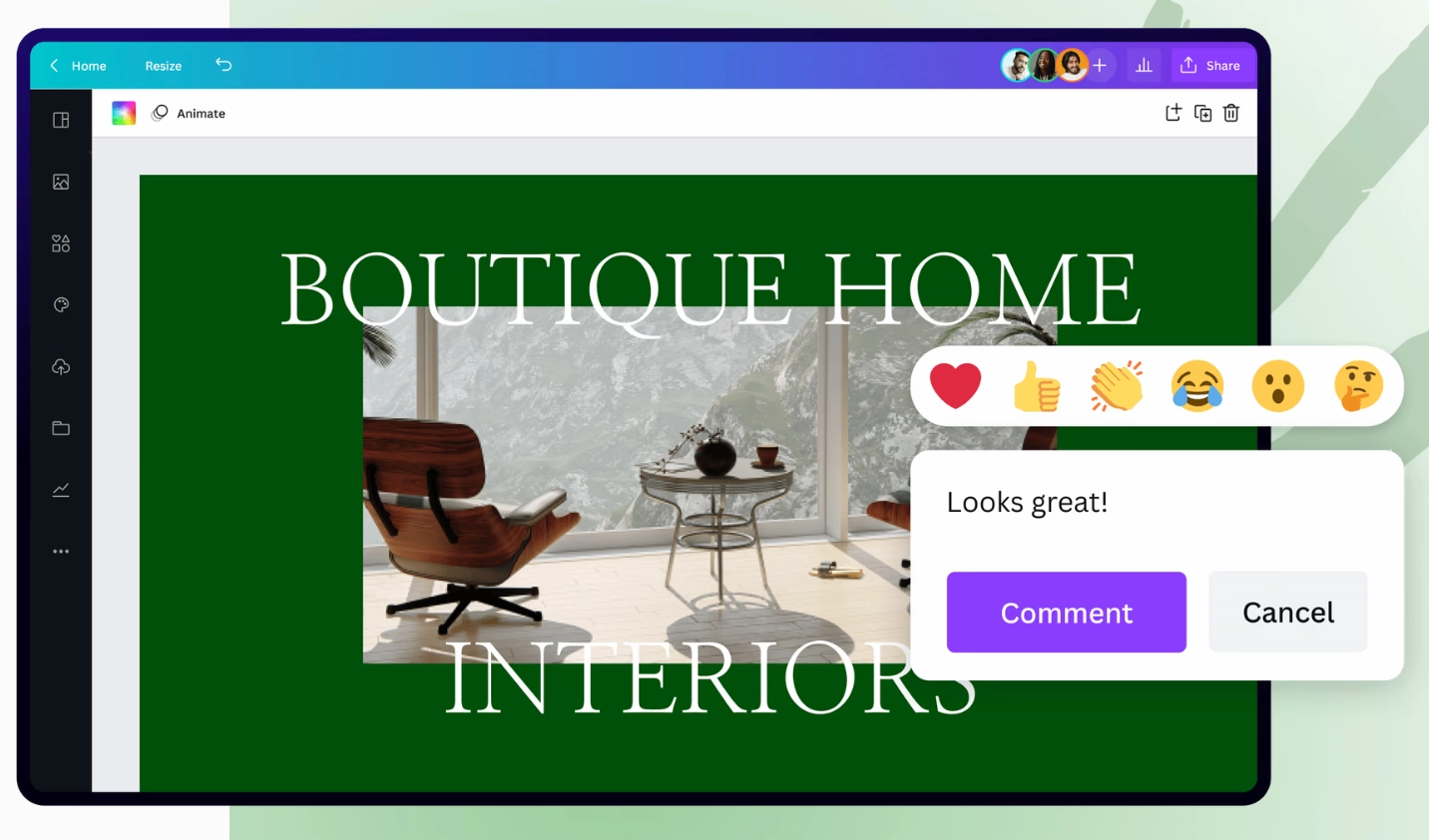
If you’ve ever wished video editing felt as simple as dragging elements around in a slideshow, you’ll feel right at home with Canva. You start with a template, drop in your footage, add text, music, or brand elements, and you’re already halfway done.
What I appreciate most here is how easy it is to stay on-brand. My fonts, colors, and logo show up automatically, so I’m not rebuilding styles every time I make a clip. If you're producing product explainers, event recaps, testimonials, or short clips, having design and video tools in the same place keeps things simple.
That said, Canva eventually feels limited once you move into longer-form or layered edits.
Timeline control is minimal, trimming tools are basic, and multi-track workflows aren’t really the point. See it as a fast, accessible video editor for everyday content, not a replacement for professional workflows.
Pros
- Zero learning curve.
- Useful templates for social posts, promo videos, and ads.
- Brand kits make visual consistency easy.
- Web-based video editor.
Cons
- Basic timeline and trimming tools.
- Limited depth for sound, transitions, and effects.
- Not designed for multi-camera or narrative editing.
User review: “Canva has improved and made a notable impact on my YouTube videos and their thumbnails. Each tool in Canva gives your project value, specifically with video designing. When designing videos on Canva, I don't need any external tools for images, audios, graphics, or themes. But I find it problematic that 70% of Canva's features are paid. While the platform provides a vast array of themes and elements, the necessity to pay for the majority of the features can be a drawback.” — Abedalrahman A., Senior Accountant
What to consider when choosing video editing software
The best video editing software for you is the one that helps you finish videos consistently.
If a tool makes you feel confident and supports the type of content you want to create, it’s the right place to start.
That said, here are some pointers to keep in mind when vetting options.
Your skill level and editing instincts
Every editor trains your brain a little differently. Some tools push you to move fast and tell the story. Others invite you to slow down and refine every frame.
Ask yourself: Am I still getting comfortable talking on camera and organizing my thoughts? Or am I already thinking about pacing beats, B-roll moments, and subtle audio shifts?
Early on, speed builds confidence. Publishing 10 imperfect videos teaches more than perfecting one. As your timing instincts improve, advanced tools start paying off because you know what you want to adjust.
Editing style and how your brain works
Some creators think in visuals and timing first. Others think in sentences, story flow, and messaging.
If you love crafting rhythm frame-by-frame, a traditional non-linear editor like Premiere Pro will feel like home. You get full control over speed and detail.
If you fall into the second camp like I do, an AI-assisted, text-based editor like Riverside may feel more comfortable. It does the heavy lifting so you can spend more time choosing what belongs in the story.
There’s no “better” here. Just pay attention to how your brain organizes ideas and choose a tool that meets you there.
System requirements
Consider how editing feels on the device you have today. I’ve burned out on edits just because playback lagged, fans kicked into jet mode, or exports felt endless.
Cloud and hybrid editors like Riverside or CapCut often run better on everyday laptops, so you don’t need top-end hardware to edit smoothly. In contrast, traditional tools like DaVinci Resolve or Premiere Pro work best when your machine already has the power for heavier timelines and effects.
Your format and publishing rhythm
Which video format do you publish most?
If it's YouTube Shorts and Instagram Reels, you'll need fast clipping, captions, and reframing. But if it's long-form, you'd do better with clear timelines and good audio tools.
If you’re still figuring out your style, start with the tool that helps you publish quickly. I did that and found it to be the best way to improve in the long run.
Budget and when to upgrade
Early on, you're practicing judgment and pacing, so color grading and motion curves aren't that big of a factor. So, a free editor isn't a compromise when you're earning your reps.
Paying for software makes sense when:
- You’re spending too much time on routine clean-up.
- You need multiple tools just to finish one video.
- Editing is slowing you down more than filming or planning.
Upgrade to paid software to reduce effort and help you move faster. When you’re publishing regularly, that time and energy savings matters.
Support and the learning ecosystem
Look for tools that offer:
- Helpful documentation.
- Communities that share real workflows.
- Fresh tutorials that reflect current features.
If the company updates regularly and makes it easy to learn, I stick with it. I’d rather grow with one tool than bounce between new ones every few months.
FAQs about video editing software
What do most YouTubers use to edit their videos?
There isn’t one universal editor, but you’ll see three patterns among YouTubers:
- Premiere Pro for creators who like deep control and Adobe tools.
- Final Cut Pro for Mac-focused creators that want speed.
- DaVinci Resolve for creators who want pro-level features without a subscription.
That said, growing channels and solo creators are increasingly adopting Riverside because the AI-powered workflow is faster for talking-head videos, interviews, or educational content. Check out our YouTube Mastery Guide for resources on how to use Riverside to grow your channel.
What is the best free video editing software?
If you want a free video editing software that actually feels beginner-friendly, Riverside’s free plan is a great place to start. You can record, remove background noise, cut mistakes, add captions, and export your videos without jumping between multiple apps. Riverside gives you the basics you need to create clean, professional videos. And, when you’re ready to upgrade to a paid plan with advanced features, you won’t have to switch platforms or relearn your workflow.
What is the best video editor for beginners?
If you're just getting started, Riverside is the easiest way to learn without feeling overwhelmed. You can trim sections using the transcript, use AI to clean up audio and remove filler words, and easily add captions, overlays and logos. This helps you finish videos faster, which is the biggest win when you’re learning.
What skills are needed for video editing?
The skills that matter most when editing video are creative. Think:
- Narrative sense: Knowing what to keep and what to cut.
- Timing: Feeling when a moment lands or drags.
- Audio basics: Clear voice and clean background sound.
- Clarity: Removing filler, distractions, and rambling.
Software skills matter later. What helps first is understanding how to communicate visually and keep attention. Riverside handles cleanup and trimming for you, so you can focus on your story, timing, and getting comfortable on camera.




.webp)
.webp)
-p-800.webp)