

%20(1).webp)


Key Takeaways
- Pre-recorded webinars let you record and edit a polished webinar experience without relying on a perfect live session.
- Choose the webinar format based on your goals. On-demand maximizes lead generation, automated creates urgency, and simulive increases engagement.
- Build every pre-recorded webinar session around one clear outcome and make every step support how people will watch, act, and follow up.
A pre-recorded webinar gives you the structure of a live session without making the whole experience depend on one perfect take.
The appeal is control. You can build the session first, then edit the rough parts and share the finished version as an on-demand resource, scheduled event, or simulive session.
This guide breaks down how pre-recorded webinars work, which format fits your goal, and how to create one that’s clear and useful.
What is a pre-recorded webinar?
A pre-recorded webinar is a webinar presentation that is recorded in advance and then delivered to viewers later, either on demand or at a scheduled time. Instead of presenting live, the host records the presentation ahead of time and can edit it before sharing it with an audience.
What is the difference between live and recorded webinars?
The main difference between live and recorded webinars is when the audience sees the session. A live webinar happens in real time, while a recorded webinar is captured first and shared later.
That timing changes how each format works.
Live webinars are better when the value comes from the moment: audience questions, group discussion, speaker reactions, or a time-sensitive announcement. It feels more immediate, but it gives you less control.
Recorded webinars should be preferred when the value comes from the message. You can refine the session before it goes out and keep the experience consistent. That makes recorded webinars a stronger fit for product walkthroughs, onboarding, training, and evergreen campaigns.
Here’s how live and pre-recorded webinars compare:
Types of pre-recorded webinars
Pre-recorded webinars usually fall into 3 webinar formats: on-demand, automated, and simulive. Each starts with a recorded session. The difference is the viewing experience, which changes based on when the audience watches and how much interaction you want to include.
On-demand webinars
Best for: Product demos, onboarding, customer education, training, and evergreen lead generation.
An on-demand webinar is a recorded session viewers can watch anytime. All they have to do is register, and they’ll immediately get access to the recording.
This format works well when people want information on their own schedule. A prospect can watch a product demo while comparing tools. A new customer can watch a customer onboarding webinar anytime to revisit setup steps.
The challenge is follow-through. Because viewers can watch anytime, they may also delay watching, or forget to watch at all.
Automated webinars
Best for: Recurring sales funnels, scheduled product walkthroughs, campaign webinars, and planned follow-up.
An automated webinar is a recorded session that plays at a set time. The audience registers for the event and joins during the scheduled viewing window.
That schedule creates urgency and gives the webinar more momentum than a purely on-demand video. You can build a registration flow before the session and send reminder emails. And when the webinar is over, you can time follow-ups around who attended, who didn’t, and how they engaged. You can also run repeatable webinars without asking a presenter to go live every time.
This makes automated webinars useful when the session supports a broader campaign. A sales team can run the same product walkthrough every week. A marketing team can schedule sessions across time zones, then route attendees into the right nurture path after the event.
Simulive webinars
Best for: Thought leadership, product launches, expert interviews, customer panels, and Q&A-driven sessions.
A simulive webinar is a recorded session streamed at a set time with live audience engagement. The main presentation plays from the recording, while your team joins the event to answer questions, respond in chat, run polls, or bring viewers into the conversation.
This format works best when you want more control over the main content without making the event feel static. You can record a launch presentation in advance so the message lands cleanly, then handle questions live. Or you can pre-record a live expert interview and have a host guide the discussion as viewers react.
Because of the live elements, simulive still needs a host to engage the audience.
Benefits of pre-recorded webinars
The main benefit of pre-recorded webinars is that you get fewer live-event variables and more value from the content after it airs.
Here’s where that shows up most.
Better production quality
Live webinars capture your presentation in the moment. Pre-recorded webinars allow you to improve it before showing it to an audience.
You can fix rough sections, clean up the recording, add captions, and tighten the delivery so the final version feels intentional. It’s still a webinar, but it doesn’t have to carry every stumble or technical issue from the first take.
A more consistent viewer experience
With a pre-recorded webinar, every viewer sees the same polished presentation. That consistency matters when you're educating prospects, explaining a product, or training employees on a specific process.
Because the content isn't being delivered differently each time, key messages stay clear and important details don't get missed. You can ensure every viewer gets the experience you intended.
Easier to scale across audiences
Pre-recorded sessions can be repurposed across campaigns, regions, and audience segments. This allows teams to reach more people without repeatedly coordinating speakers and production resources.
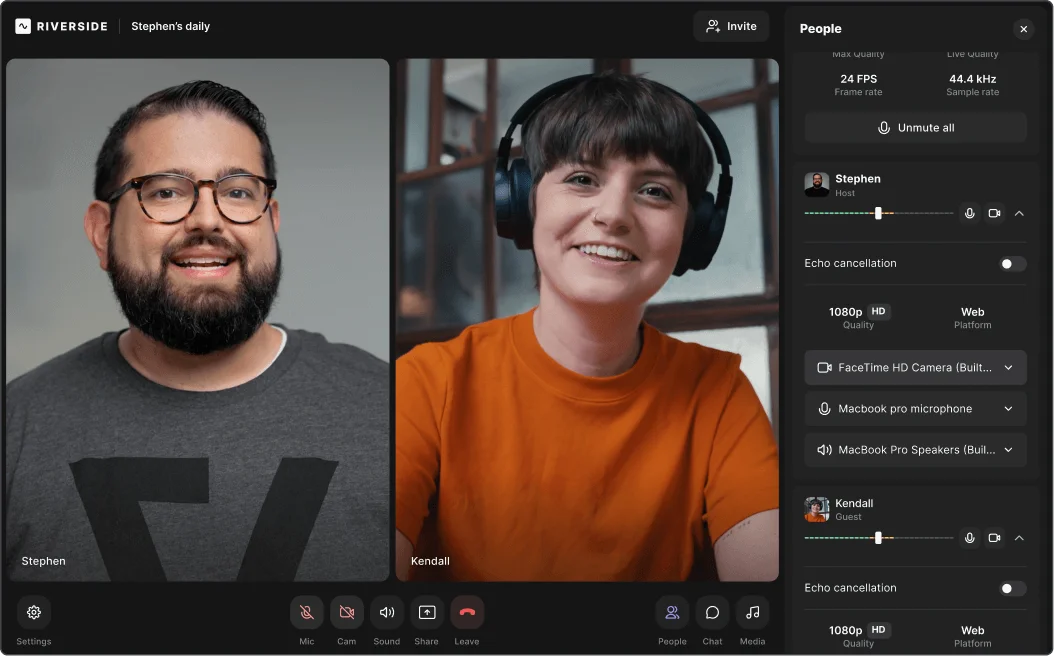
For example, Pega uses Riverside for simulive webinars to reduce scheduling and technical challenges while maintaining live audience interaction. When the company needed to record 40+ breakout sessions for its annual PegaWorld event, Riverside made it easy. Because Riverside records remote speakers locally, each was captured in high quality, without bandwidth affecting video quality.
Easier to repurpose
Because a pre-recorded webinar is more planned and polished, it gives your team more to work with after the session ends.
When you can plan the recording with clear chapters, sharp explanations, and useful standalone moments, it’s easier to turn the webinar into follow-up content, social media clips, sales materials, or recap emails.
Lower live-event risk
Pre-recording your webinar allows you to ensure that the main presentation is always perfect.
You’re still responsible for the topic, structure, and delivery. But you eliminate the risk of speaker nerves, demo issues, unstable internet, awkward pauses, or production mistakes happening in front of the audience.
How to create and host a pre-recorded webinar
To create a pre-recorded webinar, start with one clear viewer outcome, then record, edit, schedule, promote, and host the session around that goal.
Here’s the step-by-step process.
Step 1: Plan your webinar
Start with the job the webinar needs to do. A lead generation webinar should help someone understand a problem well enough to take the next step. A training webinar should help someone repeat a process correctly.
Once your desired outcome is clear, choose the topic, format, examples, CTA, and hosting setup around it. Read our guide on webinar planning for more tips.
Pick your topic
Choose one specific topic your viewer can understand and act on by the end of the session. Narrower topics typically generate more qualified leads and stronger conversions because they address a specific pain point or use case.
For example, instead of planning a broad webinar on “repurposing webinars,” narrow it to a more useful angle like how to turn one recorded webinar into sales content.
Create a script
Script the opening, key transitions, and CTA of your webinar so the session starts clearly and ends with direction.
For the rest, use talking points. This keeps the delivery natural while still giving the speaker enough structure.
Pro tip: In Riverside, you can use the teleprompter to help keep you on track. Add in scripts for lines that need to be exact, and talking points for the parts that can be more conversational.
Prepare your webinar presentation
Plan your webinar visuals around what will help viewers follow the session.
For a product walkthrough, line up the exact screens you’ll show before recording. For training, use screenshots or short demos at the points where viewers are most likely to get stuck.
Then choose the right recording setup. In Riverside, you can switch between speaker only, slides only, screen share, or a mix of layouts. This keeps the visual experience intentional and interesting.
Step 2: Record your pre-recorded webinar
Now it’s time to start recording. A simple recording structure could include:
- Intro and agenda
- Main lesson or discussion
- Product demo or walkthrough
- Guest segment
- CTA and close
Here's how to record a webinar:
Set up your studio and branding
Before recording, set up the visual details that should stay consistent across the session. Most webinar platforms allow you to add things like branding, lower thirds, and logos.
Run a quick tech check
Test the basics before recording: camera, microphone, lighting, framing, and screen sharing. Confirm that everyone is wearing headphones and that the correct audio devices are selected.
Record one section at a time
Record the webinar in sections instead of one long take. Shorter blocks make it easier to fix mistakes and rearrange the final recording if needed.
Give each section a clear job.The intro should orient viewers. The demo should show the workflow. Use screen sharing or the presentation recorder for slides or walkthroughs. Bring visuals in when they clarify the point, then return focus to the speaker.
If you record multiple takes, leave a short pause between them so the edit point is easy to find later.
Add visuals and production support where needed
Use extra production support when the webinar includes multiple speakers, intro clips, screen shares, timed transitions, or pre-recorded segments.
Only add these elements when they make the webinar easier to follow. Production should support the message, not compete with it.
Pro tip: Riverside’s Media Board can help you play intro clips, sponsor messages, customer clips, or short videos during the session.
Step 3: Edit your webinar recording
Edit the webinar for clarity and usefulness.
Cut anything that makes the viewer work harder than they need to, like long pauses or off-topic sections. If a section doesn’t help the viewer understand the idea or take the next step, remove it.
Pro tip: In Riverside, editing takes just minutes. Use text-based editing to edit from the transcript, enhance audio with AI, then add captions, overlays, or backgrounds by just chatting with our AI Co-Creator.
.webp)
Step 4: Schedule your pre-recorded webinar
Once the recording is ready, decide whether the webinar should behave like a resource or an event.
Use on-demand access when people need to watch anytime. Use a scheduled session when you want urgency, registration data, reminders, and a stronger follow-up path.
Lastly, keep the registration page focused. Lead with the outcome and explain what viewers will learn. You should only ask for information your team will actually use after the webinar, nothing more than that.
Step 5: Promote your pre-recorded webinar
Build your promotion around the recording's strongest moments.
Start with the transcript. Look for the clearest promise, strongest quote, most useful framework, or best demo moment. Use those pieces to shape your landing page, emails, and social posts.
Keep the CTA focused on the viewer’s payoff. Don’t just say, “Watch our webinar.” Tell people what they’ll be able to do after watching.
You can get more tips in our guide to webinar promotion.
Pro tip: Magic Clips can find standout moments from the recording to make your promo clips. You can also chat with Co-Creator to repurpose the webinar into campaign assets like social posts, email copy, summaries, and follow-up content.
Step 6: Host your pre-recorded webinar
Choose your hosting setup based on how viewers will watch the recording.
If you’re creating a simulive webinar, Riverside is a good fit because you can play a pre-recorded webinar during a scheduled live session while still engaging the audience in real-time. Use Q&A, polls, live audience call-ins, and omnichat to make the session feel active instead of like a passive video replay.
For on-demand or automated webinars, you may want a platform built for scheduled replays and always-on lead generation. We break down those options in our guide to the best pre-recorded webinar platforms.
Before you publish or go live, test the full viewer path: registration, confirmation, access link, playback, audience engagement, and post-webinar CTA. Make sure everything flows smoothly and presents your brand and topic in a clear way.
Step 7: Measure the success of your recorded webinar
Don’t judge every pre-recorded webinar by the same metric.
Measure it against the job it was created to do. For example:
- For a product launch, track feature interest and trial sign-ups.
- For partner enablement, track completion rate and resource downloads.
- For recruiting, track candidate questions and applications started.
Then use the data to improve the next version.
If people register but don’t attend, your reminder flow or timing may need work. If viewers drop early, your opening may be too slow. If they finish but don’t act, the CTA may need to be clearer. If one section gets clipped and reused often, that may be the strongest angle for your next campaign.
For a deeper breakdown, Riverside’s guide to webinar KPIs and metrics can help you choose the numbers that match your goal.
FAQs on recorded webinars
How long should a recorded webinar be?
A recorded webinar should usually be 30 to 45 minutes long. Shorter recordings work well for product demos or training, while deeper expert sessions can run closer to 60 minutes if the content stays focused.
The best length is the shortest version that fully answers the viewer’s question. If the recording covers multiple topics, use clear sections so viewers can follow the session without feeling lost.
How much does it cost to host a recorded webinar?
It can cost $0 to $500+ to host a recorded webinar, depending on your platform, audience size, production setup, and engagement features. A simple on-demand recording can cost very little, while a scheduled webinar with registration, analytics, and live interaction usually requires a paid webinar tool.
Your total budget may also include recording equipment, editing, design, promotion, and speaker fees. For a fuller breakdown, read Riverside’s guide to webinar costs.



-(1).webp)
-Event.png)
.webp)


