Video Translator
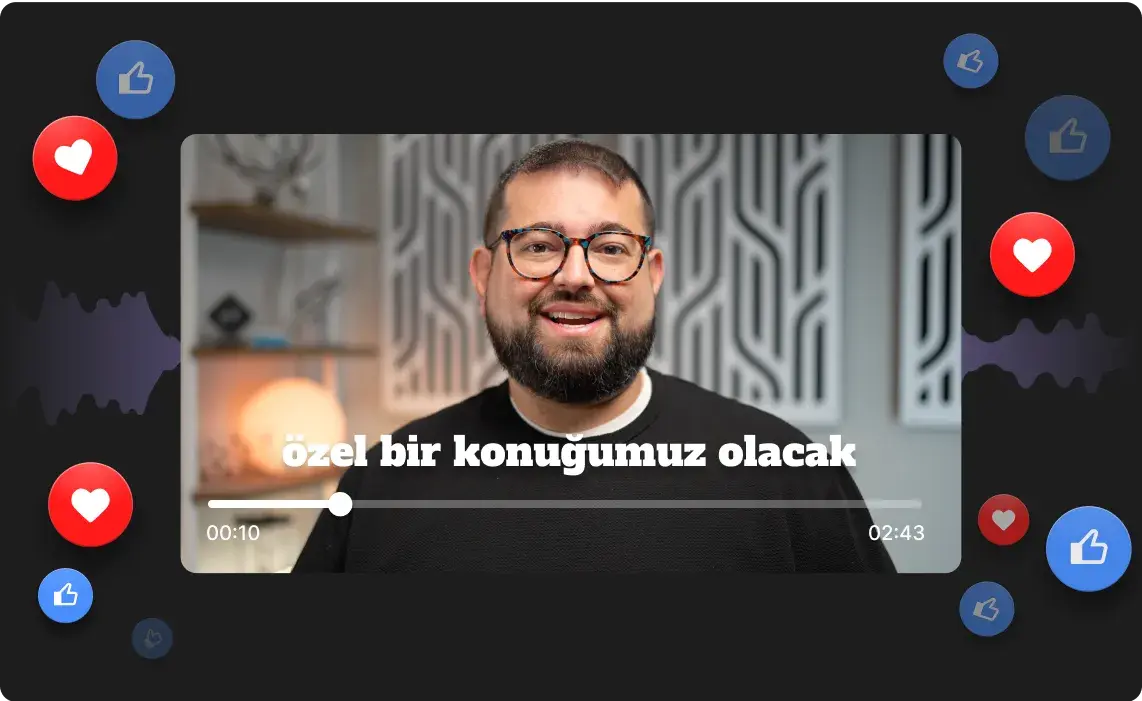
Translate videos into multiple languages while keeping your real voice. One click, zero reshoots.




How to translate a video with Riverside’s AI
Step 1
Record or upload your video
Start a new recording session in Riverside, or upload an existing video file you want to translate.
Step 2
Choose your video language
Pick from 30 languages and decide if you want lip-sync enabled. Then let AI translate your video for you.
Step 3
Review your translated video
Preview the translated version and check the full transcript. Make line-by-line edits if needed to get everything just right.
Step 4
Export and share everywhere
Download your translated video in high quality. Share it on YouTube, social media, or wherever your global audience is waiting.
.webp)

Why Riverside:
Video translation that reaches new audiences while keeping your voice intact.

Your voice stays yours
Translate videos and still sound like yourself. Our video translation preserves your real voice and accent instead of swapping it for a generic AI clone.

Translation in 30 languages, down to the dialect
Reach any audience and translate your videos into up to 30 languages, including Spanish, Chinese, German, and French. Go right down to the dialect to sound like a local.

Lip sync that looks natural
Keep your translated videos looking natural with lip sync. Turn it on to automatically match your mouth movements to the translated speech.

High-res recordings for crisp video translations
Record in up to 4K video and 48kHz audio, then translate straight after, all on Riverside. Crisp recordings mean cleaner video translations.

Translate video audio and captions
Dub your audio and update your captions in one pass. Customize your on-screen captions, or download them as TXT or SRT files, ready for YouTube, social media, or anywhere else.

Turn your video into endless content
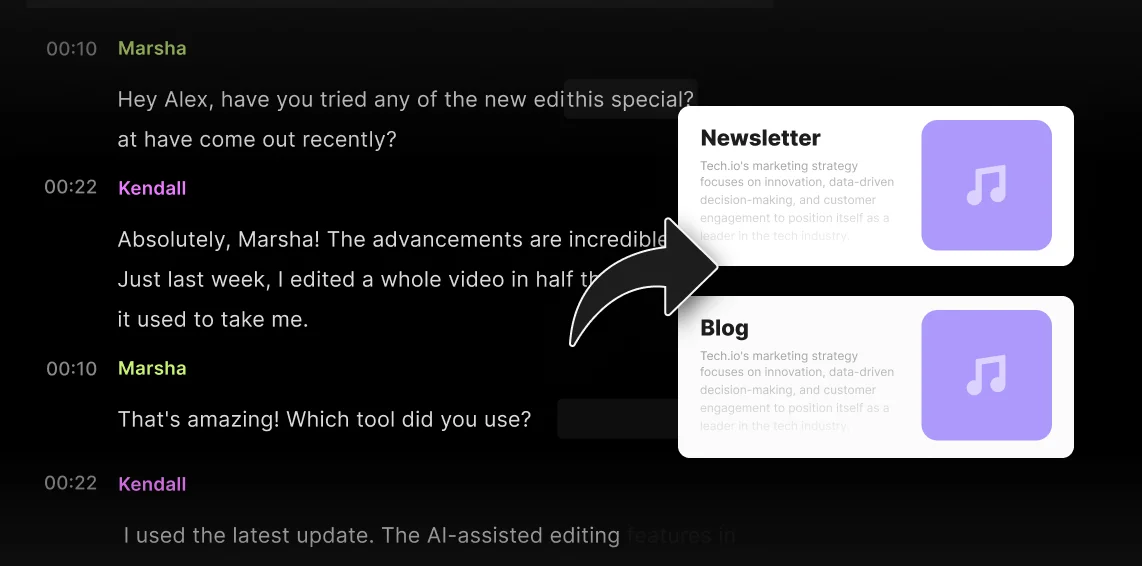
Create instant clips and episodes, or prompt the chat-based editor to turn your video into a blog, thumbnail, newsletter, and more. All in whatever language your video is in.
Translate videos without losing your voice.
One click to reach audiences in 30 languages.
How to translate video accurately: 5 Tips
Start with a high-quality recording
A clear recording makes it easier for AI to identify words and translate them accurately. Start by recording with crisp audio, ideally at 48 kHz resolution.
Keep in mind multiple speakers
Make sure your software can identify multiple speakers and translate them separately.
Preserve your voice
If you don’t want to sound like an AI bot, choose a video translator that works with your actual voice.


Translate into the right dialect
To get accurate pronunciation and natural phrasing, choose a specific dialect rather than just a language. For example, translating a video into British English is different to US English.
Enable lip sync
Turn on lip sync to keep your lip movements aligned with your translated voiceover. Your lips moving at a different pace is an immediate giveaway that you’ve dubbed your video.
Lip-sync quality
Look for translators that sync lip movements to your new audio track for a natural result.
Use video translation for:
Podcasters going global with interviews
You've got amazing guests. Now let audiences everywhere hear them. Translate episodes to grow your listener base across borders and languages.

Course creators reaching new students
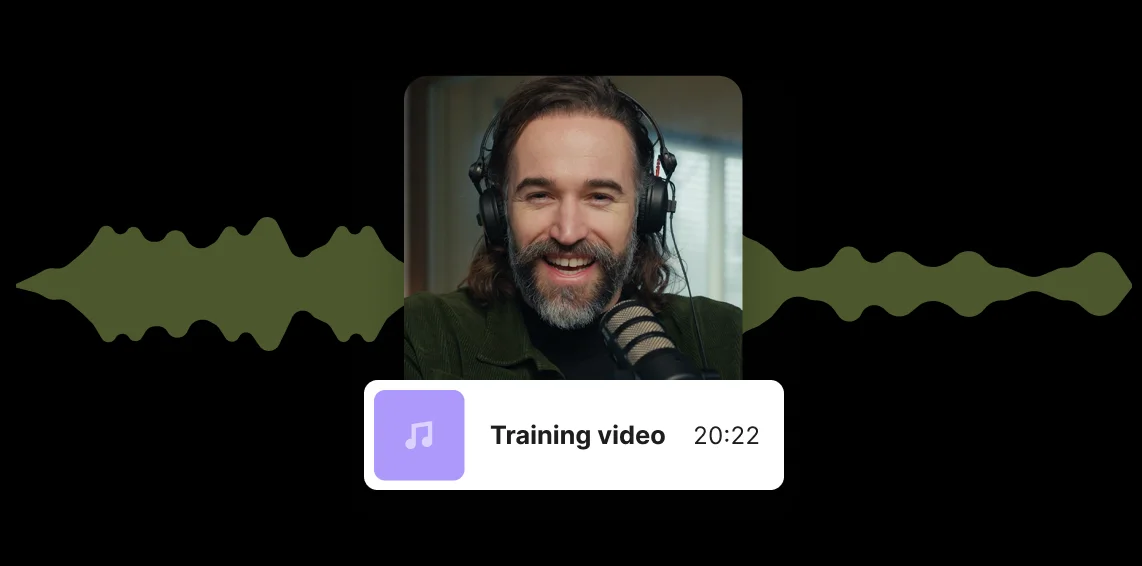
Stop limiting your courses to one language. Translate your training videos and tutorials to open up entirely new markets for your expertise.
Marketers repurposing content everywhere
Turn a single campaign into region-specific content without the budget for reshoots or localized production teams.
Brand teams expanding global reach
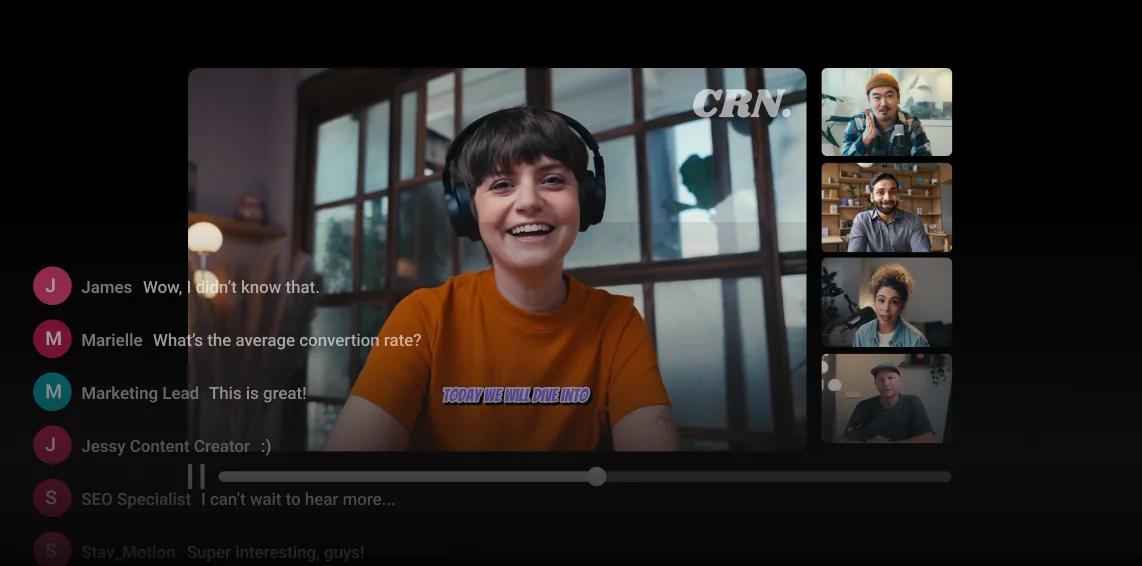
Scale your video strategy internationally. Localize executive messages, product demos, and company announcements for teams and customers worldwide.

Pricing
From recording to publishing, all on one platform. Studio-quality results with AI that does the heavy lifting.
Pro
Create polished, high-quality content
/mo (yearly plan)
High-quality video & audio recording in separate tracks
Unlimited text-based editing
Unlimited multi-track editing
AI tools (Magic Audio, Smart Scenes for automatic multi-cam edits, eye contact, unlimited transcriptions, show notes, remove silences & filler words)
AI content repurposing tools
Publish to YouTube, Spotify, Apple, Instagram, LinkedIn & more
Business
Produce at scale with control
Full remote control over recording and post-production
Custom branding
Webinar solution
Podcast hosting for as many shows as you want
Async recording
Team collaboration
24/7 priority support
Dedicated Customer Success Manager
Enterprise-grade security

Frequently Asked Questions
The easiest way to translate a video is with AI translation.
Follow these steps to translate a video using Riverside:
- Navigate to the video you want to translate and click “Ask AI”, then select “Translate” from the dropdown.
- Choose your target language or dialect from Riverside's 30 available options.
- Check the “Include lip sync” box if you want speakers' lip movements synced to the translated audio.
Click “Translate video” and a new translated copy is created automatically.
Riverside can translate your videos in up to 30 languages, including:
- Spanish (with dialects for Spain, Colombia, Argentina, Mexico)
- French (with dialects for France, Belgium, Canada)
- German (with dialects for Germany, Austria)
- Italian
- Portuguese (with dialects for Brazil, Portugal)
- Japanese
- Hindi
- Dutch
- Greek
and more.
The AI preserves your original voice across all translations, so your content sounds authentic no matter what language your audience speaks.
You can see the full list of languages here.
Yes, you can translate videos with multiple speakers on Riverside.
For Riverside recordings, our AI translation supports up to 4 speakers, even if they’re recorded on separate tracks.
For external uploads, there is no limit on the number of speakers for translation. But all speakers must be combined into a single audio track.
Note that to translate videos, the recordings must be a maximum of 60 minutes.
To translate YouTube videos you’re watching to English, use YouTube’s auto-translate feature. To dub your own video in English, use video translation software.
Follow these steps to translate YouTube videos to English while browsing:
- Hover over the video you’re watching and click the CC button to turn on subtitles.
- Then click on the Settings (gear icon), next to the CC button and select “Subtitles/CC”.
- Click “Auto-translate” and choose “English”.
Follow these steps to dub your whole video in English, using Riverside’s AI translation.
- Upload your YouTube video to Riverside, or choose a previous YouTube recording you created on Riverside.
- Hover over the video and click “Ask AI”, then select “Translate”.
- Choose one of the English dialects. You can select UK, Australian, Canadian, American, or English in your original accent.
- Check the “Include lip sync” box if you want to dub your lips to match the translation.
- Click “Translate video,” and once the translation is done, you can review and publish on YouTube.
Riverside will also generate a translated transcription of your video.
From recording to global content in one workflow.
Record, translate, edit, and repurpose in minutes, all in one platform.



.webp)

More from Riverside

.webp)
.webp)

Features