Merge Videos
Merge videos instantly and elevate your recording with studio-quality editing on Riverside. Stitch your clips and enhance with AI, all in one place.




How to merge videos with Riverside
Step 1
Upload your media
Drag and drop your video files directly into the Riverside studio. Combine fresh recordings with past uploads or external clips effortlessly.
Step 2
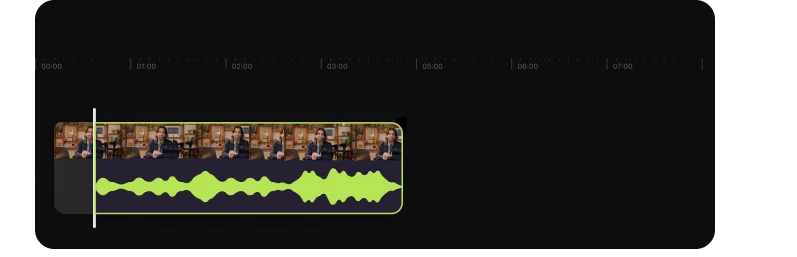
Arrange the timeline
Drag and drop your clips, reorder them on the timeline, trim or split frames.
Step 3
Edit and polish
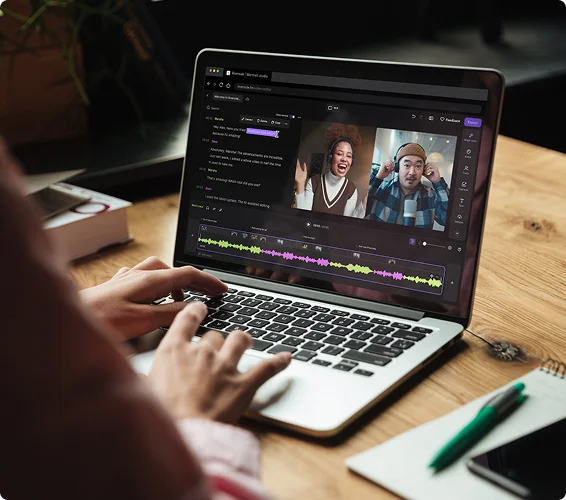
Use Co-Creator, the text-based editor to edit any transcript and merged video. Add captions, overlays, transitions, customize the layout, and clean up your audio.
Step 4
Export and share
Export your merged video in up to 4K resolution or grab separate tracks for further post-production.
.webp)

Why Riverside:
A smarter way to merge, edit, and repurpose, all in one studio

Merge videos without losing quality
Say goodbye to background noise, flattened audio, or pixelated exports. Merge your recordings in up to 4K resolution and 48kHz audio quality.

Rearrange any sequence
Upload your videos and drag them into the order you need. Split or rearrange clips in seconds.

Merge videos and separate tracks
Combine video files together without flattening a thing. With dedicated audio and video tracks for each speaker, you can easily adjust voices, levels, and visuals however you like.

Edit videos using AI magic
Cut to the best parts, style your merged videos, and clean audio, just by chatting with Co-Creator, our AI editing agent. Want more control? Trim by deleting text, cut filler words, and level audio, all with AI.

B-roll made effortless
Co-Creator is like having your own personal content team to match b-roll with your content for any platform.

All-in-one video merger
Record in studio quality, merge videos effortlessly, edit in minutes, streamline with AI, and export in 4K. All without ever switching apps.
Your all-in-one tool for merging videos.
Stitch clips, edit with AI and create studio-grade content in minutes with Riverside.
How to choose the best video merging tool
No quality loss
Choose a tool that preserves quality when combining videos, keeping full resolution and audio.
Automatic audio sync
When combining videos, audio drift can occur. Use tools that auto-sync tracks so lips move perfectly.
Separate tracks
Pick a tool that offers separate tracks so you can edit each participant’s audio and video individually.

Flexibility
Avoid jarring cuts when you stitch videos together. Use tools that arrange clips smoothly on the timeline.
Easy to use
You shouldn’t spend all afternoon using video merging tools. Good software should be fast, simple, and intuitive.
All in one place
The best video combiner lets you capture, upload, trim, merge, and enhance clips within one interface.
Merge videos for any purpose:
Podcasters merging multi-guest recordings
Combine multiple remote guest recordings into one podcast episode, with separate audio tracks for each speaker. Then seamlessly stitch your intro, interview, and outro together.
.webp)
Creators stitching segments into one story
Bring your storytelling skills to life. Stitch video segments from different days or locations into a single narrative to craft a cohesive, high-quality story.

Corporate teams assembling product demos
Upload the best takes or presentation clips and merge them into a professional product demo or training video. Save time with an all-in-one workflow.

Combining short-form content for social media
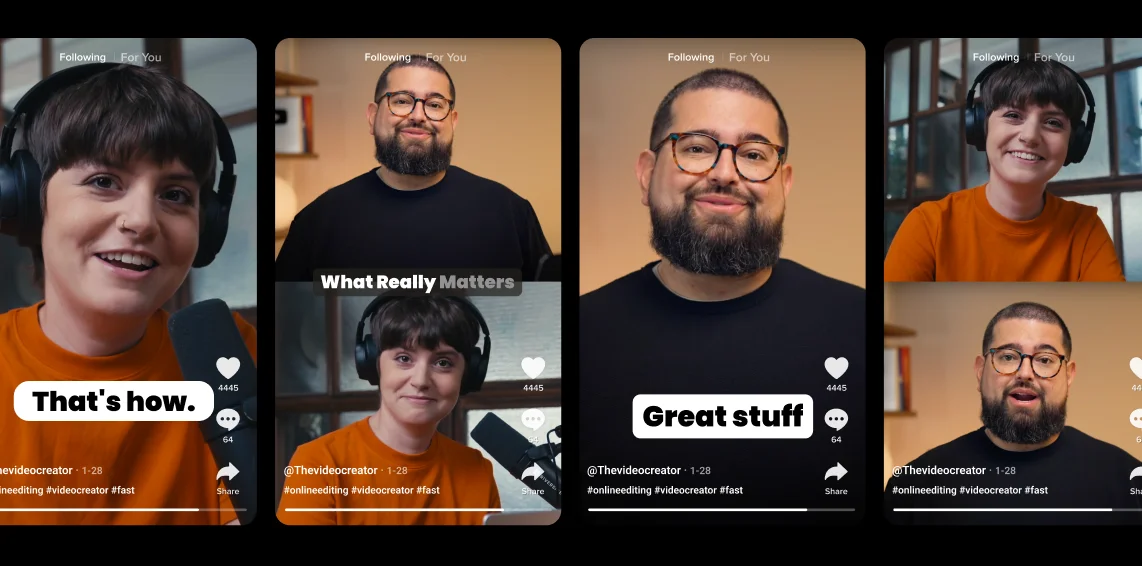
Combine multiple high-performing clips into one snappy “best moments” video. Adjust aspect ratios and add captions to create scroll-stopping, social-ready content.

Frequently Asked Questions
You can combine videos by using editing software or a free online tool. Here’s how you typically do it:
- Choose a video editor – this can be a simple tool like iMovie or a more advanced platform like Riverside.
- Upload your media files – import all the video clips you want to combine into the project.
- Arrange the clips on the timeline – drag and drop them in the correct order.
- Trim or adjust each clip – cut off unwanted parts or refine the pacing.
- Add transitions (optional) – insert fades, cuts, or other transitions between clips.
- Apply enhancements (optional) –
- With basic tools like iMovie, you can perform simple trims and basic adjustments.
- With advanced tools like Riverside, you can add transitions, apply AI-powered cuts or b-roll, and even repurpose your merged videos using features like Magic Clips.
Export the final video – save or export the combined result as one file.
While the best video merger is Riverside, other notable mentions are Adobe, and Movavi.
Most tools have basic functions like:
- simple interfaces to drag and drop your files
- basic editing features
- export the final merged video in various formats
They are suitable for beginners, and you can even stitch your videos together on the go using their mobile apps.
Then there is Riverside, the top all-in-one solution.
- It intelligently analyzes your merged videos and creates separate audio tracks for each speaker.
- It supports 4K video without watermarks and uncompressed 48kHz audio.
- If that wasn’t enough, Riverside’s AI-powered editing enhances your merged clips with video highlights.
Yes. You can append two videos or more using built-in software like iMovie.
Import two or more videos and join them into one by dragging and dropping or uploading them to the app’s timeline.
To create side-by-side videos in one frame (video collages), locate the "split screen" or "grid" option in the overlay settings.
The iMovie and built-in Android apps allow for very basic edits. If you’re looking for uncompressed quality and AI editing, you can use the Riverside mobile app. All your footage syncs to the cloud, so you can merge videos and audio to wrap-up final edits on your desktop.
Merge and sync audio and video with a high-pitched sound (say action) or just drag and drop on the timeline.
To sync audio with video:
You need to align the separate audio file with the MP4 video by matching the sound spike in waveforms on your editing timeline.
However, this isn’t a simple operation, especially if you didn’t plan it in advance during recording. Modern video merging tools like Riverside have an auto-sync feature that keeps tracks aligned during the recording.
To merge video with audio:
When merging audio, like music or background noise, make sure to match the visuals with the audio. Zoom in, listen and watch carefully and use the handy drag and drop to fine-tune the merge.
Videos merged for social media must be quick and snappy. After merging all your videos together, use Magic Clips to automatically identify viral moments and choose the ones you can use to build a cohesive story. Then use the text-based editor or Co-Creator to generate b-roll, edit and add personalization.
Lights, camera… combine your videos!
Record, merge, and edit, all in one place with Riverside.
Other Riverside tools


-p-800.webp)
Discover free and paid tools on Riverside.
More from Riverside
%20(1).webp)
.png)


Features