AI MP4 Editor
Edit MP4 videos online in minutes. With AI tools, text-based editing, audio cleanup, and branding, create professional videos at any skill level.




How to edit MP4 files with Riverside
Step 1
Drop in your MP4
Upload your MP4 file or pull it straight from your Riverside recordings. The MP4 editor works with all major formats.
Step 2
Edit your MP4
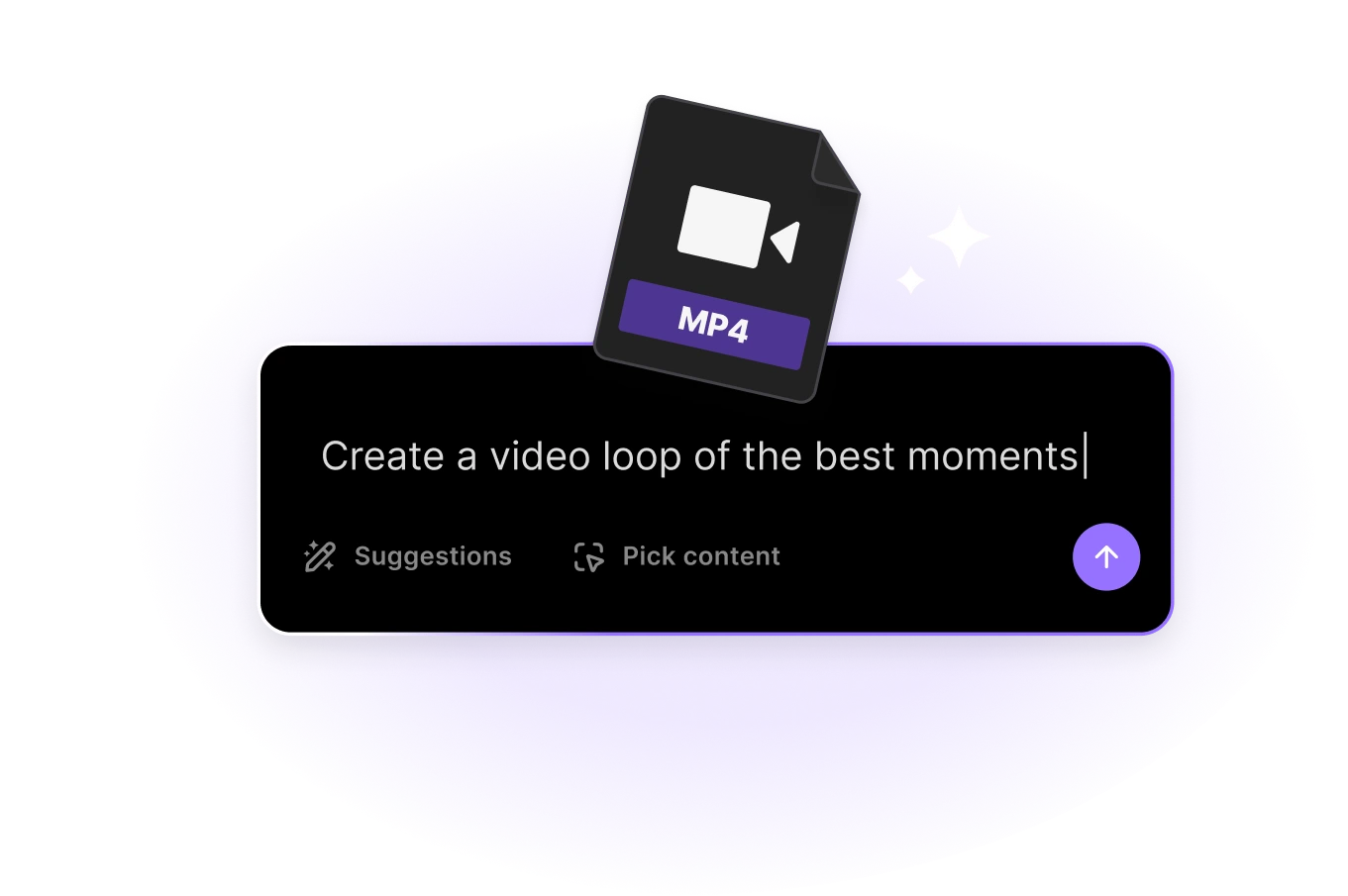
Prompt Co-creator to edit your MP4 video and watch it transform in seconds. Prefer hands-on control? Use our AI video editor's easy tools.
Step 3
Style your video
Add your dynamic captions along with music, text, backgrounds and overlays. Browse the media library, or add and generate your own.
Step 4
Export and share your MP4
Download your video in 1080p HD, or 4K quality. Publish directly to YouTube, TikTok, Instagram or any other social platform of your choice.

Why Riverside:
The MP4 editor for professional content without the learning curve

Edit MP4 videos just by chatting
Chat-based editing makes polishing MP4s as simple as a conversation. Trim sections, remove filler words, add B-roll, and more, just by asking Co-Creator, your AI editing partner.

Quick cuts with text-based editing
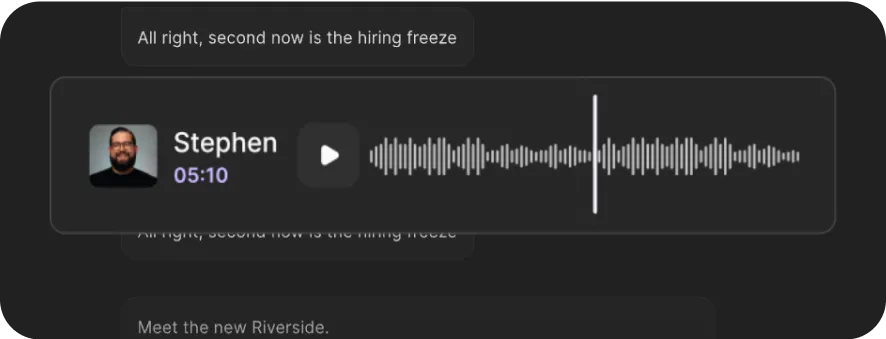
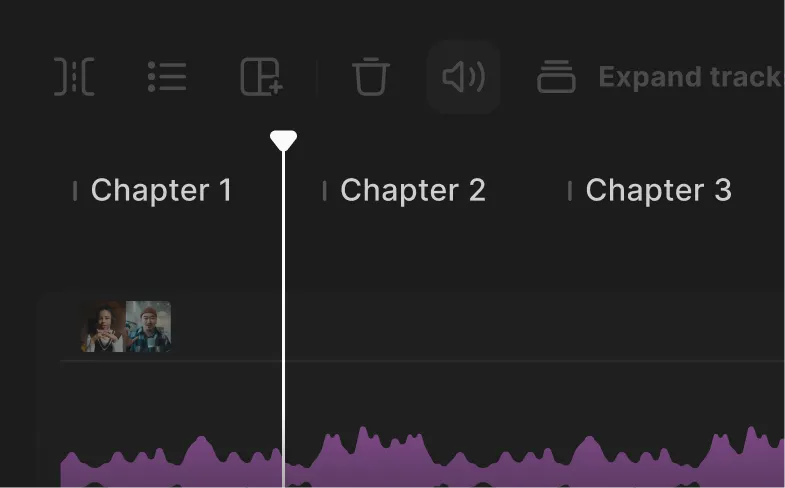
Use your recording transcript like an editing panel. Highlight text to delete sections or drag sentences to move clips around. Your MP4 video syncs automatically.

Clean up without the hassle
Remove background noise, balance audio levels, and cut filler words in a few clicks. You can also correct eye-gaze or fix small mistakes automatically with smart AI cleanup tools.

Style MP4 videos your way
Add music, text, backgrounds, and your own logo. Generate AI B-roll and images to enhance your story or, try animated filters. Save style presets to stay consistently on brand.

Dynamic captions for engagement
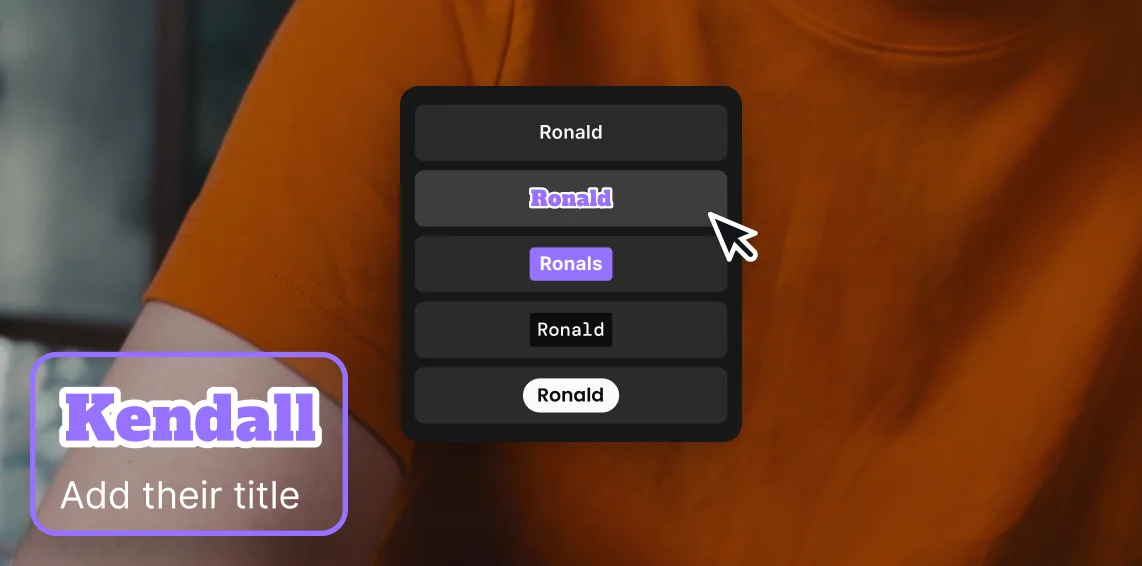
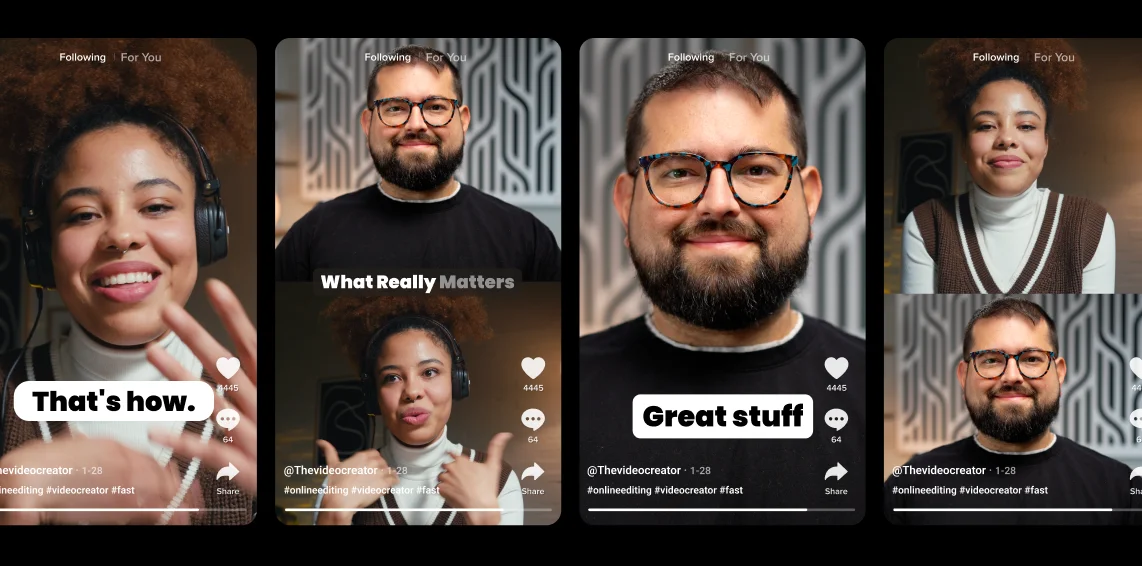
Create animated captions that match your brand. Pick your font, colors, highlights, and animation style. With transcripts that are 99% accurate, you won’t waste time fixing text.

All-in-one online MP4 editor
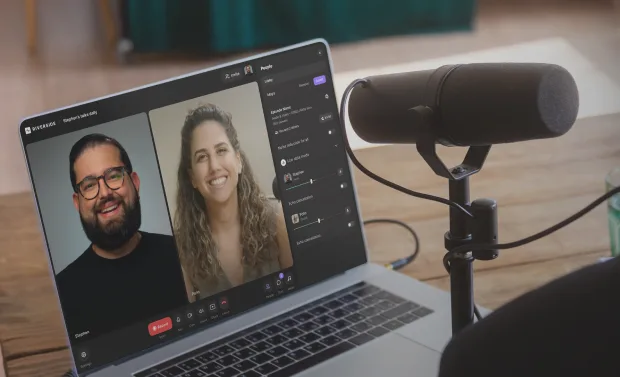
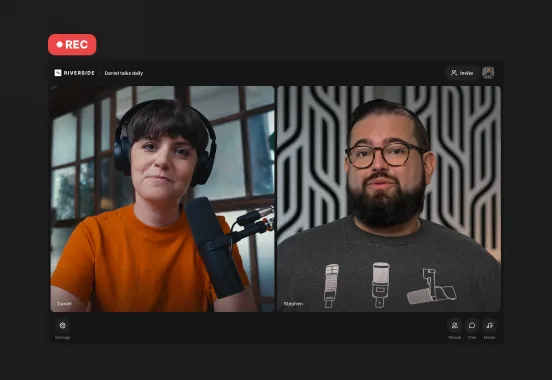
Record MP4 videos in up to 4K with separate audio and video tracks for easier editing. Everything records locally on your device, so your quality stays crisp, no matter the connection.
Go from MP4 file to quality content in minutes.
Record in 4K, edit by chatting, and share anywhere, all in Riverside.
How to choose the right MP4 editor
Ease of use
Choose an MP4 editor that’s intuitive even as a beginner. AI features like chat-based editing make it easy to create high-quality content with little skill.
Text-based MP4 editing
Editing from a transcript saves hours. You should be able to highlight words to cut or rearrange scenes without manually dragging clips.
HD and 4K export quality
Check that the editor supports large MP4 files and exports in HD or 4K without compression or lag.

Automatic cleanup tools
Look for automatic fixes like noise reduction, lighting balance, and eye-contact correction. These tools instantly elevate your video quality without extra software.
Branding presets
You should be able to save brand colors, fonts, and templates so every video looks consistent and professional.
Team collaboration features
If you work with a team, pick an editor that supports shared projects, real-time commenting, and version control to avoid endless file versions.
An AI MP4 editor for
Creating podcasts in one smooth workflow
Record in 4K with up to 9 guests. Clean up your episode in a few clicks with text-based editing, audio enhancement and more. Then repurpose it into clips, blogs and posts, just by chatting with your AI editing partner.

Turning webinars into evergreen content
Host and record webinars with custom registration forms, analytics, and lead tracking. Use chat-based editing to turn your session into on-demand videos, bite-size clips, newsletters, promo assets, and more.
Cleaning up video tutorials fast
Share your screen, add lower thirds and overlays live to cut down post-production time. Then polish the rest with captions, audio cleanup, and other smart tools that handle the heavy lifting for you.
Making pro content even as a beginner
Trim and edit MP4 videos just by prompting your new editing partner, Co-creator. Fix eye contact, clean up audio, or style your video in a few quick clicks with automated tools.
.webp)
Pricing
From recording to publishing, all on one platform. Studio-quality results with AI that does the heavy lifting.
Pro
Create polished, high-quality content
/mo (yearly plan)
High-quality video & audio recording in separate tracks
Unlimited text-based editing
Unlimited multi-track editing
AI tools (Magic Audio, Smart Scenes for automatic multi-cam edits, eye contact, unlimited transcriptions, show notes, remove silences & filler words)
AI content repurposing tools
Publish to YouTube, Spotify, Apple, Instagram, LinkedIn & more
Business
Produce at scale with control
Full remote control over recording and post-production
Custom branding
Webinar solution
Podcast hosting for as many shows as you want
Async recording
Team collaboration
24/7 priority support
Dedicated Customer Success Manager
Enterprise-grade security

Frequently Asked Questions
Yes. An MP4 file is one of the best formats for editing because it’s widely supported and delivers great quality without creating oversized files.
The best free MP4 editor depends on your needs.
You can check our whole list of the best MP4 video editors. But, if you want to create high-quality content without the learning curve, Riverside’s online video editor is an ideal choice.
On our free plan, you can:
- Edit your video just by prompting Co-creator, an AI editing agent.
- Trim videos with text-based editing.
- Remove background noise, equalize volume levels, and clean audio automatically.
- Style your videos with text, music, captions, overlays, and b-roll and images.
And a whole lot more.
For more advanced editing, desktop apps like DaVinci Resolve or Lightworks are good alternatives.
If your MP4 file isn’t editing properly, you can re-encode it into a more editable format like MOV or AVI. The easiest way is to use a free converter such as HandBrake or VLC Media Player:
- Open the tool and import your MP4 file.
- Choose an output format such as MOV, AVI, or a less-compressed MP4 preset.
- Click “Convert” or “Start” to export your new file.
If you use a browser-based editor like Riverside, you don’t need to convert anything; the platform automatically prepares your MP4 for editing when you upload it. See the full list of supported MP4 formats.
You can edit MP4s on Windows by using an online editor like Riverside.
Riverside works online, so you don’t need to install any application. Just upload your MP4, make your edits, and export in HD or 4K.
Check our full list of video editors to see what else is compatible with Windows.
For most creators, MP4 is better than MKV.
MP4 is easier to edit, stream, and upload because it’s supported almost everywhere.
MKV files are great for archiving high-quality footage, but can be harder to work with in editors and online platforms.
If your goal is fast editing and sharing, MP4 is the better choice.
From recording to publishing, your entire MP4 workflow lives in one platform.
With Riverside, record in studio-quality, edit with AI, and publish without switching tools.
Other Riverside tools
-p-800.webp)
.webp)


Discover free and paid tools on Riverside.
More from Riverside


Features