Subtitle Generator
Turn video or audio into timestamped subtitles for free. Get SRT or VTT files with 99% accuracy in minutes. No sign-up required.


How to generate subtitles online
Step 1
Upload your file or record
Select an MP3, WAV, MP4, or MOV file from your device. You don’t need an account or sign-up to upload your file.
Step 2
Select your spoken language
Choose the language spoken in your video or audio from the menu. The tool supports 100+ languages and dialects for accurate speech recognition.
Step 3
Generate your timed subtitles
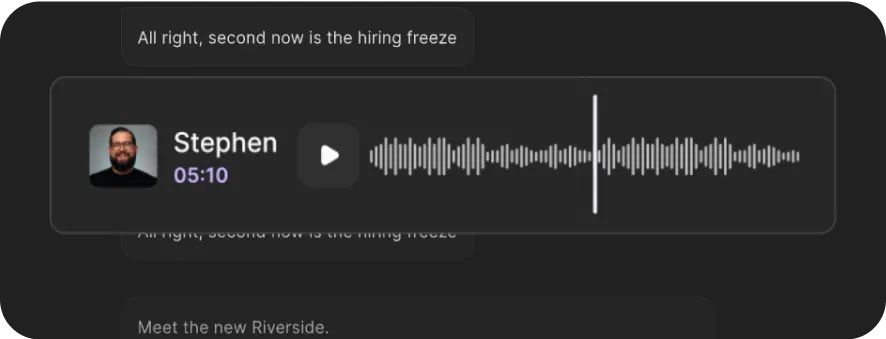
Let Riverside's AI automatically transcribe your audio and generate accurate subtitles. Your dialogue is converted into timed text with precise timestamps.
Step 4
Download subtitles as SRT or VTT
Download your subtitles as SRT, VTT, or TXT. Choose SRT for YouTube and most editors, or VTT for web players and course platforms.

Why Riverside:
Subtitles that are ready to upload

VTT and SRT generator in one
Choose the format that fits your video. Use SRT files for video platforms or your video editor. Or VTT files for videos embedded on your website.

Fast subtitles with 99% accuracy
Our AI subtitle generator gives you spot-on subtitles, ready to upload. For even higher accuracy, record your audio in studio quality with Riverside.

Synced subtitles with timestamps
No need to manually match each line to the audio. Every VTT and SRT download includes exact start and end timestamps so your dialogue stays in sync.

Generate subtitles in 100+ languages
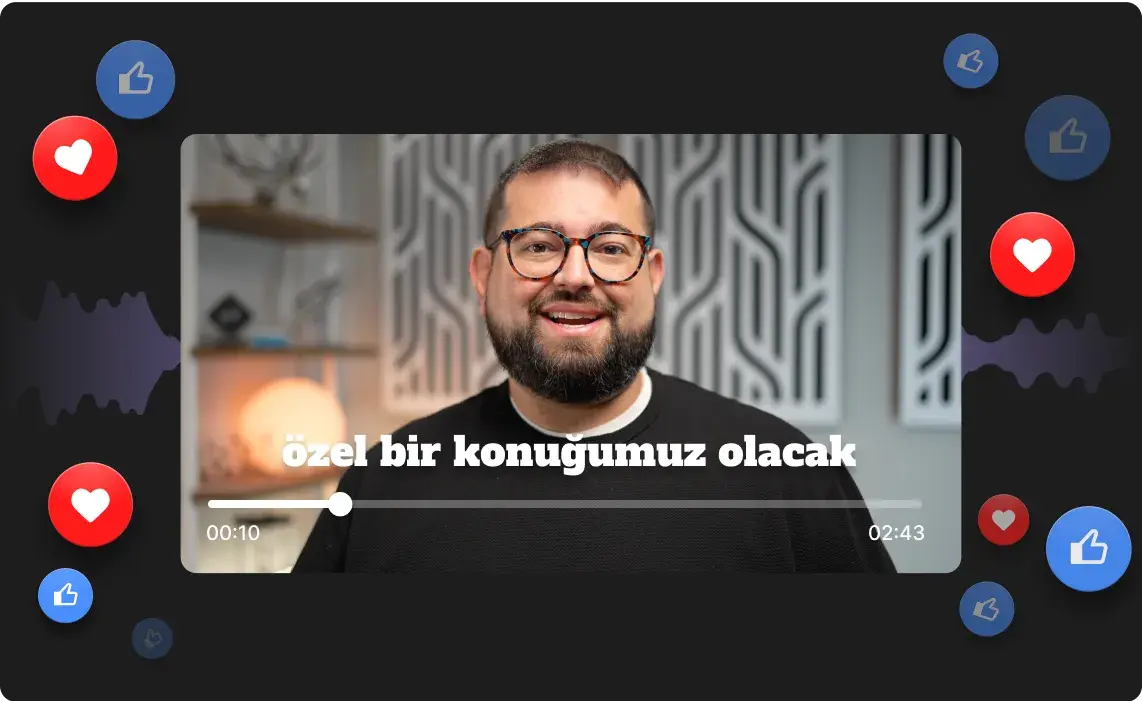
Create subtitle files in over 100 languages and dialects. Turn recordings in different languages into ready-to-use subtitle files in just a few clicks.

Free subtitle generator with no sign-up
Upload MP3, WAV, MP4, or MOV files and download your subtitles for free with no usage limits. No need to create an account, no credit card, no watermarks.

Burn styled captions into your video
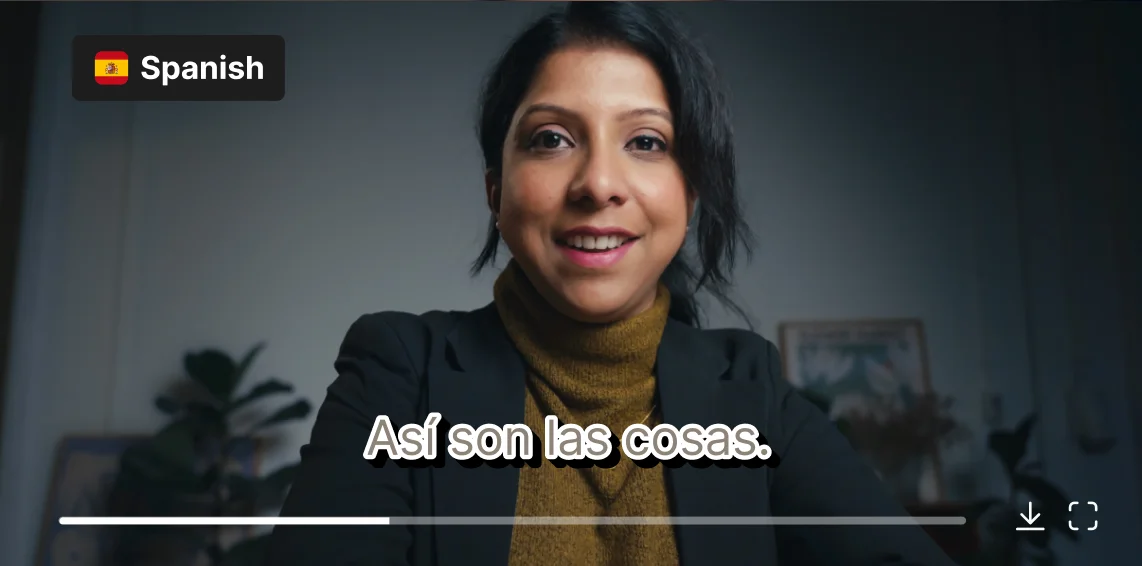
Go from subtitles to open captions directly in Riverside’s editor. Add branded captions and customize your font, color, and animations.

Translate subtitles for global reach
Share your videos with audiences worldwide. Translate Riverside recordings and subtitles into 30+ languages with AI translation.

Edit videos by editing text
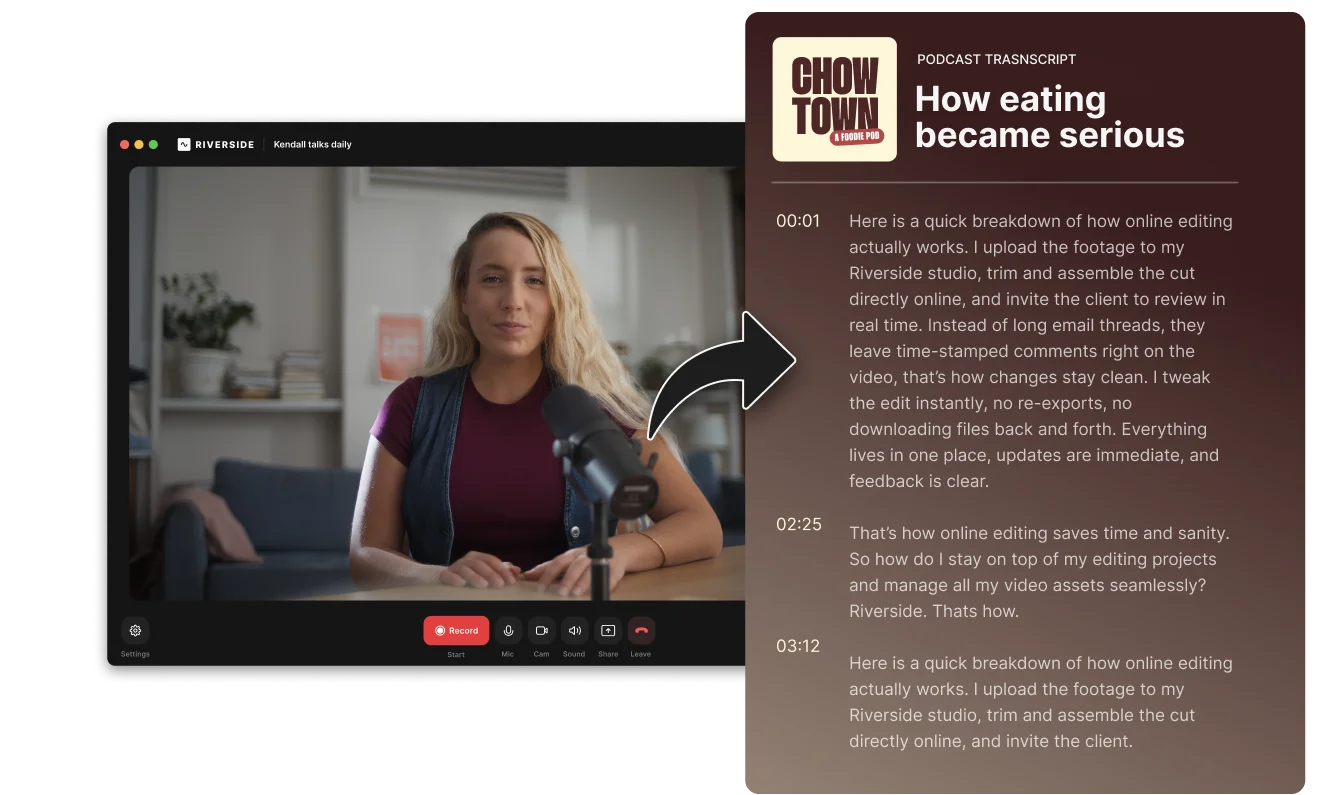
Use Riverside’s text-based video editor to clean up your recording. Delete words or phrases from your transcript, and Riverside automatically cuts the corresponding video.

Capture studio-grade 4K video locally
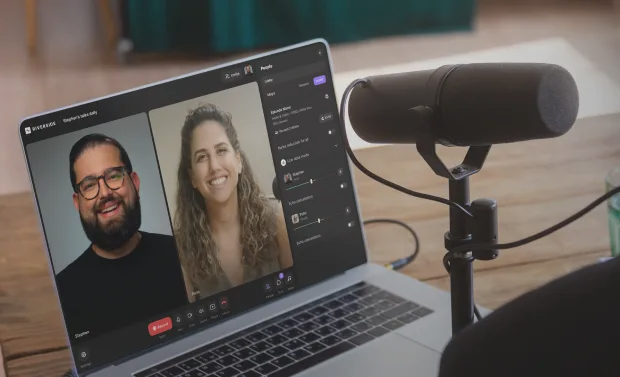
Record directly on Riverside for studio-quality video in up to 4K resolution. Get automatically generated subtitles when you finish, without uploading files or switching between tools.
Synced subtitles with every recording
Record in up to 4K, edit in minutes. Then download subtitles or add styled captions, all in one place with Riverside.
6 Tips to create accurate subtitles
Start with clean audio
Clear speech and minimal background noise help AI generate more accurate subtitles. Record in a quiet space with a good mic, or capture high-quality audio in Riverside.
Select the correct spoken language
Select the language and exact regional dialect (such as US, UK, or Australian English) before you run the tool. This helps the AI recognize words and pronunciation more accurately.
Choose the right subtitle format
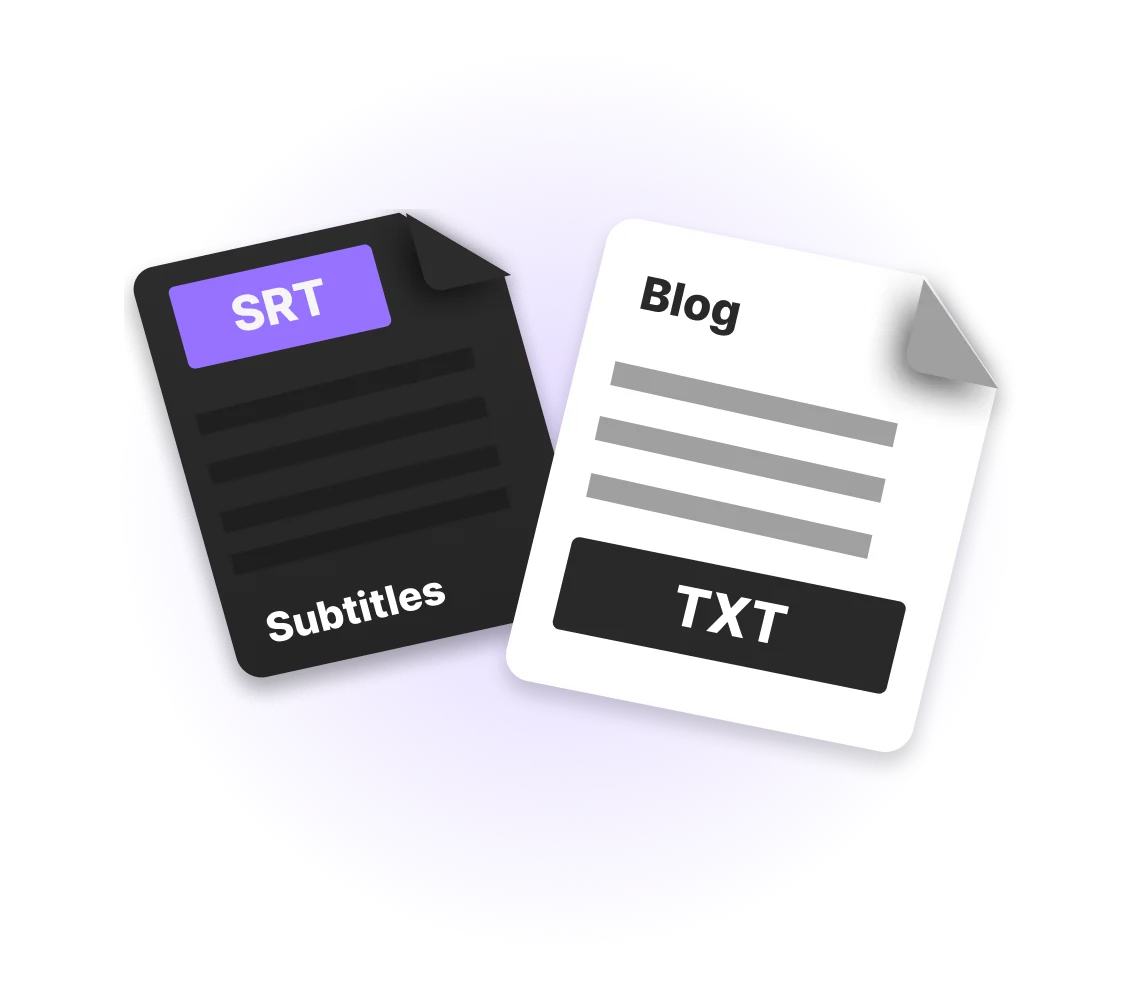
Download an SRT file for YouTube and video editors, as nearly every platform accepts it. Choose VTT if you are uploading to an HTML5 web player or course platform that supports text positioning.
Proofread names and technical terms
Even the most accurate AI can misinterpret unfamiliar words. Open your subtitles in any plain text editor and review for personal names, acronyms, and technical terms.
Keep subtitle lines short
Aim for one or two lines per subtitle, ideally under 42 characters per line. Break longer sentences at natural pauses so viewers can read without blocking the video.
Check subtitle timing after uploading
Play your video with subtitles enabled to ensure they appear and disappear at the right moments. Fix any timing issues before publishing.
Use the subtitle generator to:
Increase discoverability on YouTube videos
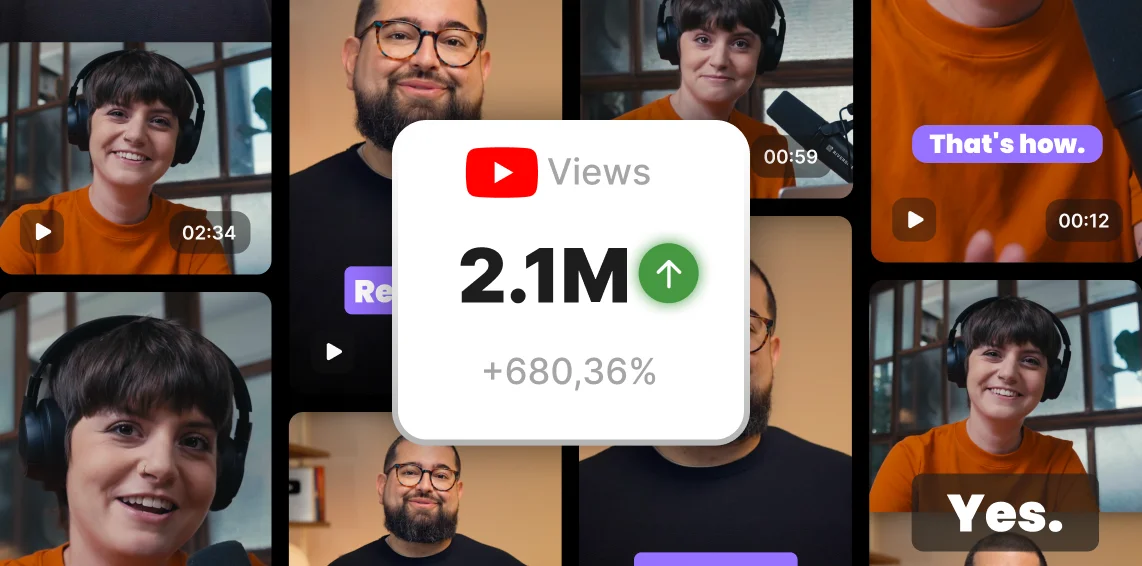
Upload an SRT file to YouTube Studio to help your video show up in searches so more viewers can discover your channel.
Subtitle course videos to boost completion
Add timestamped VTT files to your videos on your course platform or your own website. Students can follow along and catch every new term.
Add subtitles to podcasts to grow subscribers
Burn branded subtitles into your episodes to keep viewers watching. And upload the SRT file, to increase your discoverability in search.
Translate subtitles to reach global viewers
Generate subtitle files in 100+ languages for free, or use AI Translation in Riverside to translate and redub your content for international audiences.
Pricing
From recording to publishing, all on one platform. Studio-quality results with AI that does the heavy lifting.
Pro
Create polished, high-quality content
/mo (yearly plan)
High-quality video & audio recording in separate tracks
Unlimited text-based editing
Unlimited multi-track editing
AI tools (Magic Audio, Smart Scenes for automatic multi-cam edits, eye contact, unlimited transcriptions, show notes, remove silences & filler words)
AI content repurposing tools
Publish to YouTube, Spotify, Apple, Instagram, LinkedIn & more
Business
Produce at scale with control
Full remote control over recording and post-production
Custom branding
Webinar solution
Podcast hosting for as many shows as you want
Async recording
Team collaboration
24/7 priority support
Dedicated Customer Success Manager
Enterprise-grade security

Frequently Asked Questions
A subtitle generator is a tool that converts spoken audio from a video or audio file into written text with timestamps. The software uses speech recognition to transcribe dialogue and pair each line with exact start and end timestamps. You can download the result as an SRT or VTT file to upload to video players, websites, or editing software.
The main difference between SRT and VTT is that SRT stores plain timed text, while VTT supports text styling and on-screen positioning.
SRT and VTT files are designed for different uses:
- SRT (SubRip): The most widely supported plain-text subtitle format. It consists of sequential line numbers, timestamps, and dialogue. It works with YouTube, most video editors, and many course platforms.
- VTT (WebVTT): An HTML5 web subtitle standard that supports font styling, custom cue placement, and chapter markers. Use VTT for custom website video players, LMS and online course platforms, and Vimeo.
YouTube accepts both formats, but SRT is generally the safer choice for broad compatibility. If you want to learn more, check our guide on how to create an SRT file.
Yes, Riverside's subtitle generator is completely free, with unlimited use and no sign-up required. Upload an MP3, WAV, MP4, or MOV file, generate timed subtitles, and download them as SRT or VTT files without paying or creating an account.
If you need a plain text transcript, instead, you can use Riverside’s free video-to-text tool.
You can add an SRT or VTT file to a YouTube video inside YouTube Studio. Just follow these steps:
- Select “Subtitles” from the left menu.
- Click your video, select the video language, and click “Add”.
- Choose “Upload file”, select “With timing”, and upload your SRT or VTT file.
For more details, read our guide on how to add subtitles and captions to YouTube videos.
Yes, you can burn subtitles directly into your video using Riverside's captions editor. Unlike downloadable SRT or VTT files, burned-in captions are permanently embedded in the video. You can customize their fonts, colors, screen placement, and animations to match your brand.
Riverside's subtitle generator supports over 100 languages and regional dialects, including English, Spanish, French, German, Japanese, and many more. Simply select the language spoken in your audio or video to generate timed subtitles as SRT or VTT files.
The main difference between subtitles and captions is that subtitles transcribe only spoken dialogue, while captions also describe non-speech audio. Subtitles are designed for viewers who can hear the audio track but need the dialogue in text or translated into another language. Captions are built for deaf and hard-of-hearing viewers or mute viewing, and include sound effects, music cues, and speaker labels.
Riverside’s AI-generated subtitles can be up to 99% accurate, but results depend on audio quality, background noise, accents, and overlapping speech. Clear recordings generally produce better results, but you should always review names, technical terms, and subtitle timing before publishing. Record in Riverside in uncompressed 48kHz local audio on separate tracks for each participant to achieve the highest accuracy.
Record in Riverside and get accurate subtitles the moment you stop, with no upload needed.


More from Riverside


Features