Record and edit a podcast on your phone with the Riverside app
Record and edit a full podcast in the free mobile app, with remote guests, captions and 4K export.

Record and edit a full podcast in the free mobile app, with remote guests, captions and 4K export.
How to record and edit an entire podcast from a phone using the free Riverside app on iPhone, Android or iPad, with no computer involved at any point.
The video covers:
00:00 Do you think you need fancy gear or hours at your computer just to start a podcast? Well, think again because I'm going to show you the easiest app to record a podcast on your iPhone or your Android or even your iPad. With just a few taps, you can be recording and editing your podcast in minutes. No stress, no tech headaches. And if you're just starting out, no experience required.
00:19 Just go to the Google play store or the app store on your iPhone or iPad and download the Riverside app. It's completely for free. And it's also free to create your account, record, and edit your content. And everything I'm about to show you can be done either on Android or iPhone, and even your iPad. Once you log in, you'll see at the bottom of your device that you can jump in to start recording right now.
00:39 Add captions to a video that you already recorded with your mobile device and even import other files to edit. You can even record with remote guests right here from your iPhone. I'm going to show you how to record with remote guests in just a moment, but let's record some solo content using the Riverside app. You'll see down at the bottom, we can choose either recording together with someone else.
00:58 We can go to solo content, which shows the camera full screen. I'll even switch to my back camera or we can record audio only content here. I'm going to choose solo. And if you want to record with the back camera on your phone, but still be able to see yourself, I'll put a link to this small rig monitor in the description below. This actually attaches via MagSafe. If you have an iPhone 12 or newer, then I'm going to swipe down to control center. Be sure to turn off orientation locks so you can rotate your phone sideways. See, I'll choose small rig monitor here.
01:24 And my iPhone screen is mirrored right here. Now I can attach to the back of my phone, go back to the Riverside app. And now I can record in high quality video, even monitoring myself and use the back camera on my iPhone. This is great if you want to record with remote guests as well. Now, in a moment I'll show you how to connect a USB microphone for even better quality.
01:43 But here's just my iPhone recording with the back camera and the built-in microphone in Riverside. All I have to do is hit the big record button right here, just like a camera app. So here's what an actual recording from Riverside looks like. This is using the Riverside app on my iPhone.
01:56 This is just the built-in microphone and I'm going to show you some AI tools to enhance this audio if that's all you have, but I'm also going to show you how to connect a USB mic to the Riverside app for even better audio quality. Then when you're done recording, you just press the stop button right here in the Riverside app, meaning the video and audio is actually recorded on my iPhone right here. And that's why you're going to see an upload progress bar there at the top.
02:17 You want to keep the Riverside app open until that reaches 100%. Should take just a few seconds. Then once it's uploaded, you know you're good to go and that high quality video and audio is saved to your Riverside dashboard. Now, just to show you how quickly you can get to editing your content, I'm actually just going to tap view and edit right here from the studio and it's going to jump to that last recording I just did. Now, while it takes just a couple of minutes to process that video, let's connect a USB microphone to our iPhone for even better audio quality.
02:41 I'm going to tap create at the bottom, click record. And then from this screen, I'm going to connect a USB mic. This is the Samson QTU. I actually did a video on different microphones that work specifically with iPhone and the Riverside app. I'll link that video above and down in the description.
02:55 But once I connect the USB mic to my iPhone, you should see this pop up. If you don't see this pop up, unplug the mic and plug it back in when you're in the studio screen here. When you see this pop up, you actually want to tap no. That's because you want to connect a pair of wired headphones directly to this microphone. You can use inexpensive headphones like $20 from Amazon, plug it into the bottom of the microphone right here, and then you can hear your remote guess when you record with the Riverside app.
03:20 But let's record one more clip solo with the USB mic. All right, I tap record. Now we're recording again with the Riverside app, but this time what you're hearing is the Samson QTU USB microphone audio. As you can see, this is going to sound much better than the built in microphone. And this USB mic is only $70 comes with a stand and all the cables you need. And just this mic and your mobile device with a little tripod, like I have here links to all of that in the video description.
03:45 This is going to give you a great podcast recording, no matter where you are. Now let's do one more recording, but this time let's do it with a remote guest. I can tap the invite button here or the little ad person icon in the upper right hand corner. The link you want to send them is the guest. You can tap the share button and then send it to him in Slack, text message, email, or just copy the link right here and then send it to him in a text message.
04:06 Now I'm going to pretend to have my remote guest joining from their mobile device. I'm going to text them a link I just got from the Riverside app. So this person just received it. Now they need the Riverside app installed on their device, but they don't need to log in with an account. And once they tap that link and actually open the Riverside app, depending on their phone security settings, they might need to enable things like microphone and camera access, tap continue.
04:28 They should enter their name and you actually will see that in the transcript you get after recording. I'll show you that in a moment. Then they can flip the camera around, whatever they want to do. They can choose the front or back camera. Make sure to tell them to rotate their device into horizontal or landscape mode, but you'll see once they join the studio, now I see them on my iPhone and now let's record a podcast.
04:46 I'll tap record right here and you can see on my phone, I get to see their camera large and on their device. They're going to see me large as I'm talking and a small preview of themselves. I can also tap to make my preview larger or smaller.
05:00 You could tap on the preview window of their camera to either show the tools here in the Riverside app. And then once you tap stop, both the high quality video and audio recordings will be uploaded from your device and your remote guest will see the same files uploaded from theirs. Or we now have several recordings, both solo and with remote guests in our Riverside app. So let's edit them back here on the main Riverside app screen.
05:19 You'll see all the recordings I just did are right here. And when I jump into one, I can actually view a complete transcript of that recording by tapping here. I can copy it to my clipboard or even share that. And I can preview the video that I had recorded both me and with remote guest right here in the Riverside app. Again, using your mobile device, especially an iPhone and modern Android phone, you're going to get great quality video and audio just right here from your mobile device. Now let's say we want to edit this clip.
05:44 Well I'll tap the scissor icon right here and now we can edit our content from our phone. I can actually change the aspect ratio right here. I want to go with a widescreen video 9x16 for real or even square. I can add animated captions with just a tap.
05:59 I can choose from multiple styles of captions and then even customize it further from text sizes, text fonts, even the animation and how I want to highlight the active word, choose the main colors. And then once I choose my styles, I can then move them around the screen to make sure they don't cover my face.
06:14 Now, if I just need to trim the in and out point, I can go over to the trim tool here in the bottom left, and then I can drag the in and out point right here. And you actually see the transcript deleting or coming back as I'm dragging that out point. This lets you precisely change that in and out point.
06:30 And now I can preview that edit looks great and it has the animated captions, but let's say I wanted to edit it even further. Well I can go back and go to the cut tool and the cut tool actually shows me the transcript word by word. Silences are also represented as three dots.
06:46 So I can tap the three dots and hit delete and now I've deleted the silence. And then I can actually tap individual words and delete them for precision editing. If I want to edit even more content, like maybe whole sentences, I can change the size of the transcript using these tools here, and then I can delete entire sentences. Just tap it and then hit the trash can and you've edited it.
07:07 And when you have longer recordings, especially with remote guests, you can even go to a paragraph view. For instance, I'm going to take a look at one of the past episodes of my podcast. Now I recorded this on my computer, but I can still edit it on my phone and that's the power of Riverside. All your recordings are available everywhere. Now I've gone into edit mode.
07:24 Here's me and my co-host again. I can still change the format here. Automatically places a side by side. I can add the captions, but if I go into the cut tool here, I can edit word by word, zoom out. I can edit sentence by sentence and even select multiple sentences at a time.
07:40 If I need to delete larger chunks of content. Now, if I go back to that previous recording that I just did, you'll see my edits are completely saved and I can jump in and finish this edit. Then once I'm done and I'm ready to export, I can tap the share button in the top right corner. I can export up to 4k video right here from the Riverside app.
07:57 If there was some background noise, I can toggle this on to remove it and even level the audio if I have multiple guests and then export video. Then in a few moments, I can save it to the photos app on my phone. Again, this is iPhone or Android and then share it to reels, upload it to YouTube all from my mobile device.
08:14 I'm going to choose keep editing for now because I also want an audio version of this edit so I can upload it to my podcast host. So if I tap here where it says export video, I can choose audio, go to MP3 format. And now I can also get an MP3 export and I have everything I need to publish my podcast. You'll see once it's done exported, here's the finished file.
08:34 I can preview and listen to it here and then tap the share button. I'll save it to my downloads here in the files app. And I can do the same for that video that I exported. Look at the live preview right here with the captions. I'll tap share and I can send it directly to an app or just save the video to my camera roll. And now here's the video in my photos app.
08:52 So I can upload it anywhere I'd like high quality 4k with animated captions ready to go. And finally, if you want a podcast with a slightly larger screen, everything I just showed you also works with Riverside on iPad here on iPad. You can download the same Riverside app and here I've logged in and I see all the same recordings, including the ones I was just working on, on my iPhone. I can jump in and here were the exports.
09:15 I also had on my iPhone. So you can edit an export on iPhone or iPad and you have access to all those files in both places in the Riverside app. And here's that clip I exported from my phone, but I'm here on my iPad. And again, I can share it and now save it to this device, upload it to my YouTube channel. And if I wanted to create another edit,
09:33 I can just start editing once again here on my iPad. I can change the format, add the animated captions, and I get all the trim and editing tools like I do on my phone, but here on my iPad and recording on iPad is just like on the iPhone as well. Here in the studio, I can tap create. I'll choose record.
09:50 I'm going to connect the same USB microphone that I used with my phone. You'll see the same pop up here on your iPad. When you do tap no. And now I can record that high quality content either with remote guests or solo from my iPad, just like on my iPhone and Android device.
10:05 And that's the best app to record, edit and publish your content all from your mobile device or iPad. If you have any questions, leave comments below this video. I answer all of those personally. And don't forget to subscribe to the channel here and hit that like button. Lots of videos on what USB mics will work with your iPhone, how to edit on mobile and even some lighting tips when you're on the go, which if you want to see a video on the best portable setups, I have that right up here.
10:28 Or if you're looking to build a more pro studio in your home, maybe get some mirrorless cameras and professional lighting. I have videos on that too. And how I built this studio that I'm in right now in a small space. You can check out my video on that right up here. Thanks for watching. We can't wait to see what you create.
More videos you might like
A full product tour: studio and recording, AI assets, editing, then hosting, newsletters and social.
A complete editor tour: transcript and timeline editing, AI tools, layouts, scenes and exporting.
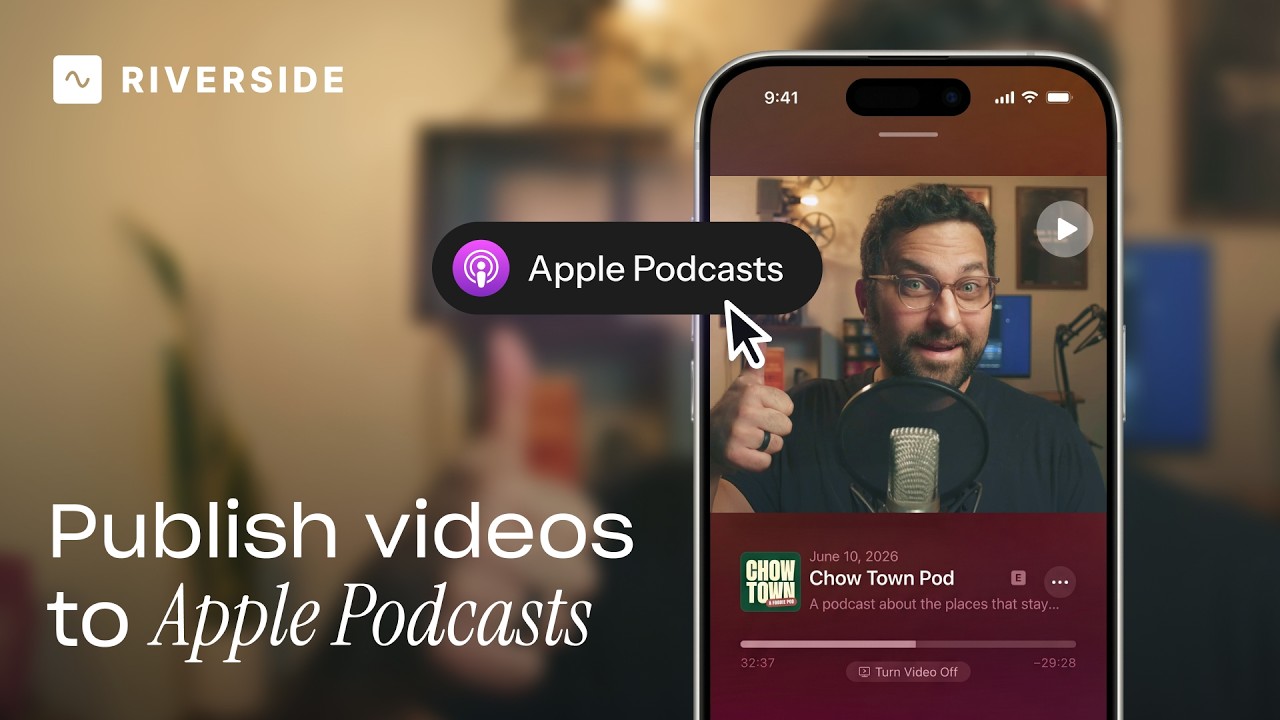
Publish video to Apple Podcasts so your audience can switch between listening and watching easily.
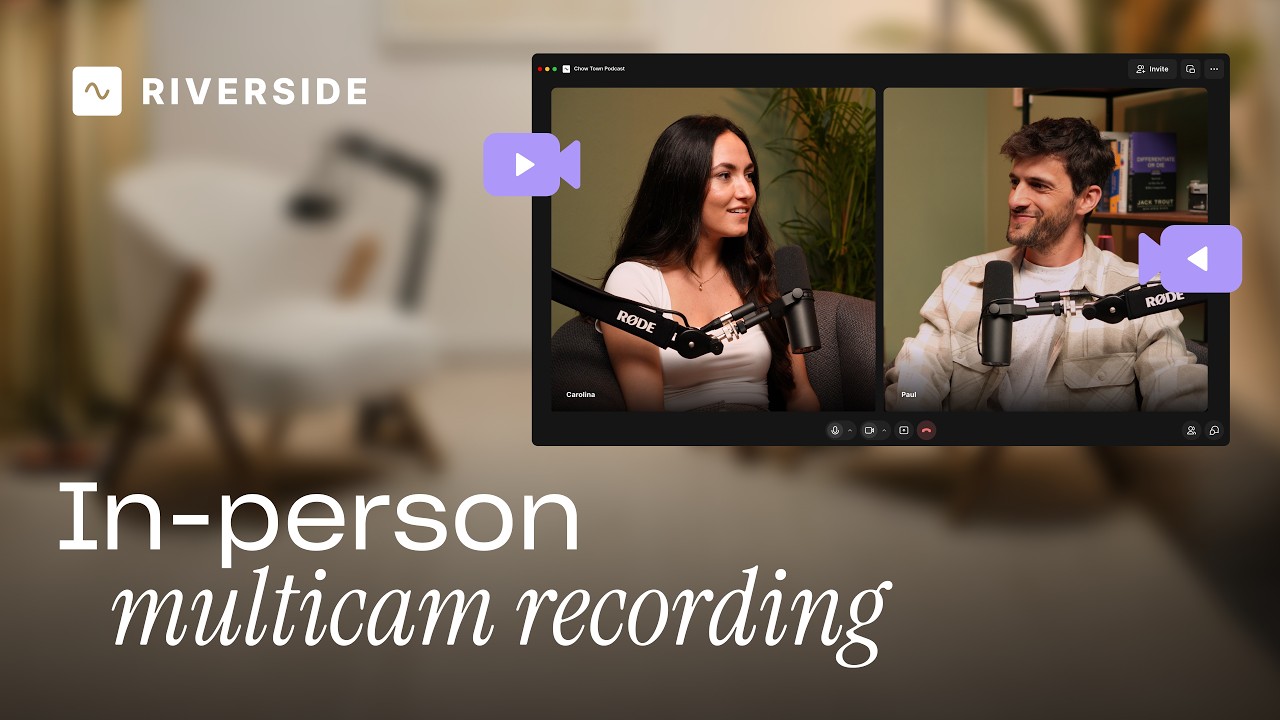
Add multiple in-person guests with their own camera and mic from one computer, as synced tracks.


.avif)
.avif)
.avif)
Got a process that works for you? Get featured by submitting your step-by-step flow. Help other creators save time, learn new tricks and improve their productions.


.avif)