Publish video to Apple Podcasts from Riverside
Publish video to Apple Podcasts so your audience can switch between listening and watching easily.

Publish video to Apple Podcasts so your audience can switch between listening and watching easily.
How to publish a video podcast to Apple Podcasts from Riverside using a single feed, so listeners can watch, listen or read along and switch without losing their place.
The video covers:
00:00 This is your podcast, video and all playing right inside of Apple Podcasts and is published directly from Riverside with one single feed. That means it's one place for your analytics and your audience can choose their experience, whatever they want to watch, listen or read along and they can switch between each of those seamlessly without losing their place.
00:18 Let me show you how this works. So right inside of your Riverside account, you can go to the hosting tab here. We can go ahead and select this plus and then connect Apple Podcasts and then hit create on Apple Podcasts and that'll connect your episodes to Apple Podcasts. Now it might not connect them right away. It might take a little while to actually fully connect them, but once it's done, you can go ahead and select up here and view on Apple Podcasts and now we can see our episodes are all published to Apple Podcasts.
00:46 Now let's go back to our hosting tab here. Now, if we want to get analytics and be able to publish video episodes to Apple Podcasts, we need to first claim the podcast on Podcast Connect. So if we select this, we can go ahead and copy the Apple Podcast URL and then go to Apple Podcast Connect. Make sure you sign in with whatever account you're using. And then once you sign in, we'll scroll down here to where it says claim existing show. And once we open that up, we post our link into the Apple Podcast show URL and then hit next and then make sure you copy this token because this is what verifies that we own this podcast.
01:26 So go ahead and copy it and then select done. And then back on the hosting tab, we can paste that token into here to verify that we own the podcast and then hit save. Now to fully enable video on Apple Podcasts, you do have to reach out to Apple directly so that they can enable HLS video. So in order to do that, you can go back to your podcast connect account and then scroll down to contact us. And then under topic, just make sure you select HLS video, enter the show title that you're using. So we'll go ahead and type that in here. And then our Apple Podcast show ID shows on our Riverside tab like so. So we can just copy this number and then paste it in here. And then the feed URL,
02:08 we can just hit the copy button and paste that one into the feed URL as well. Send the message, say I want to enable the video podcasting and then go ahead and hit send and that'll send the message to Apple. Now it could take up to two weeks for them to respond, but usually it doesn't take quite that long, but that's usually just worst case scenario, just something to be aware of.
02:29 So once we've done that, we can go to our account and we need to grab the API keys. So we'll select that and then generate the API key. And this is so that we can receive the analytics and any information from Apple side. So we can just go ahead and title this, whatever we want. I'm just going to call it the podcast name and then we can hit download and you can have it auto download to whatever downloads folder. Just make sure you have it somewhere where it's easily accessible, but also in a place that's not going to get lost or stolen.
02:57 And then back on our hosting tab, we can select your API key and then make sure we select it and hit open and then hit submit. And now we've completed the process of being able to upload video podcasts to Apple podcasts. And we can see right here, our feed and everything is all set and ready to go. Now the big payoff for your audience is that this whole process just works for them. They can start the episode on a commute. If they're in the car, they can do audio only.
03:25 And then when they get back home, if they want to switch over to the video, they'll start at the same exact spot and same sentence, and they can go full screen download episodes to watch offline and all of that really great stuff. The whole point is one recording, one feed, everywhere your audience is publishing video to Apple podcast is available now on Riverside on the grow plans and above at the Riverside now and publish your first episode today. And we would love to hear any comments you have about this future. Thank you so much for watching and we can't wait to see what you create.
More videos you might like

Grow your audience with podcast SEO, a unique selling point and branding that turns searchers into listeners.

Tips from PodMatch on planning and hosting podcast interviews that keep listeners hooked until the end.
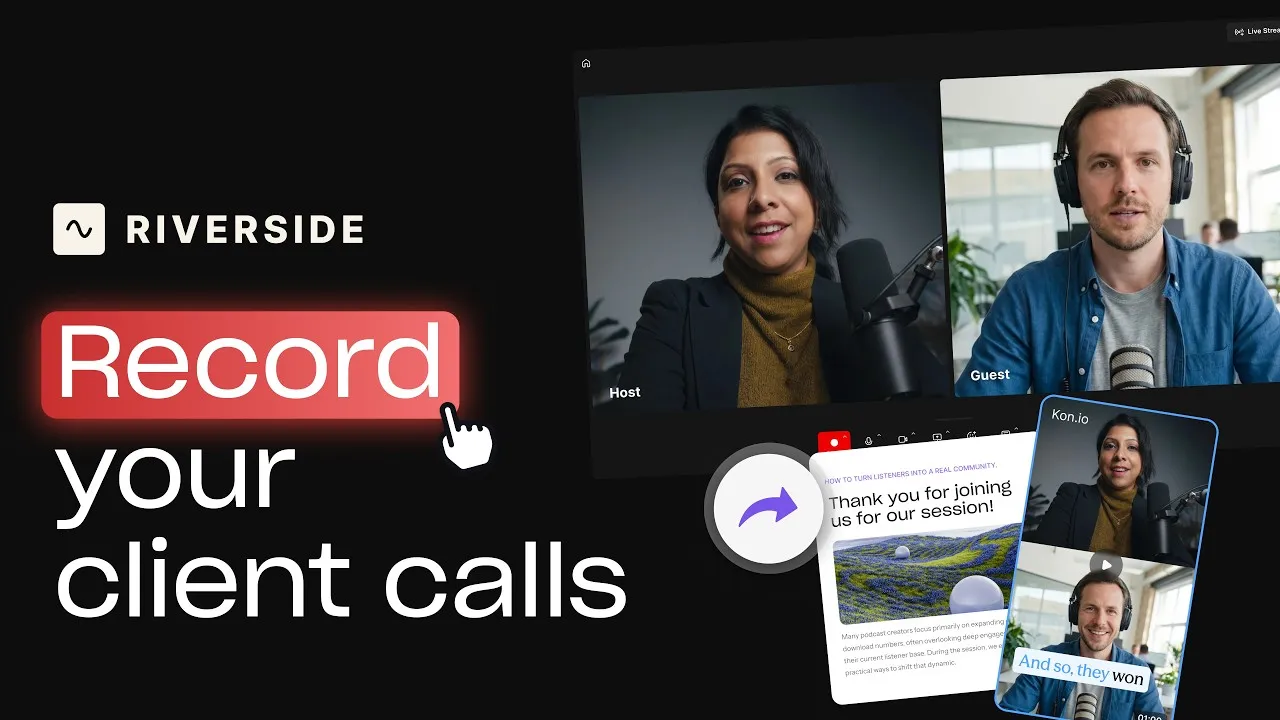
Record calls in Riverside, then use the transcript to create follow-ups, highlights, and insights.
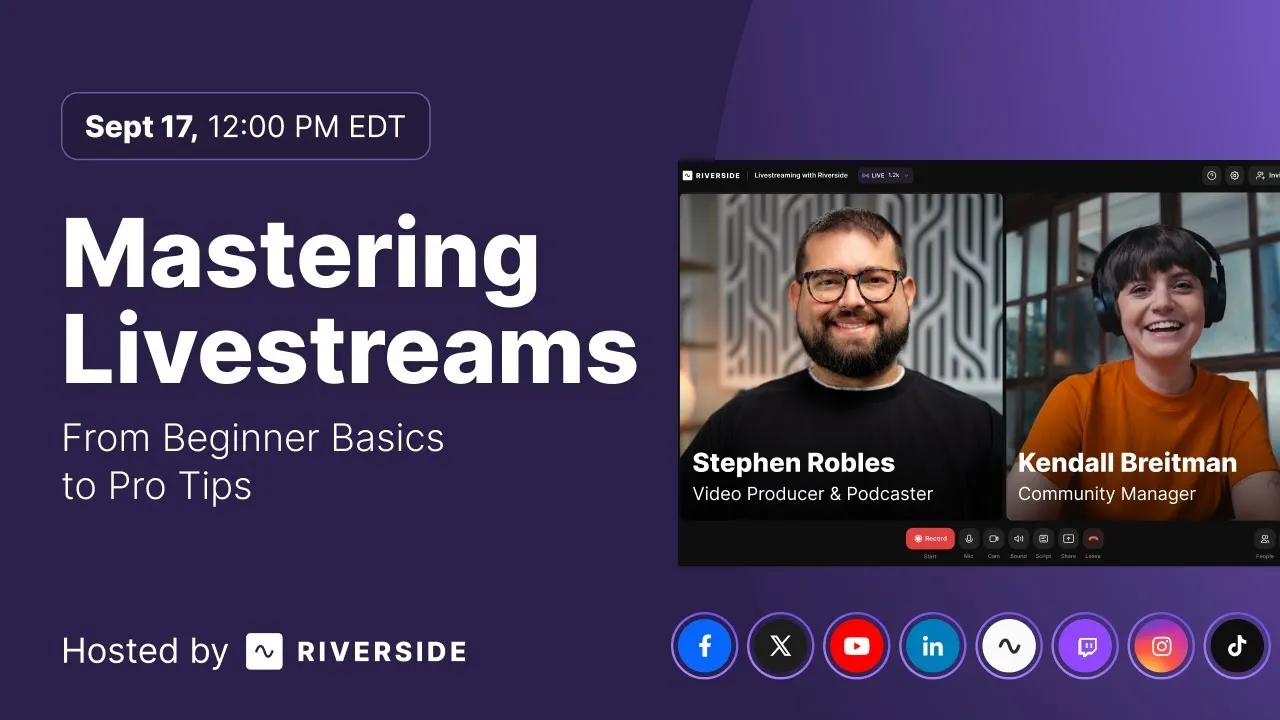
Learn how to plan, set up, repurpose, and keep livestreams engaging.

Got a process that works for you? Get featured by submitting your step-by-step flow. Help other creators save time, learn new tricks and improve their productions.


.avif)




