.webp)


Key takeaways:
- TikTok’s auto generated captions are quick and easy. But you can’t precisely control when each caption appears and disappears.
- Manually adding captions in the TikTok gives you more control. But it’s awkward and time consuming.
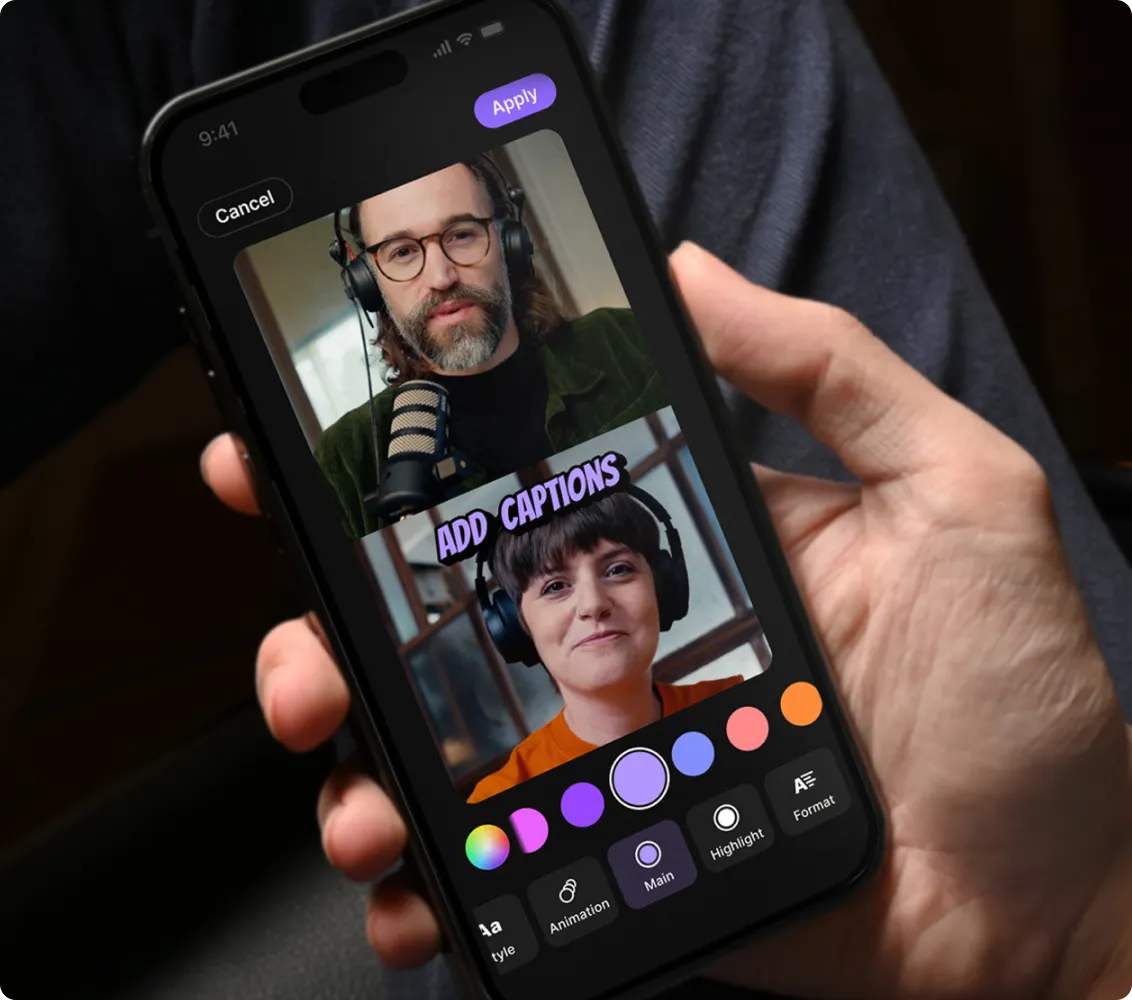
- With Riverside, you can quickly and easily create accurate, perfectly synced captions and customize the style and format.
Adding captions makes your TikTok videos more accessible and engaging. It’s pretty straight-forward too (once you know how).
Read this article to learn how to add captions on TikTok, using the platform itself or with third-party software.
We’ll also cover the benefits of each method, so you can pick what’s best for you.
What types of captions can I use on TikTok?
There are three different ways to add captions on TikTok.
- TikTok auto-generated captions: TikTok can automatically generate captions for you. These can be edited before publishing and can be turned on or off by users.
- Burned-in captions: Software like Riverside can be used to burn customized captions into your videos so they are always visible.
- Manually generated captions: Use TikTok’s “Text” option to manually add captions. This isn’t recommended as it’s awkward and time consuming.
A quick note: People often use captions and subtitles interchangeably, but they’re not the same.
- Captions include spoken dialogue plus other audio like music or sound effects.
- Subtitles only include spoken dialogue, often for translation.
TikTok’s auto-generated captions only transcribe speech, so they’re technically subtitles. To add full captions, you need to do it manually. But, since TikTok calls them captions, we will too.
Now, on to how to add them!
How to add captions to TikTok automatically
Adding captions to your TikTok videos is easy; we’ll provide step-by-step instructions.
The first option is using TikTok's auto-captions feature, which automatically generates captions for your TikTok videos.
However, these auto-captions can be prone to errors, so be sure to proofread them before publishing content. Language support is also limited, and there’s no control over caption timing.
Step 1: Record or upload your video
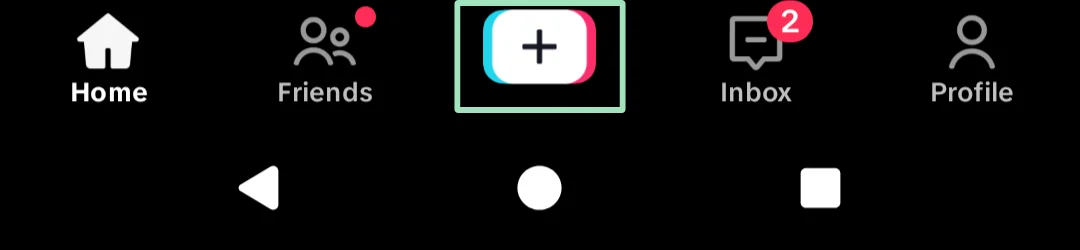
Open the TikTok app and click the “+” icon. You’ll be prompted to record a video directly in the app or upload a pre-recorded one.
To upload a video, click the box at the bottom right corner of the screen. This will open your phone’s gallery. Select your preferred video and click the red “Next” button.
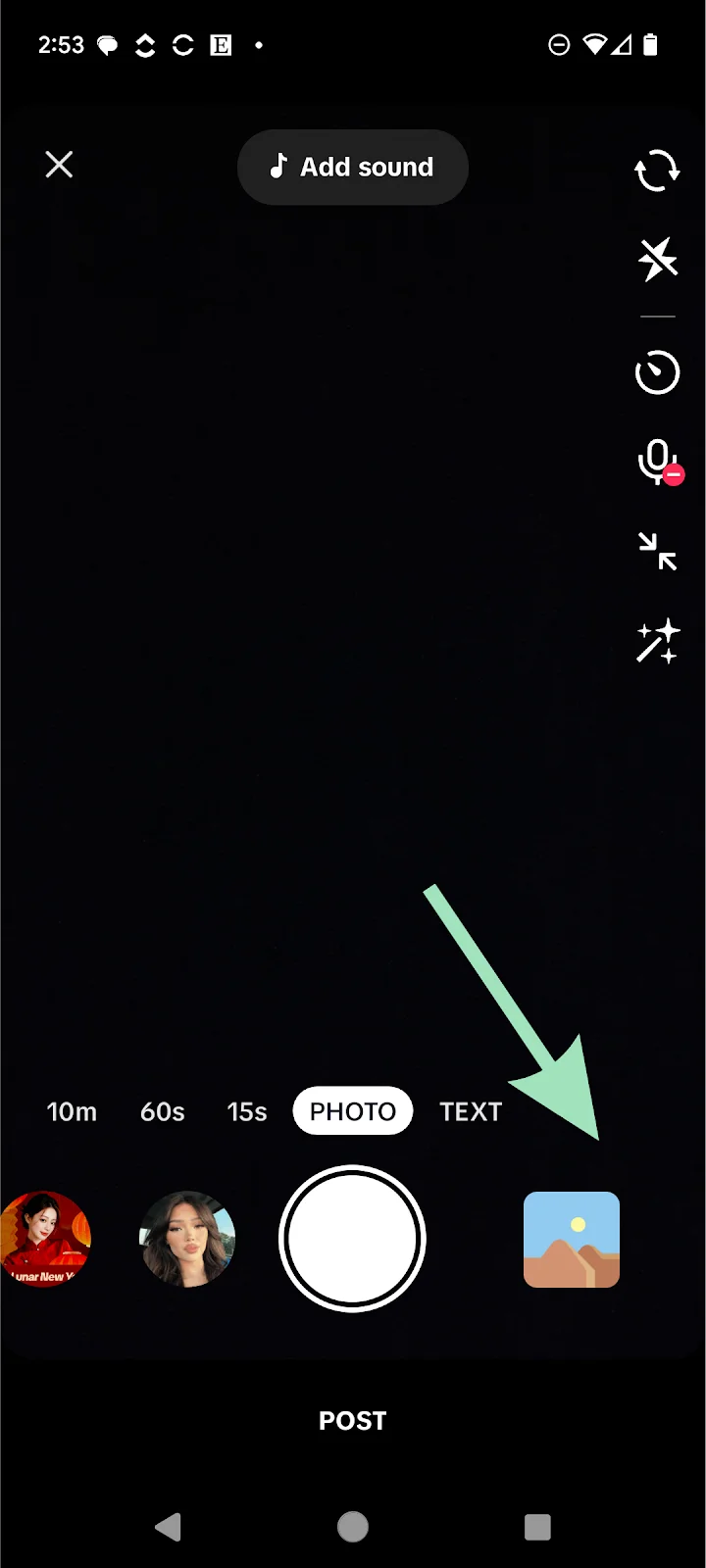
To record a video, press and hold the large white circle in the centre of the screen. Release to stop recording.
Step 2: Turn on captions
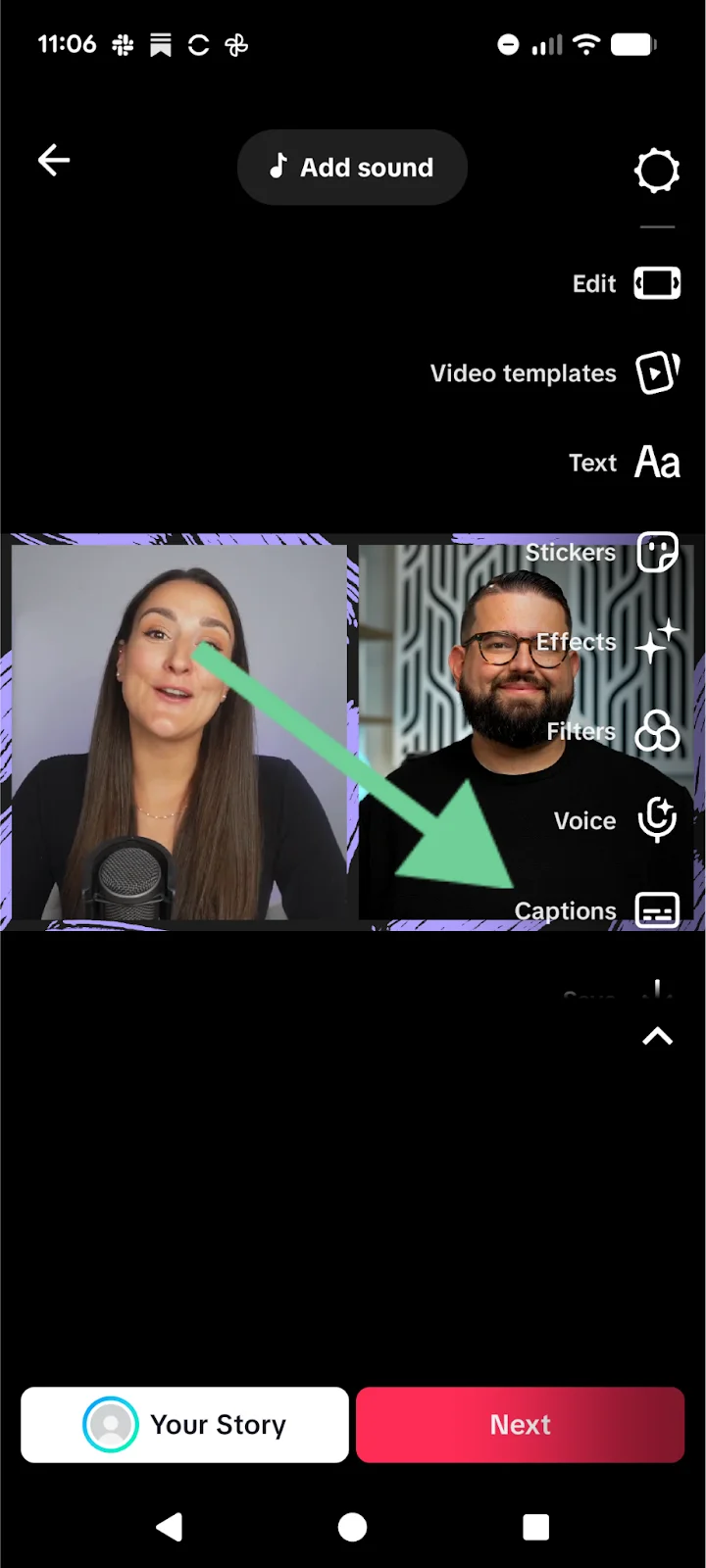
Tap “Captions” in the right side menu. Look for a vertical toolbar with various icons. If you can’t see it, click the down-facing arrow.
Step 3: Review captions
Once TikTok has processed the audio it will auto generate captions with timestamps.
Select the text to review under each time stamp and use your touch-keypad to make edits. You can hit the play button in the middle of your screen to see how your captions sync or review what is being said. Your captions will save automatically.
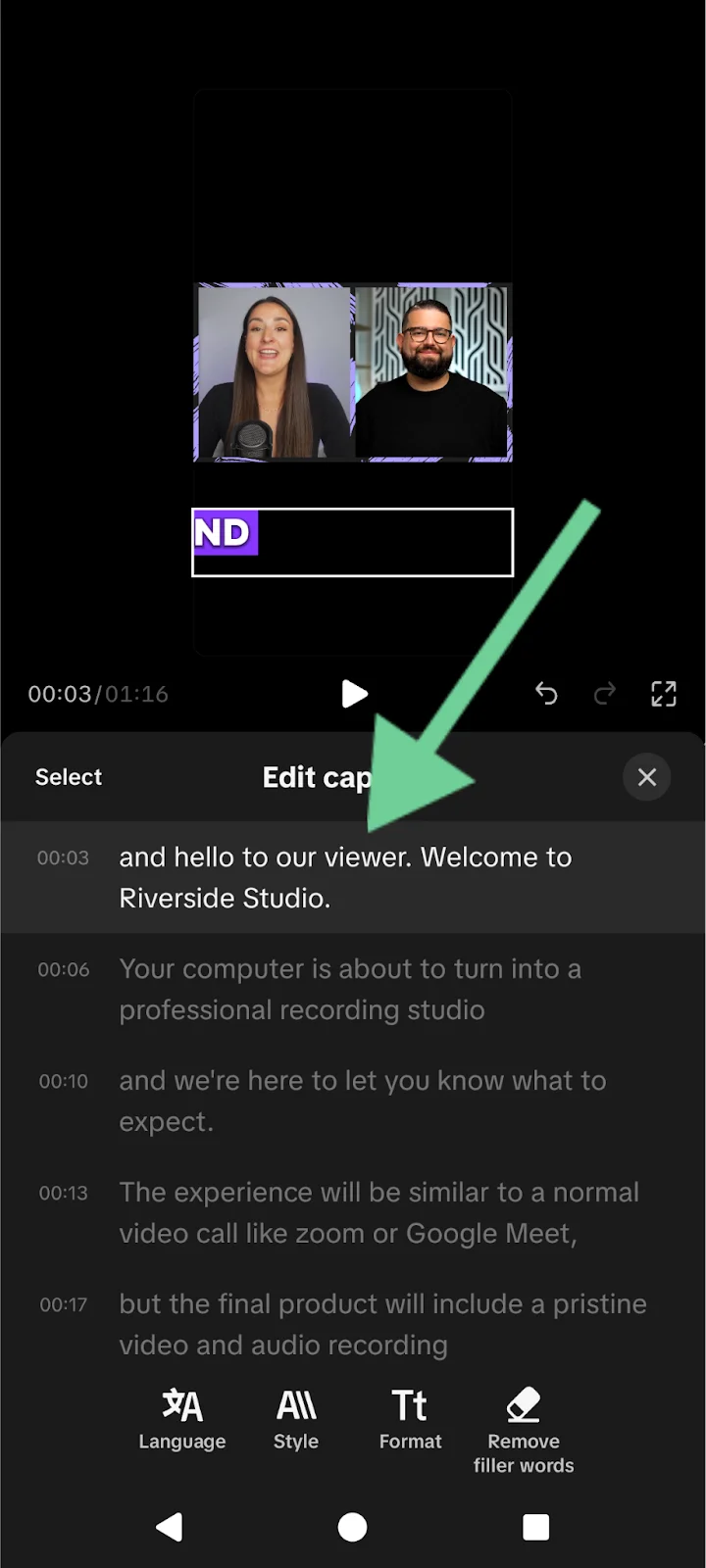
Note: You can’t change the timestamps on automatic TikTok captions, even if the audio and captions don’t match up.
Step 4: Change the style
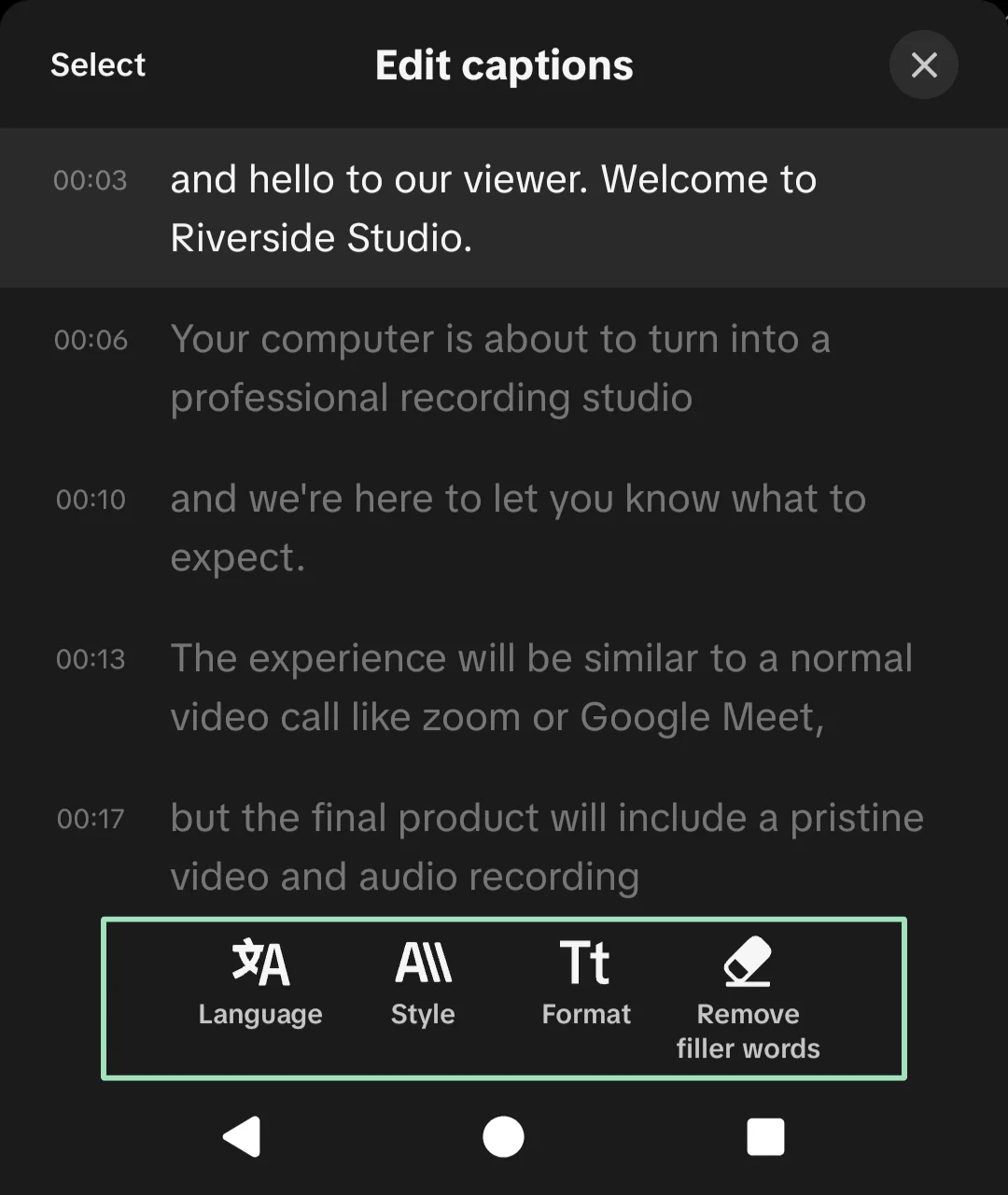
Hit the “Style” and “Format” icons in the bottom centre of the screen to choose how your captions appear on screen. You can also select a different language for your captions.
Step 5: Post your video
Click the red arrow at the top right of your screen. Enter a description for the video and any hashtags.
When you’re ready to share your video, tap “Post” to publish it to TikTok.
How to add captions to TikTok videos with captioning software
You can use Riverside to easily generate captions that are accurate, perfectly synced, and suit your style and brand. Because they aren’t generated by TikTok, you can burn them into your video and use them for Instagram Reels and YouTube Shorts too. The only downside is that because they’re baked in, they can’t be switched off.
Here’s how to add captions using video editing software like Riverside.
Step 1: Record or upload your video
Log into your Riverside account. If you don’t have an account, you can sign up for free.
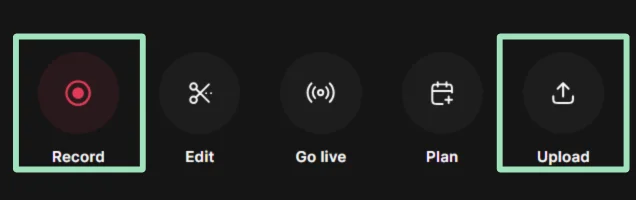
Click “Record” to shoot a new video. Or, click “Upload” to caption an existing video.
Step 2: Open your video in the editor
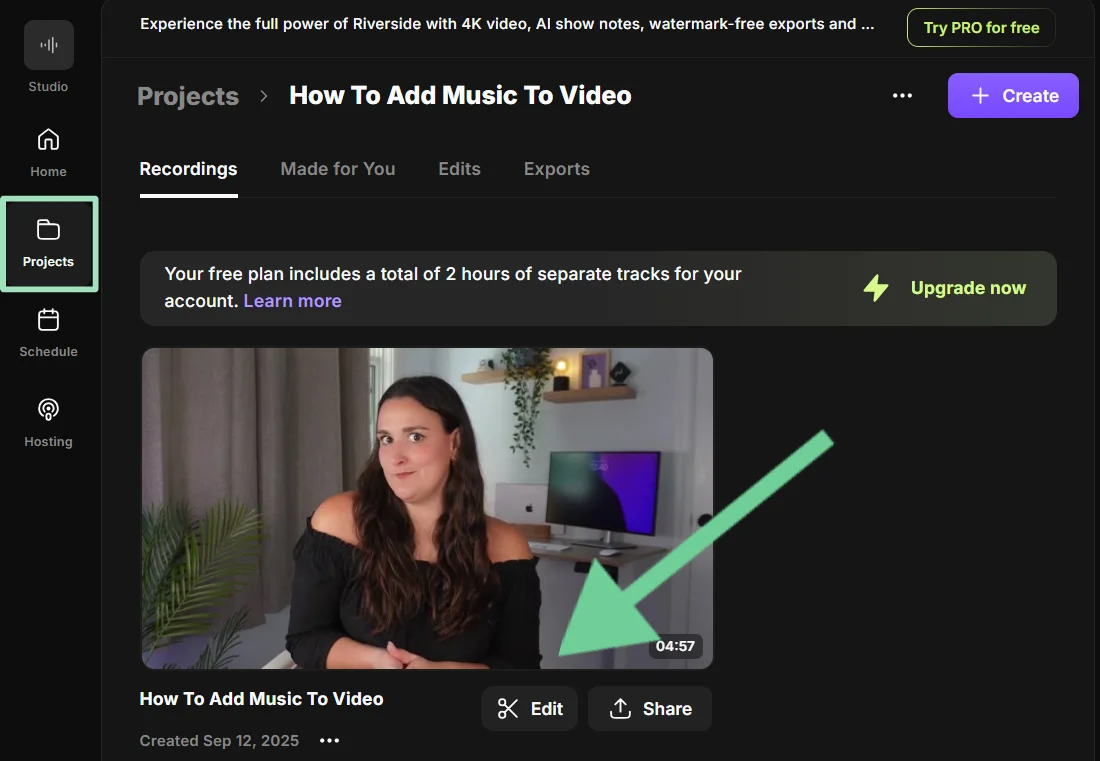
Go to “Projects” and find your video. Click on it, then select “Edit” to open it in the editor.
Step 2: Set your aspect ratio
Click the aspect ratio option at the top of the screen. Select “9:16” to ensure your video is the right size and format for TikTok.
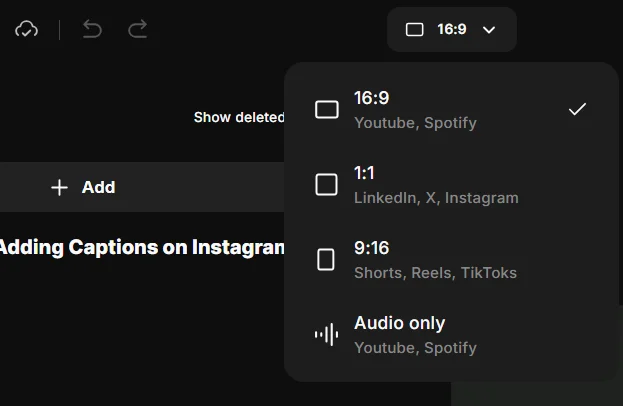
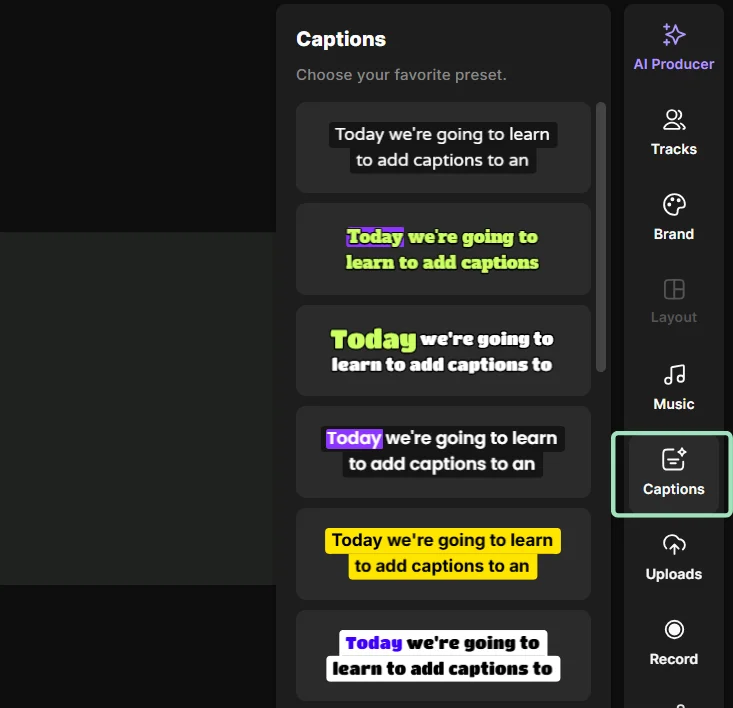
Step 3: Add and edit your captions
Select “Captions” on the right side in the vertical toolbar. Use Riverside’s presets to choose between various styles.
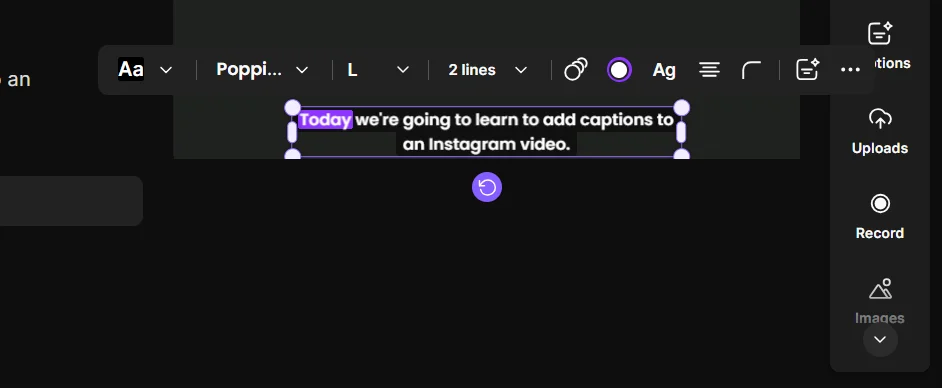
Drag and drop where you want the captions to appear. Click on the captions to open another toolbar and choose the exact font, size, and alignment you want.
Review your video and captions. Make any final tweaks using the text editor to the left of the video.
Step 4: Polish your video
Before exporting, use Riverside’s in-built tools to further enhance your video. You can:
- Edit your video with AI: Click “Co-Creator” to automatically edit your video, make clips, or repurpose your content with simple prompts.
- Enhance your audio: Click “AI Tools” to remove pauses and filler words, mute anyone who isn’t talking, and automatically enhance your audio.
- Add overlays: Select “Text” to add and customize text overlays. Click “Images” to add image overlays from stock images, or your own photos. Click “Videos” to add b-roll and video overlays. You can even use AI to generate unique options.
- Brand your video: Click “Brand” to upload or add your logo and background, for that professional touch.
Step 5: Export your video
When you’re done editing, click on “Export” at the top right corner of the screen.
Choose 1080p for video resolution. This is the highest quality that TikTok can handle.
Then click “Export video.”

A pop-up will appear saying, “Exporting your edit.” Click on “Go to exports.”
Step 6: Share your video on TikTok
Hover over your exported video and click the “Share” arrow in the top left corner. Select TikTok and scan the QR code with your phone camera to continue.
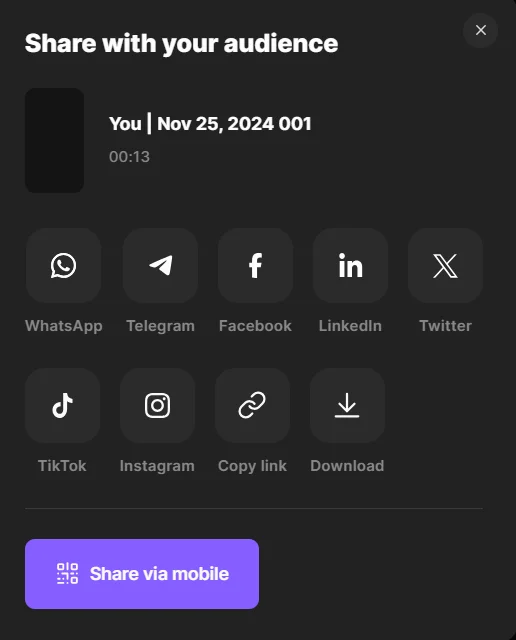
On your phone, click on “Open in browser.” Tap the “Share” button and click on TikTok on the following screen. The last step is posting your video on TikTok.
Readmore: Check our guide on the best apps to caption videos.
How to add captions to TikTok manually
If you want to create your captions in TikTok but don’t want to use an automatic caption generator, you can choose to add captions to your TikTok manually. This method is quite laborious, though, and while it can be more precise, it’s time-consuming and very hard to get right.
Here’s a guide on how to do it.
Step 1: Record or upload your video
Click on the “+” icon. Record or upload a video, then click the “Next” button.
Step 2: Add manual captions
In the vertical toolbar, select the “Text” icon.
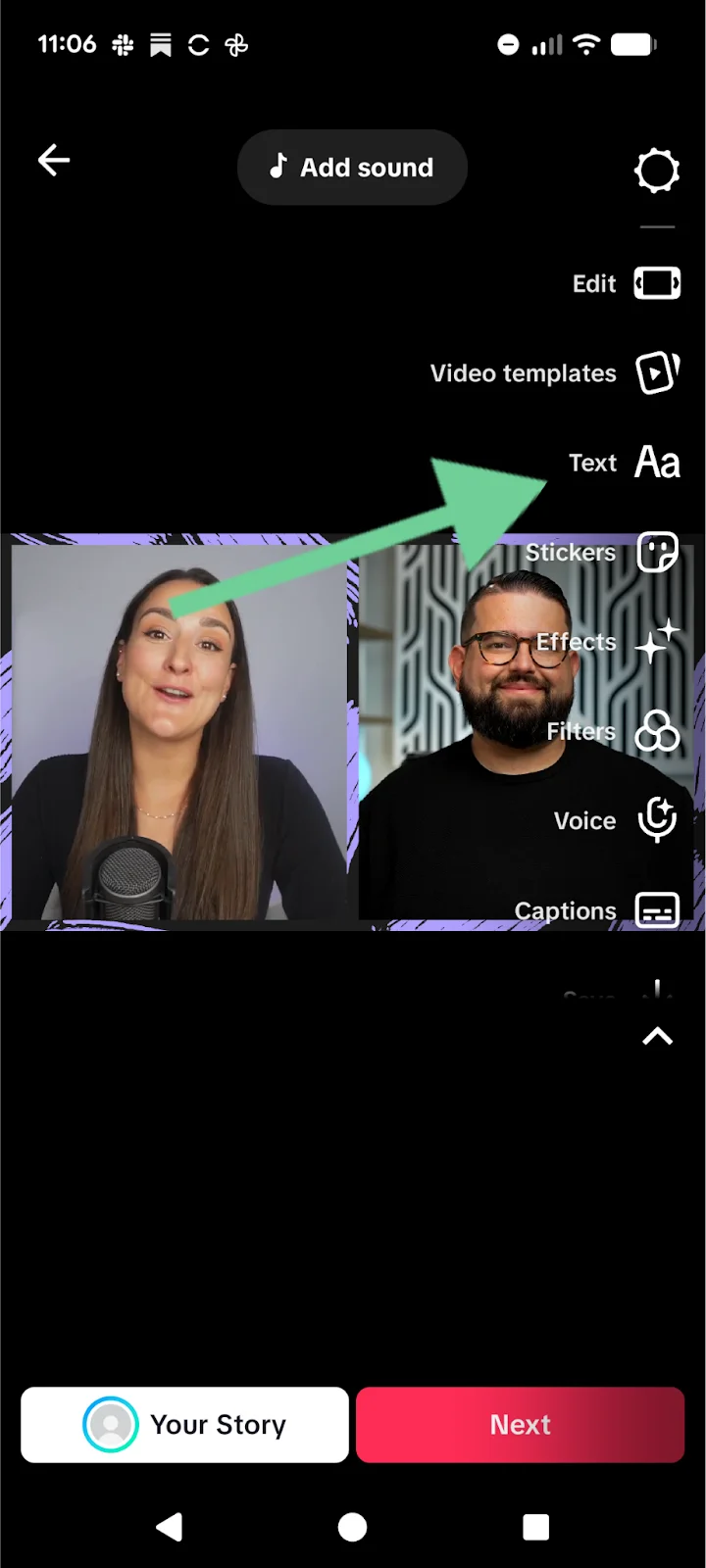
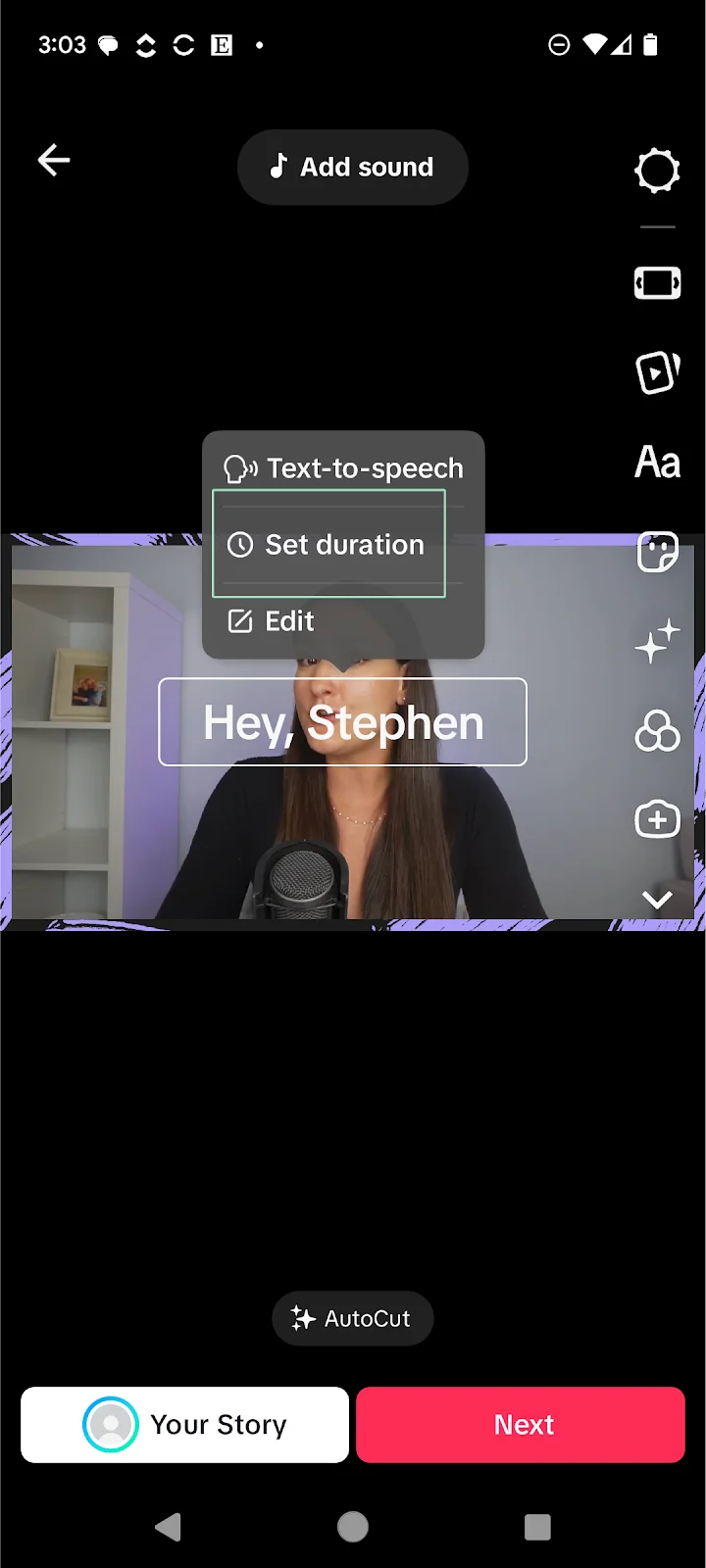
Type out your first caption, tap on it and hit “Set duration.”
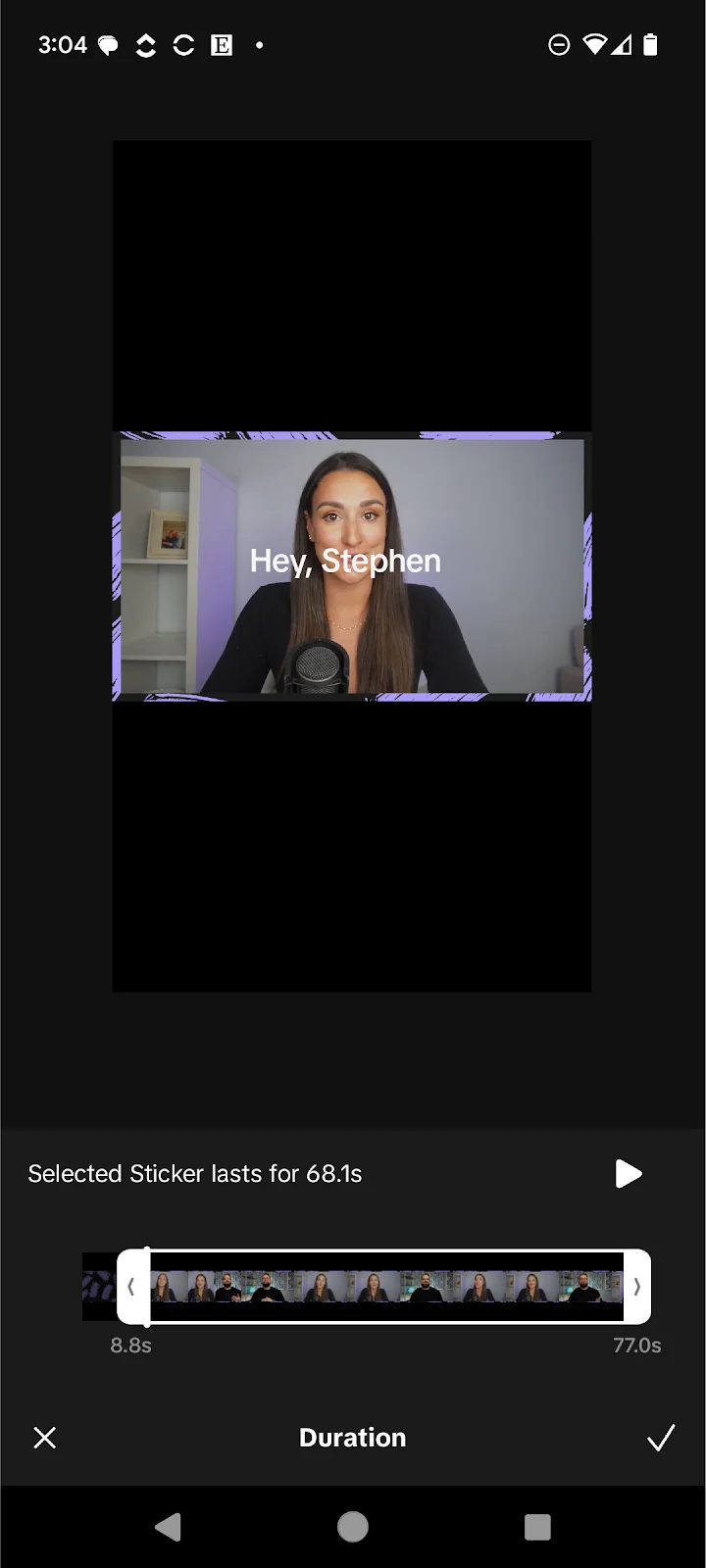
Below “Selected Sticker lasts for X seconds,” adjust the slider to set when the caption should appear and disappear.
Repeat this process for each segment of the video.
Step 3: Review captions
Play and replay the video to make sure your captions are in sync with your video, and make any necessary changes.
Step 4: Style your captions
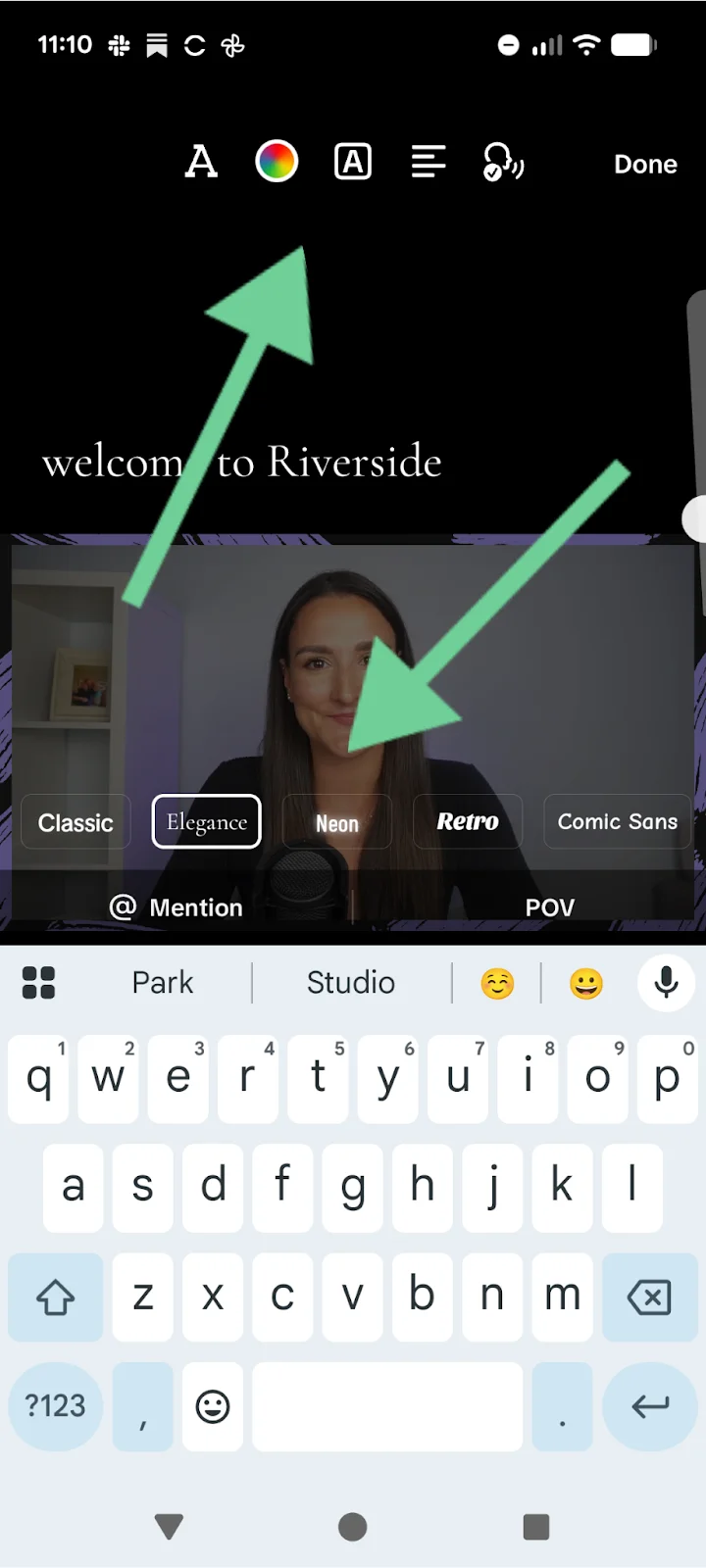
To change how your captions appear on the screen, click them and use the menus that pop up to adjust color, font, and style. You can also drag the captions to move them around.
Step 5: Post video
Once done, click the red “Next” button, enter the description, hashtags, and other relevant details, and press “Post” to share your video.
Read more: Learn more in our piece on how to add text to TikTok videos.
How to edit and add captions to a TikTok video after posting
Sometimes, you might want to fix captions after a TikTok video has been uploaded to TikTok. Here are your options.
If you’ve used TikTok captions:
With TikTok’s “Edit Captions” feature you can edit on-screen captions that have been published in the last 7 days. Follow these steps:
- Select your posted video.
- Tap the three dots (...).
- Select “Edit Captions” to make changes.
If captions are burned into your video:
If you’ve used video editing software to burn captions into your video, they can’t be edited directly in TikTok. This is because the text that appears onscreen is part of your video content, regardless of how you created your captions.
The only option is to delete your video and republish it with the correct captions applied. This isn't ideal, especially if your video already has substantial views or engagements.
Why should you add captions to TikTok videos?
Adding captions to your TikTok videos offers a variety of benefits that can enhance the overall impact and success of your content. They are essential for creating inclusive, engaging, and impactful content. Here's how:
- Better accessibility: Captions help those with hearing impairments enjoy and understand your content.
- Increased engagement: On TikTok, 75% of people watch videos with the sound off. With on-screen captions you can still capture this audience.
- Reduced scrolling: Captions provide a visual element to help attract your audience and prevent them from scrolling past your content.
- Greater reach: Captions improve video impressions by more than 55%. TikTok uses captions to understand video content, increasing the likelihood of you being found for relevant search terms.
- Improved comprehension: Background noise, fast-paced speech, or accents can make it hard to understand what is being said. Captions improve comprehension and clarity.
Troubleshooting tips: What should I do if TikTok captions are not working?
TikTok captions not working the way they should? Here are some common problems, and tips on how to fix them.
Problem: The caption button is missing
If you don’t see the “Captions” option in the TikTok editor, it may be because:
- You’ve uploaded your video to TikTok on desktop, where captioning isn’t available.
- You don’t have access to captions in your region, or TikTok is testing features with different users.
- Unsupported file formats or video codecs that do not allow captions.
How to fix it:
- Use TikTok on mobile to access the captions feature.
- Check your account settings to ensure you have full access to caption features.
- Uninstall and re-install the TikTok app.
- Upload MP4 files encoded with H.264 to ensure compatibility.
Problem: Captions are generated but don’t appear
If captions are generated but don’t appear on the video, there might be a glitch in TikTok.
How to fix it: Close and reopen TikTok after 10-20 minutes. If the issue persists, you can burn in captions so they always appear.
Problem: Edited captions don’t save
If you’ve edited your captions but they haven't been saved, this usually comes down to a glitch or crash in the TikTok app. It could also be the result of a weak internet connection.
How to fix it: Check your internet connection before editing. Before closing the app, always make sure you have saved your work!
Tips and best practices for using TikTok captions
Here are some tips to keep in mind when using TikTok captions to get the best out of them:
- Make a clear recording: The clearer the audio, the more accurate your captions will be.
- Adjust language settings: Make sure your captions are generated in your language.
- Style for clarity: Choose colors, fonts, and placements that are easy to see.
- Proofread - and proofread again: Always double-check your captions before publishing your video.
FAQs on how to add captions on TikTok
Can I add captions to TikTok in multiple languages?
You can’t add captions to TikTok in multiple languages. TikTok only supports one set of captions per video upload, and you can’t upload separate caption files for a single video the way YouTube does.
If you want multilingual captions, you must upload different versions of your video, each with captions in a different language.
How do I ensure caption accuracy?
The best way to ensure caption accuracy is to record clear, high-quality audio. This will help make auto-transcription more accurate. Once your content is transcribed, you can also go through and edit the transcript, either on TikTok or in a video editor. Riverside records in 48 kHz audio and transcribes with up to 99% accuracy in 100+ languages. This ensures you get some of the most accurate captions possible.
Can captions help with SEO?
Yes, TikTok captions help with SEO because the algorithm reads them to understand your video. They will make your content more discoverable in TikTok search and even on other search engines that can’t understand videos, like Google. Using relevant keywords, hashtags and descriptive language will help TikTok to match your content to what users search for on the platform.
How should I style captions for better readability?
For better on-screen caption readability, style them using an accessible font (Tahoma, Calibri, Arial etc.) and ensure high contrast (white on dark backgrounds). Keep text short and concise. Also make sure that your captions don’t obstruct key visuals on the screen.
Are there free apps that add captions to video?
Yes, there is a range of apps and tools that add captions to video for free. You can use Riverside’s Free Plan to record, edit, and caption as much video as you want. Compared to TikTok’s automatic captions, you’ll get higher accuracy, better syncing, and more customization. You’ll even get access to AI editing tools that make editing a TikTok video faster and more efficient.
How do you move captions on TikTok?
To move captions on TikTok, simply tap and hold on the caption and drag it to the desired position on the screen. Note that you can only do this before posting your video and can't make any more edits once the video is live.



.webp)
-(1)-(1).webp)


.webp)