Add b-roll and video overlays
Layer royalty-free or uploaded B-roll over your recording, with images, text, captions and clips.

Layer royalty-free or uploaded B-roll over your recording, with images, text, captions and clips.
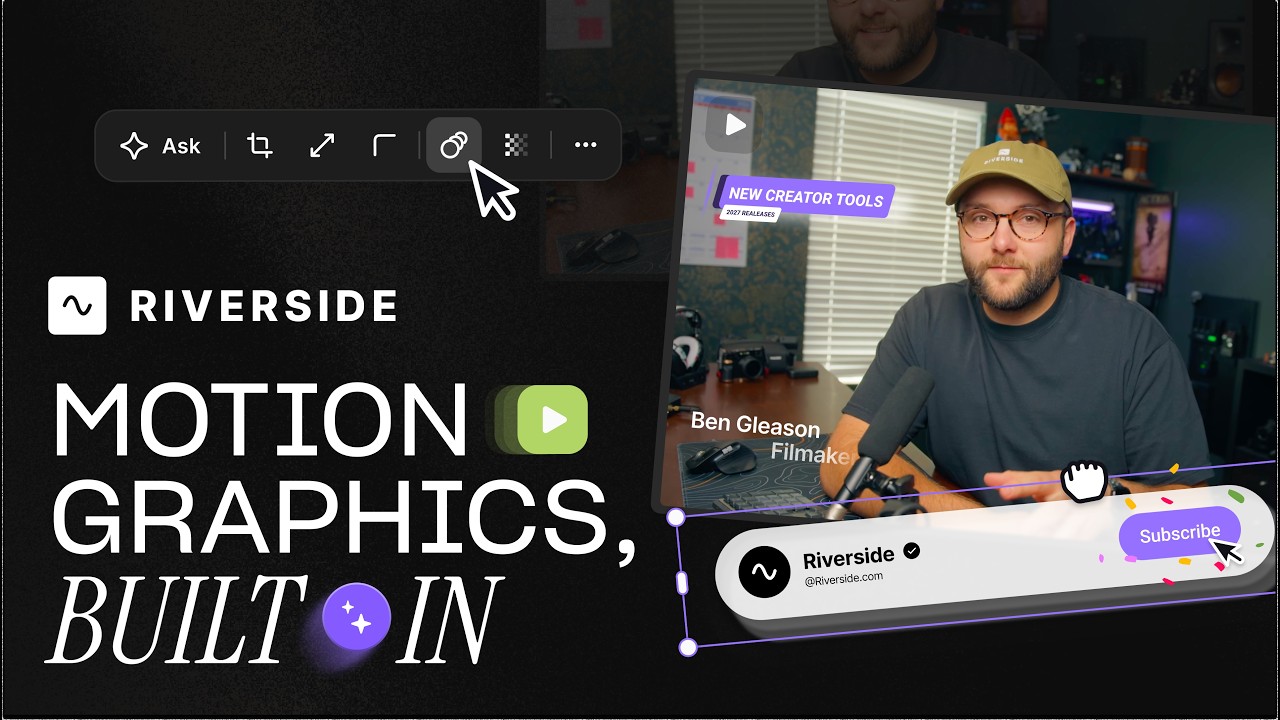
Riverside now lets you overlay video and B-roll on top of your recordings directly in the editor, alongside the image and text overlays you already had.
The video covers:
00:00 The wait is over. You can now overlay videos on top of your recordings all in the Riverside editor. Search a royalty-free footage library through Pexels, overlay videos and B-rolls on your long form and short form content, and now you can create even more visually engaging content directly in Riverside. Here's how to use our new video overlays feature. Let's jump into a past Riverside recording and quickly jump into the Riverside editor. Here in the editor on the right hand side, along with our image and text overlays, you'll now see a new tab for videos.
00:29 Click videos and you can search for royalty-free footage right here. You can search from some of the intelligence suggestions based on your transcript or you can search for videos right here or upload your own footage and clips to use in the edit. I'll choose a 15 second clip here and you'll see that video is now being overlaid on top of my edit and here it is on top of our video.
00:47 I can place it wherever I would like or expand it to fill the frame and when I preview the video it'll go from me and my co-host to the video overlay and back. I can change the in and out point just by dragging the ends of the clip here. Then I can jump back in and add more video b-roll to my edit. You can also go to the uploads tab, upload your own video clips. They'll also be saved here in your studio going forward and I have another video overlay. I'll expand the frame.
01:11 You can choose to have the audio play from the video you're overlaying. You can even adjust how loud you want the overlaid video to be. And now we can preview it and we have more b-roll on top of our edit. Let's search for another clip. Maybe we were talking about a restaurant.
01:24 Well I can just search for that term. Now I have a bunch more clips to choose from. I'll expand that to be full screen, preview that and we've added even more visually engaging footage. Don't forget you can still overlay static images throughout your recording, expand those to fill the frame and even overlay them on top of video b-roll so I can have video and static image overlays at the same time. And I can also add text overlays. Riverside will pull in some of your chapter names as suggestions. I can adjust the justification, move it around the screen.
01:51 Now we have a text, image and video overlay all happening right here in Riverside. Now if you had animated captions like for a short form video, we'll keep those captions on top of any video overlays you might add just to make sure they're always visible. Also while you can move static images and text forward and backward across different layers, video overlays will always stay in the background so you can keep your text, images and captions on top. Video overlays are
02:14 also great for short form video. Use our magic clips feature and you can generate vertical videos from your long form content in just a few seconds. Then you can generate dozens of vertical videos and jumping into the editor you'll see it's already applied our brand and animated captions but now we can go back to the video tool. In this clip we were actually talking about an iPod so I can search for that, expand that to fill the frame or maybe I want to keep it smaller so
02:37 I can still see me and my co-host keep the animated captions on top. Now I can add that engaging video b-roll with my animated captions still seeing me and my co-host. This is also great for audio only content or if you've recorded an audio podcast but want to share engaging audiograms on social media. I can still jump into the editor here's an audio only recording and here with the transcript and timeline at the bottom I can click up to audio only and let's
03:00 choose a one by one square this time and now I can add image, videos and text overlays throughout the audio recording. I'll search for some b-roll with our video overlay tool let's add those animated captions as well and now we can create visually engaging content even if we only recorded audio. And then when you're ready to export click the export button in the top right, export up to 4k video quality, then download and share these clips on social media or publish to
03:23 YouTube and Spotify for creators. And that's our new video overlay feature in Riverside. If you have any questions about this or any other Riverside feature leave comments below this video I'll answer you personally and don't forget to subscribe to the channel and hit that like button we have more features coming soon that's right more features. But if you'd like to learn more about our live streaming tools I did an entire masterclass about 30 minutes long
03:44 going through every detail and feature that we have to live stream with Riverside. You can check that video out right up here and if you're looking to grow your YouTube channel now that you have video overlays you want to do more short form content well I talked about whether or not it's too late to start on YouTube it's not and all the keys that you need to grow fast you can check out that video right up here. Thanks for watching we can't wait to see what you create.
More videos you might like
A full product tour: studio and recording, AI assets, editing, then hosting, newsletters and social.
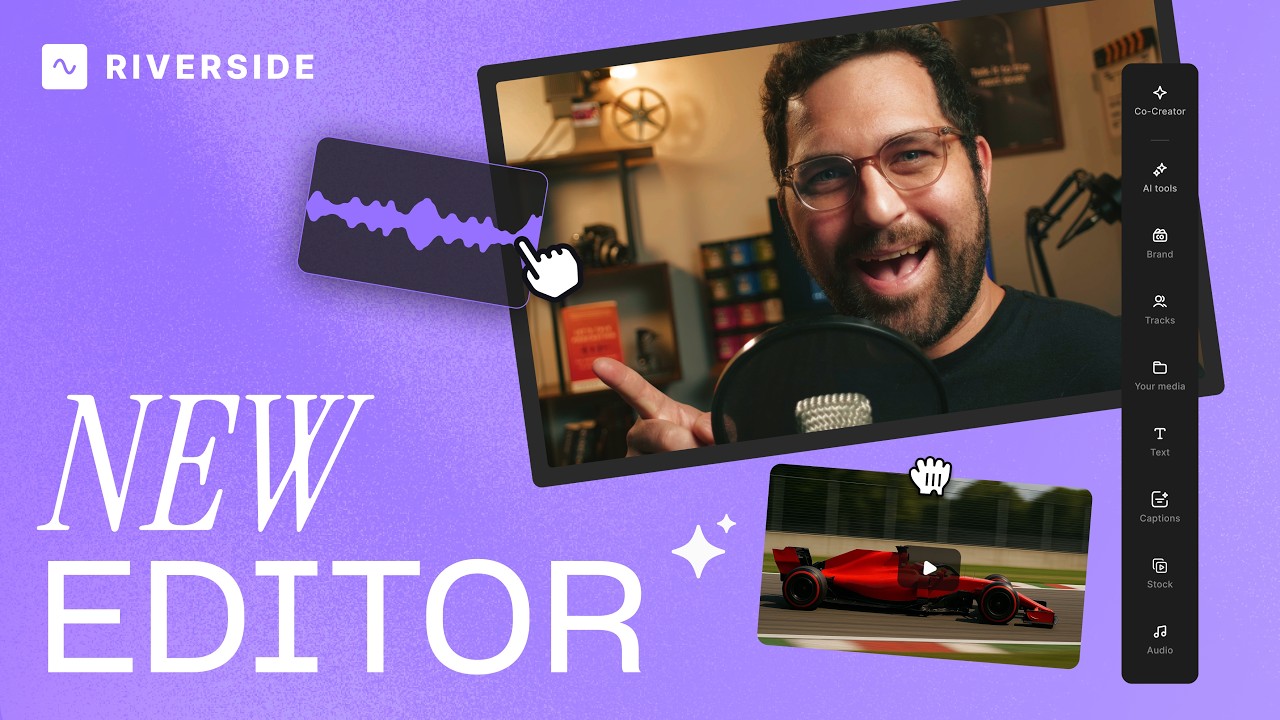
A complete editor tour: transcript and timeline editing, AI tools, layouts, scenes and exporting.
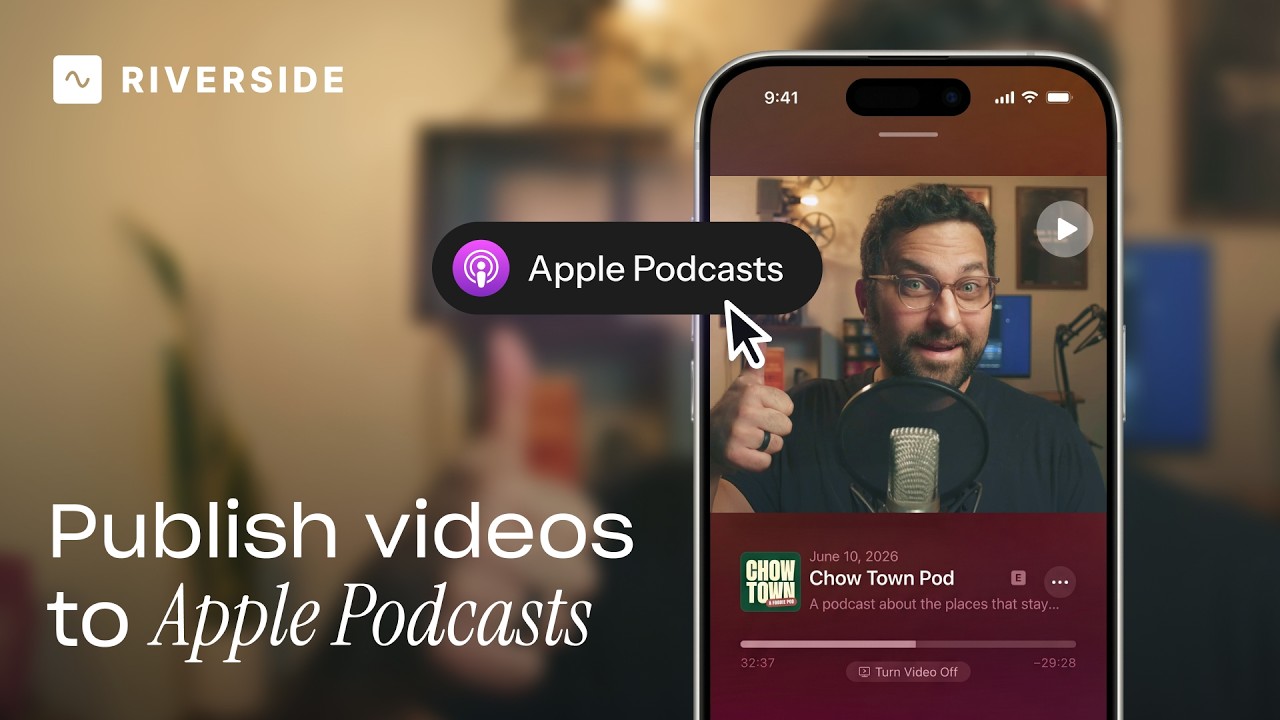
Publish video to Apple Podcasts so your audience can switch between listening and watching easily.
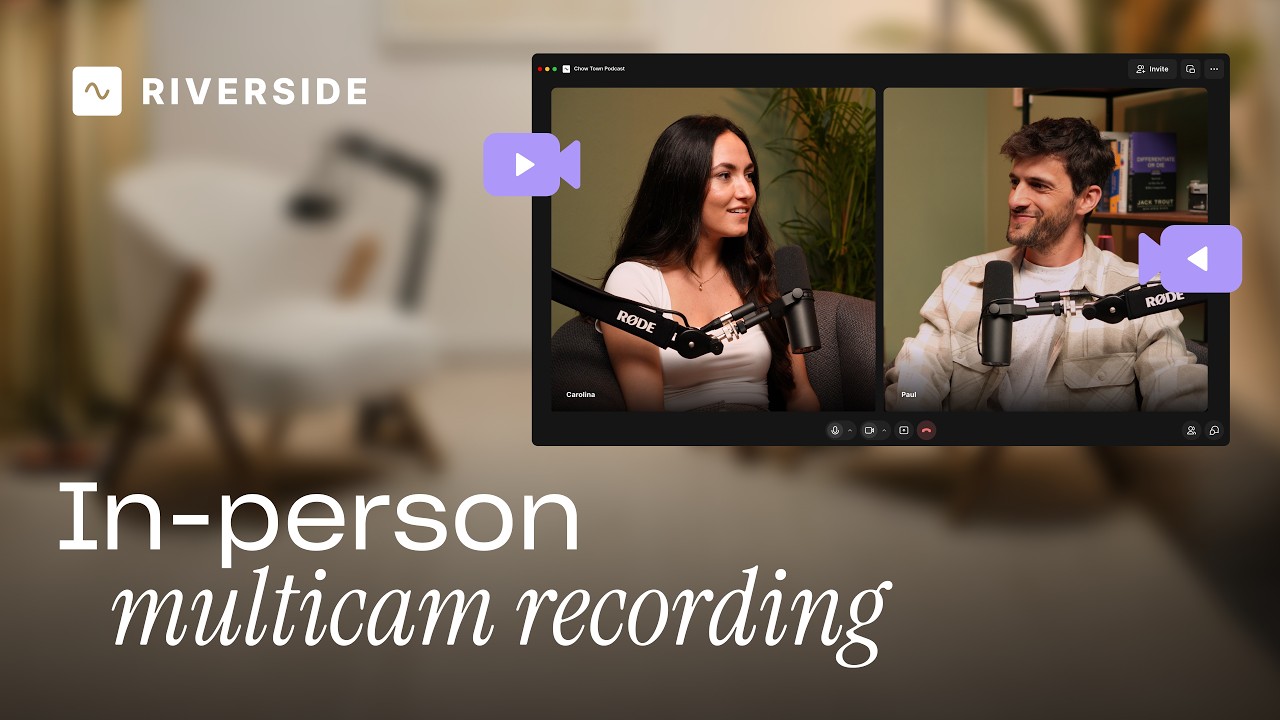
Add multiple in-person guests with their own camera and mic from one computer, as synced tracks.


.avif)
.avif)
.avif)
Got a process that works for you? Get featured by submitting your step-by-step flow. Help other creators save time, learn new tricks and improve their productions.


.avif)