Riverside
Platform
Products
  • Recording
    4K video and audio recorder.
  • Editing
    AI, text-based video editor.
  • Live Streaming
    For livestreams in full HD.
  • Webinars
    Host, record, and repurpose.
  • Hosting
    Podcast publishing and analytics.
  • Newsletters
    Create and send newsletters.
Features
Agents
Magic Clips
AI Twin
Transcribing
Captions
Magic Audio
AI Show Notes
AI Translation
Social Scheduling
Video Enhancement
AI Tools
All AI Tools
Arrow Icon
Apps
Mac App
Mobile Apps
MCP
Meet the Agents
Solutions
Use cases
Podcasts
Video testimonials
Webinars
Video marketing
In-person Recording
Learning & Development
Async Recording
Virtual conferences
Internal communications
Tutorial videos
For
Podcasters
Producers
Marketers
Industries
Tech
Finance
Resources
Learn
Riverside University
Blog
What’s New
Free tools
Webinars
Masterclass
Community
Case studies
Creators Newsletter
Community hub
Recorded on Riverside
Support
Help Center
Contact support
Laptop
Blog
University
For BusinessPricing
English
Site language
English
French
Deutsch
English
English
French
Deutsch
Contact SalesLoginStart for Free
Get started
RIVERSIDE UNIVERSITY
LEARN FROM RIVERSIDE
Getting started
Courses
Studio set-up & equipment
Explore videos
By use case
Podcasts
Live streams
Webinars
Social media & marketing
Tutorials & demos
Interviews
Customer testimonials
Meetings & client calls
By topic
Set-up & equipment
Recording
Live streaming
Editing & repurposing
Promotion & growth
Hosting & publishing
Mobile & Mac app
All videos
LEARN FROM THE COMMUNITY
Community workflows
Submit a flow
DISCOVER
Product updates
Events
Case studies
LEARN FROM RIVERSIDE
Help Center
Blog
Get Started
What's new
Audio monitoring in the studio
New release
Recording

Audio monitoring in the studio

Hear yourself and keep an eye on everyone's audio while you record.

November 2, 2026
Free

Share

Try Riverside
for Free

Get Started
Record video Try Riverside for Free

What's new

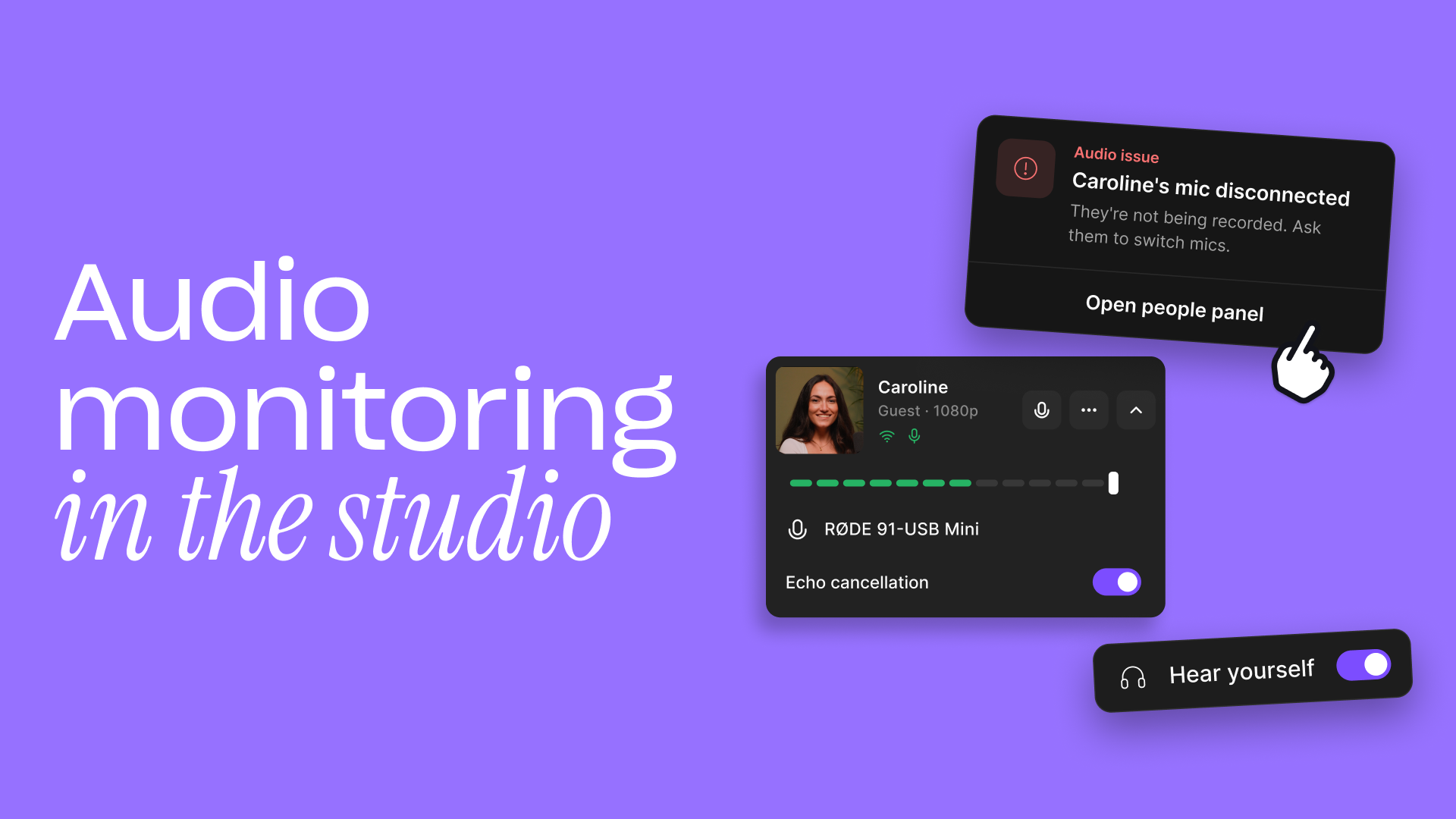
Catch audio problems while you're recording, not later in the edit. Anyone can now hear their own mic in their headphones. Hosts and producers see a live audio level for every participant and any media playing, get an alert the moment a guest's mic disconnects or starts distorting, and can open an audio monitor that shows everyone's audio and connection health at a glance. On Business plans, producers also get audio routing, so they can listen to just one participant to troubleshoot their sound, or let a guest hear themselves.

How to use it

Hear yourself: With headphones on, click the arrow next to your microphone in the lobby and toggle on Hear yourself. Inside the studio, click the arrow next to Audio at the bottom of the screen and toggle it on there. Echo cancellation needs to be off, and it isn't available in Safari.

‍

Monitor everyone's audio (hosts and producers): In the right sidebar, click People, then click Audio monitor at the top of the panel. A separate window opens with a card for each participant, showing their connection and audio health.

‍

Respond to mic alerts: When a mic disconnects or its level is too high, an Audio issue alert appears at the top right of the studio. Click Open people panel to see what's wrong, and choose another mic for that participant from the arrow on their card.

‍

Mute someone just for you: Click the headphones icon on their tile.

‍

Audio routing (producers on Business plans): In the Audio monitor window, click the three dots on a participant's card and hover over Audio routing. Choose Only hear them, or Let them hear themselves.

Learn more about this topic

Monitor participant audio in the studio (hosts and producers)

See every participant's audio health at a glance and get alerted when a mic disconnects or starts distorting.

Hear yourself in the studio

Hear your own mic in your headphones to check that it's working, before or during a recording.
Ready to create? We think so too.

Got a process that works for you? Get featured by submitting your step-by-step flow. Help other creators save time, learn new tricks and improve their productions.

Start for Free
Riverside

Company

About usBlogCareersPartnersAffiliate ProgramCreator PartnershipsImpressum

Platform

Why RiversidePricingFor BusinessMac AppMobile AppsFAQAppsAppsSupport

Features

RecordingLivestreamEditorHostingMCPMagic clipsTranscriptionsCaptionsMagic AudioAI Show NotesTeleprompterAsync RecordingOverlaysStudio BrandingAI TranslationArrow Icon
All AI Features

Use Cases

Video MarketingTutorial VideosVirtual EventsPodcastsLearning & DevelopmentInternal CommunicationsWebinarsCustomer TestimonialsVirtual ConferencesLive ShowSplit-Screen Video

Tools

Podcast MakerPodcast RecorderLive PodcastYouTube Video MakerScreen RecorderVideo CompressorWAV to MP3Podcast Name GeneratorYouTube Name GeneratorMic TestWebcam TestYouTube Transcript GeneratorTop Podcast ChartsFree Podcast Music
All Tools

Solutions

PodcastersProducersMarketers

Resources

Riverside UniversityWhat's NewRecorded on RiversideHelp CenterCase StudiesPartnersBlogCreators NewsletterMasterclassCommunity HubVideo Editing Glossary
Download on the App Store IconGet it on Google PlayAICPA SOC certification
Podcast icon

Podcast guides

How to Start a Podcast in 2026: The Complete 10-Step Guide
How to Start a Podcast on YouTube: 6 Steps [2026]
How to Record a Podcast Remotely: 4 Methods Compared
Video Podcast Software: Top Tools to Record, Edit & Publish
Download on the App Store IconGet it on Google PlayAICPA SOC certification
Facebook iconYoutube iconX (twitter) iconLinkedin iconInstagram iconTiktok

© 2026 RiversideFM, Inc.

English
English
French
Deutsch
TermsPrivacyCookies
Facebook iconYoutube iconX (twitter) iconLinkedin iconInstagram iconTiktok