New release
Recording
Focus view
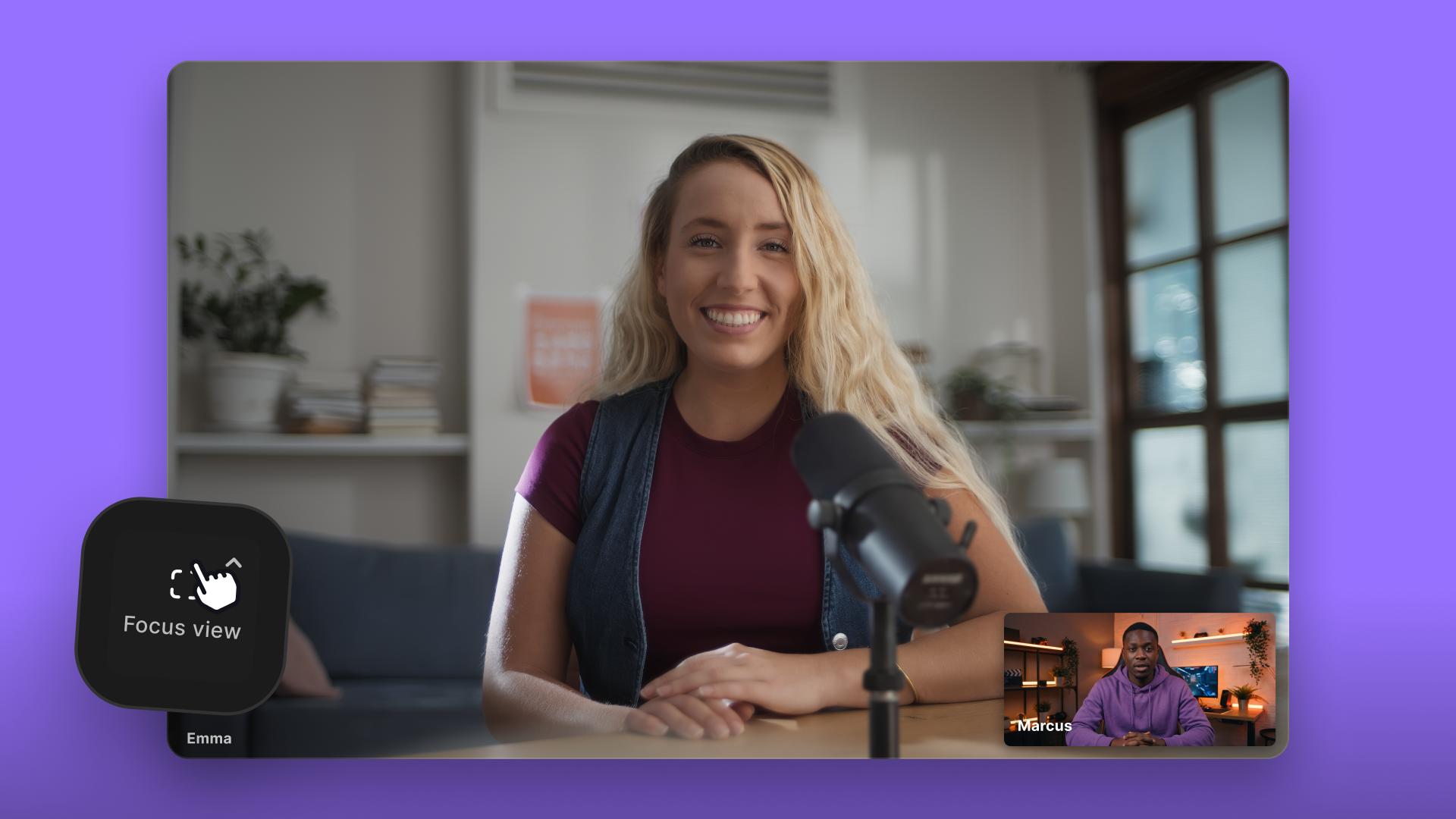
Your guest fills the screen and the studio controls get out of the way.
November 8, 2026
Free

Your guest fills the screen and the studio controls get out of the way.
Try Riverside
for Free
What's new
When you start recording, Focus view puts the person you're talking to front and center, right under your camera, so looking at them reads as eye contact. The studio controls hide while you talk, and your own video shrinks to a small floating tile you can move or minimize. It only changes what's on your screen. Your recording and what everyone else sees stay exactly the same.
How to use it
Focus view turns on automatically for hosts and guests when a recording starts. To switch it on yourself, click Focus view in the bottom right corner of the studio. To go back, click Studio view in the same spot. Move your mouse any time to bring the controls back.
Adjust your tile: Drag your own tile to any corner, minimize it (your camera and mic stay available), expand it, or show it as a tile alongside everyone else.
Turn off auto-start (hosts): In the side bar on the right, click Settings and toggle off Focus view on Record.
Learn more about this topic
Use Focus view in the studio
Keep your attention on the person you’re talking to by hiding the studio controls and shrinking your own video while you record.
Change your layout in the studio (hosts and producers)
Customize the layout of your videos during a live studio session, tailoring the visual experience to meet your needs.
Change your layout in the studio (guests)
As a guest, you can customize your layout view during a live studio session without affecting anyone else.
Got a process that works for you? Get featured by submitting your step-by-step flow. Help other creators save time, learn new tricks and improve their productions.


