Generate custom motion graphics from a prompt
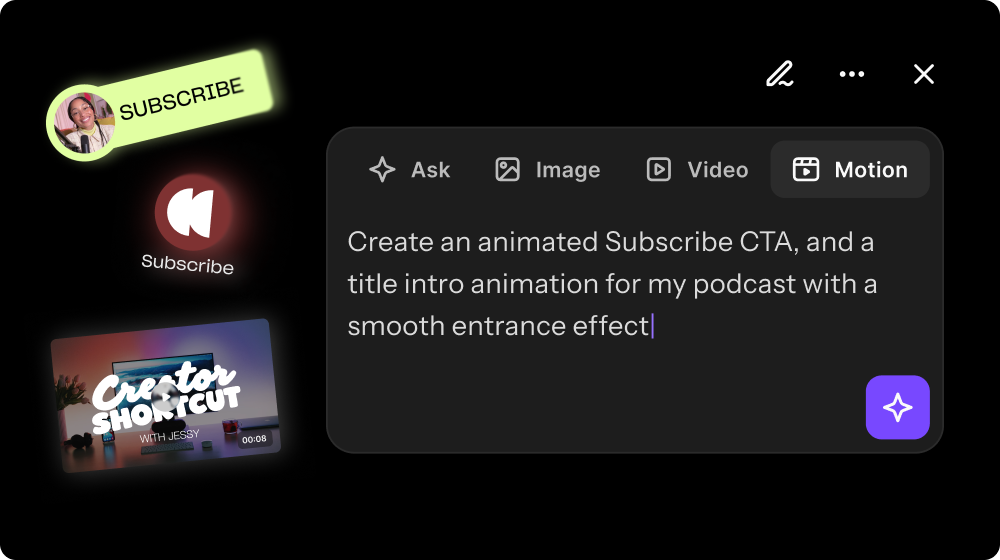
Describe the motion graphic you want, from a logo animation to a lower third to fireworks, and generate it with a simple prompt, right in the Editor. No need to use an existing template.

What's new
Describe the motion graphic you want, from a logo animation to a lower third to fireworks, and generate it with a simple prompt, right in the Editor. No need to use an existing template. Upload a reference, like your logo or a graphic you love, so the result matches your look. You can also set the length and choose 16:9 or 9:16. When you're happy with the result, add it to your timeline, and to your favorites to easily reuse another time.
Prefer starting from a template? Your favorites and all the templates you know are still right there.
How to use it
In the Editor, click Motion in the editing toolbar. Type what you want in the prompt box at the bottom of the panel, add an image reference if you’d like, set the duration and aspect ratio, and generate. The templates are there too if you want to use them.
You can also generate motion graphics with your Clipper Agent or Editor Agent by opening the chat and choosing Motion.
Learn more about this topic
Add motion graphics in the Editor
Add motion graphics to your video to spotlight key stats, run news-style headlines, animate your audio, highlight text, and add dynamic intros.
AI Editor Agent
Riverside’s AI Editor agent helps you turn your raw recording into a finished edit. It suggests an editing plan, walks you through it step by step, and applies the changes you approve.

Got a process that works for you? Get featured by submitting your step-by-step flow. Help other creators save time, learn new tricks and improve their productions.