Create dozens of podcast clips as a solo creator with Riverside
How a solo creator makes dozens of clips with magic clips, B-roll, smart layouts and AI show notes.

How a solo creator makes dozens of clips with magic clips, B-roll, smart layouts and AI show notes.
How a solo creator produces both full-length episodes and a steady stream of short-form content, from someone with 127,000 YouTube subscribers and a weekly podcast.
The video covers:
00:00 As a solo creator, you probably want to be on all the platforms posting lots of content, but it can be really time consuming with all that editing finding the right clips. So how can you generate this content quickly and be everywhere as a solo creator? Well I'm going to share the AI tools I use to repurpose my content, which I use to grow my YouTube channel to over 127,000 subscribers, and produce a weekly video podcast that just hit 2,000 subscribers and has a quarter million downloads in the last year.
00:24 The only way I can produce these full length episodes, plus shorts for my podcast, is using Riverside. Not only does recording in Riverside get you that high quality video and audio from you and remote guests, but there's some incredible AI tools so you can repurpose your content and stop wasting time. And number one is Magic Clips.
00:40 Here's the last episode I recorded of my video podcast, and you already see I got some video clips generated, but I can just click Generate Magic Clips, choose how long I want these clips to be, even to focus on a certain topic, and in just a few seconds Riverside is going to generate multiple video clips just like this with animated captions and formatted vertically for social media in seconds.
00:59 I'll jump into one of the Magic Clips that were already generated, and if I preview this, this is already good to go. You see it has the animated captions, me and my co-host, has a nice little background image here, and I can just export this, save it, and then share it on Instagram Reels, TikTok, and YouTube Shorts.
01:13 Also, if there's a clip that I wanted to pull specifically, I can jump into the Riverside Editor, create a new edit, do this as many times as I would like, maybe I want to create a clip from this section. Every time I record with Riverside it gets transcribed, so I can search the transcript for a specific moment, and once I find it, I can just select that moment, click create new clip, and watch how quickly I can get this ready to post as a vertical video.
01:34 I can click the aspect ratio button here, change it to a vertical video, apply my brand toolkit with a single click, that adds those captions as well.
01:41 If I want to flip the positions of me and my co-host, I can just click and drag those, and I can even zoom and crop on someone if they were a little far away from the camera, and that quickly I have the video preview ready to go, I can export and share it on social media, and I use a lot of screen shares when we record, which you can do in the Riverside studio, and the Riverside editor will use those screen shares, put it in the clips for you, and you're good to go.
02:02 You can even choose how to change the layout of these clips, so if I wanted to hide my co-host track, so it's just me and the video that I screen shared, you can do that too with just a couple clicks, super easy. And if instead I wanted to make this into a square, maybe share that video on LinkedIn, I can do that with a single click, or even go back to widescreen version, add my co-host back in the frame, and I'm good to go.
02:22 Riverside also has a b-roll tool built in right here in the editor. I can click videos, search for something like a MacBook because we're talking about that, click one of those videos, it's royalty free, so you can use it wherever you would like, fill the frame. So now I have engaging b-roll with the animated captions, plus me and my co-host, and all of it's in high quality, easy to export and ready to go.
02:42 By the way, whether you're editing your full length video or these clips, use the app producer here in Riverside to remove all silences, remove filler words, all of that with a single click, and we'll even find fluff, portions of your recording that may be small talk or engagement might drop because it's not on topic, and we'll suggest what to keep and what to cut.
02:59 Magic audio can make any microphone sound studio quality, plus you can adjust how much magic audio, what percentage, to apply so it sounds perfect. And you can also apply smart layouts, which will give you a multi-cam look with a single click here in Riverside.
03:12 Now it'll switch between the active speaker, put you and other guests side by side when there's interim moments of the conversation, then go back to focusing on the active speaker and you have an engaging multi-cam edit all done for you here in Riverside.
03:24 Then when you're ready to export, you can go up to export and export that 4K video again, or if you just want an audio version for your podcast host, you can flip over to audio and export an MP3 file ready to go for your RSS audio podcast.
03:37 Now maybe you want to create some long-form text posts or a blog from your content, well I can go to the recording files here in my project and generate show notes, and Riverside will give me a summary, takeaways, and lots of data that I can use on those other platforms. But every time I record with Riverside, I can also download a full transcript of the recording and use a tool like ChatGPT.
03:57 So I'll copy this transcript to my clipboard and let's ask ChatGPT to make us some LinkedIn posts. A simple prompt asking for multiple posts, I'll just paste the transcript that I just got from Riverside and now ChatGPT is going to go and make those posts for me and I can link this to my episode, I can make a video clip to coincide with these posts that I put on LinkedIn, and that helps me generate even more content as a solo creator using AI in seconds.
04:21 So that's how I can post multiple pieces of short-form content in addition to full-length podcast episodes and long-form videos using AI tools built into Riverside. You can try these tools for free today by clicking that Riverside link in the video description. It's the top one. If you have any questions about using it, leave comments below this video, I'll answer you personally.
04:39 And subscribe to the Riverside channel and hit that like button because we have tons of resources for your content creation journey. If you want a more in-depth look at all the AI tools Riverside has to offer, check out this video right up here. Or if you're looking to upgrade your setup, maybe all you have is your mobile device, well, you can start creating with just this today. I'll put a video on that right up here. Thanks for watching. We can't wait to see what you create.
More videos you might like
A full product tour: studio and recording, AI assets, editing, then hosting, newsletters and social.
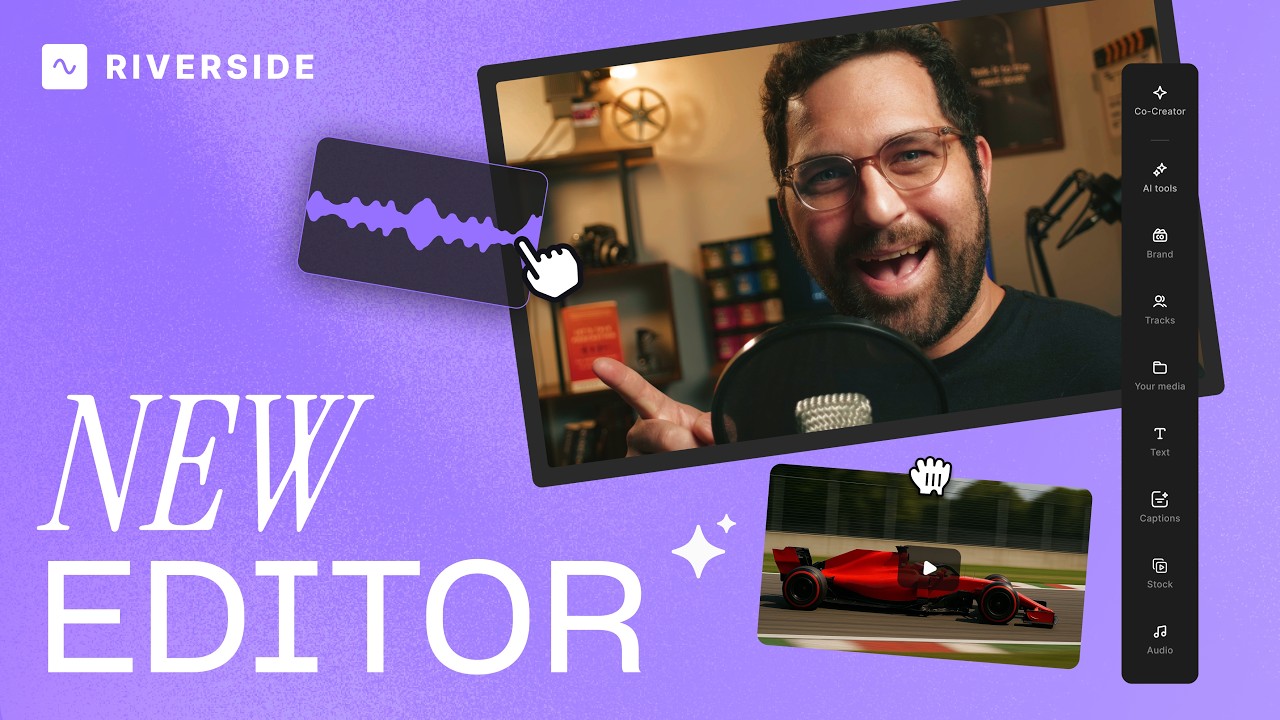
A complete editor tour: transcript and timeline editing, AI tools, layouts, scenes and exporting.
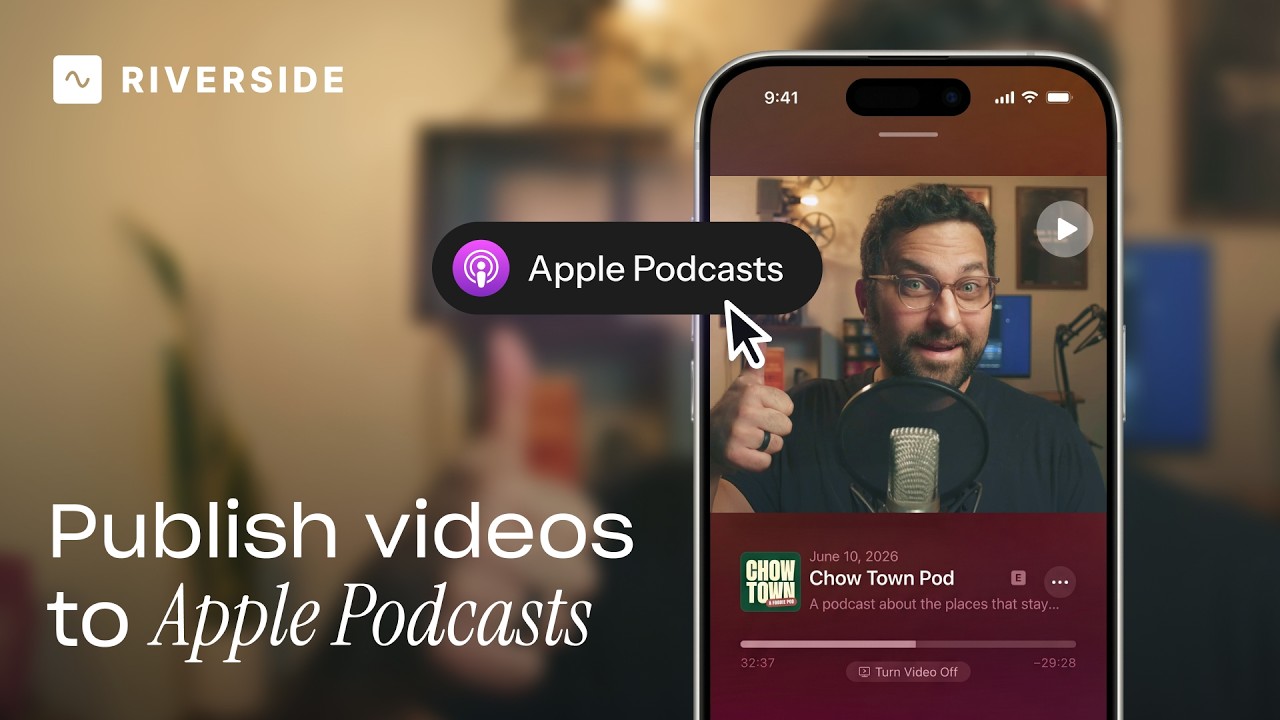
Publish video to Apple Podcasts so your audience can switch between listening and watching easily.
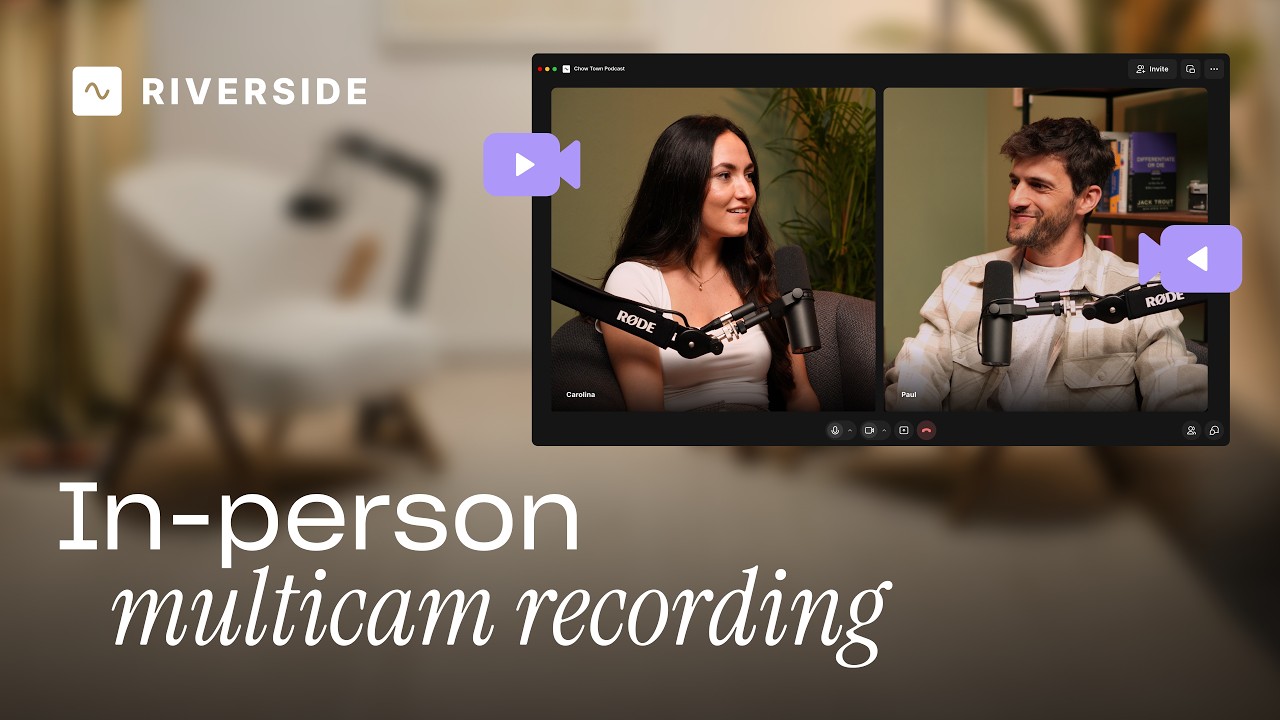
Add multiple in-person guests with their own camera and mic from one computer, as synced tracks.


.avif)
.avif)
.avif)
Got a process that works for you? Get featured by submitting your step-by-step flow. Help other creators save time, learn new tricks and improve their productions.


.avif)