Host your podcast on Riverside
Set up hosting with show details, artwork and episodes, then publish to Apple, Spotify and YouTube.

Set up hosting with show details, artwork and episodes, then publish to Apple, Spotify and YouTube.
A step-by-step setup of podcast hosting inside Riverside, so recording, editing, hosting and publishing all happen in one place with no files to download.
The video covers:
00:00 That's right, Riverside can now host your podcast too. That means the entire process from recording, editing, hosting, and publishing can all be done in one place. And there's powerful features like custom thumbnails, automatically distributing to Apple podcasts, Spotify, and YouTube, schedule episodes to publish at a later date and a ton more.
00:18 Let me show you how to set up podcast hosting in Riverside. Now, when you log into your Riverside account here on the dashboard in the left-hand sidebar, you'll see a new hosting tab. Go to hosting. And now you can set up your podcast right here. I'll click set a podcast and to your podcast name, then click continue. Then enter your podcast description.
00:37 And remember this will be delivered to apps like Apple podcasts and Spotify. Click continue. Next, you'll want to choose your podcast categories and this will determine where you're placed in those podcast apps. We're a tech news based show. So I'll go down to news and then choose tech news as our category. You can choose up to two categories that might match your podcast content.
00:56 Then click continue again, and you'll want to upload your cover art. Podcast artwork should be square from 1400 pixels all the way up to 3000 pixels wide and tall. I'll upload our podcast artwork here and click continue. Put your name or the show's author here, the language, whether it's clean or explicit. Then you're ready to add your first episode.
01:14 If you ever want to edit those details like the description or the categories, you can click the three dots here and then choose edit details. You'll also find your RSS feed URL right here, but Riverside will one click publish your podcast to platforms like Spotify and Apple podcasts. So this is really only there for your reference.
01:31 Let's add our first episode. I'll click create new. I'll paste the title of my episode here. And now we can either upload a file from our computer. Or the great part is if we recorded and edited our podcast in Riverside, we can just choose one of our exports and we don't have to download any files to our computer. So I'll click choose Riverside file here.
01:50 I can filter by going to a past project, which this is episode 83. So I'll go to my episode 83 project and I can quickly see my exported clips of verse my edits. And here's the full episode export. And so I can choose that and Riverside will use that for this episode. Next, you can add show notes for your episode. And this also appears in the various podcast apps.
02:10 And you can also include things like bulleted list and hyperlinks. I'm going to paste our show notes here. And as you can see, that includes hyperlink text and that will carry over to the various podcast apps. Underneath that, if you have a podcast, that's by season, you can put the season number here and choose the episode. This is episode 83.
02:27 So I'll put that number here and under type, you can choose whether this is a normal episode trailer, which is a special episode that tells Apple and Spotify to use this particular audio just for a trailer. And that's highlighted on your podcast page in those apps. Or if this is a bonus episode and not necessarily part of the series, I'll choose normal episode here and then click create.
02:49 Now that we have our first episode ready to go, we can one click publish to any of these platforms, Spotify, Apple podcasts, and even YouTube. Let's choose YouTube, log into one of your Google accounts and choose your YouTube channel. And Riverside will now publish that episode to the YouTube channel you specified. And if I go over to YouTube studio on the channel where I uploaded that episode, you'll see the video right here.
03:11 This was sent directly from Riverside, the show notes already in the video description. And once it's finished processing, this will be set live on the channel. Now keep in mind when you publish to Spotify and Apple podcasts, that supports audio only. And when you add your YouTube channel, that supports both video and audio. Now that we published our first episode, let's add a second and I can show you the scheduling feature.
03:32 Now when I click new for new episode, choose another one of my Riverside exports. This time I'll just search for the episode number and click the result, paste my show notes here, type in the next episode number. And then at the bottom, rather than publish immediately, you'll see the schedule feature here. So I can choose a future date and time like next week, I'll publish it in the morning and I can schedule this episode.
03:53 And that will be delivered next week to all the platforms automatically. If you ever want to delete or edit a past episode, you can click the three dots on each one, choose edit preview or remove it. And when you're ready to publish to Spotify and Apple podcast, just choose one here and Riverside will take care of the rest.
04:09 In just a few hours, your podcast will be live on those platforms and all you had to do was click it here. Now, once you start getting podcasts downloads and views on YouTube, you'll actually be able to view analytics here in Riverside as well. Just go over to the analytics tab and here you'll be able to see how many streams per episode you've received. And when you scroll to the bottom, you'll be able to see what app or platform they're consuming your podcast and what countries are listening and watching.
04:32 You can also add a custom thumbnail per episode here in Riverside. Just click the three dots next to one episode and go back to the editing view and then click on the artwork here at the top. Now the custom episode artwork that you change here, that will be sent to Apple podcasts and Spotify, but for the video version on YouTube, we would encourage you to log into your YouTube studio, go to the video that's published by Riverside and you can upload the custom thumbnail here directly in YouTube studio.
04:56 And that's podcast hosting here in Riverside. If you're on our standard live or pro plans, podcast hosting is automatically included. You don't have to pay any more to access it. And if you've been using Riverside on the free plan, now if you upgrade to standard or pro, you get all of our incredible editing features with AI tools, magic clips, AI show notes.
05:16 And now you can host your podcast directly here in Riverside. We will podcast hosting in Riverside and that makes the entire process even more seamless. So you don't have to download files to your computer. And you can publish those episodes directly from the exports you created in Riverside. If you have any questions about podcast hosting, leave comments below this video on YouTube and go ahead and subscribe to our YouTube channel and hit that like button.
05:39 We have some incredible new features coming soon and you'll hear about them right here. Plus, if you want to learn how to monetize your podcast, even if you're just starting out or just have dozens of downloads, there are ways to start monetizing right now. I have an entire video on that right up here. And if you're looking to upgrade your setup, maybe your USB microphone, videos, cameras, and more, I have videos that walk through setups for every budget and you can learn more about that right up here. Thanks for watching.
06:04 We can't wait to see the podcasts you create.
More videos you might like
A full product tour: studio and recording, AI assets, editing, then hosting, newsletters and social.
A complete editor tour: transcript and timeline editing, AI tools, layouts, scenes and exporting.
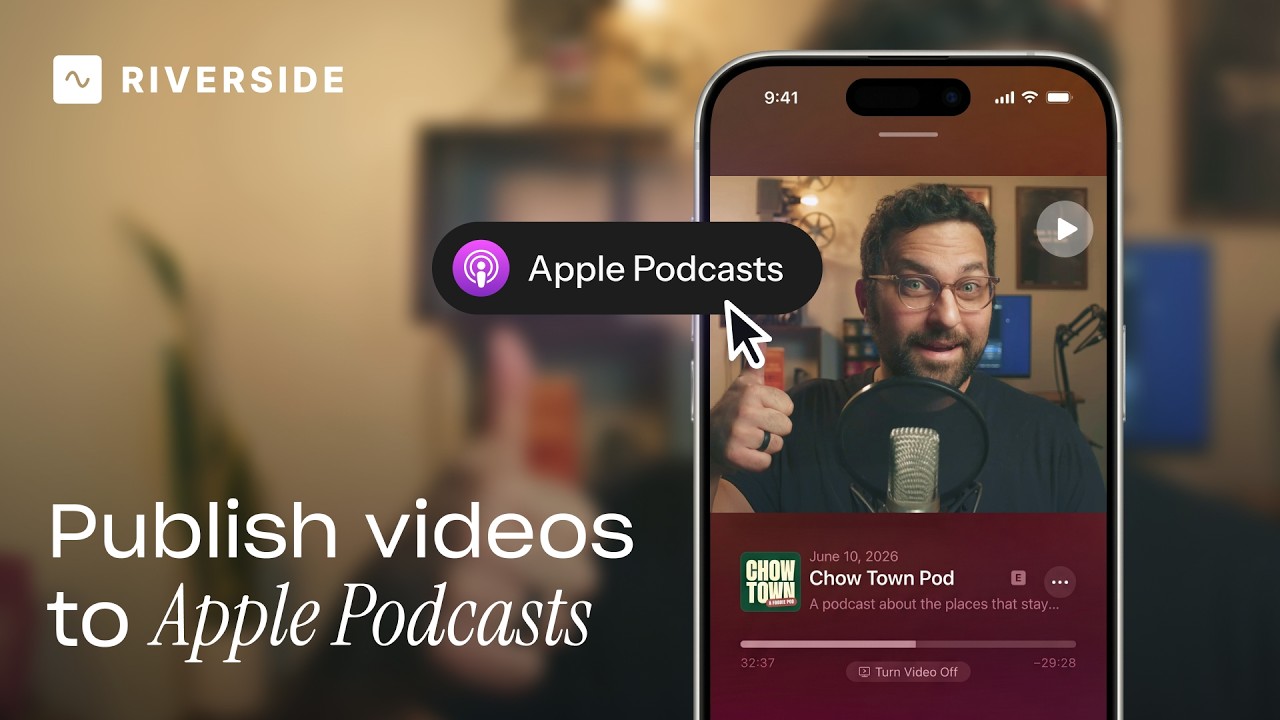
Publish video to Apple Podcasts so your audience can switch between listening and watching easily.
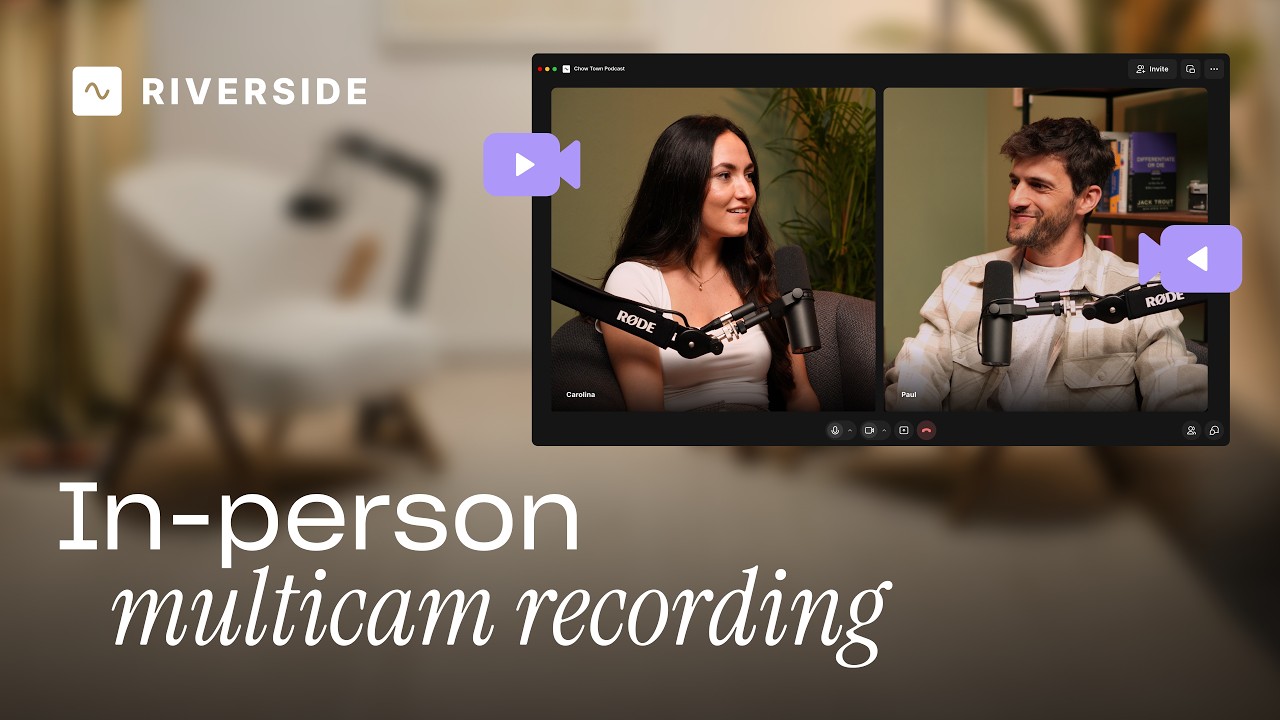
Add multiple in-person guests with their own camera and mic from one computer, as synced tracks.


.avif)
.avif)
.avif)
Got a process that works for you? Get featured by submitting your step-by-step flow. Help other creators save time, learn new tricks and improve their productions.


.avif)