Record & repurpose client calls into content
Turn one client call into ten pieces: a video, episode, clips, show notes, blog posts and emails.

Turn one client call into ten pieces: a video, episode, clips, show notes, blog posts and emails.
A demonstration of recording a real client call and turning it into ten pieces of thought leadership content, starting with permission and ending with ad copy.
The video covers:
00:00 If you want to build your online presence easily with the work that you're already doing, then you need to do this one thing. Record your client calls. Why? Because these calls are pure gold for creating valuable content that positions you as a thought leader. In this video, I'm going to have a client call and then turn it into 10 thought leadership content pieces right in front of your eyes. By the end of this video, you'll know exactly how to repurpose your client calls into a YouTube video, a podcast episode, social media clips, blog posts, and more.
00:31 So if you want to see what we create, then just stick around. So the first step is simple. Record your client calls. I use riverside.fm, which lets you capture studio quality audio and video, no matter where your client is in the world. So head over to riverside.fm and create an account if you don't have one already, or you can just log into the platform if you're already a riverside user. Then you want to create a new studio for your client calls. So it's like this drop down menu here, select new studio, and you can name the studio whatever you'd like and select create.
01:03 Now with this plan button, invite to record, you can invite your clients with this link right here. You can either copy that link and send it to them or invite them directly by email. So now I've invited my client, I'm going to head into the studio with this record button. This is a page where I can select any equipment that I'd like to use for my client calls. To use your mobile cam as an external camera, you would just select connect mobile cam, scan this QR code, and you'll
01:28 be set up and ready to go. Now if you want higher quality audio, you can consider getting a USB mic that plugs directly into your computer, and you can select that from the drop down menu here. A really good mic on a budget is the ATR2100X, and I will link it in the description for you.
01:42 Now at this point, you also want to consider your lighting and your background. So sit facing a window for natural light to light your face, or you could look into something like a ring light, a softbox light, or a panel light, and then you want to make sure that your background is clean and distraction free. This is going to make the final video look a lot cleaner. So select whether you are or aren't using headphones and join the studio.
02:02 So this is the Riverside studio where your client will join you. Again, if you need to invite them, you can invite them with this link right here, and shortly they'll show up. So my client's going to be coming shortly, but a couple things to note before we get into it. It is important to make sure to get permission from your clients in order to film them and repurpose them. Make sure that they know that the session is being recorded, and it could be
02:27 repurposed later. Most people will be totally fine with this. Oh, there we go. My client's ready to come in. So you want to make sure if they are filming on a mobile device that they're filming in landscape mode, so turning their phone horizontally, you want to make sure that the aspect ratio of their video matches the aspect ratio of your video. If you are also filming on a phone, which you can do with the Riverside mobile app, I'll link it in the
02:48 description, then you can both film vertically. You essentially want to make sure that the aspect ratios of both your videos match. I also want to mention that you can share your screen down here if you need to, and you can also use the script button to add your outline to your screen so you can stay on track during your client calls. They won't see this outline only. You will see it.
03:03 So once you make sure everything is a okay, you can let your client in. All right. So I just want to make sure that you're okay. If we record this session, I may use it to repurpose it on my social media content later. Are you cool with that? Yes, of course. Perfect. Okay, so I'm just going to press record and it's going to count down. You bought a new house. How excited are you? I'm excited. I'm really nervous. Yeah. Because it's just like,
03:27 you know, it's a lot of money, right? You're putting down like very excited to start my new adventure. 20 minutes later. So excited for you guys and your next adventure. Let me know if you want to book when you want to book your next session and we'll go from there.
03:41 Okay, thank you. Okay, bye. You can just press, you can just press leave on your screen. So you'll see that those recordings both uploaded to the cloud. So when you're ready, you can select view recordings. So you'll see your recording right here if you select that. And then you can select that recording. And if you scroll down, you'll see that you're able to download every participant's
04:04 file separately. And if you did a screen share, you would be able to download that file separately as well. So here's where the fun part begins. The first thing I'm going to turn at this client call into is a YouTube video. So I'm going to head into the Riverside editor by selecting edit, create new edit. And this is the Riverside editor where you can edit your content.
04:19 So the first thing I'm going to do is take out any parts that I don't want in the final YouTube video. So maybe if there's any personal information that you don't want in there, or if you're stumbling over your words, you can take parts out by simply highlighting over the part that you want deleted in the transcript, pressing delete on your keyboard, and that section will be deleted out of the final video. Pretty cool, right? But wait, there's more. So
04:40 then I'm going to go up to this AI producer button, and you can use these AI tools to remove as much or as little silence as you want from the video. You can take out all your filler words with smooth speech. Magic Mute's going to mute people when they aren't talking, so this is really good if you hear any echo in the recording. And then magic audio will enhance both tracks to studio quality. Now, let's say that you used a really good microphone so you don't need to enhance your
05:06 track, but maybe your guests use their iPhone microphone so you want to enhance their track a little bit. You would head to tracks, select your client's track, and you can toggle magic audio on for just that track. So I've taken out everything that I want taken out of the final video, including silences, filler words, and I've enhanced my client's audio to studio quality.
05:27 Next up, we're going to head to this layout button. If you select smart scenes, this is going to switch up the layout of the cameras throughout the video to make it a more dynamic and engaging video. So, like, what are the next steps? Mortgage, paperwork, legal? Lawyers. Legal. So this video is pretty basic, but that's really all you need. At this point, you can even export in up to 4K depending on the cameras that were used to record. But if you
05:53 did want to add some additional things to this video, you can do things like add music underneath your video with the stock music here in Riverside or uploading your own track. You can also add dynamic animated captions to help pull the viewer along throughout the video and help with accessibility and SEO. You can even add image and text overlays throughout your video to add additional elements to the frame. We have a ton more videos going in depth on the Riverside
06:19 editor, so I will link a video above for you to watch next if you are interested in making your video more visually appealing. Now, one other thing you can do here, say you come across a section that you think would be really good as a standalone clip that maybe you could use on YouTube or your social media. You just highlight that section in the transcript, select the three dots, and select keep only this. And this is going to delete everything else out of the video
06:44 and you will only be working with that section. So that's really handy if you find maybe a frequently asked question and you want to make a little clip out of it. You can do that super easily by just using the keep only this feature. So now I'm done and I'm going to export in 4k.
06:58 So this will take some time to export, but I'm going to show you what I'm going to do in the meantime. So select go to export. Now, this is really cool. If you select this magic clips button, Riverside can use AI to skim through your transcript and find the most interesting and engaging parts of your client call and turn them into clips optimized for social media.
07:17 So you would select your specifications here. So you can choose the links, you can choose what speaker to focus on, and you can choose what topics to highlight. So maybe you talked about something in the client call that you want to make into a clip. You can type that keyword right here and it will search for that. I'm just going to keep it on auto for all of them and select generate clips. So you'll see here you have a ton of clips generated from your
07:44 recording. And if you select them, you can edit them and you can use the Riverside editor to edit the clips to fit your branding and your style. And if you did want to change the aspect ratio because you wanted to put it on a platform that's not vertical, you can select this aspect ratio at the top and you can change the aspect ratio right here. And then you can always use this magic clips button again to generate more clips of a different length or with different
08:09 topics to highlight. So you can create endless amounts of clips of this client call. So by this time, your export of your full YouTube video should be ready. You'll get a pop-up when it is ready and you'll also see that it will say exported. So select that. So on this page, you can preview your client call and you can also download it directly to your computer to then go and upload to YouTube. And if you select this generate show notes button, Riverside will generate
08:36 keywords, summary, takeaways, titles, chapter markers, even sound bites. So you can use all this information to fill in things like your YouTube video description, your video tags, and even the title of your YouTube video. These are all already SEO optimized to help your content reach further. Now you can also repurpose this YouTube video as a video podcast episode. You would just select this publish on Spotify button and you'll be redirected to create your podcast on
09:05 Spotify or add this episode to an existing podcast. On Spotify for Creators, you will also be able to set up the other podcast directories so that you can get your audio podcast on places like Apple. Okay, so how many things have we done so far? We've done a YouTube video, a YouTube clip, social media clips, a video podcast episode, an audio podcast episode. So that seems like enough for video content. Let's move on to some written content. So back on this page, if you scroll down,
09:34 you can copy the transcript of your recording right here. So select this copy button and then you're going to head over to an AI chatbot of your choice. I'm really liking Google Gemini right now, so I'm going to demonstrate this workflow there, but you can use chatgbt, meta.ai, really any AI chatbot to do this. So I'm going to write the prompt, turn this client call into a blog post, and then I'm going to paste the transcript. Now, if you had specifications on what you wanted
09:59 included in this blog post, you can just give the AI some more information, like the topics that you want to highlight, the length of the blog post, the keywords that you're trying to rank for, any of that stuff, you would just include that in this prompt. So when you press enter, you'll see that you will get a full blog post based on your client call. Now you can also say, turn this into five different blog posts that I can redirect to the final recording of my client
10:22 call. Honestly, once you have the transcript of the video, there are so many things that you can do with AI. So when you do post this blog post, you are going to want to make sure that you link to the YouTube video in the blog post and in the YouTube video description, link to the blog post. Now that you've already started this chat with the transcription, you can just continue on in this chat and say something like, turn this into a client feature email to encourage clients to book my new service. And if you really want to go above and beyond, you can ask the AI to include that there will be a 20% discount for the first three bookings.
10:50 And now you see that you have a newsletter template ready to fill out and send to your clients to book your new service. Hmm, what else can we do? How about turn this into an outline for a webinar that I can run to attract new clients. There you go. And by the way, you can actually run your webinar on Riverside. I'll link a video above on how you can do that if you are interested. Now, how about write the copy for a promotional social media post featuring the client with the intention of converting the post viewer into a new client.
11:22 Now let's try scan the transcription and give me the timestamps of a clip that will work best as an ad to attract new clients to my business. And there you go. And now you know what clip is going to work the best for an ad. If you do want to run an ad and you can use the keep only this feature that I showed you earlier in this video to create that clip in the Riverside editor. Honestly, like I said, when it comes to written material, if you do have
11:47 the transcript on hand, the possibilities are endless. You can ask the AI to create any kind of written content from the transcript. So let me know in the comments, what are you going to be trying first? And if you do want to try out Riverside, I will leave a link in the description for you to try it out for free and see what kind of content you can create to build your online presence. If you like this video, make sure to give it a thumbs up to let me know.
12:09 And consider subscribing to the channel for more content on how to create high quality content. I'm going to leave a video here for you to watch next about how to create a testimonial video. That is another great way to build up your online presence. So everything you need to know is right in that video. My name is Bridget O'Rourke. Thanks for hanging out with me. I'll see you next week. Bye.
More videos you might like
A full product tour: studio and recording, AI assets, editing, then hosting, newsletters and social.
A complete editor tour: transcript and timeline editing, AI tools, layouts, scenes and exporting.
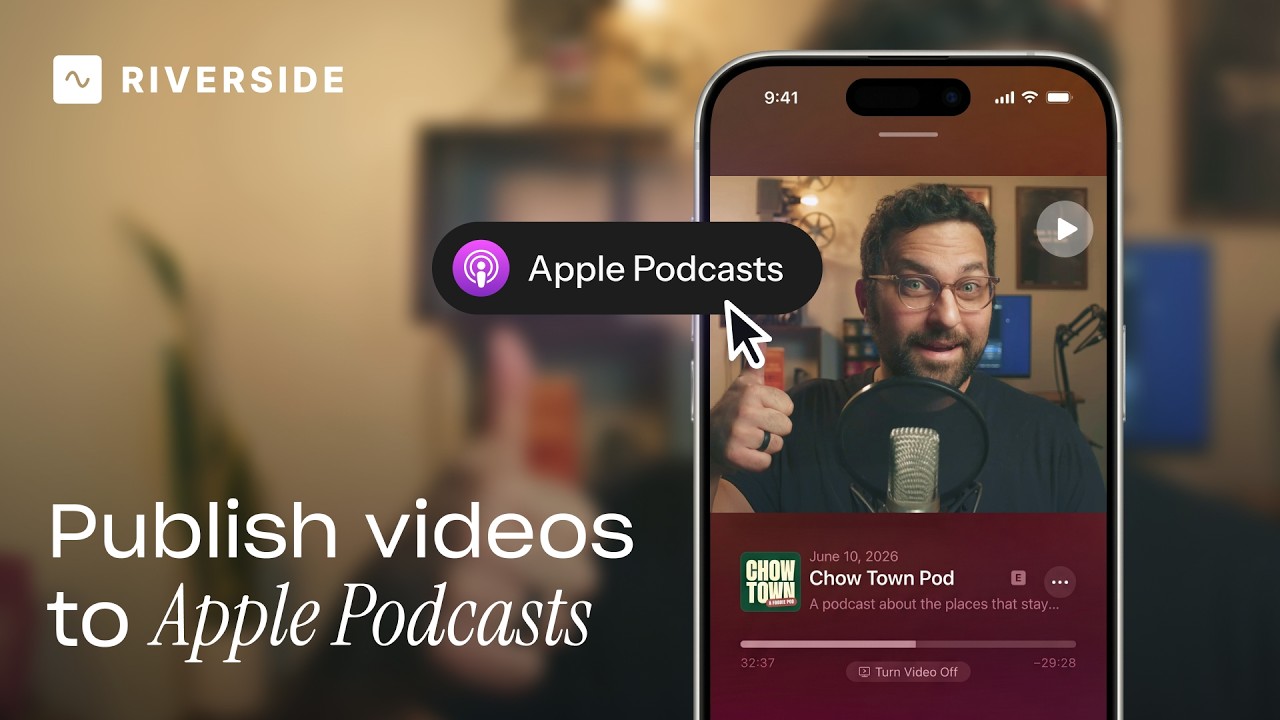
Publish video to Apple Podcasts so your audience can switch between listening and watching easily.
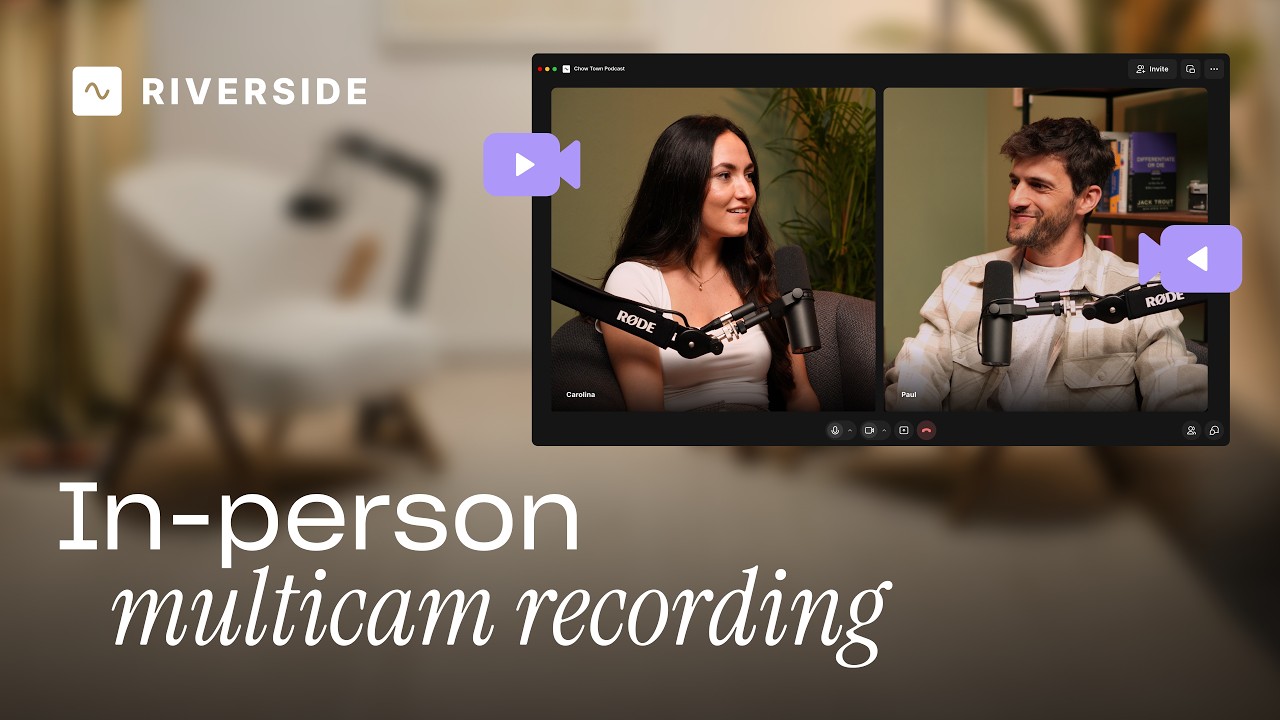
Add multiple in-person guests with their own camera and mic from one computer, as synced tracks.


.avif)
.avif)
.avif)
Got a process that works for you? Get featured by submitting your step-by-step flow. Help other creators save time, learn new tricks and improve their productions.


.avif)