New release
Webinars
Live streaming
Live captions for webinars and live streams
Turn on real-time English captions that each attendee can show or hide in their own view.
October 15, 2026
Webinar +

Turn on real-time English captions that each attendee can show or hide in their own view.
.gif)
Try Riverside
for Free
What's new
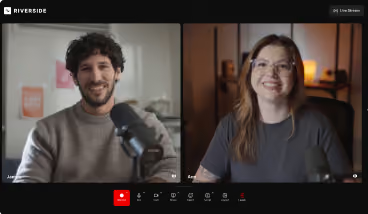
Captions now appear in real time inside the studio while you're live, so viewers can keep up during the session, not after it. Turn captions on once in your studio settings and they stay on for future sessions. Each participant then chooses whether to show captions in their own view, without changing anyone else's, and can drag them anywhere on screen. Captions are English only for now.
How to use it
Turn on captions: Open the Settings window in your studio and switch on Live captions. The setting stays on between sessions.
Show or hide captions: During the session, each participant uses the captions (CC) toggle to show or hide captions in their own view, and can drag them anywhere on screen.
Learn more about this topic
Turn on live captions
Learn how to turn on live captions in your studio and how attendees show or hide them.

Got a process that works for you? Get featured by submitting your step-by-step flow. Help other creators save time, learn new tricks and improve their productions.


