Update
Recording
Live captions while you record
Turn on real-time captions in the studio while you record.
November 4, 2026
Grow +

Turn on real-time captions in the studio while you record.
Try Riverside
for Free
What's new
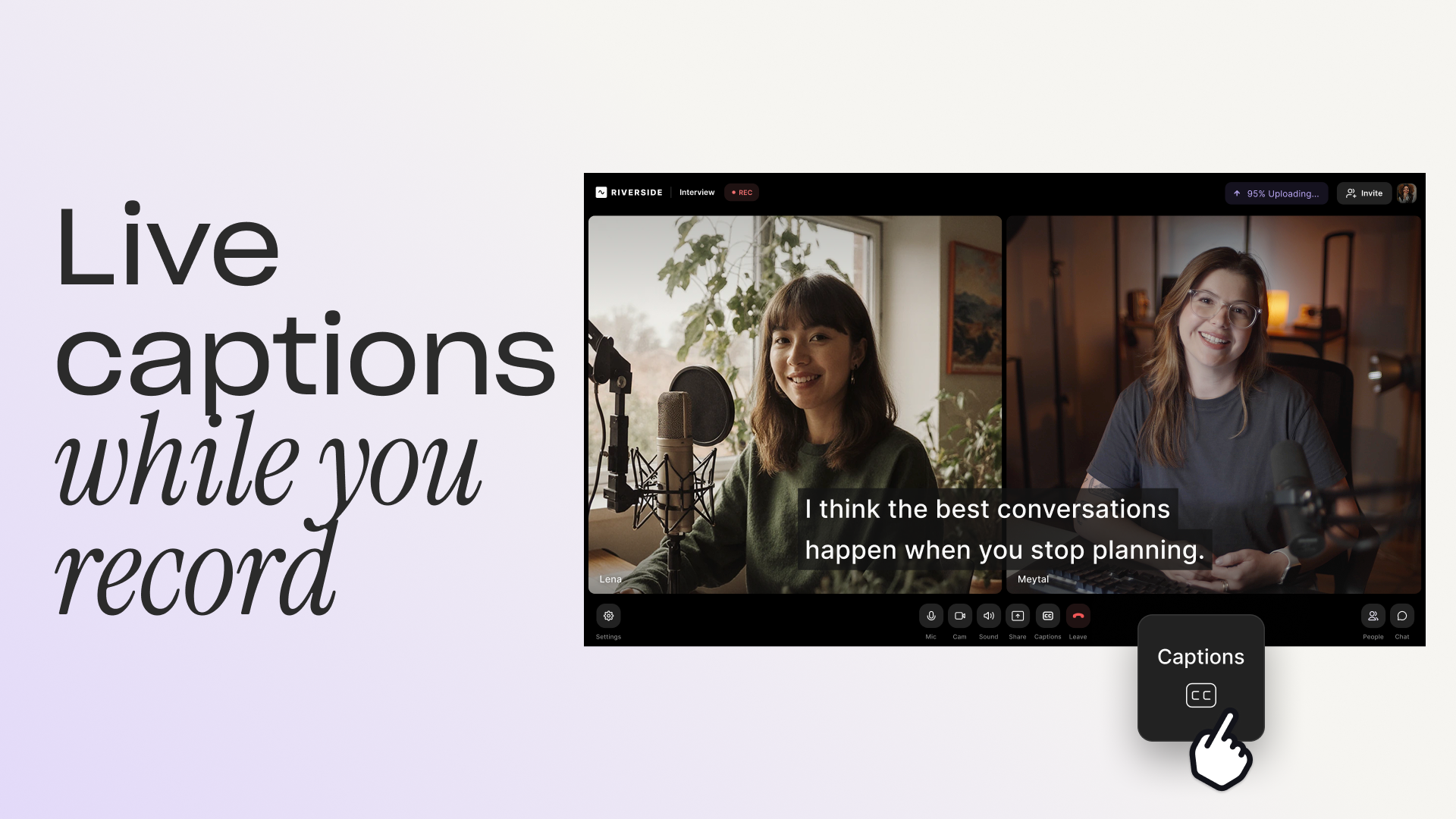
Live captions now work in your recording sessions, not just in live streams and webinars. Anyone in the session who can't easily follow the speakers can read along as people talk, with captions appearing on screen in real time. Each person chooses whether to show captions on their own screen and can drag them out of the way. Captions are in English for now.
How to use it
Turn on captions for your studio: As the host or producer, click Settings in the right sidebar, then Open all settings. Go to Advanced, and under Live captions, toggle on Let participants turn on captions. The setting stays on for future sessions in this studio.
Show captions: Once the recording starts, click Captions in the toolbar at the bottom of the studio. Drag the captions anywhere on the stage to move them, and click Captions again to hide them.
Live captions aren't saved to your recording. To add captions to your video, add them in the editor.
Learn more about this topic
Show live captions in the studio
Keep up with the conversation in a recording session, live stream, or webinar with captions that appear on your screen as people speak.
Enable live captions in the studio
Turn on live captions so participants and audience members can follow along as people speak in your webinar or live stream.
Got a process that works for you? Get featured by submitting your step-by-step flow. Help other creators save time, learn new tricks and improve their productions.


