New release
Live streaming
Webinars
More room for branding in the studio
Set where your layout sits in the video, and use the space around it for your logo, sponsor strip or name bar.
October 12, 2026
Grow +

Set where your layout sits in the video, and use the space around it for your logo, sponsor strip or name bar.
Try Riverside
for Free
What's new
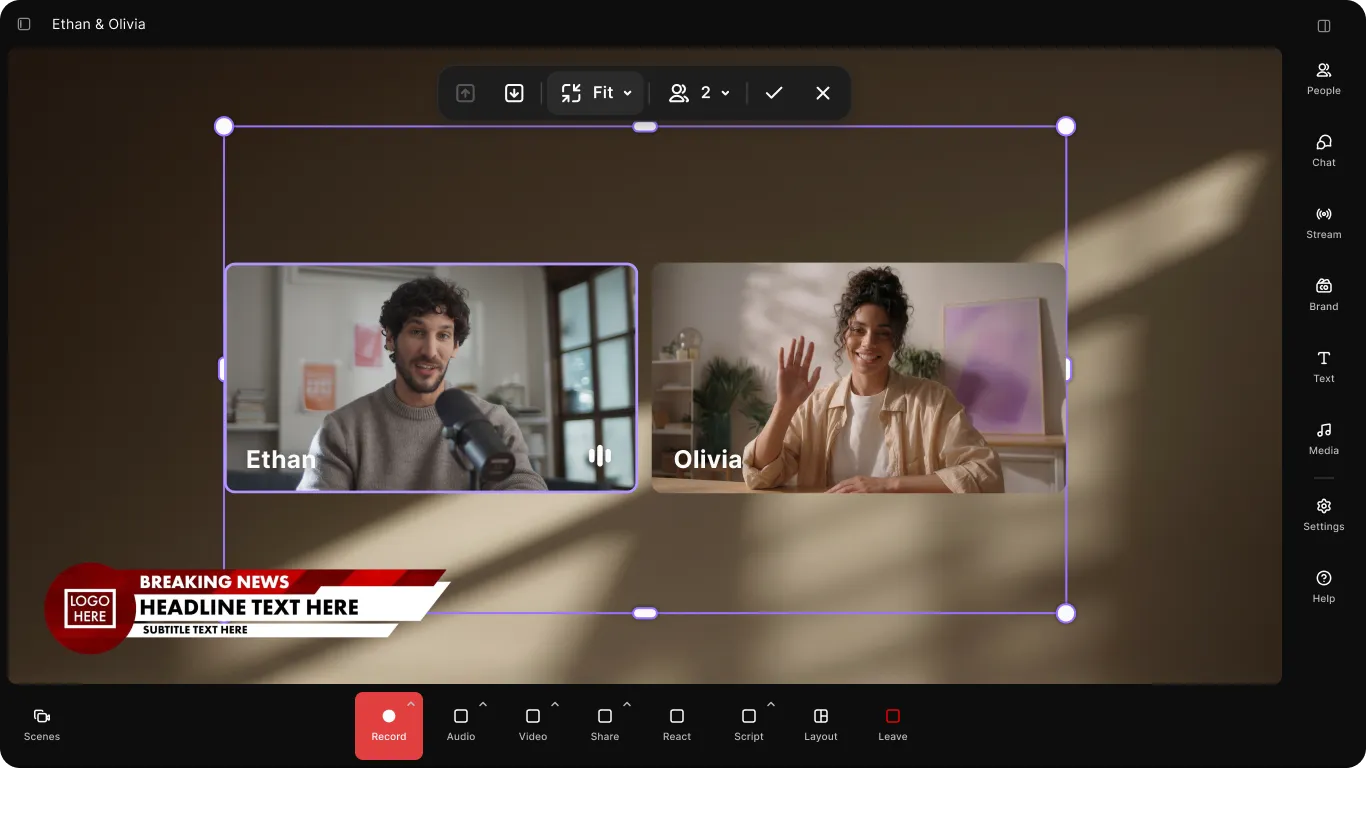
Move and resize the area your layout sits in, and the space around it is yours for branding. Your participant tiles keep arranging themselves inside the frame, and you can preview up to 8 tiles to check how it looks before guests join. Each saved scene keeps its own frame, so switching scenes switches frames too. Changes only go out when you click Done, so it's safe to adjust while you're live.
How to use it
In the studio, click the Layout button, then select the pencil icon to edit the frame. Move and resize the frame using the snap guides, then click Done. To go back to a full-frame layout, click Reset frame.
Learn more about this topic
Change your layout in the studio (hosts and producers)
Customize the layout of your videos during a live studio session, tailoring the visual experience to meet your needs.
Set scenes in the studio
Build named scenes ahead of time, then switch between them live with a single click during your recording, live stream, or webinar.

Got a process that works for you? Get featured by submitting your step-by-step flow. Help other creators save time, learn new tricks and improve their productions.


