Update
Recording
Live streaming
Webinars
Move your camera off your slides
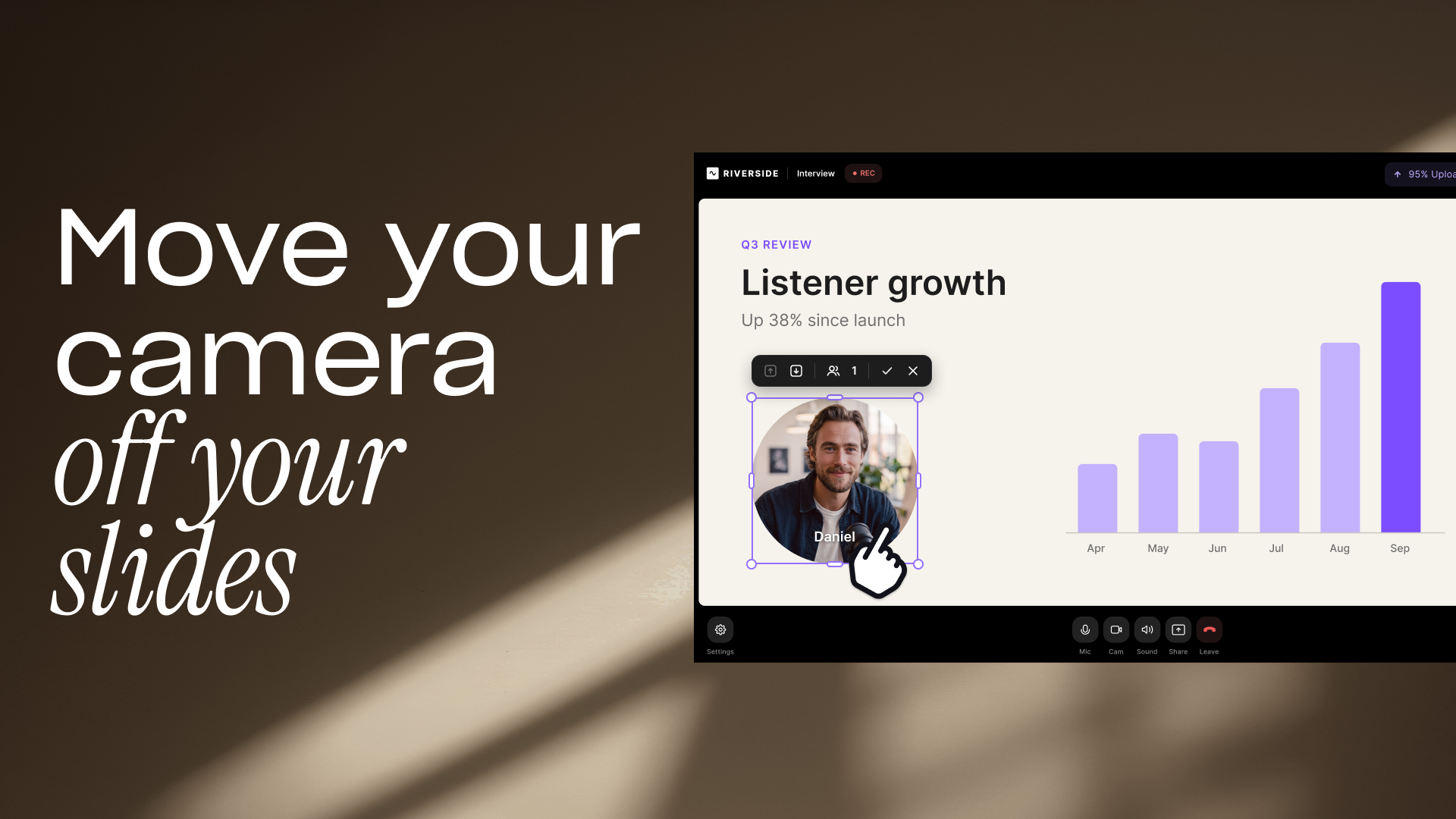
Move and resize your camera so it never covers your slides.
November 1, 2026
Grow +

Move and resize your camera so it never covers your slides.
Try Riverside
for Free
What's new
When you present in a Picture-in-Picture layout, your camera no longer has to sit in one corner at one size. Move it and resize it anywhere in the frame, so it stays clear of the chart, title, or logo underneath. Your camera's spot is saved for each scene and layout, and no one else sees your changes until you're done.
How to use it
At the bottom of the studio, click Layout and choose a Picture-in-Picture layout. Click the Edit layout icon on the right side of the layout panel (or press Alt + E on Windows, Option + E on Mac). Hover over your tile, then drag it to move it, or drag its corners and edges to resize it. Click Done to save. Guests, your recording, and your live stream only update once you click Done. Hosts and producers can make this change, guests can't.
Learn more about this topic
Resize and move your layout frame in the studio
Make room for your show logo, sponsor strip, or name bar by setting exactly where your layout sits in the video.
Change your layout in the studio (hosts and producers)
Customize the layout of your videos during a live studio session, tailoring the visual experience to meet your needs.
Set scenes in the studio
Build named scenes ahead of time, then switch between them live with a single click during your recording, live stream, or webinar.

Got a process that works for you? Get featured by submitting your step-by-step flow. Help other creators save time, learn new tricks and improve their productions.


