Riverside
Platform
Products
  • Recording
    4K video and audio recorder.
  • Editing
    AI, text-based video editor.
  • Live Streaming
    For livestreams in full HD.
  • Webinars
    Host, record, and repurpose.
  • Hosting
    Podcast publishing and analytics.
  • Newsletters
    Create and send newsletters.
Features
All AI Tools
Arrow Icon
Magic Clips
Transcribing
Magic Audio
AI Co-Creator
AI Translation
Captions
AI Show Notes
Social Scheduling
Apps
Mac App
Mobile Apps
AI illustration with abstract icons
Explore AI Tools
Solutions
Use cases
Podcasts
Video testimonials
Webinars
Video marketing
In-person Recording
Learning & Development
Async Recording
Virtual conferences
Internal communications
Tutorial videos
For
Podcasters
Producers
Marketers
Resources
Learn
Riverside University
Blog
What’s New
Free tools
Webinars
Masterclass
Community
Case studies
Creators Newsletter
Community hub
Recorded on Riverside
Support
Help Center
Contact support
Laptop
Blog
University
For BusinessPricing
English
Site language
English
Deutsch
English
English
Deutsch
Contact SalesLoginStart for Free
What's new
Personalize hub
New release
Editing & repurposing

Personalize hub

One place to manage everything that makes your content yours.

July 16, 2026
Free

Share

Try Riverside
for Free

Get Started
Record video Try Riverside for Free

What's new

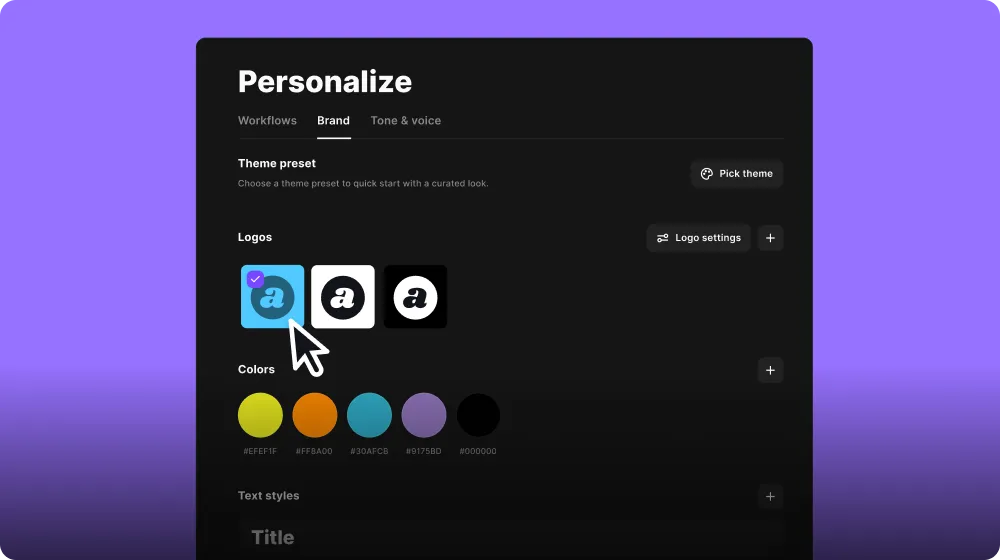
Meet the Personalize hub: one place to manage everything that makes your content yours. Set your brand, tone of voice, and workflow instructions for how Riverside generates your clips, episodes, show notes, and more. You can now also add multiple versions of brand assets, like logos, captions, and media, then set your defaults and switch anytime.
How to use it

You can find it at the top of the left nav panel in the editor, by clicking on Brand or Personalize. You can also find it by clicking on Personalize in the Co-Creator panel.

‍

It is divided into 3 sections: Workflows, Brand, and Tone of Voice. 

  1. Workflows: this is where you add settings and instructions for each asset being created for you (magic clips, magic, episodes, magic hooks, blog posts, show notes, episode titles, etc.). You can choose whether each one should be automatically generated, or only generated when you ask for it, and you can set instructions or settings for each one.
  2. Brand: This is where you set up and edit your brand kit. Add logs , colors, design, text styles, captions, etc. When you add multiple versions of an asset (like multiple logos for example) you can choose which one you want to be set as the default, and switch any time.
  3. Tone & Voice: Set your tone of voice and describe what your show is about so that assets that are created can be tailored to you.

‍

‍

Learn more about this topic

Set up your brand

Set up your brand kit in the Personalize hub to apply consistent logos, colors, text styles, captions, and media across every edit in your studio.

Ready to create? We think so too.

Got a process that works for you? Get featured by submitting your step-by-step flow. Help other creators save time, learn new tricks and improve their productions.

Start for Free
*No credit card needed. Free plan available.
Riverside

Company

About usBlogCareersPartnersAffiliate ProgramCreator PartnershipsPressPressImpressum

Product

Why RiversidePricingFor BusinessMac AppMobile AppsFAQAppsAppsSupport

Features

RecordingLivestreamEditorHostingAI Co-CreatorMagic clipsTranscriptionsCaptionsMagic AudioAI Show NotesTeleprompterAsync RecordingMedia BoardClean UpOverlaysStudio BrandingAI TranslationArrow Icon
All AI Features

Use Cases

Video MarketingTutorial VideosVirtual EventsPodcastsLearning & DevelopmentInternal CommunicationsWebinarsCustomer TestimonialsVirtual ConferencesLive ShowSplit-Screen Video

Tools

Podcast MakerPodcast RecorderLive PodcastYouTube Video MakerScreen RecorderVideo CompressorWAV to MP3Podcast Name GeneratorYouTube Name GeneratorMic TestWebcam TestYouTube Transcript GeneratorTop Podcast ChartsFree Podcast Music
All Tools

Solutions

PodcastersProducersMarketers

Resources

Riverside UniversityWhat's NewRecorded on RiversideHelp CenterCase StudiesPartnersBlogCreators NewsletterProduct VideosPressMasterclassCommunity HubVideo Editing Glossary
Download on the App Store IconGet it on Google PlayAICPA SOC certification
Podcast icon

Podcast guides

How to Start a Podcast in 2026: The Complete 10-Step Guide
How to Start a Podcast on YouTube: 6 Steps [2026]
How to Record a Podcast Remotely: 4 Methods Compared
Video Podcast Software: Top Tools to Record, Edit & Publish
Download on the App Store IconGet it on Google PlayAICPA SOC certification
Facebook iconYoutube iconX (twitter) iconLinkedin iconInstagram iconTiktok

© 2024 RiversideFM, Inc.

English
English
Deutsch
TermsPrivacyCookies
Facebook iconYoutube iconX (twitter) iconLinkedin iconInstagram iconTiktok