Remove filler words & silences from your podcast
Cut filler words, silences and fluff with the AI producer, then finish with magic audio and layouts.

Cut filler words, silences and fluff with the AI producer, then finish with magic audio and layouts.
How to cut filler words, silences and off-topic content from a podcast in minutes using Riverside's AI producer, then finish the edit without leaving the platform.
The video covers:
00:00 I use Riverside to record all my interviews and video podcasts, I let AI do all the editing for me, and I can publish the full-length episode, plus clips in minutes. So let me show you how to cut all those filler words, silences, and more using Riverside. Go to any of your recordings in Riverside and jump into the editor here.
00:15 I'll show you around the editor in just a second, but all you have to do is go to the AI Producer tool here in the top right corner, and you'll see Remove Filler Words, we even tell you how many we're about to cut out, click Apply, and that's it. You've removed all the filler words for you and any and all remote guests that fast.
00:30 Now you also probably want to remove silences in case there's any long pauses or you took a break, and you can remove the pauses here. But not just remove all pauses, you can even customize how aggressive you want that pause removal to be. So if you want something extra fast-paced, like a short-form video or a TikTok, you can drag the slider all the way to the right, or for more balanced, like a full-length podcast, you can cut just the longer pauses.
00:53 Now if that's all you needed to do, you can export in high-quality video and audio in up to 4K, but let's do a little bit more editing, and one feature you should really check out is our cut fluff. When you click Apply, Riverside is going to find portions of your recording that might have been off-topic, maybe it was a rabbit trail, just didn't have to do with the actual content.
01:10 The AI Producer even gives you reasons why it thinks this part should be cut out, you can scroll through all the instances of fluff, and then just click Apply and Riverside will cut it out automatically, again really helpful for short-form content, making sure you're getting the most engaging moments, and cutting out everything else.
01:26 Now there's a few more AI tools up here, including Magic Audio, if someone recorded with a built-in microphone, maybe their iPhone or iPad, you can actually apply Magic Audio to one or all the tracks at the same time, and you can also apply the intensity, so if you just need to apply a little bit to remove some background noise and echo, you can do about 50 or 60%, or if the audio needs a lot of help, you can crank it all the way up. I find for the best performance, around 60 to 70% is great, and any microphone is going to sound studio quality.
01:54 Next, you can apply Smart Mute, that's going to mute someone's track when they're not speaking, that'll help cut out even more background noise and just get really clear audio throughout your clip.
02:02 And finally, Smart Layouts gives you a multi-cam look instantly, when I click Apply, it's going to focus on the active speaker, then show everyone on screen during those in-between moments of the conversation, and go back and forth between single speaker, showing visuals or slides when you shared your screen during the recording, and then going back to focus on the active speaker, and Riverside did all of that automatically.
02:23 Now, we're less than a minute in, and basically have a fully produced episode or piece of content ready to export. But if we want to make even more granular changes, you can edit your content using the transcript you see every time you record with Riverside. Here, you can just select text, and if you want to remove that video on audio, just click the trash can, and you've edited your content.
02:41 But also, it's non-destructive, so everything you edit, you can always start from the beginning with all of the content, and even make multiple clips, like for social media. I'll show you how to do that in a second. If you need to search for a specific portion to edit, or maybe a clip you want to pull, search for a word or phrase, and then you can browse all the different instances in the transcript using the arrows here.
02:59 Now, if you wanted to create a vertical video, you can actually go up to this tool in the middle and change it to a vertical video, and Riverside will reformat all the participants automatically. Now, we can apply our brand with a single click, adding a logo, background design, even add a custom brand color palette. Click apply, and this will be saved in our studio to use in the future as well. If I want to go back to a 16 by 9, I can reformat it, and our branding is still intact.
03:23 Then, if you want to add background music, you can search the stock audio library right here in Riverside, use any of these tracks, or upload your own, and we'll put it underneath your video, and then you can adjust the volume and fade in and fade out of that music track. You can also overlay images or search for stock imagery right here in Riverside, text overlays, and we also have video B-roll overlays. Search for royalty-free clips, add it to your recording, and now you have a multi-cam edit with video B-roll, and you have an engaging piece of content with multiple guests all edited in minutes.
03:54 If you want to make those vertical videos for Instagram Reels or TikTok, you can add the animated captions here, find the style that works for you. You can even customize the fonts and colors, how the active word is highlighted, when you're ready to export, go up to export and up to 4K quality, and if you'd like to export the audio version, you could do that too with all the same edits, export an mp3 for your podcast host, and you're ready to publish. And that's how to remove all those filler words, silences, and edit your content using AI in minutes.
04:19 If you have any questions, leave comments below this video, answer those personally, and you can try Riverside for free today. Record, edit, and export all for free, even live stream, just check that first link down in the video description. And don't forget to subscribe to the Riverside channel and hit that like button.
04:34 We have lots of videos on gear, how to live stream and more, which, if you are into live streaming, check out my walkthrough right here where I go through all the tools and how to stream to multiple destinations at the same time for free. And if you'd like to learn more about gear, maybe you're looking for a new USB mic or upgrade your camera and lights, check out this video right here where I talk about multiple budget levels. Thanks for watching. We can't wait to see what you create.
More videos you might like
A full product tour: studio and recording, AI assets, editing, then hosting, newsletters and social.
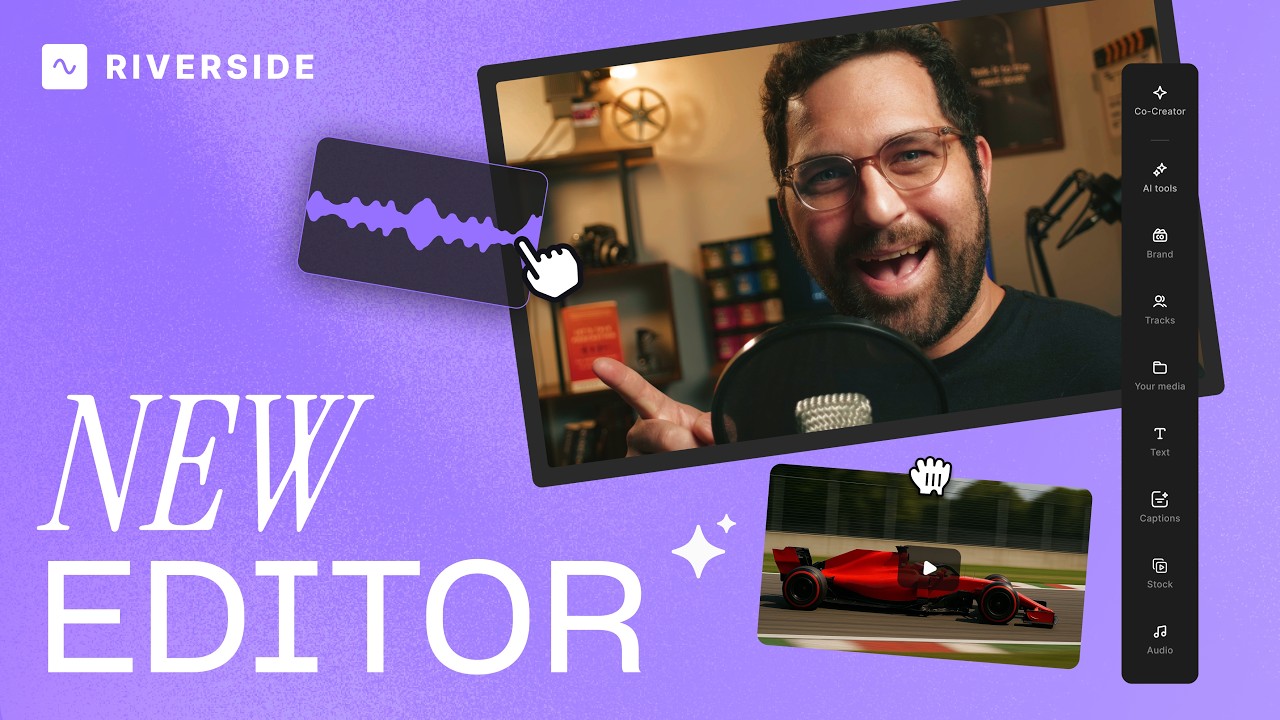
A complete editor tour: transcript and timeline editing, AI tools, layouts, scenes and exporting.
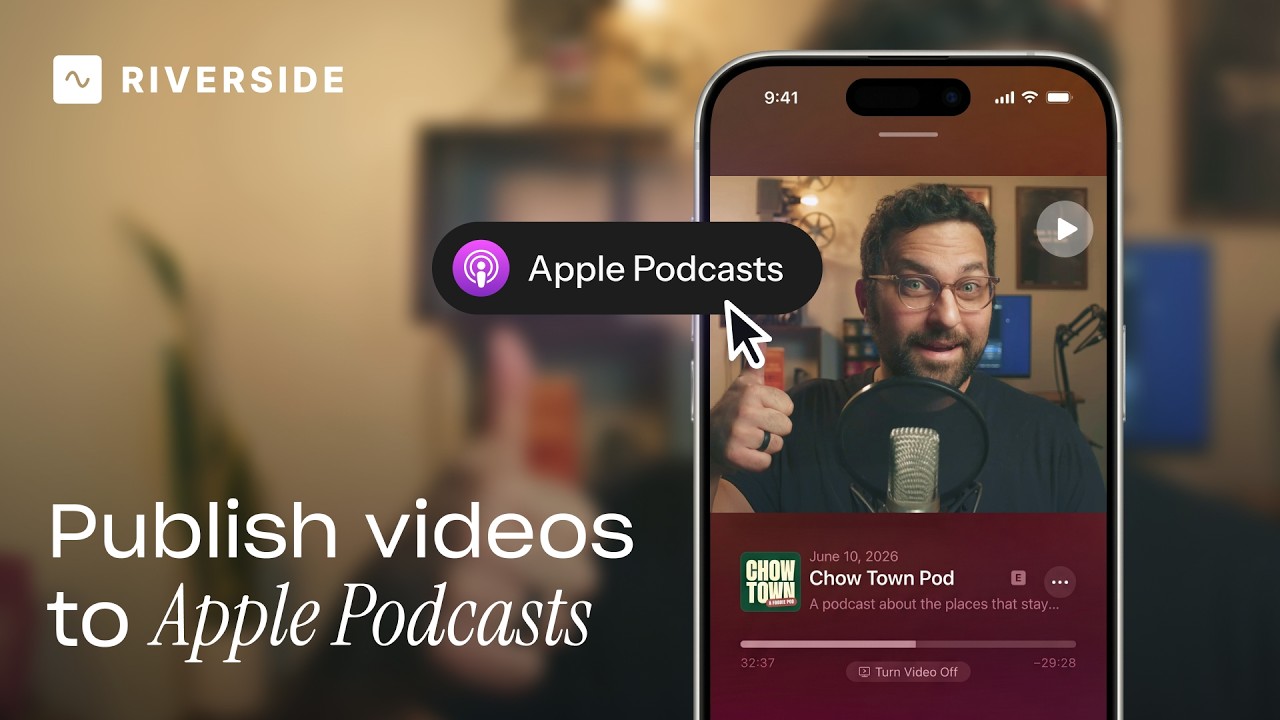
Publish video to Apple Podcasts so your audience can switch between listening and watching easily.
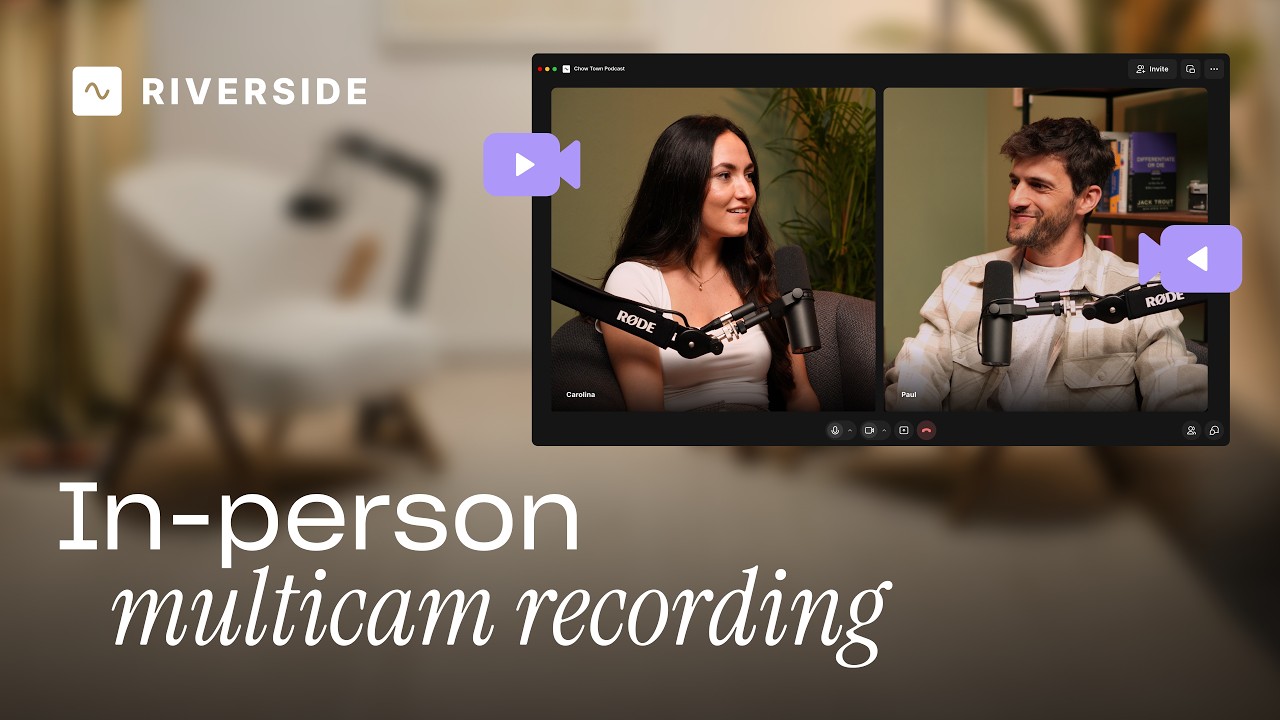
Add multiple in-person guests with their own camera and mic from one computer, as synced tracks.


.avif)
.avif)
.avif)
Got a process that works for you? Get featured by submitting your step-by-step flow. Help other creators save time, learn new tricks and improve their productions.


.avif)