New release
Editing & repurposing
Smooth cuts
With one click, AI smooths out choppy jump cuts so your video looks like one continuous take.
October 11, 2026
AI credits
Pro +

With one click, AI smooths out choppy jump cuts so your video looks like one continuous take.
Try Riverside
for Free

What's new
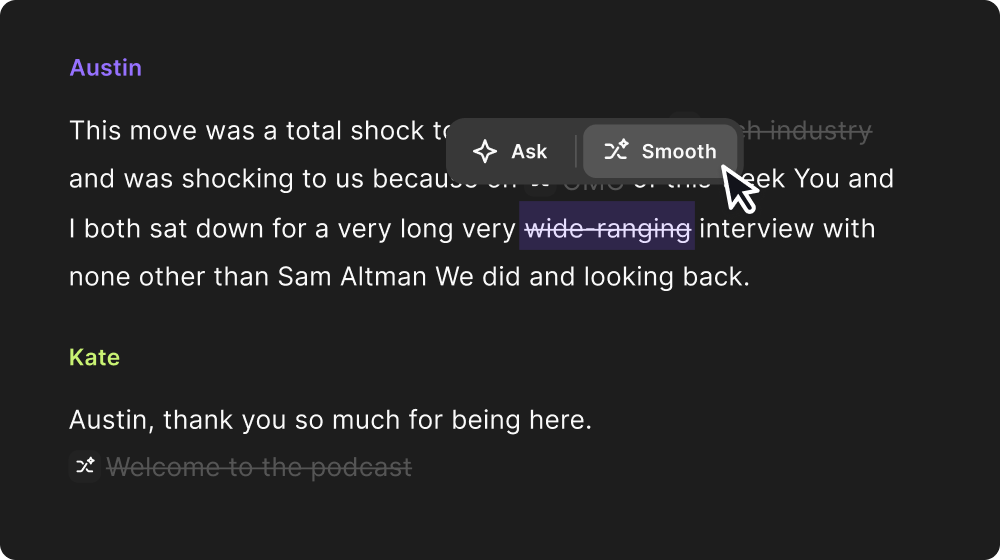
You know those little jump cuts that make a clip feel choppy? With one click, AI smooths them out so it looks like one continuous take, and your content looks far more pro. You can smooth all the cuts in your edit at once or pick just the ones you want, and if you ever want the original cut back, you can undo any smooth cut in a snap.
AI only smooths the cuts it can make look natural, so some cuts in your video may stay as they are.
How to use it
In the Editor, open the AI Tools panel and select Smooth Cuts to smooth the cuts in your edit. You can also pick a single cut and smooth just that one from the transcript. Every smoothed cut is marked in your transcript, so you can find it and undo it any time.

Got a process that works for you? Get featured by submitting your step-by-step flow. Help other creators save time, learn new tricks and improve their productions.


