New release
Live streaming
Test your live stream before going live
Run a private test of your live stream on YouTube or Riverside, so you can check your setup before your audience tunes in.
October 12, 2026
Free

Run a private test of your live stream on YouTube or Riverside, so you can check your setup before your audience tunes in.
Try Riverside
for Free
What's new
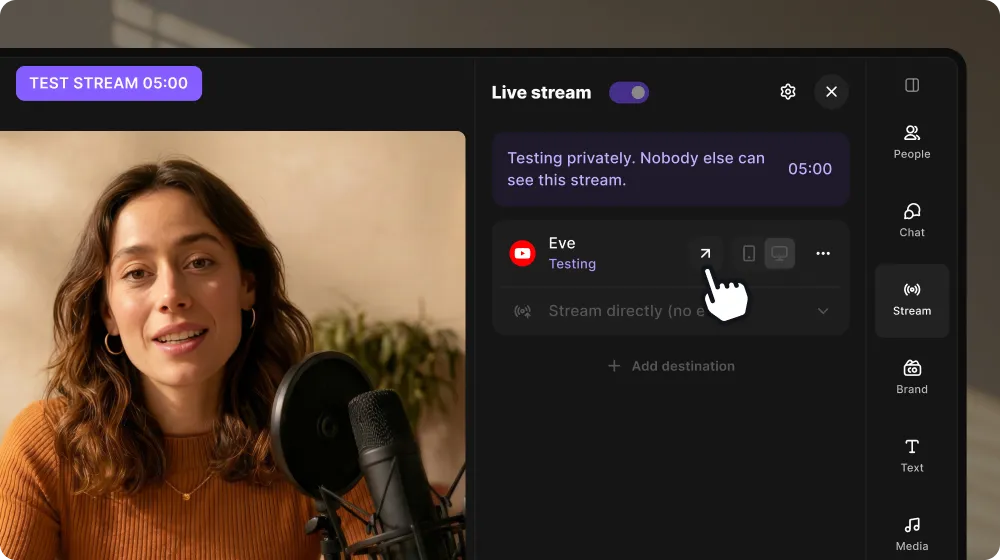
Start a private test stream and see exactly what your audience would see, with your real layout, overlays and branding. On YouTube, the test runs in YouTube's testing mode, so nothing reaches your viewers, and a scheduled event stays ready to go live afterwards. On Riverside, you get a private preview page only you can open, so no outside accounts are needed. On Grow and up, you can test for up to 10 minutes. Users on other plans can run a test too, which makes it an easy way to try live streaming before upgrading.
How to use it
Join a studio as a host and set up your YouTube or Riverside destination. At the bottom of the studio, click the arrow on the Record/Go live button, then click Test stream. To see what your viewers see, click the View as audience icon next to a destination. Click End test when you're done.
Learn more about this topic
Live stream: Test before going live
Check your layout, connection, and branding with a private test stream on Riverside or YouTube
Live stream: Start and stop a live stream
Once you set up your live stream connection, start the recording to stream your recording session live.
Can I customize how my live stream looks to viewers?
Yes, hosts and producers can adjust the layout in the studio and the changes made are visible to both guests in the Riverside studio and viewers on live stream destination platforms.

Got a process that works for you? Get featured by submitting your step-by-step flow. Help other creators save time, learn new tricks and improve their productions.


