Turn every episode into ready-to-post clips automatically
How a daily podcast turns every recording into branded clips, hooks and a rough cut automatically.

How a daily podcast turns every recording into branded clips, hooks and a rough cut automatically.
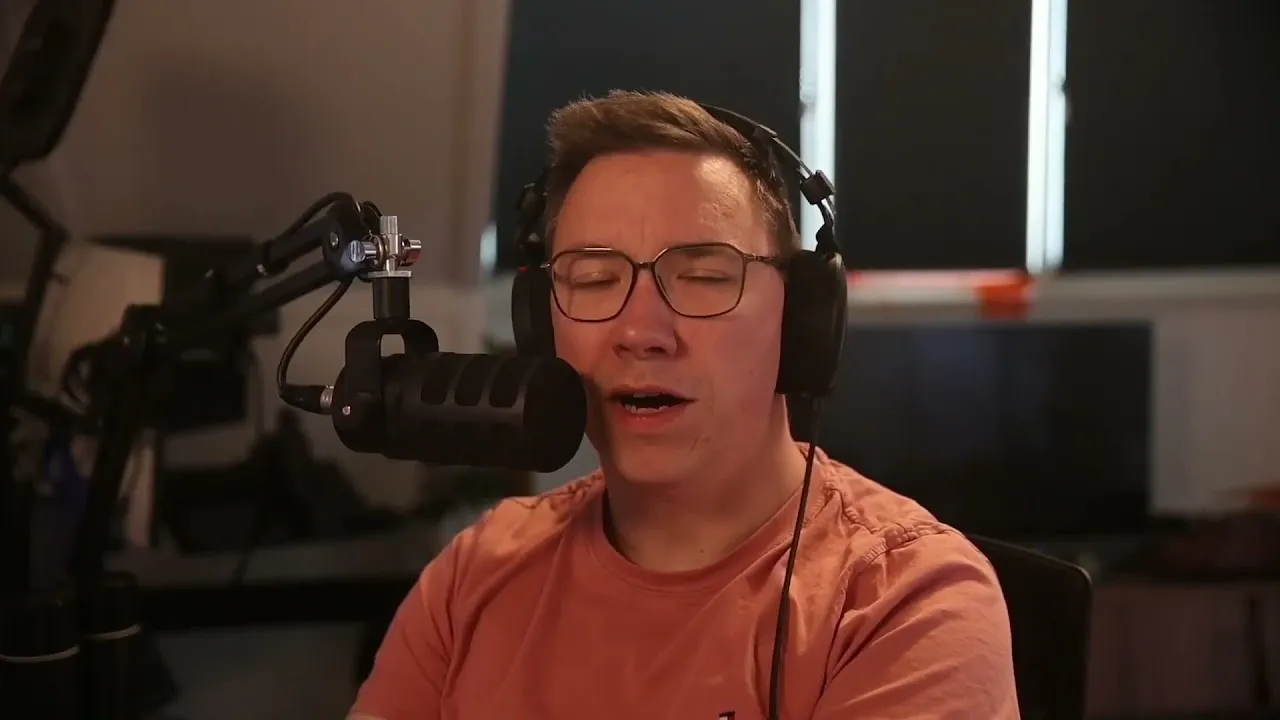
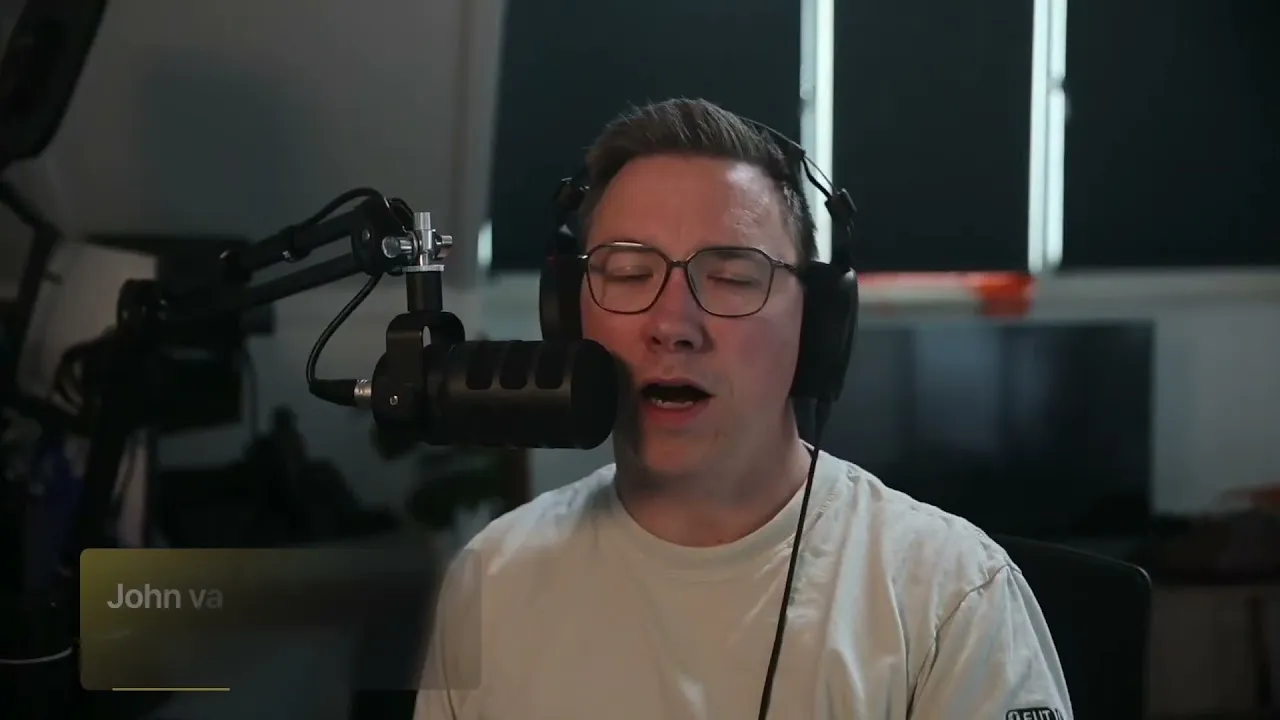
Cast & Klaar publish a daily podcast, so cutting and formatting social clips by hand used to take about four hours every day. In this video, John from Cast & Klaar shows how they set Riverside up once so every recording automatically produces a rough cut, hooks and branded clips.
He configures the brand kit with captions and an outro only on 9:16 clips, then personalizes each Made for You workflow. Magic Clips are vertical, 30 to 60 seconds, fast-paced and fully branded. The Magic Episode stays widescreen with its natural pacing, and Magic Hooks sit somewhere in between. After recording, the team reviews the rated clips, makes small tweaks and posts them, which now takes about fifty minutes a day. It's a practical setup for any show that publishes often and needs social content ready the moment recording ends.
Open Brand and add your logo, colors, and title styles. Set a caption style for 9:16 so your vertical clips (TikTok, Instagram, LinkedIn) get captions, and leave captions off widescreen, since YouTube has its own. Add your outro to the 9:16 format only if you want it on social clips but not on the full episode.
Open the personalization settings for your Made for You workflows (Magic Episode, Magic Clips, Magic Hooks) and set each one to generate automatically after every recording.
Set the ratio to 9:16 and pick a duration. John recommends 30 to 60 seconds as the sweet spot. Turn on branding so the logo, captions, and outro are included, set Remove pauses to the fastest pace, and turn on Remove filler words and Smart Mute to keep clips tight.
Set it to widescreen with branding on, which gives you no outro and no captions if you've set up your brand this way. Remove filler words, but go easy on pause removal so the show keeps its natural pacing.
Set them to widescreen with a full-screen fill layout and branding on, paced faster than the episode but not as fast as the clips. Experiment until each format feels right for your show.
After recording, your project shows the Magic Episode rough cut plus a set of Magic Clips, each with a rating. Open a clip to check the length, logo, captions, and outro, make any small tweaks (like bumping up the caption size), and push it out.
00:00 Hi, my name is John from Cast and Clare. And today I'm going to show you how we repurpose our content for different social media platforms using Riverside. So once we recorded a video podcast, like we did in this situation, you see the whole recording, the whole show, it's James and myself, that just one of our World Cup shows. And we want to repurpose some snippets and some clips and some hooks from this.
00:21 But we don't want to make all those clips individually because that was half a day workflow. And since it's a daily podcast, that's a lot of extra work. So what we do is we can open in the new editor our sidebar. There's a personalization button on the left top. Once you open it, it shows you different options. Magic episode, which is basically rough cut from your episode.
00:43 We use that rough cut, but we will add some graphics, et cetera in that. But the magic clips are the short form highlights and Riverside can actually automatically generate these magic clips in the style we want. It shows you if you want to do it automatically after each recording or manually. Of course, we want to do it automatically after each recording.
01:04 If you go to brand, you can set up which logo you use, which colors you use, which title, cetera, you use. But the more interesting part for us is the caption set. So on social media, on the 916 format, we do use caption and the same we on LinkedIn. But we don't do that for our intros. And we definitely don't do that on a YouTube version since YouTube has its own captions, of course.
01:26 So in this... We set up all the style effects, logo we use, and you can also see we have an outro, which we added on the 916 clips as well. We add this, we go to a workflow. You can open, for example, the magic clips. Let's take that as an example. And we say all magic clips has to be 916 duration auto.
01:47 I actually would recommend set it from 32 seconds, 60 seconds. think that's the best spot to be in. And for social media, like TikTok, Instagram, we say Add the branding, including the outro on it. Remove all the pauses, make it super fast. Remove the filler words, smart mute, just make it as fast and compact as possible. But if we go, for example, to our episode itself, you can see here, we put it in widescreen format.
02:13 We do want to apply our branding, but it does not have an outro because we didn't put that in the template. We want to remove the filler words, but we want to keep the... based on the rest of the show intact. So we don't want to compromise that too much. And if you look at Magic Hooks, for example, it's a little bit different. We have it widescreen, but it is different layouts. You see full screen filled, it has the branding, it's a little bit faster, but almost faster as the clips.
02:36 And you can all go from there. This is a matter of experimentation to each their own. For everyone, it works a little bit different. It feels a little bit different, but this one is really helpful for us. But it basically means that after we recorded a podcast, if you look at the sidebar, It will not only show you our recording, WC 15 World Cup episode 15, it will also show you the magic episode, which is the rough cut of the episode, which is done in the format we want with our logo already on top of it without any captions.
03:04 So if we play this, we'll not see any captions on it. But if you want to go to the magic clips, for example, you see there are a couple already there. It also gives you a rating, but let's say we open this one. It opens the magic clip. It already cut the magic clip in the length. we set into template, it added the logo to the clip.
03:24 If you look at it closely, you can also see it has the caption already on it. I wanna make it a little bit bigger, which is also very easy now. Make it a little bit bigger, but you see it already added that. You can also set up this as a default. It will go through all the scenes in the way we've set up the template. But for us, most importantly, it also added at the end of the show, our outro.
03:47 So it will actually start playing a promotion. After the clip ends, it will paste the promotion already on it. So it will actually say follower show every day. You can find it here and here. And you can see on the left side, it made five or five magic clips already, but this means the moment we are done recording, we have a rough cut of our episode, but it also have a couple of options we can push out on social media right away, which is extremely important since we run a daily podcast.
04:13 It required about four hours every single day with Riverside FM is just 50 minutes of checking and push it out.
USE CASES
Whether you're recording a podcast, hosting a live stream, or creating content for social, we've got you covered.

Got a process that works for you? Get featured by submitting your step-by-step flow. Help other creators save time, learn new tricks and improve their productions.